When AirDrop stops working after the iOS 26 upgrade, turn Wi-Fi and Bluetooth on in Settings, disconnect Personal Hotspot, and ask the other person to set AirDrop to Everyone for 10 Minutes.
This guide covers that fix, the AirDrop code that iOS 26.2 added, receiving problems, iPhone to Mac transfers, updates, a network reset and the settings that block AirDrop.
How to fix AirDrop not working on iPhone after iOS 26 update
Run these steps on both devices. Most failures after an upgrade come from a setting on one side, not from the update itself.
- Open Settings, tap Wi-Fi and turn it on, then go back, tap Bluetooth and turn it on.
- Disconnect Personal Hotspot on both devices if either one is using it.
- Keep the two devices within 30 feet (10 meters) of each other.
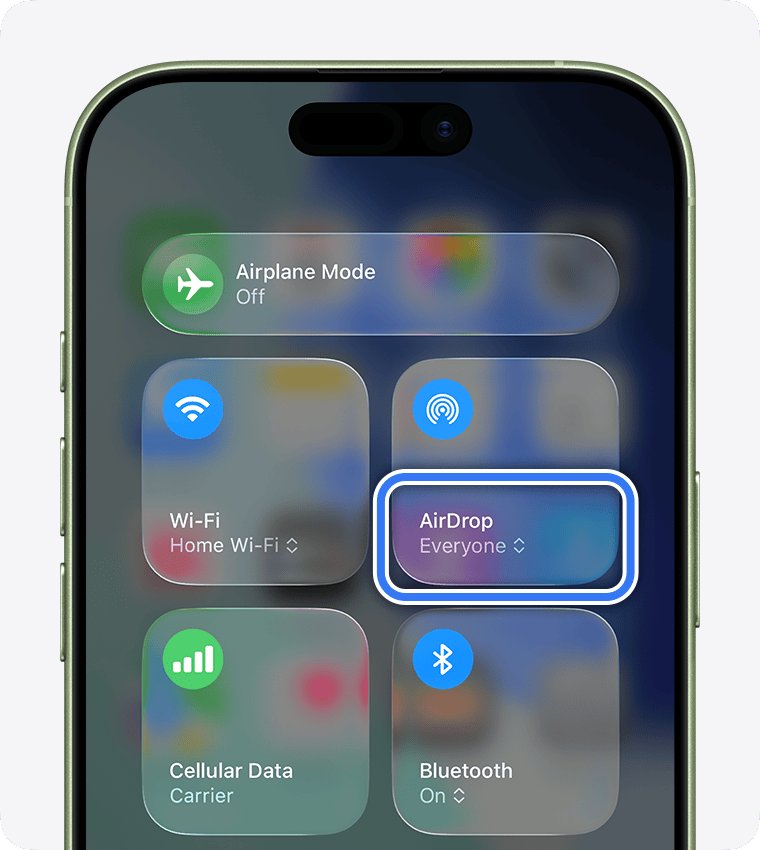
- On the receiving device, open Control Center, touch and hold the top-left group of controls, tap AirDrop, then tap Everyone for 10 Minutes.
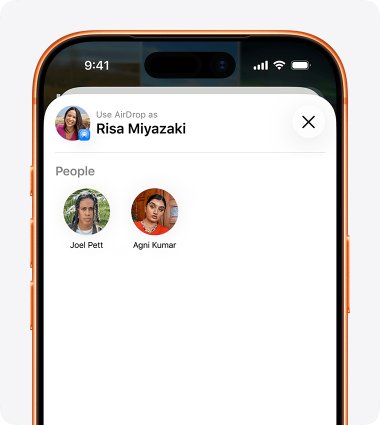
- On the sending iPhone, open the item, tap the Share button, tap AirDrop, and tap the person under People.
- If both devices use iOS 26.2 or later and you are not in each other's contacts, enter the AirDrop code shown on the other device.
- Ask the other person to tap Accept, and restart both devices if the transfer still fails.
Why isn't AirDrop working on iPhone after iOS 26
Match what you see to a row, then jump to the section that fixes it.
| What you see | Likely cause | Fix |
|---|---|---|
| Nobody appears under People | Wi-Fi or Bluetooth is off in Settings, Personal Hotspot is on, or the other device is set to Receiving Off | Turn both radios on in Settings and ask for Everyone for 10 Minutes |
| A prompt asks for a code that did not appear before | iOS 26.2 requires an AirDrop code between people who are not contacts | Ask the recipient to tap Get AirDrop Code and read it to you |
| A friend can find you one day but not the next | Everyone for 10 Minutes has reverted to Contacts Only | Set it again, or add the right email or number to the contact card |
| AirDrop works only with a VPN switched off | The VPN configuration blocks local networking | Allow local networking in the VPN app |
| AirDrop fails only when the battery is low | Low Power Mode, which disables AirDrop | Turn off Low Power Mode or charge the iPhone |
| Every setting is right and it still fails | Stale network settings after the upgrade | Install the latest iOS 26 update, then reset network settings |
How to allow AirDrop on iPhone
With AirDrop set to Receiving Off, nobody can find your iPhone. Choosing who can send to you turns receiving back on.
- Swipe down from the top-right corner of the screen to open Control Center.
- Touch and hold the top-left group of controls.
- Tap the AirDrop button.
- Tap Contacts Only to receive from people in your contacts, or Everyone for 10 Minutes to receive from anyone nearby.
Everyone for 10 Minutes changes back after 10 minutes. It returns to Contacts Only when you are signed in to an Apple Account, or Receiving Off when you are not.
Apple notes that Contacts Only and Everyone for 10 Minutes are available only on devices that meet the minimum system requirements for AirDrop.
AirDrop asking for a code after iOS 26 update
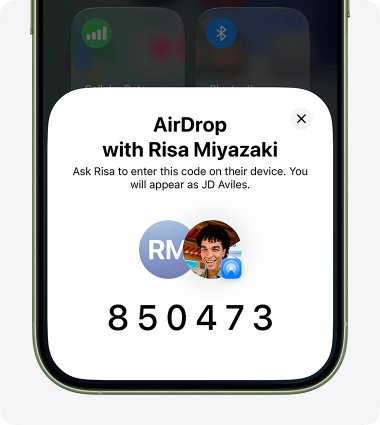
iOS 26.2 changed how AirDrop works between people who are not contacts. When both devices use iOS 26.2 or later and the sender is not in the recipient's contacts, the transfer waits for an AirDrop code.
- Ask the other person to set AirDrop to Everyone for 10 Minutes.
- Tap the person under People on your iPhone.
- Ask them to tap Get AirDrop Code on their device.
- Enter the code they read out on your iPhone, and the item is sent.
- Send again any time in the next 30 days without a new code.
The person is added to the Other Known list in your contacts for 30 days. To stop sharing earlier, open Contacts, find them in that list, and select Forget This Person.
iPhone not receiving AirDrop
When you are the recipient, your own setting decides who can reach you. With Contacts Only, the sender must be in your contacts, and the card must include their Apple Account email address or phone number.
- Open Control Center and check that AirDrop is not set to Receiving Off.
- Open Contacts and find the sender's card.
- Add the email address or phone number their Apple Account uses.
- Ask the sender to try again, and tap Accept on the AirDrop notification.
- If a notification asks for a code, tap Get AirDrop Code and share the code with the sender.
When AirDrop receives but will not send, the fix sits on the other person's device instead.
AirDrop not showing up on iPhone
Tapping the Wi-Fi or Bluetooth button in Control Center only disconnects you from networks and accessories. AirDrop still works in that state, so a grayed-out Control Center button is not the cause. Turning a radio off in Settings does stop AirDrop.
- Open Settings > Wi-Fi and check that Wi-Fi is on.
- Open Settings > Bluetooth and check that Bluetooth is on.
- Open Settings > Personal Hotspot and turn off Allow Others to Join.
- Move within 30 feet of the other device.
- Open the item, tap the Share button, tap AirDrop, and look under People.
The recipients listed are those who are nearby, have Wi-Fi and Bluetooth on, and can accept files from your device.
iPhone to iPhone AirDrop not working
Between two iPhones, AirDrop has to be on at both ends, and the recipient has to accept from you. With iOS 17 or later on supported models, you can also start a transfer with a contact by holding the phones close together.
- Check that both iPhones have Wi-Fi and Bluetooth on and no Personal Hotspot connection.
- Ask the other person to set AirDrop to Everyone for 10 Minutes.
- Open the photo or file on your iPhone.
- If they are in your contacts, move your iPhone close to theirs, or tap Share > AirDrop and tap their name.
- Enter the AirDrop code if one is asked for, then ask them to tap Accept.
The same steps apply when AirDrop is not working from iPhone to iPad, because iPadOS uses the same Control Center settings.
AirDrop from iPhone to Mac not working
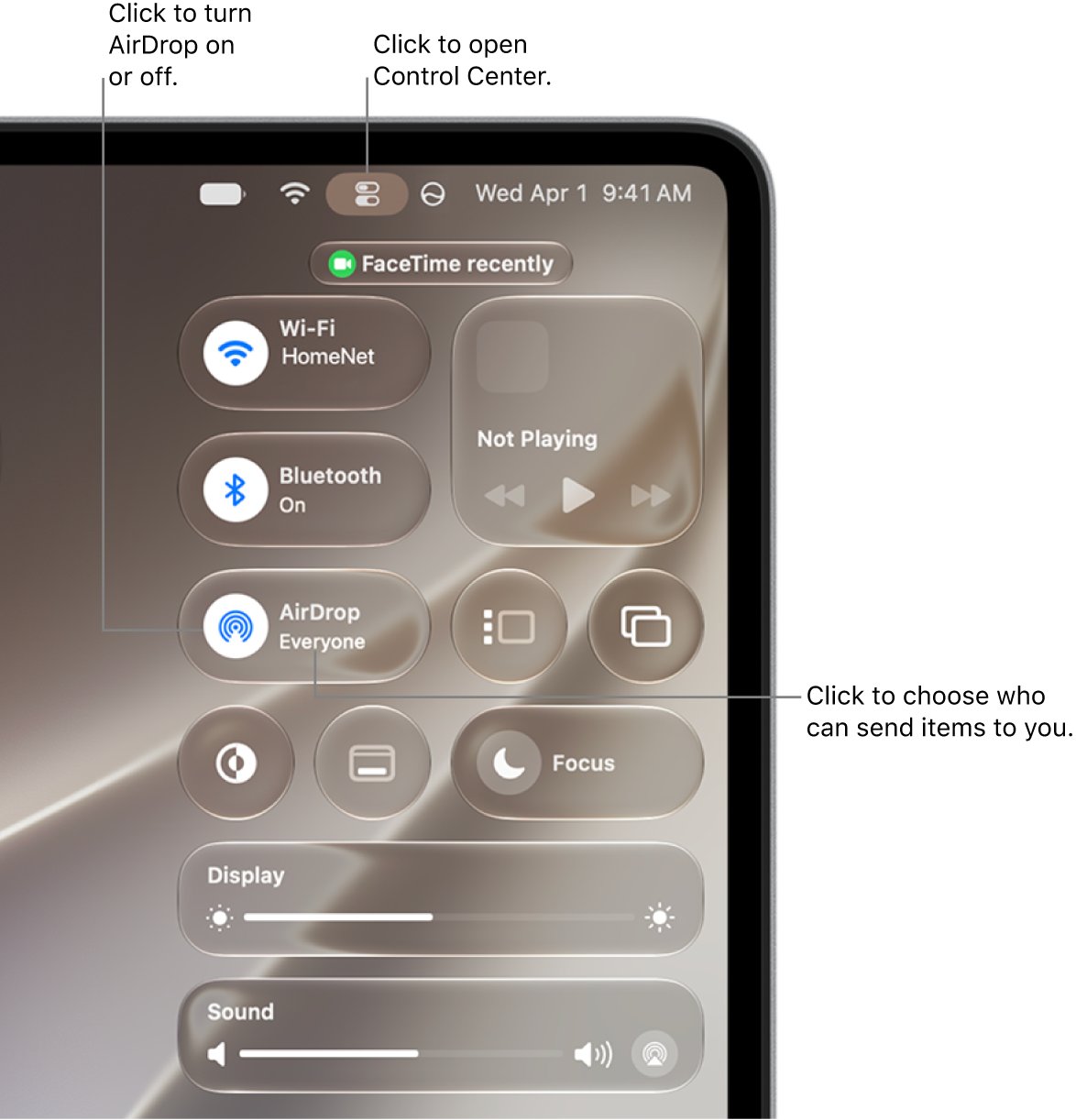
A Mac shows its AirDrop setting in Control Center in the menu bar. If both devices use the same Apple Account, items you send are accepted and saved automatically.
- On the Mac, click Control Center in the menu bar, then click AirDrop so the icon turns blue.
- Click the arrow next to AirDrop and choose Contacts Only or Everyone.
- Check that Wi-Fi and Bluetooth are on, and that any VPN allows local networking.
- Open a Finder window and click AirDrop in the sidebar.
- On the iPhone, tap Share > AirDrop and tap the Mac.
- Accept the item in the Finder window, then look in the Downloads folder.
How to install the latest iOS 26 update on iPhone
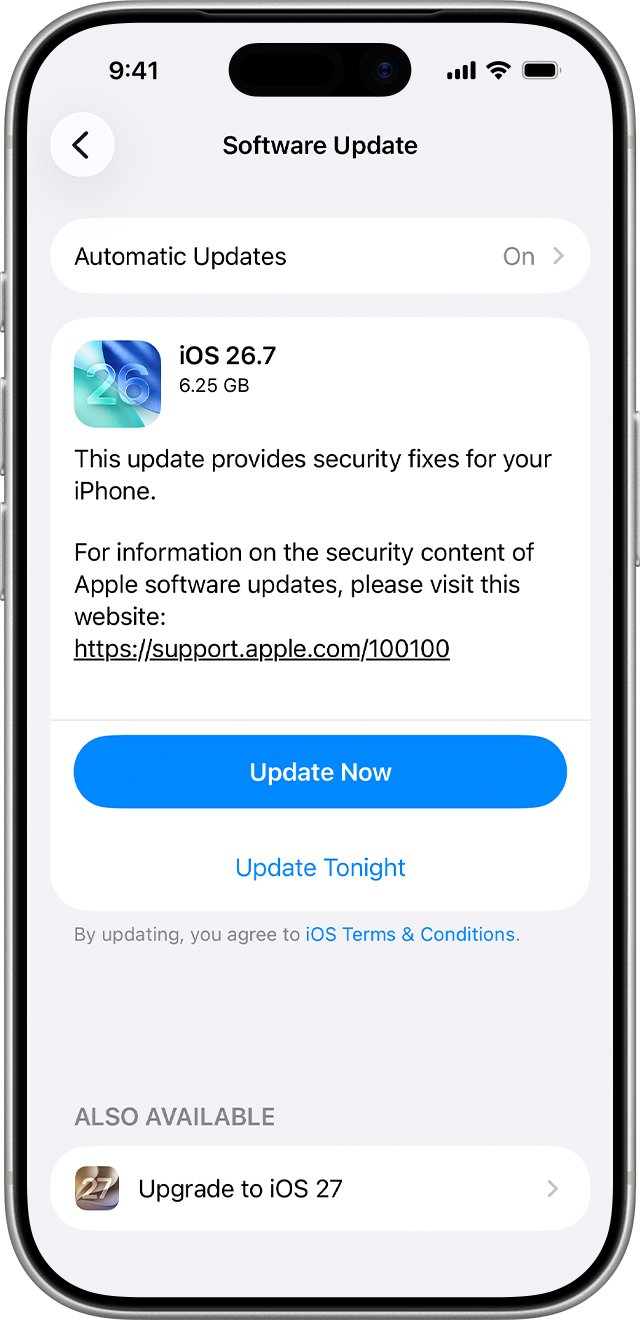
Apple delivers bug fixes through each iOS release, and the AirDrop code flow arrives with iOS 26.2. Update both iPhones to the newest version available.
- Back up the iPhone with iCloud or a computer.
- Plug the iPhone into power and connect to Wi-Fi.
- Open Settings and tap General.
- Tap Software Update to see the installed version and any available update.
- Tap Download and Install and follow the onscreen instructions.
A VPN or proxy connection can stop the iPhone from reaching the update servers, so switch it off if the update does not appear or stays on Update Requested.
Reset network settings to fix AirDrop on iPhone
This clears saved Wi-Fi networks and VPN settings that were not installed by a profile or MDM. Your photos, apps and data stay on the iPhone.
- Open Settings and tap General.
- Tap Transfer or Reset iPhone, then tap Reset.
- Tap Reset Network Settings, not Erase All Content and Settings.
- Enter your passcode if asked and confirm.
- Rejoin your Wi-Fi network, turn on Bluetooth and test AirDrop again. If the iPhone won't rejoin, fix iPhone Wi-Fi connection problems first.
The reset also renames the iPhone to "iPhone" in Settings > General > About, so rename it if people look for it by name in AirDrop.
How to test AirDrop on iPhone after the update
A send between your own devices tells you which side has the fault. Items between devices signed in to the same Apple Account are accepted with no prompt.
- Sign in to the same Apple Account on your iPhone and a second iPhone, iPad or Mac.
- Turn on Wi-Fi, Bluetooth and AirDrop on both.
- Send one small photo from the iPhone.
- Look for it in Photos on the other iPhone or iPad, or in Downloads on a Mac.
If this works but a friend's device fails, the cause is their AirDrop setting, their contact card for you, or the AirDrop code step.
AirDrop still not working on iPhone
Why airdrop is not working with a VPN on
A VPN configuration that prevents local networking can interfere with Continuity features such as AirDrop.
- Open your VPN app.
- Allow local networking if the VPN offers it, or disconnect the VPN.
- Send the file again.
Why won't AirDrop work on iPhone with low battery
Low Power Mode disables AirDrop.
- Look for a yellow battery icon in the status bar.
- On iPhone 15 or later, open Settings > Battery > Power Mode and turn off Low Power Mode.
- On iPhone 14 or earlier, open Settings > Battery and turn off Low Power Mode.
Why doesn't AirDrop work on my iPhone with Personal Hotspot
Apple asks both people to disconnect Personal Hotspot before using AirDrop.
- Open Settings > Personal Hotspot.
- Turn off Allow Others to Join.
- Reconnect any laptop or tablet to normal Wi-Fi and try AirDrop again.
AirDrop transfer stops when you walk away
Leaving Wi-Fi or Bluetooth range moves the transfer to the internet, which needs cellular data for AirDrop turned on.
- Stay within 30 feet until the transfer finishes.
- To let transfers continue over cellular, open Settings > General > AirDrop and turn on Use Cellular Data.
My AirDrop is not working after every fix
One device is stuck in a state that a restart clears.
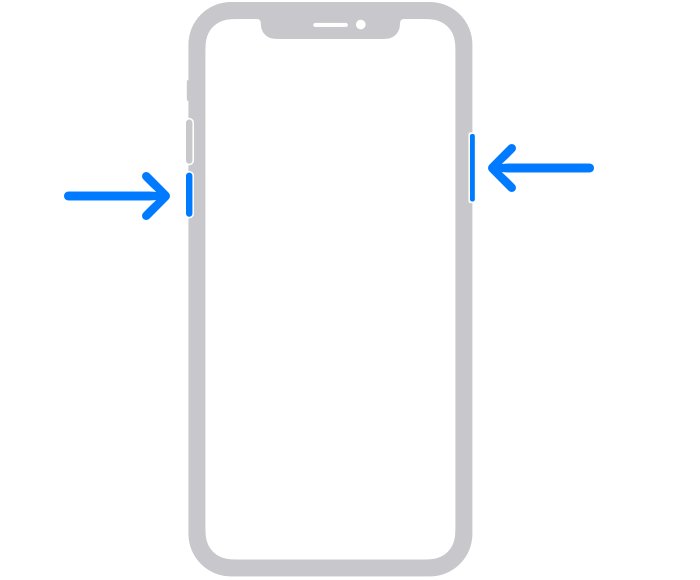
- Press and hold either volume button and the side button until the power-off slider appears.
- Drag the slider and wait 30 seconds.
- Press and hold the side button until the Apple logo appears.
- Force restart the iPhone if it does not respond.
AirDrop not working after iOS 26 FAQ
Why is AirDrop not working?
AirDrop needs Wi-Fi and Bluetooth on at both ends, the devices within 30 feet, and no Personal Hotspot connection. The recipient must also accept from Contacts Only or Everyone. A VPN that blocks local networking or Low Power Mode can stop it too.
Why isn't AirDrop working on iPhone after the update?
Check that AirDrop is not set to Receiving Off, and that Wi-Fi and Bluetooth are on in Settings. With iOS 26.2 or later on both devices, a sender who is not a contact must also enter an AirDrop code.
Why doesn't AirDrop work on my iPhone?
The usual cause is the other person's setting. With Contacts Only, you must be in their contacts with your Apple Account email or phone number on the card. Ask them to choose Everyone for 10 Minutes to test.
How to allow AirDrop on iPhone?
Open Control Center, touch and hold the top-left group of controls, and tap AirDrop. Choose Contacts Only or Everyone for 10 Minutes. Everyone for 10 Minutes changes back to Contacts Only after 10 minutes when you are signed in.
Why won't AirDrop work on iPhone with Wi-Fi off?
AirDrop needs Wi-Fi and Bluetooth on, but not a Wi-Fi network connection. Tapping Wi-Fi in Control Center only disconnects you and keeps AirDrop available. Turning Wi-Fi off in Settings stops AirDrop.
Why airdrop isn't working between iPhone and Mac?
Make sure the Mac's AirDrop icon is blue in Control Center and set to Contacts Only or Everyone. Open the AirDrop window in Finder, check Wi-Fi and Bluetooth, and accept the item there.
Does AirDrop work between iPhone and Android or Windows?
No. Apple lists AirDrop for iPhone, iPad and Mac, with both sender and recipient on one of those devices. A Windows PC or Android phone does not appear under People in the AirDrop list.