When a website keeps asking you to enable cookies that are already on, a tracking protection, a blocked pop-up, stale site data or an extension is usually stopping the cookie the site needs.
This guide covers Safari on Mac and iPhone first, then Chrome and Microsoft Edge, with fixes for bank sites that open statements in a new window.
How to fix a website that keeps asking to enable cookies in Safari
Unchecking Block all cookies is only one of the settings involved. Work through these in order and reload the site after each one.
- In Safari on your Mac, choose Safari > Settings, then click Advanced and make sure Block all cookies is not selected.
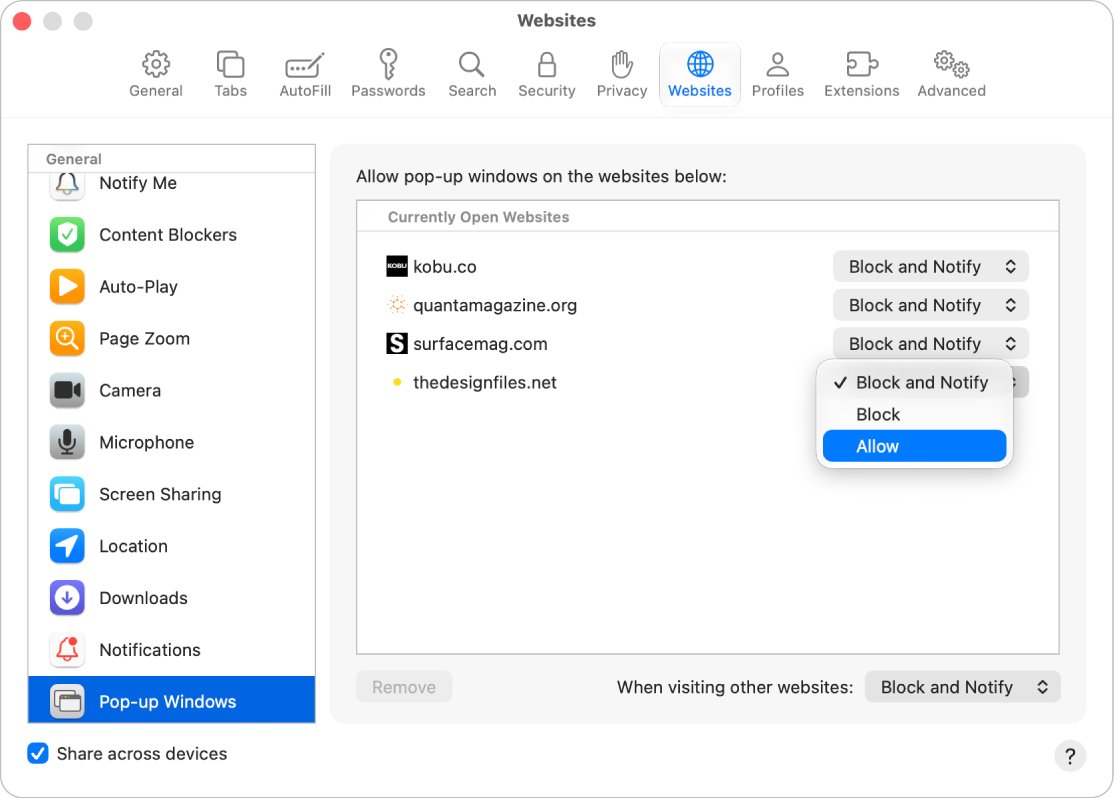
- Click Websites, scroll down and click Pop-up Windows, then set the site to Allow.
- Click Privacy, click Manage Website Data, select the site and click Remove.
- Quit and reopen Safari, then sign in to the site again.
- If the message is still there, click Privacy and deselect Prevent cross-site tracking while you use the site.
- Select Prevent cross-site tracking again when you finish.
Why does a website say cookies are disabled when they are enabled?
Sites check for cookies in different ways, so the same message can have several causes. Match what you see to a row.
| What is happening | Likely cause | Fix |
|---|---|---|
| Message appears when a statement or document link opens | The link opens a pop-up window that Safari blocks | Allow pop-ups for that site |
| Message appears only on one part of the site, such as a login or payment page | That page loads from a third-party provider whose cookies Safari limits | Turn off Prevent cross-site tracking while you use it |
| Message started after a site change or a long gap | Old cookies and website data for the site are out of date | Remove that site's data |
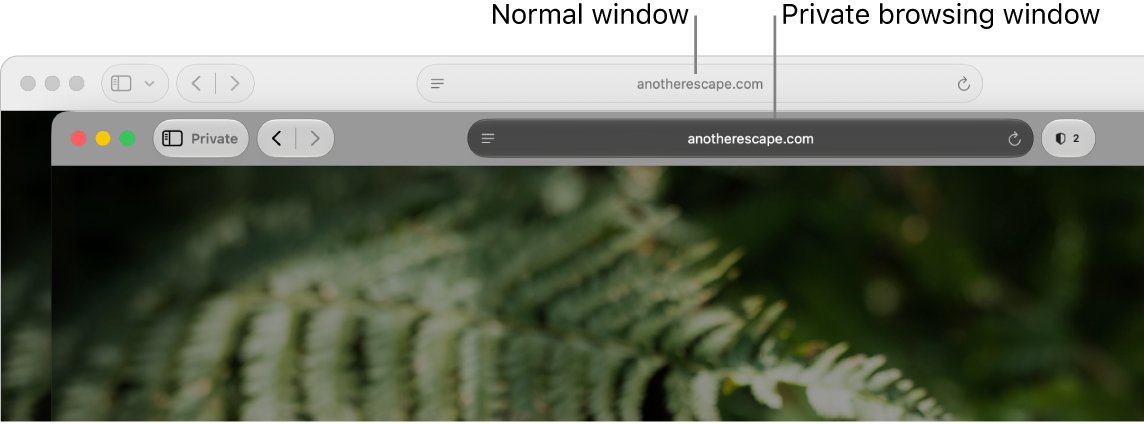
| Message appears only in a private window | Changes to cookies and website data are not saved in private windows | Use a normal window |
| Some site features break with advanced protection on | Advanced tracking and fingerprinting protection is blocking a connection | Choose View > Reload Reducing Privacy Protections |
| Message appears in every browser profile with the same add-on | A content blocker or extension removes the cookie or the script | Turn off extensions, then turn them back on one at a time |
Apple notes that blocking cookies can stop you signing in even with the correct password, and can show a message that cookies are required.
How to allow pop-ups in Safari for a bank website
Apple gives a bank site as its own example: some banks show monthly statements in pop-ups. An eStatements or tax document link that opens a new window fails when pop-ups are blocked.
- Open the bank's website in Safari on your Mac.
- Choose Safari > Settings, then click Websites.
- Click Pop-up Windows on the left, scrolling to the bottom of the list if you do not see it.
- In the pop-up menu next to the bank's website, choose Allow.
- Close Settings, reload the page and click the statement link again.
If you prefer to decide each time, choose Block and Notify. A blocked pop-up can then be shown from the Smart Search field.
How to turn off Prevent cross-site tracking in Safari on Mac
With this setting on, Safari periodically deletes cookies and website data from third-party content providers unless you visit them directly. Sites that hand you off to a separate provider for sign-in, payments or documents can lose the cookie they need.
- Open Safari on your Mac.
- Choose Safari > Settings, then click Privacy.
- Deselect Prevent cross-site tracking.
- Close Settings and reload the website.
- When you finish with the site, select Prevent cross-site tracking again.
This setting applies to every website, so leaving it off allows third-party trackers on all of them.
How to clear cookies for one website in Safari on Mac
Removing one site's data resets its cookies without signing you out everywhere. Apple warns that it may sign you out of that site and change how it behaves.
- Open Safari on your Mac.
- Choose Safari > Settings, then click Privacy.
- Click Manage Website Data.
- Search for the site's name, then select it and any related entries for the same company.
- Click Remove, then click Done.
- Reopen the site and sign in again.
Removing cookies and website data in Safari may also change or remove them in other apps.
Safari advanced tracking and fingerprinting protection breaking websites
The Use advanced tracking and fingerprinting protection setting blocks connections to data collection companies and strips known tracking parameters from URLs. It is on by default in Private Browsing, and Apple says some website features may be affected.
- Open the website that shows the cookie message.
- Choose View > Reload Reducing Privacy Protections.
- Try the action that failed, such as signing in or opening a document.
- If you turned the protection on for all browsing, choose Safari > Settings, click Advanced and change Use advanced tracking and fingerprinting protection to Private Browsing only.
How to turn off Safari extensions on Mac
Content blockers and other extensions can access the pages you visit and can block cookies, scripts and pop-ups. Turning them off is the quickest way to rule them out.
- Open Safari on your Mac.
- Choose Safari > Settings, then click Extensions.
- Deselect the checkbox next to each extension.
- Reload the website, because a change can take effect only after a refresh.
- If the message is gone, select the extensions again one at a time to find the one that blocks the site.
- Restrict that extension from its toolbar button, or select it and click Uninstall.
How to enable cookies in Safari on iPhone
The same causes apply on iPhone and iPad, and the settings live in the Settings app instead of Safari.
- Open Settings, tap Apps, then tap Safari.
- Tap Advanced and make sure Block All Cookies is off.
- Go back and turn Block Pop-ups off while you use the site.
- Turn Prevent Cross-Site Tracking off if the site still asks for cookies.
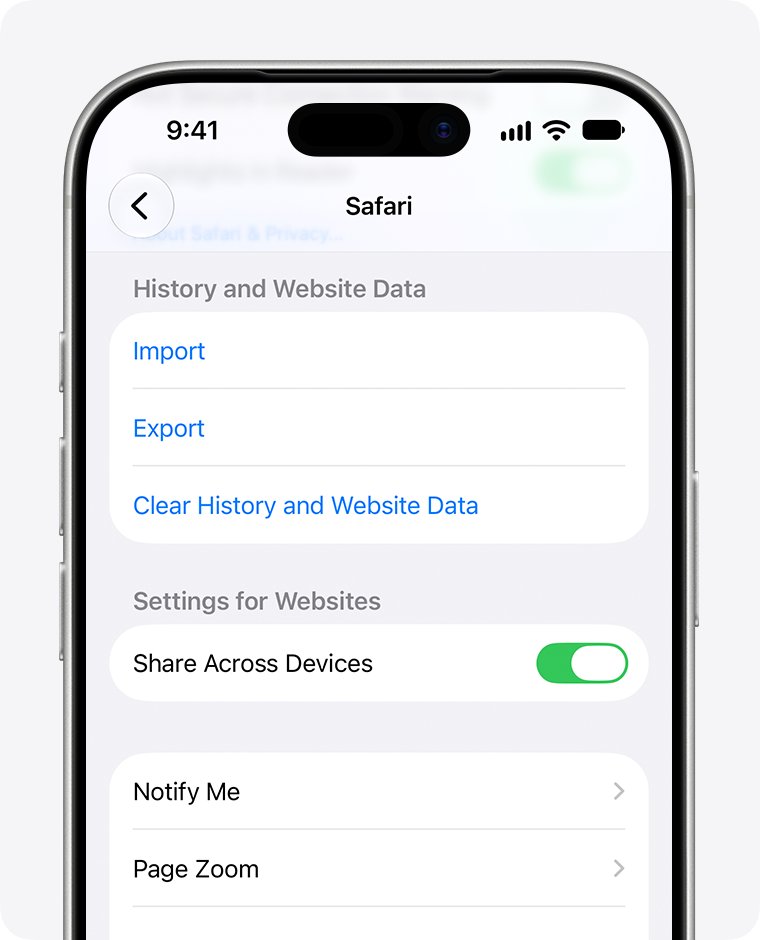
- To clear stored data, tap Advanced > Website Data, then tap Remove All Website Data and Remove Now.
- Open the site in a normal tab, not Private Browsing, and sign in again.
Turn Block Pop-ups and Prevent Cross-Site Tracking back on afterward. Removing all website data signs you out of sites that saved your login.
How to allow third-party cookies for a specific site in Chrome
Chrome lets you allow third-party cookies for one site instead of every site. You can also enable cookies in Google Chrome for all sites if you prefer.
- Open Chrome and select More > Settings at the top right.
- Select Privacy and security > Third-party cookies.
- Under Sites allowed to use third-party cookies, select Add.
- Enter the site address; put [*.] before the domain to cover the whole domain.
- Select Add, then reload the website.
For a quick test, select the Third-party cookies blocked icon in the address bar and turn Third-party cookies on. In a normal window that exception lasts 90 days or until you turn it off.
How to allow cookies for a specific site in Microsoft Edge
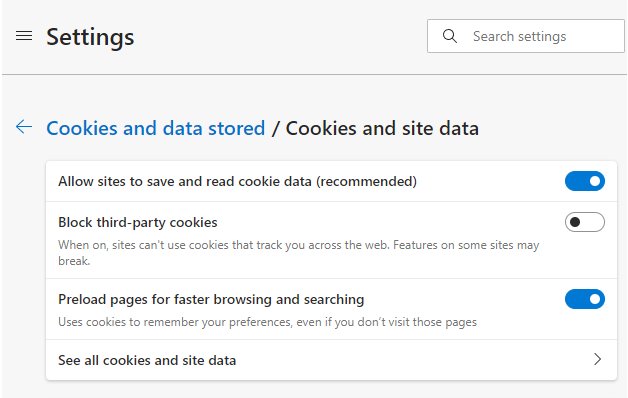
Microsoft says blocking third-party cookies can produce a message that you need to allow cookies to view a site. Edge's Strict tracking prevention can also stop parts of sites from working.
- Open Edge and select Settings and more in the upper-right corner.
- Select Settings > Privacy, search, and services.
- Select Cookies and make sure Allow sites to save and read cookie data (recommended) is on.
- Go to Allowed to save cookies and select Add site.
- Enter the site's address and save it, then reload the website.
- Check Not allowed to save and read cookies and remove the site if it is listed there.
When Edge asks whether another site can access cookies and site data, allowing it lasts 30 days and then expires.
How to tell if a website saved cookies in Safari
- Visit the website in a normal Safari window and sign in.
- Choose Safari > Settings, then click Privacy.
- Click Manage Website Data and search for the site's name.
- If the site is listed with cookies, Safari accepted them, and the message points to a pop-up, extension or tracking setting instead.
- If the site is not listed, check Block all cookies under Advanced and make sure you are not in a private window.
Website still says cookies are disabled: more fixes
Keep having to sign in to websites
Cookies are being deleted when the browser closes, or you are browsing privately.
- In Safari, check that the window is not private; a private window has a dark Smart Search field.
- In Safari Settings > General, make sure Safari opens with is not set to A new private window.
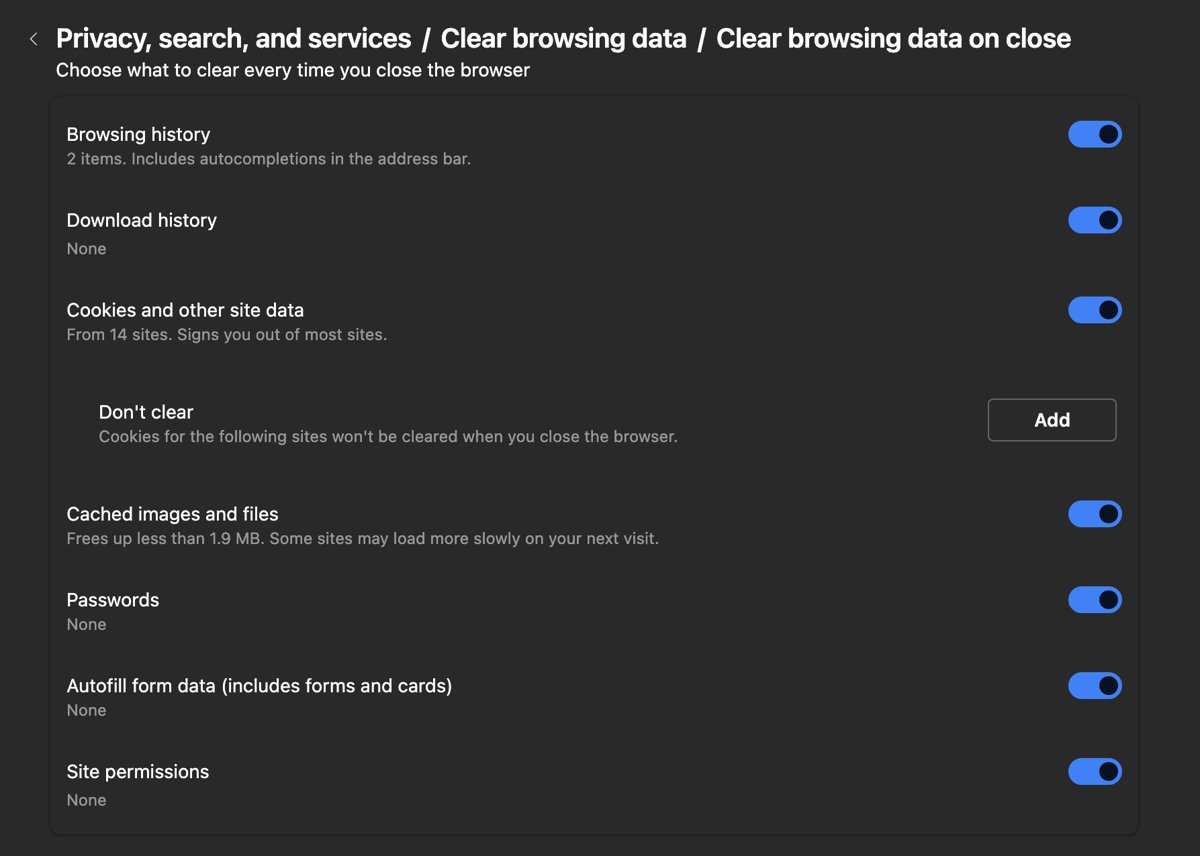
- In Edge, select Privacy, search, and services > Clear browsing data > Choose what to clear every time you close the browser and turn off Cookies and other site data.
Can't access a specific website after allowing cookies
The site may rely on IP filtering and reject a hidden IP address from iCloud Private Relay.
- In Safari on Mac, open the site and choose View > Reload and Show IP Address.
- On iPhone, tap the page menu on the left of the search field, tap Privacy & Security, then tap Show IP Address.
- Your IP address stays visible to that site until you leave it or close the tab.
Remove All Website Data is gray on iPhone
There is no data to clear, or Screen Time web content restrictions are on.
- Check the web content restrictions in Screen Time settings.
- Ask the person who manages Screen Time to change them if you do not have the passcode.
Website works in one browser but not another
Each browser keeps its own cookies, extensions and tracking settings.
- Open the site in the browser where it works to finish the urgent task.
- In the failing browser, clear that site's cookies and allow pop-ups for it.
- Firefox has its own isolation setting, Total Cookie Protection in Firefox, so check its site exceptions too.
Pop-ups still appear on sites you blocked
Apple says unwanted software on the Mac can cause this.
- Update macOS, or restart the Mac if it is already up to date.
- Check the Applications folder for apps you do not expect and remove them.
- Check the Extensions tab in Safari settings and uninstall unneeded extensions.
Website cookies enabled message FAQ
Why can't I access a specific website when cookies are enabled?
The site may need a pop-up, a third-party cookie or a visible IP address. Allow pop-ups for the site, remove its old website data, and turn off Prevent cross-site tracking while you use it. In Safari, Reload and Show IP Address helps sites that filter by IP address.
How do I allow certain websites to use cookies?
In Chrome, add the site under Sites allowed to use third-party cookies. In Edge, add it under Allowed to save cookies. Safari has no per-site cookie list on Mac, so use the global Privacy and Advanced settings and the Pop-up Windows setting for that site.
Why do I keep having to sign in to websites?
Cookies that keep you signed in are being cleared. Common causes are private browsing, a browser set to delete cookies when it closes, and removing all website data. Use a normal window and turn off clearing cookies on exit.
How do I enable cookies for a website on a Mac?
Choose Safari > Settings, click Advanced and deselect Block all cookies. If the site still asks, allow its pop-ups under Websites, remove its data under Privacy > Manage Website Data, and turn off Prevent cross-site tracking while you use the site.
Is it safe to turn off Prevent cross-site tracking in Safari?
It lets third-party content providers track you across websites while it is off. Turn it off only while you use the site that needs it, then select Prevent cross-site tracking again in Safari Privacy settings.
Do cookies work in Safari private browsing?
Sites can set cookies, but changes to cookies and website data are not saved in a private window. Advanced tracking and fingerprinting protection is also on by default there, so sites that need stored cookies may keep asking for them.
Will clearing cookies sign me out of websites?
Yes. Removing cookies and website data may sign you out of websites and change how they behave. Remove data for only the problem site to keep your other sign-ins.