Your Mac is too old for the latest update if it has an Intel processor: macOS 27 Golden Gate installs only on Macs with Apple silicon, from the M1 models onward, including the MacBook Neo.
This guide shows the newest macOS each older Mac can run, how to find your model and version, how to install the newest version Apple supports, and what to do when an update will not install.
Is my Mac too old to update?
Find your Mac in the left column. The right column is the newest macOS Apple lists for it, so that is as far as Software Update will take it.
| Your Mac | Newest macOS it can install | Too old for macOS 27? |
|---|---|---|
| Any Mac with Apple silicon (M1, M2, M3, M4, M5, M6) or MacBook Neo | macOS 27 Golden Gate | No |
| MacBook Pro (16-inch, 2019), MacBook Pro (13-inch, 2020, Four Thunderbolt 3 ports), iMac (Retina 5K, 27-inch, 2020), Mac Pro (2019) | macOS Tahoe 26 | Yes |
| MacBook Pro 2018 and 2019 models, MacBook Pro (13-inch, 2020, Two Thunderbolt 3 ports), MacBook Air (Retina, 13-inch, 2020), iMac 2019 models, iMac Pro (2017), Mac mini (2018) | macOS Sequoia 15 | Yes |
| MacBook Air (Retina, 13-inch, 2018) and MacBook Air (Retina, 13-inch, 2019) | macOS Sonoma 14 | Yes |
| MacBook Pro 2017 models, MacBook (Retina, 12-inch, 2017), iMac 2017 models | macOS Ventura 13 | Yes |
| Macs older than these | macOS Monterey 12 or earlier | Yes |
Apple keeps a compatibility list for every version. Open Apple's How to download and install macOS page and select the version name to see its full list of supported models.
How old is my MacBook or iMac
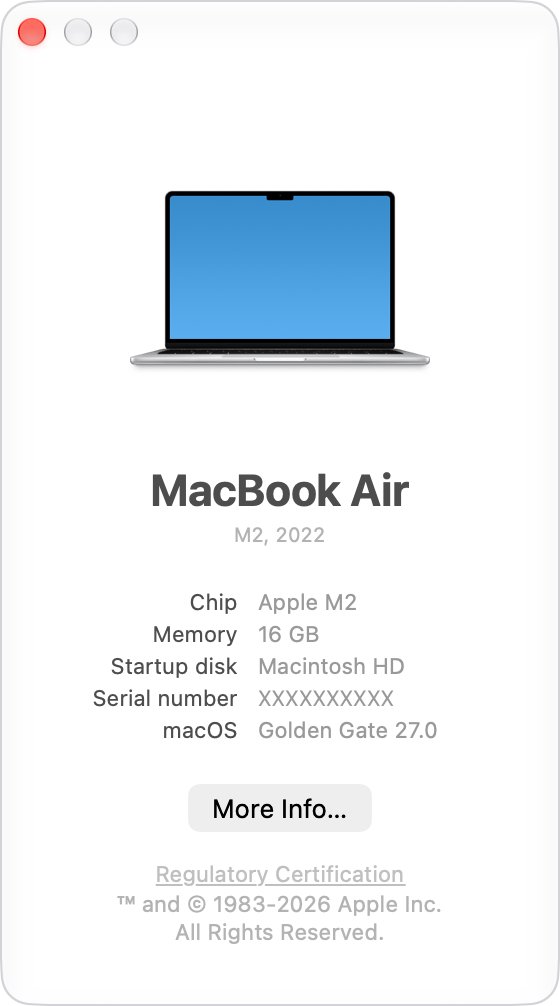
Apple names every Mac with its screen size and year, such as MacBook Air (M1, 2020). That name is what the compatibility lists use.
- Click the Apple menu in the upper-left corner of the screen.
- Choose About This Mac.
- Read the model name and year at the top, for example MacBook Pro (15-inch, 2019).
- Read the macOS name and version number shown in the same window.
- Match the model name to a row in the table above.
If the Mac will not start, Apple's Identify your Mac pages for MacBook Pro, MacBook Air, iMac, Mac mini, Mac Studio and Mac Pro list each model by year and model identifier.
Does Apple still support your version of macOS?
Apple says keeping software up to date is one of the most important things you can do for security. The newer your macOS, the more recent the fixes it receives. These are the latest releases of each recent macOS version.
| macOS name | Latest version | Where it stands |
|---|---|---|
| macOS 27 Golden Gate | 27.2.1 | Current major version, Apple silicon only |
| macOS Tahoe 26 | 26.7.3 | Newest version for the last supported Intel Macs |
| macOS Sequoia 15 | 15.8.3 | Earlier version |
| macOS Sonoma 14 | 14.8.9 | Earlier version |
| macOS Ventura 13 | 13.7.8 | Earlier version |
| macOS Monterey 12 | 12.7.6 | Earlier version |
| macOS Big Sur 11 | 11.7.11 | Earlier version |
| macOS Catalina 10.15 | 10.15.8 | Earlier version |
Check the Apple security releases page to see which macOS versions the most recent security updates cover.
Do you need to update/upgrade your Mac?
Install every update Software Update offers for your Mac, and replace the Mac only when it is stuck on a version that has stopped receiving security fixes or the apps you need no longer support it. Software Update shows only versions compatible with your model, so anything it offers is safe to install. Once a Mac is capped at an older macOS, it keeps working, but new security fixes and app support move on without it.
Hardware age matters too. Apple calls a product vintage once it stopped selling it more than 5 and less than 7 years ago, and obsolete after more than 7 years, when hardware service ends. Mac laptops can still get battery-only repairs for up to 10 years, subject to parts.
Updating your Mac to the newest macOS versions
Back up the Mac with Time Machine or another method first. Keep it plugged in and do not close the lid or let it sleep while the update installs.
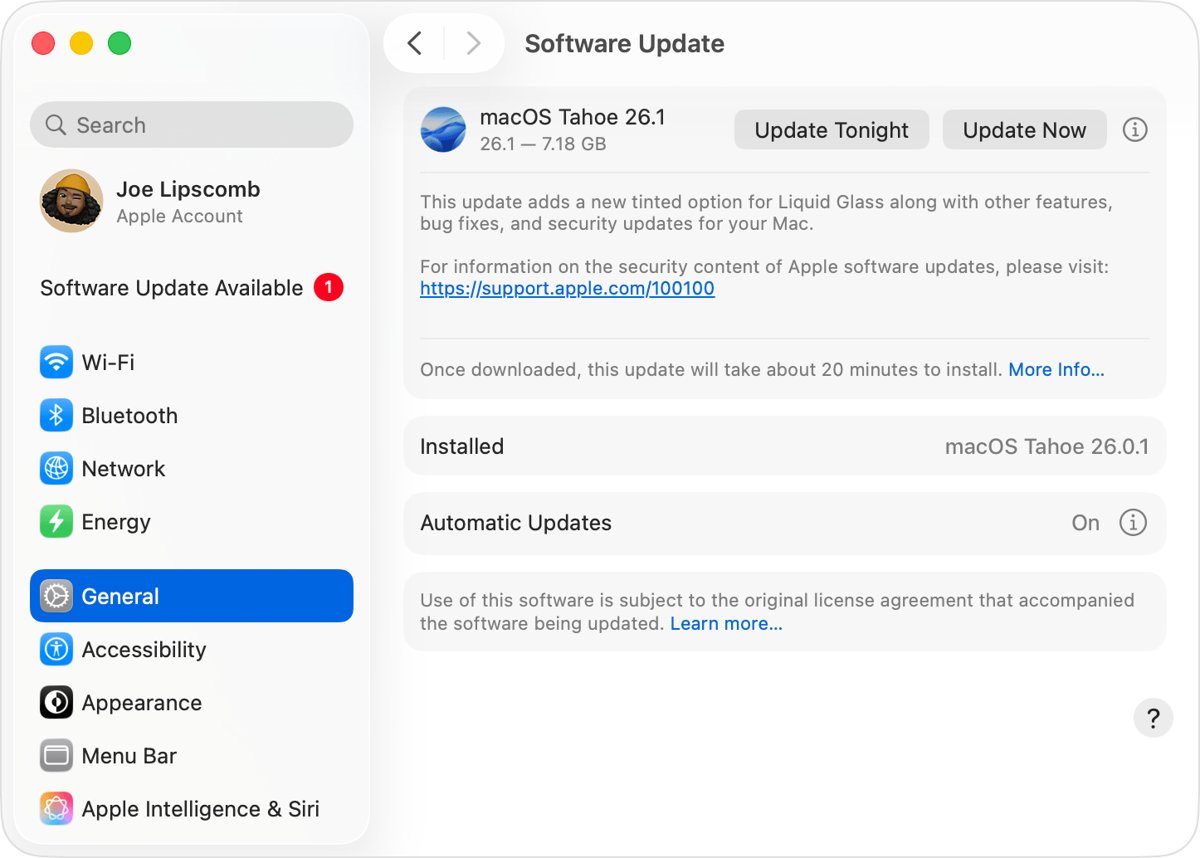
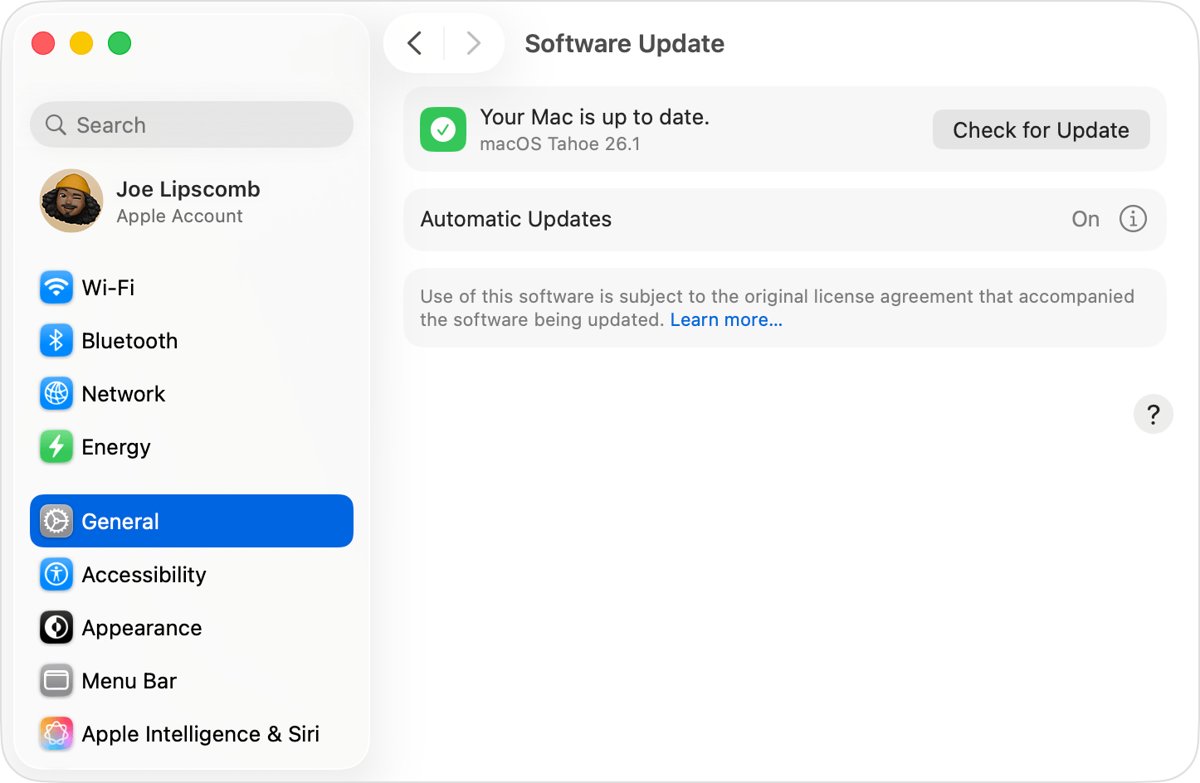
- Choose Apple menu > System Settings.
- Click General in the sidebar, then click Software Update on the right.
- Wait for the check to finish. Press Command-R or click Check for Updates to check again.
- Click the button to update, upgrade or restart now.
- Let the Mac restart and finish the installation.
When Software Update is stuck, you can still update macOS on a MacBook, iMac or Mac mini through the App Store or Terminal.
How to update an old Mac to the last supported macOS
When Software Update offers nothing new but your Mac is not on the version in the table above, download that macOS version directly. Apple's App Store pages for older versions stay available.
- Open Apple's How to download and install macOS support page in Safari on the Mac.
- Find the newest version your Mac supports, such as macOS Sequoia 15 or macOS Sonoma 14.
- Click its App Store link to open the version's page in the App Store.
- Click Get. If the button is dimmed, that version is not compatible with your Mac.
- Wait for the installer to download, then follow the onscreen prompts to install it.
- To list every full installer your Mac supports, open Terminal and run
softwareupdate --list-full-installers.
If Terminal reports that an update was not found, that version is not available for your Mac model.
Installing newer versions of macOS in safe mode
Safe mode stops some software from loading at startup, checks the startup disk and clears some system caches. That helps when a login item or extension blocks the installer, and the cleared caches can free space an update needs.
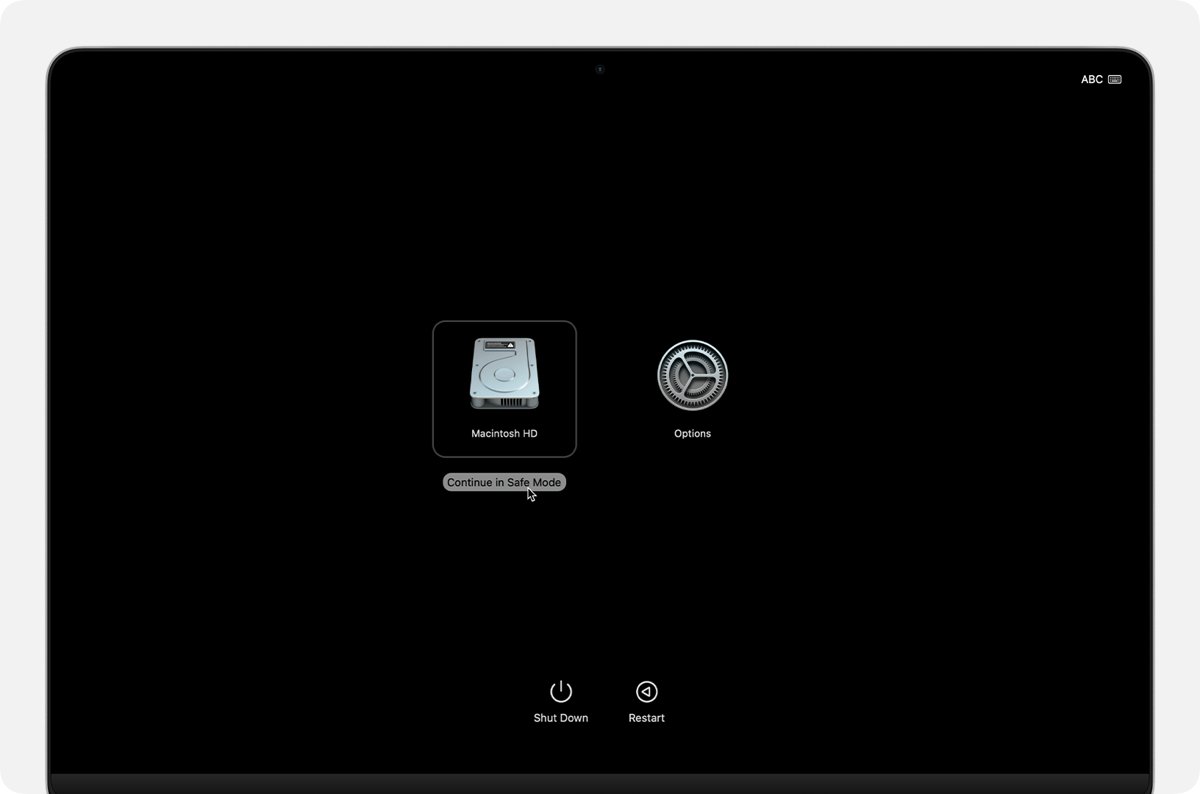
- On a Mac with Apple silicon, shut down, then press and hold the power button until startup options load.
- Select your startup disk, press and hold Shift, then click Continue in Safe Mode.
- On an Intel-based Mac, turn it on or restart it and immediately press and hold Shift until the login window appears.
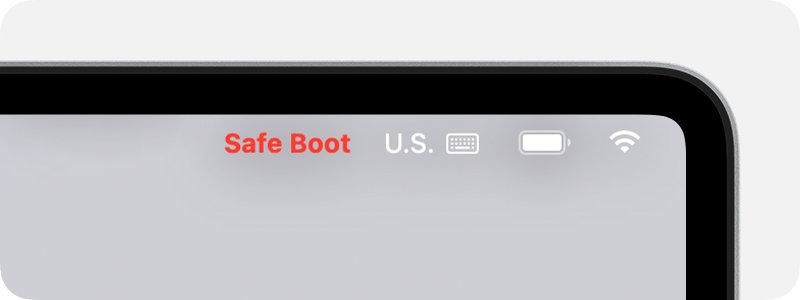
- Log in. Safe Boot appears in red in the upper-right corner of the login window.
- Open System Settings > General > Software Update and install the update.
- When the install finishes, choose Apple menu > Restart to leave safe mode.
Installing new macOS versions on unsupported Macs
Install the newest macOS that Apple lists for your model and stop there; Apple does not support installing a newer version on a Mac missing from that version's compatibility list. Software Update and the App Store only offer compatible versions, and the App Store dims the Get button for the rest. A Mac running an unsupported version gets no help from Apple when updates, features or hardware fail.
If an app you need requires a newer macOS than your Mac can run, the practical choices are an older version of the app, a web version, or a newer Mac. Apple Trade In gives credit for an eligible Mac and recycles one that is not eligible for free.
Your Mac is up to date: what it means
- Open System Settings > General > Software Update.
- If it says your Mac is up to date, press Command-R to check once more.
- Choose Apple menu > About This Mac and note the macOS name and version.
- Compare it with the newest version for your model in the table at the top of this guide.
- If both match, your Mac is on the last macOS Apple supports for it and it is fully updated.
Software Update shows only software compatible with your Mac model. "Up to date" on an Intel Mac means it has every update Apple offers it, not that it runs the newest macOS.
Why Mac won't update to newer versions of macOS
Problem 1: Incompatible Mac
The new version does not list your model, so Software Update never offers it.
- Choose Apple menu > About This Mac and note the model name and year.
- Find the model in the table at the top of this guide.
- Install the newest version listed for it with the App Store link on Apple's How to download and install macOS page.
Problem 2: The update couldn't be downloaded
The download was interrupted, or a startup item is getting in the way of the installer.
- Check that the Mac is connected to the internet and plugged into power.
- Open Software Update and press Command-R to check for updates again.
- Restart the Mac and try the download again.
- If it still fails, start up in safe mode and install the update from there.
Problem 3: Insufficient storage space
The installer needs free space on the startup disk to download and unpack the update.
- Choose Apple menu > System Settings > General > Storage to see how much space is free.
- Empty the Trash, clear out the Downloads folder and uninstall apps you no longer use.
- Delete old iPhone or iPad backups stored on the Mac.
- Move large photo and video libraries to an external drive.
- Start up in safe mode once to clear some system caches, then restart normally and try the update again.
Is your Mac too old to update FAQs
Is my Mac too old to update to the latest OS?
Yes, if it has an Intel processor. macOS 27 Golden Gate installs only on Macs with Apple silicon, from the M1 models of 2020 onward, including the MacBook Neo. Intel Macs top out at macOS Tahoe 26 or an earlier version, depending on the model.
Is my MacBook too old to update?
Check Apple menu > About This Mac. A MacBook Air or MacBook Pro with M1 or later can run macOS 27. Intel MacBook Pro models from 2018 to 2020 stop at Tahoe 26 or Sequoia 15, and the 2018 and 2019 Retina MacBook Air stops at Sonoma 14.
How old is my MacBook or iMac?
Choose Apple menu > About This Mac. The model name at the top includes the year, such as iMac (Retina 5K, 27-inch, 2020). Apple's Identify your Mac pages match each name to its year and model identifier.
How do I update an old Mac?
Open System Settings > General > Software Update and install what it offers. If nothing appears, open Apple's How to download and install macOS page, choose the newest version your model supports and click Get on its App Store page.
Will Apple take my old Mac?
Yes. Apple Trade In gives credit toward a new purchase for an eligible Mac, based on its condition, year and configuration. If the Mac is not eligible for credit, Apple recycles it for free. Back up the Mac and factory reset it to remove your personal data first.
Can I still use a Mac that no longer gets macOS updates?
Yes, it keeps working on its current version, but it no longer gets new macOS features. Apple calls keeping software up to date one of the most important things you can do for security, so keep it on the latest release of the newest version it supports.
Why is my old MacBook so slow?
A nearly full startup disk is a common cause. Open System Settings > General > Storage, delete large files you no longer need, empty the Trash and move big photo or video libraries to an external drive. Safe mode can also clear some system caches.
How do I speed up an old Mac?
Free up storage first, then install every update Software Update offers for your model. Uninstall apps you no longer use and remove unused user accounts. Starting once in safe mode clears some system caches and checks the startup disk.
For more Mac fixes, from storage to reset, the Mac and macOS guide collects them by topic.