To factory reset an iPhone, open Settings > General > Transfer or Reset iPhone, tap Erase All Content and Settings, and confirm with your passcode and Apple Account password.
This guide covers that Settings method, resetting a locked iPhone, resetting with a computer or iCloud.com, what to do before you sell, and fixes when the reset fails.
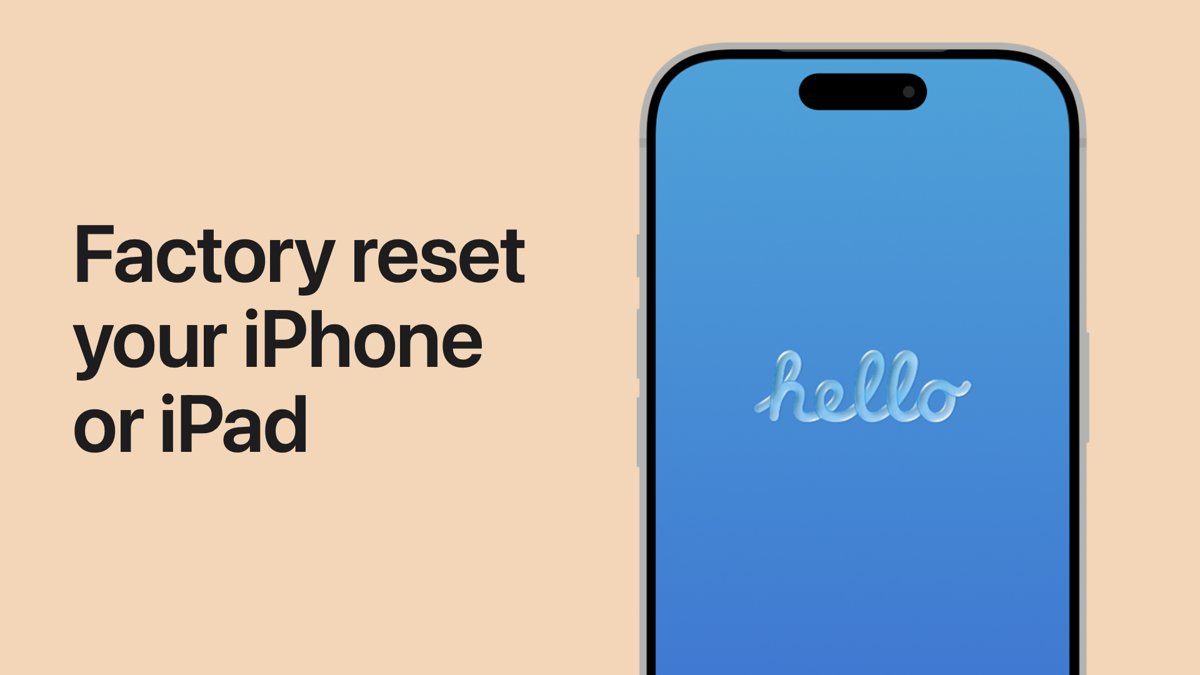
Step by step tutorial: Factory reset iPhone
Method 1 runs from Settings and is the same on iPhone 13, iPhone 15, iPhone 16 and every model on a current iOS version. Back up first, because the erase removes everything on the phone.
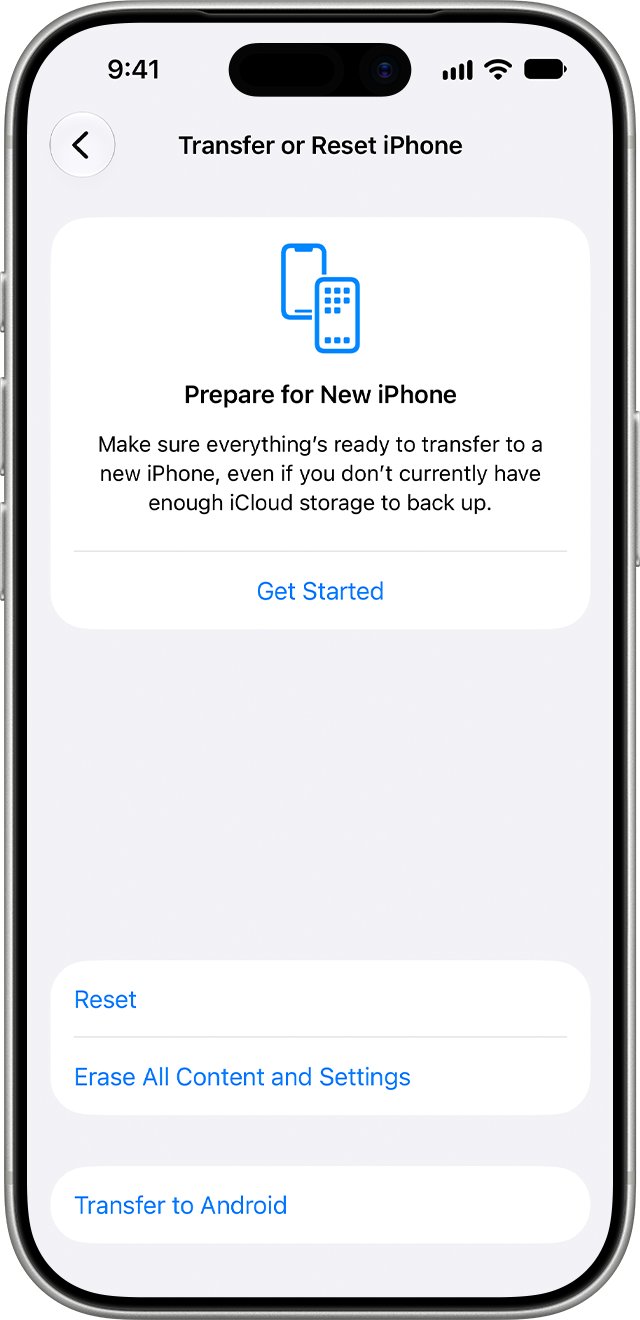
- Open Settings and tap General.
- Scroll down and tap Transfer or Reset iPhone.
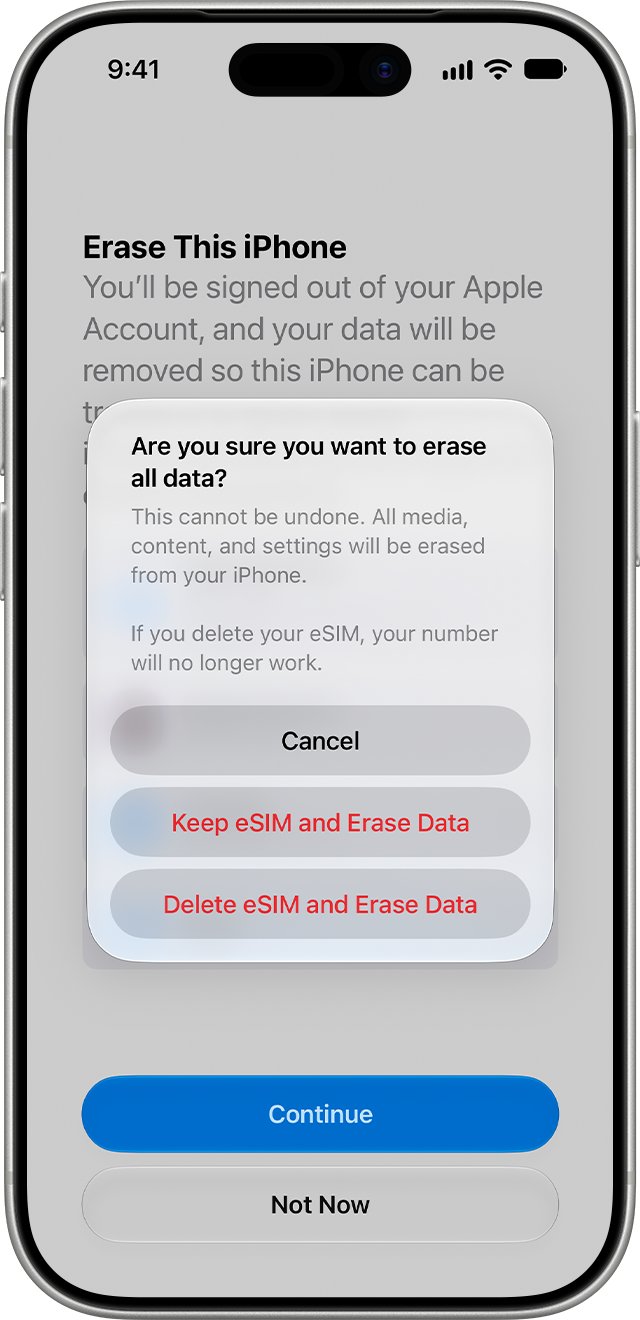
- Tap Erase All Content and Settings, then tap Continue.
- Choose to keep or delete your eSIM, if the iPhone asks.
- Enter your iPhone passcode and wait for any iCloud backup to finish.
- Enter your Apple Account password and tap Done on the keyboard to turn off Find My.
- Wait for the iPhone to erase. The reset is finished when the Hello screen appears.
Alternative methods when Settings will not work
| Your situation | Use this | What you need |
|---|---|---|
| iPhone unlocks and Settings opens | Settings > Erase All Content and Settings | Passcode and Apple Account password |
| Changed your passcode in the last 72 hours and forgot the new one | Passcode Reset with your old passcode | iOS 17 or later; no erase needed |
| Locked out and shows iPhone Unavailable or Security Lockout | Forgot Passcode? on the Lock Screen | iOS 15.2 or later, Find My on, internet, Apple Account password |
| Locked out and the Lock Screen offers no reset | Recovery mode with a Mac or PC | Computer, charging cable, internet, up to 60 minutes |
| iPhone lost, stolen or not in your hands | Erase This Device on icloud.com/find | Apple Account sign-in |
Before you reset: 5 things to do first
| Do this | How | Why |
|---|---|---|
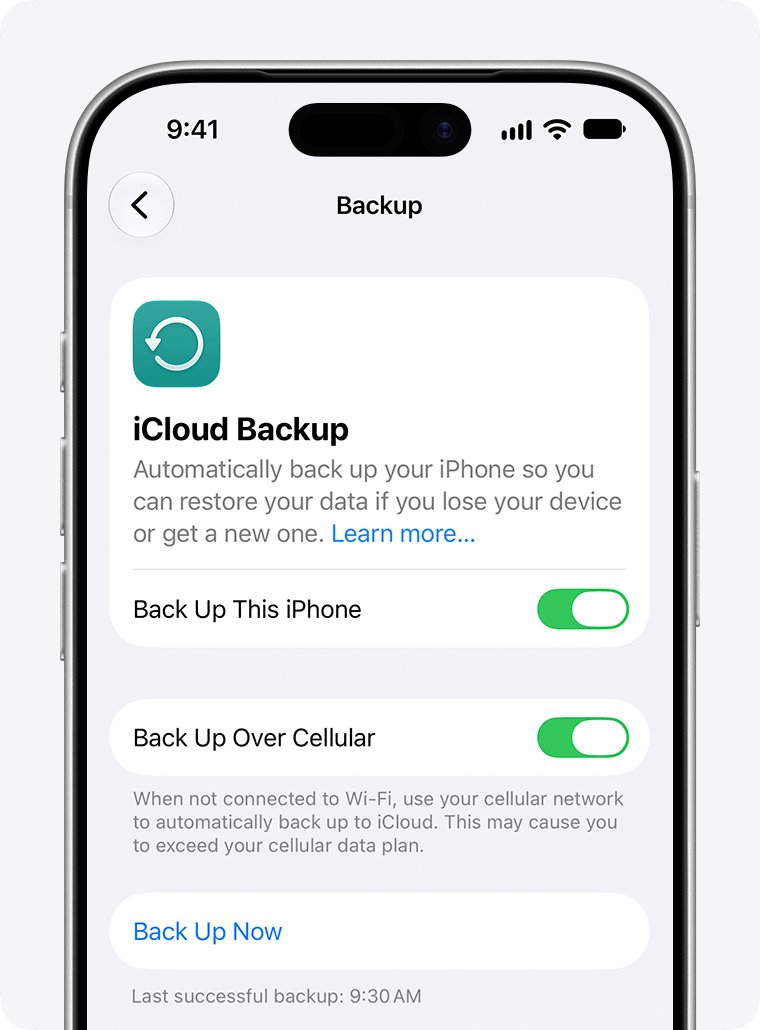
| Back up the iPhone | Settings > your name > iCloud > iCloud Backup > Back Up Now, on Wi-Fi | The erase deletes all data on the phone |
| Confirm your Apple Account password | Reset the Apple Account password first if you are unsure of it | The reset asks for it to turn off Find My and Activation Lock |
| Know your passcode | Unlock the phone once to confirm it | Settings asks for the passcode before it erases |
| Unpair your Apple Watch | Unpair it from the iPhone before the erase | Apple lists this before an erase |
| Decide on your eSIM | Keep it to reuse on this iPhone, delete it if you sell | A deleted eSIM needs your carrier to reactivate it |
How to factory reset an iPhone that is locked
Apple's order is Passcode Reset first, then the Lock Screen reset, then a computer. The Lock Screen route needs iOS 15.2 or later, Find My turned on, and an internet connection.
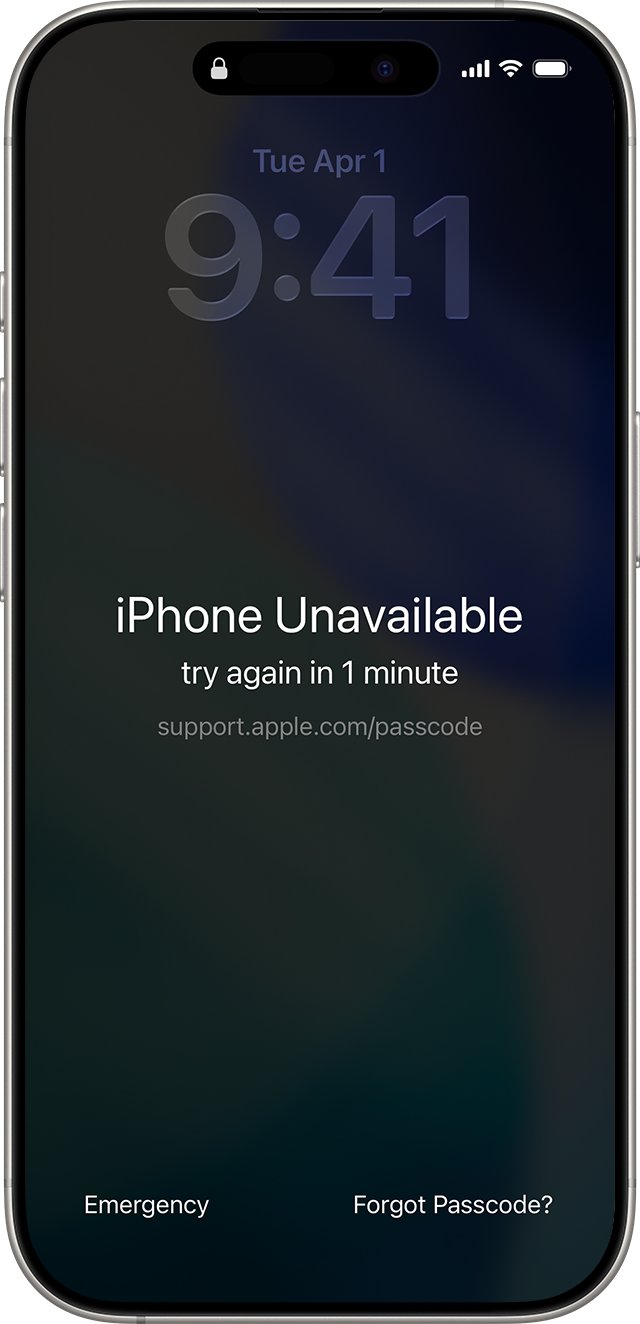
- On the Lock Screen, enter a passcode until the iPhone Unavailable screen appears.
- Tap Forgot Passcode? in the corner of the screen. On iOS 15.2 or iOS 16, tap Erase iPhone instead.
- If you changed the passcode within 72 hours, tap Enter Previous Passcode to unlock without erasing.
- Otherwise, tap Start iPhone Reset on the Security Lockout screen.
- Enter your Apple Account password to sign out of the iPhone.
- Tap Erase iPhone, choosing to keep or delete your eSIM on iOS 17 or later.
- When the iPhone restarts, set it up and restore from a backup.
On iOS 16 or earlier with an eSIM, ask your carrier for a QR code before you erase, so you can set the eSIM up again.
How to factory reset iPhone with a computer (recovery mode)
Use this when the iPhone is locked and the Lock Screen offers no reset option. It works with a Mac using Finder or a Windows PC using the Apple Devices app.
- Press and hold the side button and the Volume Down button until the power off slider appears, then drag it to turn the iPhone off.
- Connect the cable to the computer, then connect it to the iPhone while holding the side button.
- Keep holding the side button past the Apple logo until a computer-and-cable image appears.
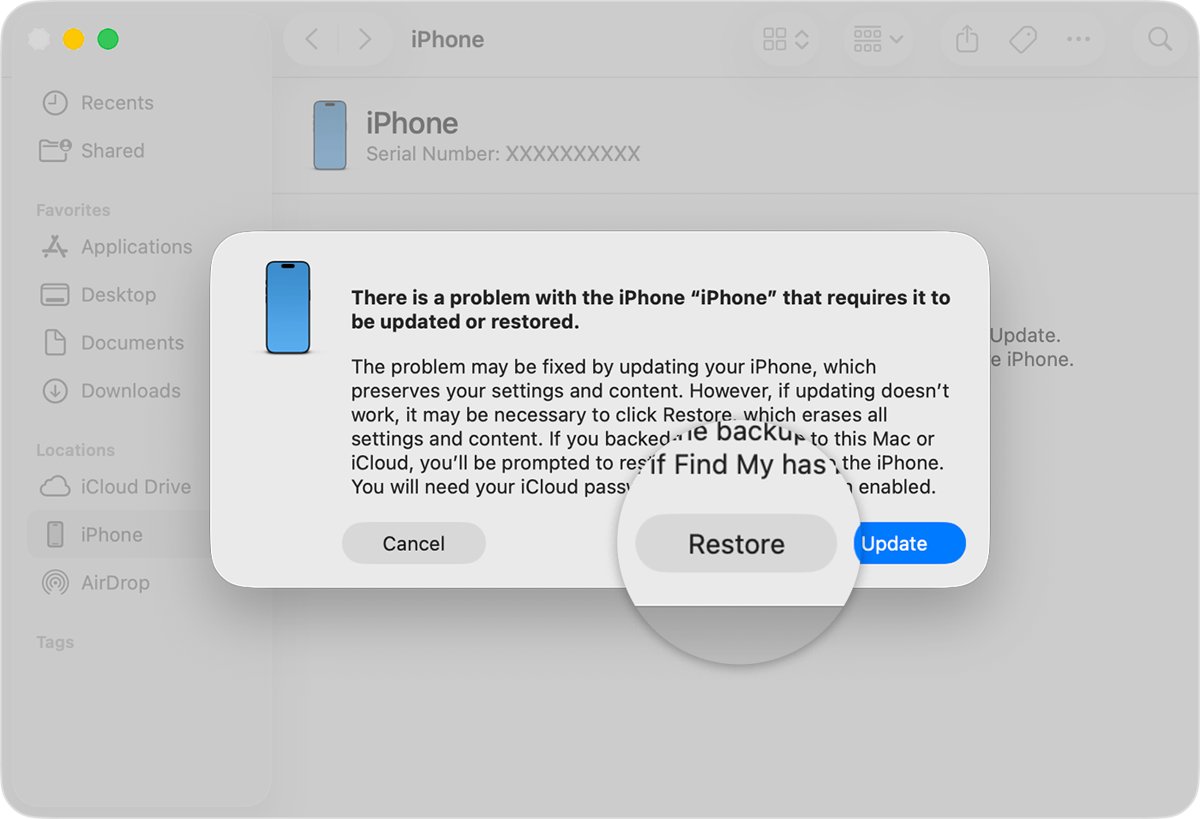
- On a Mac, open Finder and select the iPhone under Locations. On a PC, open Apple Devices, select the iPhone, then select General.
- Select Restore when offered Restore or Update, and follow the prompts.
- If the download passes 15 minutes and the iPhone leaves recovery mode, let the download finish, then start recovery mode again.
- When the Hello screen appears, disconnect the iPhone and set it up.
These button steps are for iPhone models with Face ID. Apple lists separate button steps for iPhone models with a Home button.
How to erase iPhone remotely from iCloud.com
Use Find Devices when the iPhone is lost, stolen, or already handed to someone else. Activation Lock stays on after a remote erase.
- Go to icloud.com/find and sign in with your Apple Account.
- Select the iPhone in the list of devices.
- Select Erase This Device.
- Follow the prompts. Add a phone number or message if the iPhone is lost.
- Wait for the erase. An offline iPhone erases the next time it goes online.
To stop a pending erase on an offline iPhone, select it again and choose Stop Erase Request.
Selling your iPhone 13? Do these three things too
An erase alone can leave the iPhone tied to your services. Do these three things before the iPhone leaves your hands.
- Sign out of your Apple Account: Open Settings, tap your name, tap Sign Out, and choose Erase this iPhone on iOS 26, or enter your password and tap Turn Off on iOS 18 and earlier.
- Choose to delete the eSIM: When the erase asks, pick the option that erases the iPhone and the eSIM profile. Deregister iMessage too if you are moving to a non-Apple phone.
- Remove the iPhone from your trusted devices: After the erase, remove it from your Apple Account device list, and cancel or transfer any AppleCare plan.
If you already gave the phone away, erase it from icloud.com/find and change your Apple Account password.
How do you know an iPhone factory reset is complete?
- Look for the Hello screen. It appears only after a full erase.
- Start setup. A clean reset does not ask for your Apple Account, because Find My and Activation Lock turn off with a Settings erase.
- If setup asks for the previous owner's Apple Account, the phone is still linked. Sign in with that account or remove it from the account at icloud.com/find.
Factory reset vs hard reset — they are not the same thing
A hard reset is a forced restart. It keeps all your data, while a factory reset deletes it.
| Action | What it does | Data kept? | When to use it |
|---|---|---|---|
| Soft reset (restart) | Turns the iPhone off and on with the power slider | Yes | Minor glitches |
| Hard reset (force restart) | Forces a restart with a button sequence | Yes | Frozen screen or unresponsive iPhone |
| Factory reset | Erases all content and settings | No | Selling, giving away, or a clean start |
If the iPhone is only frozen, a force restart of the iPhone or a soft reset keeps your data and often fixes it.
Tips: Factory reset iPhone
| Tip | Detail |
|---|---|
| iCloud data stays | Erasing the iPhone does not delete contacts, photos or files stored in iCloud |
| Deleting items while signed in is different | Manually deleting items while signed in to iCloud removes them from iCloud and every connected device |
| Apple Pay is removed | Cards and passes in Wallet are erased with the phone |
| Services turn off | iCloud, iMessage, FaceTime and Game Center turn off on the erased iPhone |
| Plug in for long resets | A recovery-mode restore downloads iOS first, which can take more than 15 minutes |
| Finish repairs before trade-in | A part marked Finish Repair in Parts and Service History blocks an Apple trade-in |
An iPad uses the same Settings route, and the iPad factory reset steps list its button differences.
Still not working? Common reset problems
Why won't my iPhone factory reset?
The erase stops when the passcode or Apple Account password is wrong, or when Find My cannot be turned off.
- Confirm the passcode by unlocking the iPhone.
- Reset your Apple Account password if you do not know it, then run the erase again.
- If Settings still refuses, use recovery mode with a computer.
Why is my iPhone not letting me factory reset?
The iPhone asks for a Restrictions passcode before it erases, and the erase stops without it.
- Enter the Restrictions passcode when the iPhone asks for it.
- Enter your Apple Account password when asked, so Find My can turn off.
- If you are locked out entirely, use Forgot Passcode? on the Lock Screen or recovery mode.
Why is my iPhone factory reset taking so long?
A recovery-mode restore downloads the full iOS software first, and a Settings erase waits for any iCloud backup to finish.
- Keep the iPhone connected to power and Wi-Fi.
- In recovery mode, let the download finish even if the iPhone exits recovery mode after 15 minutes.
- Turn the iPhone off and enter recovery mode again, then select Restore.
iPhone asks for the previous owner's Apple Account after reset
Activation Lock is still on because Find My was not turned off before the erase.
- Ask the previous owner to enter their Apple Account password during setup.
- If they are not present, ask them to remove the device from their account at icloud.com/find.
- Do not keep a used iPhone that stays locked to another owner.
Frequently asked questions about factory resetting iPhone
Will factory resetting my iPhone delete everything?
Yes. Erase All Content and Settings deletes photos, contacts, music, apps and Apple Pay cards on the iPhone. Content stored in iCloud stays in iCloud and returns when you sign in again.
Can I factory reset iPhone without a password?
You can reset a locked iPhone without the passcode using Forgot Passcode? on the Lock Screen or recovery mode with a computer. You still need the Apple Account password to set the phone up again because of Activation Lock.
How do I factory reset an iPhone that is locked?
Enter a passcode until iPhone Unavailable appears, tap Forgot Passcode?, then Start iPhone Reset and your Apple Account password. If that option is missing, put the iPhone in recovery mode and select Restore on a Mac or PC.
Can Apple factory reset my iPhone?
Yes. If you do not have a computer and cannot borrow one, an Apple Store or Apple Authorized Service Provider can restore the iPhone for you.
How long does it take to factory reset an iPhone?
A Settings erase starts once any pending iCloud backup finishes. A recovery-mode restore with a computer can take up to 60 minutes, because the iOS download alone can take more than 15 minutes.
Can I recover data after a factory reset?
Only from a backup. Restore an iCloud or computer backup during setup. Without a backup, the erased data cannot be recovered from the phone.
Do I need to remove my SIM card before resetting?
No. A physical SIM is not erased, so remove it before you sell or give the phone away. For an eSIM, choose to delete it during the erase if the phone is leaving your hands.
Will a factory reset remove my iCloud account from the iPhone?
Yes, a Settings erase signs you out, and Find My and Activation Lock turn off. A remote erase from iCloud.com keeps Activation Lock on, so remove the device from your account too.
How do I factory reset iPhone 13, 14, 15 or 16?
Every current model uses Settings > General > Transfer or Reset iPhone > Erase All Content and Settings. Only the recovery-mode button steps differ between Face ID models and models with a Home button.
How do I factory reset iPhone 8, iPhone 6 or iPhone XR?
Use the same Erase All Content and Settings option in Settings > General. iPhone 8 and iPhone 6 have a Home button, so use Apple's Home-button steps if you need recovery mode.
Quick summary
Back up, then use Settings > General > Transfer or Reset iPhone > Erase All Content and Settings with your passcode and Apple Account password. That route also turns off Find My and Activation Lock, so the iPhone is ready for a new owner. Use the Lock Screen, a computer or iCloud.com only when Settings is out of reach.