about:blank is an empty page built into every web browser: it has no website behind it, loads nothing from the internet and is not a virus.
This guide explains why browsers show about:blank, how to stop it opening in Google Chrome, Microsoft Edge and Safari, and what to do when it keeps coming back.
How to remove about:blank page?
You remove about:blank by telling the browser to open something else at startup or on the Home button. Find your browser below and change the setting it names.
| Browser | Where to change it | What to choose |
|---|---|---|
| Google Chrome (startup) | More > Settings, startup section | Have a new tab open, or remove about:blank from the specific set of pages |
| Google Chrome (Home button) | More > Settings > Appearance > Show Home button | New Tab page or a custom page address |
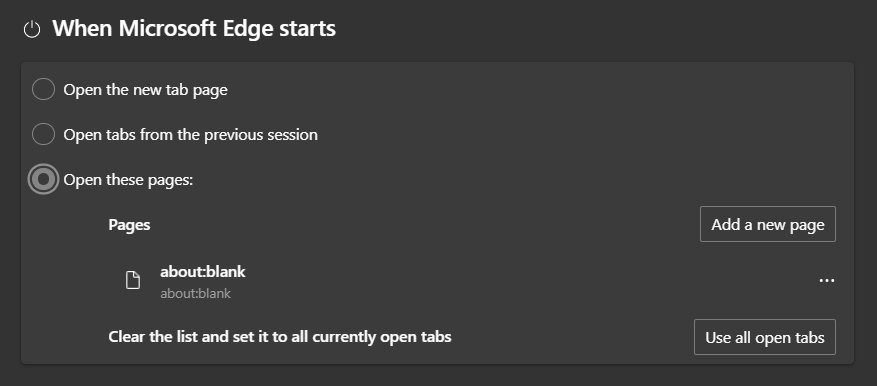
| Microsoft Edge | Settings and more > Settings > Start, home, and new tab page > On startup | Open the new tab page or Open tabs from the previous session |
| Safari on Mac | Safari > Settings > General > Homepage | Type a real web address, or select Set to Current Page |
| Any browser that changes back by itself | Uninstall unknown programs, run a Windows Security scan, then reset the browser | Default settings once the unwanted software is gone |
What is about:blank?
about:blank is an internal browser address, like a built-in empty document. Web pages and browsers use it as a placeholder while nothing else is loaded.
| Question | Answer |
|---|---|
| What it is | An empty page generated by the browser itself, with no server or website behind it |
| Where you see it | A new window or tab opened by a script, a startup or home page set to about:blank, or an embedded frame with no content |
| Why websites use it | window.open() creates a new window that initially contains about:blank, and an <iframe> with src="about:blank" embeds an empty page that follows the same-origin policy |
| Does it download anything | No. The page is blank because there is nothing to load |
| Which browsers have it | Chrome, Edge, Safari, Firefox and other browsers all support the about:blank address |
| Is it harmful | No. The page itself is harmless; only unwanted software that keeps forcing it is a problem |
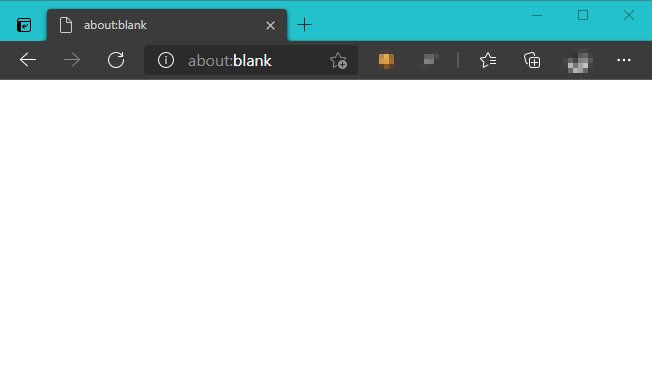
About:blank (about blank) pages are safe usually
| What you see | Normal or a warning sign? | What to do |
|---|---|---|
| A blank tab after clicking a link that opens a pop-up or download | Normal: the new tab starts as about:blank before the site loads | Wait, or close the tab |
| about:blank every time the browser starts | Normal if you or another person set it as the startup page | Change the startup page |
| Homepage, startup page or search engine changed without your permission | Warning sign of unwanted software, according to Google | Remove unknown programs, scan, then reset settings |
| Redirects to unfamiliar pages or ads, or toolbars that keep coming back | Warning sign of unwanted software | Scan with Windows Security and reset the browser |
| Work or school Chromebook opens a page you cannot change | Normal: the administrator controls it | Contact your administrator |
How to stop about:blank opening in Google Chrome
Chrome has two separate settings: the startup page you see at launch, and the homepage the Home button opens. Check both.
- Open Chrome and select More (three dots) at the top right, then Settings.
- In the startup section, choose to have a new tab open or to continue where you left off.
- If you keep the option to open a specific set of pages, remove the about:blank entry from the list.
- Under Appearance, check Show Home button.
- If it is on, choose the New Tab page or type a real web address as the custom page.
- Close and reopen Chrome to confirm the blank page is gone.
How to change the Microsoft Edge startup page from about:blank
- Select Settings and more (three dots) at the top right of Edge, then Settings.
- Select Start, home, and new tab page in the left menu.
- Under On startup, select Open the new tab page or Open tabs from the previous session.
- If you prefer Open custom sites, delete about:blank from the list and add the site you want.
- Close Edge and open it again to check the result.
How to change the Safari homepage from about:blank on Mac
- Open Safari on your Mac.
- Choose Safari > Settings, then click General.
- In the Homepage field, replace about:blank with a web address, or click Set to Current Page while the page you want is open.
- To open new windows with that page, click the New windows open with pop-up menu and choose Homepage.
- To open new tabs with it, click the New tabs open with pop-up menu and choose Homepage.
Choose History > Home to open the new homepage straight away.
How to reset Chrome settings to remove about:blank
A reset puts the startup page, homepage and search engine back to Chrome's default settings. Remove unwanted programs first, or they can change the settings again.
- Open Chrome and select More > Settings.
- Select Reset settings.
- Select Restore settings to their original defaults.
- Select Reset settings to confirm.
- Turn trusted extensions back on from More > Extensions > Manage extensions; leave unknown ones off.
Chrome also checks for changed settings at every launch. Type chrome://settings in the address bar to see what it restored. A reset does not delete cookies; to clear them as well, remove cookies in Windows or from the browser's privacy settings.
How to scan for about:blank malware with Windows Security
If about:blank or another page comes back after you change the settings, check Windows for unwanted programs and PUPs before resetting the browser.
- Open Start > Settings > Apps > Installed apps and uninstall any program you do not recognise or did not install.
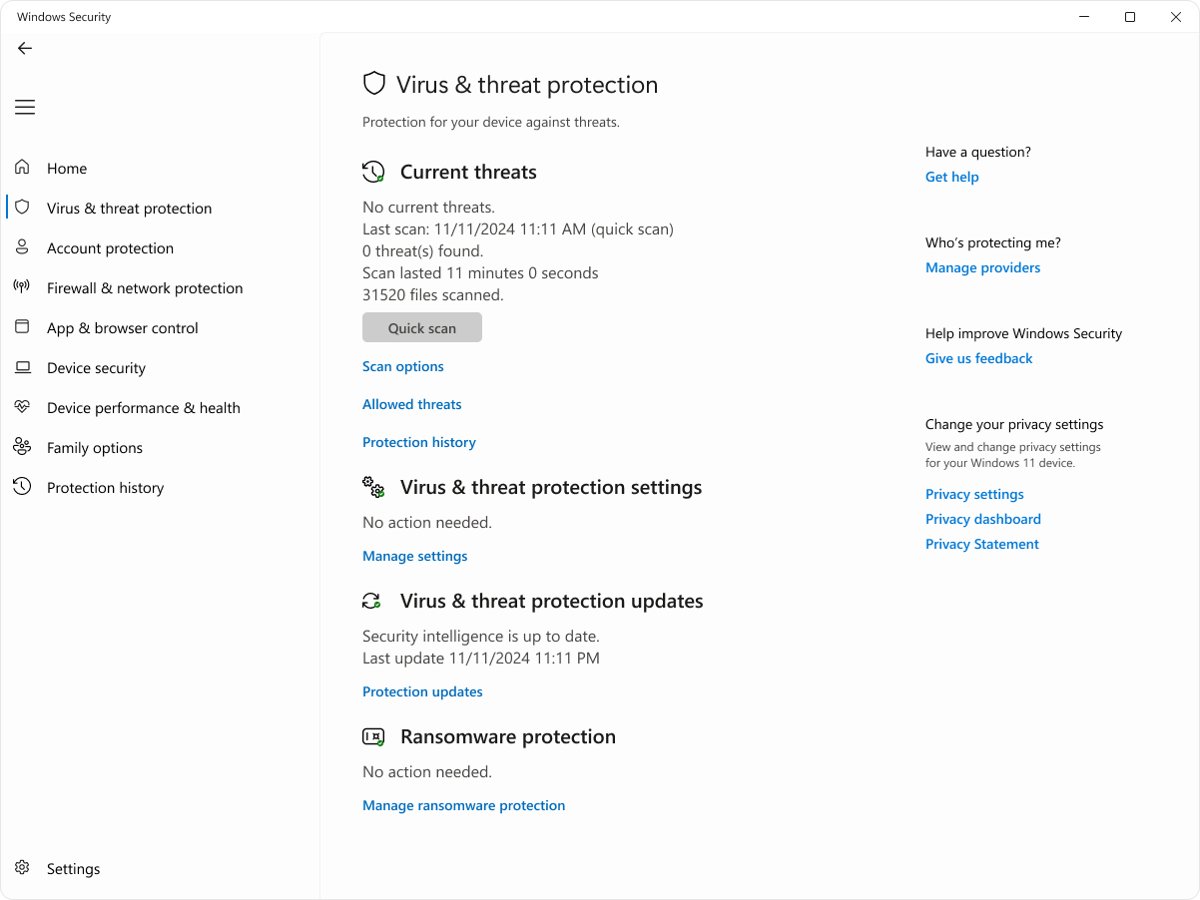
- Open the Windows Security app and select Virus & threat protection.
- Under Current threats, select Start a new quick scan.
- For a deeper check, select Scan options, choose Full scan and start it.
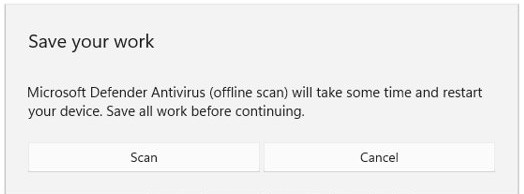
- If threats persist, select Scan options > Microsoft Defender Antivirus (offline scan), save your work and start the scan; the PC restarts to run it.
- Review the results under Protection history, then reset the browser.
How to set about:blank as your homepage
Some people want an empty start page on purpose because it opens instantly. Every major browser accepts about:blank as a page address.
| Browser | Where to enter about:blank |
|---|---|
| Google Chrome | More > Settings > Appearance > Show Home button, then type about:blank as the custom page |
| Microsoft Edge | Settings > Start, home, and new tab page > On startup > Open custom sites, then add about:blank |
| Safari on Mac | Safari > Settings > General, type about:blank in the Homepage field and set New windows open with to Homepage |
about:blank keeps opening in Chrome or Edge
The startup page or homepage changes back to about:blank by itself
A program or extension keeps rewriting the setting; Google lists this as a sign of unwanted software.
- Uninstall unknown programs from Settings > Apps > Installed apps.
- Run a Full scan in Windows Security > Virus & threat protection > Scan options.
- Reset Chrome with Restore settings to their original defaults.
- Turn extensions back on one at a time and leave any unknown one off.
Links open a blank tab and stay on about:blank
The site opened a new window, which starts as about:blank, and the page it should load was blocked or failed.
- Close the blank tab and click the link again.
- Clear the browser's cached images and files, then retry.
Every page in Edge loads blank
Damaged browser data or a broken Edge install.
- Open Settings and more > History > Open history page > Delete browsing data.
- Set Time range to All time, check Cached images and files and select Clear now.
- If pages are still blank, close Edge, open Start > Settings > Apps > Installed apps, select Microsoft Edge, then Modify > Repair.
You cannot change the startup page on a work or school Chromebook
The network administrator controls the startup page and homepage.
- Ask your administrator to change the startup page policy.
- Use a personal profile or device if you need your own startup page.
about:blank FAQ
How is about:blank useful?
about:blank gives browsers and websites an empty page to use as a placeholder. New windows opened by scripts start on it, embedded frames can use it as an empty page, and some people set it as a homepage because it opens instantly.
Is about:blank a virus or malware?
No. about:blank is a page built into the browser and contains no code. Unwanted software can force a browser to open it, so if your startup page keeps changing back, scan with Windows Security and reset the browser.
Should you be worried if a page redirects you to about:blank page?
Usually not. A link that opens a new window starts on about:blank before the site loads, and a blocked pop-up can leave it empty. Repeated redirects to unfamiliar pages or ads are a sign of unwanted software and need a scan.
How to fix about:blank page?
Change the startup page or homepage in your browser settings to a new tab or a real website. If the setting keeps reverting, uninstall unknown programs, run a Windows Security full scan, and reset the browser to its defaults.
Is about:blank safe?
Yes. The page loads nothing from the internet and cannot run anything on its own. It only becomes a concern when something keeps changing your browser settings without your permission, which points to unwanted software.
How do I stop Chrome opening about:blank?
Open Chrome Settings, set the startup option to a new tab or continue where you left off, and remove about:blank from any list of specific pages. Also check the Show Home button setting under Appearance.