To restore a previous version of a file in Windows 11, right-click the folder that holds it in File Explorer, select Restore previous versions, pick a dated version and select Restore.
This guide covers File History setup, OneDrive and Office version history, how to create and validate a system image, and fixes for the 0x80070490 backup error and a missing Previous Versions list.
How to restore previous version of file in Windows 11
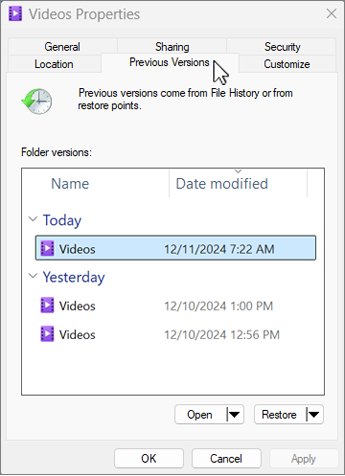
The Previous Versions tab lists the copies that File History saved to your backup drive. Work from the folder that held the file, because a deleted file has no icon left to right-click.
- Open File Explorer and go to the folder that contains, or used to contain, the file.
- Right-click the folder and select Restore previous versions. For a file at the top of a drive, such as C:\, right-click the drive instead.
- On the Previous Versions tab, select a version dated before the change or deletion, for example yesterday's copy.
- Expand Open and select Open in File History to preview that version before you commit to it.
- Select Restore to put that version back in its original place.
- Expand Restore and select Restore to… instead if you want to keep the current copy and save the older one somewhere else.
A plain Restore replaces the current file, and Microsoft states that this replacement can't be undone. Use Restore to… whenever the current copy still has work you might need.
Items you browse through a library must be restored from their real saved location, not from the library view.
How to turn on File History in Windows 11
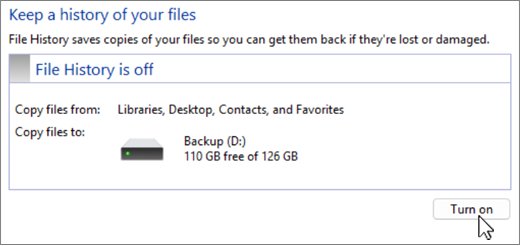
The Previous Versions tab stays empty until File History has a drive to save to. File History copies your personal folders, such as Documents, Pictures, Videos and Desktop, to an external drive or a network location and keeps older copies as files change.
- Connect an external drive, or make sure a network location is set up and reachable.
- Open Control Panel, and under System and Security select Save backup copies of your files with File History.
- Select Turn on.
- If Windows picked the wrong drive, select Select drive, choose the drive or network location in the Select a File History drive window and select OK.
- If Windows asks, choose whether to move existing backups to the new drive or start fresh.
- To protect another folder, right-click it, select Show more options and then Include in library.
File History only holds versions made after you turn it on. If the backup drive was unplugged for a while, reconnect the File History drive before you look for older copies.
OneDrive restore previous version
Files that live in a OneDrive folder have their own version history, separate from File History. It works with every file type, including Office files, PDFs, CAD files, photos and videos, and keeps versions for 30 days.
- In File Explorer, open your OneDrive folder. The OneDrive sync app must be installed and signed in.
- Right-click the file and select Version history.
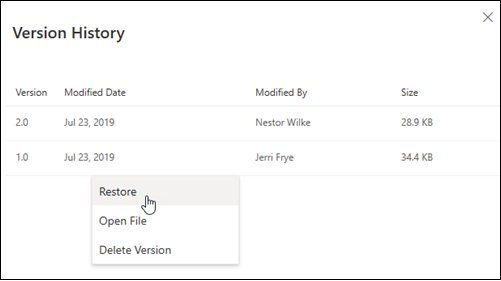
- Find the version you want and select the three-dot menu next to it.
- Select Restore. The restored copy becomes the current version, and the copy it replaced moves into the version list.
- If you are away from your PC, go to onedrive.com, sign in, right-click the file, select Version history, then use the three-dot menu and Restore.
OneDrive restores one file at a time this way. On a work or school account, an administrator can turn document versioning off, which removes the history entirely. You can also open the same OneDrive folder on another PC to reach those files.
How to restore previous version of Word, Excel and PowerPoint files
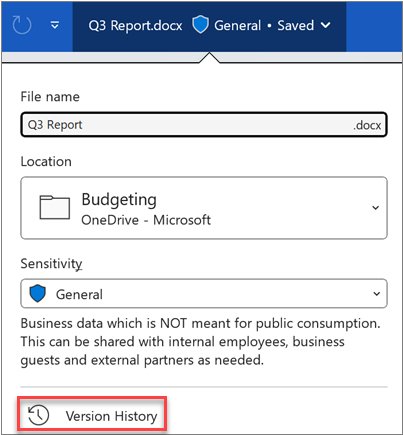
Word, Excel and PowerPoint for Microsoft 365 show the saved versions inside the app when the file is stored in OneDrive or a SharePoint Online library. A file saved only on the local disk has no Version History button.
- Open the document, workbook or presentation you want to roll back.
- Select File > Info.
- Select Version History. In Word you can also select the document title at the top and choose See all versions.
- In the Version History pane, select a version to open it and check its contents.
- Select Restore below the toolbar to make that version the current one.
For a Word file that closed before you saved it at all, version history has nothing to show; recover the unsaved Word document from its AutoRecover copy instead.
How to restore to previous Windows version
Restoring a file and restoring Windows are different jobs. The tools below roll back the system, not a single document, and each one treats personal files differently.
| What you want back | Use this | What it changes |
|---|---|---|
| One file or folder as it was last week | Previous Versions tab (File History) | Only the item you restore |
| A OneDrive or Office file from the last 30 days | Version history in OneDrive, Word, Excel or PowerPoint | Only that file |
| Windows settings and drivers before a bad change | System Restore | System files, registry and installed programs; personal files are kept |
| The whole PC from the last few days, files included | Point-in-time restore in Windows RE | Apps, settings and personal files, rolled back to a recent automatic restore point |
| The previous Windows release after an upgrade | Settings > System > Recovery > Go back | Returns to the earlier version of Windows |
| An entire drive after a disk failure | System image and System Image Recovery | Replaces the whole disk contents with the image |
You can create and use System Restore points before risky changes so the system rollback is always available.
How to create system image in Windows 11
A system image is a full copy of the drives Windows needs to start, saved to another drive. Windows 11 still includes the older Backup and Restore (Windows 7) image tool in Control Panel, and the same engine runs from the command line with wbadmin.
Open Command Prompt as administrator first: search for cmd, right-click Command Prompt and select Run as administrator.
wbadmin start backup -backupTarget:E: -include:C: -allCritical -quiet-backupTarget:E: is the drive that receives the image (use your external drive's letter). -include:C: adds the Windows drive. -allCritical adds every volume the operating system needs to start, which is what makes the image usable for bare metal recovery. -quiet runs without prompts.
You should see: The command reports the backup as completed, and the target drive now holds a WindowsImageBackup folder named after your PC.
The target cannot be one of the volumes inside the image, so an external drive or a second internal disk is the usual choice. Microsoft marks Backup and Restore (Windows 7) as deprecated and not updated, so keep File History or OneDrive running for everyday file versions.
How to validate Windows system backup image
Check an image before you need it. wbadmin reads the backup catalog on the target drive and lists every version it can restore, with the items inside each one.
- Connect the drive that holds the image and open Command Prompt as administrator.
- Type
wbadmin get versions -backupTarget:E:and press Enter, replacing E: with the backup drive letter. - Read each entry: it shows the backup time, the storage location, the version identifier and the kinds of recovery the backup supports.
- Copy the version identifier of the newest backup. It uses the MM/DD/YYYY-HH:MM format.
- Type
wbadmin get items -version:MM/DD/YYYY-HH:MM -backupTarget:E:with that identifier and press Enter. - Confirm the list includes your Windows drive and the system volumes. A backup that is missing from the list, or that lists no items, cannot be restored.
Run the check again after every new image. If wbadmin finds no versions on a drive you know holds a WindowsImageBackup folder, create a fresh image rather than rely on the old one.
How to restore system image in Windows 11
System Image Recovery replaces everything on the drives in the image, so copy out any files made after the image date first. If the device uses BitLocker, have the recovery key ready.
- Connect the drive that holds the system image.
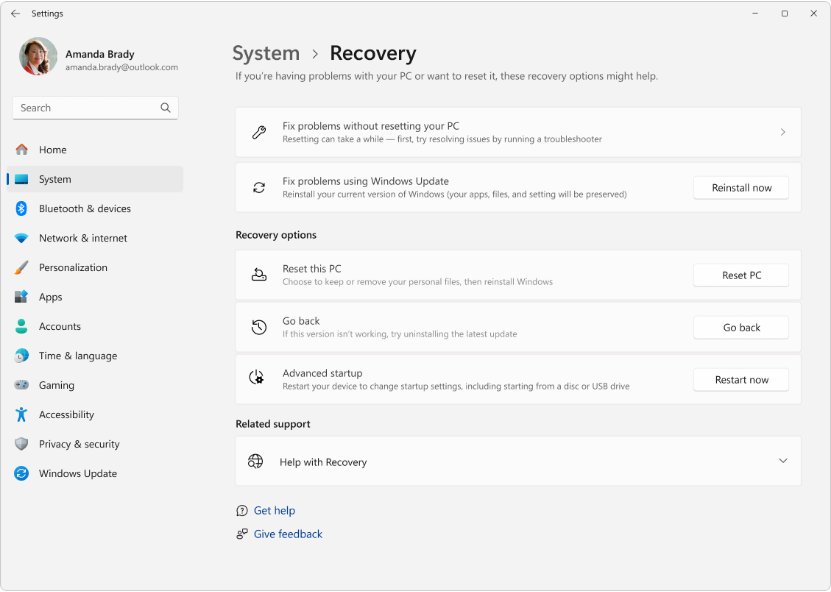
- Open Settings > System > Recovery.
- Next to Advanced startup, select Restart now.
- In Windows Recovery Environment, choose Advanced options and select System Image Recovery.
- Pick the image you validated earlier and follow the prompts to restore it.
If Windows does not start at all, boot into Windows Recovery Environment from a recovery drive or installation media and choose the same option.
Element not found (0x80070490), Windows Backup error
0x80070490 is the Windows error ERROR_NOT_FOUND, whose official text is "Element not found." During a backup it means Windows looked for something it needed, such as the target, a system component or a shadow copy writer, and could not find it.
Backup fails with 0x80070490 right after you pick the backup drive
The target drive letter changed, the drive was disconnected or the network location is unreachable.
- Reconnect the external drive and check its letter in File Explorer.
- Run
wbadmin get versions -backupTarget:E:with the current letter to confirm Windows can read the drive. - Start the backup again and point it at the current drive letter.
Backup fails with 0x80070490 on every drive you try
Damaged system files that the backup engine depends on.
- Open Command Prompt as administrator.
- Run
DISM.exe /Online /Cleanup-image /Restorehealthand wait for it to finish. - Run
sfc /scannowand keep the window open until the scan completes. - Restart the PC and run the backup again.
Backup stops partway with 0x80070490 or a shadow copy error
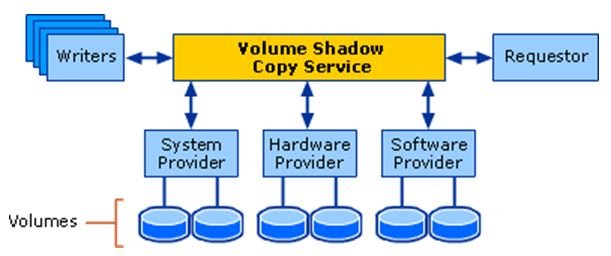
A Volume Shadow Copy writer is in a failed state, or the Volume Shadow Copy service has been disabled.
- Open Command Prompt as administrator.
- Run
vssadmin list writersand look for any writer whose state is not stable or that shows an error. - Restart the PC to reset the writers, then run the backup again.
- If you disabled the Volume Shadow Copy service earlier, set it back to its default, because System Restore and Windows backups depend on it.
The DISM RestoreHealth repair also needs Windows Update or a repair source, so run it while the PC is online.
Why is restore previous version not available in Windows 11
"There are no previous versions available" on the Previous Versions tab
File History is off, or it was turned on after the change you want to undo.
- Open Control Panel > System and Security > Save backup copies of your files with File History.
- Check that File History is on and that the backup drive is connected.
- If it was off, turn it on now; versions from before that point do not exist, so check OneDrive version history instead.
Restore previous versions shows nothing for a file in a library
Libraries are views, and versions are tracked against the real folder.
- Right-click the file in the library and note its real location.
- Go to that folder in File Explorer.
- Right-click the folder there and select Restore previous versions.
OneDrive or Office shows no Version history entry
The file is stored locally, the version is older than 30 days, or a work or school administrator turned versioning off.
- Confirm the file sits inside your OneDrive folder or a SharePoint library, not a local folder.
- Check the date you need: OneDrive keeps version history for 30 days.
- On a work or school account, ask your administrator whether document versioning is enabled.
If a restore fails with a permissions message instead, fix Access Denied on the folder and try again.
Restore previous version of file FAQ
How do I restore a previous version of an Excel file?
Open the workbook, select File > Info > Version History, pick a version and select Restore. This works when the workbook is stored in OneDrive or SharePoint. For a local workbook, right-click its folder, select Restore previous versions and use a File History copy.
How do I restore a previous version of a Word doc?
Select File > Info > Version History in Word, or select the document title and choose See all versions. Open the version you want and select Restore. A document saved only on the local disk needs File History and the Previous Versions tab instead.
How do I restore a previous version of PowerPoint?
Open the presentation from OneDrive or SharePoint, select File > Info > Version History and choose the version you want. Select Restore below the toolbar. The restored version becomes the current one, and later versions stay in the list.
Can I restore a previous version of a PDF or Notepad file?
Yes. File History and OneDrive version history are not limited to Office files. Right-click the folder and use Restore previous versions, or right-click the file in your OneDrive folder and select Version history. OneDrive states that version history works with all file types.
Can I restore a previous version of a .mat file or another uncommon file type?
Yes, if the file was backed up. The Previous Versions tab restores any file type that File History copied, and OneDrive version history covers all file types. Neither tool can bring back a version that was never saved to a backup.
Why is restore previous version not available?
Usually File History was never turned on, the backup drive is disconnected, or you are looking at a library instead of the real folder. Turn on File History, reconnect the drive and right-click the folder in its actual location.
How do I restore to an earlier version of a file I just overwrote?
Right-click the folder that holds the file and select Restore previous versions. Pick the newest version dated before you overwrote it and choose Restore to to save it alongside the current copy, so nothing is replaced.
How do I restore to a previous Windows version?
Open Settings > System > Recovery and select Go back if the option is offered after a recent upgrade. For a bad driver or setting, use System Restore. For a failed drive, restore a system image with System Image Recovery in Windows RE.
Does restoring a previous version delete the current file?
A plain Restore replaces the current file, and Microsoft says that replacement can't be undone. Choose Restore to on the Previous Versions tab to save the older copy in another folder and keep both.