A Surface Pen that stops working is usually fixed by charging or replacing its battery, re-pairing it over Bluetooth, or restarting the Surface it is paired with.
This guide covers seven fixes in order, what the pen's LED light means, how to test inking in another app, and how to request a replacement pen when the hardware has failed.
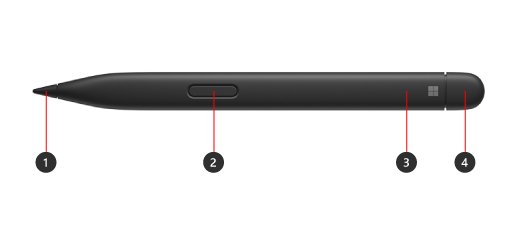
How to get a Surface Pen working again
Run these checks in order and stop as soon as the pen writes. Each one maps to a numbered fix below.
- Press and hold the pen's top button for 5-7 seconds and watch the LED.
- If the LED is red or amber, charge a Surface Slim Pen or replace the AAAA battery in other Surface Pen models.
- Select Start > Power > Restart to restart your Surface.
- Open OneNote, Sticky Notes or Paint and try to write in one of them.
- If the pen still does nothing, remove it from Bluetooth & devices in Settings and pair it again.
- Open the Surface app, expand Help & support and install any updates it offers.
If the pen inks in Paint but not in your usual app, the app does not support pen input. Contact that app's developer rather than changing the pen.
Surface Pen LED light meanings
The LED is the fastest way to tell a flat battery from a pairing problem. Press and hold the top button for 5-7 seconds, then match what you see.
| What the LED does | What it means | What to do |
|---|---|---|
| Blinks continuously | The pen has power and is in pairing mode | Restart your Surface and pair the pen again (fix 4) |
| Blinks for 2-3 seconds, then stops | The pen is paired with another nearby Surface | Remove the pen from that Surface's Bluetooth devices list, then pair it with yours |
| Red or amber | Low power | Charge the Slim Pen or replace the batteries (fix 2) |
| White, fading in and out (Slim Pen) | Docked and charging | Leave it in the charging tray or charger |
| Amber and white, flashing (Slim Pen) | The charging accessory needs an update | Install Surface updates (fix 6) |
| White, solid (Slim Pen) | Paired with your Surface | The pen is connected; test inking in another app |
| No light at all | No power reaching the pen | Charge or replace the battery; if it still stays dark, request a replacement pen |
Microsoft Classroom Pen 1 and Classroom Pen 2 have no Bluetooth, so they cannot pair and the top-button checks do not apply to them.
1. Verify your Surface Pen's compatibility
Some Surface models have no pen support at all. Surface Laptop Ultra, Surface Laptop (8th Edition), Surface Laptop (7th Edition), Surface Laptop 13-inch (1st and 2nd Edition) and every Surface Laptop Go cannot ink with any Surface Pen.
On other models, the pen generation matters. Find your Surface model in the Surface app, then check it against the pen you own.
| Your Surface | Pen that works | Notes |
|---|---|---|
| Surface Pro 8, Pro 9, Pro 10 for Business, Pro (11th Edition), Pro (12th Edition), Pro 12-inch | Surface Slim Pen (Slim Pen 2) | Bluetooth, tilt, tactile signals and zero force inking supported |
| Surface Pro X | Surface Slim Pen or Slim Pen (1st Gen) | Tactile signals not supported |
| Surface Laptop Studio, Laptop Studio 2 | Surface Slim Pen or Surface Pen with no clip | Slim Pen charges in the area under the keyboard |
| Surface Pro (5th Gen), Pro 6, Pro 7, Pro 7+ | Surface Pen with no clip | 4096 pressure points, tilt supported |
| Surface Go, Go 2, Go 3, Go 4 | Surface Pen with no clip, Classroom Pen, Classroom Pen 2 | Classroom pens have no Bluetooth |
| Surface Laptop 3, 4, 5, Laptop 6 for Business | Surface Pen with no clip | No magnet attach |
| Surface Book (all), Surface Studio (all) | Surface Pen with no clip | Surface Book (1st gen) has 1024 pressure points |
| Surface Pro 3, Pro 4, Surface 3 | Surface Pen with single button on flat edge | 1024 pressure points, no tilt |
| Surface Laptop Go, Laptop (7th and 8th Edition), Laptop 13-inch, Laptop Ultra | None | These models do not support inking |
A Surface Pen can also work on another Windows 10 or Windows 11 PC that supports Microsoft Pen Protocol (MPP). Surface Slim Pen uses MPP v2.6, the Surface Pen with no clip uses MPP v2.0, and the PC maker's specification page lists which MPP version that PC supports.
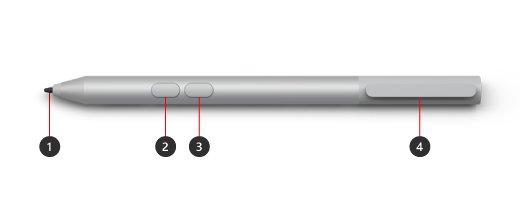
2. Charge or replace your Surface Pen's battery
Surface Slim Pen and Slim Pen 2 have a built-in rechargeable battery and charge wirelessly. Every other Bluetooth Surface Pen runs on one AAAA battery, and the Surface Pro Pen for Surface Pro and Pro 2 has no battery at all.
| Your pen | Battery | How to charge or replace it |
|---|---|---|
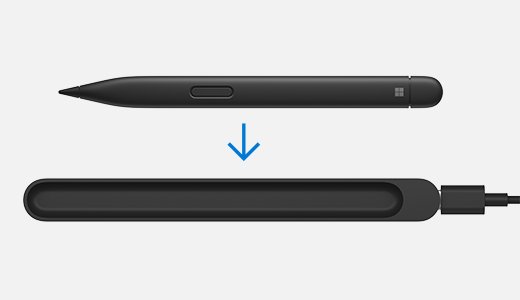
| Surface Slim Pen, Slim Pen 2 | Built-in rechargeable Li-ion | Place it button side out in the Surface Pro keyboard tray, the Surface Laptop Studio charging area, the back of Surface Pro 12-inch or a Surface Slim Pen Charger. The Surface must be on and plugged in, not off or in hibernate. |
| Surface Pen with no clip | One AAAA | Pull the top end straight out, insert the battery with the positive (+) end toward the tail end, and push the halves back together. |
| Surface Pen with single button on flat edge | One AAAA | Turn the eraser cap counter-clockwise about 30 degrees until it clicks, pull it out, insert the battery with + toward the tail end, then refit the cap. |
| Surface Pen with two side buttons, Classroom Pen 1 and 2, Business Pen | One AAAA, plus two size 319 coin cells in the cap on the two-button pen | Unscrew the top, insert the AAAA battery with + toward the writing tip, and screw the top back on. |
| Surface Pro Pen | None | No charging or battery change needed |
Check the charge level on the Pen tab of the Surface app, or at the bottom of the app where connected accessories are listed. You may need to pair the pen again after you change its batteries.
3. Replace Surface Pen tip
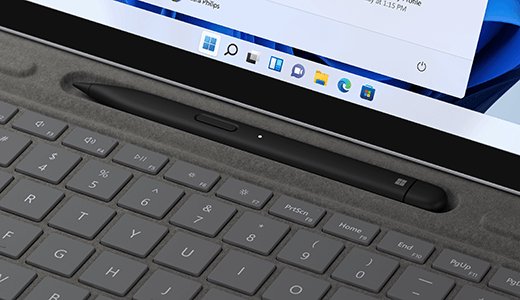
A worn, loose or broken tip causes jagged lines or no ink at all. Replaceable tips fit the Surface Pen with no clip, the Surface Pen with single button on flat edge and the Surface Slim Pen. Tip packs are sold in the Microsoft Store, and a pen under warranty can get tips through Microsoft's device service site.
- Grip the current tip with tweezers.
- Pull and slide the tip out until it is fully removed from the pen.
- Insert the thinnest part of the replacement tip into the pen.
- Push until the tip locks into place.
- Write in OneNote or Paint to check that the line is smooth.
Do not pull the Slim Pen 2 tip in and out to test it. Microsoft states that 500 or more removal and reinsertion cycles can damage the pen, and that damage is not covered by the warranty.
4. Unpair and reconnect your Surface Pen
Pairing gives you the top-button shortcuts and the battery readout. A pen still paired to a different Surface will blink for only 2-3 seconds and will not appear on yours.
- On Windows 11, select Start > Settings > Bluetooth & devices. On Windows 10, select Start > Settings > Devices > Bluetooth & other devices.
- Select Surface Pen in the device list and choose Remove device.
- Make sure Bluetooth is turned on, then select Add device > Bluetooth.
- Press and hold the pen's top button for 5-7 seconds until the LED flashes white.
- Select Surface Pen in the list and follow any prompts.
- Select Done when the pen shows as connected.
If the Bluetooth switch itself is gone from Settings, fix that first: the missing Bluetooth toggle in Windows 11 is usually a driver or adapter problem rather than a pen fault.
5. Update or re-enable your display/graphics driver
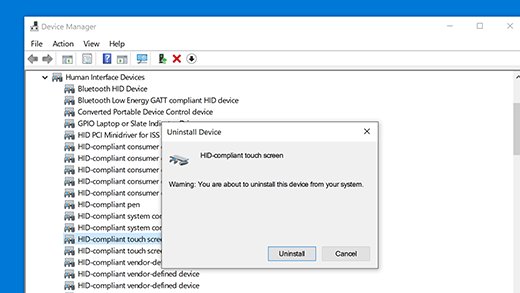
Surface inking runs on the touchscreen hardware, so a disabled or broken touch driver stops the pen too. The drivers that matter are HID-compliant touch screen and Surface Touch firmware, plus the graphics driver under Display adapters.
Do not uninstall drivers on Surface Pro X. Microsoft states the only way to restore them on that model is a full system reset.
- Right-click Start and select Device Manager.
- Expand Human Interface Devices.
- Right-click HID-compliant touch screen. If it offers Enable device, select it; repeat for every HID-compliant touch screen entry.
- If it is already enabled, right-click it, select Uninstall device and confirm Uninstall. Do the same for Intel(R) Precise Touch Device if it is listed.
- Select Action > Scan for hardware changes, then restart your Surface while it is online so Windows reinstalls the driver.
- Expand Display adapters, right-click the graphics adapter and select Update driver > Search automatically for updated driver software.
- If no driver is found, select Search for updated drivers on Windows Update, then select Close.
If an update to the graphics driver started the problem, open the adapter's Properties, select the Driver tab and choose Roll Back Driver. When touch also fails, work through the fixes for a touchscreen not working in Windows as well.
6. Update your Surface
Surface firmware and driver updates fix pen, touch and charging-accessory faults. Attach the pen or keyboard you are troubleshooting first so it receives its own update, and keep the Surface plugged in with at least 40% battery.
- Select Start, type
Surfaceand open the Surface app. Install it from the Microsoft Store if it is missing. - Expand Help & support to see the update status.
- Select Check for updates to open Windows Update, then install everything offered.
- On Windows 11, go to Start > Settings > Windows Update. On Windows 10, go to Start > Settings > Update & Security > Windows Update.
- Type
View optional updatesin the taskbar search box, open it and install every Surface driver listed under Driver updates. - Restart your Surface when the updates finish.
Microsoft also publishes driver and firmware packages per Surface model on its Download Center, for a Surface that cannot reach Windows Update.
7. Restart your Surface
A restart reconnects the Surface and the pen, and it is often enough when the pen has power but does nothing. If the screen is frozen, force the restart with the buttons for your model.
- Select Start > Power > Restart for a normal restart.
- If Windows does not respond on Surface Pro (5th Gen) or later, Surface Pro X, Surface Laptop, Laptop Studio, Laptop Go, Surface Go, Surface Studio or Surface Book 2 and later, hold the power button for about 20 seconds until the Windows logo appears, then release it.
- On Surface Pro, Pro 2, Pro 3, Pro 4, Surface Book, Surface 2, Surface 3 or Surface RT, hold volume up and power together for at least 15 seconds until the screen turns off.
- Release both buttons and wait 10 seconds.
- Press and release the power button to turn the Surface back on.
- Write with the pen in OneNote, Sticky Notes or Paint.
How to test a Surface Pen in OneNote, Paint or Sticky Notes
Testing in a built-in app separates a pen fault from an app that ignores pen input.
- Open Paint, Sticky Notes or OneNote.
- Rest your hand on the screen and write a line of text with the pen tip.
- Turn the pen over and rub the eraser end across the writing.
- Press and hold the side button, then tap an item to check that right-click works.
- Click the top button once; on a paired pen it opens Microsoft Whiteboard by default.
- Open the Pen tab in the Surface app and check that a battery level is shown.
If the pen works in these apps but not in your own, the app is the problem. If it fails everywhere, continue with the fixes above or request a replacement.
How to change Surface Pen button shortcuts and pen pressure
A top button that seems dead may simply have no action assigned. Shortcuts only work while the pen is paired over Bluetooth.
- Select Start > Settings > Bluetooth & devices > Pen & Windows Ink.
- Under Choose what your shortcut button does, pick an action for Single-click.
- Set Double-click and Press and hold, where available, the same way.
- Open the Surface app and select the Pen tab.
- Adjust the pen pressure setting until light strokes register the way you want.
By default, one click opens Microsoft Whiteboard, a double-click opens Snip & Sketch and press-and-hold opens Sticky Notes.
Surface Pen not pairing, charging or writing
Surface Pen won't pair with my Surface
The pen is still paired to another device, Bluetooth is off, or the pen has no power.
- Hold the top button for 5-7 seconds and note the LED.
- If it blinks for only 2-3 seconds, remove the pen from the other Surface's Bluetooth list.
- If it blinks continuously, restart your Surface and pair again from Add device.
- If the Bluetooth adapter itself misbehaves, update the Bluetooth driver and retry.
Surface Slim Pen not charging
The Surface is off or in hibernate, the keyboard tray has lost power, or the charging accessory needs a firmware update.
- Plug the Surface in and turn it on.
- Detach the Surface Pro keyboard, select Start > Power > Shut down, then hold the power button for 20 seconds.
- Reattach the keyboard, press Caps and Fn to check it has power, and dock the pen again.
- Install updates from the Surface app with the charging accessory attached.
- Try a Surface Slim Pen Charger. If the pen charges there, the keyboard is at fault; if not, the pen needs replacing.
Top button doesn't open shortcuts
The pen is not paired, or no action is assigned to that click.
- Check that Bluetooth is on and the pen shows as connected in Bluetooth & devices.
- Open Pen & Windows Ink and assign an action to Single-click and Double-click.
Surface Pen writing is jagged or inaccurate
The app handles ink poorly, or the tip is worn or loose.
- Write in Paint or OneNote. If the line is smooth there, the original app is the cause.
- Remove and reinsert the tip, or fit a new one as in fix 3.
Surface Pen not writing and touch not working either
The touchscreen driver, the firmware or the touch hardware has failed.
- Shut down the Surface, then hold volume up and press power until the logo appears to enter UEFI.
- Tap menu items in UEFI. If touch fails there too, the hardware needs service.
- If touch works in UEFI, select EXIT, restart Windows and reinstall the touch driver as in fix 5.
- As a last step, reset the Surface from Reset this PC and test the pen again.
The UEFI screen is the same firmware menu used to enter the BIOS on a Surface, so the button combination is identical.
Surface Pen not working FAQ
Why is my Surface Pen not writing but the buttons work?
The buttons use Bluetooth, while inking runs through the touchscreen digitizer and its drivers. Test in Paint or OneNote, replace the tip, then reinstall the HID-compliant touch screen driver and install Surface updates. If touch also fails in UEFI, the screen needs service.
How do I know if my Surface Pen battery is dead?
Press and hold the top button for 5-7 seconds. A red or amber LED means low power, and no light at all means no power is reaching the pen. The Pen tab in the Surface app also shows the battery level once the pen is paired.
How do I put my Surface Pen in pairing mode?
Press and hold the top button for 5-7 seconds until the LED flashes white continuously. Then open Bluetooth & devices in Settings, select Add device > Bluetooth and choose Surface Pen from the list.
Does a Surface Pen work on a Surface Laptop?
It depends on the model. Surface Laptop 1 to 5, Laptop 6 for Business and the Laptop Studio models support a Surface Pen. Surface Laptop Go, Surface Laptop (7th and 8th Edition), Laptop 13-inch and Laptop Ultra do not support inking at all.
Can I use a Surface Pen on a non-Surface laptop?
Yes, if the PC supports Microsoft Pen Protocol and its MPP version matches your pen. Surface Slim Pen uses MPP v2.6 and the Surface Pen with no clip uses MPP v2.0. The PC maker's specification page lists the supported version.
Does Surface Pen need Bluetooth to write?
Bluetooth pairing is needed for the top-button shortcuts and the battery readout in the Surface app. Microsoft Classroom Pen 1 and Classroom Pen 2 have no Bluetooth at all and still ink on supported Surface Go and Surface Pro models.
Why does my Surface Pen LED blink for only a few seconds?
A blink of 2-3 seconds means the pen is still paired with another nearby Surface. Remove the pen from that device's Bluetooth devices list, then pair it with the Surface you want to use.
Why is my Surface Slim Pen flashing amber and white?
Flashing amber and white means the charging accessory needs an update. Attach the keyboard or Slim Pen Charger, open the Surface app, expand Help & support and install the updates it offers through Windows Update, then restart.
Is a Surface Pen replacement covered by warranty?
Pen faults can be covered. Sign in to Microsoft's Select device for service page, choose your registered Surface, select Accessory and then a pen issue type. The offers shown depend on your warranty status and exchange eligibility.
Get a new Surface Pen
Replace the pen when its LED stays dark after a fresh battery or a full charge, or when it fails to charge in a second charger.
To request a replacement, go to Microsoft account Select device for service, sign in, and select your Surface. If it is not listed, choose Register device first. Pick Accessory as the issue category, then a pen issue type, and review the offers. Business-owned Surface devices go through Surface service options for Business and Education instead.
Request a warranty replacement through Select device for service first; buy a new pen from the Microsoft Store or another retailer only when the warranty has expired, and pick the pen your Surface model supports. Microsoft's replacement offers depend on warranty status, so checking costs nothing, while a new pen bought without checking compatibility may not ink on your model at all.