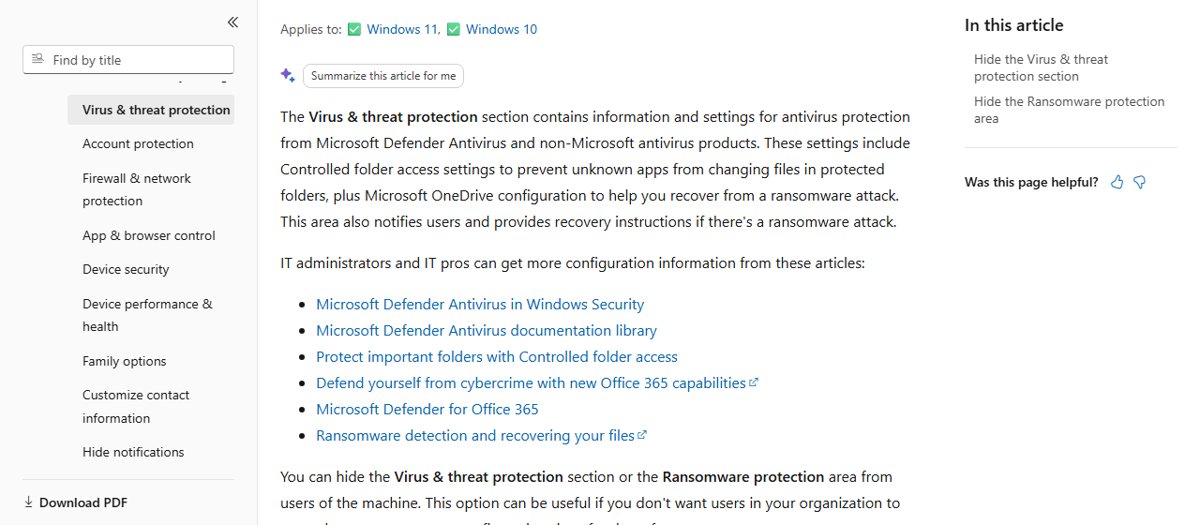
Virus and threat protection is the section of the Windows Security app where Microsoft Defender Antivirus scans, real-time protection and protection history live, and you hide it with the Hide the Virus and threat protection area Group Policy or its registry value.
Hiding the section only removes it from the Windows Security interface; it does not turn off Microsoft Defender Antivirus, and the steps below cover both the hide and the way back.
Hide virus and threat protection in Windows 11 with Group Policy
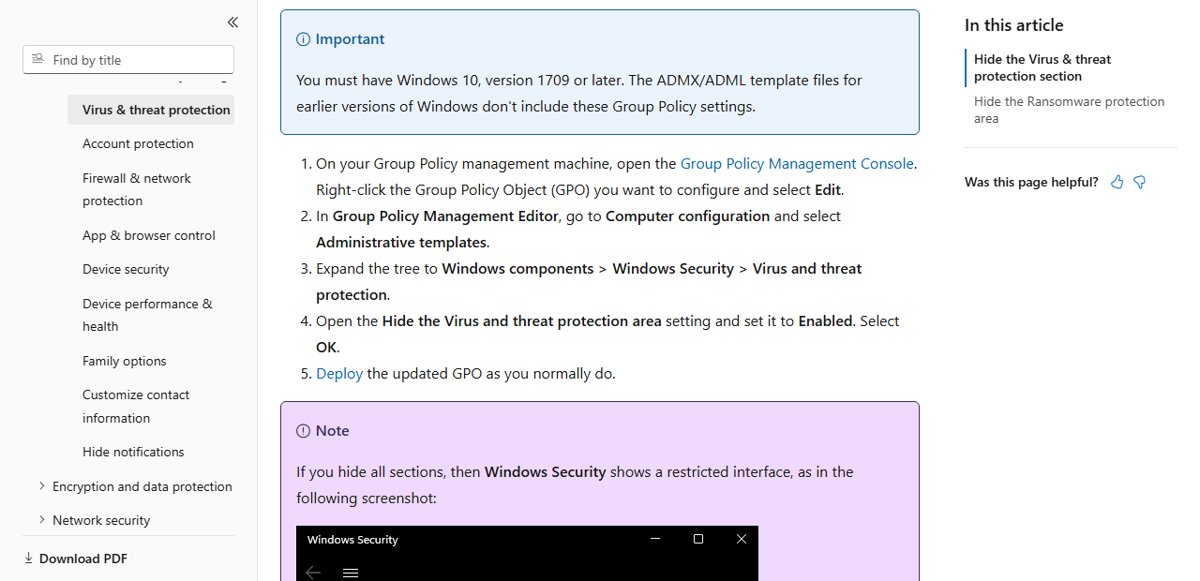
Microsoft documents this policy for Windows 10, version 1709 and later, including Windows 11 Pro, Enterprise and Education. You need an administrator account to edit local Group Policy.
- Press Windows logo key + R, type
gpedit.mscand press Enter. - Go to Computer Configuration > Administrative Templates > Windows Components > Windows Security > Virus and threat protection.
- Double-click Hide the Virus and threat protection area.
- Select Enabled, then select OK.
- Restart the PC, or run
gpupdate /forcein an elevated Command Prompt, so the policy applies. - Open Windows Security and confirm the Virus & threat protection tile and its shield icon are gone.
On a domain, set the same policy in a Group Policy Object with the Group Policy Management Console and deploy it as usual.
Virus and threat protection in Windows 11/10
Microsoft describes the section as the place for antivirus information and settings from Microsoft Defender Antivirus and from non-Microsoft antivirus products. It also holds Controlled folder access and OneDrive ransomware recovery setup.
| Area inside Virus & threat protection | What it does |
|---|---|
| Current threats | Shows threats found, the last scan time and duration, files scanned, quarantined and allowed items, and the Scan options link |
| Quick scan and Scan options | Runs a quick, full, custom or Microsoft Defender Antivirus (offline) scan |
| Virus & threat protection settings > Manage settings | Real-time protection, cloud-delivered protection, automatic sample submission, Tamper protection and exclusions |
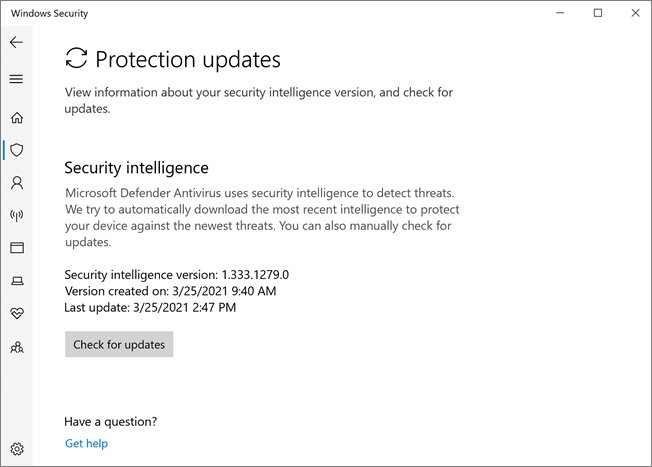
| Virus & threat protection updates | Shows the security intelligence version and offers Check for updates |
| Protection history | Lists recent detections and actions; admin rights are needed to see threat details |
| Ransomware protection > Manage ransomware protection | Controlled folder access and Ransomware data recovery with OneDrive |
To open it, search the Start menu for Windows Security, then select Virus & threat protection or the shield icon on the left. If the app itself is turned off, activate Windows Security first.
Hide virus and threat protection in Windows Security via Registry
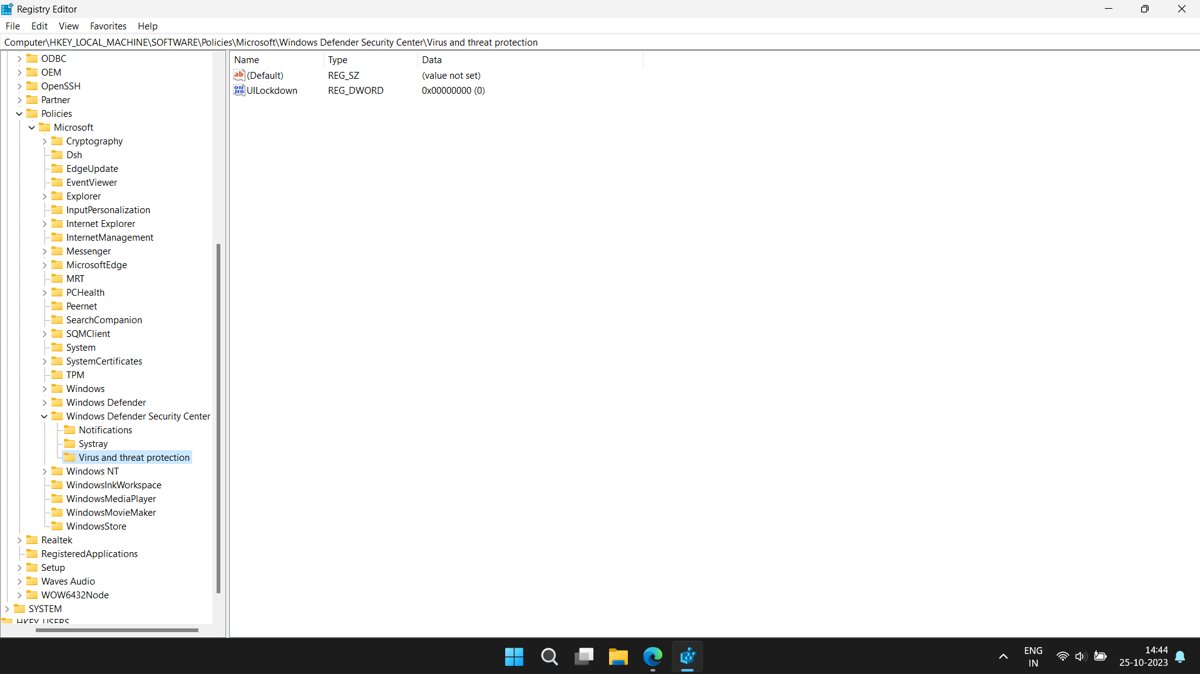
The Group Policy setting writes a single registry value, so you can set it directly on editions without the Group Policy Editor. Microsoft's policy reference lists the key and value below.
reg add "HKLM\SOFTWARE\Policies\Microsoft\Windows Defender Security Center\Virus and threat protection" /v UILockdown /t REG_DWORD /d 1 /fRun it in Command Prompt opened with Run as administrator. It creates the Virus and threat protection policy key if missing and sets the DWORD UILockdown to 1, which hides the area. A value of 0 shows it.
You should see: The command prints "The operation completed successfully." After a restart, the Virus & threat protection tile no longer appears in Windows Security.
Show virus and threat protection in Windows Security again
Both routes are reversible. Use the one that matches how the section was hidden.
- If you used Group Policy, open
gpedit.mscand go back to Windows Components > Windows Security > Virus and threat protection. - Open Hide the Virus and threat protection area, select Not Configured or Disabled, then select OK.
- If you used the registry, run
reg add "HKLM\SOFTWARE\Policies\Microsoft\Windows Defender Security Center\Virus and threat protection" /v UILockdown /t REG_DWORD /d 0 /fin an elevated Command Prompt. - Restart the PC and open Windows Security to confirm the Virus & threat protection tile is back.
To hide only the ransomware recovery box instead of the whole section, enable Hide the Ransomware data recovery area in the same Group Policy folder.
Windows Defender Offline Scan vs Full Scan vs Quick Scan explained
All scans start from Virus & threat protection > Scan options. Pick the scan, then select Scan now.
| Scan type | What it checks | When to use it |
|---|---|---|
| Quick scan | Common locations where threats hide, without a pass over every file | Routine checks; Windows Security tells you if another scan type is recommended |
| Full scan | Every file and program on the device | After a detection, or when the PC behaves suspiciously; it takes much longer |
| Custom scan | Only the files and folders you select | A downloaded file, a USB drive or one folder |
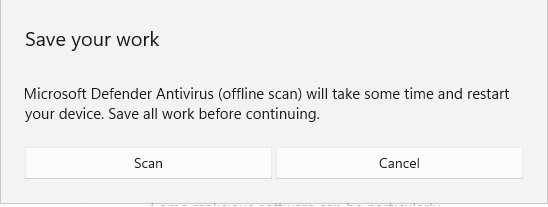
| Microsoft Defender Antivirus (offline scan) | Runs after a restart, outside the normal Windows kernel, with the latest definitions | Rootkits or malware that hides while Windows runs; about 15 minutes, and the PC restarts |
The offline scan needs Microsoft Defender Antivirus as the active antivirus, admin rights and an enabled Windows Recovery Environment. If BitLocker protects the system drive, suspend it first or you may be asked for the recovery key. You can also run a Microsoft Defender full scan from PowerShell.
How to clear Windows Defender Protection History in Windows 11
Windows Security keeps protection history events for two weeks, then they disappear from the list on their own. Microsoft Defender Antivirus removes scan history items after 15 days by default, and the ScanPurgeItemsAfterDelay preference shortens that.
- Search the Start menu for Windows PowerShell, then select Run as administrator.
- Run
Set-MpPreference -ScanPurgeItemsAfterDelay 1to keep scan history items for one day. - Wait a day, then open Windows Security > Virus & threat protection > Protection history and check that older entries are gone.
- Quarantined files are separate: select each one in Protection history and choose Remove to delete it from the device.
- To return to the default, run
Set-MpPreference -ScanPurgeItemsAfterDelay 15.
A value of 0 tells Defender never to remove scan history items, so avoid it if the goal is a shorter list.
Check whether virus and threat protection is hidden by policy
reg query "HKLM\SOFTWARE\Policies\Microsoft\Windows Defender Security Center\Virus and threat protection" /v UILockdownReads the policy value that controls the section. Run it in any Command Prompt.
You should see: UILockdown REG_DWORD 0x1 means the section is hidden. 0x0, or "The system was unable to find the specified registry key or value", means no hiding policy is set.
Windows Defender Quick Scan not working in Windows 11
Quick scan will not start or Scan options are greyed out
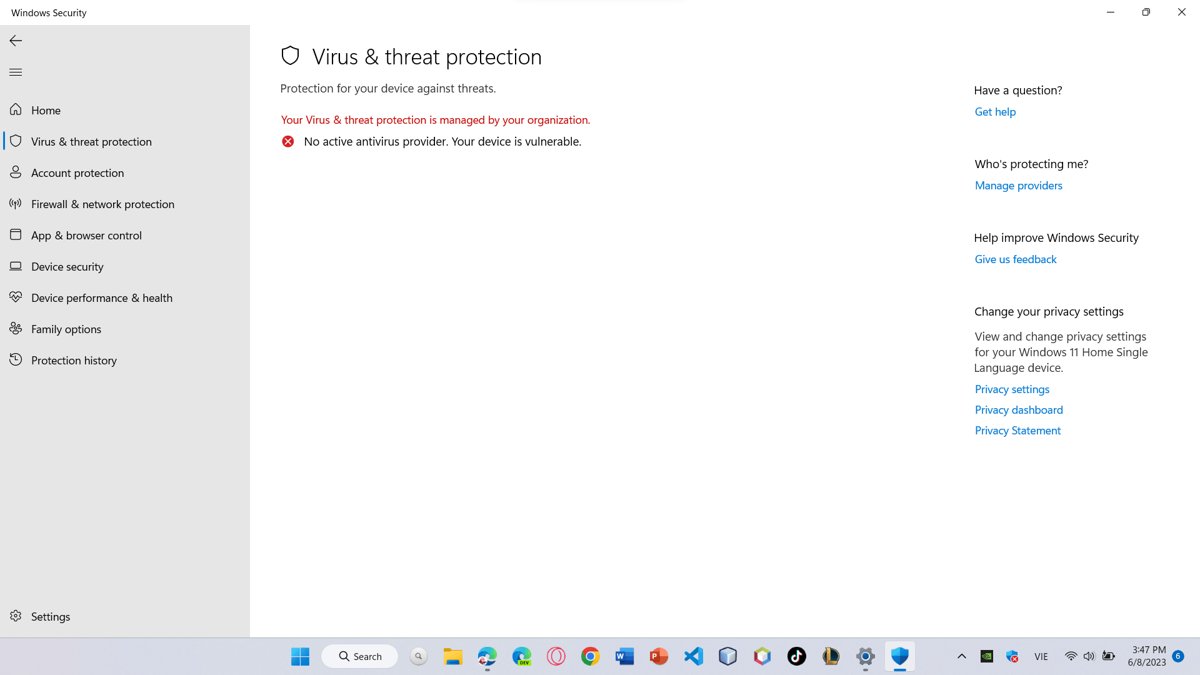
Another antivirus is installed, so Microsoft Defender Antivirus has turned itself off, or settings are managed by Group Policy.
- Open Windows Security > Virus & threat protection and read which antivirus provider is listed.
- If a non-Microsoft product is active, run the scan from that product instead.
- If you removed the other antivirus, restart and check that Real-time protection is On under Manage settings.
- On a work PC, greyed-out settings mean your organization manages them; contact your IT administrator.
Scan couldn't complete or runs very slowly
Out-of-date security intelligence or other programs competing for disk and CPU.
- Select Virus & threat protection updates > Check for updates.
- Close other open programs.
- Start the Quick scan again from Virus & threat protection.
- If it still fails, run the Microsoft Defender Antivirus (offline scan) from Scan options.
Virus and threat protection missing or not available in Windows 11
Why is my virus and threat protection gone or missing?
The Hide the Virus and threat protection area policy is enabled, by you, an administrator or software.
- Run the
reg querycommand from the check above. - If UILockdown is 0x1 on a personal PC, set the policy back to Not Configured or the value to 0.
- Restart and reopen Windows Security.
Why can't I open virus and threat protection?
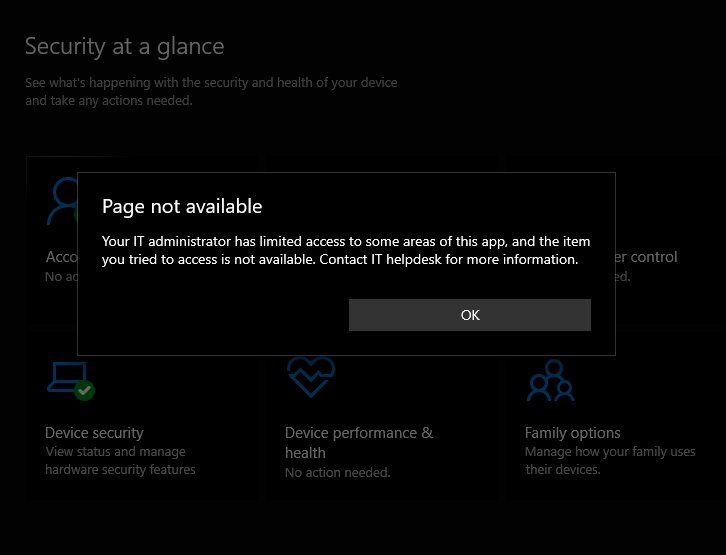
The Windows Security app or its service is not running, or a page is restricted by policy.
- Restart the PC and open Windows Security from the Start menu.
- If the app reports the service is stopped, turn on the Windows Security Center service.
- Go to Settings > Windows Update and select Check for updates to get the latest Windows Security app.
Why does virus and threat protection turn off?
Real-time protection was switched off temporarily, or a third-party antivirus was installed.
- Wait a short while; real-time protection turns itself back on automatically.
- If a third-party antivirus is installed, Defender stays off by design while that product is active.
- To bring Defender back, uninstall the other antivirus and restart.
Virus and threat protection in Windows 11 FAQ
Where is virus and threat protection in Windows 11?
Search the Start menu for Windows Security, open it, and select Virus & threat protection or the shield icon on the left. If the tile is missing, a Group Policy or the UILockdown registry value has hidden it.
Does hiding virus and threat protection turn off Microsoft Defender?
No. The Hide the Virus and threat protection area policy only removes the section from the Windows Security interface. Microsoft Defender Antivirus keeps scanning and protecting the PC in the background.
Does virus and threat protection work?
Yes. It is the control panel for Microsoft Defender Antivirus, which scans files in real time, gets security intelligence updates daily by default, and can run quick, full, custom and offline scans.
Why has virus and threat protection stopped?
Usually a third-party antivirus is installed, which makes Microsoft Defender Antivirus turn itself off. Real-time protection that was switched off manually also turns back on automatically after a short while.
Why is my virus and threat protection missing?
The most common cause is the Hide the Virus and threat protection area policy. Check the UILockdown value under the Windows Defender Security Center policy key; a value of 1 hides the section and 0 shows it.
How do I turn off virus and threat protection in Windows 11?
The Real-time protection switch under Manage settings turns off only temporarily and comes back on by itself. Defender switches off permanently only when another compatible antivirus is installed and active.
How do I manage virus and threat protection?
Open Windows Security > Virus & threat protection and select Manage settings under Virus & threat protection settings. There you control real-time and cloud-delivered protection, sample submission, Tamper protection and exclusions.
Why can't I see virus and threat protection on a work PC?
Your organization can hide the section through Group Policy or Intune. On a managed device only the IT administrator can show it again.