To clean an iPad charging port, turn the iPad off, unplug every cable, and gently brush debris out of the port with a small, dry, nonmetallic, soft-bristled brush.
This guide covers the safe tools, how to power off each iPad model first, what to do about liquid in the port, how to test charging afterwards, and when a loose port needs repair.
How to clean iPad charging port
These steps follow Apple's own cleaning guidance for the iPad charging connector. They work the same for a USB-C port and a Lightning port.
- Unplug the charging cable and every other cable or accessory from the iPad.
- Turn the iPad off: open Settings, tap General, tap Shut Down, then drag the slider.
- Hold the iPad under a bright light and look into the port for lint, dust or sand.
- Take a small, clean, dry brush with soft nonmetallic bristles, and use only as many bristles as fit inside the port.
- Brush gently from the back of the port outward, so debris leaves the port instead of being packed deeper.
- Tap the iPad lightly with the port facing down to drop out anything you loosened.
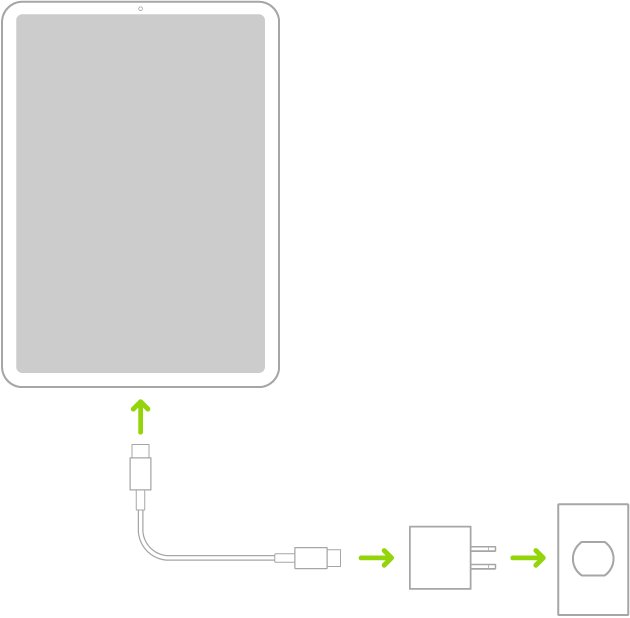
- Plug the cable firmly into the port and connect it to a power adapter in a wall outlet.
- Turn the iPad on and look for the lightning bolt on the battery icon.
If the cable now seats fully and the bolt appears, the port is clean. If the iPad still won't charge, work through the troubleshooting section below before booking a repair.
Cleaning iPad charging port: what to use and what to avoid
Apple names one tool for the job: a small, nonmetallic, soft-bristled brush that is clean and dry. Everything else on this list is either banned by Apple or simply not part of its guidance.
| Tool or product | Use it? | Why |
|---|---|---|
| Small, dry, nonmetallic, soft-bristled brush | Yes | This is the tool Apple's iPad troubleshooting guide tells you to use on the connector |
| Bright light or flashlight | Yes | Lets you see lint and grit before you brush, without touching the pins |
| Compressed air or canned air | No | Apple says not to use compressed air on the iPad, including when cleaning the port |
| Metal pin, paperclip, needle or SIM tool | No | Apple specifies a nonmetallic brush; metal can scratch or short the contacts |
| Cotton swab or paper towel | No | Apple warns against inserting either into a charging connector because fibres stay behind |
| Toothpick | Not recommended | It is not a tool Apple lists, and a hard point can push lint deeper; use the soft brush instead |
| Isopropyl alcohol, water or any spray | No | Apple says to keep moisture out of every opening and to avoid aerosol sprays |
| Bleach or hydrogen peroxide cleaners | No | Apple tells you not to use products containing either on the iPad |
How to turn off iPad before cleaning the charging port
Apple's cleaning steps start with all cables unplugged and the iPad turned off. The button combination depends on whether your iPad has a Home button.
| Your iPad | How to turn it off |
|---|---|
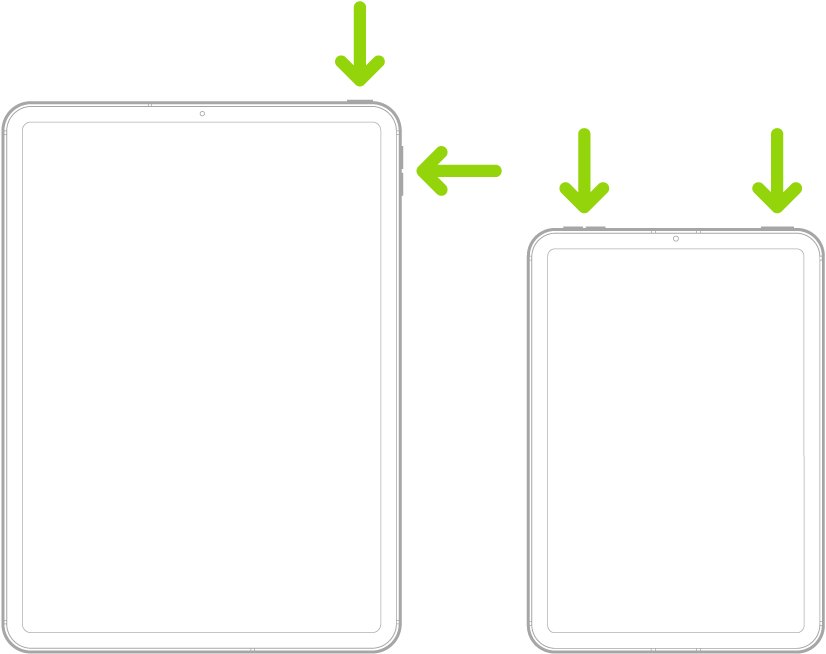
| Face ID, or Touch ID in the top button (no Home button) | Press and hold the top button and either volume button until the Power Off slider appears, then drag it |
| Home button | Press and hold the top button, then drag the slider |
| Any model, from Settings | Open Settings, tap General, scroll down, tap Shut Down, then drag the slider |
| Any model, from Control Center | Open Control Center, touch and hold the power icon in the top-right corner, then drag the slider |
Remove the iPad from any keyboard case or dock too, so nothing is connected while you brush the port.
How to clean iPad Pro charging port
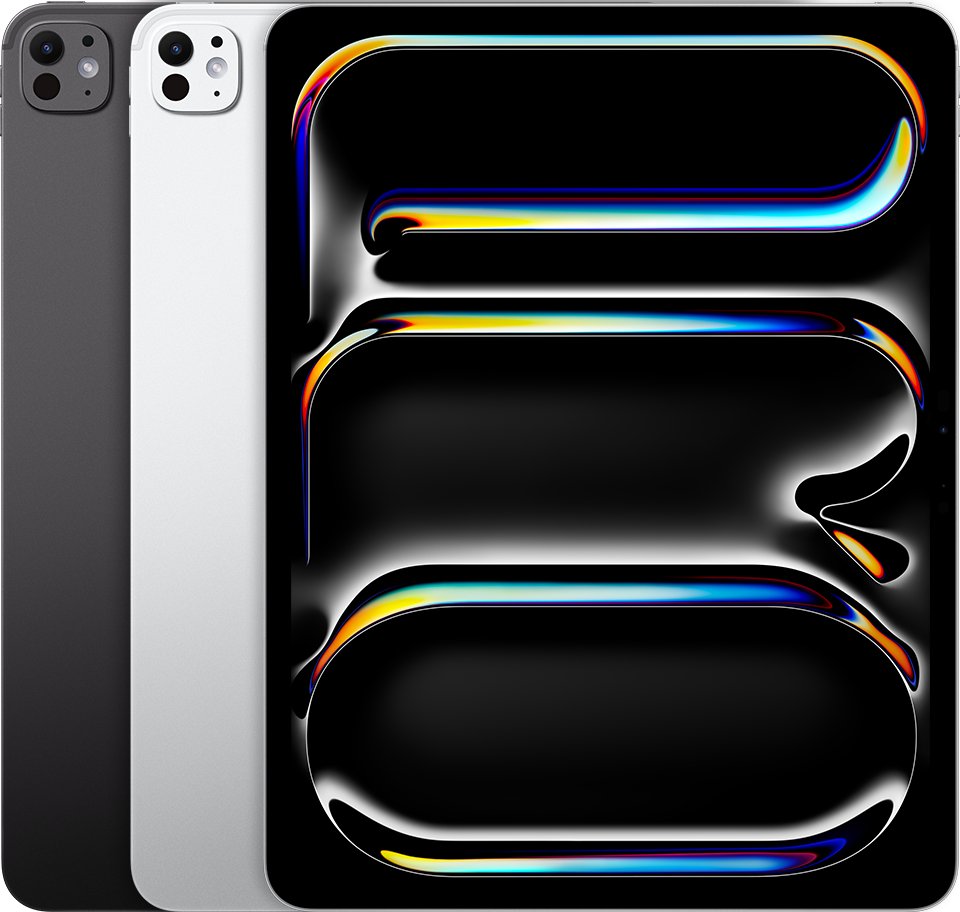
Current iPad Pro models charge through a USB-C port, and the cleaning rules are the same as for any other iPad. The extra step is removing a Magic Keyboard or folio, which can hide lint around the port edge.
- Detach the iPad Pro from any Magic Keyboard, folio or dock.
- Unplug the USB-C cable from the iPad Pro.
- Press and hold the top button and either volume button, then drag the Power Off slider.
- Shine a light into the USB-C port and check for packed lint along the inside walls.
- Brush the port gently with a small, dry, nonmetallic, soft-bristled brush, sweeping debris outward.
- Connect a USB-C cable from a USB-C power adapter in a wall outlet.
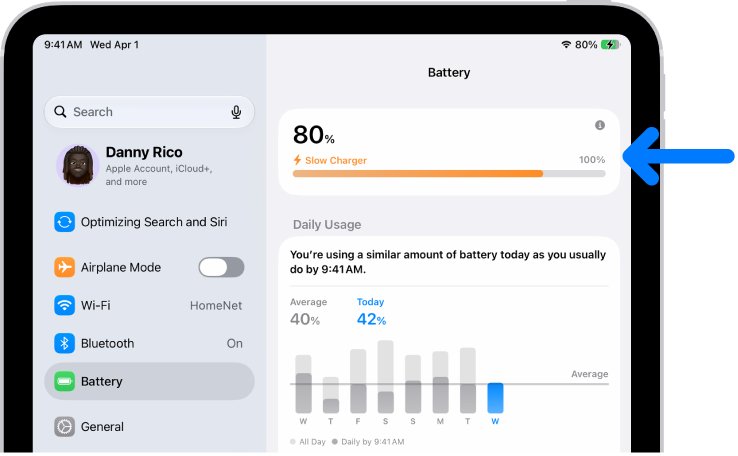
- Turn the iPad Pro on, open Settings, tap Battery, and check that no Slow Charger message appears.
A Slow Charger message means the iPad supports faster charging than the connected charger delivers. That points to the adapter, not the port.
How to get liquid out of an iPad charging port
Apple's iPad user guide is direct: if you suspect liquid in the charging port, don't plug the charging cable into it. Apple publishes detailed drying steps for the same Lightning and USB-C connectors on iPhone, and they match its iPad cleaning rules.
- Unplug the cable from the iPad and unplug the other end from the power adapter.
- Turn the iPad off.
- Tap the iPad gently against your hand with the port facing down to remove excess liquid.
- Leave the iPad in a dry area with some airflow.
- Wait at least 30 minutes before you plug in a cable again.
- If charging still fails, leave it to dry for up to 24 hours before trying again.
Don't use a hair dryer, heater or compressed air to dry the port. Don't push a cotton swab or paper towel into it, and don't bury the iPad in rice, because small particles can get inside.
Charging a wet connector can corrode the pins and cause permanent damage. Liquid damage is not covered by the Apple warranty or AppleCare, so take the iPad to Apple or an Apple Authorized Service Provider if it stays faulty.
Is my iPad charging after cleaning the port?
Test with a power adapter in a wall outlet first. A computer port or keyboard can give too little power and make a clean port look faulty.
- Plug the iPad into a compatible cable and a USB power adapter connected to a wall outlet.
- Look for a lightning bolt on the battery icon in the status bar, or a large battery icon on the Lock Screen.
- If the screen stays blank, wait up to 2 minutes for the low-battery image to appear.
- If you see a nearly empty battery image, leave the iPad charging for up to 10 minutes before you use it.
- Wiggle the cable gently at the port: the charging icon should stay on without flickering.
- Open Settings, tap Battery, and check for a Slow Charger message.
A deeply discharged iPad can need 20 to 30 minutes on the charger before it turns on. If nothing appears after 10 minutes on a wall adapter, Apple says the iPad needs service.
Tips for cleaning your iPad charging port
| Tip | Why it matters |
|---|---|
| Always clean with the iPad off and unplugged | Apple's cleaning steps begin with all cables removed and the iPad turned off |
| Look before you brush | A light shows whether there is debris at all, so you don't scrub a port that is already clean |
| Use only a few bristles | Apple says to use only enough bristles to fit inside the connector |
| Brush outward, never inward | Brushing toward the back packs lint against the contacts |
| Keep the brush dry | Apple says to keep moisture out of every opening on the iPad |
| Clean the cable end too | Wipe the cable plug with a dry, soft, lint-free cloth so it doesn't carry lint straight back in |
| Inspect the cable and adapter | Replace a cable with fraying, breakage or bent prongs instead of forcing it into the port |
| Stop if the pins look bent or burnt | Physical damage needs a repair, not more cleaning |
iPad not charging after cleaning the charging port
No lightning bolt on the battery icon
The power source, cable or adapter is at fault, or the iPad needs a restart.
- Plug the adapter into a different wall outlet.
- Try a different power adapter and a different charging cable.
- Make sure the iPad is not too hot or too cold.
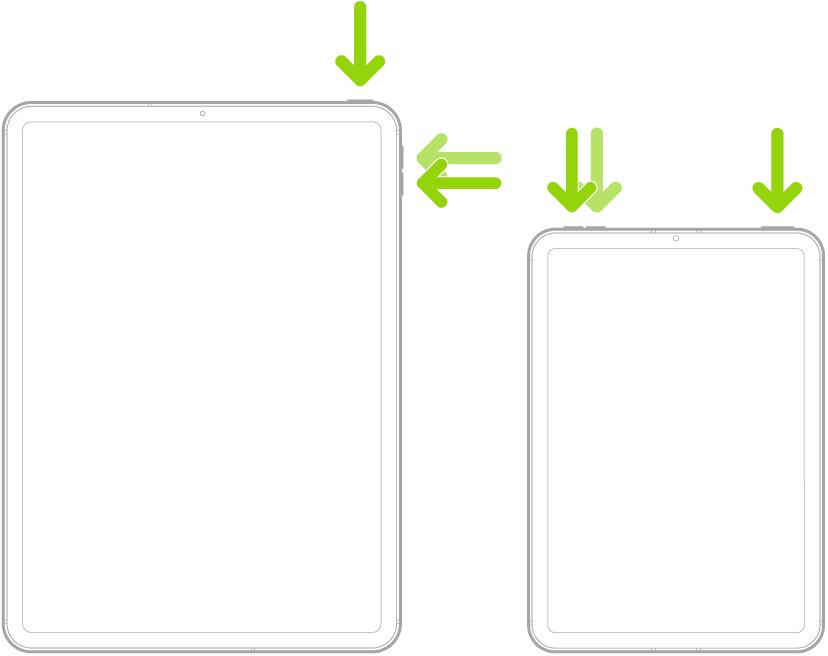
- Force restart the iPad: on a model without a Home button, press and quickly release the volume button nearest the top button, then the volume button farthest from it, then press and hold the top button until the Apple logo appears.
- On a model with a Home button, press and hold the top button and Home button together until the Apple logo appears.
- Charge for another 10 minutes on the wall adapter.
"Not Charging" in the status bar while connected to a computer
The computer is not supplying enough power to charge the iPad.
- Make sure the computer is on and not asleep.
- Move the cable to a USB power adapter in a wall outlet.
- Don't charge from a keyboard unless it has a high-power USB port.
iPad charges very slowly
The charger delivers less power than the iPad can take.
- Open Settings and tap Battery to look for a Slow Charger message.
- Swap to a higher-wattage USB power adapter; chargers of 7.5 watts or less take noticeably longer.
- Charge in a cooler room, because charging pauses at extreme temperatures.
Loose iPad charging port or charging cuts in and out
A worn or damaged connector, or a damaged cable plug.
- Repeat the cleaning steps once more in good light.
- Test with a second cable that you know works on another device.
- If the connection is still intermittent with a working cable, book iPad service with Apple.
iPad charging port stopped working after it got wet
Liquid is still in the port, or the pins have corroded.
- Unplug the cable and let the iPad dry in a dry area with airflow for up to 24 hours.
- Don't use heat, compressed air, rice or a cotton swab to speed it up.
- If it still won't charge once dry, take it to an Apple Store or Apple Authorized Service Provider.
How to fix iPad charging port that won't charge after cleaning
When cleaning and a known-good cable don't help, the port needs repair. Apple can replace the USB-C connector on its own for these models: iPad Air (M2) and later, iPad Pro (M4) and later, iPad mini (A17 Pro) and later, and iPad (A16).
| Your situation | Where to get it fixed | What to expect |
|---|---|---|
| iPad under one year old, no accidental damage | Apple Store Genius Bar, Apple Authorized Service Provider, or Apple mail-in | Manufacturing faults are covered by the Apple Limited Warranty |
| Out of warranty, no liquid or impact damage | Apple in person or by mail | Apple inspects the iPad and sets the final fee; check the estimate for your model on Apple's iPad repair page |
| Port damaged by liquid | Apple Store or Apple Authorized Service Provider, as soon as possible | Liquid damage is not covered by the warranty or AppleCare |
| You prefer a local shop | Apple Authorized Service Provider | Providers set their own service fees and give their own estimate |
Apple guarantees its service and replacement parts for 90 days or the rest of the warranty term, whichever is longer. If the battery is also worn, replacing the iPad battery can be handled in the same service visit.
iPad charging port cleaning FAQ
Is it safe to use compressed air to clean an iPad charging port?
No. Apple says not to use compressed air when you clean the iPad connector or any part of the iPad. Use a small, dry, nonmetallic, soft-bristled brush and sweep the debris outward instead.
Can I use a paperclip instead of a toothpick?
No. A paperclip is metal, and Apple specifies a nonmetallic tool for cleaning the charging connector. Metal can scratch the contacts. A toothpick is not on Apple's list either, so a soft-bristled brush is the safe choice.
How often should I clean my iPad charging port?
Apple does not publish a cleaning schedule. Clean the port when the cable no longer clicks fully into place, when charging cuts in and out, or when you can see lint inside it under a light.
What if my iPad still doesn't charge after cleaning the port?
Try a different wall outlet, power adapter and cable, then force restart the iPad and charge for 10 minutes. If no image appears after 10 minutes on a wall adapter, Apple says the iPad needs service.
How do I clean an iPad Pro charging port?
Detach any Magic Keyboard or case, unplug the USB-C cable and turn the iPad Pro off. Then brush the port gently with a small, dry, nonmetallic, soft-bristled brush, sweeping debris outward rather than deeper into the port.
How do I properly clean my iPhone charging port?
Apple's iPhone charging steps say to remove any debris from the port on the bottom of the phone, then plug the cable in firmly. Don't push a cotton swab or paper towel into the connector, and never use compressed air.
How do I fix a loose iPad charging port?
Clean the port first, because packed lint stops the plug from seating and makes it feel loose. If the connection is still intermittent with a cable that works elsewhere, Apple recommends iPad service.
Can an iPad charging port be replaced?
Yes. Apple can replace the USB-C connector on iPad Air (M2) and later, iPad Pro (M4) and later, iPad mini (A17 Pro) and later, and iPad (A16). Other models have different service options through Apple's repair page.
Can I clean an iPad charging port with alcohol?
No. Apple allows 70% isopropyl alcohol only for wiping hard exterior surfaces, and it says to keep moisture out of every opening. Clean the port dry with a soft-bristled, nonmetallic brush.
Charging habits matter as much as a clean port: knowing when to top up your iPad and how iPad battery charging works keeps the battery healthy for longer.