When your iPhone, iPad or iPod touch is not showing in iTunes for Windows, unlock it, connect a data-capable cable, tap Trust on the device, and then restart the Apple Mobile Device Service if the Device button still does not appear.
This guide covers the Trust alert, the cable and port checks, the Windows service and startup item iTunes needs, driver reinstalls, Wi-Fi sync, and the error messages that point to each cause.

How to get iPhone to show up in iTunes on Windows
Check iTunes after each step. A recognized device appears as a Device button near the top left of the iTunes window.
- Turn on your iPhone, iPad or iPod touch, unlock it with your passcode, and leave the Home Screen visible.
- Connect it to a USB port on the PC with a cable that supports both data and charging.
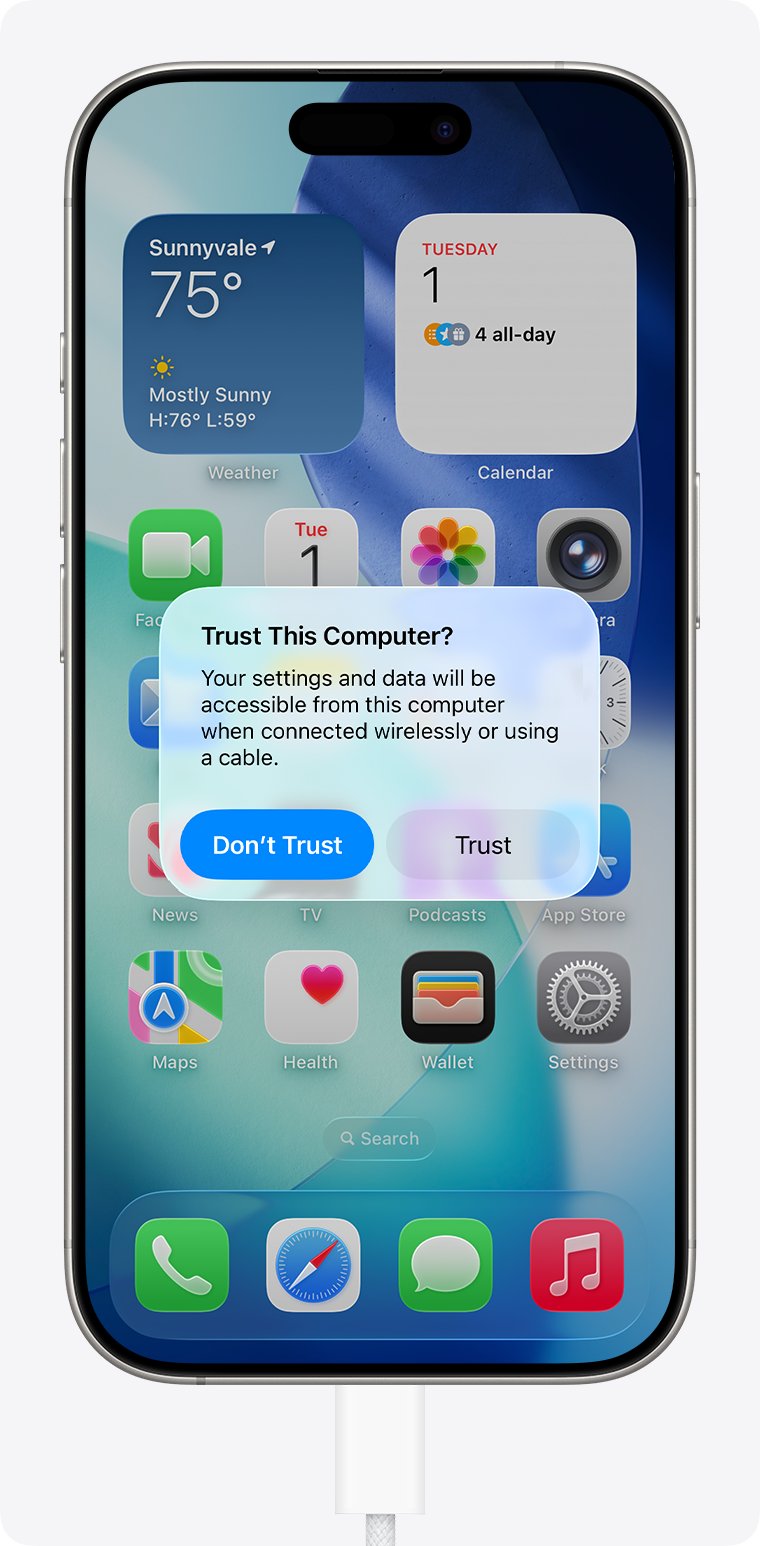
- Tap Trust when the Trust This Computer? alert appears, then enter your passcode.
- Open iTunes and look for the Device button near the top left of the window.
- Close iTunes and disconnect the device if the button is missing, then restart Apple Mobile Device Service in
services.msc(steps below). - Reconnect the device, open iTunes again, and try another cable, another USB port or another PC if it still does not show.
Why is iTunes not showing my iPhone?
Match what you see to a row, then jump to that fix. Most cases come down to the connection, the Trust prompt, or a stopped Windows service.
| What you see | Likely cause | Fix to try first |
|---|---|---|
| No chime or vibration, no charging icon | Bad cable, charge-only cable, or debris in the port | Clean the port, swap the cable, try another USB port |
| Device charges but no Trust alert appears | Device locked, earlier Don't Trust answer, or a missing helper | Unlock it, reset Location & Privacy, enable iTunes Mobile Device Helper |
| "Apple Mobile Device Service is not started" | AMDS stopped or set to manual | Restart the service and set it to Automatic |
| Device appears in the Apple Devices app sidebar | Apple's device tools on Windows now live in Apple Devices | Manage it there, or keep using iTunes for sync and backup |
| iTunes errors 4, 6, 1630–1641, 3000–3999 or 9000–9999 | Third-party security software blocking iTunes | Ask the security vendor to allow Apple's ports and services |
| Shows over USB but not over Wi-Fi | Wi-Fi sync is off, or the PC and device are on different networks | Turn on Sync with this [device] over Wi-Fi in Summary |
Device not showing in iTunes PC: check the cable and USB port
A correctly connected device starts charging. If yours does not chime, vibrate or show the charging icon, Windows never saw it, so no iTunes setting will help yet.
- Unplug the cable and look into the device's charging port for lint or debris.
- Plug in a different cable. It must support data and charging, not charging only.
- Connect to a USB port on the computer itself instead of a hub or keyboard port.
- Try a second USB port, then a second Windows PC, to rule out the port and the computer.
- Unlock the device after each reconnect and check iTunes for the Device button.
Trust this computer alert not showing on iPhone for iTunes
Your device remembers every computer you trusted or refused. If you tapped Don't Trust earlier, iTunes stays blocked until you reset that choice.
With iOS 16 and later the alert also appears when you back up, and on every connection if automatic backups are on.
- On the iPhone or iPad, open Settings and tap General.
- Tap Transfer or Reset [Device], then tap Reset.
- Tap Reset Location & Privacy and confirm with your passcode.
- Reconnect the device to the PC and unlock it.
- Click Continue in iTunes if it asks, then tap Trust on the device and enter your passcode.
If the alert still will not appear, restart the PC and the device, then reset network settings under the same Reset menu. That also clears saved Wi-Fi networks and passwords, cellular settings, and VPN and APN settings.
How to restart Apple Mobile Device Service in Windows
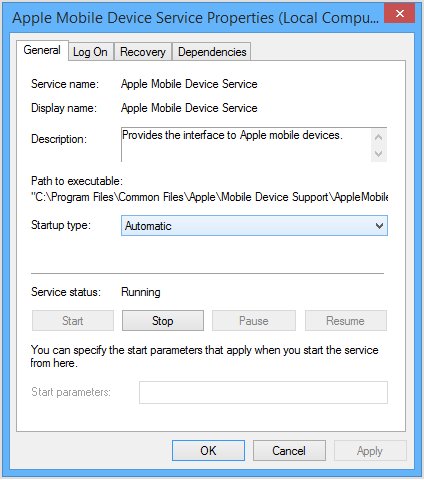
Apple Mobile Device Service (AMDS) is the background process that lets iTunes recognize an iPhone, iPad or iPod touch. When it stops, the device charges but iTunes shows nothing.
- Close iTunes and disconnect every iPhone, iPad or iPod.
- Press Windows + R, type
services.mscand click OK. - Right-click Apple Mobile Device Service and select Properties.
- Set Startup type to Automatic.
- Click Stop to stop the service, then click Start once it has stopped.
- Click OK and restart the computer.
- Open iTunes and connect the device again.
Apple says the background processes iTunes installs should stay enabled even when iTunes is closed. If AMDS will not start or keeps stopping, third-party security software is a common cause.
Turn on iTunes Mobile Device Helper in Windows startup apps
The Microsoft Store version of iTunes needs iTunes Mobile Device Helper enabled as a startup item. If it is off, the Trust alert can fail to appear or iTunes can ignore your answer.
- Select Start > Settings > Apps > Startup.
- Find iTunes Mobile Device Helper in the list.
- Set its toggle to On.
- Restart the PC so the helper starts when you sign in.
- Connect the device, unlock it and open iTunes.
Task Manager shows the same list: right-click Start, select Task Manager, open the Startup apps tab, select the helper and click Enable.
How to update iTunes on Windows when it doesn't show devices
An outdated iTunes is one of the first things Apple asks you to rule out when the Trust alert misbehaves. How you update iTunes on Windows depends on where you installed it.
| Where iTunes came from | How to update it |
|---|---|
| Microsoft Store | Open Microsoft Store, click Library in the sidebar, and install any iTunes entry under Updates & downloads |
| Apple's iTunes download page | In iTunes, choose Help > Check for Updates |
| Apple's download page, automatic checks | Choose Edit > Preferences > Advanced and select Check for new software updates automatically |
Restart the PC after the update, then reconnect the device.
Reinstall the iPhone driver in Device Manager
If Windows lists the device with a warning icon, or the driver failed to install, reinstalling it lets Windows set it up again. For a driver that refuses to install at all, work through the usbaapl64.inf driver fixes.
- Save your work, close iTunes, and leave the device connected and unlocked.
- Right-click Start and select Device Manager.
- Expand the categories and find your iPhone, iPad or iPod in the list.
- Right-click it and select Update driver, then Search automatically for updated driver software.
- If nothing changes, right-click the device again, select Uninstall device, and confirm with Uninstall.
- Restart the PC so Windows reinstalls the driver.
- Unlock the device and open iTunes.
When no Apple device appears in Device Manager at all, the problem is the port or cable, not the driver, so reset USB power settings and hubs before you reconnect.
Update iOS and Windows when iTunes doesn't show devices
Apple lists an out-of-date Windows and an out-of-date iOS or iPadOS as causes of recognition problems. Update both, then reconnect.
- On the iPhone or iPad, plug into power and join Wi-Fi.
- Open Settings > General > Software Update.
- Tap Download and Install if an update is listed, and follow the prompts.
- On the PC, select Start > Settings > Windows Update.
- Click Check for Windows updates, then Download & install, and restart if asked.
- Reconnect the device, unlock it and open iTunes.
iTunes vs Apple Devices app for iPhone on Windows
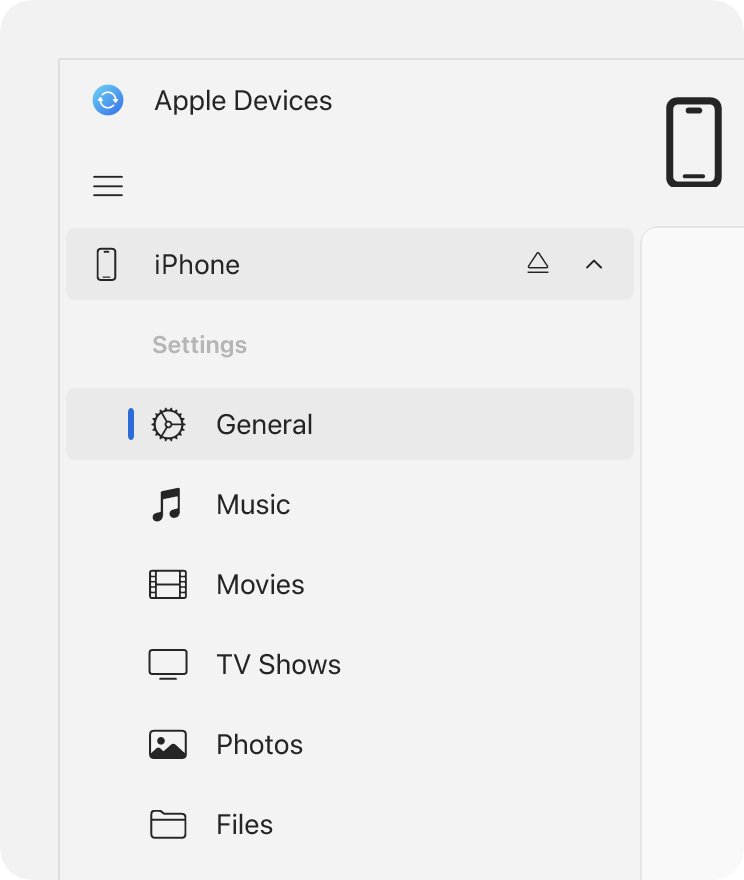
On Windows, Apple now handles device management in the separate Apple Devices app, and its current device-recognition steps start there. Knowing which app should show your device saves a lot of guessing.
| App | What it handles on Windows | Where your device appears |
|---|---|---|
| iTunes | Podcasts and audiobooks; music, video and device sync if Apple Music and Apple TV are not installed | Device button near the top left of the window |
| Apple Devices | Update, back up, restore, manage and sync iPhone, iPad or iPod | Sidebar of the Apple Devices window |
| Apple Music | Music library and iTunes Store music purchases | Not a device manager |
| Apple TV | Movies and TV shows, including purchases | Not a device manager |
If you installed Apple Music or Apple TV, iTunes keeps only audiobooks and podcasts. Music, Movies and TV Shows then disappear from its pop-up menu, so sync those items from the Apple Devices app instead.
How to make iPhone show in iTunes over Wi-Fi
Wi-Fi sync works with iOS 5 or later when the PC and device share a Wi-Fi network and the PC is turned on. You still need a cable once to turn it on.
- Connect the device to the PC with a USB or USB-C cable.
- Open iTunes and click the Device button near the top left.
- Click Summary.
- Select Sync with this [device] over Wi-Fi.
- Click Apply, then disconnect the cable.
- Plug the device into a charger on the same Wi-Fi network to start a wireless sync.
Clicking Eject removes the device icon but leaves Wi-Fi sync on, so the icon returns the next time you open iTunes. Restoring iOS or factory settings always needs the cable.
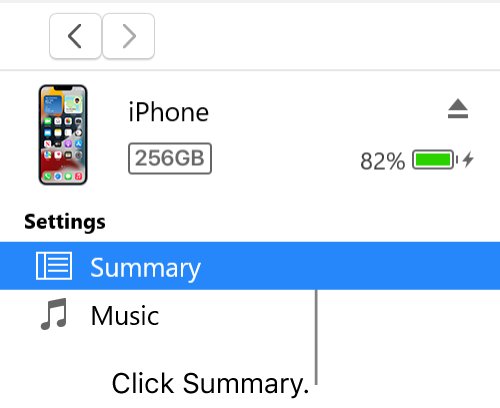
Where is the iPhone icon in iTunes for Windows?
A recognized iPhone, iPad or iPod touch shows as a small Device button near the top left of the iTunes window, next to the media pop-up menu.
- Click the Device button to open the device's pages.
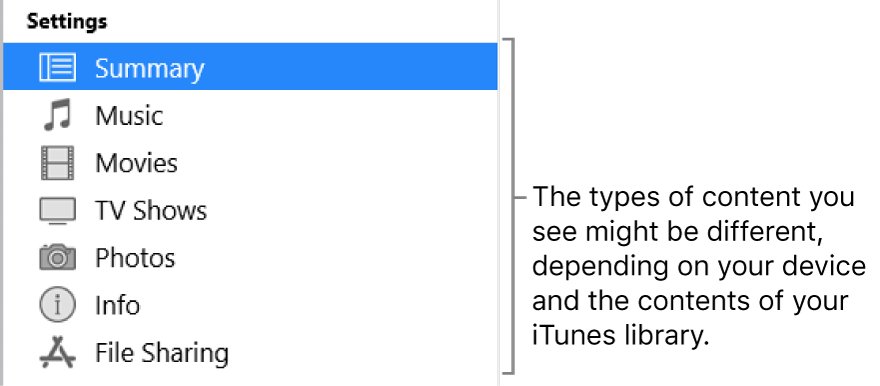
- Click Summary to see the device name, backups and sync options.
- Choose File > Devices to see a Sync [device name] entry for the connected device.
- Choose Edit > Preferences > Devices to list the backups stored on this PC.
- Click Back Up Now under Backups to confirm iTunes can read and copy the device.
Once the device shows, back it up before you change anything else. A local backup also helps you recover your iTunes library from the device if the PC library goes missing.
Device not showing up on iTunes Windows: error messages and causes
"This [device] cannot be used because the Apple Mobile Device Service is not started"
AMDS has stopped, failed to start, or is set to start manually.
- Close iTunes and disconnect the device.
- Open
services.msc, set Apple Mobile Device Service to Automatic, then stop and start it. - Restart the PC and reconnect the device.
iPhone charges but never shows in iTunes
The device is locked, the computer is not trusted, or the helper is not running.
- Unlock the device and keep the Home Screen visible while you connect.
- Reset Location & Privacy and tap Trust on the next connection.
- Turn on iTunes Mobile Device Helper under Settings > Apps > Startup for the Microsoft Store version.
- Restart both the PC and the device.
No charging, no chime, no vibration
The connection itself has failed.
- Clear debris from the charging port.
- Swap to a cable that supports data and charging.
- Try another USB port, then another PC.
iTunes errors 4, 6, 1630–1641, 3000–3999 or 9000–9999, or the device won't back up or sync
Third-party security software is blocking iTunes from Apple's servers or from the device.
- Check that the PC's date, time and time zone are correct.
- Sign in with an administrator account rather than a guest account.
- Update iTunes and Windows, and keep only one security product installed.
- Check the hosts file is not blocking Apple's servers.
- Ask your security software vendor to allow the ports and services Apple products use.
iTunes shows the device but no Music or Movies to sync
Apple Music or Apple TV is installed, so iTunes only manages audiobooks and podcasts.
- Install the Apple Devices app from the Microsoft Store and click Get.
- Open it and select the device in the sidebar.
- Turn on syncing for each content type and click Apply.
The error 0xE800000A appears when the device connects
iTunes cannot complete its connection to the device.
- Work through the Trust, AMDS and update steps above first.
- If the error remains, clear error 0xE800000A in iTunes and reconnect.
If none of these works on two different PCs with two different cables, the device may need service from Apple.
iTunes devices not showing FAQ
Why is iTunes not showing my iPhone?
Usually the iPhone is locked, the PC is not trusted, the cable is charge-only, or Apple Mobile Device Service has stopped. Unlock the iPhone, tap Trust, use a data cable, and restart the service in services.msc.
Why is my iPhone not showing in iTunes when it is charging?
Charging proves the cable carries power, not that Windows can talk to the iPhone. Unlock it, tap Trust, enable iTunes Mobile Device Helper for the Microsoft Store version, and restart Apple Mobile Device Service.
Do I need iTunes or the Apple Devices app to see my iPhone on Windows?
Either can show it. Apple Devices updates, backs up, restores and syncs iPhone and iPad from its sidebar, while iTunes shows a Device button near the top left. Apple's current Windows connection steps start in Apple Devices.
Can iTunes see my iPhone over Wi-Fi?
Yes, once you turn on Sync with this iPhone over Wi-Fi in the Summary pane while connected by cable. The PC must be on and both devices must use the same Wi-Fi network, with iOS 5 or later.
Why does iTunes keep asking me to trust this computer?
With iOS 16 and later, the Trust alert appears when you back up, and on every connection if automatic backups are on. It also returns each time if you chose Don't Trust for that computer.
What does Apple Mobile Device Service do?
It is the iTunes background process that lets Windows recognize an iPhone or iPod touch. Apple advises keeping it running even when iTunes is closed, with its startup type set to Automatic.
Does resetting network settings on iPhone delete my data?
It resets network settings only: saved Wi-Fi networks and passwords, cellular settings, and any VPN and APN settings you used are cleared. Try Reset Location & Privacy first for Trust problems, since it only affects trust and privacy choices.
Why can't I see Music in iTunes to sync to my iPhone?
If Apple Music or Apple TV is installed on the PC, iTunes keeps only audiobooks and podcasts. Sync music, movies and TV shows to the iPhone from the Apple Devices app instead.