When iTunes won't launch on a Windows 10 PC, end any stuck iTunes process in Task Manager, update iTunes from the Microsoft Store, then repair it from Settings.
This guide covers those fixes plus library, plug-in, security software and clean boot checks, reinstalling iTunes, and what to do when iTunes will not install at all.
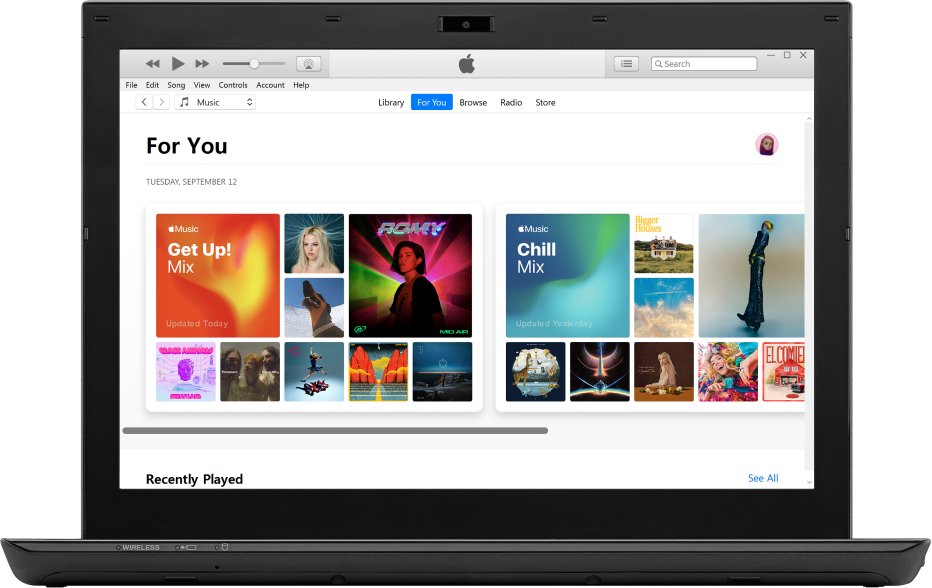
How to fix iTunes not opening on Windows 10
Work through these in order and try opening iTunes after each one. Most launch failures clear at the update or repair step.
- Right-click Start, select Task Manager, find iTunes under Processes, right-click it and select End task.
- Open Microsoft Store, select Library, then Get updates, and let it update iTunes and the Store itself.
- Open Start > Settings > Apps > Apps & features, select iTunes and click Advanced options.
- Click Repair, then try to open iTunes from the Start menu.
- If iTunes still will not open, return to Advanced options and click Reset.
- Restart the PC, sign in with an administrator account and open iTunes again.
On Windows 11 the same Advanced options page sits under Settings > Apps > Installed apps, behind the More icon next to iTunes.
Why won't iTunes launch on my PC?
Match what happens when you click the iTunes icon to a row, then use the fix in the last column.
| What you see | Likely cause | Fix to try |
|---|---|---|
| Nothing happens when you click iTunes | An earlier iTunes process is still running in the background | End iTunes in Task Manager |
| iTunes opens and closes straight away | A damaged app install or an old version | Update, then Repair or Reset iTunes in Settings |
| iTunes hangs while loading the library | A problem with the current library file | Open iTunes with the Shift key and choose or create a library |
| iTunes stopped opening after you added a visualizer | A third-party plug-in | Move the plug-in out of the iTunes Plug-ins folder |
| iTunes won't open and the Store will not connect | Third-party security software | Ask the security vendor to allow Apple's ports and services |
| iTunes opens only in a clean boot | Another startup app or service | Clean boot Windows 10 and re-enable items one at a time |
| Nothing else works | A broken install | Uninstall iTunes and reinstall it from the Microsoft Store |
iTunes not starting on Windows 10 after it froze
If iTunes crashed or was closed while busy, a leftover process can stop a new window from opening. Ending it gives iTunes a clean start.
- Right-click Start and select Task Manager.
- On the Processes tab, look for iTunes under Apps or Background processes.
- Right-click iTunes and select End task.
- Close Task Manager and open iTunes from the Start menu.
Update iTunes on Windows 10 from the Microsoft Store
Apple ships the current iTunes for Windows through the Microsoft Store and tells you to check for iTunes updates there. Updating also replaces damaged app files.
- Select Start, then open Microsoft Store from the apps list.
- Select Library in the Store.
- Select Get updates and wait for iTunes and the Microsoft Store to finish updating.
- Select Start > Settings and install any pending Windows updates from Windows Update.
- Restart the PC and open iTunes.
If the Store itself will not open or download updates, reset the Microsoft Store cache and try again.
If you installed iTunes from Apple's older desktop installer, you can update the desktop version of iTunes as well.
Repair or reset iTunes in Windows 10 Settings
Windows can repair an app without reinstalling it. Try Repair first, because Reset returns the app to a fresh state.
- Open Start and select Settings.
- Select Apps, then Apps & features.
- Select iTunes in the list and click Advanced options under its name.
- Click Repair, then open iTunes.
- If iTunes still will not launch, go back to Advanced options and click Reset.
- If Advanced options is missing, open Control Panel > Programs > Programs and Features, right-click iTunes and select Repair or Change.
Use the Control Panel route if iTunes came from Apple's older desktop installer rather than the Microsoft Store.
iTunes won't load Windows 10 library: open iTunes with Shift
If iTunes starts but stalls while it loads your music, the library file may be the problem. Holding Shift lets you point iTunes at another library or start a new one.
- Close iTunes, or end it in Task Manager if it is stuck.
- Press and hold the Shift key.
- Keep holding Shift while you open iTunes from the Start menu.
- In the window that appears, click Choose Library to open a different library, or Create Library to start an empty one.
- If iTunes opens with a new library, the old library file was the cause; switch back later with Choose Library.
Give any new library its own name and do not call it "iTunes" or "iTunes Music", so you can tell the libraries apart.
iTunes plug-ins folder on Windows 10
Apple notes that some third-party visualizers no longer work with current iTunes. If iTunes stopped opening after you added one, take it out.
- Close iTunes.
- Open File Explorer and go to
C:\Program Files\iTunes\Plug-ins, the folder for plug-ins installed for all users. - Move any third-party plug-in out of the folder, for example to your desktop.
- Check the per-user folder too:
C:\Users\username\App Data\Roaming\Apple Computer\iTunes\iTunes Plug-ins\, replacing username with your account name. - Open iTunes. If it starts, contact the plug-in developer for a version that works with current iTunes.
If either folder does not exist, no plug-ins are installed there and you can skip this fix.
Clean boot Windows 10 to fix iTunes not opening
A clean boot starts Windows with only essential drivers and startup programs. If iTunes opens in a clean boot, another app or service was blocking it.
- Sign in to Windows as an administrator.
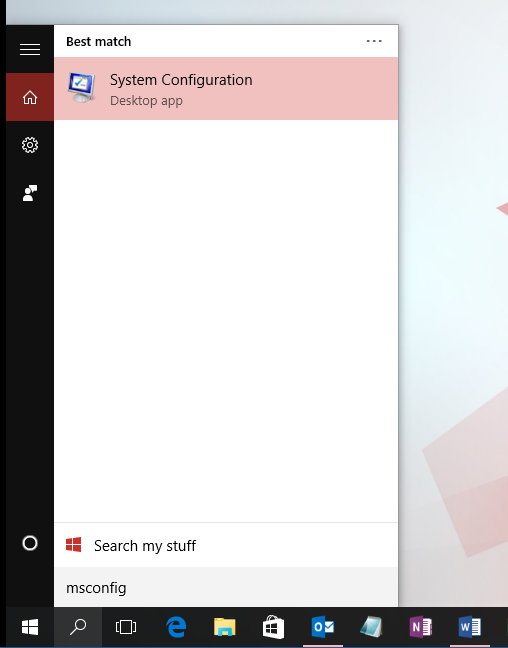
- Select Search, type
msconfigand select System Configuration. - On the Services tab, select Hide all Microsoft services, then Disable all, then Apply.
- On the Startup tab, select Open Task Manager, and disable each Enabled startup item, noting which ones you turned off.
- Close Task Manager, select OK in System Configuration and restart the PC.
- Open iTunes. If it starts, re-enable the services and startup items a few at a time until iTunes fails again to find the cause.
To return to a normal startup, open System Configuration, select Normal Startup on the General tab, clear Hide all Microsoft services, select Enable all on the Services tab, re-enable your startup apps in Task Manager and restart.
Reinstall iTunes on Windows 10 from the Microsoft Store
Reinstall when repair, reset and the clean boot did not help. Back up your iTunes library folder first so your music and playlists are safe.
- Open Start > Settings > Apps > Apps & features.
- Select iTunes, click Uninstall, and confirm.
- Restart the PC.
- Open Microsoft Store and search for iTunes.
- Select Install, or open Library and select Install next to iTunes if you owned it before.
- Open iTunes from the Start menu and sign in with your Apple Account.
If Windows refuses to remove iTunes, use the steps to remove apps that won't uninstall before you reinstall.
Does iTunes still work on Windows 10?
Yes. Apple's iTunes for Windows page lists Windows 10 as the software requirement and points to the Microsoft Store for the latest version.
| Requirement or change | What Apple states |
|---|---|
| Windows version | Windows 10, with the 64-bit iTunes installer for 64-bit editions |
| Disk space | 400MB of available disk space |
| Processor and memory | A 1GHz Intel or AMD processor with SSE2 support and 512MB of RAM |
| Screen | 1024×768 or greater |
| Where to get it | The Microsoft Store, which also delivers iTunes updates |
| Apple Music, Apple TV and Apple Devices apps | Once you install Apple Music or Apple TV, music, TV shows and movies move to those apps, and iTunes keeps audiobooks and podcasts |
The Apple Devices app handles backing up, restoring and syncing an iPhone or iPad on Windows if you use it instead of iTunes.
How to tell if iTunes is working on Windows 10
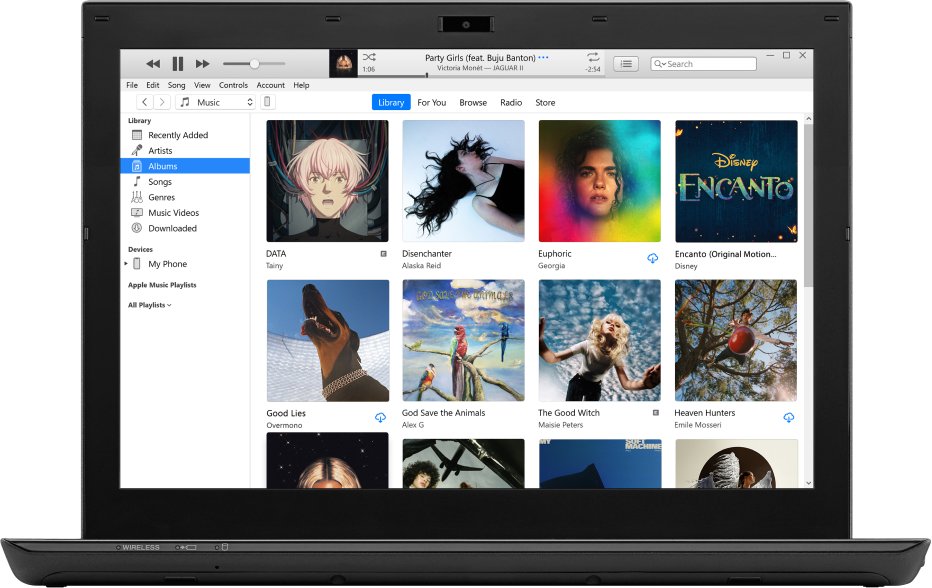
- Open iTunes from the Start menu and wait for the main window to load your library.
- Choose Account in the menu bar and check that your Apple Account shows as signed in.
- Play a song or podcast to confirm playback works.
- Connect your iPhone with a USB cable and check that iTunes shows the device.
- Close iTunes with File > Exit and open it again to make sure it starts a second time.
If iTunes opens but rejects your sign-in, fix the iTunes password problem next.
iTunes not working on Windows 10
These problems show up once iTunes opens, or stop it opening in a specific way.
iTunes won't open and cannot reach the iTunes Store
Third-party security software can stop iTunes connecting to Apple's servers; Apple lists "iTunes won't open" as one sign.
- Set the PC date, time and time zone to update automatically in Settings > Time & language > Date & time.
- Sign in to Windows with an administrator account, not a guest account.
- Make sure only one security product is installed.
- Check that the Windows hosts file does not block Apple's servers.
- Contact the security software vendor and ask them to allow the full list of ports and services Apple products use.
"A secure network connection could not be established"
The PC clock is wrong, or both SSL 3.0 and TLS 1.0 are turned off in Internet Options.
- Open Start > Settings > Time & language > Date & time and turn on Set time automatically.
- If that does not help, search for Internet Options and open it.
- Click Advanced.
- Under Security, select Use SSL 3.0 or Use TLS 1.0 and click OK.
iTunes opens but has no internet access
Windows Defender Firewall is blocking iTunes.
- Search for Windows Defender Firewall from Start.
- Click Allow an app or feature through Windows Defender Firewall.
- Click Change settings.
- Select iTunes.MSI and tick its Private and Public boxes, then click OK.
"The Apple Mobile Device Service is not started"
The service iTunes uses to see an iPhone or iPad has stopped.
- Close iTunes and unplug the device.
- Press Windows logo key + R, type
services.mscand click OK. - Right-click Apple Mobile Device Service, select Properties and set Startup type to Automatic.
- Click Stop the service, then Start the service, then OK.
- Restart the PC, open iTunes and connect the device.
iTunes opens but my music and movies are gone
The Apple Music or Apple TV app is installed, so those apps now handle music, TV shows and movies.
- Open the Apple Music app for songs and the Apple TV app for films and TV shows.
- Use iTunes for audiobooks and podcasts.
If iTunes sees your iPhone but cannot connect to it, you are likely facing iTunes error 0xE800000A, which has its own fix.
Can't install iTunes on Windows 10
If iTunes will not install, or Windows says a component is missing after setup, Apple's install checks apply.
"Error 2" or "Apple Application Support was not found"
The install did not complete, often because of account rights or missing Windows updates.
- Sign in to Windows as an administrator.
- Install the latest Windows updates and restart.
- Uninstall iTunes from Settings > Apps > Apps & features.
- Install iTunes again from the Microsoft Store.
iTunes not installing from the Microsoft Store
The Store app or Windows itself is out of date, or a background process blocks setup.
- Sign in to the Microsoft Store with your Microsoft account.
- Open Library and select Get updates to update the Store.
- Restart the PC and try the iTunes install again.
- Run a clean boot and install iTunes while it is active.
- If the Store still will not download iTunes, contact Microsoft, which Apple names as the help route for Store downloads.
iTunes won't launch FAQ
Why won't iTunes launch on my PC?
The usual causes are an iTunes process still running in the background, a damaged or outdated install, a library file iTunes cannot load, a third-party plug-in, or security software blocking it. End iTunes in Task Manager, update it, then repair it from Settings.
Does iTunes still work on Windows 10?
Yes. Apple lists Windows 10 as the requirement for iTunes for Windows and supplies it through the Microsoft Store. If you install the Apple Music or Apple TV app, iTunes keeps only audiobooks and podcasts.
Can't install iTunes on Windows 10, what should I do?
Sign in as an administrator, install the latest Windows updates, restart the PC and install iTunes from the Microsoft Store. If you see error 2 or "Apple Application Support was not found", uninstall iTunes first and then install it again.
Why is iTunes not installing on Windows 10 from the Microsoft Store?
The Store app may be outdated or a background program may block setup. Update the Store from Library > Get updates, restart, and try again in a clean boot. Apple directs Store download problems to Microsoft support.
iTunes won't launch on Windows 11, are the fixes the same?
Yes. The only change is the repair path: open Settings > Apps > Installed apps, select the More icon next to iTunes, choose Advanced options and click Repair or Reset. The Task Manager, update, plug-in and clean boot fixes are identical.
Why won't iTunes load my library on Windows 10?
The library file may be damaged or on a drive that is not connected. Hold Shift while you open iTunes, then use Choose Library to pick the right one or Create Library to test with an empty one.
Will reinstalling iTunes delete my music?
Back up your iTunes library folder before you reinstall so the music and playlists are safe either way. After reinstalling, hold Shift while opening iTunes and use Choose Library to point iTunes at your library if it does not appear.