To activate Bonjour in Windows 10, open Services, double-click the entry whose name begins with Bonjour, set Startup type to Automatic, and select Start.
Bonjour is Apple software, so Windows 10 has no Bonjour switch of its own until an Apple package installs the service; the steps below cover installing it, starting it, letting it through the firewall, and fixing a Bonjour printer that still does not appear.
How to enable Bonjour service in Windows 10
The Bonjour service is what you activate. Once it runs, Apple apps and the Bonjour Printer Wizard can discover printers, shared libraries and Apple TV on your local network.
- Select Start, type Services, and press Enter.
- Scroll the list and double-click the entry whose name begins with Bonjour.
- Set Startup type to Automatic so the service starts with Windows.
- Select Apply.
- Under Service status, select Start.
- Select OK and close Services.
If no Bonjour entry exists in the list, Bonjour is not installed yet. Install it first with the next section, then come back to these steps.
How to install Bonjour on Windows 10
Apple does not ship Bonjour as a stand-alone Windows app. It arrives inside two Apple packages, so pick the one that matches why you want Bonjour.
| Why you want Bonjour | Install this from Apple | What you get |
|---|---|---|
| Find a network printer or a USB printer shared by a Mac | Bonjour Print Services for Windows v2.0.2 (support.apple.com) | The Bonjour service plus the Bonjour Printer Wizard, installed in \Program Files\Bonjour Print Services with a desktop shortcut |
| Use music sharing, Apple TV or AirPlay discovery in iTunes | iTunes for Windows (apple.com/itunes or Microsoft Store) | mDNSResponder.exe, which Apple says is also known as Bonjour for Windows |
| Build or test software that advertises Bonjour services | Bonjour SDK for Windows (developer.apple.com, Apple Account sign-in needed) | The developer libraries and the Bonjour service |
Apple's Bonjour Print Services page is 5.18 MB and was last published on March 8, 2024. It lists Windows XP SP2 or later and does not name Windows 10, so treat it as the older package it is.
You can download Bonjour for Windows from the Apple pages above, then run the enable steps so the service starts with every boot.
How to start Bonjour service in Windows 10 with PowerShell
Open Windows PowerShell with Run as administrator. Microsoft states that Set-Service needs elevated permissions, so a normal window fails and you need to open PowerShell as administrator first.
The display-name wildcard finds the Bonjour entry without you typing its exact service name.
Get-Service -DisplayName "*Bonjour*" | Set-Service -StartupType Automatic -Status Running -PassThruGet-Service -DisplayName "*Bonjour*" selects every service whose display name contains Bonjour. Set-Service -StartupType Automatic makes it start with Windows, -Status Running starts it now, and -PassThru prints the changed service.
You should see: PowerShell prints a line with Running in the Status column next to the Bonjour display name. No output at all means no Bonjour service is installed on this PC.
Allow Bonjour through Windows Firewall on Windows 10
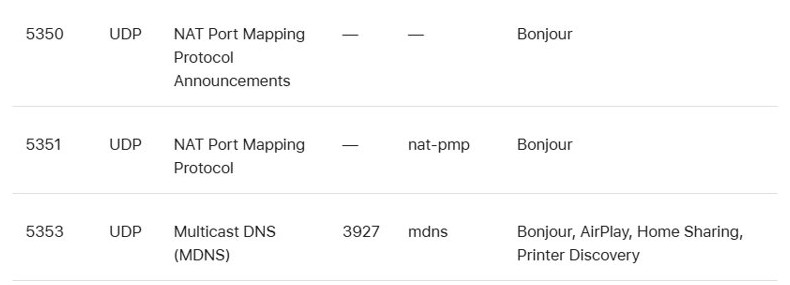
Bonjour sends and receives packets on UDP port 5353. Apple's installer configures Windows Firewall during setup, but any separate personal firewall needs UDP 5353 open, and a blocked rule stops discovery even when the service runs.
Microsoft rates allowing an app as less risky than opening a port, because an allowed app opens ports only when it needs them. If you would rather open UDP 5353 itself, you can create an advanced firewall rule for that port.
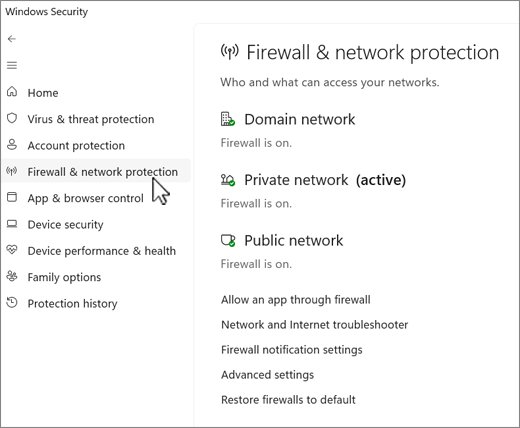
- Open the Windows Security app and select Firewall & network protection.
- Select Allow an app through firewall.
- Select Change settings and confirm the administrator prompt.
- Find the Bonjour entry in the list and tick its check box for the network type you use at home or work.
- If no Bonjour entry is listed, select Allow another app and browse to the Bonjour program the Apple package installed.
- Select OK to save the rule.
A third-party firewall has its own rules screen. Open UDP 5353 for your local network there, as Apple's Bonjour Print Services page requires.
How to enable Bonjour on Windows 11
The Services console and Set-Service work the same way on Windows 11, so the activation steps do not change. Only the surrounding menus differ.
| Task | Windows 10 | Windows 11 |
|---|---|---|
| Start the Bonjour service | Start > type Services > Bonjour entry > Start | Same: Start > type Services > Bonjour entry > Start |
| Start it with PowerShell | Set-Service in an elevated PowerShell window |
Set-Service in an elevated PowerShell or Terminal window |
| Allow it through the firewall | Windows Security > Firewall & network protection > Allow an app through firewall | Same path in Windows Security |
| Make the network private | The connected network's properties in Network & Internet settings | Network & internet > Wi-Fi or Ethernet > your network > Network profile type > Private |
Microsoft describes a private network as one where your PC is discoverable to other devices, while a public network hides it. Bonjour discovery belongs on a private home or office network, so switch the network profile to private before you test it.
How to tell if Bonjour is running on Windows 10
- Open Services from the Start menu search.
- Find the entry whose name begins with Bonjour.
- Check that the Status column reads Running and Startup Type reads Automatic.
- For a command check, run
Get-Service -DisplayName "*Bonjour*"in PowerShell and look for Running. - Open the Bonjour Printer Wizard or iTunes and confirm your printer, shared library or Apple TV now appears.
What does Bonjour do in Windows 10
Bonjour is Apple's zero-configuration networking. It finds devices and services on the local network with standard IP protocols, so you do not type IP addresses by hand.
| Part | What it does on Windows 10 | Port |
|---|---|---|
| Multicast DNS (mDNS) | Bonjour, AirPlay, Home Sharing and printer discovery | UDP 5353 |
| SSDP | Service discovery listed by Apple for Bonjour | UDP 1900 |
| NAT-PMP | Port mapping listed by Apple for Bonjour | UDP 5350, 5351 |
| mDNSResponder.exe | Lets iTunes discover music sharing, Apple TV and AirTunes | Uses the ports above |
| Bonjour Printer Wizard | Discovers and sets up Bonjour-enabled printers | Uses the ports above |
Apple says not to disable the iTunes background processes, including mDNSResponder.exe, even when iTunes is closed.
How to disable Bonjour service on Windows 10
If no Apple app or printer on your network needs it, you can turn Bonjour off again. Printers and shared libraries that depend on it disappear until you start it.
- Open Services and double-click the Bonjour entry.
- Select Stop under Service status.
- Set Startup type to Disabled or Manual.
- Select Apply, then OK.
Bonjour service not working on Windows 10
No Bonjour entry in the Services list
No Apple package that installs Bonjour is on the PC, or it was uninstalled.
- Install Bonjour Print Services for Windows or iTunes for Windows from Apple.
- Restart Windows after setup finishes.
- Open Services again and look for the entry whose name begins with Bonjour.
Bonjour printer not found after starting the service
UDP port 5353 is blocked, the network is set to Public, or the PC and printer are on different networks.
- Allow Bonjour through Windows Security > Firewall & network protection > Allow an app through firewall.
- Open UDP 5353 in any separate personal firewall.
- Set the network profile to Private.
- Connect the PC and printer to the same Wi-Fi or Ethernet network.
- Run the Bonjour Printer Wizard again.
Shared libraries or Apple TV missing in iTunes for Windows
iTunes depends on mDNSResponder.exe, the Bonjour process, to discover them.
- Set the Bonjour service Startup type to Automatic and start it.
- Restart iTunes.
- Confirm the other computer or Apple TV is on the same local network.
Set-Service says access is denied
PowerShell is not running elevated.
- Close PowerShell.
- Right-click Windows PowerShell and select Run as administrator.
- Run the
Set-Servicecommand again.
Bonjour on Windows 10 FAQ
How do I enable Bonjour service on Windows 10?
Open Services from the Start menu, double-click the entry whose name begins with Bonjour, set Startup type to Automatic, select Apply, then select Start. If the entry is missing, install Bonjour Print Services or iTunes for Windows first.
How do I install Bonjour on Windows 10?
Install one of Apple's packages that include it. Bonjour Print Services for Windows adds the service and the Bonjour Printer Wizard, while iTunes for Windows adds mDNSResponder.exe, which Apple calls Bonjour for Windows.
How do I start Bonjour service on Windows 10?
Select Start under Service status in the Bonjour service's properties, or run Get-Service -DisplayName "*Bonjour*" | Set-Service -Status Running in PowerShell opened with Run as administrator.
How do I enable Bonjour on Windows 11?
Use the same steps as Windows 10. Open Services, set the Bonjour entry to Automatic and start it, or run Set-Service in an elevated PowerShell or Terminal window. Install an Apple package first if no Bonjour entry exists.
What does Bonjour do in Windows 10?
Bonjour finds printers and Apple services on your local network without manual IP setup. It uses multicast DNS on UDP port 5353 and lets iTunes discover music sharing, Apple TV and AirTunes.
How do I enable Bonjour if it is already installed?
Start the Bonjour service and set it to Automatic. Then allow it through Windows Firewall and make sure the network profile is Private, because a blocked UDP 5353 stops discovery even when the service runs.
Is there a Microsoft Bonjour for Windows?
No. Bonjour is Apple software, and the Windows versions come from Apple's support and developer sites. Microsoft names DNS-SD and mDNS as its recommended technologies for service discovery in Windows.
Where can I download Bonjour for Windows 10?
Download Bonjour Print Services for Windows from support.apple.com, iTunes for Windows from apple.com or the Microsoft Store, or the Bonjour SDK from developer.apple.com after signing in with an Apple Account.