You do not need to factory reset your iPhone after upgrading to a new major iOS version; installing it from Settings > General > Software Update keeps your apps, data and settings and is Apple's standard way to update.
This guide covers how to install a major update without erasing, the cases where a reset or Reset All Settings does help, how to erase and restore an iPhone safely, and how to fix a slow or draining iPhone after the upgrade.
Do you need to factory reset iPhone after a major iOS update?
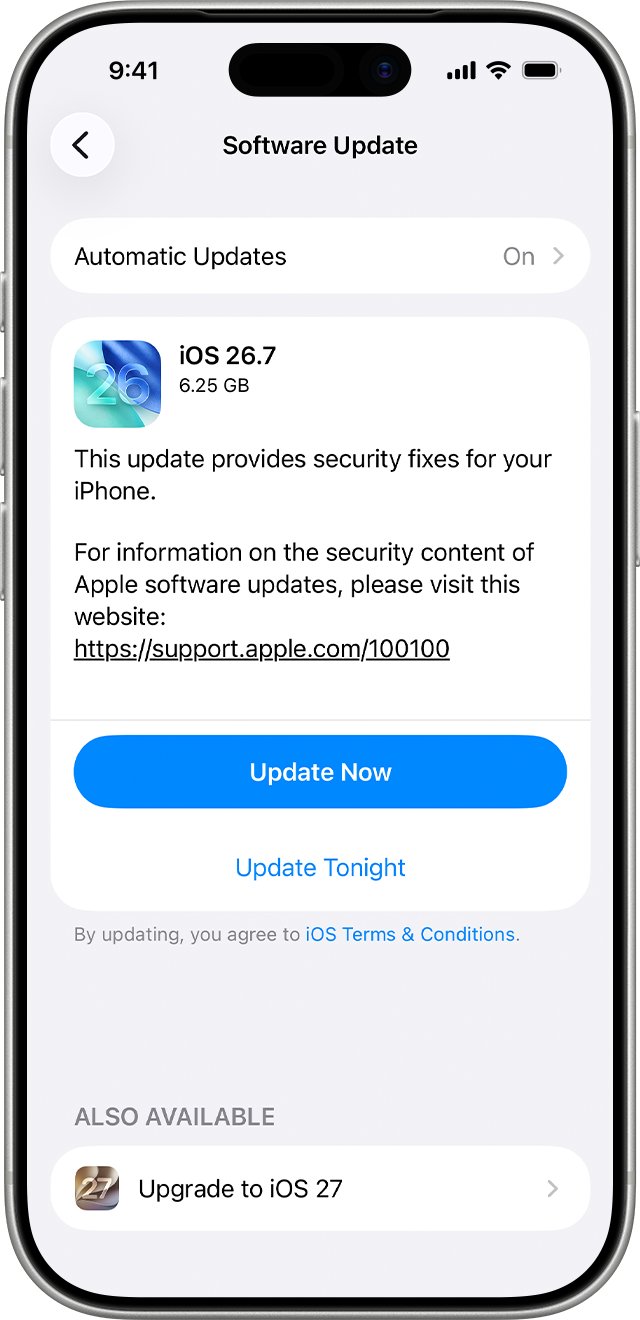
No. Update in place through Software Update each year and keep using the iPhone as it is; erase it only if a problem survives the update, or before you sell or give it away. Apple's update process installs the new iOS over the old one without touching your content, and Apple's own fixes for a slow iPhone are storage, network, temperature, Low Power Mode and battery health, not erasing. Some tasks keep running in the background for a few days after a major update, so short-term battery drain or warmth is expected and clears without a reset.
A factory reset costs time and carries risk: anything not in your backup is gone, and setting the iPhone up as new can replace your saved iCloud backups.
How to update iPhone to a new iOS version without a factory reset
These are Apple's steps for a wireless update. They work the same for a yearly major release and for a smaller point update.
- Back up the iPhone with iCloud or your computer.
- Plug the iPhone into power and connect to Wi-Fi.
- Open Settings and tap General.
- Tap Software Update. The installed iOS version and any available update appear.
- Tap Download and Install, then follow the onscreen instructions.
- If asked to temporarily remove apps for space, tap Continue. Those apps reinstall automatically after the update.
If the update does not appear, a VPN or proxy connection might be blocking the update servers. You can also update from a Mac with the Finder or from a Windows PC with the Apple Devices app.
To have future releases install overnight, open Settings > General > Software Update > Automatic Updates and turn on Automatically Install.
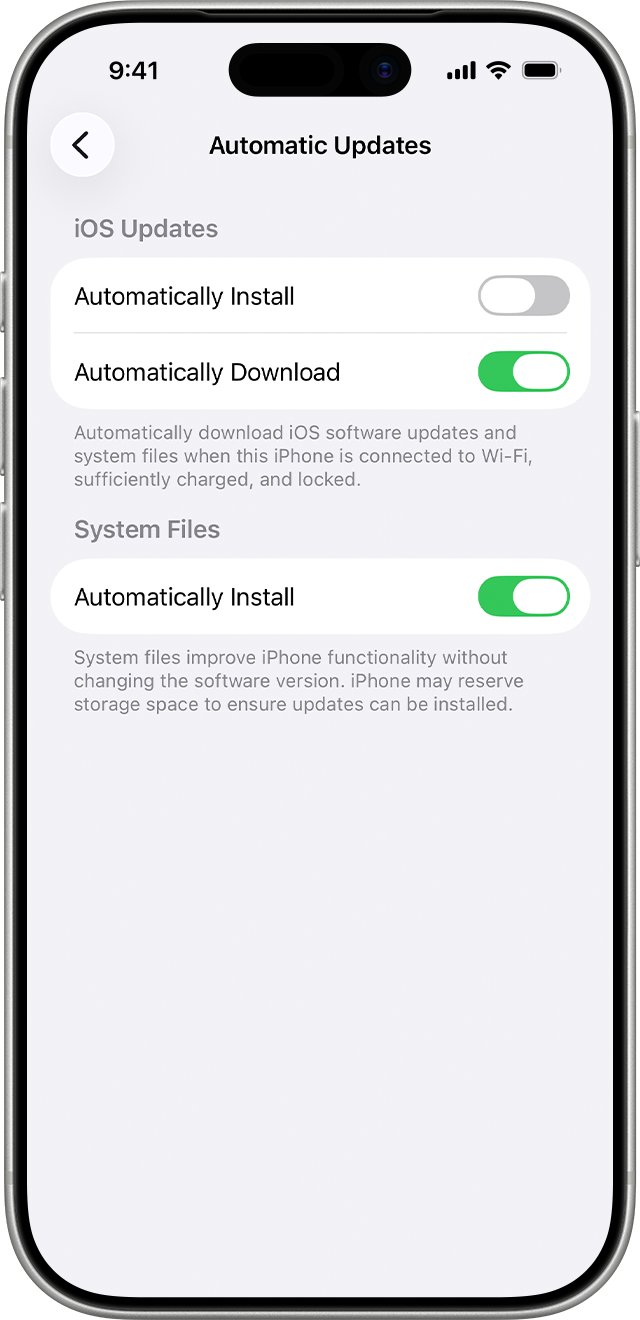
Reset all settings vs erase all content and settings on iPhone
Most post-update problems need a lighter tool than a full erase. Match your situation to a row.
| Your situation after the iOS upgrade | Use this | Why |
|---|---|---|
| Everything works normally | Nothing | The update kept your data and settings; no reset adds anything |
| Battery drains or the iPhone feels warm in the first days | Wait a few days and check Battery Insights | Update tasks finish in the background, then battery life returns to normal |
| Wi-Fi, cellular or VPN misbehaves | Reset Network Settings | Removes network settings only; apps and data stay |
| Settings behave oddly across several features | Reset All Settings | Returns every setting to default without deleting data or media |
| Problems survive the reset of settings | Erase All Content and Settings, then restore a backup | Starts the iPhone clean while bringing your data back |
| iPhone is stuck on the Apple logo or will not update | Recovery mode with a computer | Update or Restore reinstalls iOS; Restore also erases all data |
| You are selling, trading in or giving away the iPhone | Sign out, then Erase All Content and Settings | Removes your personal data and turns off Find My and Activation Lock |
How to reset all settings on iPhone without erasing data
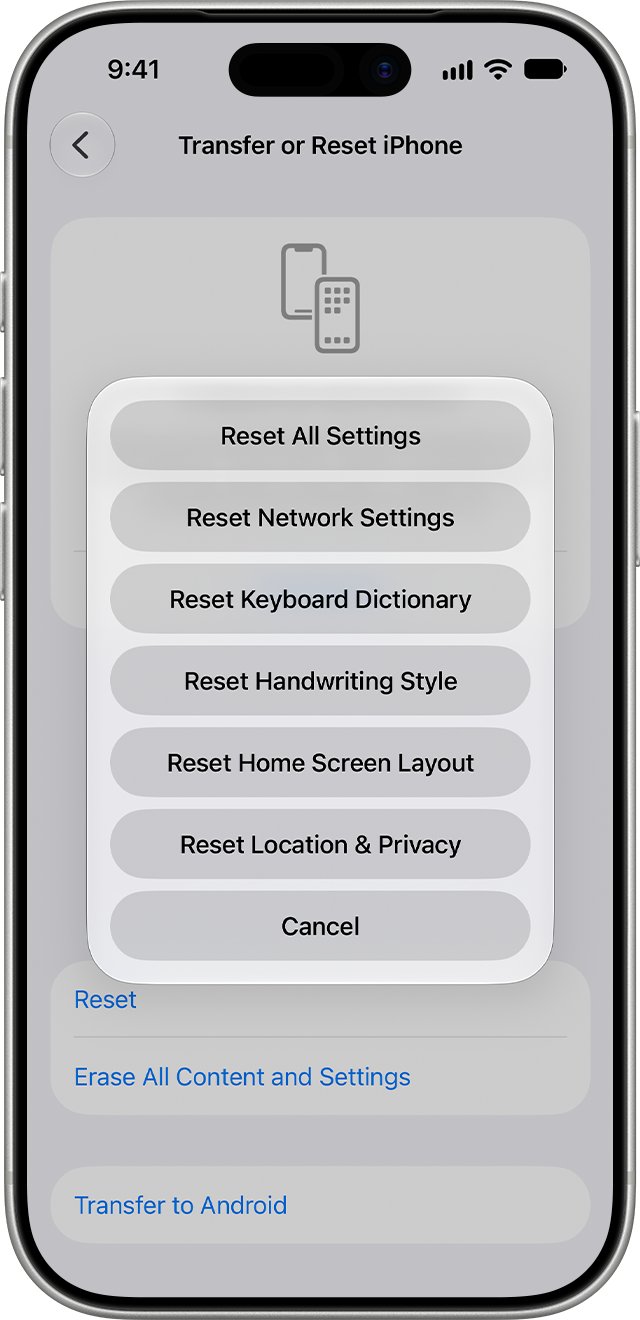
Reset All Settings removes or resets network settings, the keyboard dictionary, location and privacy settings and Apple Pay cards. No data or media are deleted.
- Back up the iPhone first if you want the option to bring your old settings back.
- Open Settings and tap General.
- Tap Transfer or Reset iPhone, then tap Reset.
- Tap Reset All Settings, or tap Reset Network Settings if only Wi-Fi or cellular is affected.
- Enter your passcode if asked and confirm.
- Add your Wi-Fi networks and Apple Pay cards again once the iPhone restarts.
Do not tap Erase All Content and Settings on the same screen unless you mean to wipe the iPhone. That option removes all your content.
How to factory reset iPhone after an iOS update
Erase only when lighter fixes have failed. Make a fresh backup first, because the erase removes everything stored on the iPhone.
- Open Settings, tap your name, tap iCloud, then tap iCloud Backup.
- Tap Back Up Now and wait for it to finish.
- If an Apple Watch is paired, unpair it first.
- Go back to Settings and tap General.
- Tap Transfer or Reset iPhone, then tap Erase All Content and Settings.
- Enter your passcode, and your Apple Account password if Find My asks for it.
- Tap Erase iPhone and wait for the iPhone to restart at the Hello screen.
Erasing the iPhone does not delete your content from iCloud. If Settings will not open, you can factory reset an iPhone with a computer in recovery mode instead.
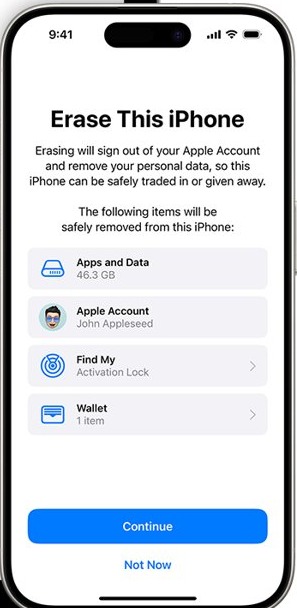
What happens when you factory reset an iPhone
| Item | After Erase All Content and Settings |
|---|---|
| Photos, contacts, music and apps on the iPhone | Erased from the iPhone |
| Apple Pay credit and debit cards | Removed |
| iCloud, iMessage, FaceTime and Game Center | Turned off on the iPhone |
| Content stored in iCloud | Kept in iCloud; it is not deleted |
| Find My and Activation Lock | Turned off |
| eSIM | You choose whether to erase the eSIM profile too |
| Your iCloud or computer backup | Kept, ready to restore during setup |
If you plan to keep the iPhone, keep the eSIM. Only erase it when the phone is leaving your hands and the new owner needs their own cellular service.
How to restore after factory reset on iPhone
Restore your backup during setup. Setting the iPhone up as new creates iCloud backups that replace your saved ones, so choose the backup the first time.
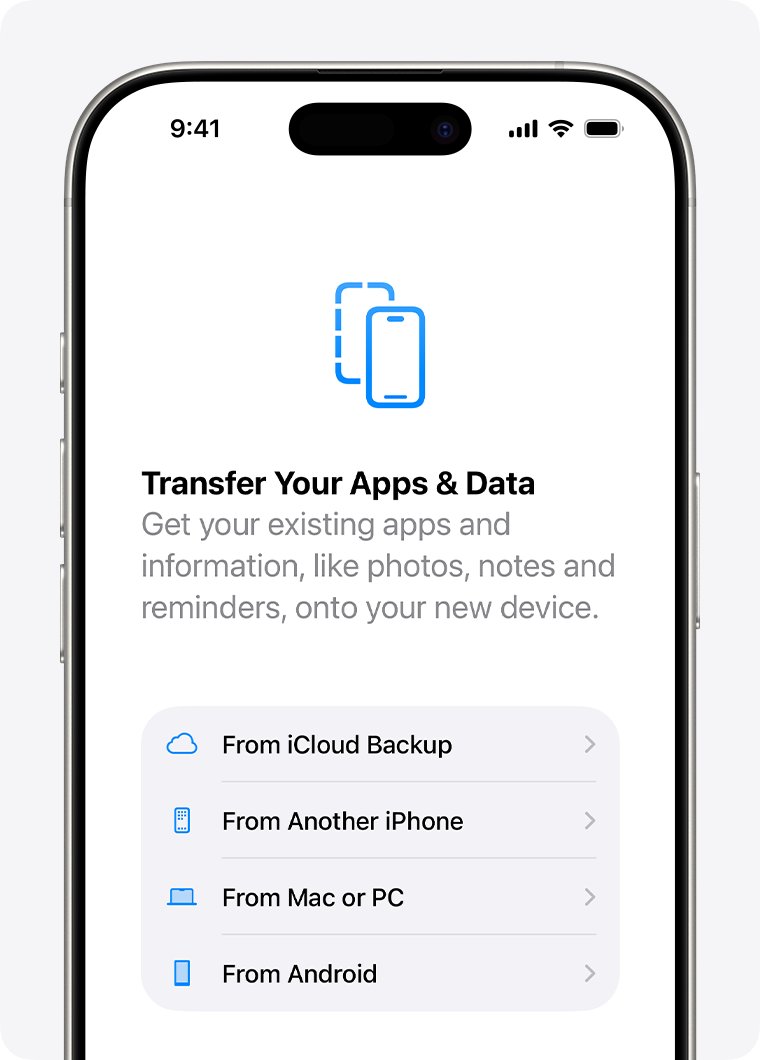
- Turn on the iPhone and follow the setup screens until Transfer Your Apps & Data appears.
- Tap From iCloud Backup and sign in to your Apple Account.
- Check the date and size of each backup and choose the most recent one.
- Sign in again when asked to restore your apps and purchases.
- Keep the iPhone on Wi-Fi and power until the progress bar finishes.
- Finish setup and leave the iPhone connected while photos, music and apps keep downloading from iCloud.
For a computer backup, connect the iPhone to a Mac with the Finder or a Windows PC with the Apple Devices app, select it in the sidebar, click Restore Backup, choose the newest backup and click Restore.
iPhone slow or battery draining after iOS update
Battery drains faster after the major update
Tasks related to the update are still running in the background.
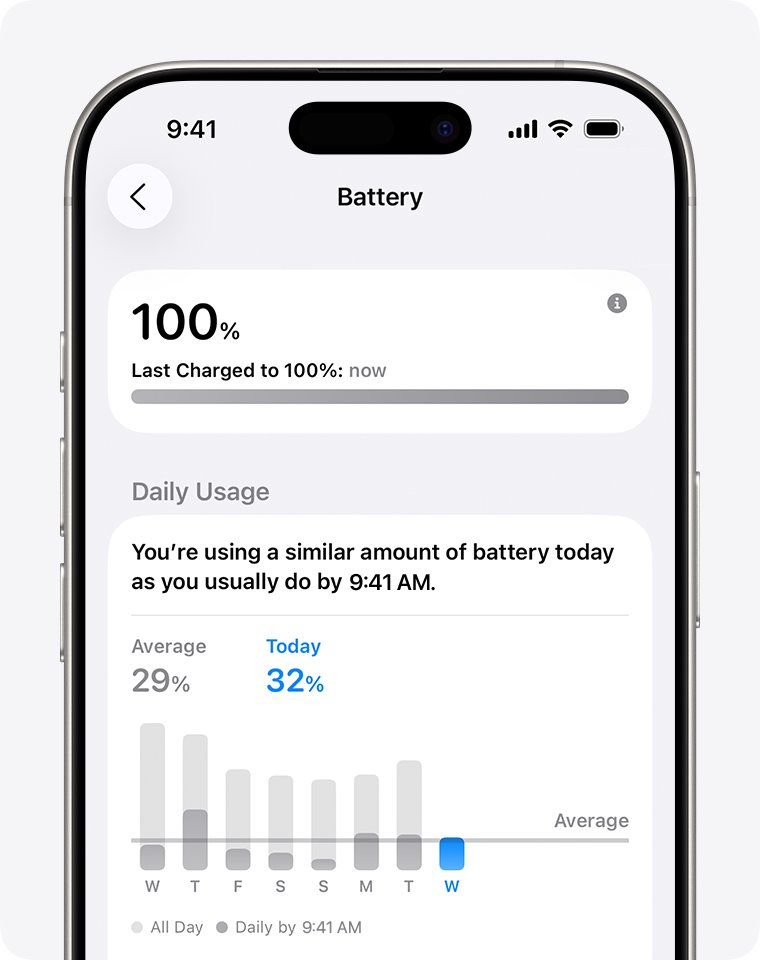
- Open Settings and tap Battery.
- Look above Daily Usage for the Ongoing iOS Update Insight.
- Keep using the iPhone normally and check again after a few days.
- Tap View All Battery Usage to see whether one app is using most of the power.
iPhone feels slow after updating
Low storage, a weak network, Low Power Mode, temperature or an aged battery.
- Open Settings > General > iPhone Storage and keep at least 1 GB free, offloading apps you rarely use.
- Switch to Wi-Fi or move to a spot with a stronger signal.
- Open Settings > Battery and turn off Low Power Mode if the battery icon is yellow.
- Move the iPhone out of heat or cold, which can slow it down.
- Check Settings > Battery > Battery Health and replace the battery if service is recommended.
Wi-Fi or cellular stopped working after the update
A saved network or VPN setting no longer works with the new release.
- Open Settings > General > Transfer or Reset iPhone > Reset.
- Tap Reset Network Settings and confirm.
- Join your Wi-Fi network again and reinstall any VPN you need.
iPhone stuck on the Apple logo during or after the update
The update did not finish and the iPhone cannot start normally.
- Connect the iPhone to a Mac with the Finder or a PC with the Apple Devices app.
- Press and quickly release Volume Up, then Volume Down, then press and hold the side button until the Connect to computer screen appears.
- Choose Update first; it reinstalls iOS without erasing data.
- Choose Restore only if Update fails. Restore reinstalls iOS and erases all your data.
- If the download takes more than 15 minutes and the iPhone leaves recovery mode, let the download finish and repeat the button steps.
Factory reset after iOS update FAQ
Does factory reset help with performance after an iOS update?
Rarely. Apple's own fixes for a slow iPhone are freeing storage, improving the network connection, turning off Low Power Mode, avoiding heat or cold and checking battery health. Try those, and give the update a few days, before erasing.
Will factory reset remove everything on an iPhone?
Yes. Erase All Content and Settings removes all content and settings on the iPhone, including Apple Pay cards, photos, contacts, music and apps. Content stored in iCloud stays in iCloud, and your backups remain available to restore.
Does factory reset fix everything?
No. It clears software settings and content, but it cannot fix a worn battery, a damaged screen or a failed update that stops the iPhone starting. For a stuck update, use recovery mode with a computer; for hardware, book service.
What happens if I restore factory settings on iPhone?
The iPhone erases your content and settings and restarts at the Hello screen. Find My and Activation Lock turn off, iCloud and iMessage sign out, and you can restore an iCloud or computer backup during setup.
Can you recover anything after a factory reset?
Only what was in a backup or already in iCloud. Restore your most recent iCloud or computer backup during setup. Data that was only on the iPhone is gone, and the odds for data recovery after a factory reset are poor.
Why does factory reset not work on iPhone?
Usually because the iPhone asks for a passcode or Apple Account password it needs to turn off Find My. Have both ready before you erase, and if the iPhone later stops at a passcode request after the reset, sign in with the account it names.
How do you do a complete factory reset on iPhone?
Back up, then open Settings > General > Transfer or Reset iPhone > Erase All Content and Settings and tap Erase iPhone. To reinstall iOS itself as well, use Restore in the Finder or Apple Devices app, which reinstalls iOS and erases all data.
Should you factory reset before updating iOS?
No. Apple's update steps start with a backup, not an erase. Back up with iCloud or a computer, plug in, connect to Wi-Fi and install the update from Settings > General > Software Update.