iPhone has no separate reset button for Camera, so you reset camera settings by turning off Preserve Settings options or by running Reset All Settings, which keeps your photos.
This guide covers both routes, the Camera settings worth putting back by hand, and fixes for a camera that keeps opening or stops working.
How to reset camera settings on iPhone
Camera returns to its defaults each time you open it unless Preserve Settings tells it to remember your last choices.
Turning those switches off is the quickest way to get the standard Photo mode, filter and zoom back.
- Open the Settings app on your iPhone.
- Tap Camera, then tap Preserve Settings.
- Turn off Camera Mode so Camera opens in Photo mode again.
- Turn off Creative Controls, Depth Control and Exposure Adjustment if you see them.
- Turn off any other switch you changed, such as Night Mode, Action Mode or Apple ProRes.
- Close Camera completely, then open it again to load the default settings.
Live Photo and Portrait Zoom are on by default, so leave those switches on if you want factory behaviour.
Reset iPhone camera settings to default: which option fits
| Your situation | Use this | What it changes |
|---|---|---|
| Camera opens in Portrait, Pano or a filter you used last time | Settings > Camera > Preserve Settings | Only the remembered camera choices |
| Photos are the wrong resolution or format | Settings > Camera > Formats | Photo resolution, ProRAW and Resolution Control |
| Video frame rate, HDR or stabilisation changed | Settings > Camera > Record Video | Video recording options only |
| You changed many settings and cannot find which one | Settings > General > Transfer or Reset iPhone > Reset > Reset All Settings | Every setting on the phone, no photos or data deleted |
| Camera app freezes or shows a black screen | Force restart | Nothing; it clears a stuck app state |
What Preserve Settings does in the iPhone Camera app
Each switch under Preserve Settings saves one last-used choice instead of resetting it the next time Camera opens.
| Switch | When on, Camera remembers | Availability |
|---|---|---|
| Camera Mode | The last mode, such as Portrait or Pano | All models |
| Photographic Style | The last Photographic Style | Supported models |
| Creative Controls | The last filter or lighting setting | All models |
| Depth Control | The last depth setting in Photo, Portrait and Cinematic modes | Supported models |
| Macro Control | The Auto Macro setting | Supported models |
| Exposure Adjustment | The exposure control setting | iPhone 11 and later |
| Lens Aperture | The last aperture setting | iPhone 18 Pro models |
| Night Mode | The Night mode setting instead of Auto | Supported models |
| Portrait Zoom | The Portrait zoom lens; on by default | Supported models |
| Action Mode | Action Mode left on | Supported models |
| ProRAW & Resolution Control | The ProRAW and resolution choice | Supported models |
| Apple ProRes | The ProRes setting | Supported models |
| Live Photo | The Live Photo setting; on by default | All models |
How to adjust iPhone camera settings back to default by hand
The main Camera settings page holds switches that Reset All Settings also puts back, but you can restore them one at a time instead.
- Open Settings, then tap Camera.
- Tap Formats, then tap Photo Mode and choose 24 MP on models that offer it.
- Go back to Camera and turn on View Outside the Frame, Prioritize Faster Shooting and Lens Correction; all three are on by default.
- Turn on Save Captures to Photo Library if photos taken in Messages stopped appearing in Photos.
- Tap Record Video and turn on Enhanced Stabilization, which is on by default.
- In Record Video, turn off Lock Camera and Lock White Balance if you turned them on.
- Tap Record Slo-mo and Record Cinematic to check their frame rates.
Slo-mo defaults to 1080p HD at 240 fps on the back camera, and Cinematic mode defaults to 1080p HD at 30 fps.
How to reset all settings on iPhone without losing photos
Reset All Settings returns every setting, including Camera, network, location and privacy settings, to its default. No data or media are deleted.
- Back up your iPhone first if you might want your current settings back.
- Open Settings, then tap General.
- Tap Transfer or Reset iPhone, then tap Reset.
- Tap Reset All Settings.
- Enter your passcode and confirm.
- Rejoin Wi-Fi networks and re-add Apple Pay cards after the iPhone restarts.
Do not choose Erase All Content and Settings. That option removes your photos and everything else on the phone.
How to change iPhone Camera Control settings
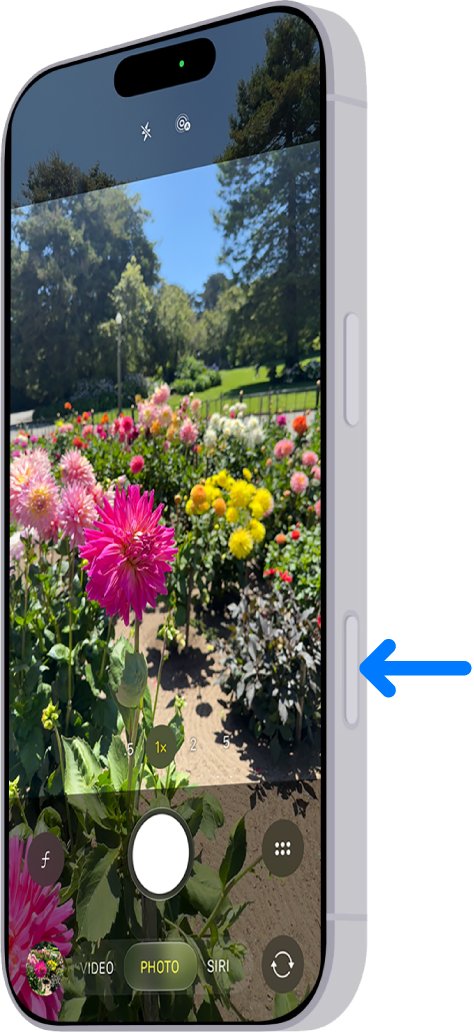
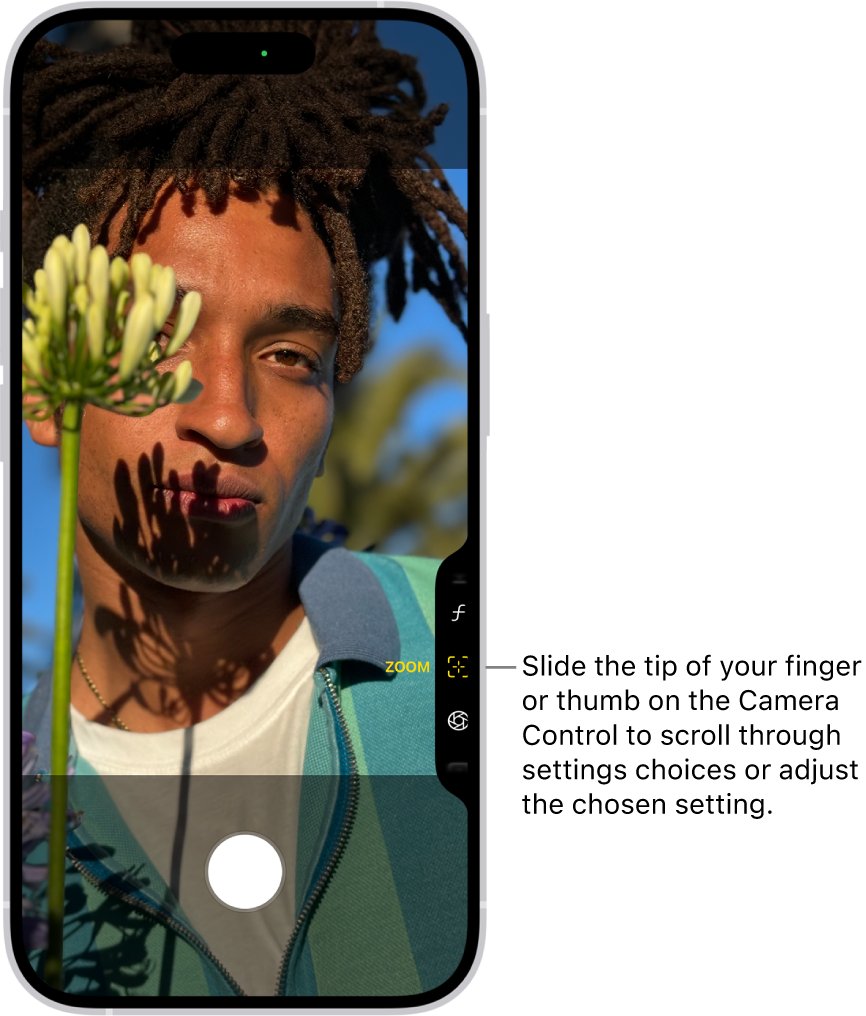
On models with the Camera Control button, its overlay remembers the setting you last adjusted, such as exposure or zoom.
- Open Settings, then tap Camera.
- Tap Camera Control.
- Tap Single Click to open Camera with one press, or Double Click to need two.
- Tap Customize to choose which controls appear in the overlay and their order.
- Turn off Lock Focus and Exposure if you do not want the light press-and-hold AE/AF Lock.
Check the iPhone camera is back to default
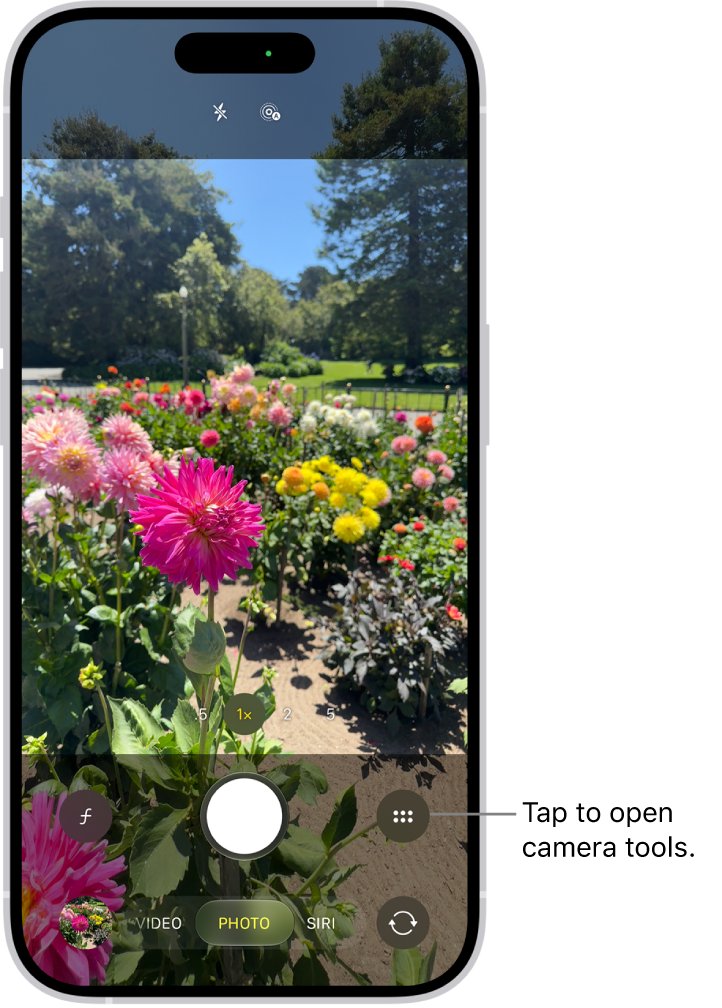
- Close Camera, then open it from the Home Screen.
- Confirm the mode name under the viewfinder reads Photo.
- Confirm no filter or Photographic Style is applied and zoom shows 1x.
- Close Camera again and reopen it to confirm the defaults stay.
iPhone camera keeps turning on or stopped working
Why does my iPhone keep opening the camera?
Swiping left on the Lock Screen opens Camera, and a single click on the Camera Control opens it too.
- Open Settings > Camera > Camera Control.
- Tap Double Click so a stray press no longer opens Camera.
- Avoid swiping left across the Lock Screen when you pick up the phone.
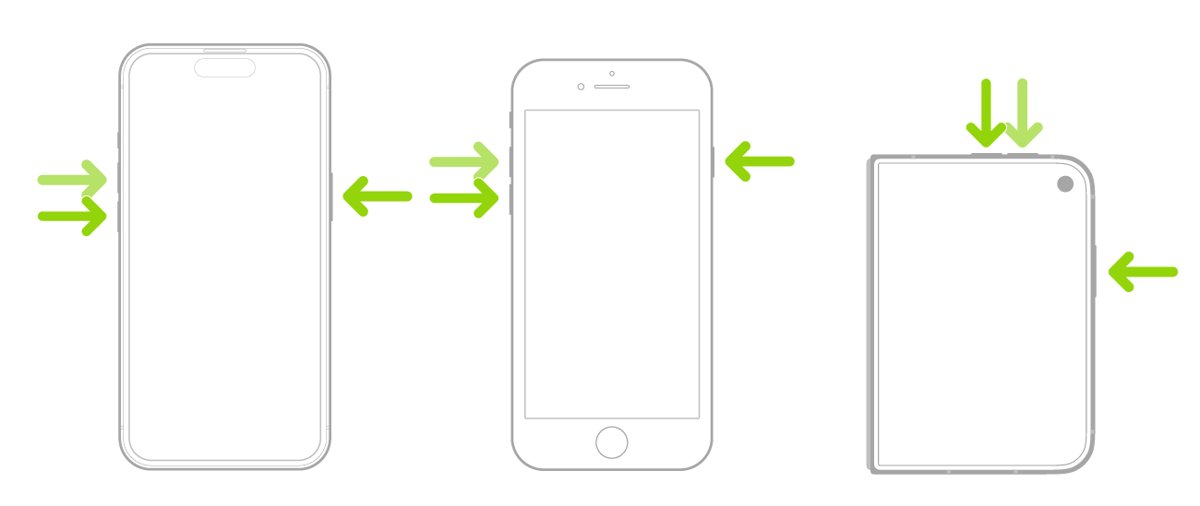
iPhone camera stopped working or shows a black screen
The Camera app or iOS is stuck in a bad state.
- Press and quickly release the volume up button.
- Press and quickly release the volume down button.
- Press and hold the side button until the Apple logo appears, then release it.
- Open Settings > General > Software Update and install any available update.
Camera still opens in the wrong mode after resetting
A Preserve Settings switch is still on.
- Open Settings > Camera > Preserve Settings.
- Turn off Camera Mode and Creative Controls.
- Choose Photo mode once in Camera, then close and reopen it.
If the camera still fails after you soft reset the iPhone, an update and Reset All Settings, contact Apple Support for a hardware check.
Resetting iPhone camera FAQ
How do I reset the camera app on iPhone?
Go to Settings > Camera > Preserve Settings and turn off the switches you changed, then close and reopen Camera. There is no dedicated reset button for the Camera app, so Reset All Settings is the only full reset.
How do I reset iPhone 15 camera settings?
The steps are the same as on other models: open Settings > Camera > Preserve Settings and turn off Camera Mode, Creative Controls and Exposure Adjustment. For a full reset, use Settings > General > Transfer or Reset iPhone > Reset > Reset All Settings.
How do I change iPhone camera settings?
Open Settings and tap Camera. From there you can change Formats, Record Video, Record Slo-mo, Record Cinematic, Preserve Settings and, on supported models, Camera Control. Mode, zoom and filters change inside the Camera app itself.
What does resetting iPhone settings do?
Reset All Settings returns every setting, including network, keyboard dictionary, location, privacy and Apple Pay cards, to its default. It does not delete photos, messages or other data, unlike Erase All Content and Settings.
Will resetting camera settings delete my photos?
No. Turning off Preserve Settings switches and running Reset All Settings both leave your photo library untouched. Only Erase All Content and Settings removes photos, so avoid that option.
Why does my iPhone keep opening the camera?
Swiping left on the Lock Screen opens Camera, and on supported models a single click on the Camera Control opens it. Set Settings > Camera > Camera Control to Double Click to cut accidental launches.
Why did my iPhone camera stop working?
A stuck app or iOS state is the usual cause. Force restart the iPhone with volume up, volume down, then hold the side button, and install any update in Settings > General > Software Update. Contact Apple Support if it still fails.
How do I restore the camera on iPhone if the icon is missing?
Swipe left on the Lock Screen to open Camera directly. If that works but the icon is gone from the Home Screen, Reset Home Screen Layout in Settings > General > Transfer or Reset iPhone > Reset returns built-in apps to their original places.