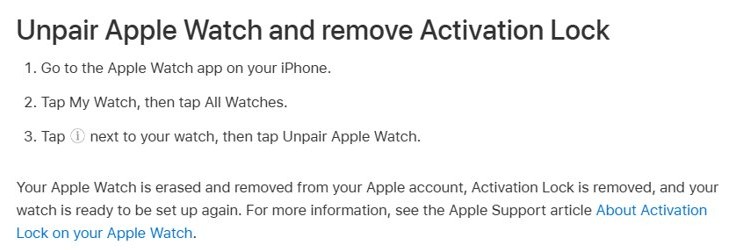
To reset an Apple Watch to factory settings, open the Watch app on your paired iPhone, tap All Watches, tap the info button next to the watch and choose Unpair Apple Watch.
This guide also covers erasing the watch from its own Settings app, resetting it on the charger when you forgot the passcode, erasing it remotely from iCloud, and what happens to Activation Lock and your cellular plan.
How to factory reset an Apple Watch using your iPhone (recommended)
Unpairing is the full reset. It erases the watch, removes it from your Apple Account and turns off Activation Lock, so use it before you sell or give the watch away, just as you would factory reset an iPad before passing it on.
Keep the watch and iPhone close together while it runs, and keep the watch charged; if it will not take a charge, fix the Apple Watch charging problem first. The iPhone backs up the watch first, then erases it.
- Open the Watch app on your iPhone.
- Tap My Watch, then tap All Watches at the top.
- Tap the info button next to the watch you want to reset.
- Tap Unpair Apple Watch and confirm.
- On a cellular model, choose whether to keep or remove the cellular plan.
- Enter your Apple Account password if asked, so Activation Lock can be removed.
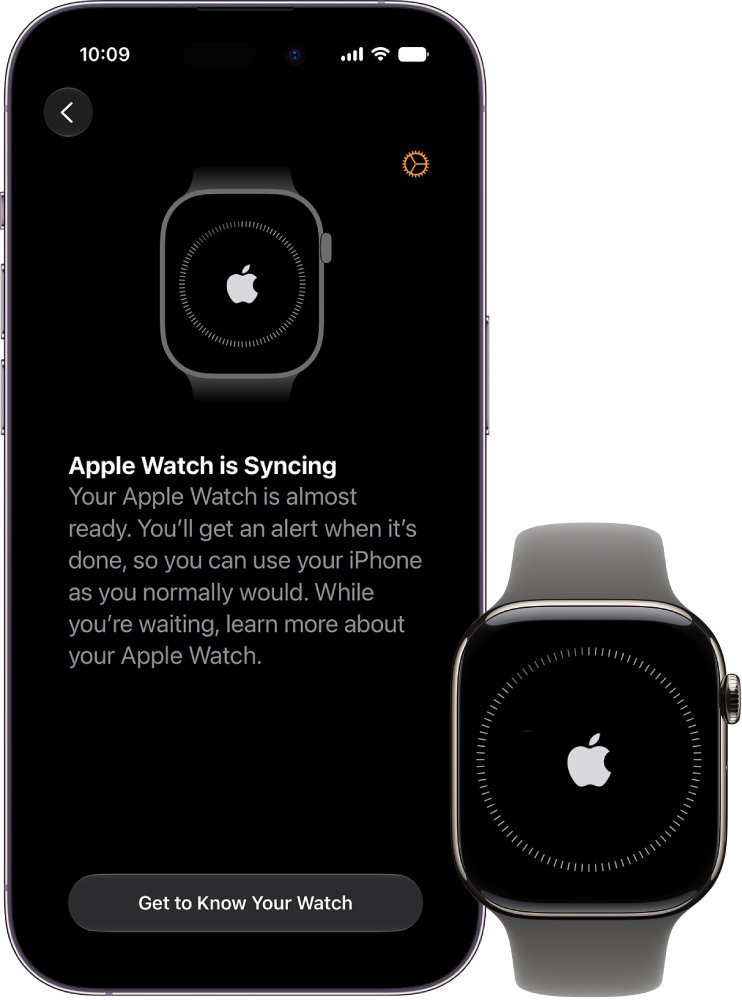
- Wait until the watch shows the pairing screen, which means the reset is finished.
This method works the same on Apple Watch SE, Series 3, Series 9, Series 10, Ultra 2 and Ultra 3, because the steps live in the iPhone Watch app rather than on the watch.
Which reset method should you use?
| Your situation | Use this | Activation Lock afterwards |
|---|---|---|
| Selling, gifting or trading in the watch | Unpair in the iPhone Watch app | Removed |
| Keeping the watch, just need a clean start | Settings > General > Reset on the watch | Stays on |
| No iPhone nearby but you know the passcode | Settings > General > Reset on the watch | Stays on |
| Forgot the watch passcode | Reset from the charger, or from the iPhone Watch app | Stays on |
| Watch is lost, stolen or already given away | Erase This Device at icloud.com/find, then Remove This Device | Removed after you remove it |
| Watch is frozen but you want to keep your data | Force restart, not a reset | Unchanged |
Why you might need to factory reset an Apple Watch
| Reason | Best route |
|---|---|
| You are selling or giving the watch away | Unpair, so the next owner can activate it |
| You are moving to a new iPhone | Unpair from the old iPhone, then pair with the new one and restore from backup |
| You want to reset the Apple Watch and pair again to clear a persistent problem | Erase, then pair again and restore from a backup |
| You forgot the passcode and the watch is disabled | Reset from the charger |
| You are switching the watch to a different cellular plan or iPhone | Erase and choose to remove the plan |
Before you reset: three things to check
- Confirm you know your Apple Account password. It is needed to remove Activation Lock, and the watch cannot be set up by anyone else without it.
- Keep the watch paired and in range of the iPhone if you can. Apple Watch backs up to the paired iPhone continuously, and unpairing runs one more backup first.
- On a cellular model, decide whether you are keeping the plan. Keep it if you will pair the same watch and iPhone again; remove it if the watch is going to another iPhone, and contact your carrier to cancel service and stop the monthly Apple Watch cellular fee.
How to factory reset an Apple Watch without an iPhone
You can reset the Apple Watch from the watch itself. This erases all content and settings but leaves Activation Lock on, so it suits a watch you keep.
- Open the Settings app on the Apple Watch.
- Tap General, then tap Reset.
- Tap Erase All Content and Settings.
- Enter the watch passcode.
- On a cellular model, choose to keep or remove the cellular plan.
- Wait for the erase to finish, then set the watch up again and restore from a backup when asked.
Alternative reset methods
Three other routes cover a forgotten passcode, a watch you no longer have, and a watch that only needs a restart.
| Method | Steps | Notes |
|---|---|---|
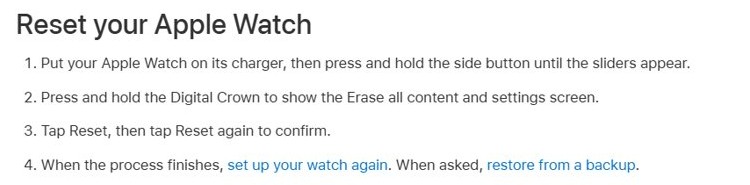
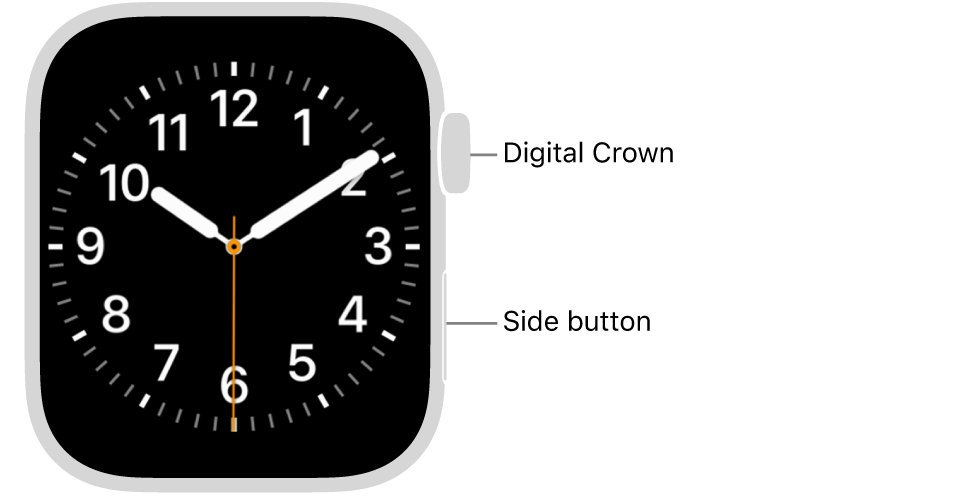
| Erase from the charger when you have forgotten the passcode | Put the watch on its charger, press and hold the side button until the sliders appear, press and hold the Digital Crown until Erase all content and settings shows, then tap Reset and Reset again. | Activation Lock stays on. Set the watch up again afterwards. |
| Reset from the iPhone Watch app without unpairing | In the Watch app tap My Watch > General > Reset > Erase Apple Watch Content and Settings, then confirm with Erase All Content and Settings. | Works when the watch is locked by a forgotten passcode. Activation Lock stays on. |
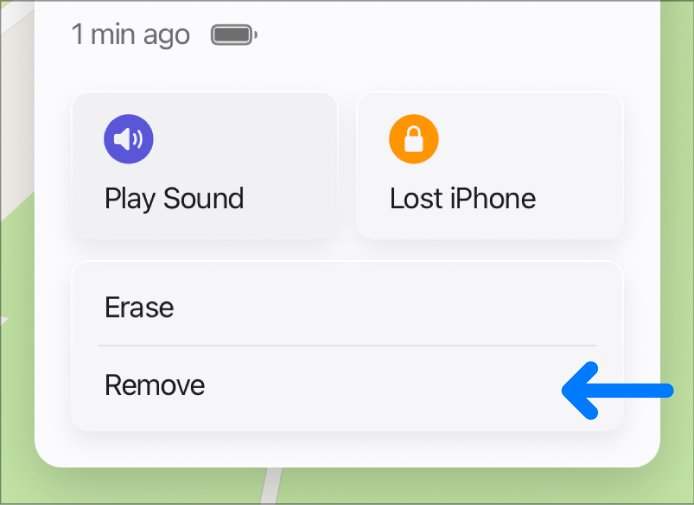
| Remove the watch remotely through iCloud | Go to icloud.com/find, sign in, select the watch, select Erase This Device and follow the prompts. After the erase, select Remove This Device. | An offline watch erases the next time it comes online. Removing it clears Activation Lock. |
| Force restart instead of resetting | Hold the side button and Digital Crown together for at least 10 seconds until the Apple logo appears. | No data is erased. Use it only when a normal restart fails. |
Activation Lock, data and cellular: what actually gets removed
| Item | Unpair from iPhone | Erase on watch or charger |
|---|---|---|
| Content and settings on the watch | Erased | Erased |
| Activation Lock | Removed | Stays on; your Apple Account password is needed to pair with a new iPhone |
| Backup on the iPhone | A fresh backup is made first | Earlier continuous backups on the iPhone remain |
| Cellular plan | Keep or remove, your choice | Keep or remove, your choice |
| Carrier subscription | Not cancelled; contact your carrier | Not cancelled; contact your carrier |
Apple Watch backups are included in your iPhone backup to iCloud or to a computer, so restoring the iPhone backup also brings back the watch backup.
How to reset the Apple Watch and pair again
- Check that the watch shows the language or pairing screen. That confirms the reset finished.
- Bring the watch close to the iPhone and open the Watch app. If the iPhone itself is frozen, force restart the iPhone first.
- Follow the pairing prompts on the iPhone.
- Choose Restore from Backup and pick the most recent backup to get your settings back.
- If the watch asks for an Apple Account password, Activation Lock is still on; enter the password of the account it was locked to.
Still not working?
Reset Apple Watch without passcode
Settings needs the passcode, so the on-watch route is blocked.
- Put the watch on its charger.
- Press and hold the side button until the sliders appear.
- Press and hold the Digital Crown, then tap Reset twice.
Watch asks for an Apple Account password after the reset
The watch was erased rather than unpaired, so Activation Lock is still on.
- Enter the password for the Apple Account the watch was paired with.
- If you sold the watch, ask the previous owner to sign in at icloud.com/find and select Remove This Device.
Watch will not restart or respond
The watch is frozen, or it is on the charger, where a normal restart does not work.
- Take the watch off the charger.
- Hold the side button and Digital Crown for at least 10 seconds until the Apple logo appears.
Remote erase from iCloud never happens
The watch is offline; the erase waits until it connects.
- Leave the request in place; it runs the next time the watch is online.
- Contact your carrier to suspend service on a lost cellular watch.
Frequently asked questions
Can I reset my Apple Watch?
Yes. Unpair it in the iPhone Watch app for a full reset, or go to Settings > General > Reset > Erase All Content and Settings on the watch. Both erase everything; only unpairing also removes Activation Lock.
How do I reset the Apple Watch from the watch?
Open Settings on the watch, tap General, tap Reset, tap Erase All Content and Settings and enter your passcode. The watch stays linked to your Apple Account, so Activation Lock remains on.
How do I completely reset my Apple Watch?
Unpair it from the iPhone Watch app. That erases the watch, removes it from your Apple Account and turns off Activation Lock, leaving it ready for a new owner to set up.
How do I reset the Apple Watch SE?
The Apple Watch SE uses the same steps as every other model: unpair it in the iPhone Watch app, or tap Settings > General > Reset > Erase All Content and Settings on the watch.
How do I reset the Apple Watch Ultra 2 or Ultra 3?
Use the same steps as other models. Unpair in the iPhone Watch app, or erase from Settings on the watch. On the charger reset, hold the side button, then the Digital Crown.
How do I reset the Apple Watch Series 9 or Series 10?
Series 9 and Series 10 reset the same way: open the Watch app on the iPhone, tap All Watches, tap the info button and choose Unpair Apple Watch.
How do I reset the Apple Watch Series 3?
Use the same unpair steps in the iPhone Watch app, or Settings > General > Reset on the watch. The menu names match across watchOS versions covered by Apple's user guide.
How do I reset the Apple Watch and pair again?
Erase or unpair the watch, wait for the pairing screen, then hold it near the iPhone and open the Watch app. Choose Restore from Backup to bring back your settings and data.
Does factory resetting an Apple Watch remove Activation Lock?
Only unpairing from the iPhone, or erasing and then selecting Remove This Device at icloud.com/find, removes Activation Lock. Erasing from the watch or the charger leaves it on.
Do I need to unpair before selling my Apple Watch?
Yes. Unpairing removes the watch from your Apple Account and turns off Activation Lock. Without that, the buyer cannot pair it with their iPhone.
Quick summary
Unpair the watch in the iPhone Watch app whenever you can; erase from Settings or the charger only when the iPhone is not available or the passcode is forgotten. Unpairing is the only on-device route that backs the watch up first and removes Activation Lock in the same step.