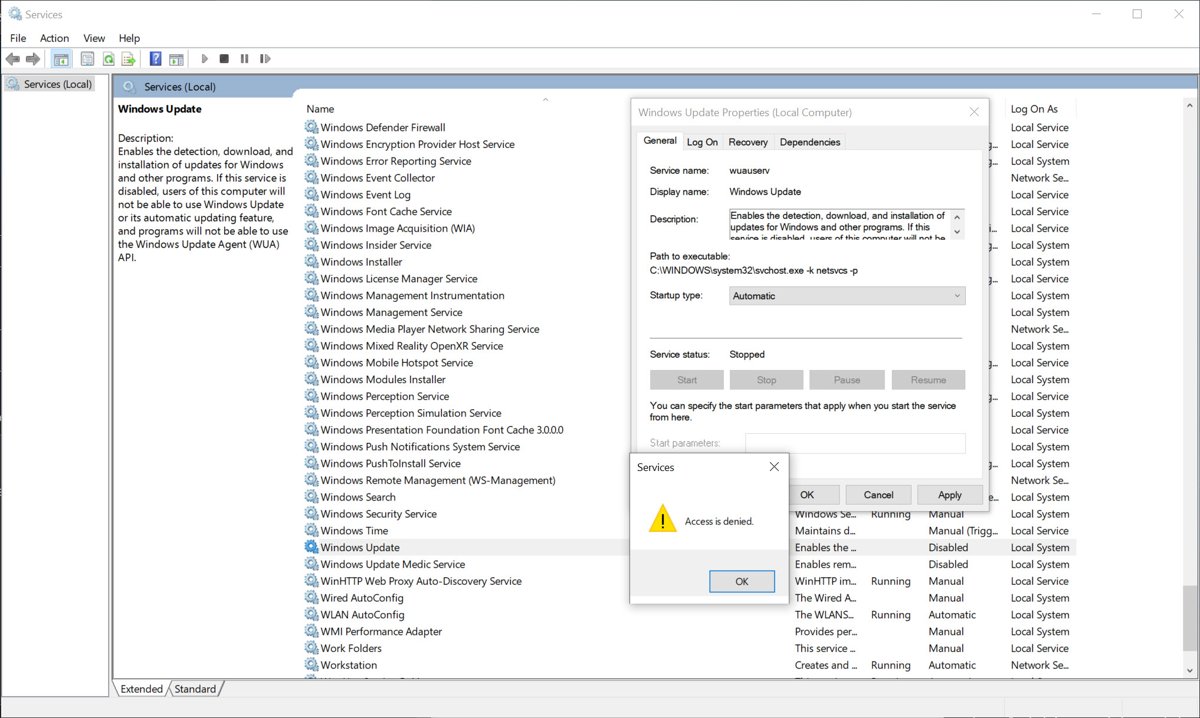
To fix the Windows Update service not running, open services.msc, set Windows Update to Automatic, select Start and restart the PC.
If the service still stops, run the Windows Update troubleshooter, reset the update components, repair system files, or install updates manually.
How to start the Windows Update service in Windows 11 and 10
Microsoft's fix for a disabled or stopped Windows Update service works the same way on Windows 11 and Windows 10. You need an administrator account.
- Press Win + R, type
services.mscand press Enter. - Right-click Windows Update and select Properties.
- In the Startup type list, select Automatic.
- If Service status says Stopped, select Start.
- Select Apply, then OK.
- Restart the PC and select Start > Settings > Windows Update > Check for updates.
Why is the Windows Update service not running?
| Cause | Error code you may see | Fix in this article |
|---|---|---|
| The service is disabled, so Windows can't start it | 0x80070422 (ERROR_SERVICE_DISABLED) | Re-configure the Windows Update service |
| The service shut down after a long idle period | 0x8024A10A (USO_E_SERVICE_SHUTTING_DOWN) | Restart computer, then keep the PC active |
| The update database is damaged or the service stopped | 0x80248014 | Run Windows Update troubleshooter, reset Windows Update |
| Malware has switched off security or update components | Varies | Check for computer viruses |
| Two real-time antivirus products are installed | Varies, such as 0x80070643 | Disable third-party antimalware service |
| Damaged Windows system files | Varies | Run SFC scan and DISM tool |
The error code appears in Settings > Windows Update > Update history next to the failed update.
Run Windows Update troubleshooter
The Windows Update troubleshooter restarts stopped update services and repairs common faults on its own. On Windows 11 it also runs from the Get Help app.
- On Windows 11, select Start > Settings > System > Troubleshoot > Other troubleshooters.
- Under Most frequent, select Run next to Windows Update.
- On Windows 10, select Start > Settings > Update & Security > Troubleshoot > Additional troubleshooters.
- Select Windows Update, then Run the troubleshooter.
- Follow the prompts, restart the PC, and check for updates again.
Restart computer to start the Windows Update service
Microsoft notes that the update service can shut down after a long period of inactivity. A restart starts it again and finishes any update waiting on a reboot.
- Save your work and close open apps.
- Select Start > Power.
- Select Update and restart if it appears, otherwise select Restart.
- Sign in and open Settings > Windows Update right away.
- Select Check for updates and keep the PC awake until the install finishes.
Re-configure the Windows Update service
Windows can't start a service set to Disabled, which is why updates report the service as not running. Setting it to Automatic is Microsoft's fix for error 0x80070422.
- Open
services.mscfrom Win + R. - Double-click Windows Update.
- Set Startup type to Automatic and select Apply.
- Select Start and wait for Service status to show Running.
- Repeat the check for Background Intelligent Transfer Service and Cryptographic Services, which the update reset also stops and starts.
- Select OK and restart the PC.
You can also restart the Windows Update service from PowerShell with Restart-Service.
Set the Windows Update service to Automatic with sc config
When the Services window won't save the change, set the start type from an elevated Command Prompt. The space after start= is required.
sc.exe config wuauserv start= auto
net start wuauserv
wuauserv is the service name of Windows Update. start= auto makes it start every time the PC restarts, and net start starts it now.
You should see: sc.exe query wuauserv then shows STATE as RUNNING, and services.msc lists Automatic under Startup Type.
Check for computer viruses
Microsoft notes that malware can disable antivirus software and change a PC so it can't reach security websites. A full scan checks every file, and the offline scan runs before Windows loads.
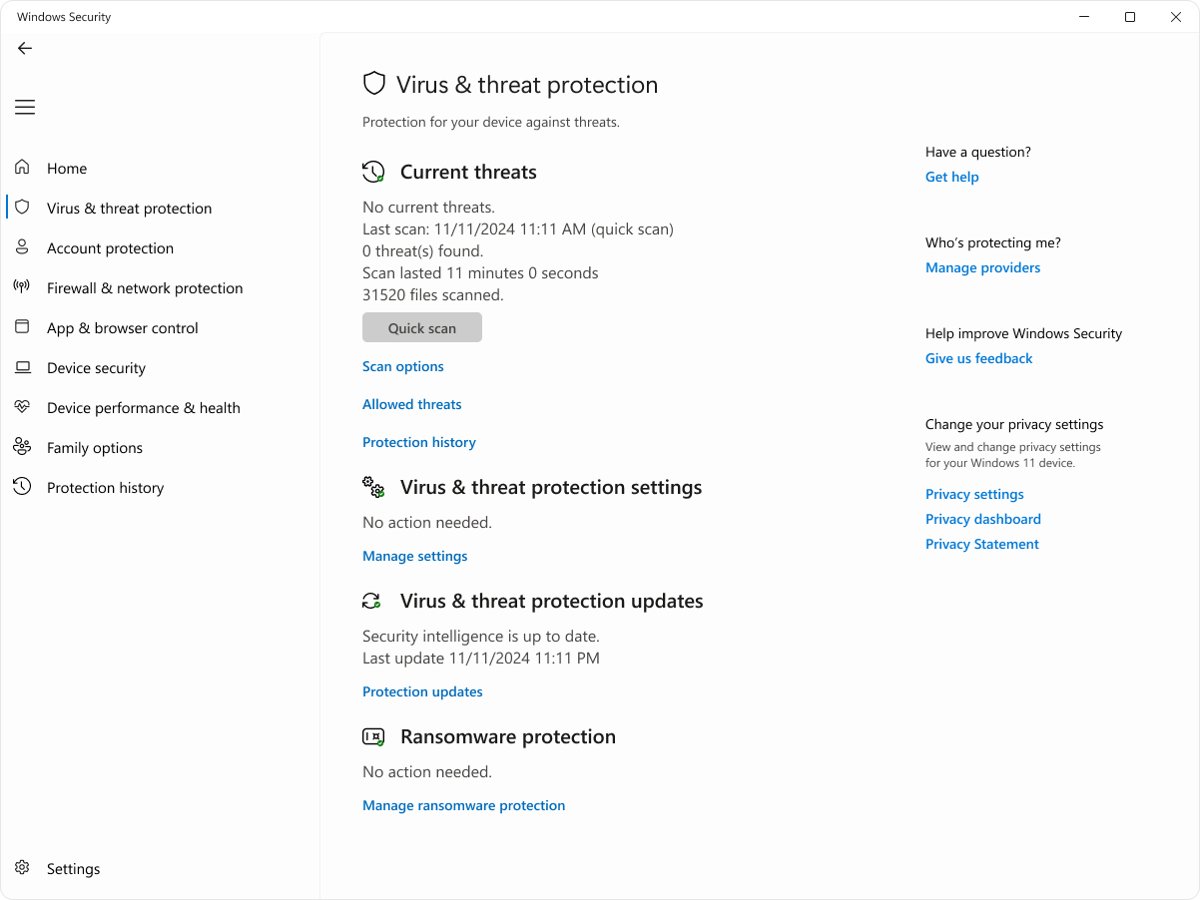
- Open Windows Security from the Start menu.
- Select Virus & threat protection > Scan options.
- Select Full scan, then Scan now.
- If threats return, select Microsoft Defender Antivirus (offline scan) and Scan now, after saving open files.
- After the restart, open Windows Security > Protection history to see what was removed.
Disable third-party antimalware service
Microsoft warns that running more than one real-time security product can produce error codes when you update. The safe version of this fix is to keep one product, not to switch protection off.
If no other security product is installed, or it has expired, Microsoft Defender Antivirus turns on automatically.
- Open Windows Security and select Virus & threat protection to see which antivirus product is active.
- If two real-time products are installed, update the one you want to keep.
- Uninstall the other product using its vendor's uninstall instructions.
- Restart the PC.
- Open Windows Security again and confirm one product shows protection as on.
- Start the Windows Update service and check for updates.
Reset Windows Update
A reset stops the update services, renames the update database and download cache, then starts the services again. Windows rebuilds the renamed folders on the next check.
net stop bits
net stop wuauserv
net stop cryptsvc
Ren %Systemroot%\SoftwareDistribution\DataStore DataStore.bak
Ren %Systemroot%\SoftwareDistribution\Download Download.bak
Ren %Systemroot%\System32\catroot2 catroot2.bak
net start bits
net start wuauserv
net start cryptsvc
Run each line in Command Prompt opened with Run as administrator, and press Enter after each one. The net stop lines stop BITS, Windows Update and Cryptographic Services, the Ren lines rename the cache folders to .bak, and the net start lines start all three again.
You should see: Each net start line reports the service started, and Settings > Windows Update can check for updates again.
Delete temporary files
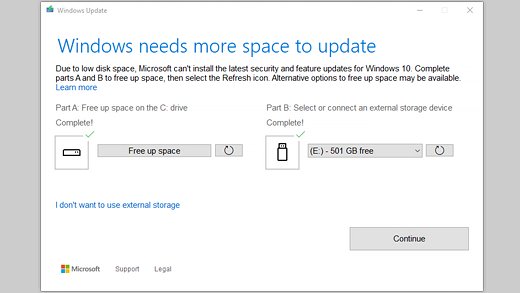
Leftover temporary and update files take space Windows Update needs, and Cleanup recommendations removes them safely.
- Select Start > Settings > System > Storage.
- Select Cleanup recommendations.
- Open Temporary files and select the items you want removed.
- Select Clean up.
- Turn on Storage Sense on the Storage page so Windows clears temporary files automatically.
Within 10 days of an upgrade, the previous version of Windows is listed too. Deleting it removes the option to go back.
Run SFC scan and DISM tool
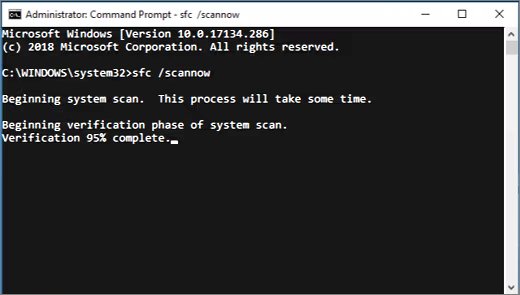
DISM restores the files Windows uses for repairs, and SFC then repairs damaged system files. Run DISM first.
- Type cmd in the taskbar search box.
- Right-click Command Prompt, select Run as administrator, then select Yes.
- Run
DISM.exe /Online /Cleanup-image /Restorehealthand wait for it to finish. - Run
sfc /scannowand leave the window open until verification reaches 100%. - Restart the PC and start the Windows Update service again.
If SFC says Windows Resource Protection could not perform the requested operation, run the scan again in safe mode.
Update Windows 10 manually
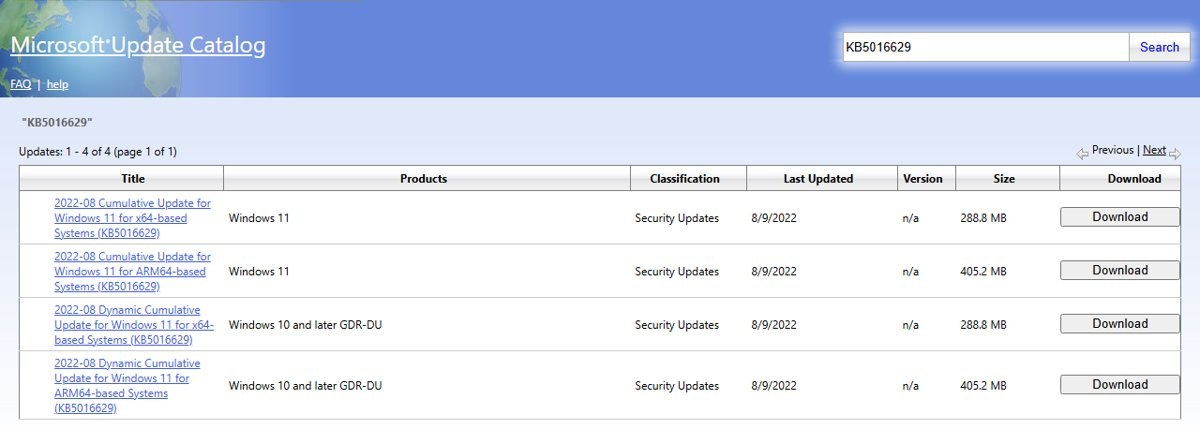
When the service won't stay running long enough to install an update, download the update from the Microsoft Update Catalog. The same steps work on Windows 11.
Windows 10 stopped getting free updates after October 14, 2025, so a Windows 10 PC without Extended Security Updates has no new monthly patches.
- Note the KB number of the update in Settings > Windows Update > Update history.
- Open the Microsoft Update Catalog at catalog.update.microsoft.com.
- Type the KB number in the search box and press Enter.
- Select Download next to the entry for your Windows version and system type.
- Select the file link in the pop-up window and save it.
- Double-click the saved file, follow the prompts, then restart.
Use the Windows Update Assistant
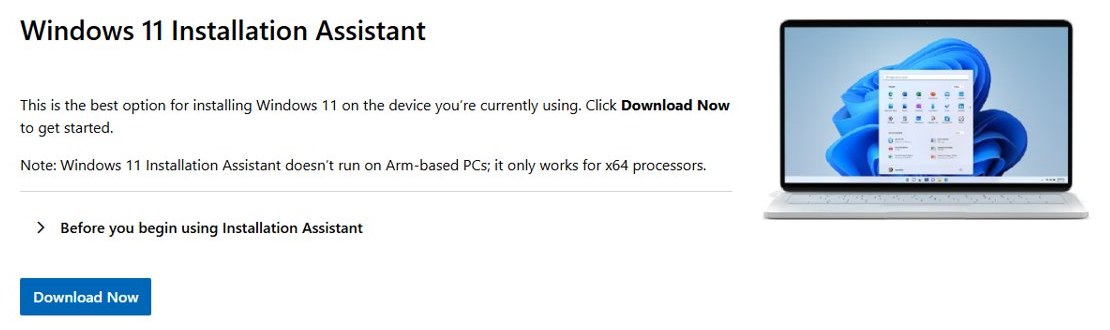
Microsoft's assistant tools install the latest Windows version without the Settings update page. Windows 10 uses the Update Assistant, and Windows 11 uses the Installation Assistant.
- On Windows 10, open microsoft.com/software-download/windows10 and select Update now to get the Update Assistant for version 22H2.
- On Windows 11, open microsoft.com/software-download/windows11 and select Download Now under Windows 11 Installation Assistant.
- Run the downloaded assistant and select Yes at the User Account Control prompt.
- Follow the on-screen steps and keep the PC plugged in.
- Let the PC restart when the assistant finishes.
The Windows 11 Installation Assistant runs only on x64 PCs, not Arm-based PCs. If a new release is not showing in Windows Update, the assistant is also the direct route to version 26H2.
Roll back or reset Windows
If the service broke after a recent update and nothing above restores it, Microsoft's recovery options run from least to most disruptive. Back up your files first.
| Your situation | Recovery option | What it keeps |
|---|---|---|
| Problem started after a recent update | Uninstall the update from Update history > Uninstall updates | Files and apps |
| Problem started after a version upgrade, within 10 days | Go back to the previous version in Settings > System > Recovery | Files |
| Windows 11 22H2 or later, system files still damaged | Reinstall the current version of Windows from Settings > System > Recovery | Files, apps and settings |
| Windows 11 24H2 or later with a restore point from before the problem | Point-in-time restore from Settings > System > Recovery | Nothing made after the restore point |
| Every other fix failed | Reset this PC in Settings > System > Recovery | Your choice: keep personal files or remove everything |
Check Windows Update service status with sc query wuauserv
sc.exe query wuauservsc.exe query shows the service name, type and current STATE of the Windows Update service.
You should see: STATE shows RUNNING while Windows checks for or installs updates. In services.msc, Windows Update shows Running under Status and Automatic under Startup Type.
Windows Update service won't start or keeps stopping
Error 0x80070422 when you check for updates
The Windows Update service is disabled.
- Open
services.mscand double-click Windows Update. - Set Startup type to Automatic and select Start.
- Select Apply and OK, restart the PC, then check for updates.
Error 0x8024A10A partway through an install
The service shut down after a long idle period.
- Change sleep settings so the PC stays awake during the install.
- Keep the network connection active.
- Select Check for updates again and stay on the PC until the install finishes.
Error 0x80248014
The update database has a problem or the update service is not running.
- Run the Windows Update troubleshooter from Settings > System > Troubleshoot > Other troubleshooters.
- Open
services.msc, right-click Windows Update and select Start. - If the error returns, run the Reset Windows Update commands above.
Access is denied when you start the service
Starting services and installing some updates need administrator rights.
- Sign in with an administrator account, or ask the person who has one.
- Open Command Prompt with Run as administrator.
- Run
net start wuauservagain.
Windows Update service not running FAQ
What is the service name of Windows Update?
The service name is wuauserv, and it appears as Windows Update in the Services app. Use wuauserv with commands such as net start wuauserv, net stop wuauserv and sc.exe query wuauserv from an elevated Command Prompt.
Should the Windows Update service be set to Automatic?
Microsoft's fix for error 0x80070422, which means the service is disabled, is to set its Startup type to Automatic and start it. A service set to Disabled can't be started until you change the startup type.
Why does the Windows Update service keep stopping?
The service can shut down after a long period of inactivity, which shows as error 0x8024A10A. A damaged update database, damaged system files or malware can also stop it. Run the troubleshooter, then reset Windows Update if it continues.
How do I start the Windows Update service from Command Prompt?
Open Command Prompt with Run as administrator and run net start wuauserv. If the service is disabled, first run sc.exe config wuauserv start= auto, keeping the space after the equals sign, and then start it.
Can antivirus software stop Windows Update from working?
Yes. Microsoft warns that running more than one real-time security product can cause error codes when you update. Keep one product and uninstall the other, and Microsoft Defender Antivirus turns on automatically if nothing else is installed.
Is it safe to reset Windows Update components?
Yes. The reset stops the services, renames the DataStore, Download and catroot2 folders to .bak and starts the services again. Windows builds fresh folders on the next check, and the .bak copies stay until you delete them.
Can I update Windows without the Windows Update service?
Yes. Download the update by its KB number from the Microsoft Update Catalog and install the file, or use the Windows 11 Installation Assistant on an x64 PC to move to the latest version.
Does resetting the PC fix the Windows Update service?
Reset this PC reinstalls Windows from scratch, so it is the last resort when no other step brings the service back. Try uninstalling recent updates and reinstalling the current version first, because those keep your apps.