To create a secondary email address under iCloud, add an @icloud.com email alias in Mail settings on iCloud.com; it lands in the same inbox and stays on the same Apple Account.
This guide covers the alias steps, how to send from the new address, the other ways to get a second iCloud address, and what to do if you want the new address to replace your old one.
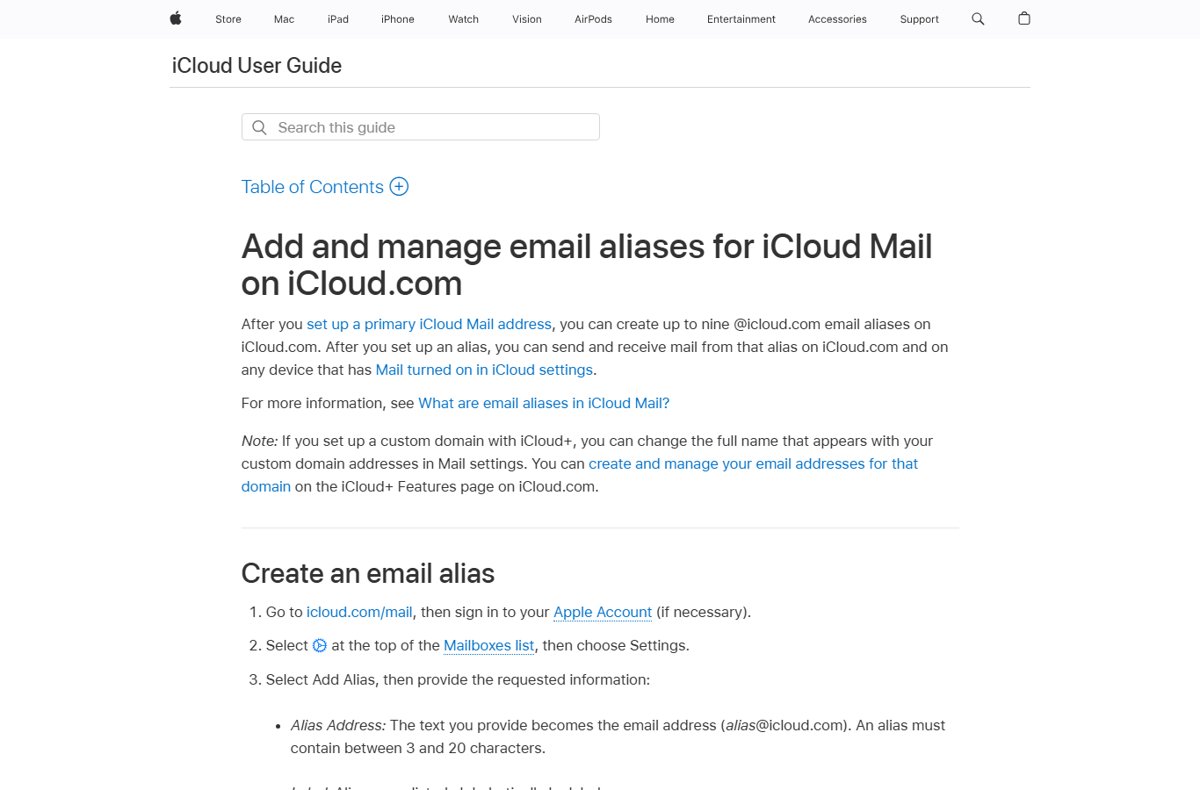
Create an iCloud Mail email alias on iCloud.com
You need a primary iCloud Mail address first. An alias is created on iCloud.com, not in the Settings app.
- Go to icloud.com/mail and sign in to your Apple Account if asked.
- Select the settings button at the top of the Mailboxes list, then choose Settings.
- Select Add Alias.
- Type the Alias Address; it becomes [email protected] and must be 3 to 20 characters.
- Enter a Label to sort it in the list and a Full Name to show in the From field.
- Select Create.
The alias works straight away on iCloud.com and on any device that has Mail turned on in iCloud settings.
What a secondary iCloud email address shares with your main account
An alias is an alternate address on the same account, not a separate mailbox. That answers the common worry about losing access to anything.
| Question | iCloud email alias |
|---|---|
| Where does mail sent to it go? | Your primary iCloud inbox, by default |
| Is it on the same Apple Account? | Yes; photos, purchases, contacts and iCloud storage stay as they are |
| Can recipients see your main address? | No; when you send from the alias, your primary address is not shown |
| Can it become your primary address later? | No; aliases cannot be changed, transferred or converted to primary accounts |
| Can it create a separate Apple Account? | No; Apple does not allow an alias to be used for a separate Apple Account |
| How many can you have? | Apple's current iCloud.com instructions allow up to nine |
| What if you delete one? | Mail to it bounces, and at the limit you wait 7 days before creating another |
Ways to get a second iCloud email address
| Your goal | Use this | Why |
|---|---|---|
| A second @icloud.com address in the same inbox | An iCloud Mail alias | Free, same Apple Account, send and receive from it |
| A new address that replaces your old iCloud address | Change Email Address in Sign-In & Security | Available when an iCloud address is the only email on your Apple Account |
| Sign in to Apple with a different email you already own | Change your Apple Account primary email address | Keeps your contacts, purchases and account data |
| A throwaway address for sign-ups | Hide My Email (iCloud+) | Random addresses that forward to your inbox |
| An address on your own domain | Custom Email Domain (iCloud+) | Up to five domains with 10 addresses each |
| A completely separate mailbox and account | A new Apple Account, or another provider | Aliases always share your existing account |
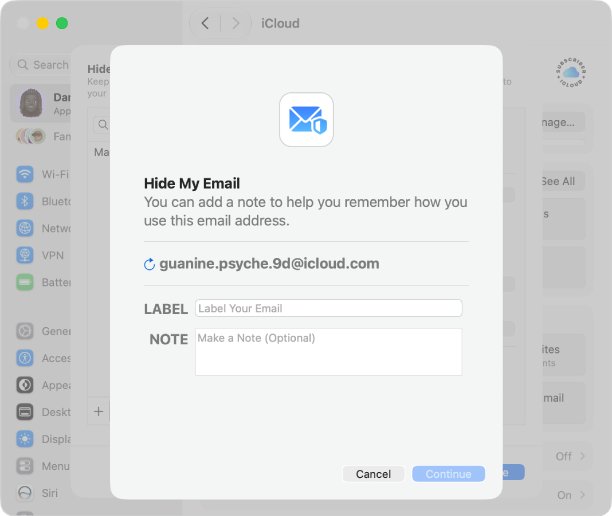
Create a primary iCloud Mail address first
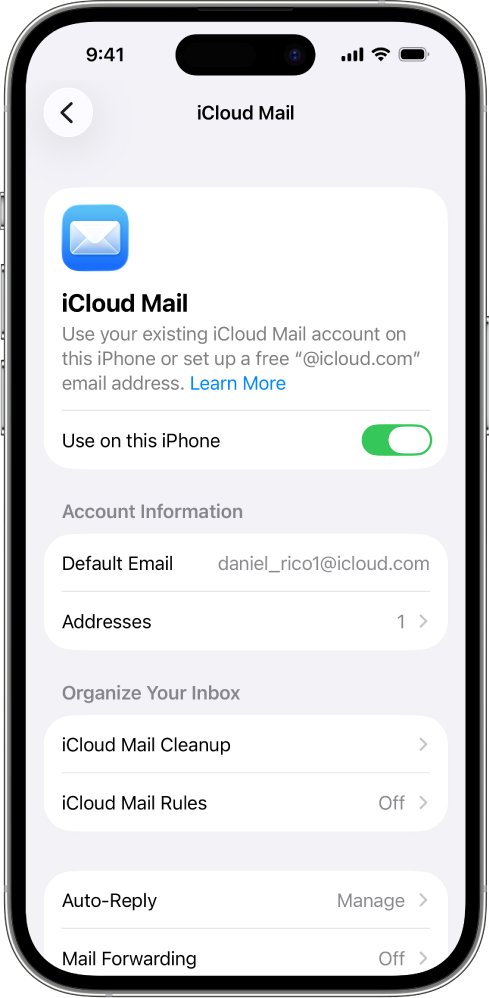
Aliases need a primary @icloud.com, @me.com or @mac.com address. Skip this if iCloud Mail already opens to an inbox.
- On your iPhone or iPad, go to Settings > [your name] > iCloud.
- Tap iCloud Mail (or Mail).
- Follow the onscreen instructions and pick a suggested address or type your own; it must be more than three characters.
- On iCloud.com instead, go to icloud.com/mail and select Create Email Address.
You cannot rename the primary iCloud Mail address later through these steps, so choose it carefully; Apple suggests adding an alias if you change your mind.
Send email from your iCloud alias
- Go to icloud.com/mail and sign in.
- Select the compose button in the top-right corner.
- Type the recipient in the address field.
- Select Cc/Bcc or From, then choose your alias in the From field.
- Type the subject and message, then select the send button.
To change the name recipients see, open Settings in iCloud Mail, select the alias and edit Full Name, then select Save Changes or Done.
Change your iCloud email address instead of adding a second one
If you want the new address to replace the old one rather than sit beside it, Apple lets you change the iCloud address when it is the only email on your Apple Account. It needs iOS 18.1, iPadOS 18.1, macOS 26.4 or later.
- Open Settings and tap [your name].
- Tap Sign-In & Security.
- Tap your iCloud email address.
- Tap Change Email Address.
- Follow the onscreen steps to choose and confirm the new iCloud address.
Your iCloud Mail and the messages already in it stay; the new iCloud address replaces the old one.
Add an additional email address to your Apple Account
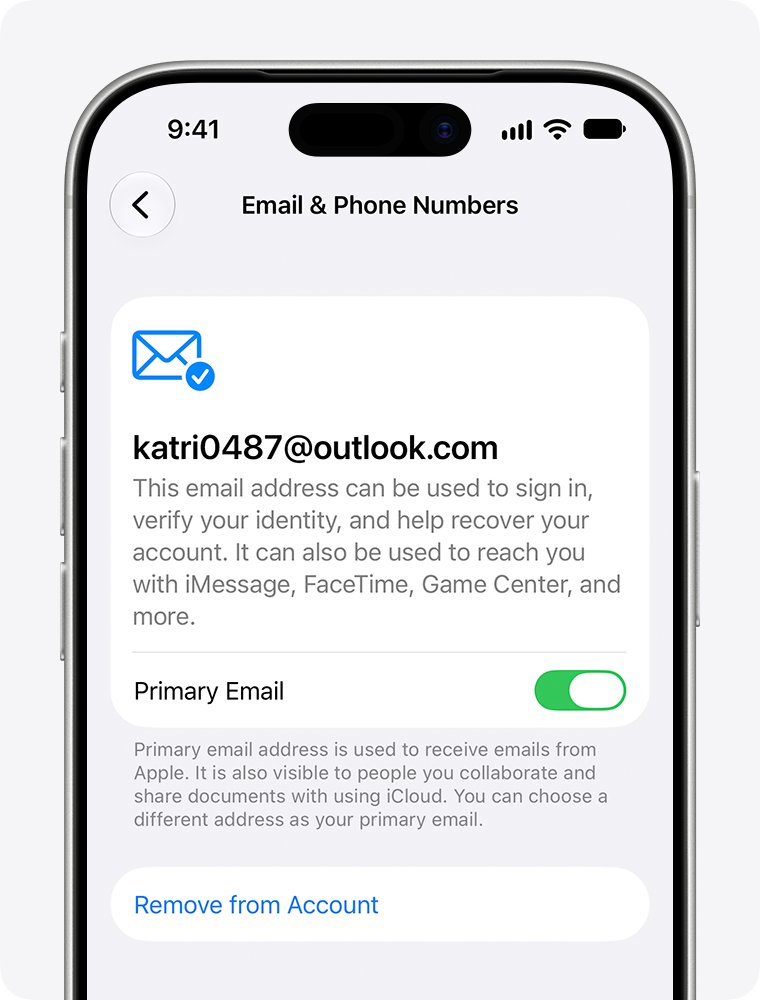
This adds an email you already own, such as Gmail or Outlook, so people can find you on FaceTime, Messages and Find My, and so you can sign in with it. It does not create a new mailbox.
- Sign in on account.apple.com.
- Select Sign-In and Security.
- Choose Email & Phone Numbers, then select the Add button.
- Enter the address; it cannot already belong to another Apple Account.
- Enter the verification code Apple emails to that address, then select Continue.
Turn off or delete an iCloud email alias
Turning an alias off is temporary; deleting it is permanent. Either way, mail sent to it is returned to the sender.
- Go to icloud.com/mail and open Settings from the top of the Mailboxes list.
- Select the alias in the list.
- To pause it, select the Disable alias checkbox and select Save Changes.
- To remove it, select Delete alias, then select Delete.
Check the new iCloud alias works
- From another email account, send a test message to the new alias.
- Confirm it arrives in your iCloud inbox on iCloud.com and in the Mail app.
- Reply, choosing the alias in the From field.
- Check on the other account that the reply shows the alias and full name, not your primary address.
iCloud alias problems and fixes
Add Alias says the address is not available
Someone already uses that @icloud.com name, or it is outside the 3 to 20 character range.
- Try a different name, such as one with numbers added.
- Keep it between 3 and 20 characters.
You cannot create another alias
You reached the alias limit, or deleted one at the limit within the last 7 days.
- Delete an alias you no longer use.
- Wait 7 days before creating the new one.
Mail sent to the alias bounces
The alias is disabled or was deleted.
- Open iCloud Mail Settings and select the alias.
- Clear the Disable alias checkbox and select Save Changes.
The email address is already in use when adding it to your Apple Account
Another Apple Account, possibly a family member's, has that address.
- Ask the other account owner to remove the address.
- Wait 30 days if Apple says the address was recently removed, then add it again.
Secondary iCloud email FAQ
What is a secondary email address?
A secondary email address is an extra address you use alongside your main one. In iCloud it is usually an alias: a second @icloud.com address that delivers to the same inbox and belongs to the same Apple Account.
How do I create a secondary email address in iCloud?
Go to icloud.com/mail, open Settings from the top of the Mailboxes list and select Add Alias. Enter an alias address of 3 to 20 characters, a label and a full name, then select Create. You need a primary iCloud Mail address first.
How do I create a second email account with a separate inbox?
An iCloud alias always shares your existing inbox, so a separate mailbox needs a new account. You can create a new Apple Account with its own iCloud Mail, or sign up with another provider such as Gmail or a new Outlook email account.
How do I create a secondary Gmail account?
Create a new Google account with a different Gmail address, then add it to your devices alongside the first one. You can create a Google account and choose a new Gmail address during sign-up.
Can I make a second email account without a phone number?
An iCloud alias needs no extra phone number because it uses your existing Apple Account. For Gmail, you can sign up for Google without a phone number in some cases.
Will everything stay on one account if I have two iCloud addresses?
Yes. An alias is part of your existing Apple Account, so your photos, purchases, contacts, iCloud storage and mail all stay in one place. Mail to either address lands in your primary iCloud inbox by default.
Can I make my iCloud alias my main Apple Account email?
No. Apple says aliases cannot be changed, transferred or converted to primary accounts. If an iCloud address is the only email on your Apple Account, you can use Change Email Address in Sign-In & Security to replace it instead.
How many email aliases can I have in iCloud?
Apple's current iCloud.com instructions allow up to nine @icloud.com aliases after you set up a primary address. If you delete one at the limit, you must wait 7 days before you can create a new one.
Bottom line: the best way to add a second iCloud address
Add an @icloud.com alias on iCloud.com when you want a second address on the same account, and use Change Email Address only when you want the new address to replace the old one. Aliases are free, share your inbox and Apple Account, and can be disabled or deleted, but they can never become a primary address or a separate account.