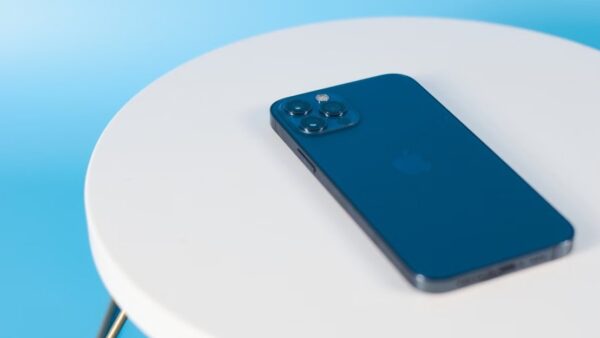
On an iPhone 4 or iPhone 4s, the built-in apps and music synced from a computer still work, while App Store apps work only if their developers still support the old iOS version, which is iOS 9.3.6 at most on an iPhone 4s.
This guide covers what still works, how to check and update the iOS version, how to sync music with iTunes, and what to do when the App Store or GPS stops working.
What apps still work on iPhone 4s and iPhone 4
Each app developer sets the oldest iOS version the app supports, so an old iPhone can run an app only while the developer still allows that version. Content you own is the dependable part.
| What you want | Does it work on an old iPhone? | How to get it |
|---|---|---|
| Built-in apps such as Music, Camera, Photos and Notes | Yes, they are part of the iOS version already installed | Nothing to download |
| Your own songs in MP3, AAC, Apple Lossless, AIFF or WAV | Yes, both models play these formats | Sync them from iTunes on a PC or older Mac |
| Songs bought from the iTunes Store | Yes, as files on the phone | Download them to the computer, then sync |
| Apps from the App Store | Only if the developer still supports the phone's iOS version | Update to the latest iOS the phone accepts, then try the App Store |
| App Store, Siri and Maps services | May stop, because Apple ends service support for some older software versions | Update to the latest available iOS; no other fix exists |
| GPS location and correct date and time on iPhone 4s | Only on iOS 9.3.6 | Update the iPhone 4s to iOS 9.3.6 |
iPhone 4 vs iPhone 4s: release date, camera and battery
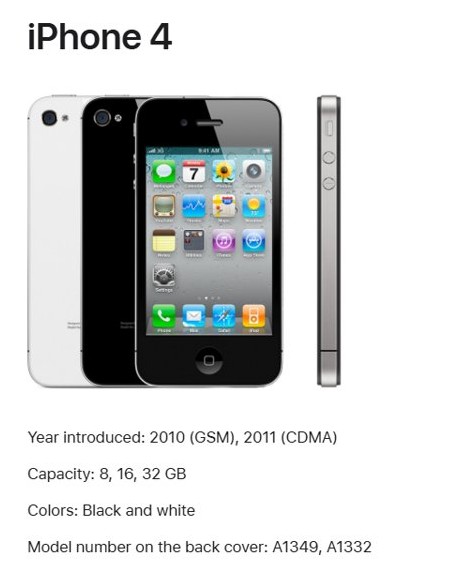
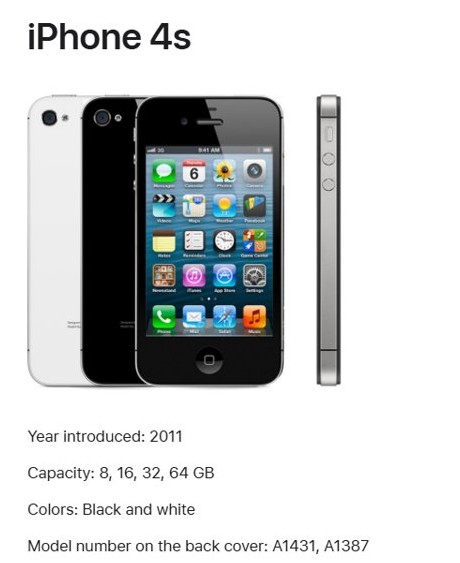
Both phones look almost the same, with a flat glass front and back and a stainless steel band. The model number on the back cover tells them apart.
| Spec | iPhone 4 | iPhone 4s |
|---|---|---|
| Year introduced | 2010 (GSM), 2011 (CDMA) | 2011 |
| Model number on the back cover | A1349, A1332 | A1431, A1387 |
| Capacity | 8, 16, 32 GB | 8, 16, 32, 64 GB |
| Rear camera | 5-megapixel still camera | 8-megapixel camera with autofocus |
| Video recording | HD 720p up to 30 frames per second | HD 1080p up to 30 frames per second, with video stabilization |
| Talk time | Up to 7 hours on 3G | Up to 8 hours on 3G, up to 14 hours on 2G (GSM) |
| Standby time | Up to 300 hours | Up to 200 hours |
| Display | 3.5-inch Retina, 960 by 640 pixels | 3.5-inch Retina, 960 by 640 pixels |
| SIM | Micro-SIM tray on the right; the CDMA model has no SIM tray | Micro-SIM tray on the right |
Both models use the 30-pin Dock Connector to USB cable for charging and syncing.
How to check what iOS version an iPhone 4 has
- Open the Settings app on the iPhone.
- Tap General, then tap About.
- Read the number next to Version or Software Version.
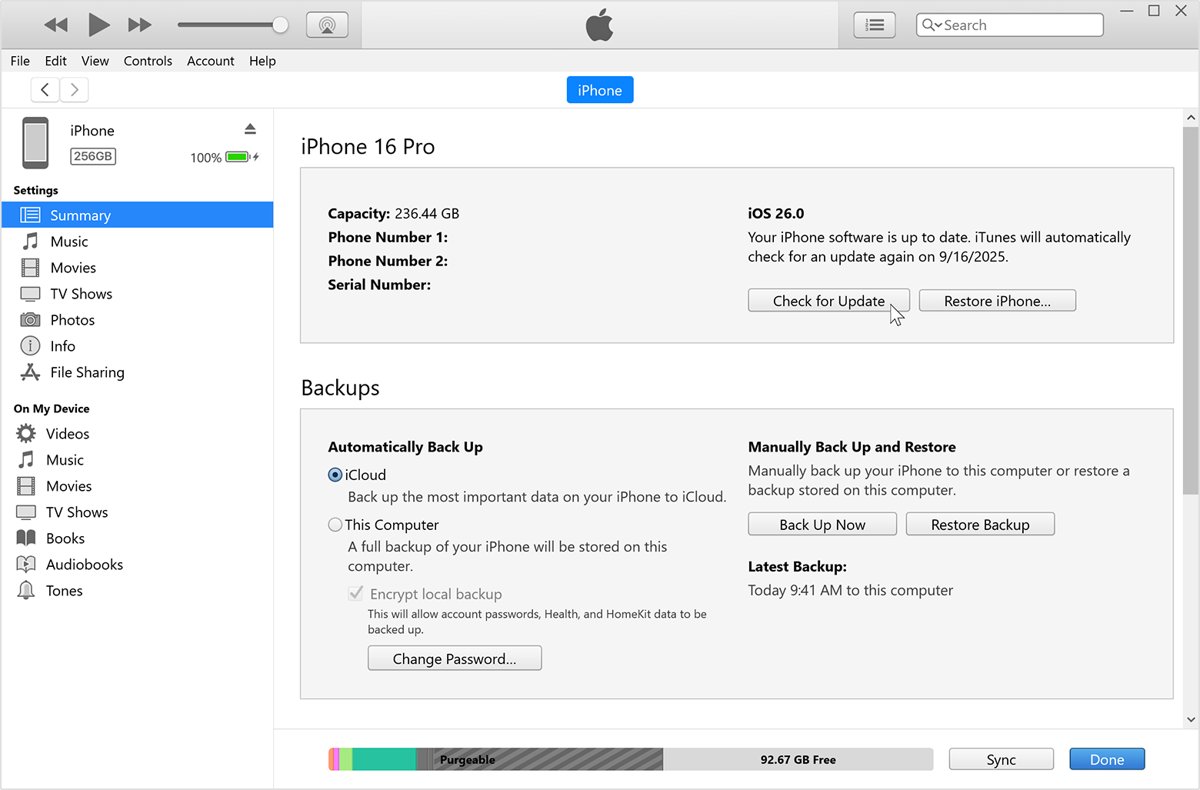
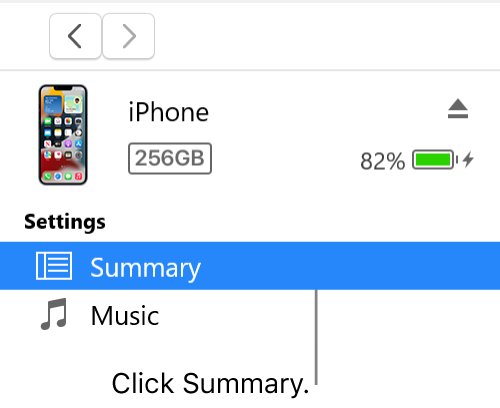
- Or connect the phone to iTunes, click the device button, and read the version on the Summary tab.
An iPhone 4s that shows 9.3.6 already has the latest software Apple released for it.

How to update iPhone 4s to iOS 9.3.6 with iTunes
Apple released iOS 9.3.6 for iPhone 4s to fix GPS location and the system date and time after the GPS time rollover. Updating through a computer works when the wireless update does not appear.
- Back up the iPhone to iCloud or to your computer first.
- Open iTunes on a Windows PC or on a Mac with macOS Mojave or earlier; on macOS Catalina or later, use the Finder instead.
- Connect the iPhone 4s to the computer with a USB cable.
- Click the device button in the iTunes toolbar, then click the Summary tab.
- Click Check for Update, then click Download and Update.
- Follow the onscreen instructions and enter the passcode on the phone if asked.
- Keep the cable connected until the update finishes and the phone restarts.
How to sync music to iPhone 4 with iTunes
iTunes on a Windows PC or a Mac with macOS Mojave or earlier syncs songs, albums and playlists to the phone over USB.
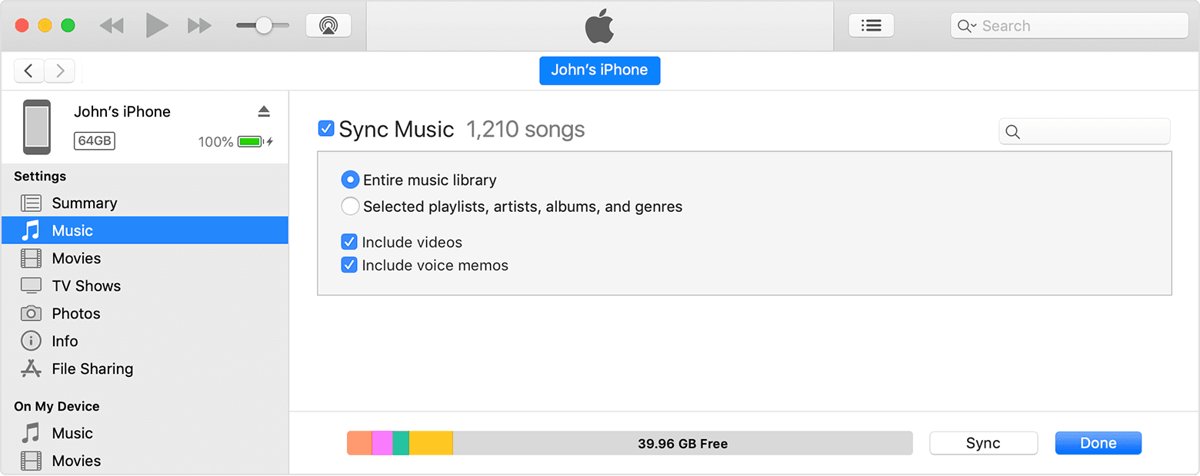
- Open iTunes and connect the iPhone to the computer with a USB cable.
- Click the device icon in the iTunes toolbar.
- In the Settings list, click Music.
- Select the checkbox next to Sync to turn syncing on.
- Select the checkbox next to each album, artist or playlist you want on the phone.
- Click Sync, then click Done.
A phone can sync with only one iTunes library at a time. If iTunes says the phone is synced with another library, Remove and Sync erases the selected content on the phone and replaces it with this computer's content.
How to sync an iPhone 4s with iTunes over Wi-Fi
- Set up USB syncing first, then connect the phone with the USB cable and select it in iTunes.
- Click Summary in the Settings list.
- Select Sync with this iPhone over Wi-Fi.
- Click Apply.
- Keep the computer and the phone on the same Wi-Fi network; the phone syncs whenever it is plugged in to power and iTunes is open.
Can iPhone 4 still be used?
Yes, as an offline music player, camera or note-taker on Wi-Fi, but not as a phone you depend on for apps, navigation or repairs. Apple lists iPhone 4 and iPhone 4S as obsolete worldwide, which means Apple discontinues all hardware service and service providers cannot order parts. Older software versions can also lose Apple Services such as the App Store, Siri and Maps.
If the phone will not start normally, put the iPhone 4 into recovery mode and choose Update before Restore, because Restore erases it.
iPhone 4s App Store not working
App Store, Siri or Maps will not connect
Some older software versions no longer support Apple Services like the App Store, Siri and Maps.
- Check the iOS version in Settings > General > About.
- If an iPhone 4s is below 9.3.6, update it with iTunes as shown above.
- If the phone already runs the latest version it accepts, there is no further update; contact Apple Support if services still fail.
An app will not download or says it needs a newer iOS
The developer no longer supports the iOS version on the phone.
- Update to the latest iOS version available for the phone.
- Add a valid payment method to your Apple Account, which the App Store can require even for free apps.
- Restart the iPhone, then try the download again.
- If the app still refuses, ask the app's developer whether any version supports the phone.
Wrong date and time or GPS location on iPhone 4s
The GPS time rollover affected iPhone 4s models that are not on iOS 9.3.6.
- Connect the phone to iTunes and update it to iOS 9.3.6.
- Open Settings > General > About and check that the version reads 9.3.6.
- Open Maps and check that your location appears correctly.
iTunes shows an error during the update
A USB connection, security software or server connection problem stops the update.
- Use the USB cable that came with the phone, or another Apple-certified cable.
- Switch to a different USB port on the computer, not a keyboard port.
- Check that third-party security software is not blocking connections to Apple's update servers.
- Try a USB port on a different computer.
If iTunes stops with error 9, try the update again, then fix iPhone 4 error 9 if it repeats.
iPhone 4 and iPhone 4s FAQ
Can iPhone 4 still be used?
Yes, for built-in apps, offline music and the camera. Apple lists iPhone 4 and iPhone 4S as obsolete, so hardware service and parts are no longer available, and older software can lose App Store, Siri and Maps support.
What is the iPhone 4 release date?
Apple introduced the iPhone 4 GSM model in 2010 and the CDMA model in 2011. The iPhone 4s followed in 2011. The model number on the back cover is A1349 or A1332 for iPhone 4, and A1431 or A1387 for iPhone 4s.
What camera does the iPhone 4 have?
The iPhone 4 has a 5-megapixel still camera that records HD 720p video at up to 30 frames per second. The iPhone 4s upgraded this to an 8-megapixel camera with autofocus and 1080p video with stabilization.
How long does the iPhone 4s battery last?
Apple rates the iPhone 4s at up to 8 hours of talk time on 3G, up to 14 hours on 2G (GSM) and up to 200 hours of standby. An old battery will last less than these figures.
What is the latest iOS for iPhone 4s?
iOS 9.3.6 is the latest version for iPhone 4s. Apple released it to fix GPS location and the date and time after the GPS time rollover, and it is recommended for all iPhone 4s users.
How do I put an iPhone 4 in recovery mode?
Connect the iPhone 4 to a computer, open iTunes or the Finder, then hold the Home button and the top button together until the connect-to-computer screen appears. Choose Update first, because Restore erases the phone.
How do I transfer iPhone 4 photos to a PC?
Connect the phone to the PC with its USB cable, unlock it and tap Trust if the Trust This Computer alert appears. You can then import iPhone photos to the computer as you would from a newer iPhone.