To create an Outlook email account, go to outlook.com, select Create free account, choose a new @outlook.com address, set a password and finish the verification prompts.
The account is free, it doubles as a Microsoft account, and this guide covers sign-up, security setup, adding the account to new Outlook for Windows and the mobile app, aliases, storage and the problems that stop sign-up.
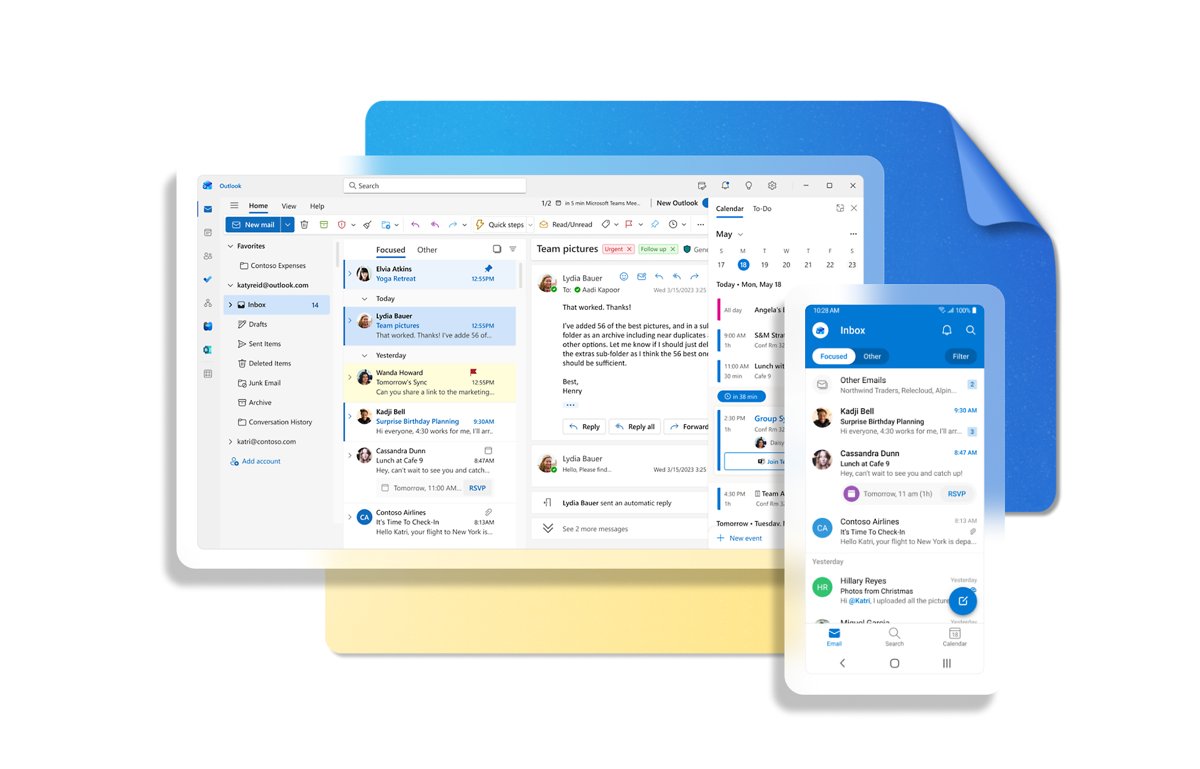
The fastest way to create an Outlook email account
Microsoft's own sign-up help points anyone who wants a new Outlook.com address to outlook.com. The whole flow runs in a browser on any device.
- Open outlook.com in any browser.
- Select Create free account.
- Type the address you want in front of @outlook.com and select Next.
- Create a password, then enter your name and the basic details the form asks for.
- Complete the verification check Microsoft shows you.
- Finish the prompts and your new inbox opens.
The address you just made is also a Microsoft account, so the same email and password sign you in to Windows, Xbox, OneDrive and Microsoft 365 apps.
What You Need Before You Start
| Item | Why you need it | Notes |
|---|---|---|
| A web browser or the Outlook app | Sign-up runs at outlook.com, or through Create New Account in Outlook for iOS and Android | No download is needed for the web route |
| An address idea plus two backups | Popular names are often taken | Addresses from closed Microsoft accounts are never reissued |
| A password you use nowhere else | Two-step verification works best when every account has a different password | Store it in a password manager |
| A second email address or the Authenticator app | Used for security codes and account recovery | Microsoft is phasing out SMS for personal accounts, so a phone number may not be offered |
| A parent or guardian, for a child | A parent must sign in to finish a child's account | See the child account section below |
Step 1: Go to the Microsoft Account Signup Page
There are three official entry points. All of them create the same kind of account.
- Go to outlook.com and select Create free account. This is the route Microsoft recommends when you want a new Outlook.com address.
- Or go to account.microsoft.com, select Sign in, then choose Create one!
- Or open the Outlook app on iPhone, iPad or Android and tap Create New Account.
If you already have a Microsoft account tied to another provider, such as Gmail, add an Outlook.com address to it instead of creating a second account. The alias section below shows how.
Step 2: Choose Your New Outlook Email Address
- Type the part before the @ sign in the new email field.
- Keep it short and easy to read aloud, such as a first and last name, because you will type and dictate it often.
- Avoid birth years and details you would not share with a stranger, since every recipient sees the address.
- Select Next. If the name is taken, try one of your backups or add a word, not a random string of digits.
To change it later, add a new address to the same account as an alias and make it the primary one, which keeps your mail, contacts and storage.
Step 3: Create a Strong Password
- Use a long passphrase that you have never used on another site.
- Mix words with numbers or symbols so it cannot be guessed from your name or address.
- Save it in a password manager before you select Next.
- If the form rejects it, read the message under the field and change the password to match what it asks for.
Microsoft's security guidance stresses using a different password for every account, because two-step verification only stops an attacker who does not also control your backup email or phone. Later you can remove the password entirely with a passwordless setup, covered in Step 10.
Step 4: Enter Your Name and Basic Details
- Enter your first and last name. This becomes the sender name people see.
- Enter your birth date and any other details the form asks for.
- Use your real birth date: Microsoft uses it for age-appropriate experiences and may ask you to verify your age in some countries.
- Select Next to continue.
A birth date that makes you a minor turns the account into a child account, and a parent or guardian must then sign in to finish setup.
Step 5: Complete the Security Verification
Microsoft checks that a person, not a script, is creating the account. The exact check varies by region and device.
- Follow the on-screen challenge, such as a puzzle.
- If you are asked for a code, open the email or app it was sent to and type it in exactly.
- If the challenge does not load, switch browsers or finish sign-up on another device, which Microsoft lists as a fix when an account cannot be created.
- Select Next once the check passes.
Step 6: Stay Signed In or Continue to Outlook
- Choose to stay signed in only on a personal device you do not share.
- On a shared or public computer, decline and sign out when you finish.
- Continue through any welcome screens until your inbox appears.
How to check your new Outlook account works
- Sign out, then sign back in at outlook.com with the full address, including @outlook.com, and your password.
- Send a test message from the new address to another email you own, and reply to it.
- Confirm the reply lands in the Inbox or the Other tab of Focused Inbox.
- Sign in at account.microsoft.com with the same details to confirm the Microsoft account works too.
If both sign-ins work and the reply arrived, the account is fully active. Next time, the Hotmail and Outlook sign-in guide covers the sign-in page itself.
Step 7: Get Familiar With Your New Outlook Inbox
| Area | What it does | Where to change it |
|---|---|---|
| Focused and Other tabs | Outlook sorts your Inbox so important mail sits in Focused | Settings > Mail > Layout > Focused Inbox |
| Message list | Shows senders, subjects and preview text | Filter at the top of the list sorts it |
| Reading pane | Shows the selected message beside or under the list | View > Layout > Reading pane |
| Folders pane | Inbox, Sent Items, Deleted Items, Junk and your own folders | Select a folder to open it |
| Deleted Items | Deleted mail is kept for 30 days and counts toward storage | Empty it to free space |
| Junk Email | Suspected spam; items are removed after 10 days | Check it if an expected message is missing |
Step 8: Send Your First Email
- From Mail, select New mail.
- Type the recipient's address in To.
- Add a subject and your message.
- Select Send.
- Open Sent Items to confirm the message left your account.
Once the basics work, you can schedule an email in Outlook so it sends later, or recall a message you sent by mistake.
Step 9: Add a Recovery Email and Phone Number
Security info is how Microsoft proves it is you when you forget the password. Add it on day one, not after a lockout.
- Sign in to account.microsoft.com/security.
- Select Manage how I sign in.
- Select Add a new way to sign in or verify.
- Choose an email address, an authenticator app or a passkey.
- Enter the security code Microsoft sends to confirm it, then select Next.
You can add up to 10 verification methods. The phone number option may not appear, because Microsoft is phasing out SMS for personal accounts; a recovery email and the Authenticator app are the dependable choices.
Step 10: Turn On Two-Step Verification or Passwordless Sign-In
With two-step verification on, a new device needs your password plus a code from your email, phone or authenticator app. Keep at least three pieces of security info, because losing access can take 30 days to recover.
- Sign in to account.microsoft.com/security.
- Select Manage how I sign in.
- Under Additional security and Two-step verification, choose Turn on.
- Follow the prompts, including scanning the QR code with your authenticator app.
- To go passwordless instead, install Microsoft Authenticator or Outlook for Android, then under Passwordless account select Turn on and approve the request in the app.
The Microsoft Authenticator guide walks through the app setup on a phone.
Step 11: Create an Email Signature
- In new Outlook for Windows, select Settings.
- Select Accounts > Signatures.
- If you have several accounts, pick the new Outlook.com account.
- Select Add signature and give it a name.
- Type and format the signature in the editing box.
- Tick the boxes to add it to new messages, replies and forwards, then select Save.
To insert a saved signature by hand, open New mail and select Signature in the Insert group on the Message tab.
Step 12: Set Your Display Name and Profile Picture
Your name and picture belong to the Microsoft account, so they are managed on the account dashboard and then show in Outlook.
- Sign in at account.microsoft.com.
- Open Your info, the dashboard area for profile and personal details.
- Edit your name so recipients see the sender name you want.
- Add or change your profile picture there, then sign back in to Outlook to see it.
If your picture does not show at the top of Outlook.com, check whether an ad blocker is hiding it; Microsoft notes this can stop the picture from appearing.
Step 13: Customize Your Inbox Layout
- Select Settings > Mail > Layout to change how mail is displayed.
- Under Focused Inbox, select Don't sort my messages if you want one combined Inbox.
- On the View tab, choose Density: Roomy, Cozy or Compact.
- On the View tab, select Conversations to group or ungroup message threads.
- Select Settings > General > Appearance to pick a theme or dark mode.
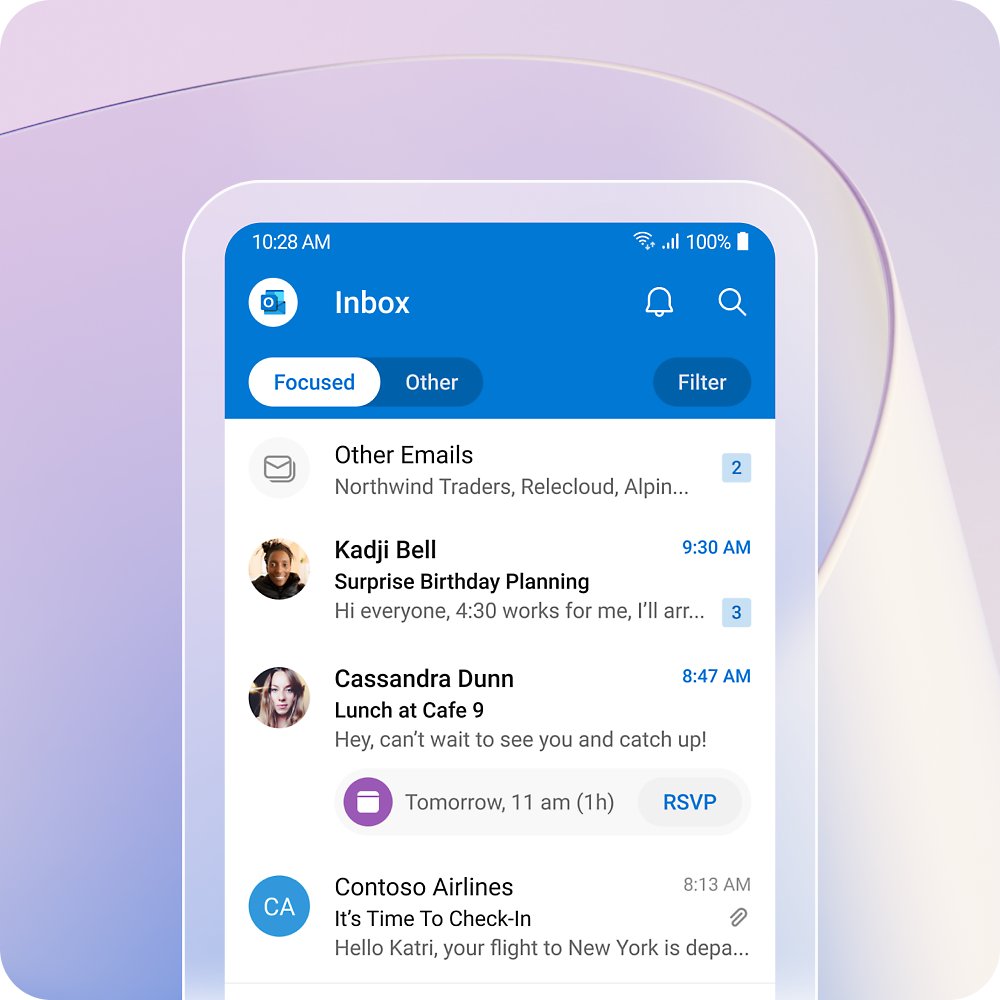
Step 14: Install the Outlook App on Your Phone
- Install Outlook from the App Store on iPhone or iPad, or from Google Play on Android.
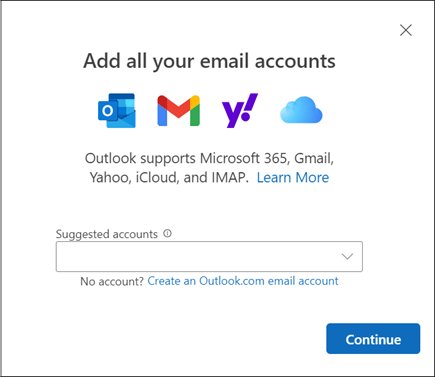
- Open the app and select Add Account.
- Enter your new Outlook.com address; if Outlook pre-selects an account, tap Continue or skip to type a different one.
- Enter your password and approve any two-step verification prompt.
- To add it later as a second account on iOS, tap Inbox > Settings > Account > Add Account; on Android open the Menu > Settings > Account > Add Account.
No account yet? The same first screen offers Create New Account, which runs the Microsoft sign-up inside the app.
Step 15: Add Your Outlook Account to Mail Apps
Outlook is included free with Windows. The steps differ between new Outlook and classic Outlook.
| App | Steps | If the password is refused |
|---|---|---|
| New Outlook for Windows | View > View settings (or File > Account info) > Accounts > Your accounts > Add Account, enter the address, select Continue, then the password and Done | Approve the two-step prompt; new Outlook signs in with Microsoft's sign-in page |
| Classic Outlook for Windows | File > Add Account, enter the address, select Connect, then the password, OK and Finish | On outlook.com select your initials > View Account > Security > Update > More security options > Explore, create an app password and enter it instead |
| Outlook for iOS or Android | Add Account, enter the address and follow the prompts | Complete the multi-factor prompt in the app |
| Other phone mail apps | Add the account with your Outlook.com address and password | Apps that cannot show a code need an app password once two-step verification is on |
To make it the default in new Outlook, open Your accounts, select Manage beside the account and choose Set as primary account.
Step 16: Organize Your Email With Folders, Rules, and Categories
Folders hold mail, color categories tag it across folders, and rules do the sorting automatically. A rule can move mail, change its importance level or delete it.
- In new Outlook, right-click a message from a sender you want to sort.
- Hover over Rules and select Create rule.
- Choose the folder that sender's mail should move to and select OK.
- For more control, select More options and give the rule a name, a condition and an action.
- Select Save. To edit rules later, go to Settings > Mail > Rules.
New Outlook does not run rules for Gmail, Yahoo or iCloud accounts added to it; rules apply to your Outlook.com mailbox.
Step 17: Understand Outlook Storage Limits
| Storage | Free account | Microsoft 365 Basic or higher | What happens when full |
|---|---|---|---|
| Mailbox | 15 GB | 100 GB | You cannot send or receive mail, and incoming mail bounces back to the sender |
| Microsoft cloud storage (OneDrive, attachments) | 5 GB | 100 GB with Basic, 1 TB with Personal | You also cannot send or receive Outlook.com mail, and OneDrive turns read-only |
| Deleted Items | Counts toward the mailbox | Same | Emptied automatically after 30 days |
| Junk Email | Counts toward the mailbox | Same | Emptied automatically after 10 days |
To check usage, open Settings > Account > Storage. The page lists each folder's size and can delete items older than 3, 6 or 12 months.
Step 18: Learn How to Sign Out Safely
- On outlook.com, select your initials or account picture in the top corner of the Inbox.
- Select Sign out, then close every browser window on a shared computer.
- If you lost a device or left yourself signed in somewhere, sign in to the Advanced security options page at account.microsoft.com.
- Scroll to Sign out everywhere and select Sign out. It can take up to 24 hours to apply.
Creating an Outlook Account for a Child or Family Member
A child can have an Outlook.com address, but a parent or guardian must sign in to finish setting it up and give consent.
- Start sign-up at outlook.com with Create free account, entering the child's real birth date.
- When prompted, sign in with the parent's own Microsoft account to give consent.
- If a consent request arrives by email instead, open the link, sign in to your Microsoft account and approve it.
- Add the child to your Microsoft Family Safety family group to manage screen time and spending.
- For an adult family member, have them create their own account so they control its password and security info.
Can You Create Multiple Outlook Email Accounts?
Yes. You can create separate accounts, or add extra addresses, called aliases, to one account. Aliases share one inbox, one password and one set of contacts and storage.
| Option | Best for | How to set it up |
|---|---|---|
| A second, separate account | Keeping work, shopping or family mail fully apart | Sign out and run Create free account again, then add both to Outlook |
| An alias on your existing account | A new address without a new inbox or password | Go to account.microsoft.com, open the how you sign in page, select Add email and create a new Outlook.com address |
| Change the primary alias | Replacing an old address but keeping mail and subscriptions | Add the new alias, then make it primary; it becomes your default From address |
| Plus addressing | Tracking who shares your address | Give sites [email protected]; mail still arrives in your Inbox, but you cannot sign in or send with it |
To send from an alias, open a new message, select Options > Show From, then pick the address from the From list.
Common Problems When Creating an Outlook Account
The email address I want is taken
Someone holds it, or it belonged to a closed account; Microsoft never reuses addresses, even from long-closed accounts.
- Try one of your backup names.
- Add a middle initial, a word or your city rather than a long number.
- If the address was once yours, recover that old account instead of trying to recreate it.
Microsoft says my password is not allowed
The password does not meet the rules shown under the field.
- Read the message under the password box.
- Make the password longer and mix in numbers or symbols.
- Do not reuse a password from another site.
I did not receive the verification code
The code went to a different address, or the method is unavailable.
- Check the Junk folder of the email address you entered.
- Request a new code and use only the most recent one.
- Switch to a different sign-up method, such as an email address instead of a phone number.
The verification puzzle will not load
The browser or device is blocking the challenge.
- Reload the page or open it in a different browser.
- Finish sign-up on another device, such as your phone.
- Try the Outlook app's Create New Account option.
Why can't I create a new email in Outlook on a new PC?
Windows setup is stuck on creating a new Microsoft account.
- Sign in with an existing Microsoft account to get started, then add the new account later.
- Or set up the PC with a local account and switch to a Microsoft account afterwards.
- Create the Outlook.com address in a browser on another device, then sign in with it.
Outlook will not accept my password after sign-up
Two-step verification is on and the app needs an app password.
- On outlook.com select your initials, then View Account; under Security select Update, then Explore under More security options.
- Under app passwords, select Create a new app password.
- Enter that app password in the mail app instead of your normal password.
I created the account but cannot find my inbox
You are signed in to account.microsoft.com, not to the mail page.
- Go to outlook.com and select Sign in.
- Enter the full address, including @outlook.com.
- Check the Other tab if Focused Inbox is hiding new mail.
Security Tips for Your New Outlook Account
| Tip | Why it matters |
|---|---|
| Keep three pieces of security info | With two-step verification on, you need two methods to reset a password, and recovery without them can take 30 days |
| Prefer the Authenticator app or a passkey | Passkeys use your face, fingerprint or PIN and cannot be guessed or phished |
| Never share a password with support | Microsoft support agents are not allowed to send reset links or change account details |
| Keep the recovery email current | Codes by email only go to your primary alias or an address you added |
| Use Sign out everywhere after losing a device | It signs you out of browsers and apps within 24 hours |
Outlook Account vs. Microsoft 365: What Is the Difference?
An Outlook.com account is free. Microsoft 365 is a paid subscription that you add to the same account.
| Your situation | Choose | What you get |
|---|---|---|
| You only need email and calendar | Free Outlook.com | 15 GB mailbox, 5 GB cloud storage, web and mobile Word, Excel and PowerPoint, ads in the inbox |
| You want no ads and more mailbox space | Microsoft 365 Basic ($19.99 a year) | Ad-free Outlook, 100 GB mailbox, 100 GB cloud storage, advanced Outlook security |
| You also want the desktop Office apps | Microsoft 365 Personal ($99.99 a year) | Desktop Word, Excel, PowerPoint and Outlook, 1 TB cloud storage |
| Up to six people need it | Microsoft 365 Family ($129.99 a year) | Personal features for up to 6 people, 1 TB each |
Prices are Microsoft's US list prices at the time of writing. You do not need an Outlook.com address to use the Outlook apps; they also work with Gmail, Yahoo and iCloud accounts.
Frequently Asked Questions
How do I create an Outlook email address?
Go to outlook.com, select Create free account, type the name you want before @outlook.com, set a password, add your name and birth date, and pass the verification check. The address is created instantly and also works as a Microsoft account.
Is an Outlook email account free?
Yes. A personal Outlook.com account costs nothing and includes a 15 GB mailbox, 5 GB of cloud storage and web versions of Word, Excel and PowerPoint. Microsoft 365 is optional and adds an ad-free inbox and more storage.
Is Outlook the same as Hotmail?
Outlook.com replaced Hotmail years ago. Existing @hotmail.com, @live.com and @msn.com addresses still work in the Outlook apps, but new sign-ups receive an Outlook.com address.
Why do I need to create an Outlook email?
You need a Microsoft account to sign in to Windows, Xbox, Microsoft 365, OneDrive and the Microsoft Store. An Outlook.com address is the simplest way to get one if you do not want to use an existing email from another provider.
Why can't I create a new email in Outlook?
The address may be taken or belong to a closed account, which Microsoft never reissues. Otherwise, try an alternative sign-up method, such as an email address instead of a phone number, or finish sign-up on a different device.
How do I create an Outlook email signature?
In new Outlook, select Settings, then Accounts and Signatures. Select Add signature, name it, type and format the text, tick whether it goes on new messages and replies, and select Save.
How do I create an Outlook email rule?
Right-click a message, hover over Rules and select Create rule, then choose the folder that sender's mail should move to. Select More options to add conditions, actions and exceptions, then select Save.
Can I use Outlook without an Outlook.com address?
Yes. The Outlook apps for Windows, Mac, iOS and Android can add Gmail, Yahoo, iCloud and work or school accounts. An Outlook.com address is only needed if you want Microsoft's free email service itself.
Can I have more than one address on one Outlook account?
Yes. Add an alias from the how you sign in page at account.microsoft.com with Add email. Aliases share one inbox, contacts, storage and password, and any of them can sign you in.

![[Solved] Lenovo laptop plugged in but not charging](https://techdows.com/wp-content/uploads/2026/10/Solved-Lenovo-laptop-plugged-in-but-not-charging-533x338.jpg)
How to Add an Existing Email Account to a Laptop - Techdows
[…] consideration: adding an account to a mail app never creates a mailbox. If no mailbox exists yet, create an Outlook email account first, then come back to these […]
How to Create an Email Group and Distribution List in Outlook - Techdows
[…] Setting up an Outlook mailbox first? Start with how to create an Outlook email account. […]
How to create an Xbox Live account - Techdows
[…] you need a fresh address for gaming, create an Outlook.com email account first and use it for the […]
How to change your email account on LinkedIn - Techdows
[…] message there, and an unconfirmed address cannot become primary. If you need a fresh mailbox, create an Outlook email account […]
How to set up a POP3 or IMAP account in Microsoft Outlook - Techdows
[…] you still need a mailbox, you can create an Outlook.com account first and then turn on POP or IMAP access for […]