To scan your MacBook Pro for viruses, install the latest macOS update and restart, because the built-in XProtect antivirus removes known malware it finds when the Mac restarts.
This guide covers how XProtect scans, the settings that keep it current, and how to hunt down adware, rogue extensions, login items and profiles by hand.
How do I scan my MacBook Pro for viruses?
macOS has no Scan button. XProtect checks apps on its own, so the job is to give it the latest malware signatures, restart, then check the places adware likes to hide.
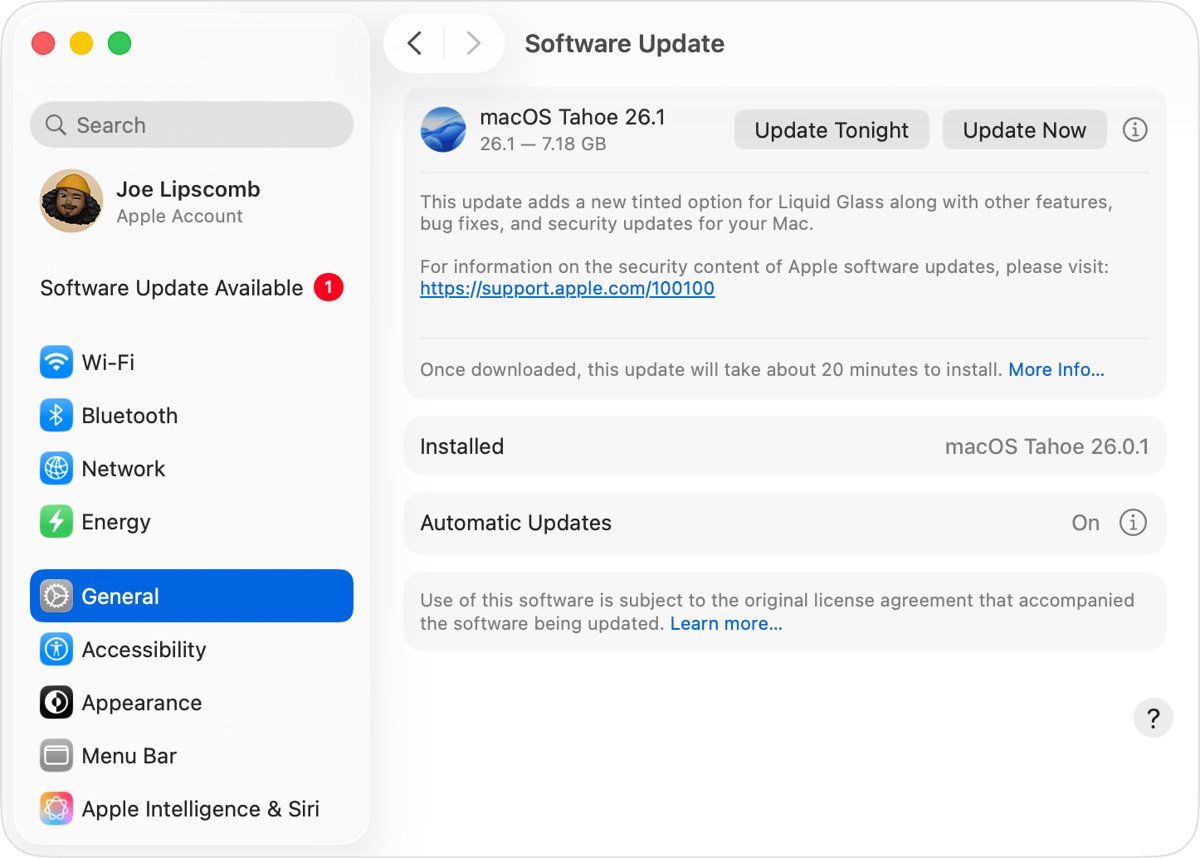
- Choose Apple menu > System Settings, click General, then click Software Update.
- Click Check for Updates and install anything offered. Keep the power adapter plugged in and the lid open.
- Restart the MacBook Pro so the security updates can remove any known malware already installed.
- Open Finder > Applications and look for apps you do not remember installing.
- In Safari, choose Safari > Settings > Extensions and uninstall anything you do not recognise.
- Open System Settings > General > Login Items & Extensions and remove unknown items under Open at Login.
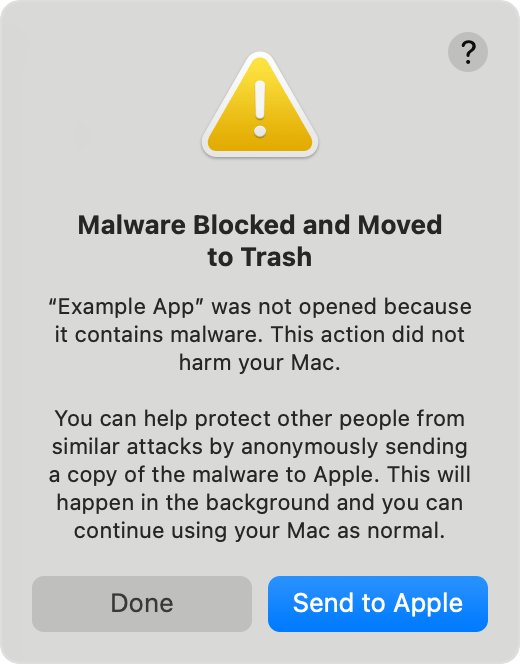
If macOS ever shows a malware alert for a file, put the item in the Trash and empty the Trash.
Does MacBook Pro have a built-in virus scanner?
Yes. Every MacBook Pro runs XProtect, Apple's signature-based antivirus, alongside Gatekeeper and notarization. Together they block known malware before it opens and remove it if it does run.
| Protection | What it does | When it acts |
|---|---|---|
| XProtect | Detects and blocks known malware using signatures Apple updates on its own schedule, then moves it to the Trash | When an app first launches, when an app changes, and when signatures update |
| XProtect remediation | Removes infections that already ran and keeps checking periodically | After Apple delivers updated information, and on restart |
| Gatekeeper | Checks the Developer ID signature and asks before downloaded software opens the first time | First launch of downloaded apps, plug-ins and installer packages |
| Notarization | Apple scans developer apps for known malware and can revoke them later | Before an app is distributed, plus frequent background revocation checks |
| Background Security Improvements | Extra protection delivered between full macOS updates (macOS Tahoe 26 or later) | Installed automatically in the background |
By default, macOS checks for new XProtect updates daily, independently of full macOS releases.
How to do a full scan on Mac
A full scan on a Mac means making sure XProtect updates install automatically, then restarting. The setting has a different name depending on your macOS version.
| Your macOS | Where to turn it on | Setting to turn on |
|---|---|---|
| macOS Tahoe 26 or later | System Settings > General > Software Update > More Info next to Automatic Updates | Install system data files and security updates |
| macOS Tahoe 26 or later | System Settings > Privacy & Security > Background Security Improvements | Automatically Install |
| macOS Sequoia 15, Sonoma 14, Ventura 13 | System Settings > General > Software Update > More Info next to Automatic Updates | Install Security Responses and system files |
| macOS Monterey 12 and earlier | System Preferences > Software Update > Advanced | Install system data files and security updates |
Restart the MacBook Pro once the setting is on. XProtect does not restart the Mac by itself, and some security-configuration updates only remove installed malware during a restart.
How to check XProtect is up to date on MacBook Pro
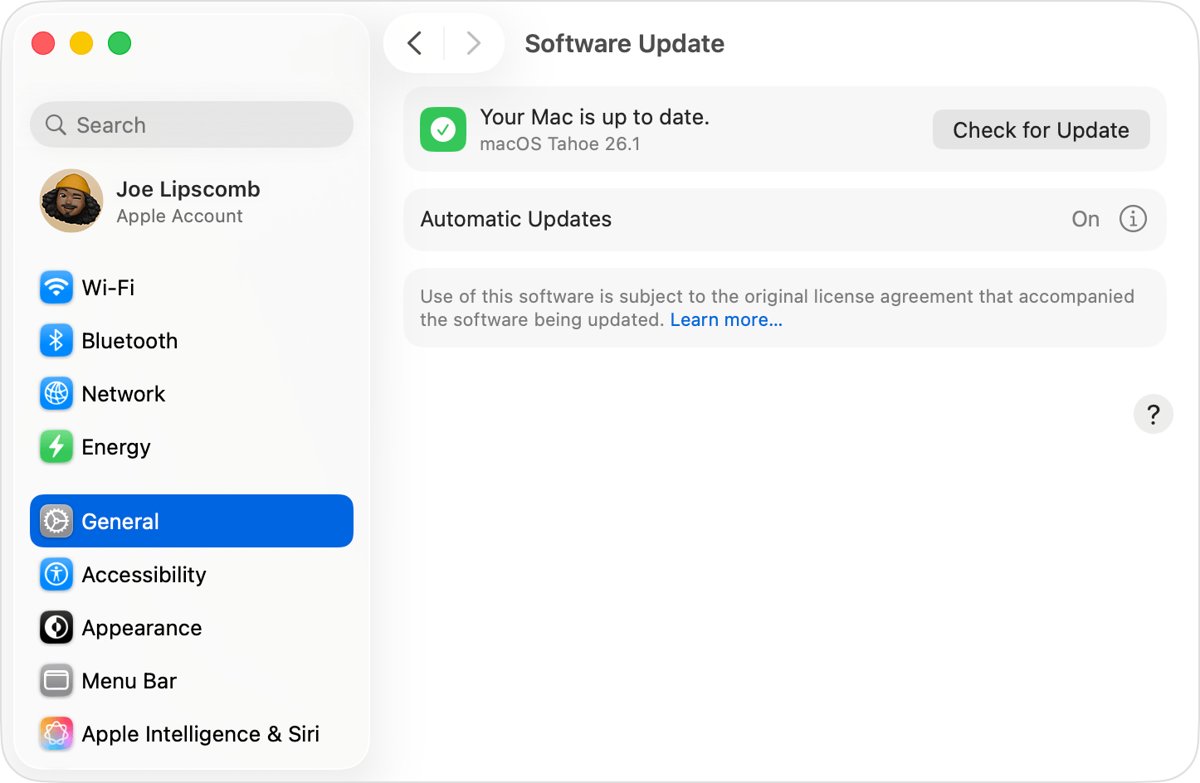
System Information lists every background update, including the XProtect malware definitions, with the date each one installed.
- Press and hold the Option key, then choose System Information from the Apple menu.
- In the sidebar, under Software, select Installations.
- Click the Install Date column to sort the list by date.
- Look for XProtectPayloads, XProtectPayloadsConfigData and XProtectPlistConfigData with recent dates.
- If the newest entries are weeks old, recheck the automatic update setting and run Software Update again.
How to remove malware apps from MacBook Pro
Adware often arrives bundled with other software from third-party download sites. Delete any app you do not expect to see.
- Quit the app if it is open.
- Open Finder and click Applications in the sidebar. Also check the Applications folder in your home folder via Go > Home.
- If the app came with an Uninstall or Uninstaller app, run it; that also removes its login items and extensions.
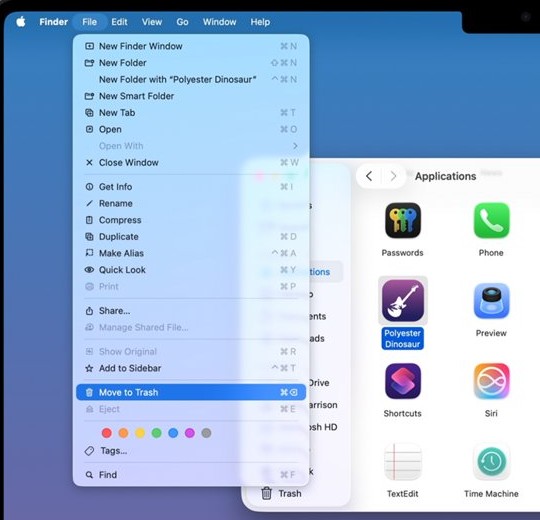
- Otherwise, drag the app to the Trash, or select it and choose File > Move to Trash.
- Enter your administrator name and password if asked.
- Choose Finder > Empty Trash to delete it for good.
Deleting an app does not cancel any subscription bought through it.
How to remove Safari extensions on Mac
Unwanted extensions can change pages, inject ads or redirect searches. Apple's advice is to uninstall any extension whose purpose you cannot work out.
- Open Safari and choose Safari > Settings from the menu bar.
- Click Extensions.
- Select an extension you do not recognise and click Uninstall.
- To keep an extension but stop it running, deselect its checkbox instead.
- If you use Safari profiles, open the Profiles tab and check each profile's own Extensions tab too.
How to check login items for malware on Mac
Malware and adware like to start at login. Login Items & Extensions shows what opens automatically and which apps run in the background.
- Choose Apple menu > System Settings, click General, then click Login Items & Extensions.
- Under Open at Login, select any item you do not recognise and click the remove (–) button.
- Review App Background Activity and turn off apps you do not know.
- Click the info button next to Added extensions and turn off third-party extensions you did not install.
- Restart the Mac and confirm the removed items do not come back.
How to find suspicious processes in Activity Monitor on Mac
Activity Monitor shows every program running on the MacBook Pro, including invisible background processes that a hidden app may start.
- Search for Activity Monitor with Spotlight and open it.
- Click CPU, then click a column heading to sort the list, busiest processes first.
- Choose View > Applications in last 12 hours to see which apps have been running.
- Select an unfamiliar process and double-click it to see more information about it.
- To stop it, click the stop button in the upper-left corner, then click Quit or Force Quit.
- Find the app that owns the process and uninstall it so it does not start again.
How to remove configuration profiles on Mac
A configuration profile can change Wi-Fi, VPN, mail and other settings. A profile you did not install yourself, and that no school or employer gave you, should go. The same check applies to configuration profiles on iPhone.
- Choose Apple menu > System Settings, click General, then click Device Management.
- Double-click each profile in the list to see what it controls.
- Select a profile you do not trust and click the remove (–) button.
- Enter your password if asked.
- If a profile will not remove, ask the person or organisation that provided it.
Removing a profile deletes every setting it added, such as a mail account it set up.
How to get rid of virus pop-ups in Safari on Mac
Pop-ups that warn about a virus or promise a prize are often phishing ads dressed up as Apple. Do not click their buttons, because some fake close buttons install software.
- Close the Safari tab or window instead of clicking anything inside the pop-up.
- Quit Safari, then hold Shift while opening it so the old windows and tabs do not reopen.
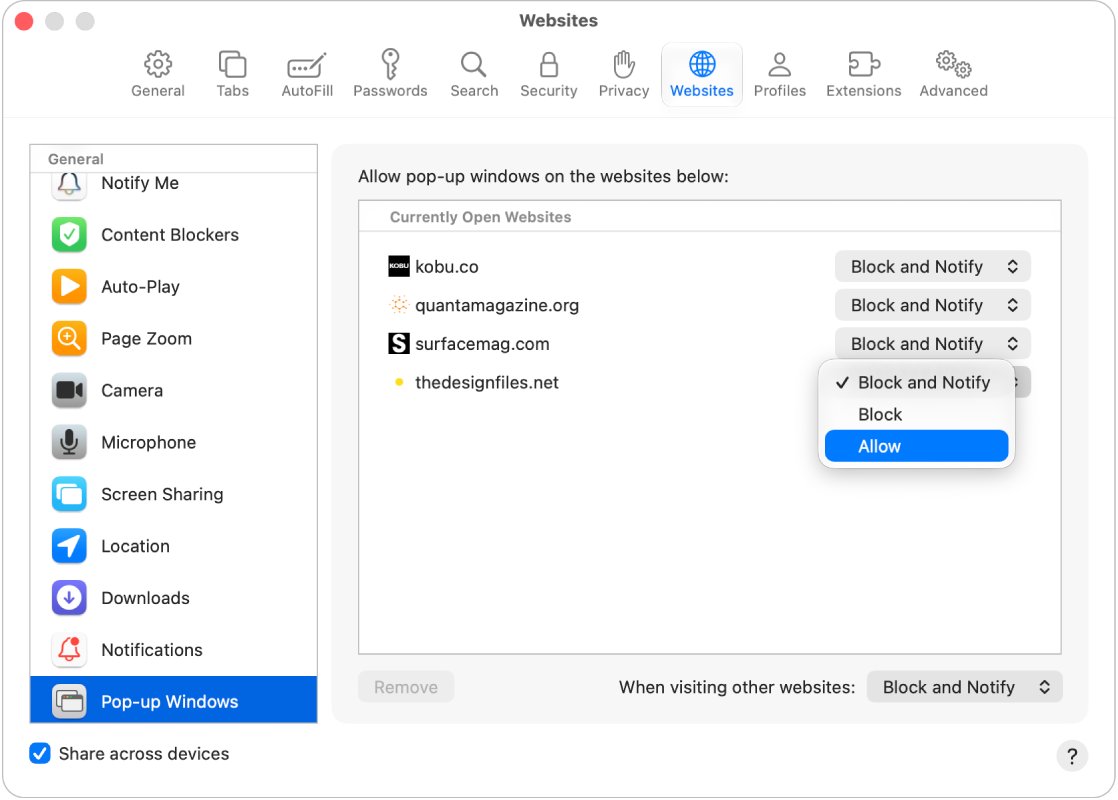
- Choose Safari > Settings, click Websites and block pop-ups for all or some websites.
- Click the Security tab and turn on the fraudulent website warning.
- If pop-ups still return, update macOS, restart, then remove unexpected apps and Safari extensions.
Signs your MacBook Pro has a virus
Apple lists a handful of clear warning signs. Each one points to a specific place to look.
| What you see | What it usually means | Where to look |
|---|---|---|
| Pop-ups that will not go away despite Safari settings | Adware installed with other software | Applications folder and Safari extensions |
| Apps you do not remember installing | Bundled or unwanted software | Finder > Applications |
| Unknown items opening at login | Software set to start automatically | Login Items & Extensions |
| Changed Wi-Fi, VPN or mail settings | An unknown configuration profile | General > Device Management |
| "will damage your computer" alert | macOS detected malicious content or a revoked app | Move the item to the Trash |
| An app moved to the Trash with a malware message | XProtect blocked known malware | Empty the Trash |
Do you need antivirus on a MacBook Pro?
For most people, the built-in protection is enough: keep automatic security updates on, install apps from the App Store or directly from the developer, and restart after updates. XProtect, Gatekeeper and notarization already block and remove known malware, and Apple updates their signatures separately from macOS releases. Third-party security software can add central logging through Apple's Endpoint Security framework, which matters mainly on managed work Macs. If you add one, get it from the App Store or the vendor's own site, never from a pop-up.
How to erase a MacBook Pro to remove malware
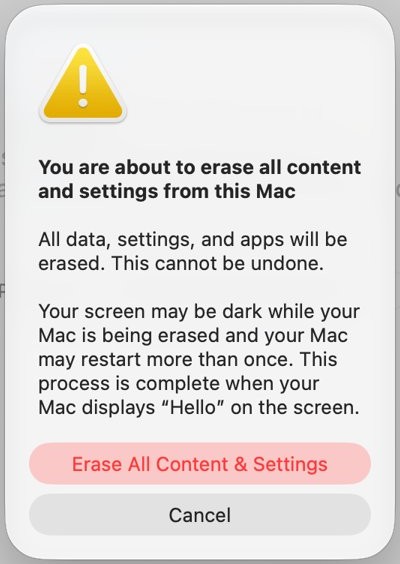
Erasing is the last resort when infections keep coming back. Erase All Content and Settings removes all data, settings and apps but keeps macOS installed. It needs macOS Monterey 12 or later on a Mac with Apple silicon or the Apple T2 Security Chip.
- Back up your files first, because every file on the Mac is deleted.
- Choose Apple menu > System Settings and click General.
- Scroll down and click Transfer or Reset.
- Click Erase All Content and Settings.
- Enter your Mac login password and your Apple Account password when asked.
- Click Erase All Content & Settings to start, then follow the setup assistant after the restart.
- Reinstall apps only from the App Store or developers' own sites.
Mac malware warnings and virus alerts
"will damage your computer" message
macOS detected malicious content, or Apple revoked the app's authorization.
- Click the option to move the item to the Trash.
- Choose Finder > Empty Trash.
- Delete the installer or disk image you opened it from.
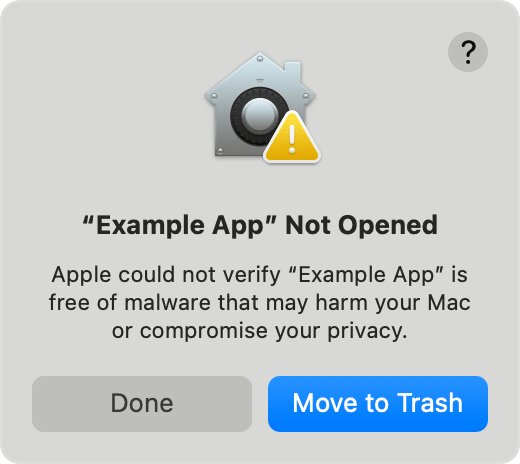
Alert that Apple cannot check the app for malicious software
The app is not notarized, so macOS cannot check it for known malware.
- Do not open it.
- Check the App Store for an updated version or an alternative app.
- Contact the app's developer for a notarized version.
Pop-ups return after closing Safari
Adware or an unwanted extension is still installed.
- Update macOS to the latest version, or restart if it is already current.
- Remove unexpected apps from the Applications folder.
- Uninstall unknown extensions in Safari Settings > Extensions.
Mac says the app is in use and will not delete
A process from the app is still running.
- Quit the app, or quit its process in Activity Monitor.
- Restart the Mac, or start up in Safe Mode, and try again.
- Empty the Trash once the app moves there.
Configuration profile has no remove button
An organisation or management server installed it.
- Double-click the profile to see who provided it.
- Ask that school, employer or provider to remove it.
MacBook Pro virus scan FAQ
How do I do a full scan on a Mac?
macOS has no manual full-scan button. Turn on automatic security updates in Software Update settings, install every update, then restart. XProtect checks apps automatically, and security updates remove known installed malware during a restart.
Does a Mac have a built-in virus scanner?
Yes. XProtect is built into macOS and uses malware signatures that Apple updates independently of system releases. It checks apps when they first launch, when they change and whenever its signatures update, and moves known malware to the Trash.
Can a MacBook Pro get a virus?
Yes. Malware, including viruses, worms and trojan horses, can reach a Mac through downloads from email, messages and websites. It most often hides inside a harmless-looking app, which is why Apple recommends installing software from the App Store or known developers.
Does restarting a Mac remove malware?
Restarting after macOS security updates lets the built-in tool remove known malware that is already installed. It does not remove adware or unwanted apps it does not recognise, so check Applications, Safari extensions and login items too.
How do I know if my Mac has malware?
Look for pop-ups that keep coming back, apps you did not install, unknown login items, Safari extensions you do not recognise, and configuration profiles nobody gave you. A malware alert from macOS is a direct sign; move that item to the Trash.
Is the "your Mac is infected" pop-up real?
Treat it as a scam. Pop-ups that use warnings or prizes to look like Apple messages are a common phishing tactic. Close the tab or window without clicking inside it, then quit Safari and reopen it while holding Shift.
Does XProtect run automatically?
Yes. XProtect needs no setup and runs in the background. Keep the Install Security Responses and system files setting on, or the Tahoe equivalent, so its signatures stay current. macOS checks for those updates daily by default.
Do I need antivirus software on my MacBook Pro?
Most home users do not, because XProtect, Gatekeeper and notarization cover known malware. Work Macs that need central security logging often run third-party security software. Install any such app from the App Store or the vendor's own site.