To access the C drive on Windows 11, press Windows logo key + E to open File Explorer, select This PC in the left pane, and double-click the drive marked (C:).
This guide covers seven ways to open it, where your own files sit on it, how to show hidden and protected folders, what to do about permission prompts and low space, and how to reach it from Safe Mode or the recovery environment.
Method 1: Open the C Drive from File Explorer
File Explorer is the fastest route and works on every edition of Windows 11. The drive usually shows as Local Disk (C:), but a PC maker can give it another label, so look for (C:) at the end of the name.
- Press Windows logo key + E, or select the folder icon on the taskbar.
- In the left navigation pane, select This PC.
- Under Devices and drives, double-click Local Disk (C:) (or whichever drive ends in (C:)).
- The root of the C drive opens, showing folders such as Program Files, Users and Windows.
If the left pane is missing, select View > Show > Navigation pane to bring it back; other ways to reach This PC are covered separately.
Which method should you use?
| Your situation | Use this | Why |
|---|---|---|
| You just want to browse files | File Explorer > This PC | Shows free space and every drive in one view |
| File Explorer is already open on another folder | Address bar: type C:\ |
Jumps straight to the drive root without clicking back |
| You know the exact folder you want | Run dialog (Windows logo key + R) | Opens a full path or environment variable such as %ProgramFiles% in one step |
| You are working in a script or terminal | cd /d C:\ or Set-Location C:\ |
Changes the working location without leaving the command line |
| You open the drive every day | Pin it to Quick access or Start | One click from then on |
| Windows will not start normally | Safe Mode or the Windows Recovery Environment | Gives file access when the normal desktop cannot load |
What Is the C Drive in Windows 11?
The C drive is the system drive: the volume that holds the Windows folder. Microsoft defines the %SystemDrive% variable as "the drive that holds the Windows folder", and on almost every PC that value is C:.
It is a normal drive letter, not a separate app. This PC is only a view that lists it alongside your other drives.
| Top-level folder | Typical path | What it holds |
|---|---|---|
| Windows | C:\Windows |
The operating system itself, including System32 and Fonts |
| Program Files | C:\Program Files |
64-bit desktop apps |
| Program Files (x86) | C:\Program Files (x86) |
32-bit apps on 64-bit Windows |
| ProgramData | C:\ProgramData |
App data shared by all users; hidden by default |
| Users | C:\Users |
One profile folder per account, plus the Public folder |
Method 2: Open the C Drive from the Address Bar
Use this when File Explorer is already open on another folder. Microsoft lists F4 as the shortcut that selects the address bar so you can change the current path.
- Open File Explorer with Windows logo key + E.
- Press Alt + D, Ctrl + L or F4 to select the address bar.
- Type
C:\and press Enter. - To jump deeper, type a full path instead, such as
C:\Users, and press Enter.
Method 3: Open the C Drive Using the Run Command
The Run dialog opens folders by path or by environment variable. Microsoft's own cleanup instructions use it this way with %temp%.
- Press Windows logo key + R to open the Run dialog.
- Type
C:\in the Open box. - Select OK or press Enter. File Explorer opens at the root of the C drive.
Useful Run entries for C drive locations: %SystemDrive% (the drive root), %windir% (the Windows folder), %ProgramFiles%, %ProgramData%, %USERPROFILE% (your profile folder) and %temp% (your temporary files).
Method 4: Open the C Drive from Windows Search
Windows Search opens File Explorer by name, and a search started from This PC covers every drive, including C.
- Select Start or the search box on the taskbar.
- Type
File Explorerand press Enter. - Select This PC in the left pane, then double-click the (C:) drive.
- To find a file anywhere on the drive, stay in This PC or the C drive and type its name in the File Explorer search box (Ctrl + E).
Method 5: Access the C Drive from Command Prompt
In Command Prompt, cd changes the current folder. The /d switch also changes the current drive, which matters when the prompt starts on another drive letter.
cd /d C:\cd (same as chdir) changes the current directory. /d changes the drive as well as the folder, and C:\ is the root of the C drive. On its own, cd\ returns to the root of whichever drive you are on.
You should see: The prompt changes to C:\>. Type dir to list the folders at the root.
To open the drive in File Explorer from the same window, type start C:\ and press Enter. The start command opens Explorer when the name you give it is a folder.
Method 6: Access the C Drive from PowerShell or Windows Terminal
Windows Terminal hosts both PowerShell and Command Prompt. In PowerShell, cd, chdir and sl are all aliases of Set-Location.
Set-Location C:\Set-Location sets the working location. With a trailing backslash it goes to the root of C. Typing Set-Location C: without the backslash returns you to the last folder you used on that drive instead.
You should see: The prompt reads PS C:\>. Run Get-ChildItem (alias dir) to list the root folders.
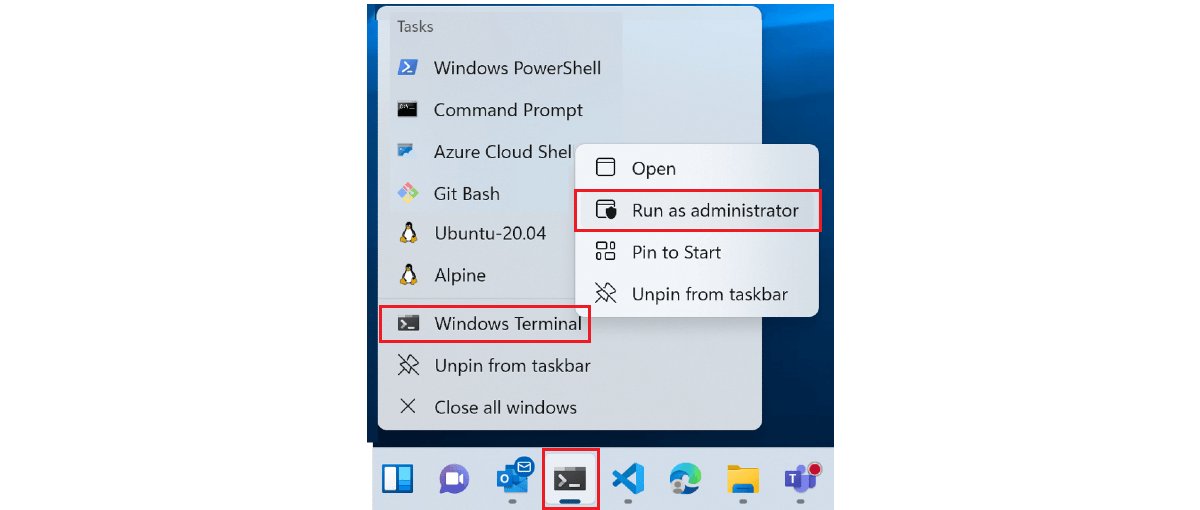
To open the drive in File Explorer from PowerShell, run Invoke-Item C:\ (alias ii), which performs the default action on the item. For an elevated window, press Windows logo key + X and select Windows Terminal (Admin).
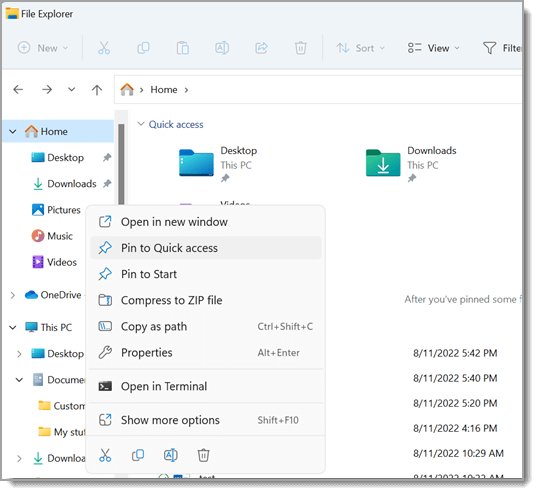
Method 7: Add the C Drive to Quick Access or Pin It
Pinning puts the drive one click away in the File Explorer navigation pane or the Start menu.
- Open File Explorer and select This PC.
- Right-click the (C:) drive.
- Select Pin to Quick access to add it to the navigation pane, or Pin to Start to add it to the Start menu.
- To remove it later, right-click the pinned entry and select Unpin from Quick access or Unpin from Start.
How to Find Your Personal Files on the C Drive
Your files live inside your profile folder under C:\Users. Replace <username> with your account's folder name, or type %USERPROFILE% in the Run dialog to open it directly.
| What you are looking for | Typical path | Notes |
|---|---|---|
| Your profile folder | C:\Users\<username> |
Same as %USERPROFILE% |
| Desktop | C:\Users\<username>\Desktop |
Files you see on the desktop |
| Documents | C:\Users\<username>\Documents |
Default save location for many apps |
| Pictures, Music, Videos | C:\Users\<username>\Pictures (and Music, Videos) |
Pinned in Quick access by default |
| App settings | C:\Users\<username>\AppData\Roaming and \Local |
Hidden; see the AppData folder guide |
| Temporary files | C:\Users\<username>\AppData\Local\Temp |
Same as %temp% |
| Files shared by all accounts | C:\Users\Public |
Public Desktop, Documents, Pictures and so on |
If OneDrive backs up your Desktop, Documents, Music, Pictures or Videos folders, open OneDrive in the File Explorer navigation pane to find the synced copies.
How to Show Hidden Files and Protected System Files
Windows hides folders such as ProgramData and AppData, and hides protected system files behind a second setting. Turning on Hidden items is enough for most tasks.
- Open File Explorer and select View on the command bar.
- Select Show, then select Hidden items.
- For protected system files, select See more (the three dots) > Options.
- Open the View tab.
- Under Advanced settings, clear Hide protected operating system files (Recommended).
- Select OK.
Microsoft recommends turning Hide protected operating system files (Recommended) back on once you are done, so system files are not moved or deleted by accident.
How to Get Permission to Access Folders on the C Drive
When you open a folder your account cannot read, File Explorer shows: "You don't currently have permission to access this folder. Click Continue to permanently get access to this folder."
Selecting Continue does more than open the folder once. Microsoft documents that it permanently changes the folder's permissions and gives your account Full Control of it and everything inside.
- Sign in with an administrator account; standard accounts cannot approve the change.
- For a folder you only need to look inside, press Windows logo key + X and select Windows Terminal (Admin) instead of selecting Continue.
- Select Yes on the User Account Control prompt.
- Run
Set-Locationwith the folder path, for exampleSet-Location "C:\Program Files\<AppName>", thendirto list it. - For a folder of your own, such as an old user profile, select Continue in File Explorer and approve the prompt.
Do not take ownership of, or change permissions on, folders that are part of Windows. Microsoft states that permission changes should never be made to operating system folders such as C:\Windows\ServiceProfiles.
How to Check Free Space on the C Drive
Two places show free space. File Explorer gives the number at a glance; Settings shows what is using it.
- Open File Explorer and select This PC. The bar under the (C:) drive in Devices and drives shows free space and total size.
- For a breakdown, open Settings > System > Storage.
- Review the categories to see which ones take the most space.
- To clean up safely, select Cleanup recommendations and review Temporary files, Large or unused files, Files synced to the cloud and Unused apps.
- Select the items you do not need and select Clean up.
For ten days after a Windows upgrade, the previous version of Windows appears as removable. Deleting it removes the Windows.old folder, and Microsoft warns that you cannot go back to the earlier version afterwards.
How to Access the C Drive from Safe Mode
Safe Mode starts Windows with a minimal set of drivers. File Explorer and the C drive work as normal inside it.
- Open Settings > System > Recovery and select Restart now next to Advanced startup. Alternatively, hold Shift while you select Power > Restart.
- On the Choose an option screen, select Troubleshoot > Advanced options > Startup Settings > Restart.
- When Startup Settings appears, press 4 or F4 to start in Safe Mode.
- Sign in, press Windows logo key + E, select This PC and open the (C:) drive.
- Restart the PC to return to normal mode when you are done.
If the PC keeps starting in Safe Mode, press Windows logo key + R, type msconfig, open the Boot tab and clear Safe boot.
How to Access the C Drive from Windows Recovery Environment
The Windows Recovery Environment (Windows RE) includes a Command Prompt that can read your files when Windows will not start. The Windows volume does not always keep the letter C there; Microsoft's recovery instructions call it the OS drive and show examples where it is D.
- Reach the Choose an option screen: Settings > System > Recovery > Restart now, or Shift + Restart.
- Select Troubleshoot > Advanced options > Command Prompt.
- Type
diskpartand press Enter, then typelist voland press Enter. - Find the large NTFS volume that holds Windows and note its letter in the Ltr column.
- Type
exitto leave DiskPart. - Type that letter followed by a colon, for example
D:, and press Enter. Then typedirto list the folders and confirm you can seeWindowsandUsers.
Type exit and select Continue to leave Windows RE and restart the PC.
How to check you are on the C drive
- In File Explorer, select the address bar. It shows
C:\or a path that starts withC:\. - The folder list at the root includes Program Files, Users and Windows.
- In Command Prompt, the prompt reads
C:\>; in PowerShell it readsPS C:\>. - In Run, type
%SystemDrive%and press Enter. If the window that opens is the same drive, you are on the drive that holds Windows.
What to Do If You Cannot See the C Drive
Can't find the C drive in File Explorer
Windows 11 opens File Explorer to Home, which lists folders and files, not drives.
- Select This PC in the navigation pane.
- To open File Explorer on This PC every time, select See more > Options.
- Set Open File Explorer to to This PC and select OK.
This PC is not in the left pane
The navigation pane has been turned off.
- Open File Explorer and select View on the command bar.
- Select Show > Navigation pane.
- Select This PC in the pane that appears.
Only some drives show, or the Windows drive has no letter
The volume exists but has no drive letter assigned.
- Search for Disk Management from Start and open it with administrator permissions.
- Find the volume that holds Windows; Disk Management lists every volume, with or without a letter.
- Do not change the letter of the drive that holds Windows or apps. Microsoft warns that apps may fail to run or find the drive afterwards.
Common C Drive Access Problems and Fixes
Can't access a folder on the C drive (permission message)
Your account does not have Read permission on that folder, often a system or app folder.
- Press Windows logo key + X and select Windows Terminal (Admin).
- Approve the User Account Control prompt.
- Browse the folder with
Set-Locationanddirinstead of selecting Continue in File Explorer.
The C drive is full
Temporary files, large downloads, unused apps or a previous Windows version are taking up space.
- Open Settings > System > Storage.
- Select Cleanup recommendations.
- Tick the items you do not need, starting with Temporary files, and select Clean up.
- Empty the Recycle Bin so the space is actually released.
A folder you expected is missing
Folders such as ProgramData and AppData are hidden by default.
- In File Explorer, select View > Show > Hidden items.
- Check the folder again, or type its full path in the address bar.
The C drive shows different files in the recovery Command Prompt
Windows RE can assign the Windows volume a different letter.
- Run
diskpart, thenlist vol, and find the Windows volume's letter. - Type
exit, then switch to that letter, for exampleD:.
Safety Tips When Browsing the C Drive
Browsing the C drive is harmless. Deleting, moving or re-permissioning the wrong folder is not.
| Folder | Safe to change by hand? | Do this instead |
|---|---|---|
C:\Windows (including WinSxS) |
No | Leave it alone. Microsoft warns that deleting WinSxS files can leave a PC unable to boot or update; use Storage cleanup instead |
C:\Program Files and Program Files (x86) |
No | Uninstall apps from Settings > Apps rather than deleting their folders |
C:\ProgramData |
No | Change app data through the app's own settings |
Windows.old |
Not by hand | Remove it through Settings > System > Storage; it cannot be undone |
%temp% (your Temp folder) |
Yes, with care | Use Temporary files in Storage settings rather than deleting the folder by hand |
C:\Users\<username> |
Yes, your own files | Back up before deleting; files in AppData belong to apps |
Keep Hide protected operating system files (Recommended) switched on during everyday use, and never grant your account Full Control of Windows folders.
Frequently Asked Questions
Where is the C drive in Windows 11?
The C drive is listed under This PC in File Explorer. Press Windows logo key + E, select This PC in the left pane and look under Devices and drives for the entry ending in (C:), usually named Local Disk (C:).
How do I open the C drive in Windows 11?
Press Windows logo key + R, type C:\ and press Enter. File Explorer opens straight at the root of the C drive. You can also type C:\ in the File Explorer address bar or double-click the (C:) drive under This PC.
How do I view everything on the C drive, including hidden folders?
Open the C drive in File Explorer, then select View > Show > Hidden items. Folders such as ProgramData and AppData then appear. Protected system files stay hidden unless you also clear Hide protected operating system files (Recommended) in Folder Options.
How do I find the C drive if File Explorer only shows Home?
Select This PC in the navigation pane on the left. If the pane is missing, choose View > Show > Navigation pane. To skip Home permanently, open See more > Options and set Open File Explorer to This PC.
How do I access the C drive from Command Prompt?
Type cd /d C:\ and press Enter. The /d switch changes the drive as well as the folder, and the prompt changes to C:\>. In PowerShell, run Set-Location C:\ instead; its alias cd works the same way.
Why can't I access a folder on the C drive in Windows 11?
Your account does not have permission to read that folder. Selecting Continue permanently gives your account Full Control of it, so for system and app folders use an elevated Windows Terminal from Windows logo key + X instead.
Why can't I find the C drive in Windows 11?
File Explorer opens to Home, which does not list drives, or the navigation pane is hidden. Select This PC, or turn the pane back on with View > Show > Navigation pane. Disk Management shows the Windows volume even when no letter is assigned.
What should I do when the C drive is full on Windows 11?
Open Settings > System > Storage and select Cleanup recommendations. Remove temporary files, large or unused files and unused apps you no longer need, then empty the Recycle Bin so the space is actually freed.
Is it safe to delete files from the C drive?
Files in your own user folder are yours to delete. Do not delete anything in C:\Windows, Program Files or ProgramData by hand; Microsoft warns that deleting WinSxS files can stop a PC from booting or updating. Use Storage settings for cleanup.

![Error applying hard drive changes in Hyper-V [Fix]](https://techdows.com/wp-content/uploads/2026/10/Error-applying-hard-drive-changes-in-Hyper-V-Fix-1-600x338.jpg)