To fix "A Java Exception has occurred", run the program from Command Prompt with java -jar so the real exception and stack trace print, then fix the cause that trace names: an outdated Java version, a missing class, too little memory or a bug in the code.
This guide covers the launcher dialog that end users see, how to read an exception message and stack trace, and the specific fixes for the exceptions developers hit most often.
How to see the real error behind 'A Java Exception has occurred'
The dialog comes from javaw, the Windows launcher that runs Java programs without a console window. Oracle documents that javaw shows a dialog box with error information when a launch fails, which is why the message is so short. The full error only appears when the same program runs under java, which keeps a console open.
- Open File Explorer and go to the folder that holds the JAR file.
- Click the address bar, type
cmdand press Enter to open Command Prompt in that folder. - Type
java -jar yourfile.jar, replacingyourfile.jarwith the real file name, and press Enter. - Read the first line of red or plain text that starts with
Exception in thread "main"orError:. That line names the exception type and its message. - Match the exception name to the table in section 3 or the fixes in section 6, apply the fix, and run the same command again.
If Command Prompt answers that java is not recognized, Java is either not installed or its folder is not on the PATH. The Java Virtual Machine Launcher fixes further down cover both cases.
1. Understanding Java exceptions and errors
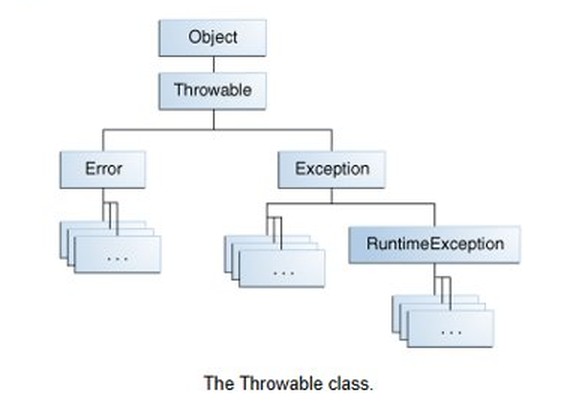
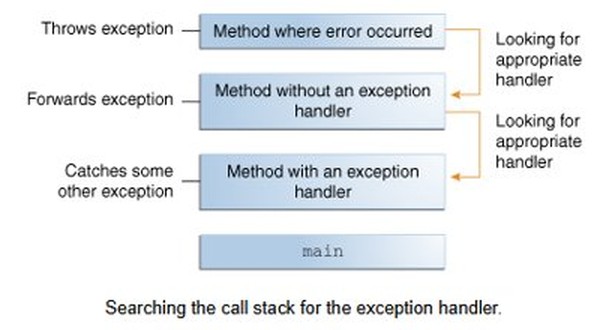
Oracle defines an exception as an event during the execution of a program that disrupts the normal flow of its instructions. The method where the problem occurs creates an exception object and hands it to the runtime, which searches the call stack for a handler. If no method on the stack catches it, the program terminates.
| Kind | Base class | Typical example | Must the code catch or declare it? |
|---|---|---|---|
| Checked exception | Exception (but not RuntimeException) |
FileNotFoundException when a file name is wrong |
Yes. Code that ignores it does not compile |
| Runtime exception | RuntimeException |
NullPointerException, ClassCastException |
No. It usually points to a programming bug |
| Error | Error |
OutOfMemoryError, UnsupportedClassVersionError |
No. It describes a problem outside the application's control |
Errors and runtime exceptions together are called unchecked exceptions. The launcher dialog appears for any of the three kinds, so the exception name in the console output tells you which row applies.
2. What does "Exception has occurred" mean?
The message means the Java Virtual Machine started, but the program threw an exception or error before or during startup and nothing in the program handled it. It is not one specific error. It is a generic wrapper that hides the real exception name.
| What you see | What it means | Where to look next |
|---|---|---|
| Java Virtual Machine Launcher dialog: "A Java Exception has occurred." | A program launched with javaw failed; the details were not shown because javaw has no console | Run the JAR with java -jar in Command Prompt |
Exception in thread "main" java.lang.NullPointerException |
The program's main thread hit an unhandled exception |
The first at line below it, which names the file and line |
java.lang.UnsupportedClassVersionError |
The program was compiled for a newer Java release than the one installed | The class file version table below |
java.lang.OutOfMemoryError |
The JVM could not allocate memory and the garbage collector could not free enough | The memory fix in the launcher section |
3. Common causes of “Exception has occurred” in Java
| Cause | Exception or message you will see | Fix |
|---|---|---|
| Installed Java is older than the program needs | UnsupportedClassVersionError with a class file version number |
Install the Java release the developer lists, or a newer one |
| The JAR has no entry point | A message about a missing main manifest attribute, or Could not find or load main class |
The developer must set Main-Class in the manifest; a user should get a fixed build |
| A library the program needs is missing | NoClassDefFoundError or ClassNotFoundException |
Keep the JAR with its lib folder, or reinstall the program from its official source |
| The program needs more memory | OutOfMemoryError |
Start it with a larger heap, for example java -Xmx2g -jar app.jar |
| A file or folder the program reads is missing or locked | IOException, FileNotFoundException |
Check the path in the message and the file's permissions |
| A bug in the program's code | NullPointerException, ArrayIndexOutOfBoundsException, ClassCastException, NumberFormatException |
Fix the code at the line the stack trace names (section 6) |
| A damaged or incomplete download | Errors reading the JAR or an unexpected class error | Download the program again from its official site |
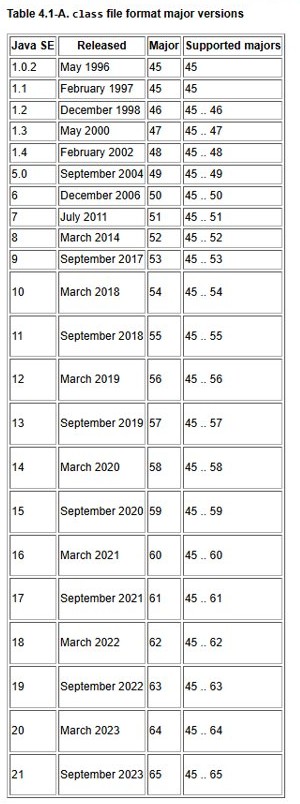
Java class file version table for UnsupportedClassVersionError
UnsupportedClassVersionError is thrown when the JVM reads a class file whose major and minor version numbers it does not support. The error message quotes the class file version, and that number tells you which Java release the program needs.
| Class file major version | Needs at least | Released |
|---|---|---|
| 52 | Java SE 8 | March 2014 |
| 55 | Java SE 11 | September 2018 |
| 61 | Java SE 17 | September 2021 |
| 65 | Java SE 21 | September 2023 |
| 69 | Java SE 25 | Java SE 25 supports major versions 45 through 69 |
Each Java release runs every class file version up to its own, so a program built for Java 17 runs on Java 21 but not on Java 8. Updating to a newer release fixes this error without touching the program; you can update Java on Windows 11 with the current installer from java.com.
4. How to recognize and interpret exception messages
Every exception prints in the same shape: one line with the exception type and message, then a stack trace of the method calls that led to it. Oracle's own example looks like this: java.lang.NullPointerException followed by at MyClass.mash(MyClass.java:9), at MyClass.crunch(MyClass.java:6) and at MyClass.main(MyClass.java:3).
| Part of the output | Example | What it tells you |
|---|---|---|
| The exception message (first line) | java.lang.NumberFormatException: For input string: "abc" |
The exception class, then the detail message after the colon |
The top at line of the stack trace |
at MyClass.mash(MyClass.java:9) |
The exact method, file and line where the exception was thrown |
Lower at lines |
at MyClass.main(MyClass.java:3) |
The chain of calls that led there, newest first |
Caused by: lines |
Caused by: LowLevelException |
The original exception that a higher-level one wrapped; the last Caused by is usually the root cause |
... 3 more |
... 1 more |
The remaining frames match the enclosing exception's trace and were shortened |
Read the first at line that points to the program's own package rather than a java. or javax. class. Library frames show where the failure surfaced; the program's own frame shows where the bad value came from.
5. General strategies to fix "Exception has occurred"
These five steps work for any exception, from a launcher failure on a downloaded tool to a crash in your own project.
- Reproduce the error consistently. Run the program from a console with the same input, files and Java version until the exception appears every time.
- Review the exception and stack trace. Note the exception class, its message and the first
atline in the program's own code. - Inspect the relevant code. Open the file at the line the trace names and check every value used on that line: objects that could be null, array indexes, casts and parsed strings.
- Use debugging tools. Set a breakpoint on that line in your IDE or with
jdband inspect the variables just before the exception is thrown. - Add defensive programming. Validate input, check for null and range before use, and catch the exceptions the code can recover from so the program reports a clear message instead of crashing.
How to tell which Java version runs a JAR file
A PC can hold several Java installations, and the one on the PATH is not always the one a shortcut or file association starts. Checking the version that actually runs the program rules out the most common cause in one command.
- Open Command Prompt.
- Type
java -versionand press Enter. The version prints and Java exits. - Type
java -showversion -jar yourfile.jarand press Enter. Java prints its version and then starts the program, so the version and any exception appear together. - Compare the version with the class file version in any
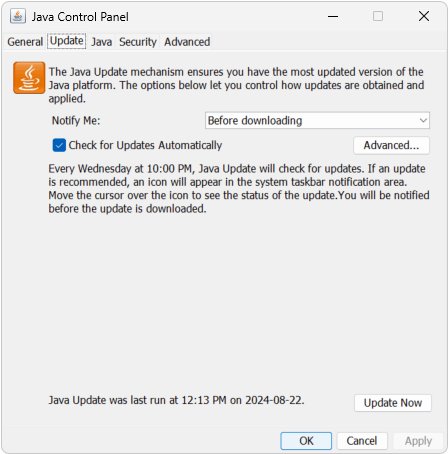
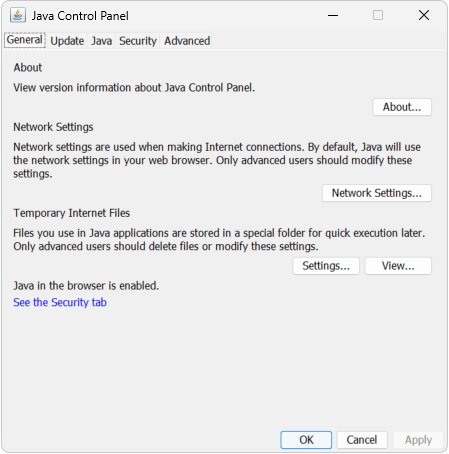
UnsupportedClassVersionErrormessage, using the table above. - Open Start, find the Java folder and select About Java to see the version that the Java Control Panel reports.
If the program now starts without the dialog and the console shows no Exception in thread line, the fix held.
6. Specific techniques to fix common exceptions
Fixing NullPointerException
The code used null where an object was required: calling a method or reading a field on a null object, or treating null as an array.
- Read the detail message. Since the JVM option
-XX:+ShowCodeDetailsInExceptionMessagesis on by default in current releases, the message names the exact reference that was null. - Trace that variable back to where it was assigned and find the path that leaves it null.
- Initialize it, or add a null check before use, for example
if (name != null). - Use
Objects.requireNonNull(value, "value must be set")at method entry when null should never be allowed, so the failure points at the caller.
Fixing ArrayIndexOutOfBoundsException
The code accessed an array with an index that is negative or greater than or equal to the array's length.
- Read the index and length in the message.
- Check loop bounds: a loop over an array should run while
i < array.length, noti <= array.length. - Check any index computed from user input or another array before using it.
- Use an enhanced
forloop when you only need each element, which removes the index entirely.
Fixing ClassCastException
The code cast an object to a subclass it is not an instance of, such as casting an Integer held in an Object variable to String.
- Find the cast on the line the stack trace names.
- Test the type first with
instanceofbefore casting. - Use generics on collections, for example
List<String>, so the compiler catches wrong types before the program runs.
Fixing IOException and other I/O errors
A read or write on a file, stream or network connection failed or was interrupted.
- Read the path or address in the message and check that it exists and is spelled correctly.
- Check that the account running the program can read or write that location.
- Close the file in any other program that may be locking it.
- Open streams in a try-with-resources statement so they close even when an exception occurs.
Fixing NumberFormatException
The code tried to convert a string to a number, for example with Integer.parseInt, and the string was not a valid number.
- Read the input string quoted in the message, which often contains a space, a comma or a letter.
- Trim the string with
trim()before parsing. - Wrap the parse in a
try/catch (NumberFormatException e)block and ask for the value again or use a default.
Handling and wrapping exceptions
A low-level exception, such as an IOException, escapes through code that should report a higher-level failure.
- Catch the low-level exception where you can add context.
- Throw a new exception that passes the original as its cause, for example
throw new ConfigException("Cannot read settings", e);. - Read the
Caused by:lines in the stack trace to reach the original failure when debugging.
7. Best practices for preventing exceptions
| Practice | Exception it prevents | How |
|---|---|---|
| Validate input at the boundary | NumberFormatException, IllegalArgumentException |
Check user input, files and network data before passing them deeper into the code |
| Avoid returning null | NullPointerException |
Return an empty collection or an Optional instead |
| Check bounds before indexing | ArrayIndexOutOfBoundsException |
Compare the index with length or size() first |
| Use generics instead of casts | ClassCastException |
Declare collection types such as Map<String, Integer> |
| Close resources automatically | Leaked files and later IOException failures |
Use try-with-resources for files, streams and connections |
| Target the Java version users have | UnsupportedClassVersionError |
Compile for the oldest Java release you support and state it in the documentation |
| Catch specific exceptions | Hidden bugs behind a broad catch (Exception e) |
Catch only what the code can recover from and let the rest surface |
8. Debugging tools and techniques
| Tool or option | What it does | Example |
|---|---|---|
jdb, the Java Debugger |
Command-line debugger that ships with the Java JDK; launches the program and stops before its first instruction | jdb MyClass, then stop at MyClass:22 and run |
jdb exception catch |
Stops the program where a chosen exception is thrown, even if it is caught later | catch java.io.FileNotFoundException |
| Uncaught exceptions under jdb | Control returns to jdb at the throw instead of the JVM exiting | Inspect variables at the moment of failure |
| Attach to a running JVM | Debug a program that is already running | Start with java -agentlib:jdwp=transport=dt_socket,server=y,suspend=n MyClass, then jdb -attach 8000 |
| Helpful NullPointerException messages | Names the exact null reference in the message; on by default | -XX:+ShowCodeDetailsInExceptionMessages |
| Class loading trace | Prints every class as it loads, which exposes missing-class failures | java -verbose:class -jar app.jar |
| IDE debugger | Breakpoints, variable watches and exception breakpoints in a graphical editor | Set an exception breakpoint on the class named in the stack trace |
9. Handling exceptions gracefully
Graceful handling means the program catches what it can recover from, tells the user what went wrong in plain words, and releases files and connections either way.
- Wrap only the code that can fail in a
tryblock, not the whole method. - Add a
catchblock for each specific exception the code can recover from, most specific first. - Show or log a message that names the problem and the next action, such as the missing file path.
- Put clean-up code in a
finallyblock, or open resources intry (var in = new FileInputStream(path))so they close automatically. - Declare exceptions the method cannot handle with a
throwsclause so the caller decides. - Log the full stack trace, for example with
e.printStackTrace()or a logging framework, so the cause stays available for debugging.
10. When to seek external help
| Situation | Who to contact | What to send |
|---|---|---|
| The exception comes from a program you downloaded, not your own code | The program's developer or official support page | The full console output from java -jar and the output of java -version |
| The program only runs on an old Java version | The program's developer | Ask for a build that runs on a current Java release |
| The trace points inside a library, not your code | The library's issue tracker or documentation | A minimal program that reproduces the exception |
| The JVM itself crashes and writes an error log | The JDK vendor's support channel | The crash log and the exact Java version |
| Your own code fails and the trace makes no sense | A colleague or the team's code review | The stack trace, the input that triggers it and what you already tried |
How to fix Java Virtual Machine Launcher error on Windows
'java' is not recognized as an internal or external command
Java is not installed, or its bin folder is not on the Windows PATH, so Command Prompt cannot find java.
- Install Java SE from java.com or the JDK vendor's site if it is not installed.
- Search for and open System (Control Panel), then select Advanced system settings.
- Select Environment Variables, choose PATH under System Variables and select Edit.
- Add the
binfolder of the Java installation, then select OK on every window. - Open a new Command Prompt window and run
java -version.
The dialog appears after installing a newer Java
Several Java versions are installed and the program starts an older one.
- Run
java -versionto see which Java answers on the PATH. - Open Settings > Apps and look for entries named Java, Java SE, J2SE or Java Runtime Environment.
- Uninstall the versions the program does not need, keeping the one it requires.
- Run the program again with
java -jarto confirm the exception is gone.
The program needs more memory than Java gives it
OutOfMemoryError means the JVM could not allocate an object and the garbage collector could not free enough space.
- Start the program with a larger maximum heap:
java -Xmx2g -jar yourfile.jarsets it to 2 GB. - Use a value that leaves memory for Windows and other programs; the
-Xmxvalue must be a multiple of 1024 and greater than 2 MB. - If the program has its own launcher or settings file, set the memory there so every start uses it.
Double-clicking the JAR does nothing or opens the wrong program
The .jar file type is not associated with Java, or the javaw.exe file it points to is missing.
- Run the JAR from Command Prompt with
java -jar yourfile.jarto bypass the file association. - Reinstall Java so the installer registers the file type again.
- If Windows reports that it cannot find javaw.exe, fix the missing javaw.exe error before trying the JAR again.
Java exception has occurred FAQ
What does "A Java Exception has occurred" mean?
It means a Java program started with javaw threw an exception or error that nothing handled, so it stopped. The dialog hides the details because javaw has no console. Run the program with java -jar in Command Prompt to see the real exception.
How do I see the full error behind the Java Virtual Machine Launcher dialog?
Open Command Prompt in the folder that holds the JAR and run java -jar yourfile.jar. The console prints the exception class, its message and the stack trace, which name the cause the dialog leaves out.
Does reinstalling Java fix "A Java Exception has occurred"?
Only when the cause is the Java installation itself, such as an outdated version behind an UnsupportedClassVersionError or a broken file association. A bug in the program or a missing library still fails after a reinstall, so read the console error first.
What is the difference between an exception and an error in Java?
Both extend Throwable. An exception describes a condition a program can anticipate and often recover from, such as a missing file. An error, such as OutOfMemoryError, describes a problem outside the application that it usually cannot recover from.
What is a stack trace in Java?
A stack trace is the list of method calls active when an exception was thrown, printed newest first under the exception message. Each at line gives a class, method, file and line number, and Caused by: lines show the original exception that was wrapped.
What does UnsupportedClassVersionError mean?
It means the program was compiled for a newer Java release than the one running it. The message quotes a class file version: 52 needs Java 8, 55 needs Java 11, 61 needs Java 17 and 65 needs Java 21. Install that release or a newer one.
What does Exception in thread "main" mean in Java?
It means the program's main thread, the one that runs the main method, threw an exception that no code caught. The text after it names the exception class and message, and the stack trace below shows where it happened.
Can I ignore a Java exception?
Not an unhandled one, because it stops the program. In code you can catch an exception and continue, but an empty catch block hides the cause. Catch only exceptions the program can recover from and log the rest.
How do I check which Java version is installed?
Open Command Prompt and run java -version. On Windows you can also open Start, find the Java folder and select About Java, or open the Java Control Panel settings and select About on the General tab.
11. Summary and final tips
| Tip | Why it helps |
|---|---|
Save the console output to a file with java -jar yourfile.jar 2> error.txt |
Java writes exceptions to the error stream, so the file keeps the full trace to send to a developer |
| Keep one current Java release unless a program needs an older one | Fewer installations means fewer chances that the wrong version starts |
| Download programs and libraries only from their official sites | Damaged or repackaged JAR files cause class and I/O errors that no Java setting fixes |
Start from the first at line in the program's own code |
That line usually shows where the bad value entered |
| Fix the root cause rather than catching everything | A broad catch turns a clear exception into silent wrong behaviour |
12. Conclusion
Treat "A Java Exception has occurred" as a pointer, not a diagnosis. Run the program with java -jar to read the real exception, check the Java version first because it is the most common cause for downloaded programs, and fix code exceptions at the line the stack trace names.
Final note
Remove Java versions you no longer need once the program works. Oracle recommends uninstalling older versions so applications run with current security fixes. If a program refuses to run on a current release, report it to its developer and ask for an update instead of keeping an outdated Java just for that program.