Windows 11 has one built-in hot corner: turn on Select the far corner of the taskbar to show the desktop under Settings > Personalization > Taskbar > Taskbar behaviors, and the bottom-right corner minimizes every window.
For corners that lock the PC, open Task view, start a screen saver or launch an app, you need a corner utility such as AutoHotkey or WinXCorners, and this guide shows what to assign to each corner and how to keep it running.

Does Windows 11 have built-in hot corners?
Only one. Windows 11 has no setting that runs an action when the pointer touches a screen corner, but the far right end of the taskbar acts as a Show desktop corner when you select it.
- Right-click an empty part of the taskbar and select Taskbar settings. You can also press Win + R, type
ms-settings:taskbarand press Enter. - Expand Taskbar behaviors.
- Tick Select the far corner of the taskbar to show the desktop.
- Move the pointer to the bottom-right corner of the screen, past the clock, and click once. Every open window minimizes.
- Click the same corner again to bring the windows back.
Every other corner action in this guide needs a small background program that watches the pointer position and sends a Windows shortcut when it reaches a corner.
Hot corners software for Windows 11
| Tool | Made by | What it does with a corner | Pick it if |
|---|---|---|---|
| Windows Settings (Taskbar behaviors) | Microsoft, built in | Shows the desktop when you click the bottom-right corner | You only want Show desktop and no extra software |
| Microsoft PowerToys | Microsoft | No corner trigger; it adds window, keyboard and mouse utilities | You want Microsoft-made tools alongside a corner utility |
| AutoHotkey | Independent open-source project | Runs any key combination or program from a script you write | You are comfortable editing a short script |
| WinXCorners | Independent open-source developer | Assigns a preset action to each of the four corners | You want menu-based setup without scripting |
AutoHotkey and WinXCorners are third-party programs, not Microsoft products. Download them only from their developers' own pages, never from a download portal.
Method 1: install Microsoft PowerToys
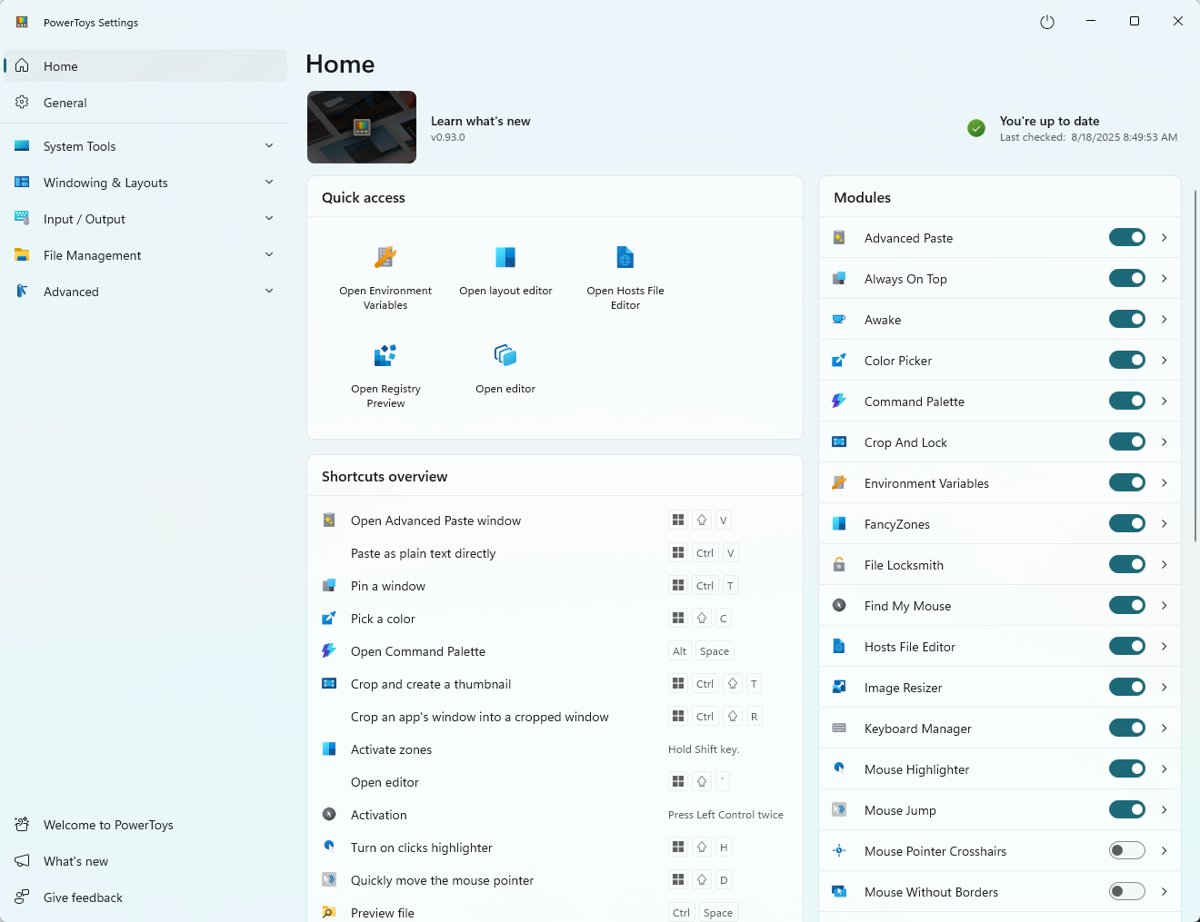
PowerToys is Microsoft's free set of utilities for Windows 11 and Windows 10 version 2004 or newer. Its current utility list has no hot corner tool, so it cannot run an action from a corner by itself.
It is still worth setting up Microsoft PowerToys next to a corner utility: Keyboard Manager creates custom shortcuts a corner can send, and Mouse utilities change how the pointer behaves at screen edges.
winget install --id Microsoft.PowerToys --source wingetInstalls Microsoft PowerToys from the Windows Package Manager. Run it in Windows Terminal, PowerShell or Command Prompt. The Microsoft Store listing installs the same app if you prefer a store install.
You should see: winget reports the package as installed, and the PowerToys overview window opens the first time you start it.
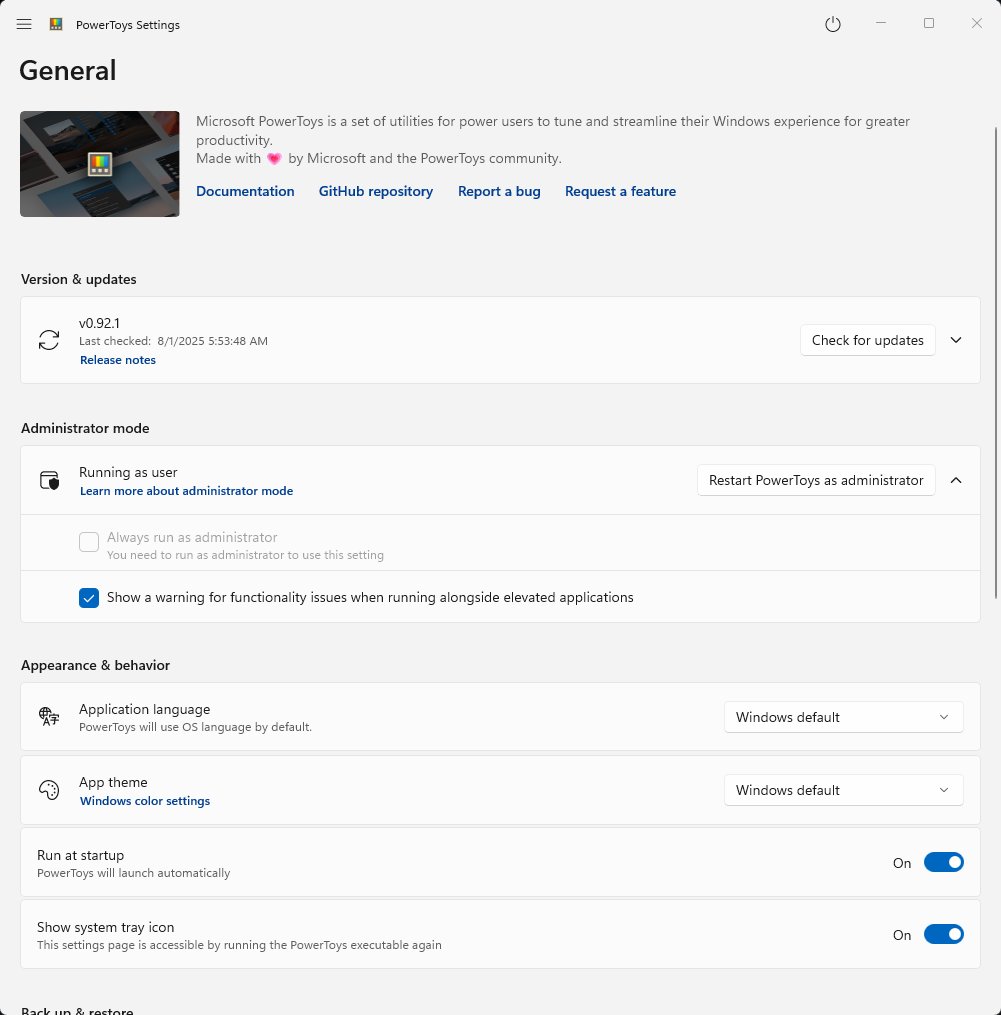
Open PowerToys Settings > General and turn on Run at startup so its utilities load each time you sign in.
Method 2: Create hot corners using AutoHotkey
AutoHotkey is a free scripting tool that can watch the pointer position and send keystrokes. A hot corner script checks the pointer every fraction of a second and sends a Windows shortcut when the pointer sits at a corner.
- Download AutoHotkey from its official site, autohotkey.com, and install it.
- Decide which action each corner should run, using the Windows shortcuts in Methods 4 to 9 (for example Win + Tab for Task view).
- Create a new script file with the
.ahkextension in a folder you keep, such as Documents. - Write the script so it reads the pointer position in screen coordinates on a timer and sends the chosen shortcut when the pointer reaches a corner.
- Add a short delay before the shortcut fires so a pointer passing through the corner does not trigger it.
- Double-click the script to run it, then test each corner.
- Put a shortcut to the script in the Startup folder so it starts with Windows (Method 10).
AutoHotkey's own documentation covers the exact commands for reading the pointer position and sending keys, and the syntax differs between its version 1 and version 2 releases.
Method 3: Use WinXCorners
WinXCorners is a free open-source utility built only for hot corners. It runs in the background and lets you pick an action for each of the four corners from a menu instead of a script.
- Download WinXCorners only from its developer's own project page.
- Run the program and let it start in the background.
- Open its settings window.
- Choose an action for each corner you want to use, such as Show desktop, Task view or Lock screen. Leave unused corners empty.
- Set a short activation delay if the tool offers one, so the pointer must rest in the corner briefly.
- Move the pointer into each corner to test it.
Method 4: Assign a corner to show the desktop
Show desktop is the one corner action Windows 11 has without extra software. In a corner tool, the same action is the Win + D shortcut.
- For the built-in corner, open Settings > Personalization > Taskbar > Taskbar behaviors and tick Select the far corner of the taskbar to show the desktop.
- Click the far bottom-right corner to minimize all windows, then click it again to restore them.
- For a different corner, open your corner tool and assign Win + D (display and hide the desktop) to it.
- To peek at the desktop only while the pointer stays in the corner, assign Win + , (comma) instead.
Method 5: Create a lock screen hot corner
A lock corner is useful when you step away from a shared desk. The shortcut a corner tool sends is Win + L, which locks the computer.
- Open your corner tool and pick a corner you rarely touch by accident, such as the top-right.
- Assign the lock action, or the Win + L key combination if the tool asks for keys.
- Save the setting and move the pointer to that corner. The lock screen appears.
- Sign back in with your PIN, password or Windows Hello.
Method 6: Launch applications from a corner
There are two ways to open an app from a corner: point the tool at the program file, or pin the app to the taskbar and send its Win + number shortcut.
- Pin the app to the taskbar: right-click it in the Start menu and select Pin to taskbar.
- Count its position from the left among the pinned apps. The first app is 1, the second is 2, and so on.
- In your corner tool, assign Win + 1 for the first position, Win + 2 for the second, up to Win + 0 for the tenth.
- If the tool can run a program directly, browse to the app's
.exefile or shortcut instead. - Move the pointer to the corner. The app opens, or switches to its window if it is already open.
Method 7: Open Task view with a hot corner
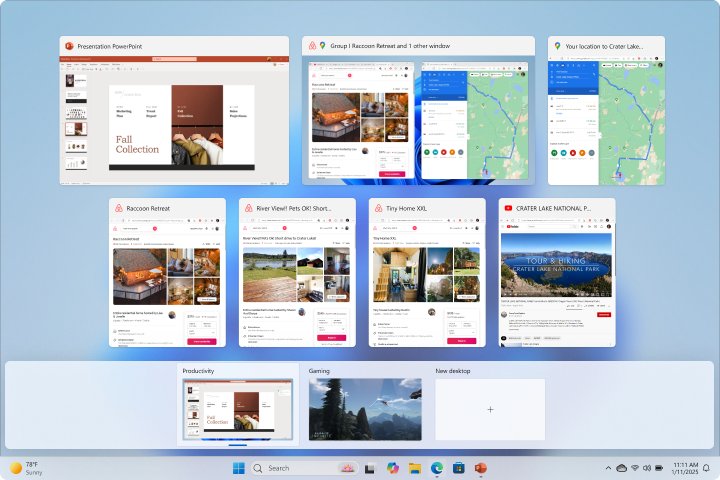
Task view shows every open window and your virtual desktops. Its shortcut is Win + Tab.
- Open your corner tool and select the corner you use most, usually the top-left.
- Assign the Task view action, or the Win + Tab key combination.
- Move the pointer to the corner. Task view opens with thumbnails of your open windows.
- Click a window to switch to it, or select New desktop at the bottom to add a virtual desktop.
Method 8: Create a screensaver hot corner
Set up the screen saver in Windows first, then let the corner tool start it. If your tool has no screen saver action, a lock corner (Method 5) does the same job of hiding the screen.
- Open Settings > Personalization > Lock screen.
- Under Related settings, select Screen saver.
- In Screen Saver Settings, choose a screen saver from the drop-down list and set Wait to the minutes of inactivity you want.
- Tick On resume, display logon screen if the screen saver should require your password, then select OK.
- In your corner tool, assign its screen saver action to a corner.
- Move the pointer to the corner to start the screen saver, then move the mouse to end it.
Method 9: Open Windows Settings from a corner
A Settings corner sends Win + I, which opens the Settings app on its home page. A tool that can run commands can open a specific page instead through an ms-settings: link.
- Open your corner tool and choose a free corner.
- Assign the Win + I key combination to open Settings.
- To open one page directly, set the corner to run a link such as
ms-settings:taskbarfor the taskbar page. - Move the pointer to the corner. Settings opens on the page you chose.
Method 10: Automatically start hot corners with Windows
Corner tools only work while they run. Set them to start when you sign in so the corners are ready after every restart.
- Open Start > Settings > Apps > Startup.
- Find your corner tool in the list and set its toggle to On.
- If the tool is not listed, such as an AutoHotkey script, press Win + R, type
shell:startupand press Enter. - Copy a shortcut to the program or
.ahkscript into the folder that opens. - For PowerToys, turn on Run at startup in PowerToys Settings > General.
- Restart the PC and test a corner to check the tool loaded.
You can also manage the same list from Task Manager: right-click Start, select Task Manager, open the Startup apps tab and select Enable on the tool.
Method 11: Prevent accidental hot corner activation
Accidental triggers are the main complaint about hot corners. Most come from the corners next to the Start button and the clock, which the pointer visits all day.
- Set an activation delay in your corner tool so the pointer must rest in the corner before the action runs.
- Keep the bottom-left corner free if your taskbar is set to left alignment, because the Start button sits there.
- Keep the bottom-right corner free if you use the built-in Show desktop corner, so two actions do not fight over it.
- Turn off Select the far corner of the taskbar to show the desktop in Taskbar behaviors if you keep minimizing windows by mistake.
- Turn off the corner tool while gaming or presenting, then turn it back on afterwards.
How to test hot corners in Windows 11
- Open two or three windows so each action has a visible effect.
- Move the pointer slowly into each assigned corner and hold it there.
- Check the result: the desktop appears, Task view opens, the lock screen shows, or the app starts.
- Move the pointer quickly across a corner without stopping. With a delay set, nothing should happen.
- Restart the PC and repeat one corner to check the tool starts with Windows.
How to turn off hot corners in Windows 11
- Open Settings > Personalization > Taskbar > Taskbar behaviors and untick Select the far corner of the taskbar to show the desktop.
- Exit your corner tool from its icon in the notification area.
- Open Settings > Apps > Startup and set the tool's toggle to Off, or delete its shortcut from the
shell:startupfolder. - Uninstall the tool from Settings > Apps > Installed apps if you no longer want it.
Hot corners not working in Windows 11
No corner does anything
The corner tool is not running, often after a restart.
- Look for the tool's icon in the notification area, including the hidden icons arrow.
- Start the tool or the
.ahkscript again. - Add it to Settings > Apps > Startup or the
shell:startupfolder so it starts at sign-in.
Corners stop working when Task Manager or an admin window is in front
A program running without administrator rights cannot send input to an elevated window, the same Windows boundary that stops PowerToys utilities over admin apps.
- Switch to a normal window and try the corner again.
- If you need corners over admin windows, run the corner tool as administrator from its right-click menu.
- Keep it running normally the rest of the time, since running apps as administrator raises security risk.
The bottom-right corner does not show the desktop
The Show desktop option is switched off in taskbar settings.
- Open Settings > Personalization > Taskbar > Taskbar behaviors.
- Tick Select the far corner of the taskbar to show the desktop.
- Click the far edge of the taskbar, to the right of the clock.
The pointer jumps to the other side of the screen instead of stopping in the corner
PowerToys CursorWrap moves the pointer past screen edges, so it never rests in a corner.
- Open PowerToys Settings > Mouse utilities.
- Turn off Enable CursorWrap, or set Wrapping activation to Holding Ctrl or Holding Shift.
A corner works on one monitor but not the other
With several monitors, an inner corner touches the next screen, so the pointer slides across instead of stopping.
- Assign actions to the outer corners of the combined desktop.
- Check whether your corner tool has a per-monitor setting and turn it on if it does.
Hot corners in Windows 11: frequently asked questions
Does Windows 11 have built-in hot corners?
Only the Show desktop corner. Turn on Select the far corner of the taskbar to show the desktop under Settings > Personalization > Taskbar > Taskbar behaviors. Any other corner action needs a third-party utility such as AutoHotkey or WinXCorners.
Can Microsoft PowerToys create hot corners?
No. The current PowerToys utility list has no hot corner tool. PowerToys is still useful beside a corner utility, for example Keyboard Manager for custom shortcuts, but the corner trigger itself has to come from another program.
What actions can be assigned to hot corners?
Anything a corner tool can send or run. Common choices are Show desktop (Win + D), Task view (Win + Tab), Lock (Win + L), Settings (Win + I), a pinned taskbar app (Win + number), the screen saver, or a program you browse to.
Will hot corners affect gaming performance?
A corner tool uses very little processing time, but an accidental trigger can minimize a full-screen game. Exit the tool or turn it off while you play, and set an activation delay so passing the pointer through a corner does nothing.
Can I use different actions for all four corners?
Yes. Corner tools let you set a separate action for each corner and leave any corner empty. Avoid the bottom-left corner if the Start button sits there, and the bottom-right corner if you use the built-in Show desktop corner.
How do I stop hot corners triggering by accident?
Set an activation delay in the corner tool, keep the corners next to the Start button and clock free, and turn off the built-in Show desktop corner in Taskbar behaviors if you keep clicking it by mistake.