To activate Windows via PowerShell, open PowerShell as administrator, run slmgr /ipk XXXXX-XXXXX-XXXXX-XXXXX-XXXXX with your own 25-character product key, then run slmgr /ato to activate online.
This guide covers the same job with native CIM methods, how to read the activation result, KMS activation in an organization, Windows Server, the commands that do not activate anything, and fixes for the common error codes on Windows 11 and Windows 10.
Activate Windows with a valid product key
These two slmgr commands work in Windows PowerShell, PowerShell 7 and Command Prompt, because slmgr is a script that ships with Windows. You need a genuine key for the edition you have installed.
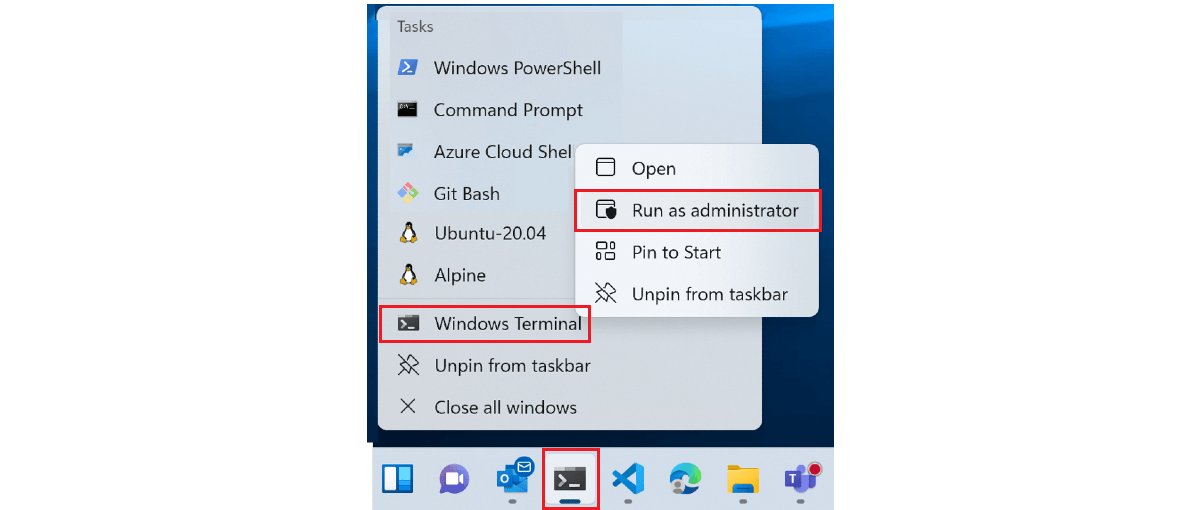
- Right-click Start and select Terminal (Admin), then select Yes in the User Account Control prompt.
- Run
slmgr /ipk XXXXX-XXXXX-XXXXX-XXXXX-XXXXX, replacing the Xs with your product key, dashes included. - Wait for the Windows Script Host dialog to report that the product key was installed, then select OK.
- Run
slmgr /atoto make Windows try online activation with the new key. - Wait for the dialog that says the product activated successfully, then select OK.
- Restart the PC, or at least the Software Protection service, which Microsoft recommends after installing a key.
/ipk checks that the key is valid and applicable to the installed edition before installing it, and silently replaces any key already there. Online activation with /ato needs an elevated window and an internet connection.
Check the installed Windows edition first
A product key activates only the edition it was sold for. A Windows 11 Pro key will not activate Windows 11 Home through slmgr /ipk, and an Enterprise key will not activate Home or Pro.
- Open PowerShell and run
Get-ComputerInfo -Property "Windows*". - Read WindowsProductName for the edition name, such as Windows 11 Pro.
- Compare it with the edition printed on your key card, box label, Certificate of Authenticity or purchase email.
- If the editions differ, use Settings > System > Activation > Change product key instead, which can move Home to Pro with a Pro key.
Error 0xC004F210 or 0xC004E016 after /ipk usually means this mismatch.
Check whether Windows is already activated
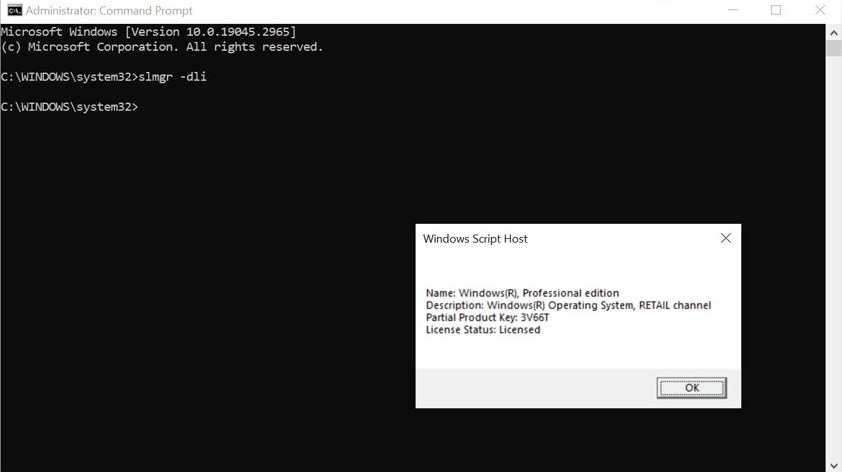
Many PCs activate on their own with a digital license as soon as they reach the internet, so check before you install a key. These slmgr options do not need an elevated window.
slmgr /xpr/xpr shows whether the current edition is permanently activated or when a volume activation expires. Use slmgr /dli for basic license information, including the last five characters of the installed key, or slmgr /dlv for detailed information such as the activation ID.
You should see: A dialog that says the machine is permanently activated means there is nothing left to do. Retail and MAK activation never expire; KMS clients show an expiration date.
Open PowerShell as administrator
Installing a key and online activation both fail with an access error in a normal window. Any of these routes gives you an elevated session.
- Press Windows key + X to open the Quick Link menu, or right-click Start.
- Select Terminal (Admin) and approve the UAC prompt; the tab title shows Administrator.
- Alternatively, select Start, type
powershell, right-click Windows PowerShell and choose Run as administrator. - If you use PowerShell 7, open it the same way; the activation commands behave identically.
PowerShell 7 is optional for this job, but if you prefer it you can install PowerShell 7 alongside Windows PowerShell.
Use native CIM methods instead of slmgr.vbs
slmgr is a wrapper around the Software Licensing WMI classes. Calling those classes from PowerShell gives you return values and errors in the console instead of pop-up dialogs, which suits scripts and remote sessions.
$svc = Get-CimInstance -ClassName SoftwareLicensingService
Invoke-CimMethod -InputObject $svc -MethodName InstallProductKey -Arguments @{ ProductKey = 'XXXXX-XXXXX-XXXXX-XXXXX-XXXXX' }
Invoke-CimMethod -InputObject $svc -MethodName RefreshLicenseStatus
$win = Get-CimInstance -ClassName SoftwareLicensingProduct -Filter "Name LIKE 'Windows%' AND PartialProductKey IS NOT NULL"
Invoke-CimMethod -InputObject $win -MethodName Activate
InstallProductKey on the SoftwareLicensingService class installs the key (the equivalent of /ipk). RefreshLicenseStatus updates the licensing state so the new key is visible. The filter picks the Windows product that has a key installed, and Activate on that SoftwareLicensingProduct instance triggers activation (the equivalent of /ato). Run it in an elevated window.
You should see: Each Invoke-CimMethod call prints ReturnValue 0. A failure stops with an error that carries the activation error code, such as 0xC004F050.
Check activation with PowerShell and CIM
The SoftwareLicensingProduct class holds the license state of every Windows and Office product on the PC. Filtering on an installed key leaves only the edition that is in use.
Get-CimInstance -ClassName SoftwareLicensingProduct -Filter "Name LIKE 'Windows%' AND PartialProductKey IS NOT NULL" | Select-Object Name, Description, PartialProductKey, LicenseStatusName and Description identify the edition and the channel (retail, OEM or volume). PartialProductKey is the last five characters of the installed key and is empty when no key is installed. LicenseStatus is a number that maps to the states in the table below.
You should see: LicenseStatus 1 means Windows is licensed (activated). Any other value means activation is still pending or has failed.
The same check from the graphical side is on the Activation page in Settings; there are several other ways to check if Windows is activated if you are not at a command line.
SoftwareLicensingProduct LicenseStatus values explained
Microsoft documents seven values for the LicenseStatus property. Only one of them means the PC is activated.
| LicenseStatus | State | What it means for you |
|---|---|---|
| 0 | Unlicensed | No valid license; install a key and activate |
| 1 | Licensed | Windows is activated |
| 2 | OOBGrace | Initial grace period after installation; activate before it runs out |
| 3 | OOTGrace | Grace period after a change such as new hardware; reactivate |
| 4 | NonGenuineGrace | Grace period after a failed genuine check |
| 5 | Notification | Grace has ended and Windows shows activation notifications |
| 6 | ExtendedGrace | An extended grace period is in effect |
The GracePeriodRemaining property on the same class gives the minutes left before notification mode; for volume clients, it is the time left before reactivation is required.
Verify the activation result
Check the result two ways: from PowerShell for the raw state, and in Settings for the message Microsoft support uses.
- Run
slmgr /xprand look for the message that the machine is permanently activated. - Run the CIM check above and confirm LicenseStatus is 1 and PartialProductKey matches the last five characters of your key.
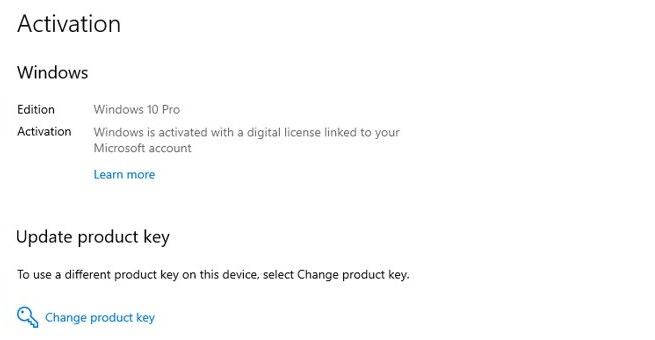
- Open Settings > System > Activation and read the message next to Activation status.
- Look for Windows is activated, Windows is activated with a digital license, or Windows is activated with a digital license linked to your Microsoft account.
- If the status still says Windows is not activated, note the error code shown on that page and match it in the error section below.
Activation does not prove a copy is genuine; Microsoft describes it only as pairing a key or digital entitlement with the hardware.
slmgr vs PowerShell CIM for Windows activation
Both routes call the same Software Protection service, so the outcome is identical. The difference is how you run them and read the result.
| Your situation | Use | Why |
|---|---|---|
| One PC, typing commands by hand | slmgr /ipk then slmgr /ato |
Two short commands with a clear dialog for each step |
| A script or deployment task | CIM methods with Invoke-CimMethod |
Return values and errors land in the console, not in pop-ups |
| Console output from slmgr without dialogs | cscript slmgr.vbs /dli from C:\Windows\System32 |
cscript prints slmgr results as text |
| Edition upgrade, such as Home to Pro | Settings > System > Activation > Change product key | /ipk refuses keys for a different edition |
| Several PCs in an organization | KMS, Active Directory-based activation or VAMT | Volume tools are built for many machines at once |
Activate through Settings instead
Settings does the same work as slmgr /ipk and /ato in one dialog, and it is the route Microsoft support documents for home PCs.
- Select Start > Settings > System > Activation.
- Select Change product key.
- Type your 25-character product key and follow the prompts.
- Approve the administrator prompt if Windows asks.
- Check that Activation status now reads Windows is activated.
If you have no key, select Open Store or Go to Store on the same page to buy a digital license. Signing in with a Microsoft account links that digital license so the Activation troubleshooter can reactivate Windows after a hardware change. Settings is one of several ways to activate Windows 11 without PowerShell.
Use PowerShell for KMS only in an organization
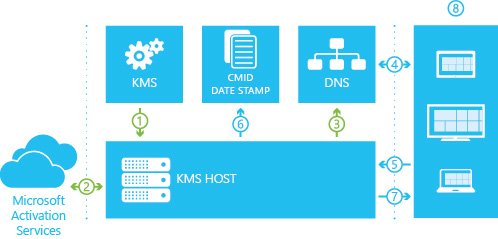
Key Management Services activation needs a KMS host on your organization's local network. The public KMS client keys, formally Generic Volume License Keys (GVLKs), do nothing on a home PC without that host.
Volume licensing editions of Windows are KMS clients by default, so most work PCs need no key at all.
- Connect to the organization's network, directly or through its VPN.
- If the PC was converted from a retail or MAK key, install the GVLK for its edition with
slmgr /ipk <GVLK>; the keys are listed on Microsoft's KMS client activation page. - If DNS does not find the KMS host, point the client at it with
slmgr /skms kms.example.com:1688, using your host name; TCP 1688 is the default port. - Run
slmgr /atoto request KMS activation. - Run
slmgr /xprto see the activation expiry date; KMS clients renew automatically, every 7 days by default. - To go back to automatic host discovery, run
slmgr /ckms.
/skms and /ckms need an elevated window. For dozens of PCs, Microsoft's Volume Activation Management Tool (VAMT) manages activation centrally.
Activate Windows Server via PowerShell
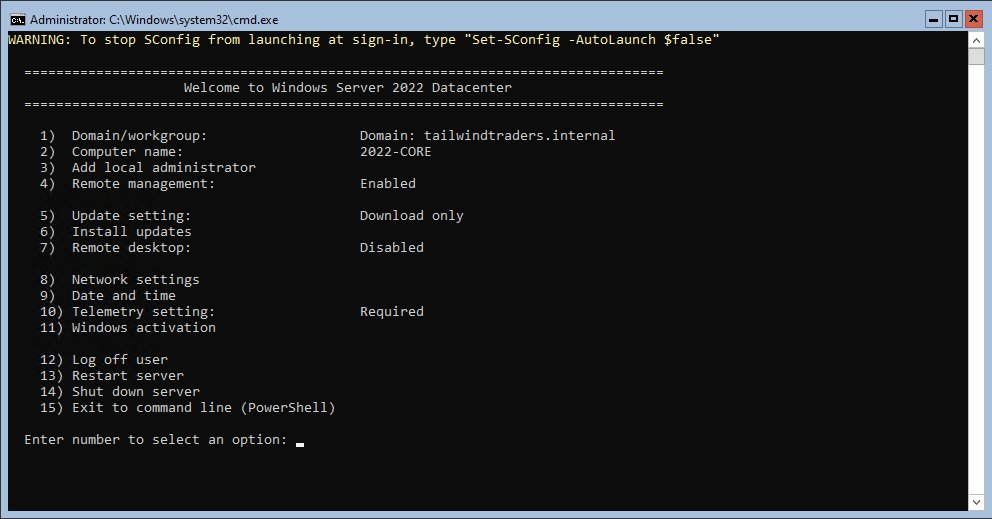
Microsoft's slmgr reference applies to Windows Server 2016, 2019, 2022 and 2025, so the same commands activate a server, including Server Core where there is no Settings app.
- Open an elevated PowerShell session on the server, or a remote session to it.
- Install the retail, MAK or KMS client key for the server edition with
slmgr /ipk <ProductKey>. - Run
slmgr /atoto activate online or against your KMS host. - Run
slmgr /dlvto confirm the edition, channel and license status. - For offline servers, run
slmgr /dtito show the installation ID, get a confirmation ID by phone, then runslmgr /atp <ConfirmationID>.
Fix common activation errors
0xC004F034, 0xC004F210 or 0xC004E016: key does not match
The key is invalid or belongs to a different version or edition than the one installed.
- Check the edition with
Get-ComputerInfo -Property "Windows*". - Re-enter the key carefully with
slmgr /ipk, including dashes. - Use a key for the installed edition, or change edition through Settings > System > Activation > Change product key.
0xC004C003, 0xC004C008 or 0xC004C770: key already used
The key was used on other devices or on more devices than the license terms allow.
- Use a key that belongs to this device only.
- Buy a separate license for each PC from the Microsoft Store or an authorized retailer.
0xC004FC03, 0x8007267C or 0x80072F8F: cannot reach the activation server
No internet connection, a firewall blocking activation, a temporary server outage or a wrong date and time.
- Check the internet connection and any firewall that filters outbound traffic.
- Set the correct date, time and time zone in Settings > Time & language > Date & time.
- Run
slmgr /atoagain after a few minutes; Windows also retries automatically when the service is back.
0x8007232B, 0xC004F074 or 0xC004F038: KMS host not found
A volume key is installed but the PC cannot reach the organization's KMS host, or an Enterprise key was used on Home or Pro.
- Connect to the work network or VPN and run
slmgr /atoagain. - Set the host manually with
slmgr /skmsif your IT team gives you its name. - On a personal PC, replace the volume key with the retail key for your edition.
0xC004F211 or 0xC004F213: hardware changed or no key found
A significant change such as a new motherboard stops Windows from matching its digital license.
- Open Settings > System > Activation and select Troubleshoot.
- Sign in with the Microsoft account linked to the digital license when the troubleshooter asks.
- If Windows came preinstalled and the motherboard was replaced, you may need a new license.
0x803F7001: no valid license found
Windows could not find a license for this device, often after a clean install on new hardware.
- Install your product key with
slmgr /ipkand runslmgr /ato. - If you have no key, buy a digital license from Settings > System > Activation.
Microsoft's full list on the Windows activation errors support page covers rarer codes such as 0xC004E028, which only means an activation request is already in progress.
Commands that do not activate Windows
Several commands appear in activation threads but either change something else or remove a license. None of them turns an unactivated PC into an activated one.
| Command | What it actually does | Risk |
|---|---|---|
slmgr /rearm |
Resets the activation timers; also run by sysprep /generalize |
Only postpones notifications, and does nothing if SkipRearm is set |
slmgr /upk |
Uninstalls the current product key | After a restart Windows is unlicensed until a new key is installed |
slmgr /cpky |
Removes the product key from the registry so malware cannot read it | Activation is unaffected, but the key can no longer be read back from the registry |
wmic license commands |
Old WMI command-line queries | WMIC is deprecated and is removed from Windows 11, version 24H2 and later |
Scripts piped from a website with irm ... | iex |
Run unknown code as administrator | Activation scripts of this kind bypass licensing and run unreviewed code with full rights |
Use only keys from Microsoft, your PC maker, an authorized retailer or your organization's volume licensing portal.
Minimal PowerShell procedure
If you already know the edition matches your key, this is the whole job in one elevated session.
slmgr /ipk XXXXX-XXXXX-XXXXX-XXXXX-XXXXX
slmgr /ato
slmgr /xpr
Install the key, activate online, then display the activation state. Replace the Xs with your own key and select OK on each dialog.
You should see: The last dialog reports that the machine is permanently activated.
To find a key embedded in your PC's firmware before you start, read the OEM product key with PowerShell CIM.
Activate Windows via PowerShell FAQ
How do I activate Windows 11 via PowerShell?
Open Terminal (Admin), run slmgr /ipk followed by your 25-character Windows 11 product key, then run slmgr /ato. Windows installs the key and activates online. Run slmgr /xpr afterwards to confirm the PC is permanently activated.
Can I activate Windows 10 via PowerShell?
Yes. The same slmgr /ipk and slmgr /ato commands work on Windows 10 in an elevated PowerShell window, and the CIM methods InstallProductKey and Activate work on Windows 7 and later. The key must match the installed Windows 10 edition.
Can PowerShell activate Windows without a product key?
PowerShell cannot create a license. A PC with a digital license activates online automatically, and slmgr /ato only retries that. Without a digital license or a valid key, you need to buy one from Settings > System > Activation.
Why does /ipk install the key but Windows remain unactivated?
/ipk only installs the key; it does not contact Microsoft. Run slmgr /ato afterwards to activate online. If /ato returns an error code, the key may be used elsewhere, meant for another edition, or blocked by a network problem.
Do I need to restart after activating Windows with PowerShell?
Microsoft recommends restarting the PC or the Software Protection service after installing a key with slmgr /ipk, to keep the licensing service stable. Activation itself takes effect immediately after slmgr /ato succeeds.
Can a Windows 11 Pro key activate Windows 11 Home?
Not with slmgr /ipk, which accepts only keys for the installed edition. Enter the Pro key in Settings > System > Activation > Change product key instead, which installs and activates Windows 11 Pro on that device.
Can I use a free KMS key to activate a personal PC?
No. KMS client keys, also called GVLKs, only activate against a KMS host on an organization's network. On a home PC without that host, slmgr /ato fails with a KMS host error, and Windows stays unactivated.
Does slmgr work in PowerShell or only in Command Prompt?
slmgr works in both. It is a Visual Basic script in Windows that PowerShell, PowerShell 7 and Command Prompt all run the same way. Run it from an elevated window for /ipk and online /ato.
How do I activate Windows Server via PowerShell?
Use the same commands: slmgr /ipk with the server key, then slmgr /ato. They are documented for Windows Server 2016 through 2025 and work on Server Core, which has no Settings app. Use slmgr /dlv to confirm the license status.
Best way to activate Windows via PowerShell
The bottom line for a single PC is that PowerShell adds speed, not a new kind of activation: it uses the same license service as Settings.
Use slmgr /ipk and slmgr /ato from an elevated PowerShell window with a genuine key for your installed edition, and switch to the CIM methods only when you need to script it. Both routes drive the same Software Protection service, but slmgr is two short commands with clear feedback, while CIM gives scripts clean return values. Edition changes belong in Settings, and KMS keys only work inside an organization.