To remove the passcode on an iPhone, open Settings > Face ID & Passcode (or Touch ID & Passcode), enter your current passcode, and tap Turn Passcode Off.
This guide covers that route, what stops working without a passcode, removing a passcode you have forgotten with or without a computer, and the same change on iPad and Apple Watch.
Step by step tutorial to remove the passcode on an iPhone
You need the current passcode for this route. If you have forgotten it, skip to the forgotten-passcode sections below, because those erase the iPhone.
- Open the Settings app on your iPhone.
- Tap Face ID & Passcode on an iPhone with Face ID, or Touch ID & Passcode on an iPhone with a Home button.
- Enter your current passcode to open the passcode settings.
- Scroll down and tap Turn Passcode Off.
- Read the warning about the features that will be turned off, then confirm.
- Enter your passcode once more if asked. The iPhone now unlocks with a swipe or a press of the Home button.
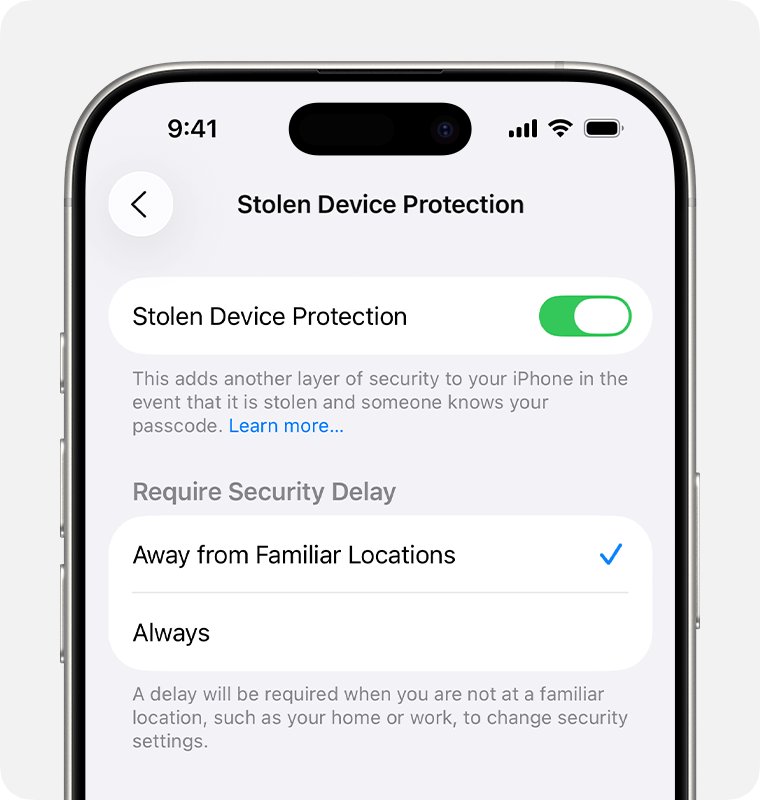
If Stolen Device Protection is on and you are away from a familiar location such as home or work, passcode changes can require a one-hour security delay and a second Face ID or Touch ID check. Make the change at a familiar location to avoid the wait.
Can I remove passcode from iPhone without erasing it?
| Your situation | What to do | Is data erased? |
|---|---|---|
| You know the passcode | Settings > Face ID & Passcode > Turn Passcode Off | No |
| You changed the passcode in the last 72 hours and forgot the new one (iOS 17 or later) | Use the previous passcode once to get in and set a new one | No |
| Forgot the passcode, iOS 15.2 or later, Find My on, iPhone online | Forgot Passcode? on the unavailable screen, then reset the iPhone | Yes |
| Forgot the passcode and the iPhone cannot reach Wi-Fi or cellular | Restore it from a Mac or Windows PC in recovery mode | Yes |
| You mean the Screen Time passcode, not the lock screen passcode | Reset the Screen Time passcode with your Apple Account | No |
Apple offers no way to remove a forgotten lock screen passcode without erasing the iPhone. A recent backup in iCloud or on a computer is what brings your data back. If the passcode you forgot is the Screen Time one, reset the restrictions passcode instead.
Pros of removing the passcode on an iPhone
| Benefit | What it means in practice |
|---|---|
| Instant access | The iPhone opens with a swipe up or a Home button press, with no code to type |
| No lockouts | You cannot be locked out by forgetting the code or by too many wrong attempts |
| Easier sharing | A child or relative can use the iPhone without knowing a code |
| Quick testing and setup | Useful for a spare iPhone kept at home that holds no personal accounts |
Cons of removing the passcode on an iPhone
The passcode is the key behind most iPhone security features, so turning it off removes more than the lock screen.
| What you lose | Why it happens |
|---|---|
| Data Protection encryption | Apple turns on Data Protection automatically when a passcode is set |
| Face ID or Touch ID unlock | Face ID setup requires a passcode as the alternate way to verify you |
| Apple Pay | Apple makes Wallet payment cards unusable when the passcode is inactive |
| Protection for messages, photos and email | Anyone who picks up the iPhone can open every app and account |
| Passcode-free use on a work iPhone | A managed passcode policy forces a compliant passcode back on within 60 minutes |
If typing the code is the problem, a shorter four-digit numeric code with Face ID keeps most of the protection while making unlocking fast.
How to remove passcode from iPhone if you forgot it without a computer
This works on iOS 15.2 or later when Find My was already on and the iPhone has a Wi-Fi or cellular connection. You also need your Apple Account password, so reset your Apple Account password first if you have forgotten it. It erases all data and settings, just like when you factory reset the iPhone.
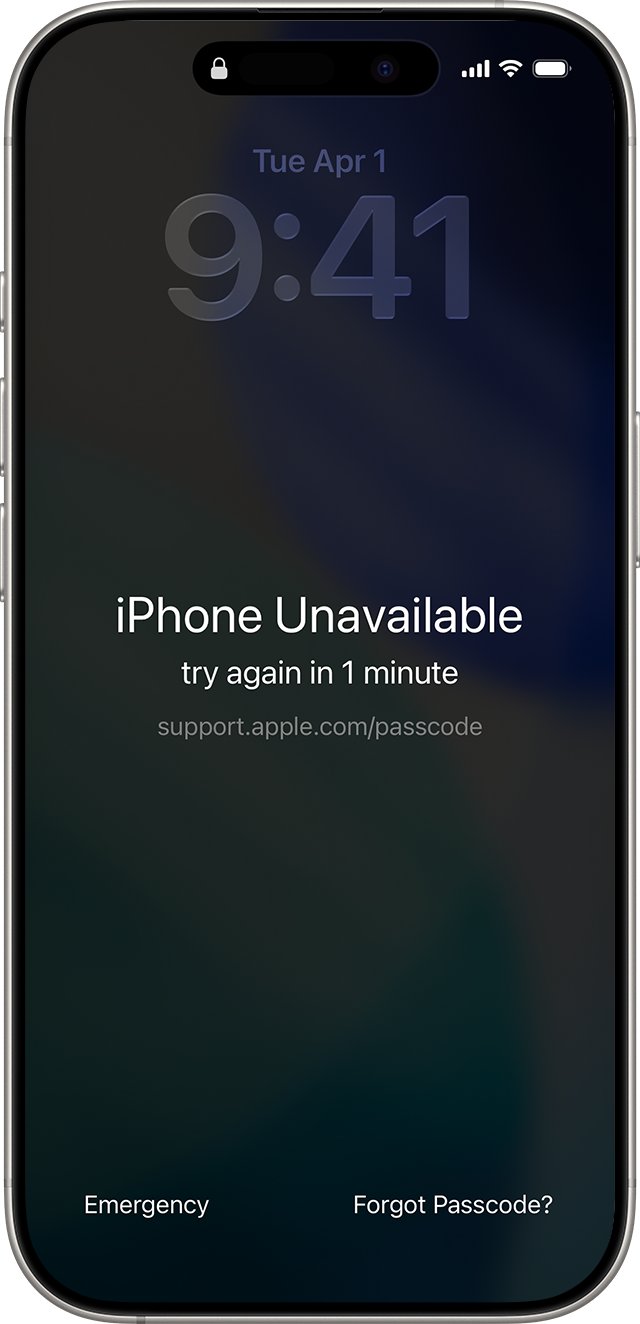
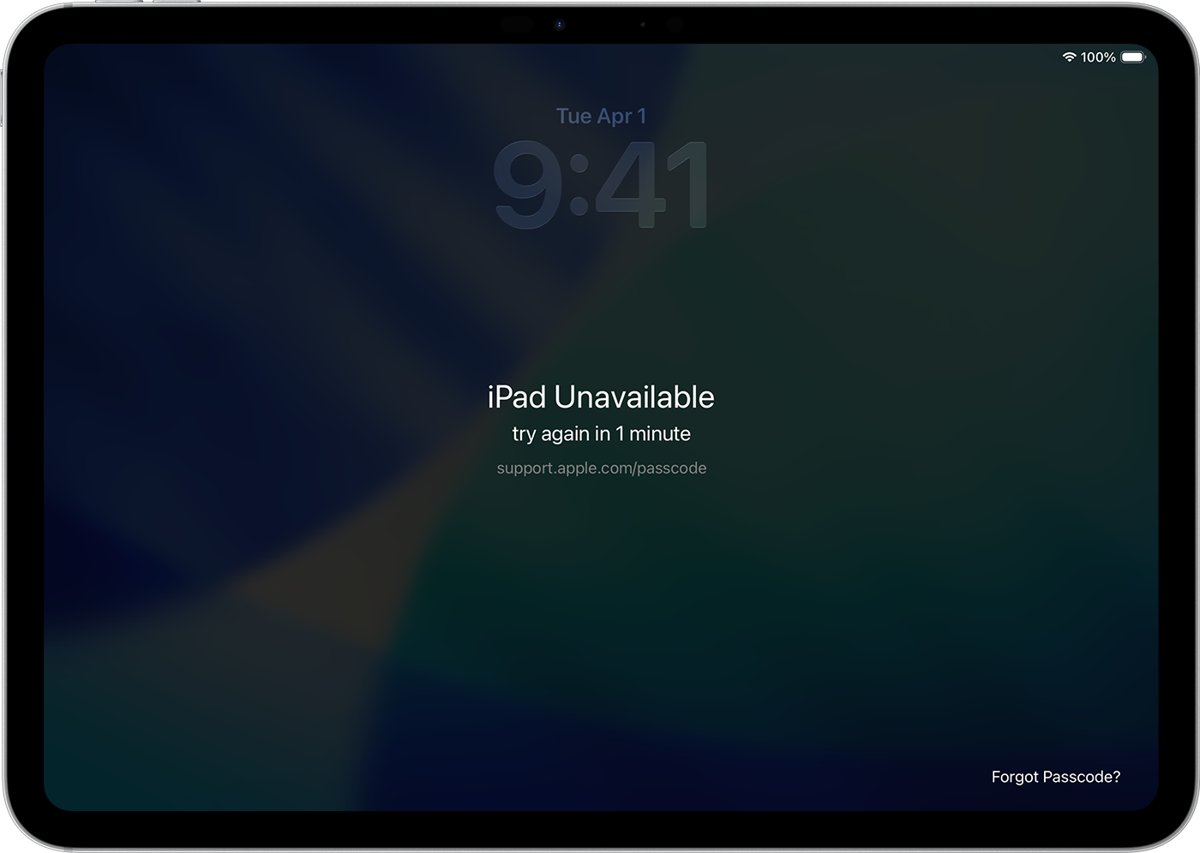
- Enter wrong passcodes on the Lock Screen until the iPhone shows the unavailable screen with a Forgot Passcode? option.
- Tap Forgot Passcode?.
- On the Security Lockout screen, tap Start iPhone Reset (on iOS 15.2 and iOS 16 you see Erase iPhone directly).
- Enter your Apple Account password when asked.
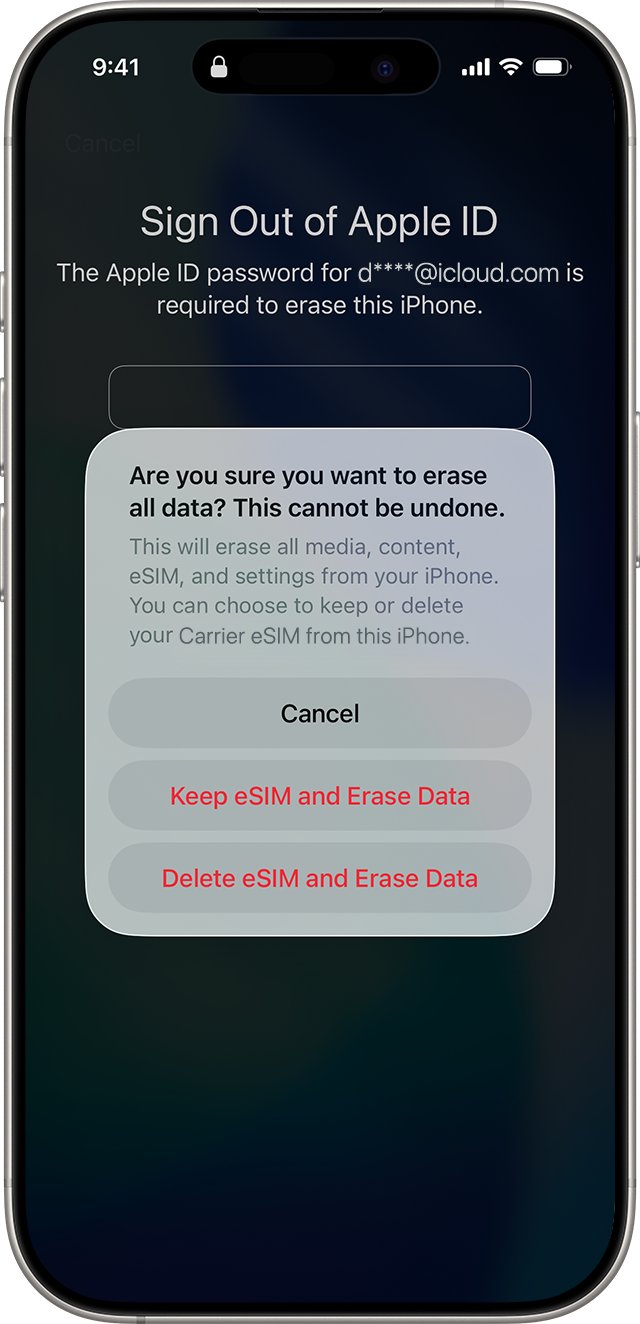
- Tap Erase iPhone to delete all data and settings. On iOS 17 or later with an eSIM, choose whether to keep or delete it.
- When the iPhone restarts, set it up again and restore from a backup.
If the iPhone shows no reset option, you can still unlock an iPhone you are locked out of with Passcode Reset or a computer.
How to remove the passcode on iPhone with a computer
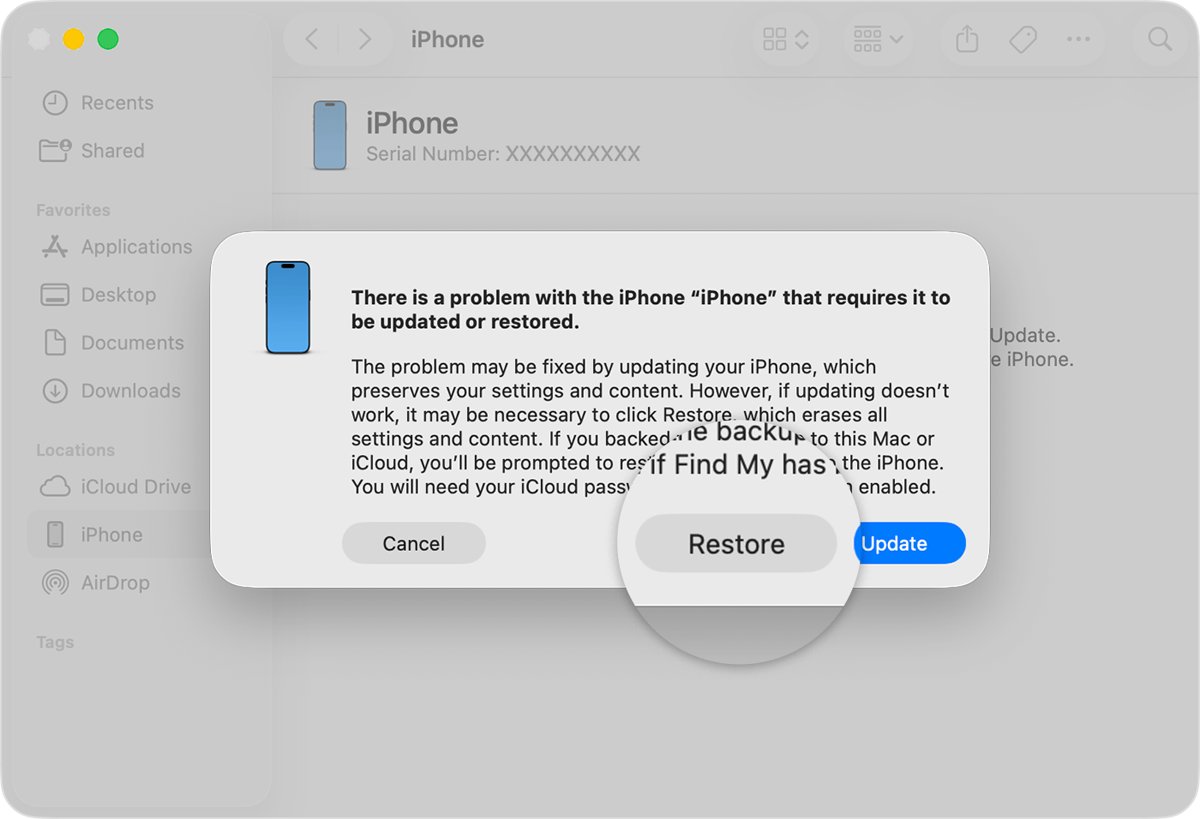
Use a Mac with Finder or a Windows PC with the Apple Devices app. This restores the iPhone and erases everything on it.
- Turn off the iPhone: on Face ID models, hold the side button and volume down button until the slider appears, then drag it. On Home button models, hold the side or top button.
- Connect the USB cable to the computer, then to the iPhone, and quickly press and hold the button for your model: side button on iPhone 8 and later and iPhone SE (2nd and 3rd generation), volume down on iPhone 7 and 7 Plus, Home on iPhone 6s and earlier.
- Keep holding through the Apple logo until a computer-and-cable image appears, then let go.
- On a Mac, open Finder and select the iPhone under Locations. On Windows, open the Apple Devices app and select the iPhone.
- Choose Restore (on Windows it is under General) and follow the onscreen instructions.
- When the Hello screen appears, disconnect the iPhone and set it up as new or from a backup.
How to remove passcode on iPad
- Open Settings on the iPad.
- Tap Face ID & Passcode or Touch ID & Passcode. On an iPad without Touch ID, tap Passcode.
- Enter your current passcode.
- Tap Turn Passcode Off.
- Confirm, and enter the passcode again if asked.
A forgotten iPad passcode is removed the same way as on iPhone: with Forgot Passcode? on iPadOS 15.2 or later, or by restoring it from a computer.
How to remove the passcode on my Apple Watch
- Open the Settings app on your Apple Watch.
- Tap Passcode.
- Tap Turn Passcode Off and enter the current passcode to confirm.
- Or, on the paired iPhone, open the Apple Watch app, tap My Watch > Passcode > Turn Passcode Off.
Without a passcode, Apple Pay on the watch and unlocking your Mac with Apple Watch stop working.
How to change the passcode on iPhone instead of removing it
If the passcode feels like a hassle, change its type or timing rather than switching it off.
- Open Settings > Face ID & Passcode (or Touch ID & Passcode) and enter your passcode.
- Tap Change Passcode and enter the old passcode.
- Tap Passcode Options and choose a four-digit code, Custom Numeric Code or Custom Alphanumeric Code.
- Enter the new passcode twice.
- Under Allow Access When Locked, turn on the features you want without unlocking, such as Control Center or Wallet.
- Open Settings > Display & Brightness > Auto-Lock and pick a longer time so the screen locks less often.
On iOS 17 and later, the old passcode works once for 72 hours after a change, in case you forget the new one. Tap Expire Previous Passcode Now if you want to end that window.
How to turn the passcode back on iPhone
- Open Settings > Face ID & Passcode or Touch ID & Passcode.
- Tap Turn Passcode On.
- Enter a six-digit passcode, or tap Passcode Options for another type.
- Enter the passcode again to confirm.
- Check that Face ID or Touch ID and your Wallet cards work again, and add them again if they are missing.
Errors when removing the iPhone passcode with a computer
The computer does not see the iPhone
The cable is charge-only, the port is faulty, or the software is out of date.
- Try another USB cable that supports data and charging, and another USB port.
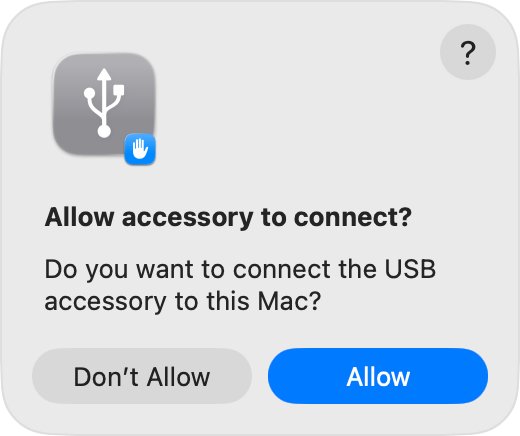
- On a Mac, click Allow if asked to let the accessory connect.
- Update macOS or Windows, then try recovery mode again.
The iPhone leaves recovery mode during the restore
The software download took more than 15 minutes, and the iPhone exited recovery mode while waiting.
- Let the download on the computer finish.
- Turn the iPhone off again.
- Re-enter recovery mode with the button for your model and select Restore again.
The computer-and-cable screen never appears
The wrong button was held, or it was released too early.
- Turn the iPhone off, connect the cable, and quickly press and hold the correct button for your model.
- Keep holding through the Apple logo until the computer-and-cable image appears.
- If the buttons do not respond at all, contact Apple Support, because the iPhone may need service.
There is no Forgot Passcode? option on the Lock Screen
The iPhone runs a version older than iOS 15.2, Find My was off, or it has no network connection.
- Connect the iPhone to Wi-Fi or a cellular network if you can.
- If the option still does not appear, use the computer restore instead.
Remove iPhone passcode FAQ
How to turn off passcode on iPhone?
Open Settings, tap Face ID & Passcode or Touch ID & Passcode, enter your passcode, and tap Turn Passcode Off. Confirm the warning, and the iPhone unlocks without a code from then on.
Can I remove the passcode without restoring the iPhone?
Yes, but only if you know the passcode: use Turn Passcode Off in Settings. A forgotten passcode can only be removed by erasing the iPhone, unless you changed it in the last 72 hours on iOS 17 or later and remember the previous one.
Will removing the passcode delete my photos?
Turning the passcode off in Settings deletes nothing. Removing a forgotten passcode with Forgot Passcode? or a computer restore erases the whole iPhone, including photos, so you get them back only from an iCloud or computer backup.
What if I don't have a computer?
On iOS 15.2 or later, tap Forgot Passcode? on the unavailable screen, then Start iPhone Reset, and enter your Apple Account password. Find My must have been on, and the iPhone needs Wi-Fi or cellular service.
Will this process work for an iPad as well?
Yes. On iPad, open Settings > Face ID & Passcode, Touch ID & Passcode or Passcode, and tap Turn Passcode Off. A forgotten iPad passcode is removed with Forgot Passcode? on iPadOS 15.2 or later, or a computer restore.
What should I do if I get an error during the process?
Try another data-capable USB cable and port, and update the computer. If the iPhone leaves recovery mode during a long download, let the download finish, turn the iPhone off, and re-enter recovery mode before choosing Restore again.
Why can't I turn off the passcode on my iPhone?
A work or school profile can enforce a passcode policy, which forces a passcode back on. Away from a familiar location, Stolen Device Protection can also delay passcode changes by an hour and ask for Face ID again.
Does Face ID work without a passcode?
No. Face ID cannot be set up without a passcode, because iOS uses the passcode as the alternate way to verify your identity. Turning off the passcode turns Face ID unlock off as well.
Is it safe to remove the passcode on iPhone?
It is not recommended for an iPhone you carry with you. Without a passcode, Data Protection encryption is off, Apple Pay cards stop working, and anyone holding the phone can open your messages, photos and accounts.