To uninstall Dropbox, quit the app first, then drag it to the Trash on a Mac, remove it from Settings on Windows, or run Dropbox's removal commands in a Linux terminal.
Uninstalling removes only the desktop app, so your account, your online files and your local Dropbox folder all stay in place. This page covers each operating system, the leftover files, and what to do afterwards.
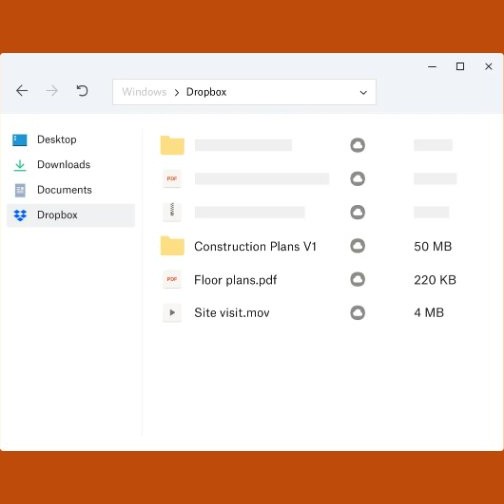
How do I uninstall Dropbox from my computer?
Match your operating system to a row. Each route starts by quitting Dropbox from its icon, except Linux, where dropbox stop does the same job.
| Your computer | Where to uninstall | What removes the app |
|---|---|---|
| Mac | Finder > Applications | Drag Dropbox to the Trash |
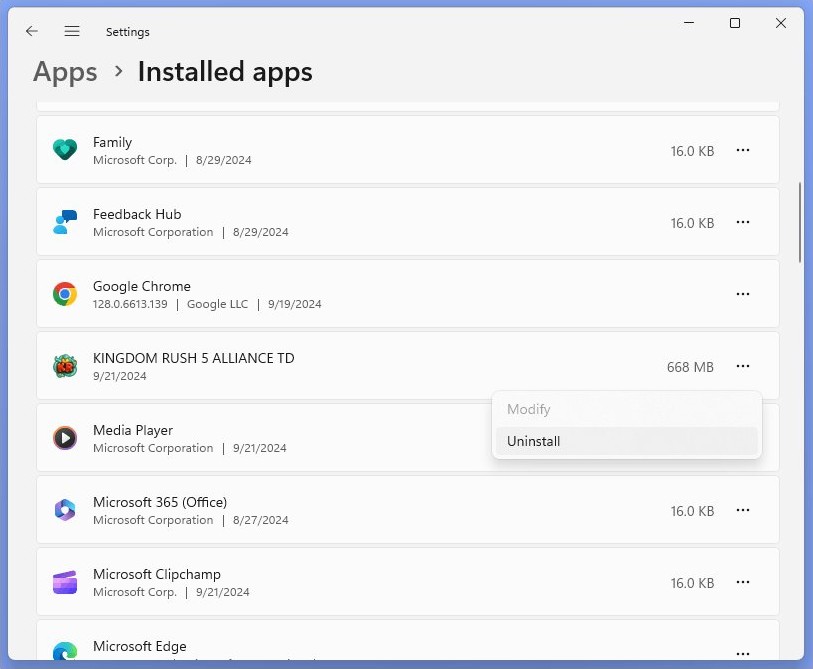
| Windows 11 | Settings > Apps > Installed apps | Select More next to Dropbox, then Uninstall |
| Windows 10 | Settings > Apps > Apps & features | Select Dropbox, then Uninstall |
| Ubuntu or Debian | Terminal | sudo apt-get remove dropbox plus the cleanup commands below |
| Fedora | Terminal | sudo yum remove nautilus-dropbox plus the cleanup commands below |
What happens to my files if I uninstall Dropbox?
Nothing in your account changes. Uninstalling the desktop app does not delete your Dropbox account or remove the Dropbox folder from your hard drive.
| Part of Dropbox | After you uninstall | How to remove it too |
|---|---|---|
| Desktop app and menu bar or taskbar icon | Removed | Nothing more to do |
| Dropbox folder and its synced files | Stays on the hard drive | Back it up, then move the folder to the Trash or Recycle Bin |
| Online-only files | Not on the computer; still in your account | Nothing more to do |
| Files on dropbox.com | Unchanged | Delete them on dropbox.com, or delete the account |
| This computer in your device list | Still listed | Log out of the device on dropbox.com |
| Dropbox account | Unchanged | Delete it from your account settings |
Back up the Dropbox folder to another location before you delete it, so a mistake cannot cost you your only local copy.
How to uninstall Dropbox on Mac
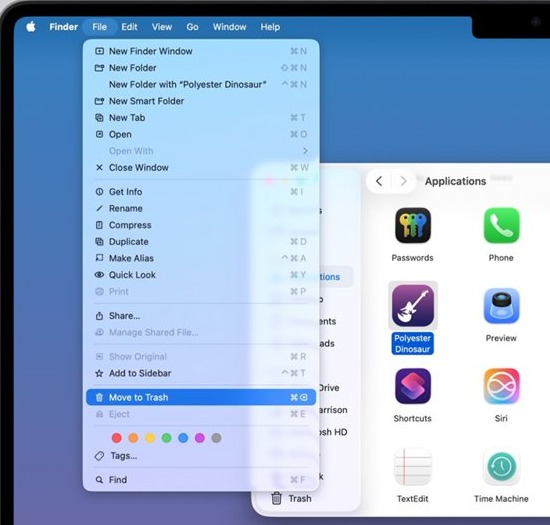
Dropbox's own Mac steps remove the app the same way as any other app that lives directly in the Applications folder: quit it, then drag it to the Trash.
- Click the Dropbox icon in the menu bar.
- Click your avatar (profile picture or initials) in the bottom-left corner.
- Click Quit.
- Open Finder and click Applications in the sidebar.
- Drag Dropbox to the Trash, or right-click it and select Move to Trash.
- Empty the Trash when you are sure, because the app is permanently removed at that point.
- Back up your files, then drag your Dropbox folder to the Trash if you also want the local copies gone.
On Dropbox for macOS on File Provider, your Dropbox folder lives in ~/Library/CloudStorage and appears under Locations in Finder, so look there rather than in your home folder.
Before you empty the Trash, you can recover the app by selecting it and choosing File > Put Back.
Remove remaining Dropbox system folders on Mac
Dragging the app to the Trash leaves hidden support folders behind. Restart the Mac first, open Terminal from Applications > Utilities, and paste these lines one at a time, pressing Return after each.
Replace ~/Dropbox with the full path in quotation marks if your folder is elsewhere. On File Provider, use ~/Library/CloudStorage/Dropbox, and on a team account use ~/[Team Name] Dropbox. Skip the two ~/Dropbox lines if you already deleted the folder.
sudo chown "$USER" "$HOME"
sudo chown -R "$USER" ~/Dropbox
sudo chmod -R u+rw ~/Dropbox
sudo mv ~/.dropbox ~/.Trash/dropbox.old
sudo chmod -N ~
sudo mv /Library/DropboxHelperTools ~/DropboxHelperTools.old
The first three lines and chmod -N reset ownership and permissions on your home and Dropbox folders. The two mv lines move the hidden .dropbox settings folder to the Trash and move the DropboxHelperTools folder to your home folder.
You should see: the normal Terminal prompt returning after each line. Enter your Mac admin password when asked, not your Dropbox password; the field stays blank while you type.

How to uninstall Dropbox on Windows
These steps work for the dropbox.com installer and the Microsoft Store version. If Dropbox came preloaded on the PC, the entry can be named Get Dropbox or Dropbox followed by a storage size.
- Click the Dropbox icon in the taskbar.
- Click your avatar (profile picture or initials) in the bottom-left corner, then click Quit.
- Select Start > Settings > Apps > Installed apps. On Windows 10, select Apps & features instead.
- Find Dropbox in the list.
- On Windows 11, select More next to it, then Uninstall. On Windows 10, select Dropbox, then Uninstall.
- Follow the prompts until the uninstaller closes.
- Back up your files, then drag your Dropbox folder to the Recycle Bin if you also want the local copies gone.
If the app is missing from Settings, use Control Panel instead: select Programs > Programs and Features, right-click Dropbox, and select Uninstall. This is the same process you use to add or remove programs in Windows 11.
A full cleanup also deletes the Client folders under %LOCALAPPDATA%\Dropbox and %APPDATA%\Dropbox, and the Dropbox registry keys. You can remove Dropbox from Windows 11 completely with those extra steps.
How to uninstall Dropbox on Linux
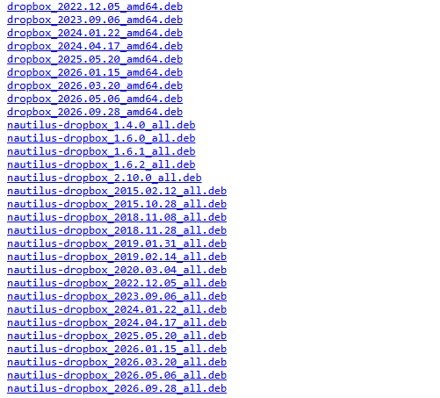
Dropbox's Linux removal is a list of terminal commands. Paste them one at a time and press Enter after each. Some can print an error, depending on how you installed Dropbox, and that is expected.
Use sudo on the /var/lib/dropbox line if you see a permission error.
dropbox stop
dropbox status
rm -rf ~/.dropbox-dist
rm -rf /var/lib/dropbox
rm -rf ~/.dropbox*
sudo apt-get remove nautilus-dropbox
sudo apt-get remove dropbox
dropbox stop ends the daemon and dropbox status checks that it stopped. The rm lines delete the program files and settings, and the apt-get lines remove the packages on Ubuntu and Debian. None of these touch ~/Dropbox, so your synced files stay.
You should see: dropbox status reporting "not running" after the second command.
On Fedora, replace the two apt-get lines with sudo yum remove nautilus-dropbox, the name of the package Dropbox publishes for Fedora.
Also delete the Dropbox package source on Ubuntu and Debian. Dropbox's list names /etc/apt/source.d/dropbox, but Debian keeps third-party sources in /etc/apt/sources.list.d/. Run ls /etc/apt/sources.list.d/ and remove any Dropbox file you find there with sudo rm.
To delete your local files as well, back them up and run rm -rv ~/Dropbox. Change the path if your folder is not in the default location.
Uninstalled Dropbox successfully: What next?
The app is gone, but your account still exists and still counts this computer as a device. Decide what you want from Dropbox now.
| What you want | Do this | What it changes |
|---|---|---|
| Free the disk space | Back up, then delete the local Dropbox folder | Local copies go; files on dropbox.com stay |
| Stop this computer's access | Log out of the device on dropbox.com | The device leaves your list and stops syncing |
| Use Dropbox in a browser only | Sign in at dropbox.com | Web access keeps working and adds no device to your list |
| Stop paying but keep the account | Cancel your subscription rather than deleting the account | Your account stays open |
| Leave Dropbox for good | Delete your account | Permanent; files in private folders are deleted |
| Come back later | Reinstall the desktop app and log in | Your files sync again |
If you change your mind, you can download the Dropbox app again and connect Dropbox to your computer with the same account.
How to unlink a computer from Dropbox
Uninstalling does not take the computer off your device list. Dropbox now calls this logging out of a device remotely, and the option works from any browser. This matters most on a computer you are selling or handing on.
- Log in to dropbox.com.
- Click your avatar (profile picture or initials) in the bottom-left corner.
- Click Settings, then click the Security tab.
- Find the computer under Devices and click the trash can icon next to it.
- On a paid plan, optionally check Delete files from [account name] Dropbox the next time this computer comes online.
- Click Unlink.
Without that checkbox, files synced to the computer stay there and can still be opened, but changes on it no longer sync.
How to delete your Dropbox account after uninstalling
Deleting the account is a separate step and it cannot be undone. Your files in private folders are deleted from Dropbox servers, and you lose access to shared folders. Download anything you need first.
- Log in to dropbox.com.
- Click your avatar (profile picture or initials) in the bottom-left corner.
- Click the Settings icon in the top right.
- At the bottom of the General tab, click Delete account.
- Cancel your subscription when prompted, if you have an active one, and finish the deletion.
These steps apply to Basic, Plus, Professional and Essentials accounts. Family and team plans have different deletion steps, so check with your plan manager or admin first. Content already synced to your computer stays there, but it no longer syncs.
How to tell if Dropbox is uninstalled
- On a Mac, open Finder > Applications and check that Dropbox is gone, and that the Dropbox icon has left the menu bar.
- On Windows, search for Dropbox in Installed apps or Apps & features, and restart if the taskbar icon is still showing.
- On Linux, run
ls -a ~and check that.dropboxand.dropbox-distno longer appear. - Sign in at dropbox.com and open Settings > Security to see whether the computer still appears under Devices.
- Check that your files still show on dropbox.com, which confirms that only the local app was removed.
Dropbox won't uninstall: how to fix it
Dropbox failed to uninstall from your computer
A Dropbox process is still running and keeps its files open.
- Open Task Manager on Windows or Activity Monitor on a Mac.
- Quit every Dropbox app or process in the list.
- Run the uninstall steps for your computer again.
Two versions of Dropbox on a Mac
Some Macs end up with two copies of the desktop app, which can also cause syncing issues.
- Quit Dropbox from the menu bar.
- Open Finder and look for the second Dropbox app, starting in Applications.
- Drag the second version to the Trash as well.
Linux uninstall commands return errors
The list covers several install types, so a package or folder you never had produces an error.
- Keep going through the rest of the list instead of stopping at the error.
- Run the last command and let it finish.
- Run
ls -a ~to check that the Dropbox folders are gone.
Dropbox folder still on the computer after uninstalling
The uninstall leaves the Dropbox folder and synced files on purpose.
- Check that the files you need are on dropbox.com or in a backup.
- Move the Dropbox folder to the Trash or Recycle Bin, or run
rm -rv ~/Dropboxon Linux. - Empty the Trash or Recycle Bin to free the space.
Dropbox came pre-loaded on an Android phone and will not uninstall
Dropbox says a pre-loaded copy cannot be uninstalled from an Android device, only disabled.
- Open the device's Settings menu and tap Apps.
- Locate the Dropbox app and choose Uninstall Updates.
- Return to the Dropbox app entry in Settings and select Disable.
Uninstall Dropbox FAQ
Does uninstalling Dropbox delete my files?
No. Uninstalling the Dropbox desktop app removes only the app. Your Dropbox folder stays on the hard drive, and your files stay in your account on dropbox.com. Delete the local folder yourself only after you have a backup.
Does uninstalling Dropbox delete my account?
No. Your account stays active after you uninstall the desktop app, and you can still sign in at dropbox.com or from another device. Deleting the account is a separate action in your account settings, and it cannot be undone.
Can I delete the Dropbox folder after uninstalling?
Yes. Once the app is uninstalled, the local Dropbox folder no longer syncs, so deleting it does not affect the copies stored on dropbox.com. Online-only files were never on the computer. Back up anything you need before you delete the folder.
How do I completely remove Dropbox from my Mac?
Quit Dropbox from the menu bar, drag it from Applications to the Trash, and restart. Then run Dropbox's Terminal commands to move the hidden .dropbox folder and the DropboxHelperTools folder. Delete the Dropbox folder only if you no longer need the local copies.
How do I uninstall Dropbox from Ubuntu?
Run dropbox stop, delete the ~/.dropbox-dist, /var/lib/dropbox and ~/.dropbox* folders, and then run sudo apt-get remove nautilus-dropbox and sudo apt-get remove dropbox. Some commands can return an error. Your ~/Dropbox folder stays until you delete it yourself.
Is it safe to delete hidden .dropbox folders?
Not while you still use Dropbox. Dropbox strongly recommends against deleting .dropbox folders or the files within them, because you could unintentionally leave or duplicate a shared folder. After a full uninstall, the removal commands clear the .dropbox settings folder in your home directory.
Does uninstalling Dropbox unlink my computer?
No. The computer stays on your device list after you uninstall the app. To remove it, sign in at dropbox.com, open Settings, select the Security tab, click the trash can icon next to the computer, and click Unlink.
Can I reinstall Dropbox after uninstalling it?
Yes. Download the desktop app from dropbox.com, install it, and log in with the same account. If your old Dropbox folder is still on the computer, choose its parent folder under Advanced Settings during setup, so you avoid creating a second folder.