Outlook can skip subfolder notifications because a rule that moves a new message out of the Inbox can stop its alert, so add Display a Desktop Alert to the rule in classic Outlook or keep the message in the Inbox.
This guide covers the notification settings on Windows, Mac, the web, iPhone, iPad and Android, plus the workarounds for versions with no per-folder alert setting.
How to get notifications for subfolders in Outlook
Match your Outlook version to the fix. Each route gives you an alert for mail that a rule would otherwise file silently.
| Your Outlook | Do this | What you get |
|---|---|---|
| Classic Outlook for Windows | Add Display a Desktop Alert to the rule that files the message | A pop-up while Outlook is open, with the message still moved to the subfolder |
| New Outlook for Windows | Change the rule so it flags the message instead of moving it | A normal Inbox notification, because the message stays in the Inbox |
| Outlook on the web or Outlook.com | Change the rule the same way, then allow notifications in the browser | A browser notification for Inbox mail |
| Outlook for Mac | Change the rule the same way, then allow Outlook in System Settings > Notifications | A macOS notification for Inbox mail |
| Outlook for iOS or Android | Set notifications to All email or All, not Focused | Alerts beyond the Focused Inbox, which is the default limit |
Why Outlook skips subfolder notifications
Microsoft states that if message rules move a new message out of the default account Inbox, you might not get a Desktop Alert. If you automatically move emails into folders with rules, this is the first cause to check.
| Cause | Where it applies | Effect on alerts |
|---|---|---|
| A rule moves the message out of the Inbox | Classic Outlook | The Desktop Alert might not appear |
| No per-folder setting in notifications | New Outlook, Outlook.com | Notify me about offers Mail, Calendar and Documents switches, with no folder list |
| Notifications follow the Focused Inbox | Outlook for iOS and Android | By default, only new mail in Focused sends a notification |
| The account is syncing for the first time | Classic Outlook | Desktop Alerts do not appear during an account's initial synchronization |
| You ran a manual Send/Receive | Classic Outlook | Desktop Alerts do not appear when you request a manual Send/Receive |
The Inbox is what these alert settings describe, and a subfolder gets no separate switch.
Before you change anything: confirm what kind of account you have
The account type decides where a rule can live, and the Outlook version decides which rule actions you get. On Windows, a Settings button at the top right means new Outlook, and a File tab with no Settings button means classic Outlook.
In Outlook for Mac, Microsoft's check is Home > Accounts: select the account and read its type, such as Exchange, IMAP or POP, at the top of the right pane.
| Account | Where rules work | What it means for alerts |
|---|---|---|
| Microsoft 365 work or school (Exchange) | New Outlook, Outlook on the web, classic Outlook and Outlook for Mac | Only classic Outlook adds the client-only Display a Desktop Alert action |
| Outlook.com personal | Outlook.com, new Outlook and classic Outlook | Some rules from other Outlook versions cannot be processed by Outlook.com |
| Gmail, Yahoo or iCloud in new Outlook | Your email provider, not new Outlook | New Outlook does not support rules for these accounts, so set filters with the provider |
| IMAP or POP in legacy Outlook for Mac | Legacy Outlook for Mac | Microsoft set October 2026 as the end of support for legacy Outlook for Mac, and new Outlook for Mac creates server rules only |
Check notifications settings in Outlook for Mac
Check both Outlook's own setting and the macOS permission. Either one can silence every alert, including those for the Inbox.
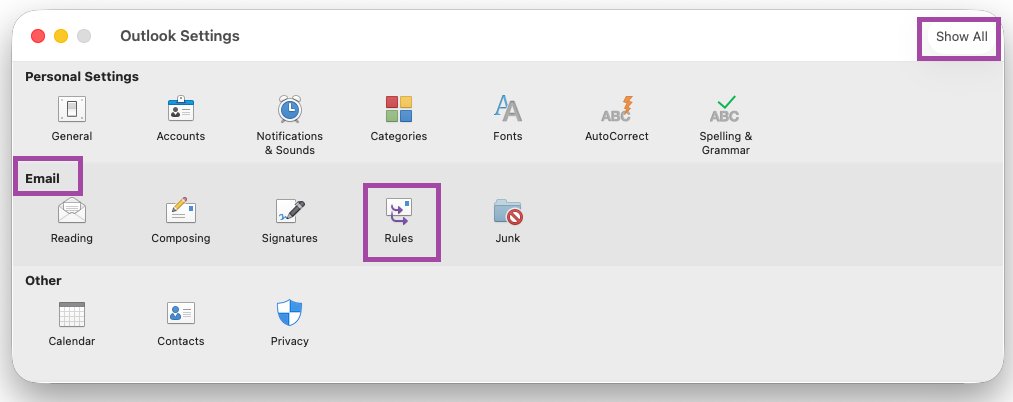
- In Outlook, open the Outlook menu and select Settings (Preferences in older versions).
- Select Notifications & Sounds.
- Under Message arrival, choose how you want to be alerted about new messages.
- Select the Apple menu, then System Settings, then Notifications in the sidebar.
- Under Application Notifications, select Microsoft Outlook and turn on Allow notifications.
- Under Alert Style, keep Desktop selected so alerts appear on screen, then pick Temporary or Persistent.
- Open Focus in System Settings and allow Outlook in any Focus you use while working.
Microsoft's Outlook for Mac rule instructions name actions such as Move to Folder, and no notification or sound action. A rule that keeps mail in the Inbox is the Mac route to an alert.
Check notifications settings in Outlook for Windows
Start with the Outlook switch for your version, then clear the Windows settings that can hide it. If a Windows control is unavailable, your administrator may have turned notifications off.
- In classic Outlook, select File > Options > Mail, check Display a Desktop Alert under Message arrival, and select OK.
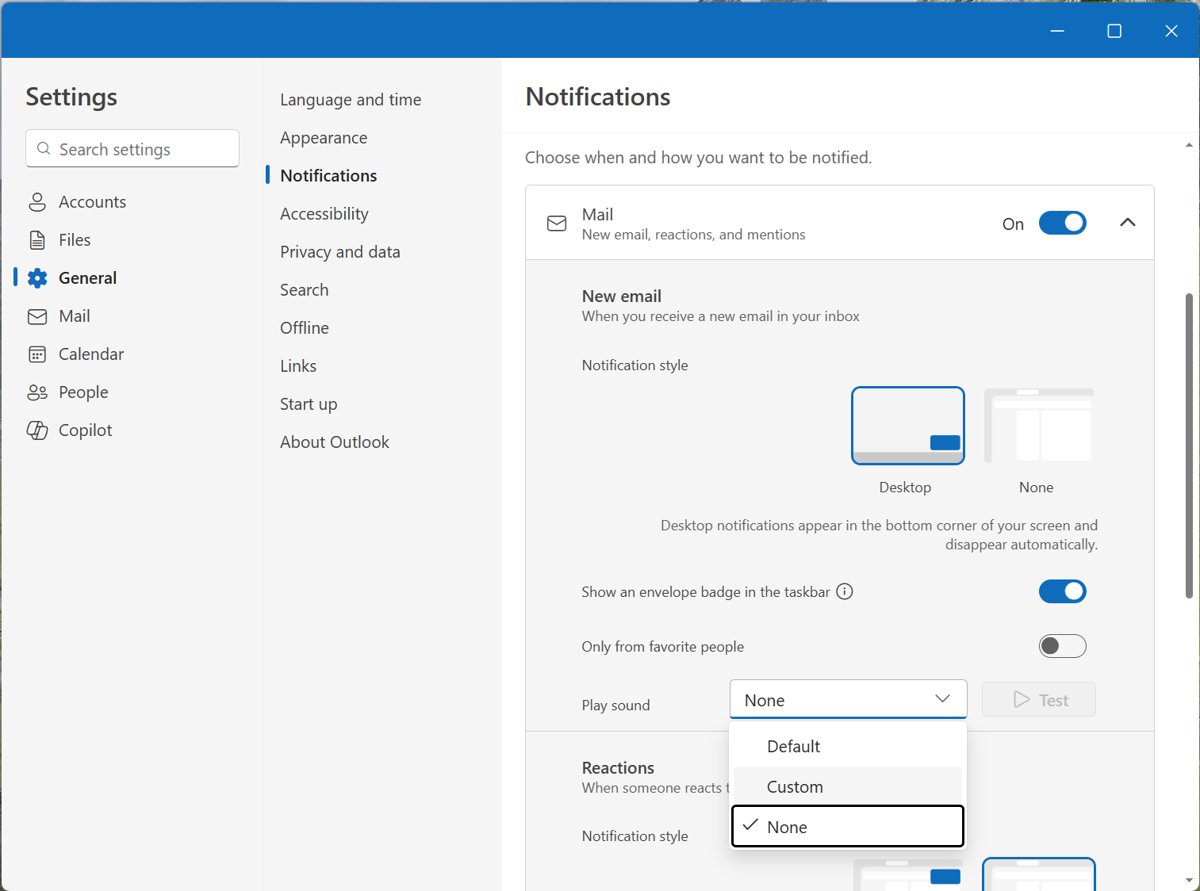
- In new Outlook, select View > View Settings > General > Notifications, then turn on Mail under Notify me about.
- Open Start > Settings > System > Notifications and confirm Notifications is on.
- Select Outlook under Notifications from apps and other senders and confirm its notifications are on.
- Turn off Do not disturb on the same page. On Windows 10, check Focus assist instead.
- Open Settings > System > Focus and select Stop focus session if one is running.
- Open Settings > System > Power & battery and confirm Battery Saver is off.
- Set your Teams status to something other than Do not disturb.
If alerts appear but make no sound, check that Windows Quiet Hours is not active for the time you are testing.
Check notifications settings in Outlook on the web
A web alert needs two permissions: the Outlook setting and the browser's site permission.
- Select Settings > General > Notifications.
- Under Notify me about, set Mail to On, then expand it to choose how alerts appear and whether a sound plays.
- In Microsoft Edge, open the Outlook tab and select View site information to the left of the address bar.
- Under Permissions for this site, set Notifications to Allow.
- In Chrome, open the Outlook tab, select View site information, and turn on Notifications.
- Check that your Teams status and the Windows Focus settings are not blocking notifications.
Check notifications on iPhone and iPad (Outlook + iOS)
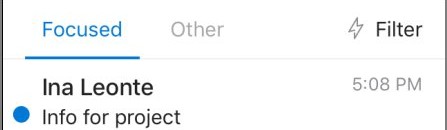
Outlook for iOS sends notifications for the Focused Inbox by default. Change that first, then check the iOS permission.
- In Outlook, open the left menu and tap the Settings gear at the bottom.
- Tap Notifications, then Mail.
- Set push notifications to All, or to All email if your version shows a From list.
- Open the iOS Settings app, tap Notifications, then tap Outlook.
- Turn on Allow Notifications, Sounds and Badges.
- Under Alerts, select Lock Screen, Notification Center and Banners as you prefer.
- Under Notification Delivery, select Immediate Delivery rather than Scheduled Summary.
- In Outlook, open the left menu, tap the alarm icon, and confirm Do not disturb is off.
Turning off push notifications in Outlook also disables Background App Refresh for the app. A Focus on the device can delay notifications too.
Outlook mobile notifications for subfolders on Android
Outlook for Android uses the same default as iOS. Android labels vary by device, so check the system setting as well.
- In Outlook, tap your account picture or logo at the top left.
- Tap the Settings icon at the lower left.
- Under Quick Settings, tap Notifications.
- Turn on Allow notifications.
- Under From, choose All email instead of Focused Inbox Only or Favourite People.
- In your Android system settings, confirm that Outlook is allowed to send notifications.
Make sure the messages actually trigger alerts
Run a controlled test, so you know whether the fault is the rule or the notification setting. Use a second account for the test mail.
- Wait until the account has finished its first sync, because classic Outlook shows no Desktop Alerts during it.
- Send yourself a message that no rule matches, and leave Outlook to receive it without a manual Send/Receive.
- Confirm that an alert appears. If it does not, the problem is your notification settings, not the subfolder.
- Send a second message that matches the rule.
- Confirm that the message reached the expected folder.
- Check for an alert. If the first message alerted and this one did not, the rule's move is the cause, so use a workaround below.
Common routing gotchas (rules and server folders) also change this result. A rule higher in the list with Stop processing more rules can end processing early, and a filter at Gmail, Yahoo or iCloud is set with that provider rather than in new Outlook.
Workarounds that reliably produce alerts
Use one of these when your version has no folder-level alert. The next three sections give the steps for the main routes.
| Workaround | Works in | Trade-off |
|---|---|---|
| Rule with Display a Desktop Alert | Classic Outlook | It is client-only, so it runs only while Outlook is open on that PC |
| Rule copies the message to the folder | Classic Outlook | The original stays in the Inbox, so the Inbox needs clearing later |
| Rule flags instead of moving | New Outlook, web, Outlook.com, Mac | You file the message yourself after reading it |
| Add an exception for important senders to the move rule | New Outlook, web, Outlook.com, Mac, classic Outlook | Those senders stay in the Inbox and alert normally, and the rest stay filed without one |
| Power Automate flow watches the folder | Microsoft 365 and Outlook.com accounts | The alert arrives as a new Inbox email, and can occasionally be delayed |
| Set mobile notifications to all mail | Outlook for iOS and Android | More alerts overall, and no per-folder control |
Outlook rule to display a Desktop Alert for a subfolder
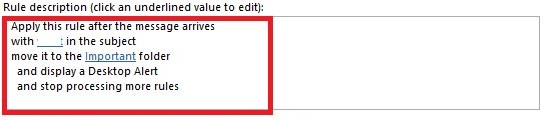
This is the one option that keeps the message filed and still shows a pop-up. Microsoft lists Display a Desktop Alert among the actions that make a rule client-only.
- In classic Outlook, select File > Manage Rules & Alerts > New Rule.
- Choose a template that moves messages to a folder, then select Next.
- Choose the conditions, such as the sender, add the details, and select OK.
- Select Next, then check Display a Desktop Alert in the list of actions.
- Select the underlined folder value in the rule description and choose your subfolder.
- Name the rule, review the description, and select Finish.
- If the warning says certain rules will only run when Outlook is on, select OK, then OK again.
To change an existing rule, select it in Manage Rules & Alerts, then select Change Rule. Place the rule above any rule that uses Stop processing more rules.
How to get subfolder notifications in new Outlook
New Outlook supports server-side rules only, and Microsoft's rule instructions for it name no Desktop Alert action. Keeping the message in the Inbox is the direct route to a notification.
- Select Settings > Mail > Rules.
- Next to the rule that moves the message, select More actions (⋯), then Edit rule.
- Replace the move action with an action that leaves the message in the Inbox, such as flagging it.
- Select Save.
- Use the toggle next to the rule name to confirm that the rule is on.
- Send a matching test message and check that the notification appears.
A client-side rule migrated from classic Outlook may not work here, so recreate it. To watch a folder without an alert, right-click it and select Add to Favorites, which keeps its shortcut at the top of the folder pane.
Get notifications from subfolders in Outlook with Power Automate
Use an automation approach for alerts where supported: a flow can watch the subfolder and email your Inbox, which then triggers a normal notification. Do not use Send me a mobile notification: Microsoft deprecated it because the Power Automate mobile app was deprecated on August 31, 2026, and no longer receives push notifications.
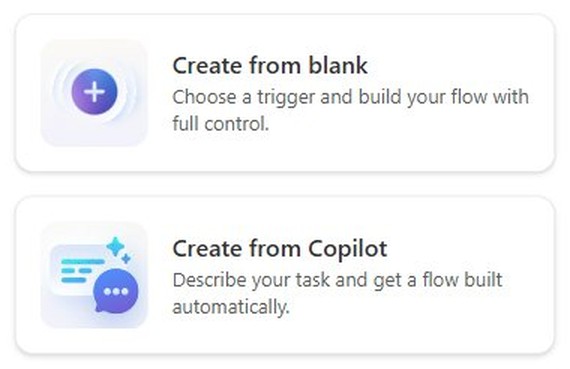
- Sign in to Power Automate, select My flows, then select Create from blank.
- Select Add a trigger and choose When a new email arrives (V3) from Office 365 Outlook. For a personal account, use When a new email arrives (V2) from Outlook.com.
- Set Folder to the subfolder where the rule puts the message, not the Inbox.
- Select the plus sign (+) and add Send an email (V2).
- Enter your own address in To, then fill in Subject and Body.
- Check that no rule moves this alert email out of the Inbox.
- Select Save, then send a message that matches the rule.
The trigger checks only the folder it is set to, so each subfolder needs its own flow. It usually fires almost immediately but can occasionally be delayed by up to an hour.
Troubleshooting: still no alerts? Try this checklist
New Outlook: no notifications for subfolders
The rule moves the message out of the Inbox, or it is a migrated client-side rule.
- Open Settings > Mail > Rules and check whether the rule shows an error or cannot be edited.
- Recreate a migrated rule in new Outlook.
- Change the action so the message stays in the Inbox.
Classic Outlook: no notification for emails in a folder
A client-only rule runs only while classic Outlook is open, and a broken rule stops working.
- Keep classic Outlook open on the PC that holds the rule.
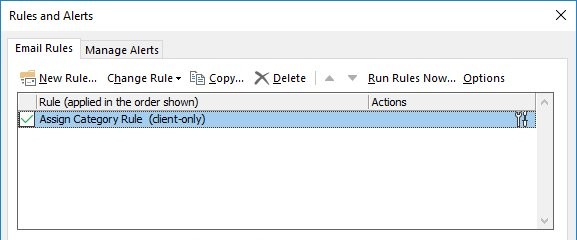
- Select File > Manage Rules & Alerts and confirm the rule's check box is selected.
- Fix any rule marked with an error by selecting the links under Rule description.
Outlook mobile notifications for subfolders do not arrive
Notifications are limited to Focused, or the phone is blocking Outlook.
- Set the Outlook notification option to All or All email.
- Confirm that the phone allows Outlook notifications.
- Test with a message that stays in the Inbox, then with one the rule moves.
Outlook notifications stopped for every folder on Windows
A system-level setting is suppressing them.
- Turn off Do not disturb in Settings > System > Notifications.
- Select Stop focus session in Settings > System > Focus.
- Turn off Battery Saver, and change your Teams status from Do not disturb.
Outlook for Mac shows no banner
macOS notifications are off for the app, or a Focus is holding them back.
- Turn on Allow notifications for Microsoft Outlook in System Settings > Notifications.
- Check the Outlook setting under Notifications & Sounds.
- Turn off the active Focus, then send a test message.
Comparison: which platform is most likely to miss subfolder alerts
The risk below reflects the controls each version offers. Test your own setup with the two-message check above.
| Platform | Alert controls | Folder-level alert | Risk of a missed alert |
|---|---|---|---|
| Classic Outlook for Windows | Display a Desktop Alert in Options and in rules | Yes, through a rule while Outlook is open | Lowest |
| New Outlook for Windows | Mail switch under Notify me about | None documented | High |
| Outlook on the web and Outlook.com | Mail switch plus browser permission | None documented | High, since the browser can also block alerts |
| Outlook for Mac | Message arrival plus macOS permission | None documented | High |
| Outlook for iOS and Android | All mail, Focused or Favorite People options | None documented | High on the default Focused setting |
Outlook subfolder notifications FAQ
Why do I only get notifications for my Inbox and not my subfolders?
Outlook's alert settings describe mail arriving in the Inbox. Microsoft says a rule that moves a new message out of the default account Inbox might prevent the Desktop Alert, and subfolders have no separate switch in the notification settings.
Can I force Outlook to notify me for every subfolder?
Not with one setting. In classic Outlook, add Display a Desktop Alert to each rule that files mail into a subfolder. In other versions, keep important mail in the Inbox or run one Power Automate flow per folder.
Does new Outlook have notifications for subfolders?
Microsoft documents no per-folder notification option in new Outlook. Notify me about offers Mail, Calendar and Documents switches. Change the rule so the message stays in the Inbox, or use a Power Automate flow that emails your Inbox.
Does this problem affect Exchange and Microsoft 365 differently than IMAP?
Yes, for rules. New Outlook does not support rules for Gmail, Yahoo or iCloud accounts, so those filters are set with the provider. Exchange and Microsoft 365 accounts can use server-side rules in new Outlook and on the web.
I changed settings, but the alerts still don't come. What should I do first?
Send yourself a message that no rule matches. If it produces no alert, fix the notification settings in Outlook and Windows, macOS or your phone. If it does alert, the rule's move is the cause, so change that rule.
Will iOS notifications work if Outlook subfolder alerts don't on desktop?
They are separate settings, so one can work without the other. Outlook for iOS follows its own notification option, which defaults to the Focused Inbox. Microsoft does not document a folder option for it, so test with a rule-moved message after choosing all mail.
How do I enable notifications for subfolders in Outlook on my phone?
There is no documented per-folder switch. Open Outlook Settings, tap Notifications, and choose All email or All. Also allow Outlook in your phone's notification settings, then send a test message that matches your rule.
Why does a Desktop Alert rule only work on one PC?
Display a Desktop Alert makes the rule client-only, so it runs on the device rather than the mail server. Classic Outlook must be open on that PC. New Outlook, Outlook on the web and Outlook.com support server-side rules only.
Should you move Outlook email to subfolders with rules?
Move only the mail you can read later, and keep anything urgent in the Inbox. Outlook's notification settings describe Inbox mail and offer no subfolder switch. Classic Outlook can add a Desktop Alert to a filing rule, and other versions need a flag rule or a Power Automate flow.