Apple does not publish a standalone Windows 11 driver for its mouse, so on a Windows PC you pair the Magic Mouse in Settings > Bluetooth & devices and Windows handles it as a Bluetooth mouse.
On an Intel-based Mac running Windows through Boot Camp, the Apple mouse driver comes in Apple's Windows support software. This guide covers both setups, how to update the driver, and what to do when the mouse will not work.
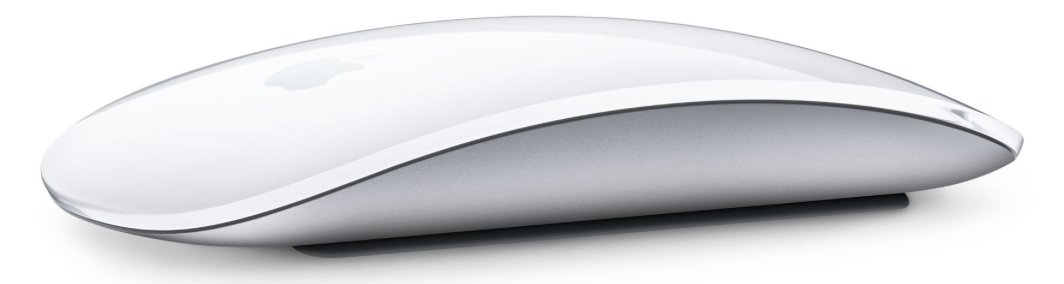
How to connect an Apple Magic Mouse to Windows 11
This is the route for any Windows 11 PC with Bluetooth. There is nothing to download first.
- Charge the Magic Mouse, then slide the switch on its bottom off and back on so green is visible.
- On the PC, select Start > Settings > Bluetooth & devices and make sure Bluetooth is switched On.
- Select the Network, Sound or Battery icon next to the clock on the taskbar.
- Select the Manage Bluetooth devices chevron on the Bluetooth quick setting.
- Select the Magic Mouse under New devices. Scroll through Your devices if New devices is not visible yet.
- Follow any further prompts, then select Done.
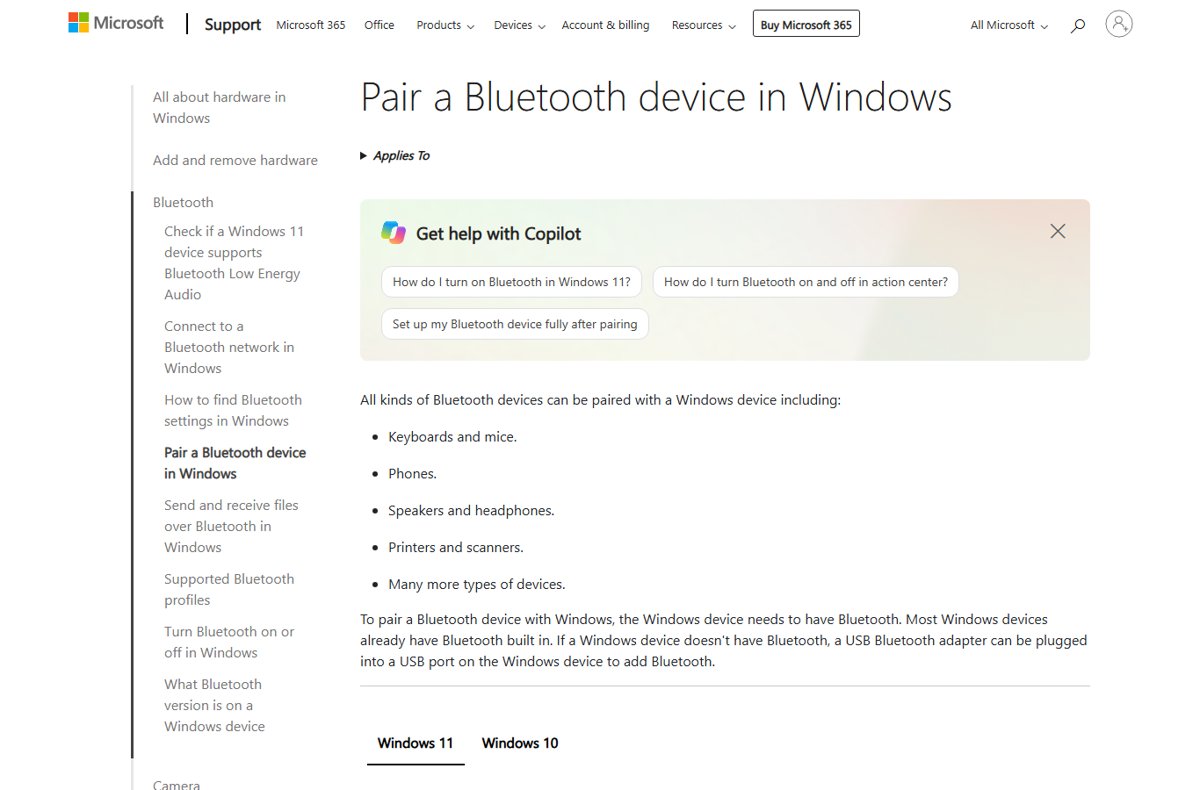
Once paired, the mouse and the PC reconnect on their own whenever both are on and in range, and pointer speed and buttons are set in the Windows mouse options like any other mouse. If the PC has no Bluetooth, a USB Bluetooth adapter adds it.
Apple mouse driver options for Windows 11 PCs and Macs
Where the driver comes from depends on the hardware Windows runs on, not on the mouse model.
| Your setup | Where the mouse driver comes from | What to do |
|---|---|---|
| Windows 11 PC (Dell, HP, Lenovo, custom build) | Windows' built-in Bluetooth mouse support | Pair the mouse in Bluetooth & devices |
| Intel-based Mac running Windows with Boot Camp | Apple's Windows support software (Boot Camp drivers) | Install or repair it with Boot Camp Assistant's download |
| Boot Camp Mac with the drivers already installed | Windows Update plus Apple Software Update | Install updates from both apps |
| Mac with Apple silicon (M-series chip) | Boot Camp is not available | Boot Camp requires an Intel processor, so the Boot Camp driver does not apply |
| Driver missing or outdated on any PC | Windows Update or Device Manager | Check optional driver updates, then Device Manager |
Microsoft advises against downloading drivers from any site other than the device maker's official site. Third-party "Apple mouse driver" bundles on download portals are not from Apple.
What an Apple Magic Mouse needs to work with Windows 11
| Requirement | Why it matters | How to check |
|---|---|---|
| Bluetooth on the PC | The Magic Mouse is wireless and connects only over Bluetooth | Settings > Bluetooth & devices shows a Bluetooth toggle |
| A charged battery | Low batteries can stop a Bluetooth device from pairing or staying connected | Charge the Magic Mouse with its cable; older Apple mice use replaceable batteries |
| The mouse turned on | The power switch on the bottom must show green | Slide the switch off, then on again |
| Windows up to date | Windows Update delivers Bluetooth and input driver fixes | Settings > Windows Update > Check for updates |
| On a Boot Camp Mac: Windows support software | Apple's drivers make the mouse, trackpad and keyboard work in Windows | Install it from a 16 GB or larger USB flash drive |
Apple lists a Bluetooth-enabled Mac or a supported iPad as the Magic Mouse system requirement. Windows PCs are not on Apple's list, so Apple support covers the mouse on Macs only.
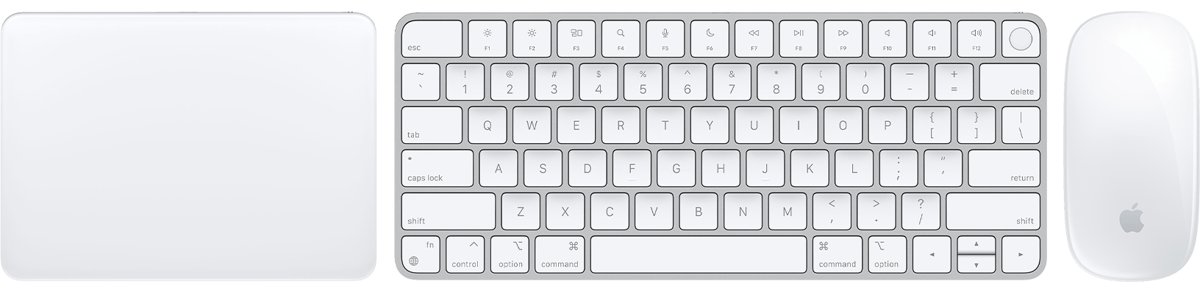
Install Apple mouse drivers on Windows with Boot Camp support software
Apple names this fix directly: if your Apple mouse, trackpad or keyboard is not working in Windows on a Mac, install the latest Windows support software. Use a USB mouse or the built-in trackpad while you do it, because a Bluetooth mouse may not respond until the drivers are in place.
Apple's Boot Camp documentation covers Windows 10 on Intel-based Macs.
- Start the Mac in macOS and install the latest macOS updates.
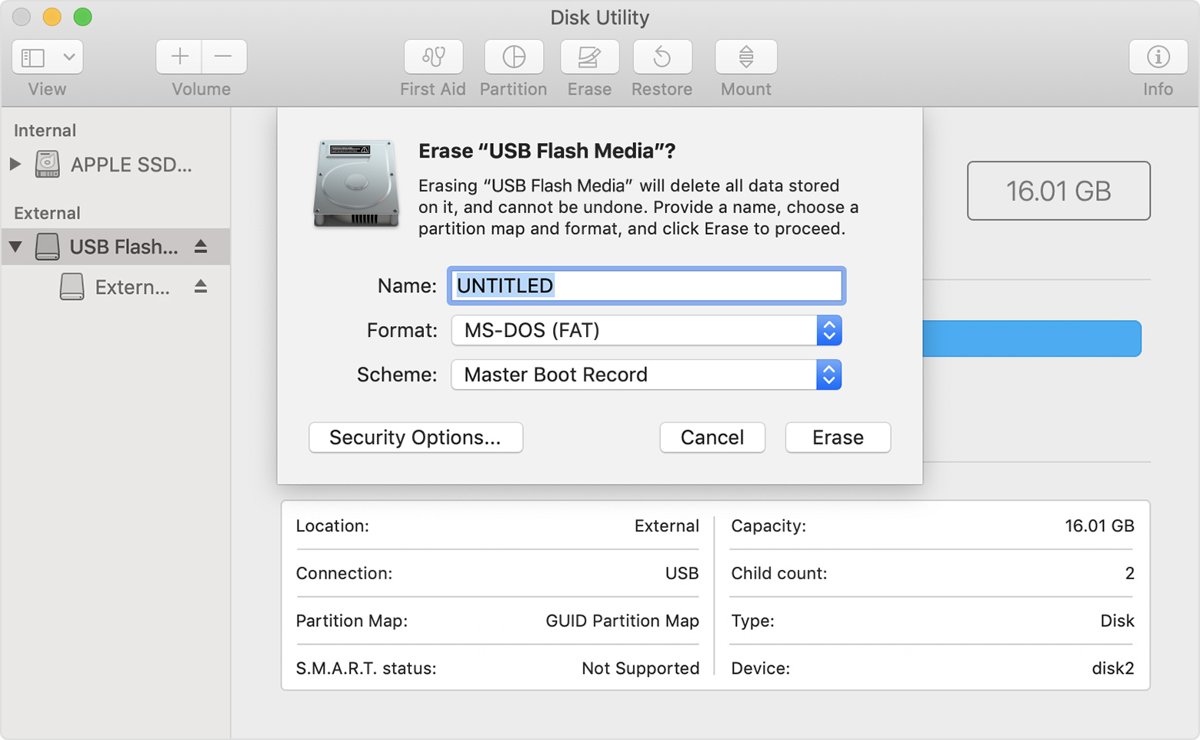
- Format a 16 GB or larger USB flash drive in Disk Utility as MS-DOS (FAT) with the Master Boot Record scheme.
- Open Boot Camp Assistant from the Utilities folder in Applications.
- From the Action menu, choose Download Windows Support Software and save it to the USB flash drive.
- Restart the Mac in Windows with the flash drive still plugged in.
- In File Explorer, open the flash drive, then open Setup or setup.exe in the WindowsSupport or BootCamp folder, and click Yes to allow changes.
- Click Repair. If an alert says the software has not passed Windows Logo testing, click Continue Anyway.
- Click Finish, then click Yes to restart the Mac.
Bluetooth mice must be paired with the Mac in macOS before they work in Windows on that Mac. If the mouse was never paired in macOS, pair it there first.
Update Apple mouse drivers with Windows Update and Apple Software Update
On a Boot Camp Mac, Apple ships driver updates through two apps. Install the updates from both to get the latest Boot Camp support software.
- Select Start > Settings > Windows Update, then select Check for updates.
- Select Advanced options, make sure Receive updates for other Microsoft products is On, then select Optional updates under Additional options.
- Select any listed driver updates and choose Download and install.
- On a Boot Camp Mac, open Start and choose Apple Software Update.
- Select the Apple updates you want, then click Install and follow the prompts.
- Restart Windows when the updates finish, even if none asked for a restart.
Optional driver updates are not installed automatically, which is why the second and third steps matter. When drivers fall behind on other hardware too, you can update all drivers on Windows 11 the same way.
How to install mouse drivers in Windows 11 with Device Manager
Device Manager can update or reinstall the driver Windows uses for a mouse when Windows Update has nothing new.
- Type device manager in the taskbar search box and select Device Manager.
- Find the mouse in the list of hardware categories and double-click its name.
- Open the Driver tab.
- Click Update Driver and follow the instructions.
- Restart the PC if Windows asks you to.
If Device Manager finds nothing, the driver Windows already uses is the current one for that device. When the mouse driver is fine but pairing still fails, reinstall the Bluetooth drivers from the same window.
How to check the Apple mouse works in Windows 11
- Open Settings > Bluetooth & devices and confirm the Magic Mouse is listed and shows as connected.
- Select the Bluetooth icon area next to the clock. The Bluetooth tile is highlighted and shows the connected device.
- Move the mouse and confirm the pointer follows it smoothly.
- On a Boot Camp Mac, click the upper-right corner of the Apple Mouse or Magic Mouse to confirm right-click works.
- Turn the mouse off and on again. It should reconnect without pairing a second time.
Apple mouse support on Intel Macs, Apple silicon Macs and Windows PCs
| Computer | Windows option Apple documents | Apple mouse driver source |
|---|---|---|
| Intel-based Mac (for example, MacBook Pro 2012 to 2020, excluding the 13-inch M1) | Boot Camp with Windows 10 Home or Pro, 64-bit | Windows support software from Boot Camp Assistant |
| Mac with Apple silicon (About This Mac shows Chip) | No Boot Camp | Not applicable |
| Windows 11 PC | Not an Apple product | Windows' built-in Bluetooth support |
To tell the two Mac types apart, open About This Mac from the Apple menu. An Intel-based Mac shows Processor followed by an Intel chip; an Apple silicon Mac shows Chip.
Apple mouse not working in Windows 11
The Magic Mouse does not appear under New devices
The mouse is not discoverable, is out of range, or Windows hides some devices.
- Slide the switch on the bottom of the mouse off, then on until green shows.
- Move the mouse closer to the PC.
- Set the Bluetooth devices discovery setting to Advanced in Bluetooth & devices, then search again.
- Run the Bluetooth troubleshooter in the Get Help app.
The mouse is listed but will not connect
A stale pairing record or a temporary Bluetooth fault.
- Open Start > Settings > Bluetooth & devices.
- Select More options (…) next to the mouse, then Remove device.
- Turn Bluetooth off, wait 10 seconds and turn it back on.
- Select Add device and pick the mouse again.
- Restart the PC from Start > Power > Restart if it still fails.
The Apple mouse stops responding after a while
A low battery or a dropped Bluetooth connection.
- Charge the mouse fully.
- Turn it off and on again, then try to pair again.
- Install pending updates from Settings > Windows Update.
The Apple mouse does not work in Windows on a Mac
Boot Camp's Windows support software is missing or out of date.
- Use the trackpad or a USB mouse in the meantime.
- Download the Windows support software with Boot Camp Assistant and run Repair from the flash drive.
- Pair the mouse in macOS if it was never paired there, then restart in Windows.
- Install updates from Apple Software Update and Windows Update.
No mouse driver found for Windows 11
Windows already uses its built-in driver, or the update is optional.
- Open Settings > Windows Update > Advanced options > Optional updates and install any listed drivers.
- Test the mouse on another computer. If it fails there too, run through the general mouse fixes before deciding it needs replacing.
Apple mouse drivers for Windows 11 FAQ
Is there an Apple Magic Mouse driver for Windows 11?
Apple publishes its Apple mouse drivers only inside the Windows support software for Boot Camp on Intel-based Macs. On a Windows 11 PC there is no Apple download; pair the Magic Mouse in Bluetooth & devices and Windows uses its own Bluetooth support.
How do you install mouse drivers in Windows 11?
Windows installs mouse drivers automatically through Windows Update. To install one yourself, open Device Manager, double-click the mouse, open the Driver tab and click Update Driver. Optional driver updates are under Windows Update > Advanced options > Optional updates.
Does an Apple Magic Mouse work with Windows 11?
A Magic Mouse can pair with a Windows 11 PC as a Bluetooth mouse through Settings > Bluetooth & devices. Apple's own system requirements list only Bluetooth-enabled Macs and supported iPads, so Apple does not support it on Windows PCs.
Where do you download the Apple mouse driver for Windows?
On an Intel-based Mac, open Boot Camp Assistant in macOS and choose Action > Download Windows Support Software. Apple provides no separate Windows mouse driver download for PCs, and Microsoft advises against drivers from sites other than the maker's own.
Why is my Apple mouse not working in Windows 11?
On a PC, the usual causes are a low battery, Bluetooth turned off, or a stale pairing. Remove the mouse in Bluetooth & devices and add it again. On a Boot Camp Mac, reinstall Apple's Windows support software with the Repair option.
Does an Apple wireless mouse need a driver on Windows 11?
Not a separate download on a PC. Apple wireless mice are Bluetooth devices, and Windows 11 pairs Bluetooth mice with its built-in support. On a Boot Camp Mac, Apple's Windows support software supplies the Apple mouse drivers.
How do you right-click with an Apple mouse in Windows?
In Windows on an Intel-based Mac with Boot Camp, click the upper-right corner of the Apple Mouse or Magic Mouse. Apple's Boot Camp Control Panel guide documents this for both mouse models.
Can you install Boot Camp drivers on a Mac with Apple silicon?
No. Boot Camp requires a Mac with an Intel processor, and Apple's list of supported models excludes the M1 MacBook Air and 13-inch M1 MacBook Pro. About This Mac shows Chip on Apple silicon models.
Bottom line: Apple mouse drivers on Windows 11
On a Windows 11 PC, skip the driver hunt and pair the Magic Mouse in Bluetooth & devices; on an Intel Mac, install Apple's Windows support software from Boot Camp Assistant. Apple ships its mouse drivers only in the Boot Camp package for Macs, and download-site driver bundles are not from Apple.