Windows 11 installs most drivers on its own through Windows Update; to pick up the rest, open Settings > Windows Update > Advanced options > Optional updates > Driver updates.
This guide covers that route, Device Manager, a manufacturer's download, vendor updater apps and pnputil, plus how to prove the update took and how to roll one back.
The fastest way to update drivers on Windows 11
Windows Update is the route Microsoft supports. It delivers drivers certified through the Windows Hardware Compatibility Program, and optional driver updates wait there until you select them.
- Select Start > Settings > Windows Update.
- Select Advanced options.
- Turn on Receive updates for other Microsoft products.
- Under Additional options, select Optional updates.
- Expand Driver updates, tick each driver you want, then select Download and install.
- Restart the PC when the install finishes.
Optional drivers are never installed for you. If Optional updates shows nothing under Driver updates, Windows has no newer certified driver for this hardware.
On Windows 10 the path differs: Settings > Update & Security > Windows Update > Advanced options, then Check for updates and View optional updates.
Methods to Update Drivers on Windows 11
Five routes lead to a newer driver, and they do not reach the same set of drivers. Match your case to a row.
| Your situation | Use this | Why |
|---|---|---|
| General maintenance, nothing broken | Windows Update, then Optional updates | Only certified drivers, and Windows picks the matching one for the hardware |
| One device misbehaves and you want Windows to look again | Device Manager, Search automatically for drivers | Targets a single device instead of the whole PC |
| The maker has a newer driver than Windows Update offers | Download it, then Browse my computer for drivers | Windows Update only carries drivers the vendor submitted for certification |
| A branded laptop or desktop, or a discrete GPU | The maker's own updater app | Covers firmware and model-specific drivers that Windows Update does not ship |
| Many machines, a script, or an INF folder already downloaded | pnputil from an elevated Command Prompt |
Adds and installs driver packages without touching the interface |
Understanding Drivers and Why Updating Them Matters
A driver is the code that lets Windows drive a specific piece of hardware. Most of it runs in kernel mode, which is why Windows checks its signature before loading it.
| Point | What it means on your PC |
|---|---|
| How drivers arrive | Hardware partners publish certified drivers to Windows Update. A Windows PC checks in regularly and installs a newer driver when one applies. |
| Why Microsoft pushes them | Microsoft's stated reason is to keep the device secure and up to date, not to make it faster. |
| Which ones are not automatic | Optional driver updates. They sit under Optional updates > Driver updates until you select them. |
| Why signing matters | Kernel Code Integrity only loads drivers signed by an authority Windows trusts, which blocks untested kernel-mode code. |
| The certification mark | Drivers signed through the Windows Hardware Compatibility Program (WHCP) are the ones Windows Update carries. |
| The April 2026 change | Cross-signed drivers without WHCP certification are blocked by default in enforcement mode, so an old driver can stop loading after it worked for years. |
| What an update will not do | It does not repair failed hardware, and it is not a general speed fix for a slow PC. |
Preparing to Update Drivers on Windows 11
Four things make the difference between a five-minute job and an afternoon. Collect them before you install anything.
| What you need | Why | Where to get it |
|---|---|---|
| An administrator account | Driver installs write to the driver store, and pnputil refuses to run without elevation |
Sign in with an admin account; open Command Prompt with Run as administrator |
| A working internet connection | Windows Update, Device Manager's automatic search and every vendor tool download over the network | Wired or Wi-Fi; a metered connection can hold updates back |
| The exact device name | You select one device, not a category, so you need to know which entry to open | Right-click Start, select Device Manager, expand the category such as Display adapters |
| The current driver version | Without it you cannot tell whether the install changed anything | Right-click the device > Properties > Driver tab, or run pnputil /enum-drivers |
| A way back | Graphics, storage and network drivers can leave the PC unusable if the new one misbehaves | Roll Back Driver on the Driver tab; System Restore in Control Panel; point-in-time restore under Settings > System > Recovery |
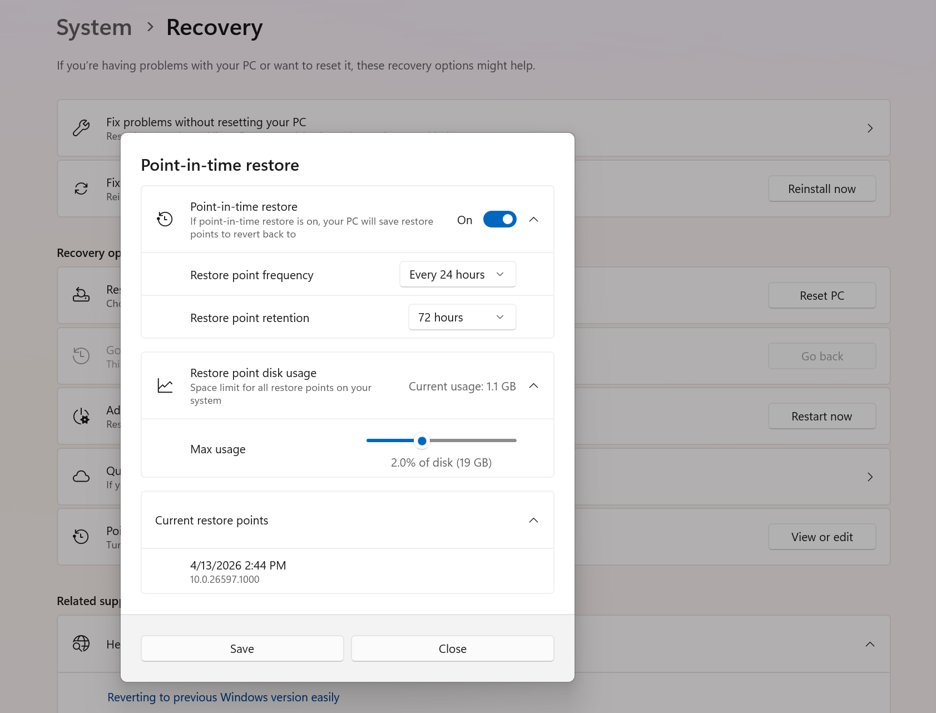
Point-in-time restore is on by default on Windows 11 Home and on unmanaged Pro devices whose OS volume is 200 GB or larger. It takes a restore point roughly every 24 hours and keeps each one for about 72 hours.
Second method: update one device from Device Manager
Use this when a single device is at fault. It searches the driver store and Windows Update for that device alone.
- Right-click Start and select Device Manager.
- Select the arrow next to the category that holds the device, such as Display adapters or Bluetooth.
- Right-click the device and select Update driver.
- Select Search automatically for drivers.
- Follow the prompts, then restart the PC.
- If the window reports The best drivers for your device are already installed, select Search for updated drivers on Windows Update in the same window.
That message means Windows has nothing newer on hand. It does not mean the manufacturer has nothing newer, which is what the third method is for.
Third method: install a driver downloaded from the manufacturer
Vendors often post a driver before, or instead of, submitting it to Windows Update. Download it from the vendor's own support site, never a download portal.
- Download the driver from the device manufacturer's website, matching your Windows version and architecture.
- Uncompress the download if it is an archive, and note the folder it lands in.
- Right-click Start and select Device Manager.
- Expand the category, right-click the device and select Update driver.
- Select Browse my computer for drivers.
- Select Browse…, pick the folder holding the driver files, then select OK.
- Check the path is right, select Next, then select Close when the install finishes.
Many vendor downloads are self-installing packages. Run the package instead and it handles the same work, and usually the control panel software with it.
Fourth method: use the PC or component maker's own updater
Branded machines and discrete graphics cards have first-party tools that cover firmware and model-specific drivers Windows Update never ships.
| Your hardware | Official tool | What it covers |
|---|---|---|
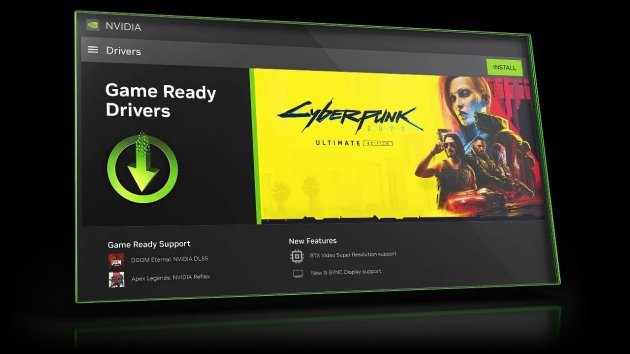
| NVIDIA GeForce graphics | NVIDIA app | The Graphics Drivers section installs Game Ready Drivers, tuned with game developers, or Studio Drivers for creative apps |
| Intel processors, graphics, Wi-Fi and chipset | Intel Driver & Support Assistant (Intel DSA) | Detects Intel hardware and lists the updates available for it |
| HP laptops, desktops and printers | HP Support Assistant | Automatic firmware and driver updates; set it to install them or just notify you |
| Dell home PCs | SupportAssist for Home PCs | Pre-installed on Dell PCs; scans the PC and installs the updates it finds |
| AMD graphics and processors | AMD's own driver download site at amd.com | Select the product, then download the driver package AMD publishes for it |
A Dell machine has its own routine worth following end to end: How to Keep Your Dell Drivers Updated on Windows 11/10.
Update drivers from Command Prompt with pnputil
PnPUtil ships in %windir%\system32 on every Windows version since Vista, so there is nothing to install. It needs an elevated prompt.
pnputil /add-driver C:\Drivers\*.inf /subdirs /install/add-driver puts the driver packages into the driver store, /subdirs walks every folder under C:\Drivers, and /install applies them to any matching device. Add /reboot to let PnPUtil restart the PC when the change needs it. Point the path at the folder holding your extracted INF files.
You should see: PnPUtil lists each INF it processed and returns to the prompt without an error. The device's entry in Device Manager then shows the new driver on its Driver tab.
Three more commands earn their place. pnputil /enum-drivers lists the third-party driver packages in the store, pnputil /scan-devices makes Windows look for hardware changes, and pnputil /delete-driver oem12.inf /uninstall removes a package and pulls it off the devices using it.
PnPUtil will not force a lower-ranked driver onto a device. If nothing changes, the package you added is not the best match Windows has.
How to check the driver actually updated
An install that reports success is not proof. Compare the version on the device against the one you noted before you started.
- Right-click Start and select Device Manager.
- Expand the category and right-click the device, then select Properties.
- Open the Driver tab and read the driver date and version shown there.
- Confirm the date and version differ from the ones you recorded before the install.
- Open an elevated Command Prompt and run
pnputil /enum-driversto see the package now sitting in the driver store. - Use the device itself: play audio, run the game, print a page, reconnect the Bluetooth accessory.
A yellow warning triangle next to the device in Device Manager means Windows loaded the driver but the device reported a problem. Treat that as a failed update, not a partial one.
How to roll back a driver update
Windows keeps the previous driver for a device after an update. Roll back first; it is faster and narrower than any system-wide recovery.
- Right-click Start and select Device Manager.
- Expand the category and right-click the device, then select Properties.
- Open the Driver tab and select Roll Back Driver.
- Follow the on-screen instructions, then restart the PC.
- If Roll Back Driver is greyed out, select Uninstall device instead, restart, and let Windows reinstall the driver automatically.
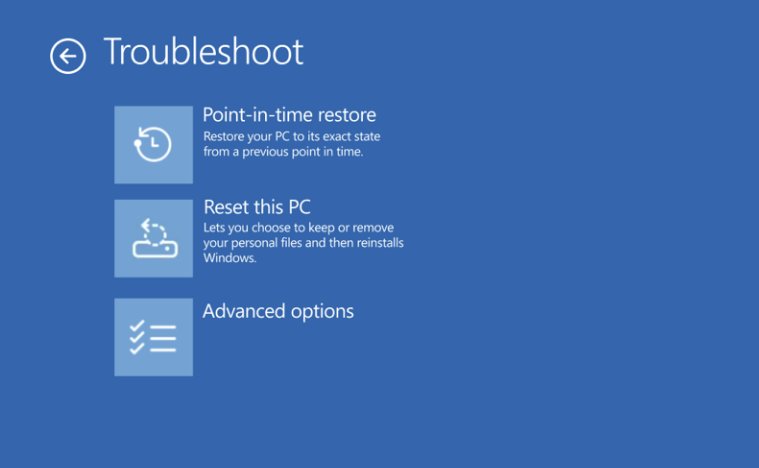
- If the PC will not boot, enter the recovery environment and use Troubleshoot > Point-in-time restore, then supply the BitLocker recovery key when asked.
Roll Back Driver is greyed out when no previous driver is stored for that device, which is normal on a fresh install.
Point-in-time restore reverts the whole system state, including files and settings changed since that restore point. Use it only when the narrower options are gone.
Troubleshooting Common Driver Update Issues
Windows 11 does not update my drivers
Optional driver updates are never installed for you, and a policy or a paused update can stop the automatic ones as well.
- Go to Settings > Windows Update > Advanced options and turn on Receive updates for other Microsoft products.
- Under Additional options, open Optional updates and expand Driver updates.
- Select every driver listed, then Download and install.
- Back on the Windows Update page, check that updates are not paused and select Check for updates.
- On a work or school PC, ask the administrator whether Do not include drivers with Windows Updates is enabled.
The driver update fails or will not install properly
A stalled Windows Update component, or a driver package that does not match this PC's Windows version or architecture.
- Select Start > Settings > System > Troubleshoot > Other troubleshooters.
- Under Most frequent, select Run next to Windows Update.
- Restart the PC when the troubleshooter finishes.
- Go to Settings > Windows Update and select Check for updates, then install everything offered.
- If a downloaded package is the one failing, download it again from the vendor's site and confirm it lists your Windows version and 64-bit or Arm build.
The device stopped working after the update
The new driver is a worse match for this hardware than the one it replaced.
- Open Device Manager, right-click the device and select Properties.
- Open the Driver tab and select Roll Back Driver.
- Restart the PC and test the device.
- If rollback is unavailable, select Uninstall device, restart, and let Windows reinstall the driver.
- Install the vendor's own driver for the exact model rather than letting Windows choose again.
The device is not recognised after the update
The device is still in the hardware tree but its stack did not restart cleanly.
- Open an elevated Command Prompt and run
pnputil /scan-devices. - Open Device Manager and look for an entry with a warning triangle or under Other devices.
- Right-click that entry, select Uninstall device, then restart the PC.
- Reconnect the hardware after the restart if it is external, such as a USB or Bluetooth device.
- If the entry still shows a problem, install the driver package from the manufacturer's site with Browse my computer for drivers.
Driver conflicts or compatibility issues after an install
Two driver packages match the same device, or the package you installed is not the highest-ranked match.
- Open an elevated Command Prompt and run
pnputil /enum-driversto list the third-party packages in the driver store. - Note the
oem<number>.infname of the package you no longer want. - Run
pnputil /delete-driver oem12.inf /uninstall, substituting the real name, to remove it from the store and the devices using it. - Restart the PC and let Windows settle on the remaining driver.
- Install the vendor's current package for the model if the device is left without one.
The outdated driver is still listed after the update
The old package stays in the driver store after an update, and Device Manager caches what it displayed a moment ago.
- Close and reopen Device Manager, then check the Driver tab again.
- Restart the PC if the install asked for one and you skipped it.
- Run
pnputil /enum-driversand check whether both the old and new packages are listed. - Remove the old one with
pnputil /delete-driver oem12.inf, using the name the listing showed. - Check the vendor's page for the version number you expected; a vendor build number and the Windows driver version are not always the same string.
Windows blocks the driver from loading
Kernel Code Integrity rejects drivers that are not signed by an authority Windows trusts.
- Check Windows Update and Optional updates > Driver updates for a certified version of the same driver.
- Download the newest driver from the hardware maker's site, since recent releases are more likely to be WHCP-certified.
- Ask the hardware vendor directly whether a WHCP-certified driver exists for the device.
- Keep using the in-box Windows driver in the meantime if the device still functions with it.
Tips for Updating Drivers Safely
Driver problems are cheap to avoid and expensive to fix from a black screen. These rules cost a few minutes each.
| Rule | Why it matters |
|---|---|
| Take the driver from Windows Update or the vendor's own domain | Those are the two sources Microsoft points to, and both carry the signed package the hardware was tested with |
| Skip third-party driver updater utilities | Microsoft's guidance is Windows Update first, then the manufacturer's site; nothing in that path needs a separate tool |
| Update one device at a time | If the PC misbehaves afterwards you know exactly which driver to roll back |
| Write down the current version first | The Driver tab is the only way to prove later that anything changed |
| Check a restore path exists before graphics or storage drivers | Those are the drivers that can leave the PC unbootable, and recovery then needs the BitLocker recovery key |
| Plug a laptop into power before a firmware or chipset update | Power loss during a firmware write can leave the device in a state a driver rollback cannot reach |
| Never install a driver built for a different model | PnPUtil will not force a lower-ranked driver onto a device, and forcing one through the interface is how devices stop being recognised |
Additional Tips for Managing Drivers on Windows 11
Windows 11 Pro, Enterprise and Education can keep drivers out of Windows Update entirely. Home has no Group Policy Editor.
- Press Win + R, type
gpedit.mscand press Enter. - Go to Computer Configuration\Administrative Templates\Windows Components\Windows update.
- Double-click Do not include drivers with Windows Updates.
- Select Enabled, then OK. Windows quality updates now arrive without their driver payload.
- Set it back to Not Configured to let Windows Update deliver drivers again.
- Restart the PC so the policy applies.
Managed fleets set the same thing as the MDM policy ExcludeWUDriversInQualityUpdate, supported since Windows 10 version 1607.
Leaving the policy enabled means every driver becomes your job. Pair it with a vendor updater app or a scripted pnputil run, not with nothing.
Best Practices for Driver Updates in Windows 11
Different classes of hardware want different sources. Treating them all the same is what produces a machine with a two-year-old GPU driver and a brand-new one on a working printer.
| Hardware | Where to get the driver | Why |
|---|---|---|
| Graphics card before a new game | NVIDIA app, or the GPU maker's download page | Game Ready Drivers are tuned in collaboration with the game developers |
| Audio, Bluetooth, USB and other built-in devices | Windows Update, then Optional updates | Audio driver updates often ship as optional or recommended updates and install with Windows updates |
| Laptop chipset, storage and firmware | The PC maker's updater, such as HP Support Assistant or Dell SupportAssist | Those tools carry firmware as well as drivers for that exact model |
| A device that works and is not throwing errors | Leave it until a fix or a security update applies | Optional drivers are not installed automatically, so nothing is being withheld from a working device |
| A driver Windows refuses to load | The newest release on the vendor's site | Recent releases are more likely to carry WHCP certification, which is what enforcement mode requires |
| Graphics APIs rather than the driver itself | Windows Update, as part of the OS | DirectX is serviced by Windows; see How to Update DirectX In Windows 10/11 |
Frequently Asked Questions
Does Windows 11 update drivers automatically?
Yes, for certified drivers. Hardware partners publish drivers to Windows Update, and a Windows PC checks in regularly and installs a newer driver when one applies. Optional driver updates are the exception; those wait under Optional updates until you select them.
Why doesn't Windows 11 update my drivers?
Three common reasons. The newer driver is classed as optional, so it sits under Settings > Windows Update > Advanced options > Optional updates > Driver updates. Updates are paused. Or a managed PC has the Do not include drivers with Windows Updates policy enabled.
Does Windows 11 have a driver updater?
Windows Update is the driver updater. It delivers certified drivers automatically and lists the rest under Optional updates > Driver updates. Device Manager updates a single device on demand, and pnputil does the same from an elevated Command Prompt.
Where do you update drivers in Windows 11?
Two places. Settings > Windows Update > Advanced options > Optional updates > Driver updates handles everything Windows Update carries. Device Manager, opened by right-clicking Start, handles one device at a time through Update driver.
How do you update drivers on Windows 11 using CMD?
Open Command Prompt with Run as administrator and use PnPUtil. Run pnputil /enum-drivers to list installed third-party packages, then pnputil /add-driver C:\Drivers\*.inf /subdirs /install to add and apply driver packages from a folder you extracted.
How do you update NVIDIA drivers on Windows 11?
Install the NVIDIA app and open its Graphics Drivers section. Choose Game Ready Drivers for gaming or Studio Drivers for creative work, then install. Windows Update also carries certified NVIDIA drivers, usually a release or two behind the app.
How do you update AMD drivers on Windows 11?
Go to AMD's driver download pages on amd.com, select your graphics card or processor, and download the package AMD publishes for it. Run the downloaded installer. Windows Update carries certified AMD drivers as well, including under Optional updates.
How do you update Intel drivers on Windows 11?
Use Intel Driver & Support Assistant, known as Intel DSA. It detects the Intel hardware in the PC, such as graphics, Wi-Fi and chipset, and lists the downloads available for each detected product.
How do you update drivers on an HP or Dell laptop?
HP machines use HP Support Assistant, which handles firmware and driver updates and can install them automatically or notify you. Dell home PCs ship with SupportAssist for Home PCs, which scans the PC and installs available updates.
Why update USB drivers in Windows 11?
USB controller drivers sit between Windows and every device you plug in, so a bad one affects keyboards, storage and docks at once. Update them when a port stops recognising hardware, and roll back if the problem starts right after an update.
Is updating drivers on Windows 11 free?
Yes. Windows Update, Device Manager and pnputil are part of Windows, and manufacturer drivers and updater apps such as Intel DSA, HP Support Assistant and the NVIDIA app are free downloads from the vendor's own site.
Is the process different on Windows 11 Home and Pro?
The update routes are identical. Only the controls differ: Pro, Enterprise and Education include the Local Group Policy Editor, so they can enable Do not include drivers with Windows Updates. Home has no Group Policy Editor.
Final Words
Let Windows Update do the work, check Optional updates monthly, and reach for the manufacturer only when a specific device needs it. That path only installs drivers signed through the Windows Hardware Compatibility Program, leaves Roll Back Driver available on every device, and avoids the one real risk here, which is forcing a driver the hardware was never tested with.


![How to install or update a printer driver in Windows 11? [Full guide]](https://techdows.com/wp-content/uploads/2026/10/How-to-Install-or-Update-a-Printer-Driver-in-Windows-11-600x338.jpg)
How to force a Windows 11 update - Techdows
[…] drivers never install automatically. For hardware Windows Update does not cover, see how to update drivers on Windows 11 from the […]
How to update Xbox controller on PC Windows 11 - Techdows
[…] other devices in Device Manager also misbehave, it helps to update drivers on Windows 11 before blaming the […]
EA Javelin anti-cheat setup: fix kernel errors [2026] - Techdows
[…] feature refuses to load. Windows Update installs recommended drivers automatically but leaves optional driver updates for […]