To fix a mouse that isn't working, unplug it or its wireless receiver, wait about 10 seconds, plug it into a different USB port, and put in fresh batteries.
If that fails, this guide walks through Bluetooth pairing, driver reinstalls, the Windows and Mac settings that make a mouse look broken, and the signs that it needs replacing.
Check the Mouse Hardware First
Most dead mice are a power, port or connection problem, not a Windows fault. These checks come straight from Microsoft's own mouse troubleshooting order and take under two minutes.
- Unplug the mouse cable or the wireless USB receiver, wait about 10 seconds so Windows unloads the driver, then plug it back in.
- Plug it into a different USB port directly on the PC, not into a hub or keyboard pass-through.
- Look at the cable for cuts, kinks or a loose connector.
- Replace the batteries, or charge a rechargeable mouse with the USB cable that came with it.
- Turn the mouse over, switch it off and on with its power switch, and check that the sensor light or status light comes on.
- Blow or wipe away any dirt, hair or crumbs covering the sensor and the buttons.
- Restart the PC if the cursor still does not move.
If the mouse shows no light at all and does nothing on a second computer either, skip to the repair section below. The mouse itself has failed.
Which fix matches your mouse problem?
| What you see | Most likely cause | Go to |
|---|---|---|
| No light, no cursor, nothing on any port | Dead batteries or a failed mouse | Batteries, then test on another computer |
| Wireless mouse has a light but the cursor will not move | Receiver lost its link, or the mouse is paired elsewhere | Reconnect the receiver, or re-pair Bluetooth |
| Works on another PC but not this one | Port, driver or a setting on this PC | Driver reinstall, then mouse settings |
| Stopped after a Windows or driver update | New driver problem | Roll back the driver |
| Cursor jumps, zigzags or drifts | Dirty sensor or a poor surface | Clean the sensor, change the surface |
| Lags, freezes or wakes up slowly | Interference, low battery or Bluetooth sleep | Wireless and Bluetooth fixes |
| Buttons swapped, too slow or too fast | A mouse setting | Mouse settings table |
How to control Windows while the mouse is dead
Several fixes below need Settings or Device Manager, so you need a way in without a pointer. The keyboard gets you everywhere.
| Keys | What it does |
|---|---|
| Windows key + I | Opens Settings |
| Windows key + X | Opens the Quick Link menu, which lists Device Manager |
| Windows key + U | Opens the accessibility settings, where Mouse keys lives |
| Tab and Shift + Tab | Move forward and back between options |
| Arrow keys | Move through a list or a group of buttons |
| Enter or Space | Select the highlighted item or toggle |
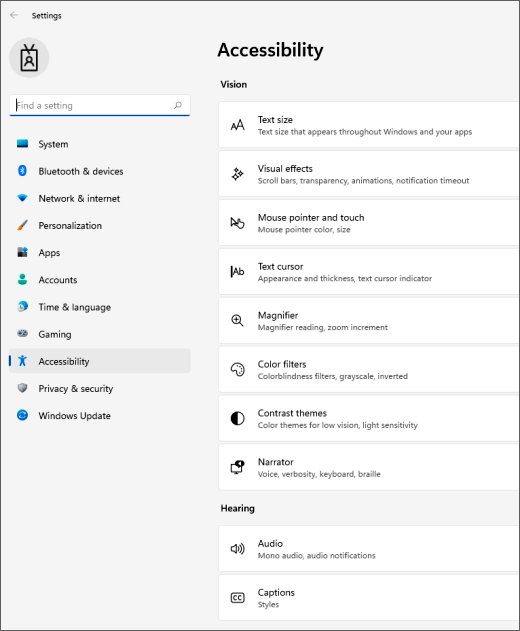
To move the pointer from the keyboard, go to Settings > Accessibility > Mouse and turn on Mouse keys. It needs a numeric keypad: 8, 4, 6 and 2 move the pointer, 5 clicks and + double-clicks.
Reconnect or Replace the USB Receiver, Cable, or Batteries
A wireless mouse and its receiver lose their link more often than a mouse dies. Resetting both ends usually brings it back.
- Unplug the USB receiver, wait about 10 seconds, and plug it back into a port on the PC itself.
- Look on the bottom of the mouse and on the receiver for a Reset button, and press it if there is one.
- Open the battery compartment and check the batteries sit the right way round against the markings.
- Put in new batteries, or charge a rechargeable model with its own USB cable.
- Turn the mouse off and on with its power switch; a blinking red light or no light means the batteries are still too low.
- For a wired mouse, unplug the cable, wait a few seconds, and plug it into a different port.
Some wireless mice ship with the maker's own app for re-pairing a receiver, such as Microsoft Mouse and Keyboard Center for Microsoft mice. Use the maker's app only, never a third-party driver tool.
Try a Different Port, Device, or Surface
This step tells you whether the fault is in the mouse or in the computer. Everything after it depends on the answer.
- Plug the mouse into another USB port, preferably on the other side of a laptop or on the back of a desktop.
- If you use a USB hub, make sure the hub has power, then remove it and plug the mouse straight into the PC.
- Connect the mouse to a second computer and move it around.
- Connect a different, known-good mouse to your computer.
- Move an optical or laser mouse off glass, mirrors and glossy desks onto a plain mouse pad or a sheet of paper.
- Wipe the sensor window on the underside with a dry, lint-free cloth.
Mouse dead on both computers: replace it. Mouse fine elsewhere, but a second mouse also fails on your PC: the problem is the PC's ports, driver or settings, so carry on below.
Fix Bluetooth or Wireless Mouse Connection Problems
A Bluetooth mouse can have power and still move nothing because it is paired to another device or stuck in a stale pairing. Removing it and pairing again clears both.
- Press and hold the pairing button on the mouse, usually underneath, for 5 to 7 seconds until its light blinks.
- On Windows 11, open Start > Settings > Bluetooth & devices and make sure the Bluetooth toggle is on.
- Find the mouse in the list, select More options (…) and then Remove device.
- Select Add device and choose the mouse from the list, then select Done.
- On Windows 10, the same controls are under Start > Settings > Devices > Bluetooth & other devices, using Add Bluetooth or other device > Bluetooth.
- On a Mac, open the Apple menu > System Settings > Bluetooth, hold the pointer over the mouse and click Connect, then click Accept if asked.
- If it still will not connect, turn airplane mode on for 10 to 15 seconds, turn it off, and pair again.
If the pairing light flashes three times and turns off, the mouse is already paired to another computer within range. Remove it from that computer first, then pair it with yours.
Too many Bluetooth devices at once can interfere with the mouse, so turn off the ones you are not using. Keep the mouse away from microwave ovens, cordless phones, power cables and USB 3 drives, which Apple lists as common sources of interference.
Update, Reinstall, or Roll Back Mouse Drivers
Open Device Manager by right-clicking Start, or with Windows key + X if the mouse is dead. Expand the category that lists your mouse; Bluetooth adapters are under Bluetooth.
| Situation | Action | Exact steps |
|---|---|---|
| Any mouse problem on a PC that is behind on updates | Check Windows Update | Search check for updates, open it, and select Check for updates. Driver updates arrive here too. |
| Mouse listed but misbehaving | Update the driver | Right-click the mouse > Update driver > Search automatically for updated driver software > Close. |
| Mouse shows a warning icon or the update did nothing | Reinstall the driver | Right-click the mouse > Uninstall device > Uninstall, then restart. Windows reinstalls the driver on startup. |
| Mouse broke right after an update | Roll back the driver | Right-click the mouse > Properties > Driver tab > Roll Back Driver, pick a reason, then Yes. Restart if asked. |
Some gaming and multi-button mice need the maker's own software for their extra buttons; get it from the maker's website.
Check Mouse Settings and Accessibility Options
A mouse that clicks the wrong button, crawls or scrolls oddly is often working perfectly and just set up differently. On Windows 11 start at Settings > Bluetooth & devices > Mouse; on Windows 10 it is Settings > Devices > Mouse; on a Mac it is Apple menu > System Settings > Mouse.
| Symptom | Setting | Where it is |
|---|---|---|
| Left click opens menus, right click selects | Primary mouse button (Windows 10: Select your primary button) | Mouse settings page |
| Pointer too slow or too fast | Mouse pointer speed (Windows 10: Cursor speed); on Mac, Tracking speed | Mouse settings page |
| Wheel scrolls too little, too much or the wrong way | Lines to scroll at a time and the scrolling direction | Mouse settings page |
| Wheel does nothing over background windows | Scroll inactive windows when hovering over them | Mouse settings page (Windows 11) |
| Double-clicks do not register, or single clicks count as double | Double-click speed slider | Additional mouse settings > Buttons tab; on Mac, Accessibility > Pointer Control |
| Pointer feels erratic or overshoots | Enhance pointer precision | Additional mouse settings > Pointer Options tab |
| Pointer vanishes while typing | Hide pointer while typing | Pointer Options tab |
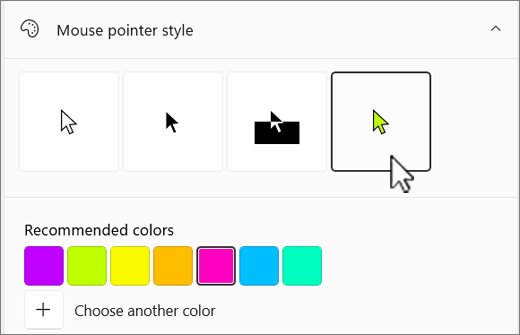
| You cannot find the pointer | Show location of pointer when I press the CTRL key, or a bigger pointer under Accessibility > Mouse pointer and touch | Pointer Options tab and Accessibility settings |
| Numeric keypad moves the pointer | Mouse keys | Settings > Accessibility > Mouse |
On Windows 10 the link is labelled Additional mouse options instead of Additional mouse settings. If the wheel only fails in Firefox, see Fix Mouse wheel scrolling not working in Firefox after v110 Update.
How to check the mouse works again
- Move the mouse in a slow circle and check the pointer follows smoothly without jumping.
- Click and double-click a desktop icon to test the left button and the double-click speed.
- Right-click the desktop and check the context menu opens.
- Scroll a long web page up and down, and press the wheel to test the middle click.
- Open Device Manager, expand the category that lists your mouse, and check it has no yellow warning icon.
- For a wireless mouse, leave it idle for 10 minutes, then move it: a Bluetooth mouse may take a few seconds to wake from sleep, which is normal.
Fix specific mouse problems
Mouse won't move
No power, a lost wireless link, or a sensor that cannot read the surface.
- Check the light on the mouse; replace the batteries if there is none.
- Unplug the receiver or cable for 10 seconds and use another port.
- Move the mouse onto a plain, non-reflective pad.
- Test it on another computer to rule out the mouse itself.
Mouse won't click or is hard to click
Dirt under the buttons, swapped button settings, or a worn switch.
- Check Primary mouse button is set to Left in Mouse settings.
- Clean around the button edges with a dry brush or compressed air, with the mouse unplugged or switched off.
- Test the same button on another computer; if it still fails, the switch is worn.
Mouse double clicks on a single click
Usually a worn button switch; a very slow double-click speed can also turn two separate clicks into a double click.
- Open Additional mouse settings > Buttons and move the Double-click speed slider toward fast.
- Test on another computer; if it still double clicks there, the switch is failing and the mouse needs warranty service or replacing.
Mouse is lagging or freezes
Low batteries, wireless interference, Bluetooth sleep, or a PC under heavy load.
- Close all open apps and see whether the pointer speeds up.
- Check the battery level under Bluetooth & devices, or replace the batteries.
- Move the receiver to a port closer to the mouse and away from USB 3 drives.
- Restart the PC so any recently updated drivers load cleanly.
- Adjust Mouse pointer speed if the pointer is simply too slow.
Mouse won't scroll
Scroll settings, one app's behaviour, or dirt in the wheel.
- Check Lines to scroll at a time is not set at its minimum.
- Turn on Scroll inactive windows when hovering over them.
- Test scrolling in a different app to see whether only one program is affected.
- Clean around the wheel and roll it firmly back and forth several times.
Mouse keeps disconnecting
Power saving turning the Bluetooth adapter off, or interference.
- Open Device Manager, expand Bluetooth, open your adapter's Properties and the Power Management tab.
- Clear Allow the computer to turn off this device to save power and select OK.
- Turn off energy saver from the battery icon on the taskbar.
- Run the Bluetooth troubleshooter in the Get Help app.
- Remove the mouse under Bluetooth & devices and pair it again.
Mouse pointer zigzags or jumps
Dirt on the sensor or a surface the sensor cannot track.
- Wipe the sensor window with a dry, lint-free cloth.
- Move off glass, mirrors or glossy wood onto a mouse pad.
- Turn Enhance pointer precision off and back on to see which feels steadier.
Mouse got wet
Liquid can short the circuit board or leave sticky residue under the buttons.
- Unplug it or switch it off at once, and take out the batteries.
- Wipe off the outside and leave it to dry completely before powering it again.
- If buttons stay sticky or it does not power on after drying, replace it.
Know When the Mouse Needs Repair or Replacement
Software fixes cannot cure a failing switch, cable or sensor. These signs point to hardware.
| Sign | What has failed | What to do |
|---|---|---|
| No light and no response on two different computers | Power circuit or the whole mouse | Replace it, or claim the warranty |
| Pointer cuts out when you bend the cable | Broken wire inside the cable | Replace the mouse or claim the warranty |
| One button double clicks or misses clicks on every computer | Worn button switch | Warranty service or replacement |
| Pointer jumps on every surface after cleaning | Sensor fault | Replace the mouse |
| Rechargeable mouse dies within minutes of charging | Worn built-in battery | Maker's battery service or replacement |
| Case cracked, or liquid residue after drying | Physical damage | Replace it |
Microsoft mice are covered by the Microsoft PC Accessory warranty, and other makers run their own warranty programs. Check the warranty terms before you open the case yourself.
Frequently Asked Questions
What should I try first if my mouse suddenly stops working?
Unplug the mouse or its receiver, wait about 10 seconds, and plug it into a different USB port on the PC. Then replace the batteries. These two steps fix most sudden failures without touching any Windows setting.
How can I fix a wireless mouse that has power but still won't move the cursor?
Re-establish the link. Unplug and replug the USB receiver, press any Reset button on the mouse or receiver, or remove a Bluetooth mouse under Bluetooth & devices and pair it again. A pairing light that flashes three times means it is paired to another computer nearby.
What do I do if my laptop touchpad works but my external mouse does not?
The laptop is responding, so the problem is the mouse, its port or its driver. Try another USB port, test the mouse on another computer, then uninstall it in Device Manager and restart so Windows reinstalls the driver.
Could a setting make my mouse seem broken?
Yes. A swapped primary button, a very low pointer speed, a slow double-click speed or Mouse keys can all make a working mouse feel broken. Check Settings > Bluetooth & devices > Mouse on Windows 11 before replacing anything.
How do I fix mouse drivers in Windows?
Open Device Manager, expand the category that lists your mouse, and right-click the mouse. Choose Update driver first; if that fails, choose Uninstall device and restart. If the problem began after an update, use Properties > Driver > Roll Back Driver.
How do I fix a mouse that isn't working on a Mac?
Check it is switched on and charged, then open Apple menu > System Settings > Bluetooth, hold the pointer over the mouse and click Connect. If it connects but moves oddly, adjust Tracking speed under System Settings > Mouse.
Why is there a delay before my Bluetooth mouse responds?
Bluetooth mice go to sleep after about 8 to 10 minutes of inactivity to save battery. Waking up and reconnecting can take a few seconds, so a short delay after a break is normal and not a fault.
Can you repair a broken mouse?
Usually the practical repair is a warranty claim. A worn button switch, a broken cable wire or a failed sensor is a hardware fault that no setting or driver fixes. Check the maker's warranty first, and replace a mouse that is no longer covered.
How do I use my computer without a working mouse?
Use the keyboard. Windows key + I opens Settings, Windows key + X opens a menu with Device Manager, and Tab and the arrow keys move between options. Turn on Mouse keys under Accessibility > Mouse to move the pointer with the numeric keypad.
Bottom Line
Work from the hardware inwards: batteries and ports, then pairing, then the driver, then settings, and test the mouse on a second computer before you spend time on Windows. The second-computer test splits every case in two. A mouse that fails everywhere needs replacing, and a mouse that works elsewhere is fixed by a port, pairing, driver or setting change on your own PC.