Windows 11 26H2 changes less than its version number suggests: it is a small enablement package that switches on features 24H2 and 25H2 PCs already received through monthly updates, turns a few of them on by default for work PCs, and resets the support clock.
Below is what is genuinely new (a movable taskbar, a redesigned Start menu, clearer Search, Administrator protection, fewer update restarts), what is still only in preview, and how to check whether your PC has it.
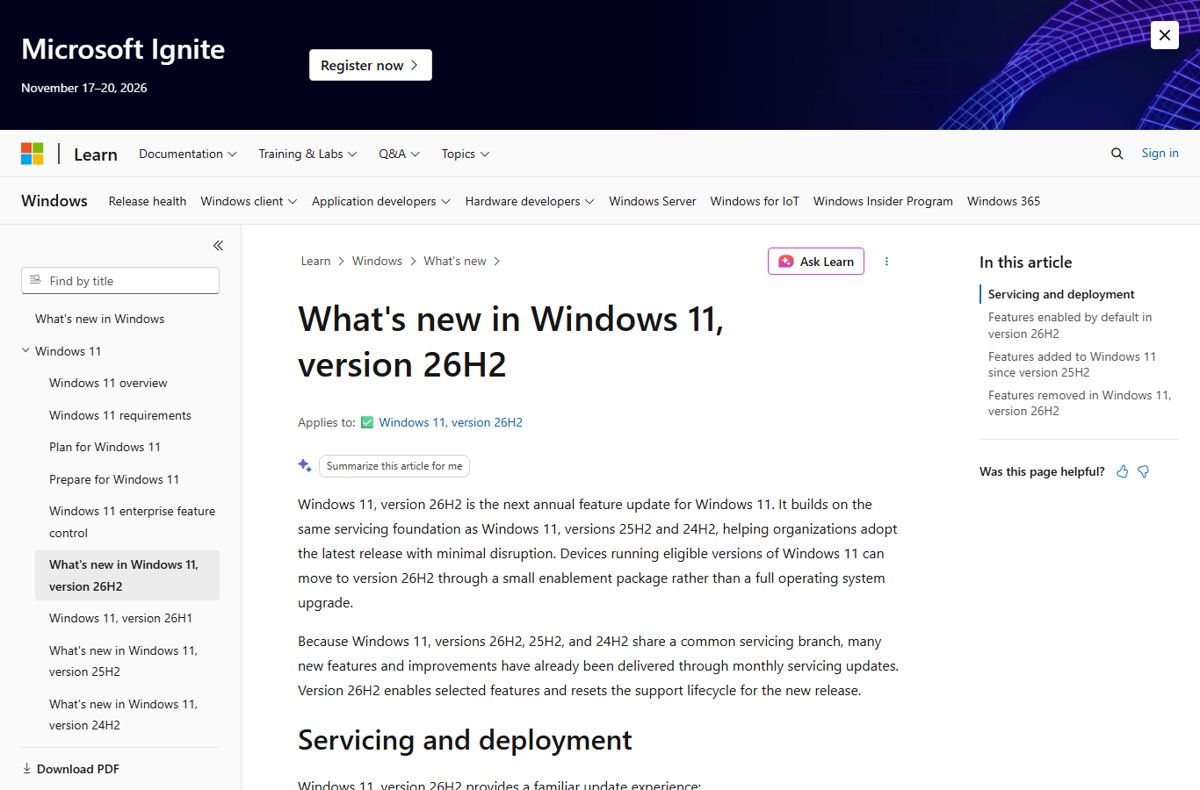
Windows 11 26H2 new features
Microsoft's own notes group the 26H2 changes into three buckets: features switched on by default for commercial PCs, features added to Windows 11 since 25H2, and removals. The table puts the ones most people will notice first.
| Change | What you get | Status in 26H2 |
|---|---|---|
| Movable, smaller taskbar | Put the taskbar at the bottom, top, left or right of the screen; a smaller option cuts icon size and bar height | Listed by Microsoft for 26H2 |
| Redesigned Start menu | Scrollable All section, category and grid views, a choice of Start size, and separate show/hide for Pinned, Recent and All | Listed by Microsoft for 26H2 |
| Clearer Windows Search | Previews without opening the item, typo-tolerant app search, labels showing whether a result is an app, setting, file, web result or Store suggestion | Listed by Microsoft for 26H2 |
| Fewer update restarts | Eligible updates install together with the monthly security update where possible | Listed by Microsoft for 26H2 |
| Administrator protection | Just-in-time admin rights with profile separation instead of always-on admin rights | Available, off by default |
| Windows settings backup | Settings and the Microsoft Store app list backed up for restore on a new or rebuilt PC | On by default for eligible commercial devices |
| Point-in-time restore | Roll a PC, including apps, settings and personal files, back to a recent automatic restore point | Listed by Microsoft for 26H2 |
| WMIC | The Windows Management Instrumentation Command-line tool | Removed, and no longer offered as a Feature on Demand |
Most of these arrive through a controlled feature rollout, so two PCs on the same build can look different for weeks.
Release date for version 26H2
Windows 11 26H2 is the next major feature update for Windows 11, and Microsoft first delivered it to certain users on 27 August 2026, when Release Preview Channel Insiders were offered build 26300.9278. General availability followed on 29 September 2026.
| Milestone | Date | Detail |
|---|---|---|
| Release Preview Channel | 27 August 2026 | Build 26300.9278, offered to Insiders who chose to install it |
| Insider ISOs | 31 August 2026 | Posted on the Windows Insider ISO download page |
| General availability | 29 September 2026 | Builds 26300.9457 and 26300.9550 (KB5124010, the September non-security preview) |
| Who is offered it first | From 29 September 2026 | Windows 11 24H2 and 25H2 PCs with Get the latest updates as soon as they're available turned on |
| End of updates: Home, Pro, Pro Education, Pro for Workstations | 10 October 2028 | 24 months of support |
| End of updates: Enterprise, Education, IoT Enterprise | 9 October 2029 | 36 months of support |
The rollout is phased and will expand over the next few months, so most PCs are not offered 26H2 on day one.
How to get the new features on your PC now
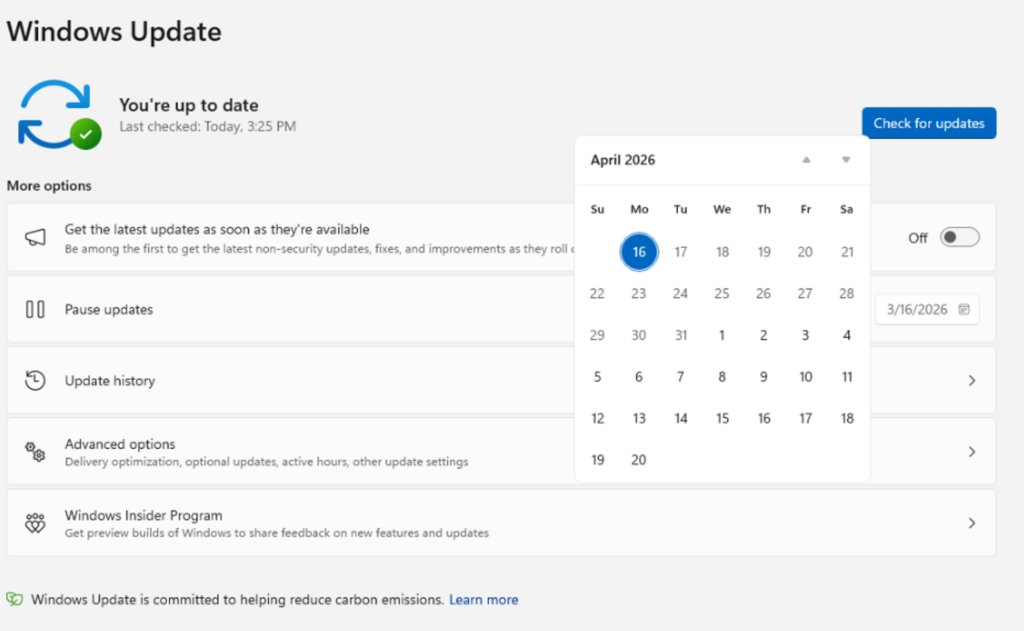
26H2 installs like a monthly update on Windows 11 24H2 and 25H2: a small download and a single restart.
- Open Settings and select Windows Update.
- Turn on Get the latest updates as soon as they're available.
- Select Check for updates.
- When Windows 11, version 26H2 appears, select Download and install.
- Restart when prompted; one restart completes the move to 26H2.
If the offer never appears, your PC may be under a safeguard hold or simply not in the current rollout wave, the two usual reasons for 26H2 not showing in Windows Update. The ISO, Installation Assistant and Media Creation Tool are other ways to download and install 26H2.
How to check whether your PC has 26H2
- Right-click Start and choose Settings.
- Select System, then About.
- Under Windows specifications, read the Version line: it should say 26H2.
- Check that OS build starts with 26300; 25H2 shows 26200 and 24H2 shows 26100.
A PC can show 26H2 and still lack a feature listed here, because individual features roll out gradually after the version change.
Windows 11 2026 Update (version 26H2) top features
Windows 11 2026 Update is Microsoft's marketing name for version 26H2. The seven headline changes below each get their own section; the status column tells you whether Microsoft lists the change for 26H2 or has only previewed it.
| Feature | Microsoft's 26H2 notes | Where it stands |
|---|---|---|
| Ask Copilot and AI actions | AI actions in File Explorer, hover actions on File Explorer Home, agent progress on the taskbar | Partly tied to Microsoft 365 Copilot licences |
| Customizable taskbar | Four screen positions and a smaller taskbar | Listed |
| Redesigned Start menu | All section, category and grid views, size choice | Listed |
| Windows Search | Previews, typo handling, clearer result labels | Listed; the web results toggle was an Insider preview |
| Windows Update control | Fewer restarts, better sleep behavior after updates | Listed; longer pauses were an Insider preview |
| Administrator protection | Just-in-time admin rights | Listed, off by default |
| Modern Run dialog | Not in the 26H2 notes | Insider preview only |
1. Ask Copilot and AI actions in Windows 11 26H2
The Copilot changes in 26H2 sit inside File Explorer and the taskbar rather than in a separate app. Whether Ask Copilot finally feels useful depends on your account, because several of these need a work or school account or a paid Copilot licence.
| Copilot change | What it does | Requirement |
|---|---|---|
| AI actions in File Explorer | Edit supported images or summarize documents from File Explorer | Summarizing OneDrive and SharePoint files needs a Microsoft 365 subscription and a Copilot licence |
| Ask Copilot hover action | Hover a file on File Explorer Home to get Ask Copilot and Open file location | Work or school account |
| AI agents on the taskbar | Watch a supported agent's progress from the taskbar and get a notification when it finishes; Researcher in Microsoft 365 Copilot is the first | Supported agent |
| Copilot key remap | A setting that makes the Copilot key act as Right Ctrl or the Context Menu key | Rolling out gradually with the September 2026 preview update |
| Voice access natural language | Filler words and synonyms instead of fixed commands | Supported Copilot+ PCs |
The Summarize action works on OneDrive and SharePoint files without opening them, which is the main time saver for licensed work accounts.
2. A more customizable Taskbar
| Taskbar change | What it means | Who gets it |
|---|---|---|
| Taskbar repositioning | Place the taskbar at the bottom, top, left or right side of the screen | Everyone on 26H2 as it rolls out |
| Smaller taskbar | Reduces icon size and taskbar height | Everyone on 26H2 as it rolls out |
| App-specific actions | Common actions for an app available straight from its taskbar entry | Now on by default for commercial devices |
| Agent progress | Monitor supported AI agents from the taskbar | Supported agents only |
More taskbar customization was the first item on the Windows quality list Microsoft published in March 2026.
3. The redesigned Start menu
| Start menu change | What you see |
|---|---|
| Scrollable All section | Installed apps in a scrollable section of Start |
| Category and grid views | Two ways to browse apps inside All |
| Start menu resize option | Choose a Start menu size; the layout also adapts to the display size |
| Section control | Show or hide Pinned, Recent and All independently |
4. Windows Search with fewer web results
Microsoft's 26H2 notes confirm clearer, more forgiving Search. They do not list the separate switch for web results, which Insiders in the Experimental channel got in July 2026.
| Search change | Status |
|---|---|
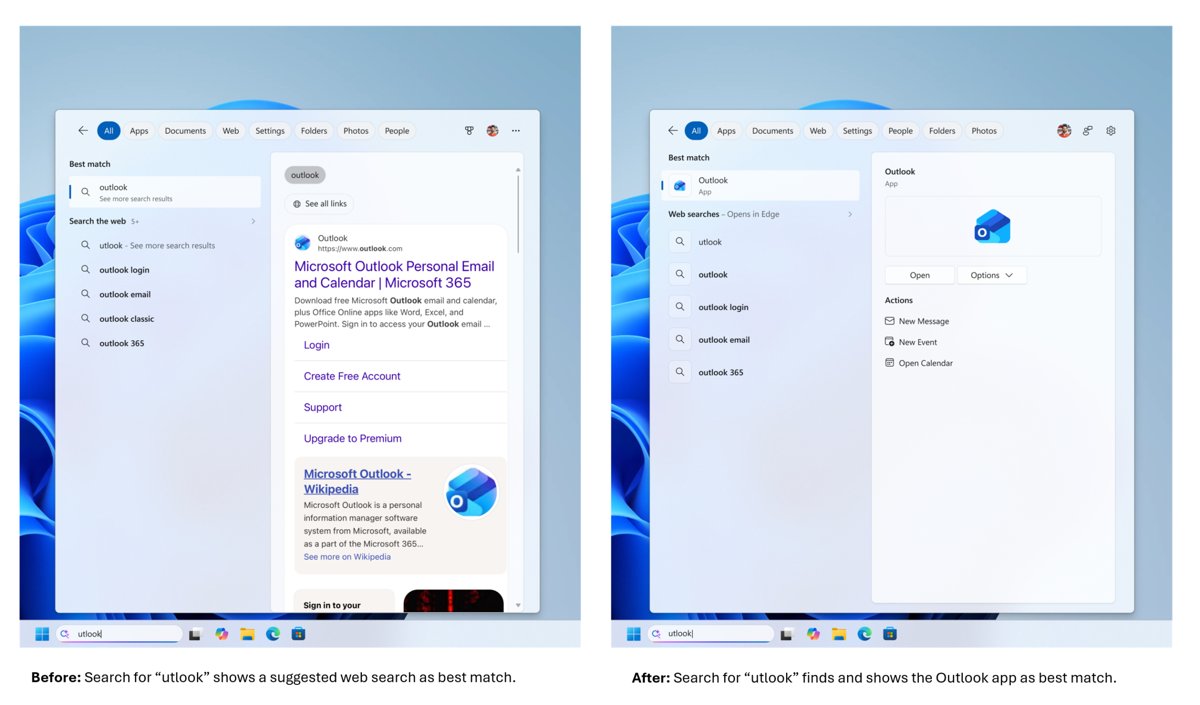
| Preview search results without opening the item | Listed for 26H2 |
| App search tolerates typos and partial names | Listed for 26H2 |
| Labels show whether a result is an app, setting, file, web result or Store suggestion | Listed for 26H2 |
| Automatic indexing of frequently used folders, managed in Settings > Privacy & security > Search | Listed for 26H2 |
| A setting in Privacy & security > Search to choose whether web and Microsoft Store suggestions appear | Previewed to Insiders in July 2026; Microsoft has not listed it for 26H2 yet |
| Promotional content removed from web results | Previewed to Insiders in July 2026; Microsoft has not listed it for 26H2 yet |
Windows Search without web results is therefore not something 26H2 guarantees on day one; check Settings > Privacy & security > Search after the update to see whether the switch has reached your PC.
5. Better control over Windows Update
| Windows Update change | What it does | Status |
|---|---|---|
| Fewer restarts | Installs eligible updates together with the monthly security update where possible; individual updates stay under Settings > Windows Update > Available updates | Listed for 26H2 |
| Back to sleep after updating | A PC you put to sleep returns to sleep after an update, even with automatic sleep set to Never | Listed for 26H2 |
| Longer pauses | Pick a pause end date up to 35 days out and extend it as often as needed | Previewed to Insiders in April 2026 |
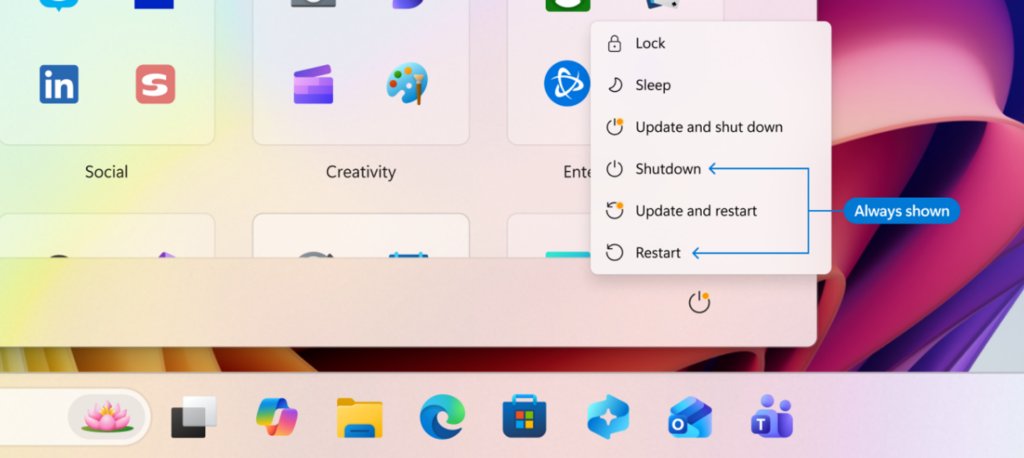
| Restart without updating | Restart and Shut down always sit beside Update and restart and Update and shut down | Previewed to Insiders in April 2026 |
| Skip updates during setup | Reach the desktop first and take updates later | Previewed to Insiders in April 2026; not for managed commercial devices |
| Clearer driver titles | Driver updates name their device class, such as display or audio | Previewed to Insiders in April 2026 |
Expedited or critical updates can still install on their own schedule.
6. Administrator Protection security feature
Administrator protection replaces always-on admin rights with just-in-time elevation and a separate profile, which hardens Windows against elevation-of-privilege attacks. It ships off by default; Microsoft documents turning it on through Microsoft Intune or Group Policy.
| Security change | What it does | Default |
|---|---|---|
| Administrator protection | Just-in-time admin privileges with profile separation | Off; turn on with Intune or Group Policy |
| Built-in Sysmon | System Monitor event capture written to Windows Event Log, with custom configuration files | Off |
| Smart App Control toggle | Turn Smart App Control on or off without a clean install | Your choice |
| Passkey plugin managers | Store and use passkeys in a supported third-party credential manager | Needs a compatible app |
| Enhanced Sign-in Security | Works with compatible peripheral fingerprint sensors, not only built-in ones | Compatible sensor needed |
| Driver trust | Default trust for cross-signed drivers removed; enforcement follows at least 100 hours and three restarts of auditing | Automatic |
| Post-quantum cryptography | API support for ML-KEM and ML-DSA | For developers |
7. Run dialog with modern design
Do not expect a new Run dialog from 26H2 alone. Microsoft rebuilt the Run experience in WinUI 3 and showed it to Windows Insiders in 2026, but the 26H2 notes for IT pros do not list it, and Microsoft has not said when it reaches general release. Win + R still opens Run as before.
What changes on work and school PCs
For commercial devices, 26H2 mainly flips switches: features that sat behind temporary commercial controls in 25H2 are now on by default. Existing administrator policies are still honored.
| Change | Effect on managed PCs |
|---|---|
| Windows settings backup on by default | Supported settings and the Microsoft Store app list are backed up for recovery and device replacement |
| First sign-in restore | Restores settings and the Store app list at first sign-in, including on Microsoft Entra hybrid joined devices, Cloud PCs and multi-user setups |
| App-specific taskbar actions on by default | Users see app actions directly from taskbar entries |
| File Explorer enhancements on by default | Navigation and usability improvements previously behind commercial controls |
| Machine Identity Isolation honored | Existing enforcement settings take effect; Microsoft supports this only with Windows Server 2025 domain functional level |
| Removal of preinstalled Microsoft apps by policy | Name extra MSIX or APPX apps by package family name in Group Policy |
| Autopilot device association | Identifies trusted devices before enrollment |
Microsoft recommends targeted deployments first to validate apps, devices and business-critical workflows before a broad rollout.
File Explorer, recovery, accessibility and other changes
| Area | Change |
|---|---|
| File Explorer improvements | Faster File Explorer Home, uu, cpio, xar and nupkg archive support, View and Sort kept in Downloads and Documents, voice typing when renaming a file |
| Recovery | Point-in-time restore; quick machine recovery can run a one-time remediation scan; Windows Recovery can reuse saved Wi-Fi profiles to get online for quick machine recovery or cloud rebuild |
| Task Manager | Optional NPU columns and an Isolation column showing apps running in an AppContainer |
| Magnifier | Type an exact zoom percentage and apply a full-screen color tint to reduce eye strain |
| Narrator | Braille Viewer, better Microsoft Word reading, more control over what is announced |
| Voice access | French, German, Spanish and Korean support, plus Voice Isolation |
| Camera | Multi-App Camera lets several apps use the camera at once; Basic Camera mode for troubleshooting |
| Bluetooth and USB | LE Audio, call and reconnection fixes; steadier displays on USB4 docks after standby |
| Touchpad | Single-finger and automatic scrolling gestures in Settings > Bluetooth & devices > Touchpad |
| Command Prompt scripts | An admin-enabled mode that stops batch files changing while they run |
| Removed | WMIC is gone from 24H2 and later and is no longer a Feature on Demand |
If a script still calls WMIC, rewrite it in PowerShell before 26H2 reaches that PC.
Windows 11 doesn't need another major redesign
26H2 is a switch-flip, not a rebuild, and that is by design. Versions 24H2, 25H2 and 26H2 share one servicing branch and codebase, so the new features are already on your PC in dormant form; the enablement package turns them on. That keeps app compatibility the same as 25H2 and avoids a full reinstall.
What about Windows 11 26H1?
| Windows 11 26H1 | Windows 11 26H2 | |
|---|---|---|
| Build | 28000 | 26300 |
| Available since | 10 February 2026 | 29 September 2026 |
| Who gets it | New devices that started coming to market in early 2026 | Existing 24H2 and 25H2 PCs through Windows Update |
| In-place update from 24H2 or 25H2 | No | Yes, as an enablement package |
| IoT Enterprise edition | Not supported | Supported |
| Hotpatch | Not available | Available, from the October 2026 baseline |
Microsoft shipped two 2026 versions: 26H1 and 26H2.
Fix problems after installing 26H2
Microsoft lists three open issues for 26H2, all marked mitigated as of 29 September 2026.
USB audio device shows Code 10 or plays no sound
Affects some USB Audio Class 1.0 devices; Microsoft is working on a fix in a future update.
- Open Device Manager and check whether the device reports This device cannot start (Code 10).
- Install the latest updates from Settings > Windows Update as they arrive.
- On a business PC, ask IT to contact Microsoft Support for Business for the interim workaround.
Black screen after sign-in on a virtual desktop
Seen mainly on Azure Virtual Desktop hosts using FSLogix profiles.
- Press Ctrl + Shift + Esc to open Task Manager.
- Select Run new task, type
explorer.exeand select OK. - For managed fleets, have IT deploy the Known Issue Rollback Group Policy for KB5124010.
Trust relationship with the domain failed
26H2 honors existing Machine Identity Isolation enforcement, which needs Windows Server 2025 domain controllers.
- Disable Machine Identity Isolation with the same tool that enabled it (Intune, Group Policy or the registry).
- Restart the device.
- Run
Test-ComputerSecureChannel -Repair -Credential (Get-Credential)in PowerShell to reset the secure channel.
More resources
- What's new in Windows 11, version 26H2 (Microsoft Learn) — Microsoft's full feature list for IT pros
- How to get the Windows 11 2026 Update (Windows Experience Blog) — Availability announcement and support lifecycle
- Windows 11 release information — Builds, KB numbers and end-of-updates dates
- Windows 11, version 26H2 known issues — Open issues and safeguard holds
Frequently Asked Questions
What's new in Windows 11 26H2?
Windows 11 26H2 brings a taskbar you can move to any screen edge, a redesigned Start menu, clearer Search results, fewer update restarts, point-in-time restore and Administrator protection. For work PCs it also turns on Windows settings backup and app-specific taskbar actions by default.
Is Windows 11 26H2 a big update?
No. It is an enablement package for PCs on 24H2 or 25H2, so it downloads like a monthly update and needs one restart. The features were already delivered in dormant form through monthly updates, and 26H2 switches them on and resets the support period.
When was Windows 11 26H2 released?
Microsoft released Windows 11 26H2 on 29 September 2026. Release Preview Insiders had it from 27 August 2026. The rollout is phased over the following months, so many PCs will not see the offer straight away.
What is the Windows 11 26H2 backup feature?
It is Windows settings backup, which saves supported Windows settings and your Microsoft Store app list so they can be restored on a new or rebuilt PC. In 26H2 it is on by default for eligible commercial devices, and it can restore at first sign-in.
Is Administrator protection on by default in 26H2?
No. Administrator protection ships turned off in Windows 11 26H2. Microsoft documents enabling it through Microsoft Intune or Group Policy. Once on, administrative tasks use just-in-time privileges in a separate profile instead of permanent admin rights.
Can I turn off web results in Windows Search on 26H2?
Microsoft previewed a setting under Privacy & security > Search that controls web and Microsoft Store suggestions, but it has not listed that switch as part of 26H2. Check that page after updating; if the option is missing, it has not reached your PC yet.
How long is Windows 11 26H2 supported?
Home, Pro, Pro Education and Pro for Workstations get updates until 10 October 2028. Enterprise, Education, IoT Enterprise and Enterprise multi-session get updates until 9 October 2029. That is 24 and 36 months respectively.
What was removed in Windows 11 26H2?
Microsoft lists WMIC, the Windows Management Instrumentation Command-line tool, as removed. It is gone from 24H2 and later and can no longer be added back as a Feature on Demand, so scripts that call it need to move to PowerShell.
Why don't I see the new features after updating to 26H2?
Microsoft releases many 26H2 features through a controlled feature rollout, so a PC can report version 26H2 before a specific feature is switched on. Keep installing monthly updates; features reach devices in stages rather than all at once.
Bottom line
Take 26H2 when Windows Update offers it; the risk is low and the support reset alone is worth it. Home and Pro users on 24H2 lose updates on 13 October 2026, and 26H2 adds a year to 25H2's support window with a single restart. The visible changes (taskbar position, Start, Search) are real but arrive gradually, so judge 26H2 by its support date, not by what appears on the first day. The 26H2 hub links every related guide.



Windows 11 26H2 release date and when your PC gets it - Techdows
[…] 26H2 activates features that shipped to 25H2 during the year, a PC that installs every monthly update will look much the same after the […]
Windows 11 26H2 Copilot changes and how to remap the Copilot key - Techdows
[…] 26H2 changes range from the movable taskbar to Administrator […]
How to enable the new Start menu in Windows 11 26H2 - Techdows
[…] is one of several 26H2 new features. The ones that sit next to Start in daily use are […]