When audio stops working after Windows 11 26H2, first check the selected output device, then roll back, update or reinstall the Realtek audio driver in Device Manager, because an incompatible or partly installed driver is the usual cause after an update.
This guide covers the quick checks, every Realtek driver fix in the order Microsoft recommends, the one audio known issue Microsoft lists for 26H2, and fixes grouped by symptom.
Fix Realtek audio after the 26H2 update in five minutes
Try these in order and test sound after each step. Microsoft's own guidance for audio that stops after an update follows the same order: updates, driver, rollback, services.
- Select the Speakers icon on the taskbar, then the arrow beside the volume slider, and pick your speakers or headphones.
- Open Settings > Windows Update, select Check for updates, install everything offered and restart.
- Press Start, search for Device Manager and open it.
- Expand Sound, video and game controllers, right-click your Realtek audio device and select Properties.
- On the Driver tab, select Roll Back Driver if it is available, and follow the prompts.
- Restart the PC and test sound.
Roll Back Driver is available only when a previous driver version exists. If it is greyed out, move on to updating or reinstalling the driver below.
Which fix matches your symptom
| What you see after 26H2 | Likely cause | Start with |
|---|---|---|
| Volume icon looks normal but nothing plays | Wrong output selected, muted, or enhancements interfering | Output device check and audio enhancements off |
| No audio output device is installed | Realtek driver missing, disabled or not loading | Device Manager: enable, show hidden devices, scan for hardware changes |
| Sound worked before the update, now silent | Incompatible or partly installed driver | Roll back, then update or reinstall the Realtek driver |
| Crackling or distorted sound | Enhancements, audio format or driver | Enhancements off, then change Default format |
| USB headset or DAC shows Code 10 or no sound | Microsoft's known USB Audio Class 1.0 issue | Install the latest updates and check the known issue status |
| Sound missing even with the right device selected and a working driver | Windows audio services did not start correctly | Restart Windows Audio and Windows Audio Endpoint Builder |
Check the output device and hardware first
Rule out the simple causes before touching drivers: the wrong output selected, a muted slider or a loose cable.
- Open Settings > System > Sound.
- Under Output, select the device you want; selecting it also makes it the default.
- Make sure the volume slider is up and not muted.
- Check cables and jacks; many desktops use the green jack for output and pink for the microphone.
- Unplug headphones to test the speakers, since some speakers do not play while headphones are connected.
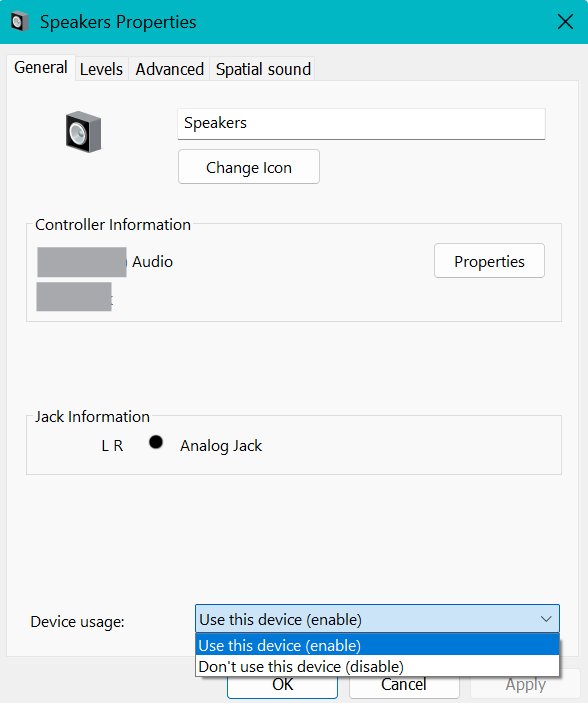
- Under Advanced, select More sound settings, open your device's Properties and confirm Device usage says Use this device (enable).
If you use an external monitor over USB or HDMI that has no built-in speakers, make sure it is not selected as the default output, or you will hear nothing.
Run the audio troubleshooter
Microsoft recommends starting with the automated audio troubleshooter in the Get Help app on Windows 11. It runs diagnostics and tries to fix the problem on its own.
- Open Settings > System.
- Select Troubleshoot > Other troubleshooters.
- In the Audio row, select Run.
- Follow the Get Help prompts and apply any fix it suggests.
- Test sound again.
Roll back the Realtek audio driver
Use this when sound worked before the 26H2 update or before a driver arrived through Windows Update.
- Open Device Manager.
- Expand Sound, video and game controllers.
- Right-click the Realtek audio device and select Properties.
- Select the Driver tab, then Roll Back Driver.
- Follow the instructions and select Yes to confirm.
- Restart the PC.
If rollback is not available or does not help, Microsoft suggests restoring from a system restore point created when updates were installed.
Update the Realtek driver through Windows Update or Device Manager
Windows Update is Microsoft's recommended source for audio drivers, which often arrive as optional or recommended updates.
- Open Settings > Windows Update and select Check for updates.
- Install any audio driver update offered and restart.
- If none arrives, open Device Manager and expand Sound, video and game controllers.
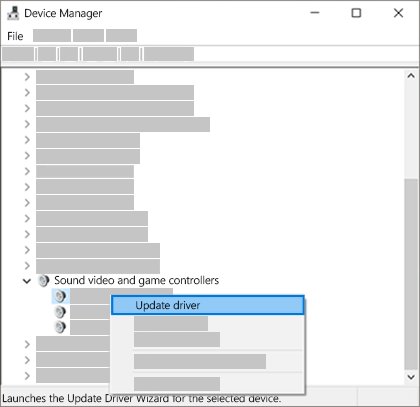
- Right-click the Realtek device and select Update driver.
- Select Search automatically for drivers and follow the prompts.
- Restart after the update completes.
If Windows says the best driver is already installed, a newer one can still be available from your PC maker.
Reinstall the Realtek driver cleanly
Reinstalling replaces a corrupted or incomplete driver. Save your work first, because the fix ends with a restart.
- Open Device Manager and expand Sound, video and game controllers.
- Right-click the Realtek audio device and select Uninstall device.
- Tick Attempt to remove the driver for this device, then select Uninstall.
- Select Start > Power > Restart.
- After the restart, Windows reinstalls the audio driver automatically.
- Check Device Manager again to confirm the device is back without a warning icon.
Install the Realtek driver from your PC maker
Microsoft notes that some audio drivers come directly from the PC or audio device maker, and recommends this route when audio problems start after a Windows upgrade or generic drivers do not help.
- Go to your PC or motherboard maker's support website, such as Dell, HP, Lenovo or ASUS.
- Search for your exact model or service tag.
- Download the latest audio driver listed for Windows 11.
- Install it by following the maker's instructions.
- Restart the PC and test sound.
Avoid third-party driver updater tools. Once the driver works, you can also install the Realtek Audio Console to adjust Realtek's own settings.
Switch to the Windows generic audio driver
If the Realtek driver still fails, Microsoft suggests trying the generic audio driver that comes with Windows. It confirms whether the hardware works while you wait for a fixed Realtek package.
- Open Device Manager and expand Sound, video and game controllers.
- Right-click the Realtek audio device and select Update driver.
- Select Browse my computer for drivers.
- Select Let me pick from a list of available drivers on my computer.
- Choose High Definition Audio Device if it is listed, select Next and follow the instructions.
- Restart and test sound.
Reinstall the maker's Realtek driver once an updated version is available.
Restart the Windows audio services
Audio services that did not start correctly after the update's restart leave the Realtek driver with nothing to play through.
services.mscPress Start, type services.msc and press Enter. Right-click Windows Audio and select Restart, then do the same for Windows Audio Endpoint Builder.
You should see: Both services show Running and sound plays again after you test it.
If sound still fails, Microsoft's general audio checklist also restarts the Remote Procedure Call (RPC) service alongside the two audio services.
The USB audio known issue in Windows 11 26H2
Microsoft lists one audio problem on the 26H2 release health page. It affects USB Audio Class 1.0 devices, not the built-in Realtek chip, but it causes the same no-sound symptom.
| Detail | What Microsoft says |
|---|---|
| Affected devices | Some USB Audio Class 1.0 devices only |
| Symptoms | Code 10 (This device cannot start) in Device Manager, no audio output, volume stuck at zero or unresponsive, sound settings unavailable |
| Also seen in | Multichannel audio modes after the September 8 update |
| Status on 29 September 2026 | Mitigated; a full fix is planned in a future Windows update |
| Other affected versions | Windows 11 26H1, 25H2, 24H2 and 23H2, Windows 10 and several Windows Server versions |
Because 25H2 and 24H2 are affected too, removing 26H2 does not fix this one. Track its status in the 26H2 known issues roundup, and if the USB device does not appear at all, see the fixes for USB devices not detected on 26H2.
How to check that sound is fixed
- Open Device Manager and confirm the Realtek device under Sound, video and game controllers has no yellow warning icon.
- Open Settings > System > Sound and confirm your speakers or headphones appear under Output.
- Play a video or music file and move the volume slider; the output level should respond.
- Plug in headphones and unplug them again to confirm output switches correctly.
- Restart the PC once more and confirm sound still works after sign-in.
To confirm the update itself is in place, check that 26H2 is installed under Settings > System > About.
Fix Realtek sound problems by symptom
"No audio output device is installed"
The audio driver is missing, disabled or not loading.
- In Device Manager, expand Sound, video and game controllers.
- If the Realtek device is there, right-click it and select Enable device if offered.
- If it is not there, select View > Show hidden devices, then Action > Scan for hardware changes.
- Install the latest audio driver from your PC maker and restart.
Crackling or distorted Realtek audio
Audio enhancements, an unsupported audio format or a faulty driver.
- Open Settings > System > Sound and select your output device.
- Set Audio enhancements to Off and test.
- Select Advanced and choose a different Default format, then test again.
- If it continues, uninstall the driver and install the maker's latest version.
One app is silent while others play
That app is muted in the volume mixer or has its own volume turned down.
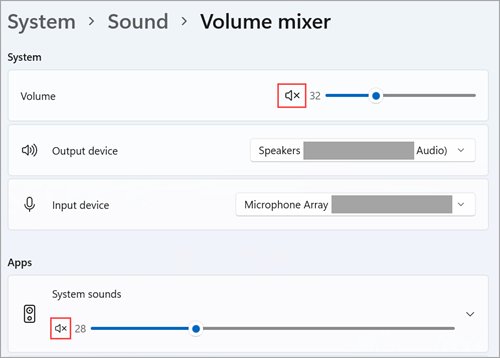
- Right-click the Speakers icon, select the arrow beside the volume slider and open the volume mixer settings.
- Unmute any app that shows an x next to its volume control.
- Check the app's own volume control, since some apps have one.
Roll Back Driver is greyed out
No previous driver version is stored on the PC.
- Uninstall the device with Attempt to remove the driver for this device ticked and restart.
- Or install the maker's Windows 11 audio driver directly.
- As a last resort, restore from a system restore point made before the update.
Nothing fixes it and sound worked on 25H2
A problem the standard driver fixes do not reach.
- Try the Windows generic High Definition Audio Device driver to confirm the hardware works.
- Report the problem through Feedback Hub so Microsoft sees it.
- If other parts of Windows misbehave too, repair Windows without losing files before removing the update.
- If you need the old setup back, follow the steps to uninstall Windows 11 26H2 safely.
Frequently Asked Questions
Why is my audio not working after the Windows 11 26H2 update?
An incompatible or partly installed audio driver is the most common cause after a Windows update, followed by a changed default output device. Roll back or update the Realtek driver in Device Manager and check the selected output in Settings > System > Sound.
Is there a known Realtek audio issue in Windows 11 26H2?
Microsoft's 26H2 release health page did not list a Realtek issue on 29 September 2026. The only audio known issue affects some USB Audio Class 1.0 devices, which show Code 10 or produce no sound; its status was Mitigated.
How do I run the Windows audio troubleshooter?
Open Settings > System > Troubleshoot > Other troubleshooters and select Run next to Audio. On Windows 11 it opens the Get Help app, which runs diagnostics and tries to fix the problem automatically.
How do I update audio drivers via Device Manager?
Open Device Manager, expand Sound, video and game controllers, right-click your audio device and select Update driver, then Search automatically for drivers. If Windows finds nothing newer, check your PC maker's support site for a Windows 11 audio driver.
How do I check my sound settings?
Open Settings > System > Sound, pick the right device under Output and make sure it is not muted. Under Advanced, open More sound settings and confirm the device's Properties show Use this device (enable).
Where do I download the Realtek audio driver for Windows 11 26H2?
Use Windows Update first, then your PC or motherboard maker's support site for your exact model. Microsoft recommends the maker's driver when audio problems start after a Windows upgrade, and third-party driver updaters are best avoided.
Will uninstalling the Realtek driver delete my files?
No. Uninstalling the device removes only the driver, and Windows reinstalls an audio driver automatically after the restart. Reinstall your PC maker's audio package afterwards if you need its full software.
Should I uninstall 26H2 to fix audio?
Try the driver fixes first. The USB audio known issue also affects 25H2 and 24H2, so going back does not fix it. Uninstall 26H2 only if sound worked on the previous version and every driver fix has failed.
Bottom line
Check the output device, then roll back, update or reinstall the Realtek driver, using your PC maker's Windows 11 package if Windows Update has nothing newer. Microsoft names incompatible or partly installed drivers as the main cause of sound loss after an update, and its only 26H2 audio known issue concerns USB Audio Class 1.0 devices rather than Realtek chips.



Windows 11 26H2 Ethernet driver problems: how to fix - Techdows
[…] If Roll Back Driver is greyed out, Windows has no older driver stored; use the reinstall or update method instead. The same approach fixes other driver faults after the update, such as the Realtek audio driver fixes. […]
Windows 11 26H2 not detecting USB drives: how to fix - Techdows
[…] USB headset or audio interface showing Code 10 matches the audio issue, and the 26H2 audio driver fixes apply there. The USB audio problem traces back to the September 2026 update, so it also affects […]
Computer not detecting microphone? Try these 10 fixes - Techdows
[…] with Realtek audio often need the manufacturer's driver; the Realtek audio driver fixes for Windows 11 also cover rollback and the generic […]