A computer usually fails to detect a microphone because the cable or port is faulty, the wrong input device is selected, microphone access is switched off, or the audio driver needs reinstalling.
The ten fixes below run from the quickest checks to driver and firmware work on Windows 11 and Windows 10, with the matching Mac settings and a symptom table to find the cause first.
1. Check the microphone hardware, cable and port first
Most detection failures are physical. Rule them out in two minutes before you touch any setting.
- Unplug the microphone or headset and plug it back in firmly, all the way into the port.
- Move a USB microphone to a different USB port, ideally one directly on the computer rather than a hub or dock.
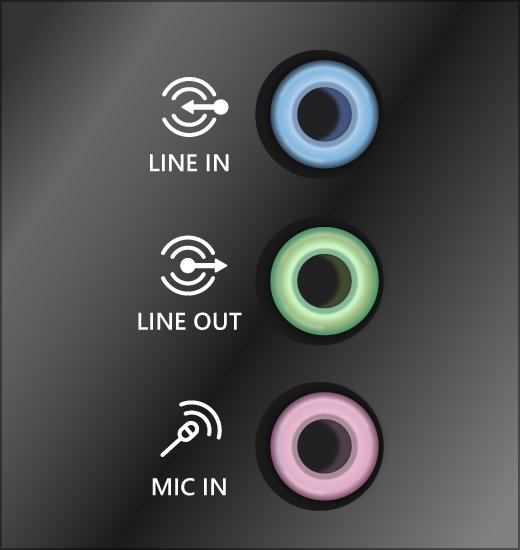
- Plug a 3.5mm microphone into the microphone (input) jack, not the headphone jack; on desktops the microphone jack is usually pink and the headphone jack green.
- Check the headset or microphone for a physical mute switch or a boom arm in the mute position, and turn the mute off.
- Charge a wireless or Bluetooth headset and confirm it is switched on.
- Restart the computer with the microphone connected, then check whether it appears under Settings > System > Sound > Input.
If the microphone now appears under Input, select it and move to the test in the verify section below.
How to tell whether the problem is the computer, the app or the microphone
Two quick tests locate the fault: try the microphone in Windows' own microphone test, then try it on another computer.
| What you see | Where the fault is | Start with |
|---|---|---|
| The microphone works on another computer but is missing from this one | This computer: port, driver or settings | Fixes 2, 3, 6 and 7 |
| Windows lists the microphone and the meter moves, but one app hears nothing | The app or its permission | Fixes 4 and 5 |
| The microphone is listed but the input meter never moves | Mute, input volume or a disabled device | Fix 3, then Fix 7 |
| Only a Bluetooth headset microphone fails | The Bluetooth hands-free connection | Fix 9 |
| The microphone fails on every computer and every port | The microphone, cable or headset | Replace it or use a workaround |
| The built-in laptop microphone vanished from the list entirely | A disabled device, driver or firmware setting | Fixes 3, 7 and 10 |
2. Select the correct microphone in Windows sound settings
Windows records from one default input device. If a webcam, monitor or old headset holds that slot, your microphone looks undetected even though Windows sees it.
- Windows 11: select Start > Settings > System > Sound.
- Under Input, pick your microphone in Choose a device for speaking or recording.
- Windows 10: select Start > Settings > System > Sound.
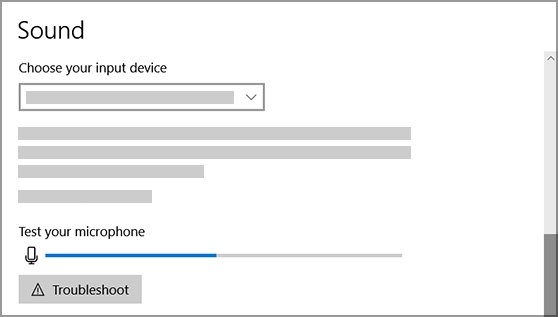
- Under Input, pick your microphone in Choose your input device.
- For a USB or Bluetooth headset, choose the entry that carries the headset's name rather than the built-in microphone.
Leave each app's own microphone setting on the system default where it offers one, so it follows this choice.
3. Make sure the microphone is not muted or disabled
A disabled recording device disappears from the Input list, and a muted or zero-volume one shows up but records silence. Check both, plus any keyboard mute key on a laptop.
- Press the microphone mute key on your laptop keyboard or headset if it has one, and watch for its indicator light to change.
- Windows 11: open Settings > System > Sound, select your microphone under Input, and raise the Input volume slider.
- Windows 10: open Settings > System > Sound, select your microphone under Input, choose Device Properties, then raise the Microphone and Microphone Boost sliders on the Levels tab and select OK.
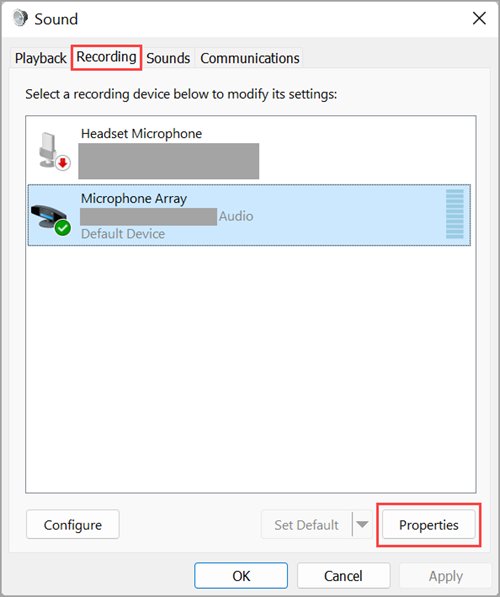
- To re-enable a disabled microphone, open Settings > System > Sound > More sound settings and select the Recording tab.
- Right-click the microphone and select Enable.
- Select the microphone, choose Properties, and confirm Device usage is set to Use this device (enable).
- In Device Manager, right-click a device with a down-arrow icon and select Enable device.
4. Allow microphone access in Windows privacy settings
When microphone access is off, apps behave as if no microphone exists. Desktop apps such as Zoom and Discord use a separate toggle from Microsoft Store apps.
- Windows 11: select Start > Settings > Privacy & security > Microphone.
- Turn on Microphone access and Let apps access your microphone, then turn on each app that needs it.
- Turn on Let desktop apps access your microphone; desktop apps do not appear in the per-app list.
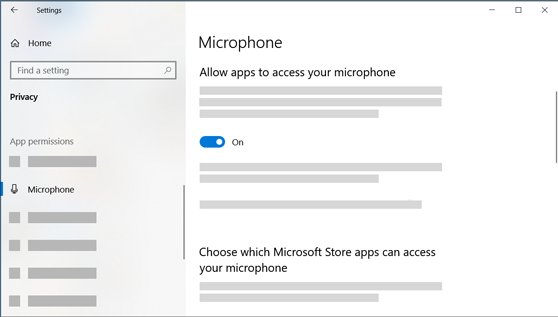
- Windows 10: select Start > Settings > Privacy > Microphone, select Change, and turn the device access toggle on.
- Turn on Allow apps to access your microphone and Allow desktop apps to access your microphone.
- If your microphone is built into a webcam, also open Privacy & security > Camera (Windows 10: Privacy > Camera) and allow camera access.
- Close and reopen the app that could not find the microphone.
5. Choose the right microphone inside Teams, Chrome and other apps
Most calling and recording apps keep their own microphone setting, and it can point at a device that no longer exists. Browser apps such as Google Meet also need the browser's site permission.
| App | Where to pick the microphone | Extra check |
|---|---|---|
| Microsoft Teams (before a meeting) | Settings and more > Settings > Devices > Audio settings > Microphone | Select Make a test call to hear yourself back |
| Microsoft Teams (during a meeting) | Dropdown arrow next to Mic > More audio settings | Make sure the Mic icon is not crossed out; select Unmute mic if it is |
| Google Meet and other sites in Chrome | Chrome Settings > Privacy and security > Site settings > Microphone, then the default microphone dropdown | Set Sites can ask to use your microphone, and allow the site under the address bar's site information icon |
| Teams for web in Microsoft Edge | Settings and more > Settings > Cookies and site permissions > Microphone | Turn on Ask before accessing |
| Zoom, Discord and other desktop apps | The app's own audio or voice settings | Choose the same device you set in Windows, and confirm Let desktop apps access your microphone is on |
After changing a browser permission, reload the meeting page so the site asks for the microphone again.
6. Restart Windows audio services and reconnect the microphone
The services behind Windows sound can stall after sleep or an update, which leaves new devices undetected until they restart.
- Type services in the taskbar search box and open Services.
- Right-click Windows Audio, select Restart, and select Yes if asked.
- Restart Windows Audio Endpoint Builder the same way.
- Check that Remote Procedure Call (RPC) is running.
- Unplug the microphone, wait a few seconds, and plug it back in.
- For a Bluetooth headset, open Settings > Bluetooth & devices, turn Bluetooth off, wait 10 seconds, and turn it back on.
7. Update, roll back or reinstall microphone audio drivers
When Windows does not detect the microphone or headset at all, Microsoft's fix is to remove the audio devices and let Windows reinstall them. Try Windows Update first, and roll back if the trouble began after a driver update.
- Select Start > Settings > Windows Update > Check for updates, install any audio driver updates, and restart.
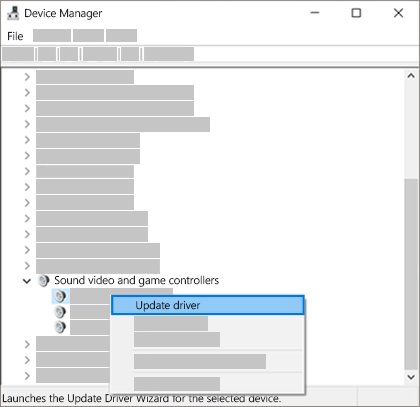
- Right-click Start, select Device Manager, and expand Sound, video and game controllers.
- If the problem started after an update, right-click the audio device, select Properties, open the Driver tab and select Roll Back Driver (the button works only when a previous driver exists).
- Otherwise, right-click each audio device and select Uninstall device, tick Attempt to remove the driver for this device (Windows 10: Delete the driver software for this device), and select Uninstall.
- Restart the computer so Windows reinstalls the devices.
- If the devices do not return, right-click Sound, video and game controllers and select Scan for hardware changes.
- Right-click the audio device, select Update driver, then Search automatically for drivers.
Laptops with Realtek audio often need the manufacturer's driver; the Realtek audio driver fixes for Windows 11 also cover rollback and the generic driver.
8. Run the Windows audio troubleshooter for microphone input
The built-in troubleshooters check the input device, services and driver state in one pass. Pick the input option, not the playback one.
- Windows 11: open Settings > System > Sound.
- Scroll to Advanced and, under Troubleshoot common sound problems, select Input devices.
- Follow the prompts and let it apply any fix it suggests.
- Alternatively, open Settings > System > Troubleshoot > Other troubleshooters and select Run next to Audio.
- Windows 10: open Settings > Update & Security > Troubleshoot > Additional troubleshooters.
- Select Recording Audio and run the troubleshooter.
9. Fix Bluetooth headset microphone not detected
Bluetooth headsets appear twice in Windows: a stereo entry for music and a Hands-Free entry for calls. Only the Hands-Free entry carries the microphone.
- Make sure the headset is charged and not connected to a phone or another computer at the same time.
- Open Settings > System > Sound and, under Input, select the headset entry that includes Hands-Free in its name.
- If no Hands-Free entry appears, open Start > Settings > Bluetooth & devices.
- Select More options (…) next to the headset and choose Remove device.
- Put the headset in pairing mode, select Add device, and pick it from the list.
- Return to Sound > Input and select the headset's Hands-Free microphone again.
10. Check security software, BIOS/UEFI and microphone hardware failure
Business laptops can switch onboard audio off in firmware, and security software with a microphone-protection feature can block an app. If neither applies, the microphone itself may have failed.
- Open your security software's settings and, if it has a microphone or webcam protection feature, allow the specific app you need rather than turning protection off.
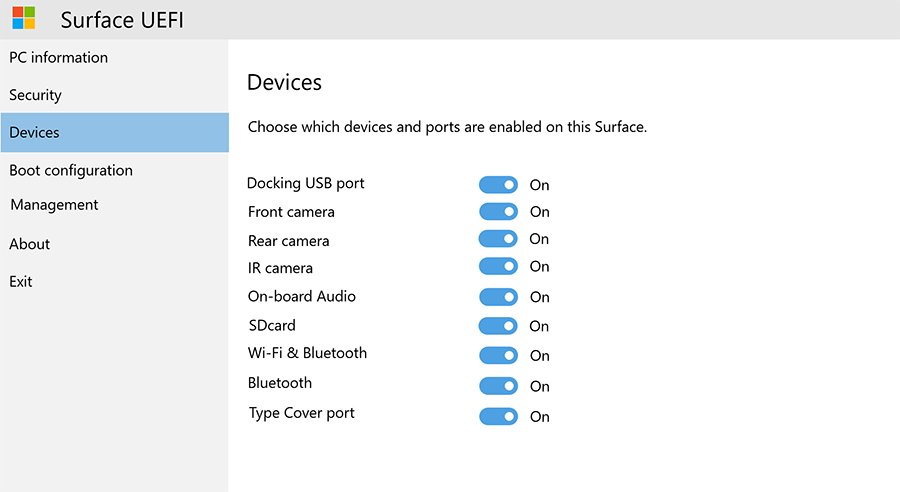
- To reach firmware settings from Windows 11, open Settings > System > Recovery and select Restart now next to Advanced startup.
- Select Troubleshoot > Advanced options > UEFI Firmware Settings > Restart.
- Look for an onboard audio or microphone entry and make sure it is enabled; on business Surface models it is On-board Audio on the Devices page.
- Save and exit the firmware, then check Sound > Input again in Windows.
- Test the microphone on a second computer; if it fails there too, the microphone, cable or headset is faulty.
On a work-managed laptop, firmware and privacy settings may be locked by IT. Ask them before changing UEFI options.
Where microphone settings live on Windows 11, Windows 10 and Mac
The same checks apply on a Mac, under different names. Use this table to find each setting on your system.
| Setting | Windows 11 | Windows 10 | Mac |
|---|---|---|---|
| Choose the input device | Settings > System > Sound > Input | Settings > System > Sound > Input > Choose your input device | Apple menu > System Settings > Sound > Input |
| Input level | Input volume slider on the microphone's page | Device Properties > Levels tab | Volume slider under Input |
| App microphone access | Settings > Privacy & security > Microphone | Settings > Privacy > Microphone | System Settings > Privacy & Security > Microphone (Ventura or later) |
| Older Mac versions | Not applicable | Not applicable | System Preferences > Security & Privacy > Privacy > Microphone (Monterey and earlier) |
| Built-in troubleshooter | Settings > System > Troubleshoot > Other troubleshooters > Audio | Settings > Update & Security > Troubleshoot > Additional troubleshooters > Recording Audio | None; recheck input and privacy settings |
On a Mac, quit the recording app before changing its microphone permission, then reopen it. The built-in microphone appears in the Input list under the Mac model's name.
How to test your microphone in Windows 11 and Windows 10
- Windows 11: open Settings > System > Sound and select the arrow beside your microphone under Input.
- Under Microphone test, select Start test, speak for a few seconds, then select Stop test.
- Under Recorded sample, select Play to hear what Windows captured.
- Windows 10: open Settings > System > Sound and speak while watching Test your microphone under Input.
- Confirm the bar moves as you talk; a moving bar means Windows hears the microphone.
- Open the app that failed, select the same microphone in its settings, and make a short test recording or test call.
Extra fixes for USB, 3.5mm and built-in microphone types
USB microphone or USB headset not detected
A hub, dock or front-panel port is not supplying the device, or its driver did not load.
- Connect the microphone straight to a USB port on the computer itself.
- Try a different USB cable if the microphone uses a detachable one.
- In Device Manager, select Action > Scan for hardware changes.
- Reinstall the device as in Fix 7 if it shows a warning icon.
Wired 3.5mm microphone or headset not detected
The plug is in the headphone jack instead of the microphone jack, or the plug is not fully seated.
- Plug the microphone into the microphone (input) jack; on desktops it is usually pink.
- Push the plug in until it seats fully, then try a front and a rear jack on a desktop.
- Reselect the microphone under Settings > System > Sound > Input after plugging in.
Laptop not detecting the built-in or internal microphone
The internal microphone is disabled, blocked by privacy settings, or switched off in firmware.
- Re-enable it on the Recording tab of More sound settings as in Fix 3.
- Turn on microphone access as in Fix 4.
- Reinstall the audio driver as in Fix 7.
- Check the firmware onboard audio setting as in Fix 10.
Webcam microphone not detected
The microphone shares the camera's permission and USB connection.
- Turn on camera access under Privacy & security > Camera.
- Reconnect the webcam to a different USB port.
- Select the webcam's microphone under Input.
Computer not detecting microphone input: fixes by symptom
The microphone is detected but there is no input
Input volume is at zero, a mute switch is on, or the wrong device is the default.
- Raise Input volume for the microphone in Settings > System > Sound.
- Turn off any headset or keyboard mute control.
- Run the microphone test and watch the meter.
Microphone works in Windows but not in one app
The app's permission is off or it points at another device.
- Turn on the app under Settings > Privacy & security > Microphone.
- Select the microphone inside the app as in Fix 5.
- Restart the app.
Microphone stopped being detected after a Windows update
An updated or partly installed audio driver.
- Roll back the audio driver from the Driver tab in Device Manager.
- If rollback is unavailable, uninstall the device and restart as in Fix 7.
- Restart Windows Audio and Windows Audio Endpoint Builder.
No microphone in a Remote Desktop session
Remote audio recording is not passed through by default.
- Open Remote Desktop Connection and select Local Resources.
- Under Remote audio, select Settings.
- Choose Record from this computer and reconnect.
If other USB devices also stopped appearing after the 26H2 update, the problem sits in the port, and the fixes for USB devices Windows 11 26H2 cannot detect apply.
Computer not detecting microphone FAQ
Why isn't my computer detecting my microphone?
The usual causes are a loose cable or wrong jack, a different default input device, microphone access switched off in privacy settings, a disabled recording device, or a faulty driver. Check the hardware first, then Settings > System > Sound > Input, then privacy access.
How do I fix a PC not detecting a microphone?
Reconnect the microphone, select it under Input in Sound settings, turn on microphone access, and re-enable it on the Recording tab. If it is still missing, uninstall the audio devices in Device Manager, restart, and let Windows reinstall the driver.
Why is my laptop not detecting its built-in microphone?
A built-in laptop microphone usually disappears because it was disabled, privacy access is off, or the audio driver failed. Re-enable it on the Recording tab, check privacy access, reinstall the driver, and confirm onboard audio is enabled in the laptop's UEFI firmware.
Why does my computer detect the microphone but pick up no input?
A detected microphone that records silence is usually muted, set to zero input volume, or not the default device. Raise Input volume, check headset and keyboard mute controls, and run the microphone test in Sound settings to see whether the meter moves.
Why does my microphone work in one app but not another?
Each app has its own microphone selection and permission. Turn the app on under Privacy & security > Microphone, including Let desktop apps access your microphone, then pick the right device in the app's audio settings or the browser's site permissions.
Why is my Bluetooth headset microphone not showing up?
Windows only exposes a Bluetooth headset's microphone through its Hands-Free entry. Select the Hands-Free device under Input; if it is missing, remove the headset in Bluetooth & devices and pair it again, keeping it disconnected from your phone.
How do I find the microphone settings on a Mac?
Choose Apple menu > System Settings > Sound > Input to pick the microphone and set its level. App access is under Privacy & Security > Microphone on macOS Ventura or later, and Security & Privacy > Privacy on earlier versions.
When to replace the microphone or use a workaround
Replace the microphone, cable or headset when it fails on a second computer and in every port; if it works elsewhere but not on this computer after all ten fixes, use a USB microphone or headset as a workaround while you contact the computer maker. A microphone that fails everywhere has a hardware fault no setting can fix, while a USB microphone brings its own audio hardware and bypasses a broken jack or onboard audio chip. For an urgent Teams meeting, select Call me back to join audio by phone while screen sharing stays on the computer.

![Error applying hard drive changes in Hyper-V [Fix]](https://techdows.com/wp-content/uploads/2026/10/Error-applying-hard-drive-changes-in-Hyper-V-Fix-1-600x338.jpg)
Allow apps to access your microphone Windows 11 [tutorial] - Techdows
[…] not show up anywhere in Windows, the problem is detection rather than permission, and you need to fix a computer not detecting the microphone […]