Texts come from your @icloud.com address when iMessage is set to start new conversations from your Apple Account email, or when your phone number is not activated for iMessage on that device.
This guide shows how to switch the sender back to your phone number on iPhone, iPad and Mac, how to reactivate the number, and what Messages in iCloud does and does not store.
Fix iMessage sending from your iCloud email instead of your phone number
Start on the iPhone that holds the SIM or eSIM for your number. The address chosen here is what other people see on new conversations.
- Open the Settings app, tap Apps, then tap Messages.
- Make sure iMessage is turned on.
- Tap Send & Receive.
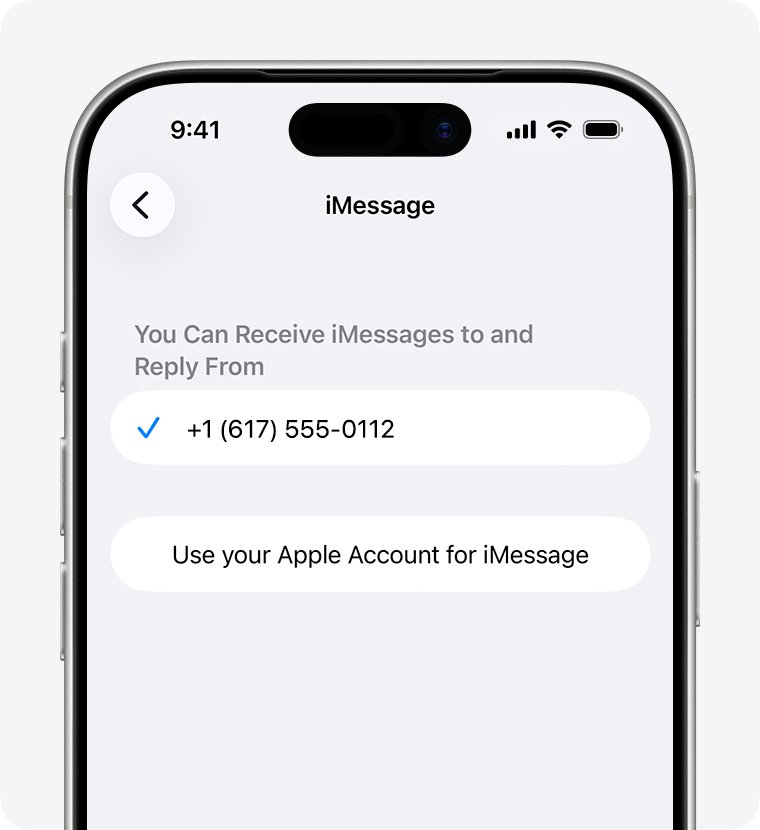
- If you see Use your Apple Account for iMessage, tap it and sign in with your Apple Account.
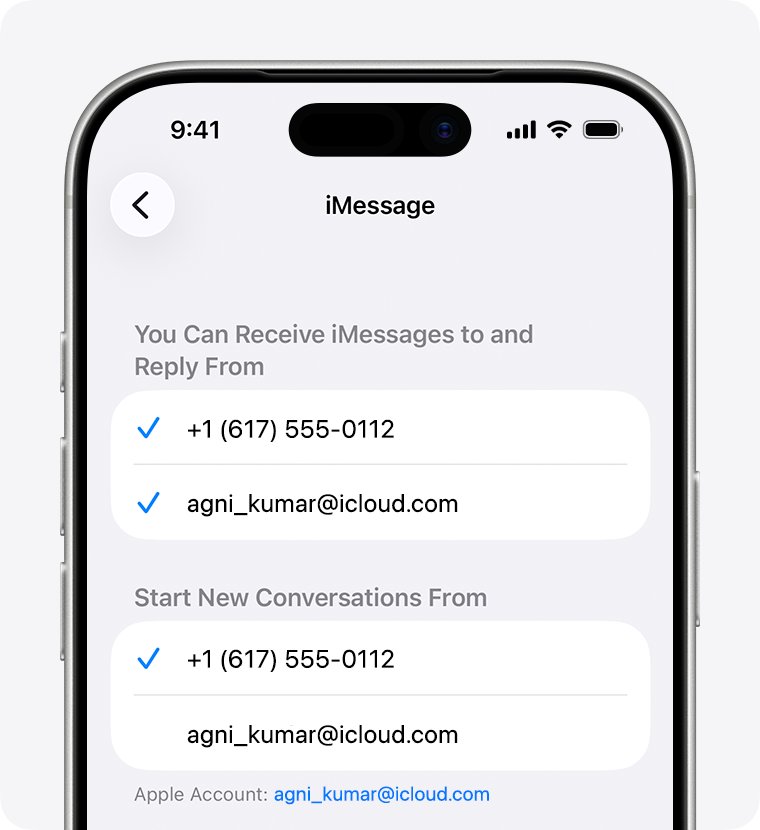
- Under You can receive iMessages to and Reply From, make sure your phone number has a checkmark.
- Under Start new conversations from, tap your phone number instead of the @icloud.com address.
Existing threads that started from the email address can stay on it. Start a new message to the contact to check the change. If an old alias keeps showing up, you can delete the iCloud email address you no longer use.
Why iPhone texts come from an @icloud.com address
| Cause | What you notice | Fix |
|---|---|---|
| Start new conversations from is set to your email | Every new iMessage shows your @icloud.com address | Pick your phone number in Send & Receive |
| Phone number not activated for iMessage | The number is missing or unchecked in Send & Receive | Turn iMessage off and on, then wait for activation |
| iMessage was not activated after adding an eSIM on iOS 26 | Messages fail, turn green, or come from your email address | Turn iMessage off and back on |
| Mac or iPad has only the email selected | Texts sent from the Mac or iPad show the email address | Select the phone number in that device's Messages settings |
| Phone number not set up on the iPhone first | The number never appears on the Mac or iPad | Set it up on the iPhone, then sign in with the same Apple Account |
When you use both your phone number and email with iMessage, the same contact can end up in two separate threads. Apple advises setting one of them as the primary way to start conversations.
Reactivate your phone number for iMessage on iPhone
Your phone number needs an active SIM or eSIM and an SMS to activate with iMessage. Your carrier can charge for that SMS.
- Connect to Wi-Fi or cellular data and install the latest iOS update.
- Open Settings > General > Date & Time and check the time zone is correct.
- Go to Settings > Apps > Messages and turn off iMessage.
- Go to Settings > Apps > FaceTime and turn off FaceTime.
- Restart your iPhone.
- Turn iMessage and FaceTime back on, and tap Turn On if a prompt warns about SMS charges.
- Open Send & Receive and wait for the checkmark next to your phone number.
A spinning gear next to your number means verification is still running, so there is no need to keep toggling iMessage. Your carrier can take up to 24 hours to verify the number with Apple.
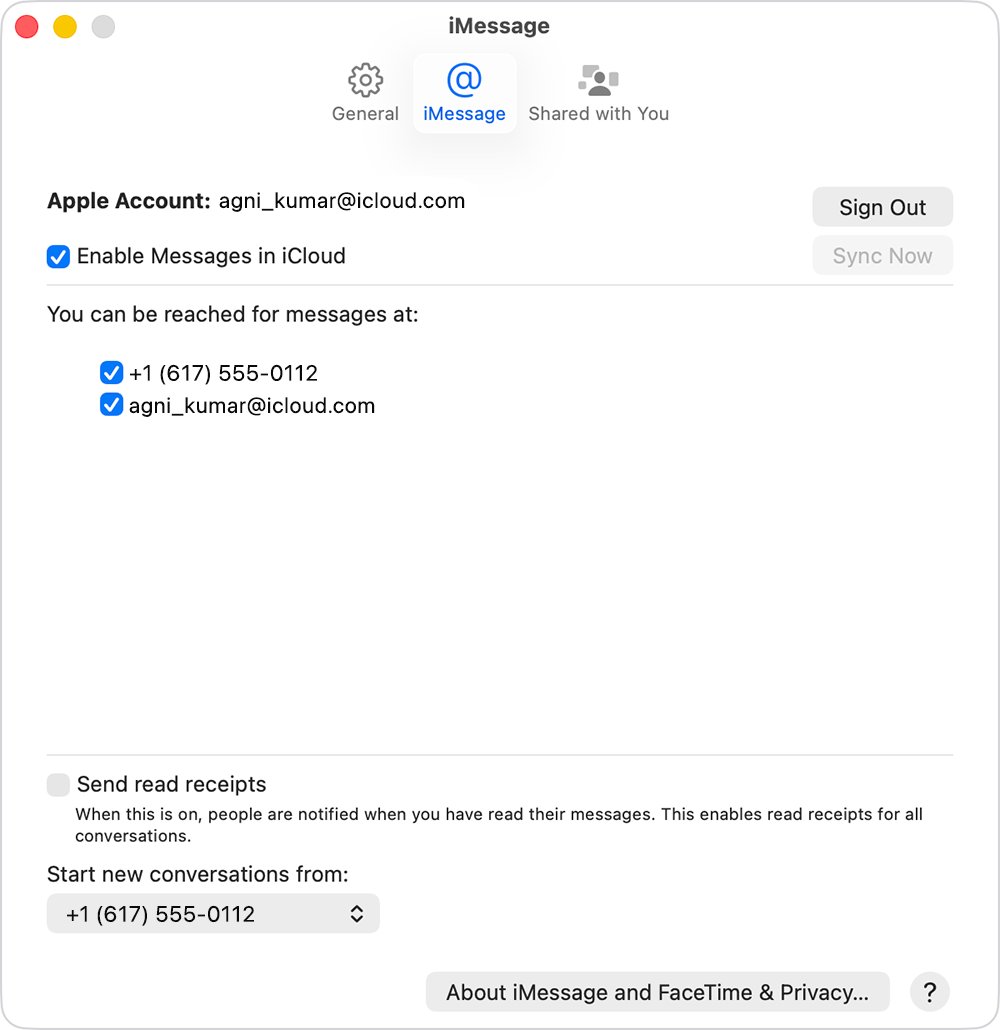
Send iMessages from your phone number on Mac
- Open the Messages app on your Mac and sign in with the same Apple Account used on your iPhone.
- Choose Messages > Settings, then click iMessage.
- Under You can be reached for messages at, select your phone number and your Apple Account.
- Click the Start new conversations from pop-up menu and choose your phone number.
- Close the settings window and start a new conversation to test it.
The phone number or email you choose is what others see before you share your name and photo. If a number appears that is not yours, change your Apple Account password.
Use your phone number for Messages on iPad
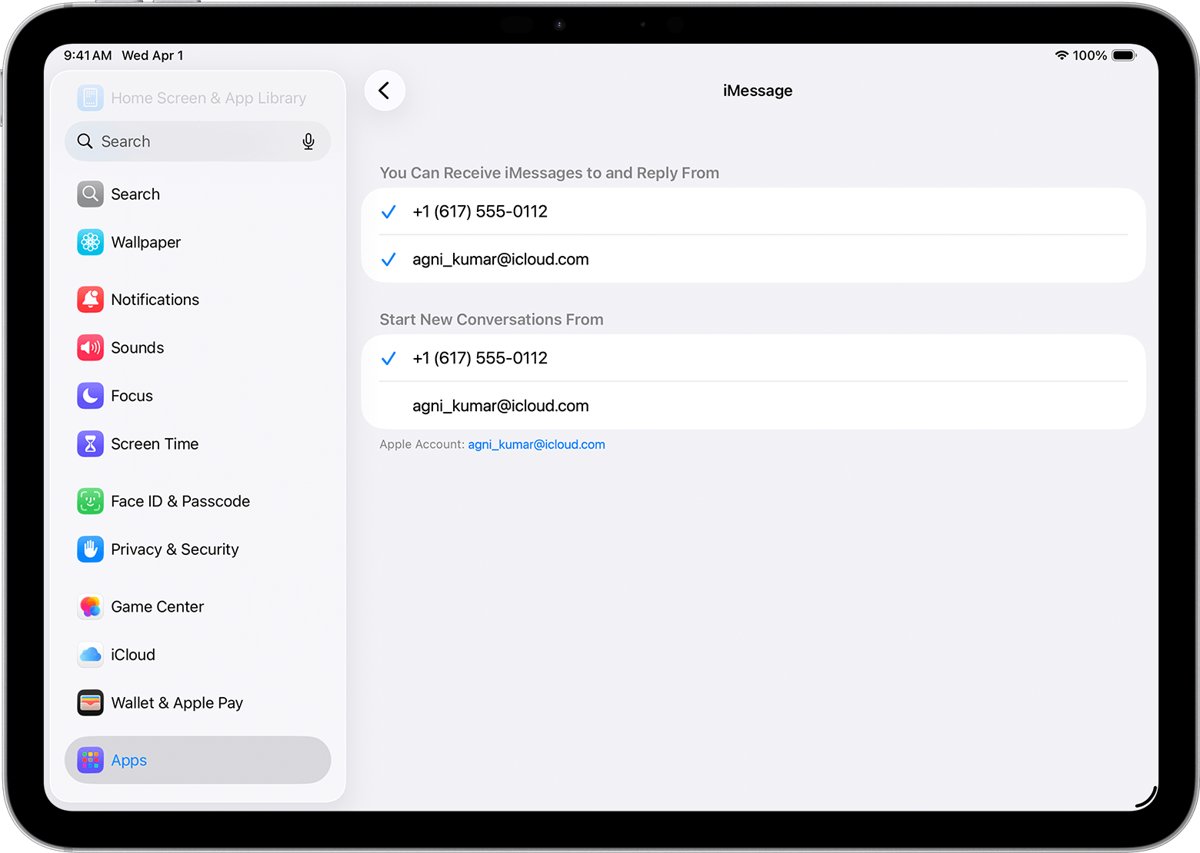
- On the iPad, open Settings, tap Apps, then tap Messages.
- Make sure iMessage is on, and sign in with the Apple Account you use on your iPhone if asked.
- Tap Send & Receive.
- In the You can be reached section, select your phone number and your Apple Account.
- Choose your phone number as the address for new conversations.
Turn on Messages in iCloud on iPhone and Mac
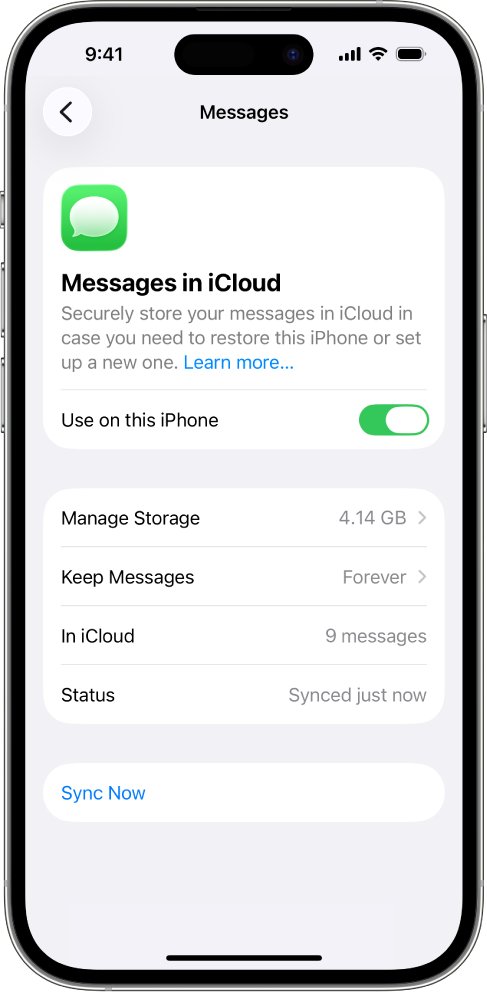
Messages in iCloud keeps the same conversations on every device signed in to your Apple Account. It changes where messages are stored, not which address they are sent from. Two-factor authentication and iCloud Keychain must be on.
- On iPhone, go to Settings > your name > iCloud.
- Tap See All (or Show All), tap Messages in iCloud, then turn on Use on this iPhone.
- On Mac, open Messages, choose Messages > Settings and click iMessage.
- Select Enable Messages in iCloud.
- To get SMS and green-bubble texts on other devices too, go to Settings > Apps > Messages > Text Message Forwarding on the iPhone and turn on each device.
On iOS 16 to 17.1, tap Show All, tap Messages and turn on Sync this iPhone instead. You can also turn on text message forwarding separately if you only want SMS on your Mac.
Check that iMessages now come from your phone number
- Open Settings > Apps > Messages > Send & Receive and confirm your phone number is ticked under both sections.
- Confirm your phone number is the selected address under Start new conversations from.
- Start a brand-new conversation with a contact who uses an iPhone.
- Ask the contact which address your message arrived from; it should show your number, not @icloud.com.
- Repeat the test from your Mac or iPad if you text from those devices.
Phone number missing or greyed out in iMessage Send & Receive
Your phone number is unchecked and cannot be selected
The iMessage registration for the number is stuck or tied to an old sign-in.
- On Mac, choose Messages > Settings > iMessage and click Sign Out.
- On iPhone and iPad, go to Settings > Apps > Messages > Send & Receive, tap your Apple Account and tap Sign Out.
- Do the same in Settings > Apps > FaceTime.
- On the iPhone, make sure iMessage is on, tap Send & Receive, choose Use your Apple Account for iMessage and sign in.
- Sign back in to Messages on your other devices with the same Apple Account.
- If the number still cannot be selected, change your Apple Account password and repeat the setup.
iMessage says "Waiting for activation" and texts keep coming from email
The carrier has not yet verified your number with Apple.
- Check that the iPhone has a cellular plan that can send SMS, including international SMS.
- Confirm the time zone in Settings > General > Date & Time.
- Wait up to 24 hours after turning iMessage back on.
- If the checkmark still does not appear, contact your carrier to confirm SMS is working.
- Try activating online at apple.co/IMFT-mac by selecting Get Started under Enable Apple Account and entering your phone number.
Texts come from email after setting up a new iPhone or eSIM
On iOS 26, iMessage does not activate automatically when you add an eSIM later in Settings.
- Open Settings > Apps > Messages.
- Turn iMessage off.
- Turn iMessage back on and wait for the phone number to be verified.
- Set your number under Start new conversations from once it appears.
The same contact shows up in two separate threads
Some messages went from your phone number and some from your email address.
- Open Send & Receive on every device you text from.
- Pick the same address, ideally your phone number, under Start new conversations from.
- Start new messages from the thread tied to your phone number.
iCloud text messages FAQ
Why are my texts sending from iCloud?
iMessage is set to start new conversations from your Apple Account email, or your phone number is not activated for iMessage. Go to Settings > Apps > Messages > Send & Receive, tick your phone number and choose it under Start new conversations from.
Why are my messages going through iCloud?
With Messages in iCloud turned on, your conversations are stored in iCloud so they stay the same on every device. That is storage, not the sender address. The @icloud.com sender comes from your Send & Receive setting.
Can you text from iCloud.com?
No. iCloud.com in a browser offers Mail, Photos, iCloud Drive, Notes, Contacts, Calendars, Reminders and Find My, but no Messages app. Texts are sent and read only in the Messages app on an Apple device.
Does iCloud store text messages?
Yes, when Messages in iCloud is on. Messages and their photos and attachments are stored in iCloud and count toward your iCloud storage. Only the most recently accessed messages stay stored locally on each device.
How do I get text messages from iCloud?
Sign in to the same Apple Account on the device, turn on Messages in iCloud in Settings > your name > iCloud, then open the Messages app. Messages stored in iCloud appear there, though the first sync can take some time.
Can I text from my iCloud account?
Yes, through iMessage. Your Apple Account email can send and receive iMessages with other Apple device users. Texts to Android phones need an iPhone with a carrier plan, either directly or forwarded to your Mac or iPad.
Does iCloud send text messages?
No. iMessage is Apple's messaging service and sends blue-bubble messages over Wi-Fi or cellular data. SMS, MMS and RCS messages, shown in green bubbles, go through your cellular carrier, not iCloud.
Can you access text messages from iCloud on a computer?
Only through the Messages app on a Mac signed in to the same Apple Account with Messages in iCloud turned on. There is no way to read texts on iCloud.com from a Windows PC or another browser.