The thread turns blue because an Apple Cash payment sent from an iPad travels as an iMessage from your Apple Account email, so the recipient's replies go to that email and never reach your Android phone.
No setting on the Android side stops this, but the recipient can switch back to your phone number in seconds. This guide covers why it happens, how to restore green texts, how to send Apple Cash without breaking the thread, and the common Apple Cash questions.
Fix blue iMessage replies after an Apple Cash payment
The recipient does this on their iPhone. Replies typed into the payment conversation go to your email address, so they need a conversation addressed to your phone number instead.
- On the recipient's iPhone, open Messages and tap the Compose button.
- In the To field, type your Android phone number rather than picking your email address.
- Type the message and tap the Send button.
- Check that the bubble is green, which means it went as RCS or SMS to your Android phone.
- Keep using this phone-number conversation for texts, and leave the email conversation for Apple Cash payments.
Why Apple Cash from an iPad switches the conversation to iMessage
Apple Cash payments are sent inside Messages or Wallet, and an iPad can send iMessages only from the addresses on its Send & Receive list. Without an iPhone, that list holds just your Apple Account email.
| What happens | Why | Effect on your Android phone |
|---|---|---|
| You send Apple Cash from Messages on your iPad | The iPad has no phone number, so the payment goes as an iMessage from your Apple Account email | None yet; the payment arrives on the recipient's iPhone |
| The recipient replies in that payment conversation | The conversation is addressed to your email, which is an iMessage address | Replies are blue and land on your iPad, not your phone |
| The recipient texts your phone number directly | Your number is deregistered from iMessage, so the iPhone sends RCS or SMS | Replies are green and reach your Android phone |
| You try to add your phone number to the iPad | Apple requires an iPhone with an active SIM or eSIM for that number | Not possible with an Android phone |
Apple describes blue bubbles as iMessages sent between Apple devices over Wi-Fi or cellular data, and green bubbles as RCS, SMS or MMS that use a text-messaging plan.
Ways to send Apple Cash without losing green texts
| Your situation | Do this | Why |
|---|---|---|
| You already sent the payment and replies went blue | Ask the recipient to text your phone number in a new conversation | Restores RCS or SMS to your Android phone straight away |
| You send Apple Cash to the same person often | Ask them to keep two conversations: email for payments, phone number for texts | Payments cannot come from your Android number, so separate threads avoid confusion |
| You missed replies sent after the payment | Open Messages on the iPad and read the payment conversation | Replies to your email address arrive on devices signed in to that Apple Account |
| You want texts and payments in one place | Pay from an iPhone that carries your phone number, or use a payment service the recipient also has | Only an iPhone can link a phone number to iMessage and Apple Cash |
How to send money through Apple Pay with Apple Cash
Apple Cash is the part of Apple Pay that sends money to people; if a payment will not go through, work through these common Apple Pay fixes first. These are Apple's iPhone steps; the iPad sends payments from a Messages conversation in the same way.
- Open Messages and start a new conversation or tap an existing one.
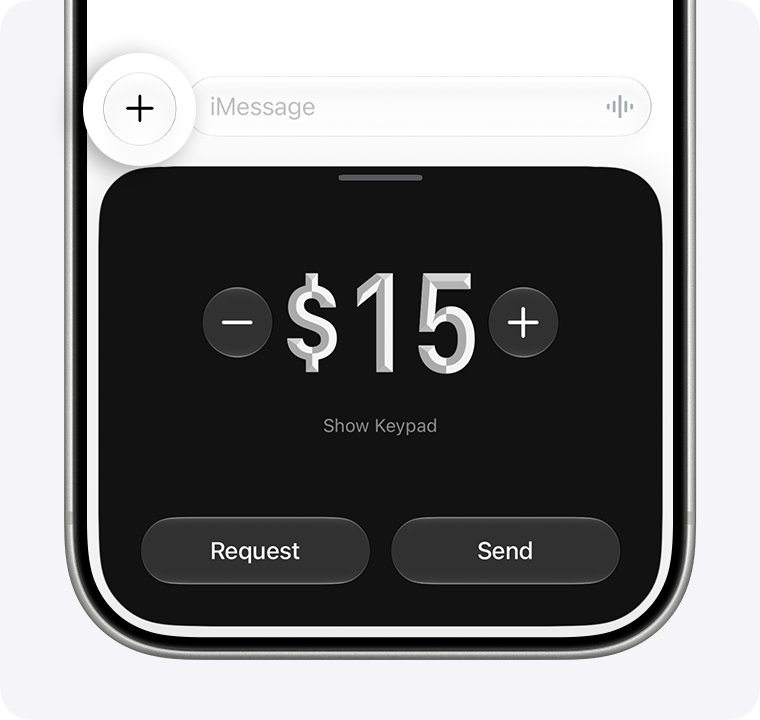
- Tap the plus icon, then tap Apple Cash.
- Enter the amount and tap Send; add a comment if you want one.
- Tap the Send button to review the payment.
- Double-click the side button, then confirm with Face ID, Touch ID or your passcode.
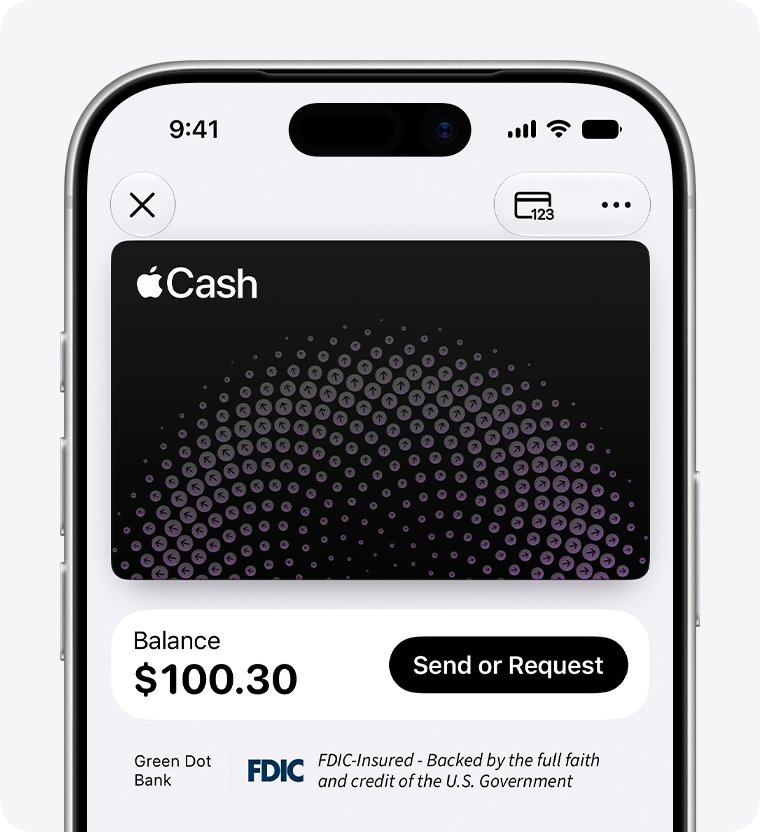
On an iPhone you can also pay from Wallet: tap your Apple Cash card, tap Send or Request, pick the person, tap Next, enter the amount, then tap Send.
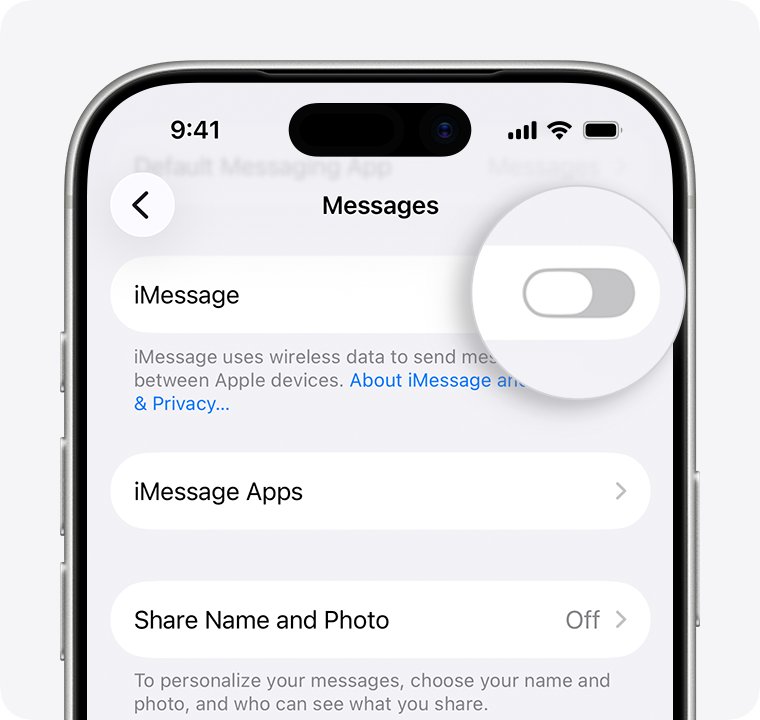
Check your Android phone number is deregistered from iMessage
If texts to your phone number turn blue even in a fresh conversation, your number may still be registered with iMessage from an old iPhone.
- If you still have the old iPhone, put your SIM card back in it.
- Make sure the iPhone is connected to your cellular data network.
- Open Settings, tap Apps, tap Messages and turn off iMessage.
- Go back to Settings > Apps, tap FaceTime and turn off FaceTime.
- Move the SIM card back to your Android phone.
Without the old iPhone, use Apple's Deregister iMessage page online. Apple says texts should arrive right away, though some Apple devices can take a few hours to stop sending you iMessages.
Check the iPad Messages addresses used for Apple Cash
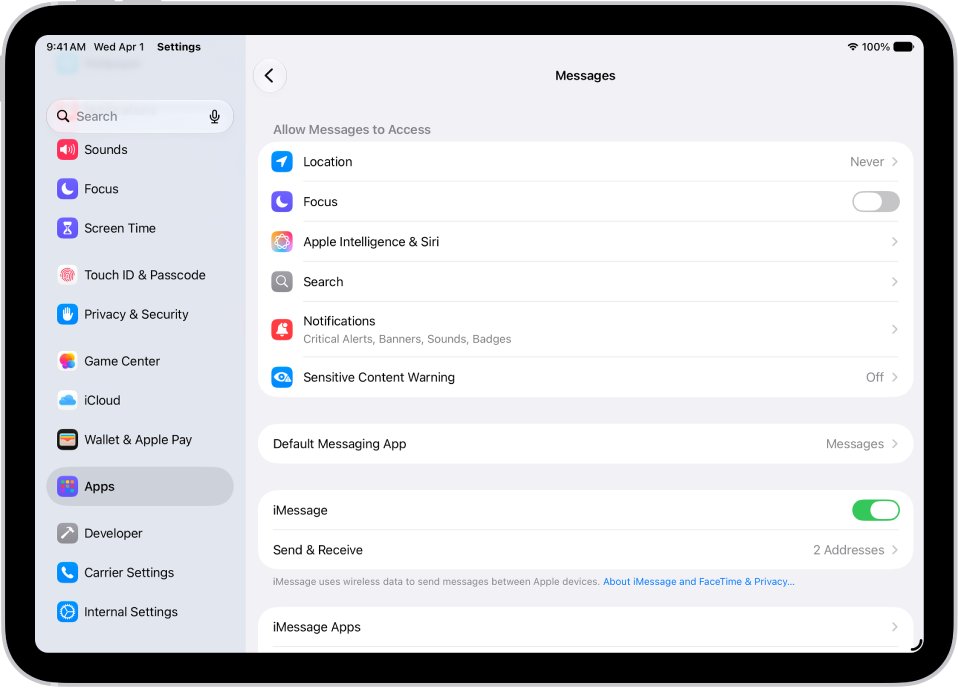
These settings show which address your iPad sends from. They explain the email in the payment thread, but they cannot add an Android number.
- On the iPad, open Settings and tap Apps.
- Tap Messages and confirm iMessage is on.
- Tap Send & Receive.
- Look at the You can be reached section; your Apple Account email appears there.
- Leave the email selected so Apple Cash payments and replies keep working on the iPad.
How to confirm texts reach your Android phone again
- Ask the recipient to send a short text from the phone-number conversation.
- Confirm it arrives on your Android phone in your normal messaging app.
- Ask them to check the bubble colour on their iPhone: green means RCS or SMS, blue means iMessage.
- Reply from your Android phone and confirm the reply appears in their phone-number conversation, not the email one.
Apple Pay money and blue text problems: fixes
Replies still turn blue in a new conversation to your phone number
Your number is still registered with iMessage.
- Deregister your number on the old iPhone or with Apple's online Deregister iMessage page.
- Wait a few hours for Apple devices to update.
- Ask the recipient to send a new text to your number.
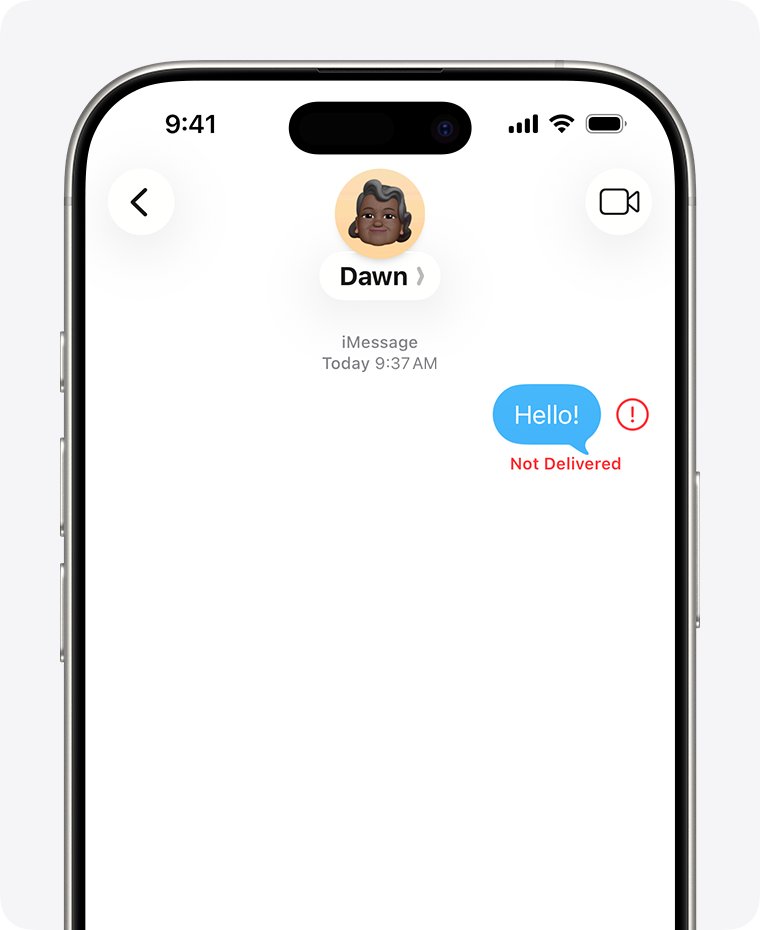
A message shows a red exclamation point and Not Delivered
iMessage could not deliver the message to that address.
- Tap the red exclamation point, then tap Try Again.
- If it still fails, tap the red exclamation point and tap Send as Text Message.
- Turn on Send as Text Message in Settings > Apps > Messages so the iPhone falls back to SMS automatically.
The recipient cannot receive the Apple Cash payment
Apple Cash needs a compatible Apple device, two-factor authentication and a US resident aged 18 or older.
- Ask the recipient to tap Accept in Messages and follow the prompts to set up Apple Cash.
- Make sure they accept within 7 days.
- Cancel the payment from your Apple Cash transaction history if it still shows pending and they cannot accept.
Apple Pay money and Android texts FAQ
Is sending money through Apple Pay safe?
Apple Cash payments are confirmed with Face ID, Touch ID or your passcode and need two-factor authentication on your Apple Account. After identity verification your Apple Cash account is FDIC-insured. Apple still advises sending money only to people you know.
How do you send money through Apple Pay?
Open a Messages conversation, tap the plus icon, tap Apple Cash, enter the amount and tap Send. Review the payment, double-click the side button and confirm with Face ID, Touch ID or your passcode. On iPhone you can also send from the Apple Cash card in Wallet.
Can you receive money through Apple Pay?
Yes, through Apple Cash on a compatible Apple device. You must be 18 or older, live in the US and have two-factor authentication on your Apple Account. If Apple Cash is not set up, tapping Accept on the payment walks you through setup.
Can I receive money on Apple Pay with an Android phone?
No. Apple Cash needs a compatible Apple device with Wallet, so an Android phone cannot accept a payment. An iPad signed in to your Apple Account with Apple Cash set up can receive the payment instead.
Where does Apple Pay money go?
Money sent to you is kept in your Apple Cash balance. You can spend it with Apple Pay, send it to someone else, or transfer it to your bank account or an eligible debit card.
How do you send Apple Pay money from Wallet?
On iPhone, open Wallet, tap your Apple Cash card, tap Send or Request and choose the person. Tap Next, enter the amount, tap Send, then double-click the side button and confirm with Face ID, Touch ID or your passcode.
Why do my texts turn blue after I send Apple Cash from my iPad?
An iPad sends Apple Cash as an iMessage from your Apple Account email. Replies in that conversation go to your email as iMessages, which arrive on the iPad and not on your Android phone. Texting your phone number restores green messages.
Can I add my Android phone number to iMessage on my iPad?
No. Apple requires an iPhone with an active SIM or eSIM for that number to link it to Messages on an iPad or Mac. An Android number cannot be added, so the iPad sends only from your Apple Account email.
Bottom line: keep Apple Cash and Android texts in separate threads
Keep sending Apple Cash from your iPad, and ask the recipient to text your phone number in its own conversation so your Android phone keeps getting green messages. The iPad can only send from your Apple Account email, an Android number cannot be linked to iMessage, and replies follow whatever address the conversation uses.