You view messages stored in iCloud by turning on Messages in iCloud and opening the Messages app on an iPhone, iPad or Mac signed in to the same Apple Account, because iCloud.com has no Messages app.
This guide covers the setup on each Apple device, what you can and cannot see on a Windows PC, how to confirm the sync is working, and fixes for messages that never appear.
How to view messages on iCloud on iPhone or iPad
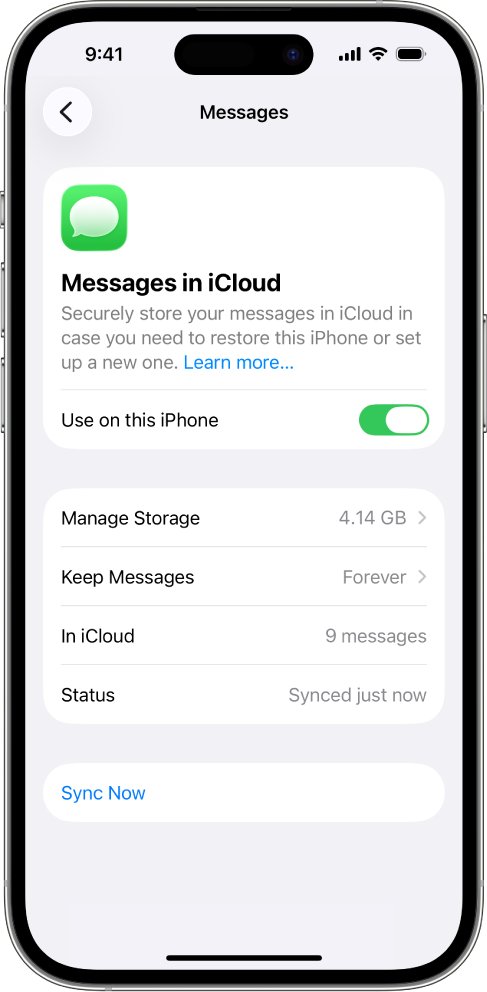
Messages stored in iCloud only show up inside the Messages app. Turning the feature on downloads your existing iCloud conversations to the device and saves new ones to iCloud.
- Open the Settings app on your iPhone or iPad.
- Tap your name at the top, then tap iCloud.
- Tap Messages. If it is not listed, tap See All (or Show All) in the Saved to iCloud section, then tap Messages in iCloud.
- Turn on Use on this iPhone (or Use on this iPad).
- Open the Messages app to see the conversations stored in iCloud.
On iOS 16 to iOS 17.1 the switch is named Sync this iPhone under Show All > Messages. The first sync can take a while, and you can keep sending and receiving messages while it runs.
Where can you view iCloud messages?
| Device | Can it show iCloud messages? | How |
|---|---|---|
| iPhone or iPad | Yes, full history | Messages in iCloud switch, then the Messages app |
| Mac | Yes, full history | Messages > Settings > iMessage > Enable Messages in iCloud |
| iCloud.com in any browser | No | iCloud.com has no Messages app |
| iCloud for Windows | No | It syncs Photos, Drive, Calendars, Contacts, Passwords and Bookmarks only |
| Windows PC with Phone Link | Partly | Shows texts sent or received while the iPhone is connected over Bluetooth, not the iCloud history |
If you need your full message history on a computer, a Mac is the only route Apple supports.
Messages in iCloud requirements
| Requirement | Details |
|---|---|
| Same Apple Account | Every device must be signed in to the same Apple Account, both in iCloud and in Messages > Send & Receive |
| Two-factor authentication | Required for Messages in iCloud |
| iCloud Keychain | Must be turned on |
| iCloud storage | Messages, photos and other attachments count toward your iCloud storage |
| Supported software | iOS 11.4, iPadOS 13, macOS 10.13.5 or later for synced deletions across devices |
| Network | The iPhone must be turned on and connected to Wi-Fi or cellular data |
How to view iCloud messages on a Mac
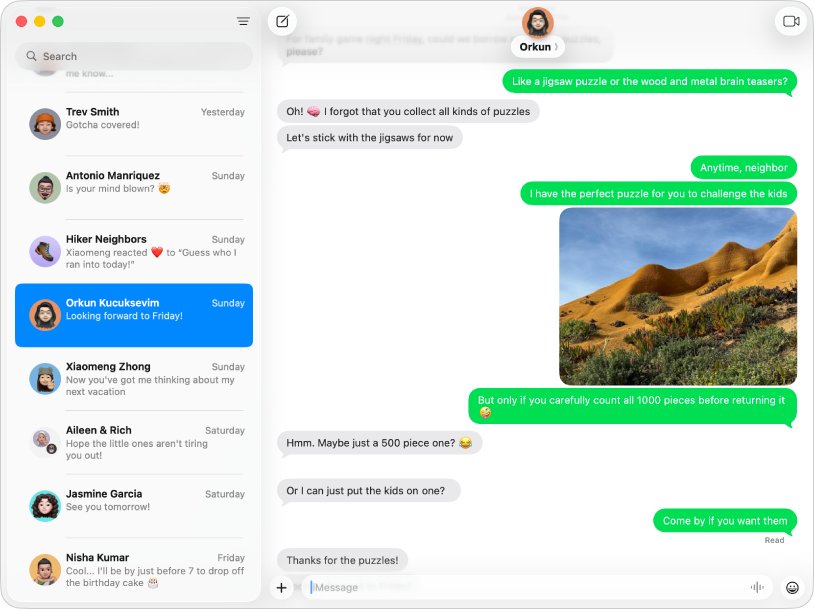
- Open the Messages app on your Mac.
- Choose Messages > Settings from the menu bar.
- Click iMessage and sign in with the same Apple Account your iPhone uses, if prompted.
- Select Enable Messages in iCloud.
- Select the email addresses and phone numbers you want to send and receive messages from on the Mac.
- Close Settings and wait for your conversations to load in the Messages window.
SMS, MMS and RCS texts (green bubbles) reach the Mac only after you turn on text message forwarding for it on your iPhone.
Can I view messages on the iCloud website?
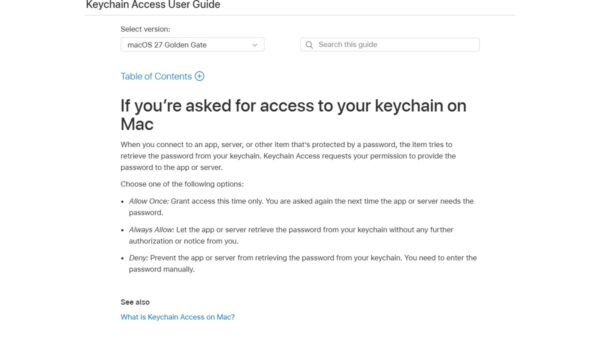
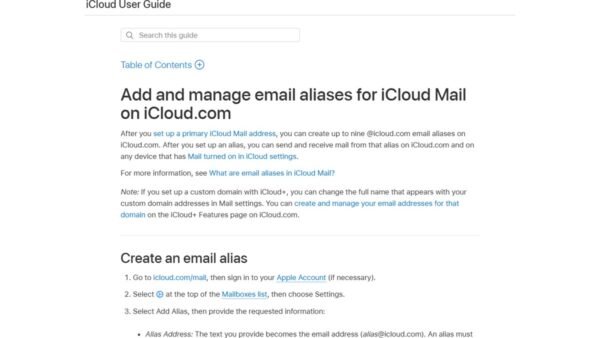
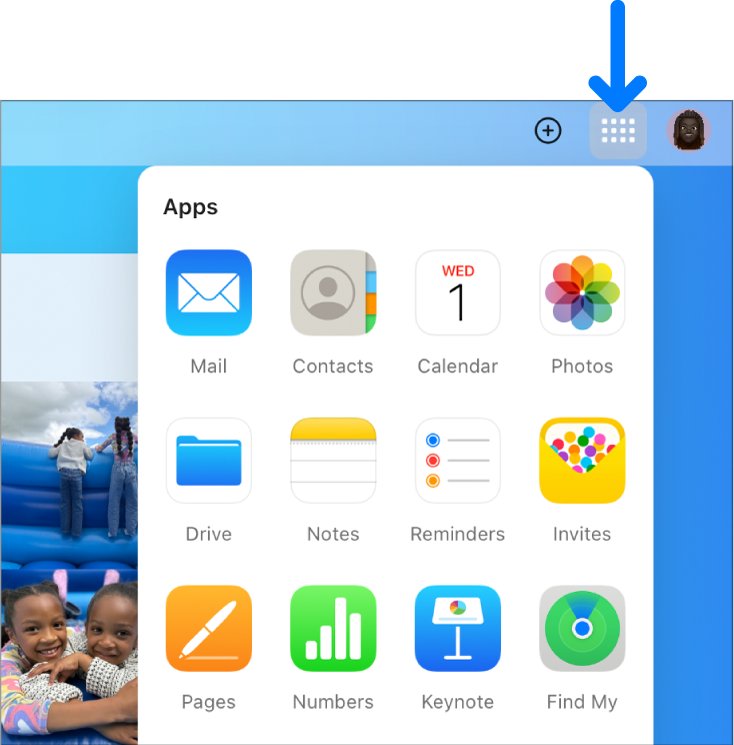
No. Apple's own list of apps on iCloud.com does not include Messages, so there is no way to read texts or iMessages in a browser, even when Messages in iCloud is turned on.
| On iCloud.com | Not on iCloud.com |
|---|---|
| Mail, Contacts, Calendar, Reminders, Notes | Messages |
| Photos, iCloud Drive | Text message or iMessage history |
| Pages, Numbers, Keynote | Message attachments outside iCloud Drive |
| Find Devices, Hide My Email, iCloud Settings | Call history |
Messages in iCloud is end-to-end encrypted, with keys held on your devices rather than readable on the web. That is why the history only opens in the Messages app on a signed-in Apple device.
How to view iPhone text messages on a Windows PC
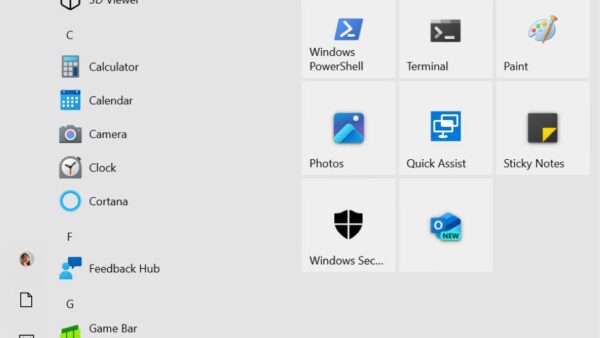
Microsoft's Phone Link app can show iPhone texts on Windows 10 or Windows 11, but it does not read Messages in iCloud. It only shows messages sent or received while the iPhone is connected to the PC over Bluetooth, and it needs iOS 16 or later and a PC with Bluetooth Low Energy.
- Open Phone Link from the Start menu on your PC.
- Choose iPhone under Pick your phone.
- Scan the QR code on the PC with your iPhone camera to start Bluetooth pairing.
- On the iPhone, allow the permissions so messages, notifications and contacts can sync.
- Turn on Share System Notifications, Show Notifications and Sync Contacts on the iPhone when prompted.
- Open the Messages tab in Phone Link to read and reply to new texts.
Phone Link for iPhone cannot send or receive photos, GIFs or Memoji, cannot reply in group chats, and cannot delete messages. Disconnecting Bluetooth clears the history it shows, so weigh those limits before you set up iMessage on Windows this way.
Turn on Text Message Forwarding to see SMS messages on other devices
Messages in iCloud stores iMessage, SMS, MMS and RCS conversations, but new green-bubble texts reach your iPad or Mac only when your iPhone forwards them.
- Open Settings on your iPhone.
- Tap Apps, then tap Messages.
- Tap Text Message Forwarding.
- Turn on each iPad or Mac that should receive your texts.
- If your iPhone uses Dual SIM, turn on each line.
Forwarding availability varies by carrier and region. If you do not use two-factor authentication, enter the six-digit code that appears on the other device.
How to check that Messages in iCloud is syncing
- Send a test message from your iPhone to any contact.
- Open Messages on your iPad or Mac and confirm the same message appears in that conversation.
- Delete the test message on one device and confirm it disappears from the other.
- On iPhone, go to Settings > your name > iCloud > Messages and confirm Use on this iPhone is still on.
- On Mac, open Messages > Settings > iMessage and confirm Enable Messages in iCloud is selected.
Because deletions sync too, a message removed on one device is removed everywhere Messages in iCloud is on.
How to recover deleted messages on iCloud
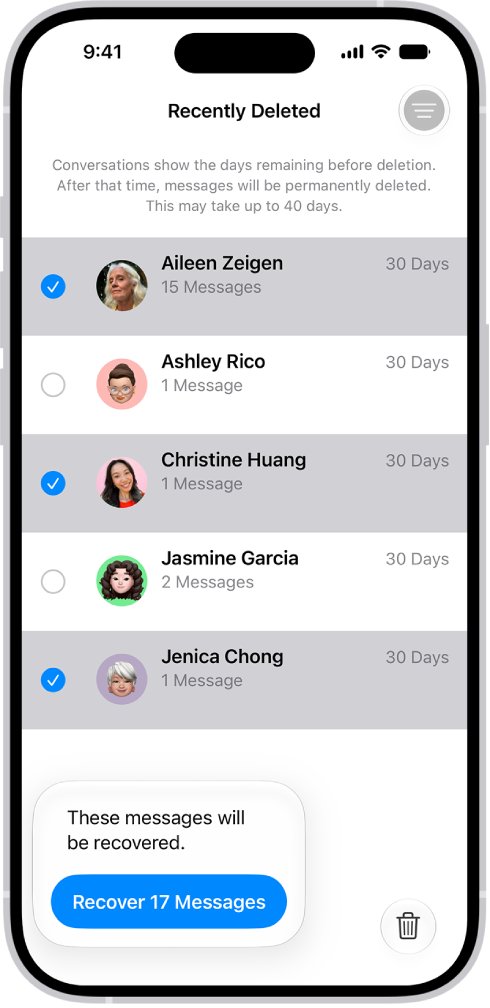
Deleted texts stay in Recently Deleted for up to 30 days. With Messages in iCloud on, recovering a conversation on your iPhone restores it on every synced device.
- Open the Messages app on your iPhone.
- Tap the menu button at the top of the conversation list, then tap Recently Deleted.
- Select the conversations you want back.
- Tap Recover, then tap Recover Messages.
Messages removed with Undo Send are permanently deleted, and audio messages that expired before you saved them cannot be recovered.
Why can't I view messages in iCloud?
Messages do not appear on iCloud.com
iCloud.com has no Messages app, so nothing is missing from your account.
- Open the Messages app on an iPhone, iPad or Mac signed in to the same Apple Account instead.
- Turn on Messages in iCloud on that device if your conversations are not there.
Old messages are missing on a new iPhone, iPad or Mac
Messages in iCloud is off on that device, or the first sync has not finished.
- Confirm the device is signed in to the same Apple Account as your iPhone.
- Turn on Use on this iPhone (or Enable Messages in iCloud on Mac).
- Keep the device on Wi-Fi and plugged in while the first download finishes.
- Update the device to the latest iOS, iPadOS or macOS if messages still do not load.
iMessages sync but green-bubble texts do not
Text Message Forwarding is off for that device.
- On your iPhone, go to Settings > Apps > Messages > Text Message Forwarding.
- Turn on the iPad or Mac that is missing texts.
Messages show on iPhone but not on Mac
The Mac uses a different Apple Account or different addresses in Messages.
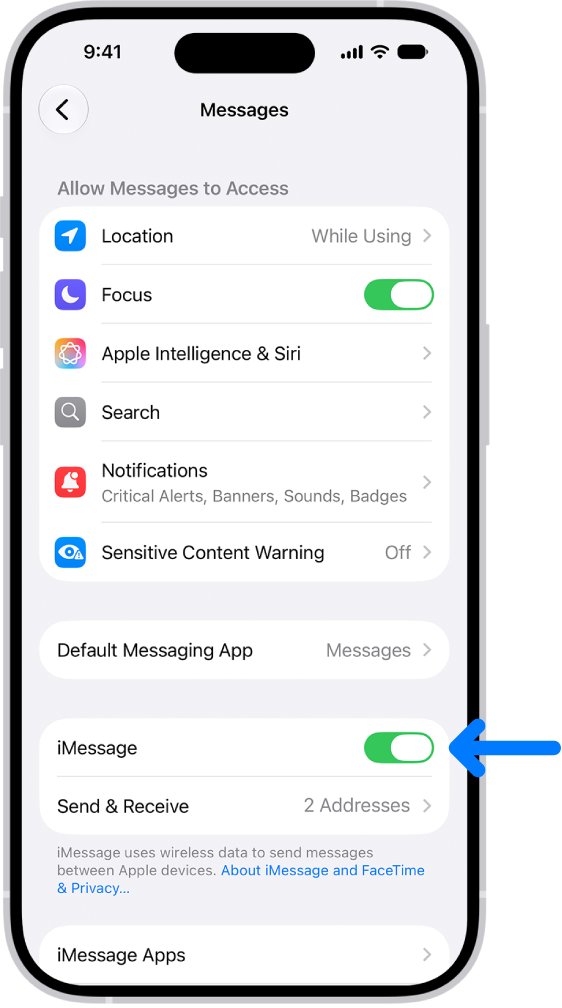
- On iPhone, open Settings > Apps > Messages > Send & Receive and note the Apple Account.
- On Mac, open Messages > Settings > iMessage and confirm the same account is signed in.
- Select the same phone number and email addresses on both devices.
iCloud storage is full and Messages stopped syncing
Messages and their attachments count toward your iCloud storage.
- Check your storage on iPhone in Settings > your name > iCloud.
- Delete large attachments or old conversations you no longer need, or move to a larger iCloud+ plan.
Messages in iCloud and iCloud Backup: what changes
| Setting | What happens to your messages |
|---|---|
| Messages in iCloud on, iCloud Backup on | Messages sync to iCloud; the backup holds a copy of the Messages encryption key so you can recover them |
| Messages in iCloud on, iCloud Backup off | Messages are end-to-end encrypted with a key Apple does not store |
| Advanced Data Protection on | Messages in iCloud and the backup key are always end-to-end encrypted, and iCloud.com web access is off by default |
| Delete on any synced device | The message is deleted from every device with Messages in iCloud on |
iCloud messages FAQ
Can I view messages on the iCloud website?
No. iCloud.com offers Mail, Contacts, Calendar, Photos, iCloud Drive, Notes, Reminders and the iWork apps, but no Messages app. Your synced messages open only in the Messages app on an iPhone, iPad or Mac signed in to the same Apple Account.
How can I view my text messages on iCloud?
Turn on Messages in iCloud in Settings > your name > iCloud > Messages, then open the Messages app. Every iPhone, iPad and Mac with the switch on and the same Apple Account shows the same conversations, including SMS, MMS and RCS texts.
Can I view iMessages on Windows?
Only partly. Phone Link on Windows 10 or 11 shows iMessages and texts that arrive while your iPhone is paired over Bluetooth. It cannot load your iCloud message history, group chats or photos, and the history clears when Bluetooth disconnects.
How can I view text messages on my computer?
On a Mac, open Messages > Settings > iMessage and select Enable Messages in iCloud to see your full history. On a Windows PC, pair your iPhone with Phone Link to read and reply to new texts while the phone stays connected.
Can I view iMessages online?
No. Apple offers no web version of Messages, and iMessage conversations stored in iCloud are end-to-end encrypted. They can be read only in the Messages app on Apple devices signed in to your Apple Account.
Why can't I view messages in iCloud?
Usually because Messages in iCloud is off on the device, the device uses a different Apple Account, or the first sync has not finished. Turn the switch on, match the Apple Account in Send & Receive, and keep the device on Wi-Fi.
Does iCloud keep deleted messages?
Only for up to 30 days in Recently Deleted in the Messages app. With Messages in iCloud on, recovering a conversation there restores it on all your synced devices. After 30 days, or after Undo Send, the message is gone.
Do messages in iCloud use my iCloud storage?
Yes. Messages, along with photos, videos and other attachments, count toward your iCloud storage. Deleting large attachments or old conversations frees space on every device that uses Messages in iCloud.
Are my messages included in iCloud Backup?
When Messages in iCloud is on, your messages live in iCloud itself rather than in the device backup. If iCloud Backup is also on, the backup holds a copy of the Messages encryption key so you can recover your messages on a new device.
Bottom line: the best way to view iCloud messages
Turn on Messages in iCloud on your iPhone and read your history in the Messages app on any iPhone, iPad or Mac with the same Apple Account. iCloud.com has no Messages app and Phone Link on Windows only shows texts received while the iPhone is connected, so an Apple device is the only place the full synced history opens. If you have not set up the service yet, start by making sure you turn on iMessage on the iPhone.