Windows 11 still includes Disk Cleanup: search for Disk Cleanup or run cleanmgr, choose drive C:, tick the junk and temporary file types, then select OK and Delete files.
This guide covers each step, the extra space from Clean up system files, what each file type removes, automated cleanups from the command line, and what you can safely delete from the Windows folder.
How to use Disk Cleanup tool in Windows 11/10
- Select the search box on the taskbar and type disk cleanup.
- Select Disk Cleanup in the results.
- Choose the drive you want to clean, usually C:, and select OK.
- Wait while Disk Cleanup calculates how much space it can free.
- Under Files to delete, tick the file types you want removed and clear any you want to keep.
- Select OK, then select Delete files to confirm.
Downloaded Program Files, Temporary Internet Files and Thumbnails are ticked by default. Clear a box before you select OK if you want to keep those files.
Disk Cleanup vs Cleanup recommendations in Windows 11
| Your situation | Use this | Why |
|---|---|---|
| Quick clear-out of temp files and thumbnails | Disk Cleanup, standard mode | One dialog and a single scan |
| Drive C: is still nearly full | Disk Cleanup with Clean up system files | Adds Windows Update cleanup and the previous Windows installation |
| You want Windows to suggest large or unused files | Settings > System > Storage > Cleanup recommendations | Lists categories with the space each will save |
| You want cleanup to run by itself | cleanmgr /sageset with /sagerun in Task Scheduler, or Storage Sense |
Repeats the same selection without clicking through the dialog |
| The component store (WinSxS) is large | Dism.exe /online /Cleanup-Image /StartComponentCleanup |
Removes superseded component versions immediately |
Storage Sense and old restore points are other ways to clean up system files on Windows when Disk Cleanup is not enough.
Open Disk Cleanup with the cleanmgr command in Windows 11
Disk Cleanup runs as cleanmgr, which Microsoft documents for Windows 11 and Windows 10. The Run box is the fastest way to reach it when search is slow.
- Press Windows + R to open Run.
- Type
cleanmgrand press Enter. - Pick the drive and select OK.
- Tick the file types to remove, select OK, then Delete files.
Steps to delete temporary files in Windows 11 with Clean up system files
Standard mode only lists files in your user account. Clean up system files rescans the drive with administrator rights and adds update leftovers and old Windows files.
- Open Disk Cleanup and pick drive C:.
- Select Clean up system files.
- Approve the User Account Control prompt if it appears.
- Choose drive C: again and select OK.
- Wait for the new calculation to finish.
- Tick the system file types you want to delete, such as Windows Update Cleanup.
- Select OK, then Delete files.
If you upgraded Windows in the last 10 days, the previous version appears here. Deleting it removes the Windows.old folder, and you can no longer go back to that version.
What does the Disk Cleanup tool delete?
| File type | What it is | Safe to delete? |
|---|---|---|
| Temporary Setup Files | Files left by a setup program that is no longer running | Yes |
| Downloaded Program Files | ActiveX controls and Java programs saved automatically by some web pages | Yes |
| Temporary Internet Files | Cached copies of web pages; personalised settings stay intact | Yes |
| Temporary Files | Data programs store in a Temp folder | Yes, for files not modified in the last week |
| Thumbnails | Cached preview images of files and folders | Yes |
| Recycle Bin | Files you deleted but have not removed permanently | Only if you will not restore anything |
| Old Chkdsk Files | Lost file fragments Chkdsk saved to the drive root | Yes |
| Windows Update Cleanup | Older update components in the component store | Yes; reduces the WinSxS folder |
| Previous Windows installation | The Windows.old folder after an upgrade | Only if you will not roll back |
| Temporary Offline Files | Cached copies of recently used network files | Yes |
On a drive other than the Windows drive, Disk Cleanup offers only the Recycle Bin and content indexer catalog files.
What can I delete from Windows folder in Windows 11?
Never delete files from the Windows folder by hand. Clear its junk through Disk Cleanup or DISM, which know what Windows still needs.
| Folder or item | Delete it? | How |
|---|---|---|
| WinSxS (component store) | Never delete the folder or files in it | Windows Update Cleanup in Disk Cleanup, or DISM /StartComponentCleanup |
| Windows.old | Yes, if you will not roll back | Clean up system files, then tick the previous Windows installation |
| Temp folder | Yes, for files older than a week | Temporary Files in Disk Cleanup, or empty the folder manually |
| System32 and other system folders | No | Nothing; deleting them can stop Windows booting |
Microsoft warns that deleting files from WinSxS can stop the PC booting and make it impossible to update. To clear temp files by hand, start from the Windows 11 Temp folder location.
Automate Disk Cleanup with cleanmgr sageset and sagerun
Save a selection once with /sageset, then replay it with /sagerun. The number can be any integer from 0 to 9999.
cleanmgr /sageset:1Opens the Disk Cleanup Settings dialog and stores the boxes you tick under profile 1 in the registry. Run cleanmgr /sagerun:1 later to clean every drive with that profile, or cleanmgr /tuneup:1 to do both in one step.
You should see: The settings dialog closes after you select OK, and cleanmgr /sagerun:1 then runs without asking which files to delete.
Add cleanmgr /sagerun:1 as a scheduled task to repeat it automatically. cleanmgr /verylowdisk runs the default selection with no prompts.
Disk cleanup option in Windows 11 Settings
Windows 11 also offers a Settings-based cleanup that suggests files for you and shows how much space each category frees, on the same Storage page where you check disk space on Windows 11.
- Select Start > Settings > System > Storage.
- Select Cleanup recommendations.
- Review each category, including Temporary files.
- Select the items you want to remove.
- Select Clean up for each section.
Check how much space Disk Cleanup freed
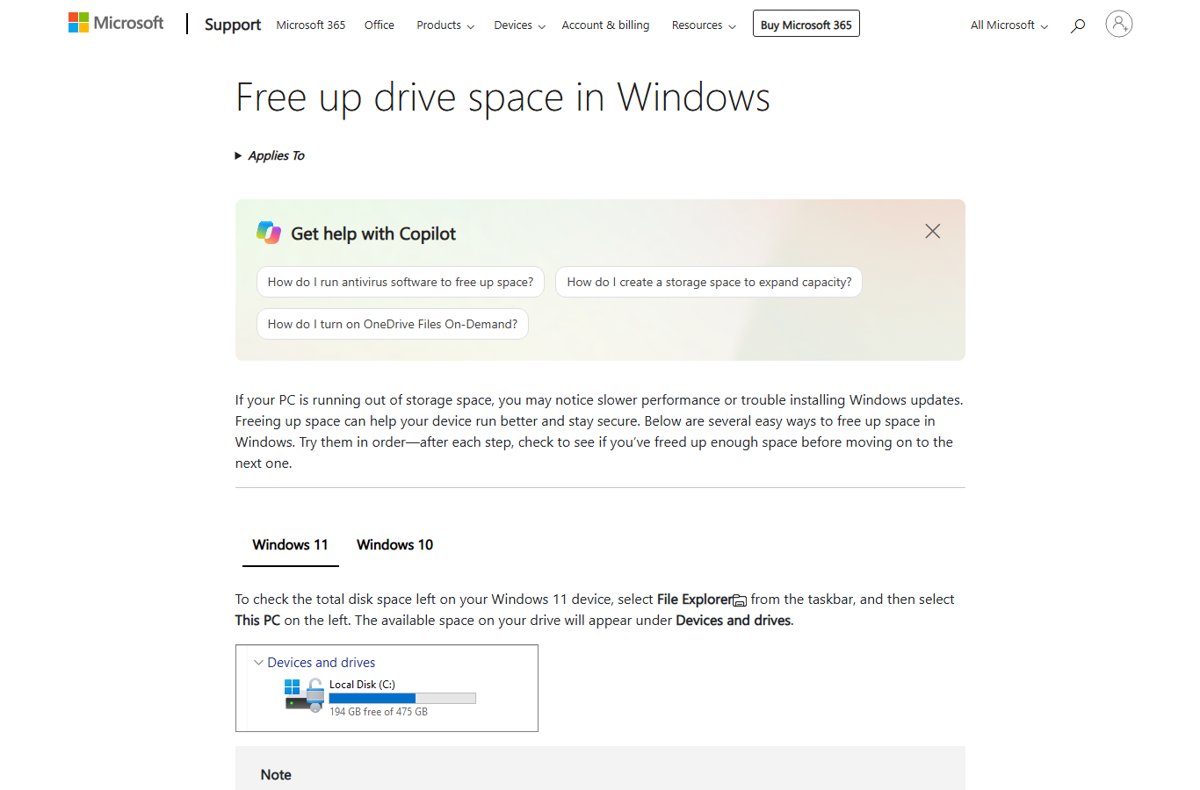
- Open File Explorer and select This PC.
- Compare the free space on drive C: with what it showed before cleanup.
- Open Settings > System > Storage to see the updated usage by category.
- Run Disk Cleanup again; the selected categories should now show little or no space.
Fix Disk Cleanup in Windows 11 when it does not free space
Windows Update Cleanup or the previous installation is not listed
Standard mode only shows your own files.
- Open Disk Cleanup and select Clean up system files.
- Approve the administrator prompt.
- Pick drive C: again and check the list.
Space is still low after Disk Cleanup
Large personal files or a big component store are using the drive, the usual reason for low disk space warnings.
- Open Settings > System > Storage > Cleanup recommendations to find large or unused files.
- Check the Downloads, Videos, Music and Pictures folders, which usually hold the largest files.
- Empty the Recycle Bin after deleting files.
- Run
Dism.exe /online /Cleanup-Image /StartComponentCleanupfrom an elevated Command Prompt.
Only the Recycle Bin appears in the list
You picked a drive that does not contain Windows.
- Close Disk Cleanup and open it again.
- Choose the Windows drive, usually C:.
Windows 11 Disk Cleanup FAQ
Does Windows 11 have Disk Cleanup?
Yes. Disk Cleanup (cleanmgr) is still part of Windows 11, and Microsoft documents it for Windows 11 and Windows 10. Open it by searching for Disk Cleanup or by typing cleanmgr in the Run box. Settings also offers Cleanup recommendations under System > Storage.
Where is the Windows Disk Cleanup tool?
Type disk cleanup in the taskbar search box and select it, or press Windows + R, type cleanmgr and press Enter. Both routes open the same Disk Cleanup dialog.
What does the Disk Cleanup tool do?
Disk Cleanup deletes files Windows no longer needs: temporary files, cached web files, thumbnails, Recycle Bin contents and old Chkdsk fragments. With Clean up system files, it also removes old update components and the previous Windows installation.
What is Disk Cleanup in Windows 11?
Disk Cleanup is a built-in Windows utility that scans a drive, shows how much space each junk file type uses and deletes the types you tick. It frees space without touching your documents, photos or installed apps.
How does Windows 11 Disk Cleanup work?
It calculates the space used by each file type on the drive you pick, lists them with sizes and deletes the ones you select after you confirm Delete files. Clean up system files repeats the scan with administrator rights to include system files.
How do you perform Disk Cleanup on Windows 11?
Search for Disk Cleanup, open it, choose drive C: and select OK. Tick the file types to remove, select OK and confirm Delete files. For more space, select Clean up system files first and tick Windows Update Cleanup.
Is Disk Cleanup a Disk Management tool?
No. Disk Cleanup only deletes unneeded files to free space. Disk Management is a separate Windows tool for managing drives and partitions, and it does not delete junk files.
Is it safe to delete Windows Update Cleanup files?
Yes. Windows Update Cleanup removes older update components from the component store, which Microsoft lists as a way to reduce the WinSxS folder. It is far safer than deleting anything from WinSxS by hand, which can stop Windows from booting.
Do you need a Disk Cleanup download for Windows 11?
No. Disk Cleanup is built into Windows 11, so there is nothing to download. Avoid third-party cleaner downloads; Disk Cleanup and Settings > System > Storage cover temporary and system files.
Bottom line: when to use Disk Cleanup in Windows 11
Run Disk Cleanup with Clean up system files whenever drive C: runs low, and use cleanmgr /sageset with /sagerun if you want it repeated on a schedule. It removes temporary files, update leftovers and Windows.old safely in one pass, while manual deletion in the Windows folder risks breaking the system.