Windows.old is the copy of your previous Windows installation, and yes, you can delete it once the new version works.
This guide shows where the folder sits, what it holds, the two supported ways to remove it, and what to do when the removal fails.
How to Delete Windows.old Using Storage Settings
This is the route Microsoft documents, and it needs administrator privileges.
Deleting the folder cannot be undone, so the rollback option goes with it.
- Press the Windows logo key, then select Settings.
- Select System, then select Storage.
- Under your hard drive information, select Temporary files.
- Select the Previous version of Windows check box.
- Select Remove files.
The same Temporary files screen clears caches and update leftovers. Where is the Temp Folder in Windows 11 and How to Access it covers the other temporary location people confuse with it.
Which removal method should you use?
| Your situation | Use this | Why |
|---|---|---|
| Windows 10, shortest route | Settings > System > Storage > Temporary files | Three screens, and Microsoft documents it for this exact job |
| Windows 11 | Settings > System > Storage > Cleanup recommendations | Previous Windows installation(s) is listed there |
| Settings does not list the previous version | Disk Cleanup with Clean up system files | System files stay hidden until that button is used |
| You still might roll back | Leave it alone | Windows deletes it automatically ten days after the upgrade |
| You need files out of it first | Copy from C:\Windows.old\Users, then delete | Removal cannot be reversed |
What to Check Before Deleting Windows.old
Four checks separate a safe cleanup from a lost rollback.
| Check | How to do it | Why it matters |
|---|---|---|
| Your personal files are present | Open Documents, Pictures and Desktop in the new installation and confirm the contents | Files are only left behind in Windows.old when Nothing was chosen in Choose what to keep |
| Windows is working properly | Sign in, open the apps you rely on, print, and connect to your network | Going back needs Windows.old, so test before removing it |
| You no longer want the rollback | Decide whether the previous version is still worth keeping | Deleting the folder removes Go back permanently |
| You are signed in as an administrator | Use an administrator account, or supply those credentials when prompted | Microsoft states the removal requires administrator privileges |
If files are missing, copy them out before you delete anything. Where is My Documents folder in Windows 11/10 shows where the new installation keeps them.
How to Delete Windows.old Using Disk Cleanup
Use this when Settings does not show the previous version, or when you prefer the classic tool.
- Select Start and type
Disk Cleanup. - Select Disk Cleanup from the results.
- Select the drive Windows is installed on, usually C:, and select OK.
- Select Clean up system files.
- Select the same drive again if you are asked a second time.
- Select the Previous Windows installation(s) check box in the file list.
- Select OK, then confirm the deletion when the warning appears.
Microsoft's upgrade guidance states plainly that Clean up system files is what exposes previous Windows installations for removal.
How to delete Windows.old with Storage Sense on Windows 10
Storage Sense carries its own checkbox for the previous installation on Windows 10.
- Open Settings.
- Select System, then select Storage.
- In the Storage sense section, select Change how we free up space automatically.
- In the Free up space now section, select the Delete previous version of Windows check box.
- Select Clean now.
How to open Windows.old and copy your files out
Personal files land in Windows.old when Nothing was selected in the Choose what to keep window during the upgrade.
The window to retrieve them is ten days from the upgrade.
- Sign in with an account that has administrator privileges.
- Right-click the Start menu and select File Explorer.
- Under This PC, select the C: drive.
- Right-click the Windows.old folder and select Open.
- Open the Users folder, then the folder named after the user whose files you want.
- Select Continue if the message You don't currently have permission to access this folder appears.
- Open Documents, Pictures or Desktop, right-click the files you want and select Copy.
- Go to the location you want to keep them in, right-click and select Paste.
Hidden system folders in the new installation follow the same pattern. How To Find The AppData Folder In Windows 11 & Windows 10 covers the other folder people go looking for after an upgrade.
Where the Windows.old cleanup option lives in Windows 11 and Windows 10
| Windows version | Path | Item to select |
|---|---|---|
| Windows 10 | Settings > System > Storage > Temporary files | Previous version of Windows, then Remove files |
| Windows 10 | Settings > System > Storage > Change how we free up space automatically | Delete previous version of Windows, then Clean now |
| Windows 11 | Settings > System > Storage > Cleanup recommendations | Previous Windows installation(s), then Clean up |
| Windows 10 and Windows 11 | Disk Cleanup > Clean up system files | Previous Windows installation(s), then OK |
| Any version, on disk | C:\Windows.old | Read-only access through File Explorer, not manual deletion |
How to check it worked
- Open File Explorer and select This PC.
- Select the C: drive and confirm no Windows.old folder is listed.
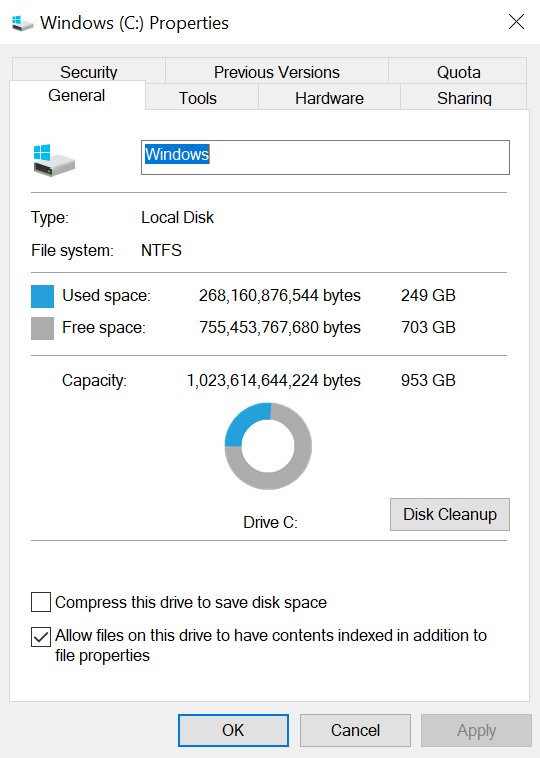
- Return to This PC and read the free space figure under Devices and drives.
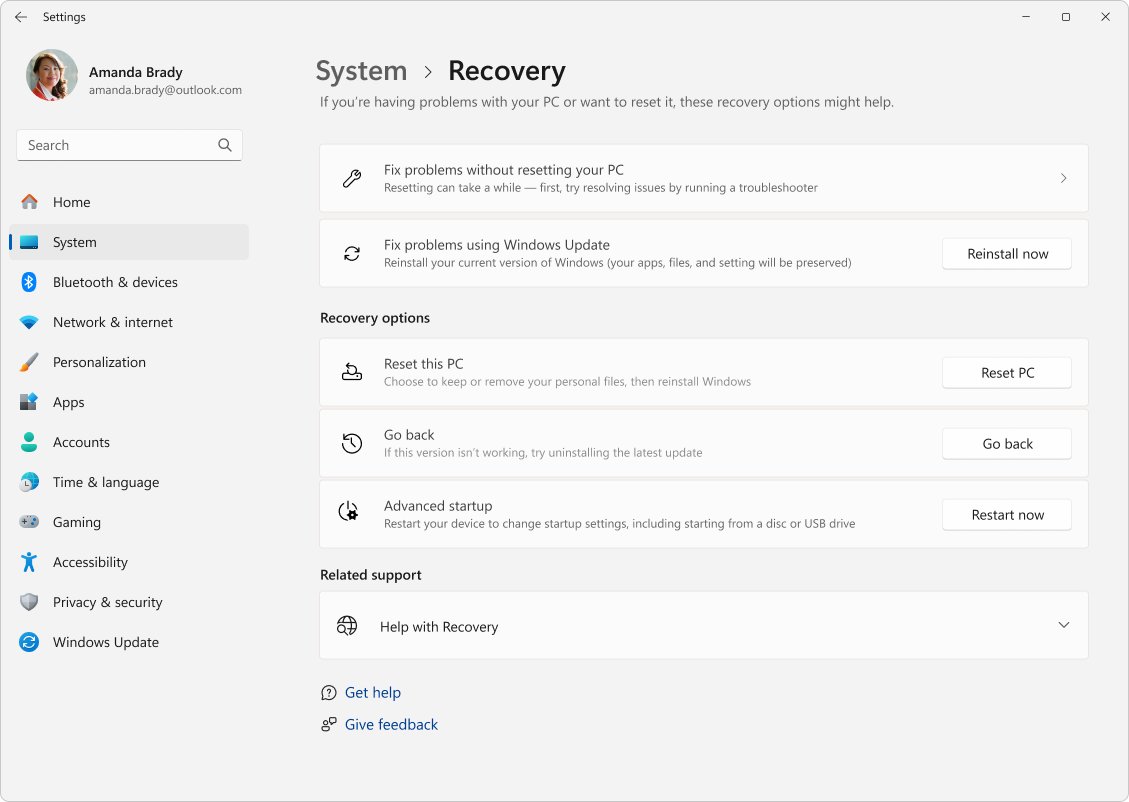
- Open Settings > System > Recovery and confirm Go back is no longer offered.
Space is reported against the C: drive, not the folder, so compare the figure with what you noted before the cleanup.
What Is the Windows.old Folder in Windows 10?
Windows.old is a container, not a system component the running installation depends on.
| Question | Answer |
|---|---|
| What it holds | The previous version of Windows that was on the device before the upgrade |
| Where it sits | At the root of the system drive, as C:\Windows.old |
| What it means for you | It is what makes the Go back option possible after an upgrade |
| What is inside for you | Personal files under C:\Windows.old\Users\<your user name>, in folders such as Documents, Pictures and Desktop |
| How long it lasts | Ten days from the upgrade, then Windows deletes most of the content automatically |
| Who can open it | An administrator account; other accounts are prompted by User Account Control |
| Is it needed | Only for going back or retrieving files; the current Windows installation runs without it |
Why Windows Creates the Windows.old Folder
The folder appears after an upgrade that keeps the existing drive, and not after a clean install.
| Situation | What Windows does | Rollback available |
|---|---|---|
| Upgrade from Windows 10 to Windows 11 | Moves the old installation into Windows.old | Yes, for ten days |
| A Windows feature update installed over the current version | Moves the replaced version into Windows.old | Yes, for ten days |
| Nothing selected in Choose what to keep during an upgrade | Also parks your personal files in Windows.old | Yes, and the files can be copied back |
| Reset this PC used | No Windows.old folder is created | No |
| Clean install from installation media | The drive is formatted and the contents are lost | No |
| A second install, upgrade, refresh or reset while Windows.old exists | The existing Windows.old is deleted and a new one may be created | Only against the newest folder |
How to go back to your previous version of Windows instead
Rolling back uses Windows.old, so do this before any cleanup.
In most cases the option lasts ten days from the upgrade.
- Keep everything in the windows.old and $windows.~bt folders after the upgrade.
- Remove any user accounts you added after the upgrade.
- Have the USB drive you used to upgrade, if you used one.
- Open Settings and select System > Recovery.
- Select Go back if the option is available.
- Follow the prompts, then sign in to the restored version.
Personal files are kept, but apps and drivers installed after the upgrade are removed, along with Settings changes.
What to Do If Windows.old Will Not Delete
The folder is still there after Remove files finished
Part of the previous installation was in use, so the cleanup could not finish.
- Close every open app and save your work.
- Restart Windows from Start > Power > Restart.
- Open Settings > System > Storage > Temporary files again.
- Select Previous version of Windows and select Remove files.
Previous version of Windows is not listed in Temporary files
More than ten days have passed, or the folder was already removed.
- Open File Explorer and check whether C:\Windows.old still exists.
- If it does not exist, nothing is left to delete.
- If it does, run Disk Cleanup and select Clean up system files.
- Select the Previous Windows installation(s) check box and select OK.
Access is denied when you open Windows.old
User folders inside Windows.old are readable only with administrator privileges.
- Sign in with an account that has administrator privileges.
- Open C:\Windows.old\Users in File Explorer.
- Select Continue at the You don't currently have permission to access this folder message.
- Enter administrator credentials if User Account Control asks for them.
Cleanup keeps failing on the same drive
Damaged system files stop the servicing operation from completing.
- Type
cmdin the search box. - Right-click Command Prompt and select Run as administrator.
- Type
DISM.exe /Online /Cleanup-image /Restorehealthand press Enter. - Type
sfc /scannowand press Enter, then wait for the scan to finish. - Restart the PC and run the cleanup again.
Files inside Windows.old stay locked
A driver or service loaded at startup is holding the files open.
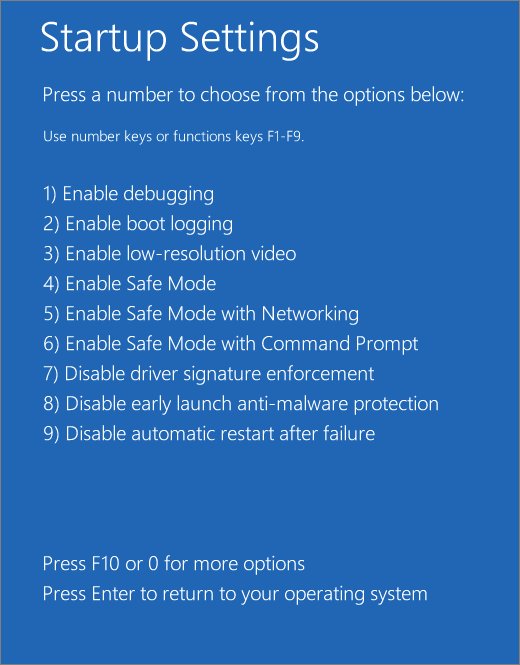
- Open the Windows Recovery Environment.
- Select Troubleshoot > Advanced options > Startup Settings > Restart.
- Press the number or function key for Enable Safe Mode when the list appears.
- Run the cleanup from Settings > System > Storage > Temporary files.
- Restart normally to leave Safe Mode.
Can You Delete Windows.old Safely?
The current installation does not read from Windows.old, so removing it breaks nothing that is running.
Delete Windows.old once your files open, your apps run and you have given up on rolling back; otherwise leave it and let Windows remove it on day ten. Microsoft deletes the previous version automatically ten days after the upgrade, and a manual deletion before then cannot be undone, taking the Go back option with it.
The same reasoning applies to other leftovers an installer parks on your drive, such as the folder covered in Can I delete 'Norton Installation Files' folder on the desktop?.
Bottom Line
Use Settings > System > Storage > Temporary files and tick Previous version of Windows to remove the folder, and keep Disk Cleanup in reserve when that entry is missing. Both routes are documented by Microsoft, both need administrator privileges, and neither touches the files in the current installation.
Frequently Asked Questions
What is the Windows.old folder?
Windows.old is the copy of the previous version of Windows kept after an upgrade. It stores the old installation, and in some upgrades your personal files, so the device can go back to that version.
Where is the Windows.old folder located?
The folder sits at the root of the system drive, usually C:\Windows.old. Open File Explorer, select This PC, then select the C: drive to see it listed alongside Windows and Program Files.
What is the Windows.old folder in Windows 11?
It is the same folder with the same job. On Windows 11 the cleanup entry is called Previous Windows installation(s) and appears under Settings > System > Storage > Cleanup recommendations.
Is the Windows.old folder needed?
No, not for daily use. Windows runs entirely from the current installation. The folder is needed only to go back to the previous version or to retrieve files that were not migrated.
How is the Windows.old folder created?
Windows creates it during an upgrade that installs over an existing installation, such as Windows 10 to Windows 11 or a feature update. Reset this PC does not create one, and a clean install from media formats the drive.
Why can't I delete the Windows.old folder?
Deleting it by hand in File Explorer is blocked because the files are system owned. Use Temporary files in Storage settings or Disk Cleanup with Clean up system files, signed in as an administrator.
Will deleting Windows.old remove my personal files?
Not the files in your current installation. It does remove anything still sitting under C:\Windows.old\Users, which matters only when Nothing was selected in Choose what to keep during the upgrade.
Can I go back to my previous version of Windows after deleting Windows.old?
No. Microsoft states the deletion cannot be undone and the previous version can no longer be restored. Roll back first through Settings > System > Recovery > Go back if you are unsure.
Why does Windows.old take up so much space?
It holds a complete previous Windows installation, including its system folders and, in some upgrades, your user profile files. The size tracks whatever was on the drive before the upgrade.
How do I access the Windows.old folder?
Sign in as an administrator, open File Explorer, select the C: drive and open Windows.old. Select Continue if the permission message appears, then browse to Users and your user name.
What is the safest way to delete the Windows.old folder?
Confirm your files and apps work, then use Settings > System > Storage > Temporary files and tick Previous version of Windows. Waiting for the automatic removal on day ten is safer still.
How long does the Windows.old folder stay on the PC?
Ten days from the upgrade. After that Windows deletes most of the content automatically, and the ten-day clock is also the limit for retrieving personal files from the folder.