Windows 11 keeps its sound settings in Settings > System > Sound, where you choose speakers and microphones, set volume, and open each device's advanced options.
This guide covers opening the page, output and input devices, per-app volume in Volume mixer, spatial sound and enhancements, the older Sound control panel, and fixes for silent, quiet or missing audio.
Accessing Sound Settings in Windows 11
- Select Start > Settings.
- Select System, then Sound.
- Or press Windows + R, type
ms-settings:soundand press Enter to jump straight there. - For quick changes without Settings, select the Speakers icon on the taskbar to open the volume slider and output list.
If the Speakers icon is missing from the taskbar, select Show hidden icons to look in the overflow area.
Where each sound setting lives
| Setting | Path in Settings | Direct shortcut |
|---|---|---|
| Main Sound page | System > Sound | ms-settings:sound |
| Volume mixer (per-app volume and device) | System > Sound > Volume mixer | ms-settings:apps-volume |
| List of all sound devices | Linked from the System > Sound page | ms-settings:sound-devices |
| Default output device properties | System > Sound > select the device under Output | ms-settings:sound-defaultoutputproperties |
| Default microphone properties | System > Sound > select the device under Input | ms-settings:sound-defaultinputproperties |
| Classic Sound control panel | System > Sound > More sound settings | Playback and Recording tabs |
| Microphone privacy | Privacy & security > Microphone | App access switches |
The older control panel holds options Settings lacks, such as the Default Format list and device enable switches; there are several other ways to open old Sound settings too.
Choosing and Configuring Output Devices
The device you pick under Output becomes the default for all apps unless an app has its own output set in Volume mixer. An external monitor without speakers selected as output is a common cause of silence.
- Open Settings > System > Sound.
- In the Output section, select the speakers or headphones you want. Selecting a device also makes it the default.
- Select the arrow to the right of the device to open its properties page.
- Adjust its volume and other options there.
- For a quicker switch, select the Speakers icon on the taskbar, then the arrow next to the volume slider (Select a sound output) and pick a device.
Managing Microphones and Input Settings
- Open Settings > System > Sound.
- In Input, under Choose a device for speaking or recording, select your microphone.
- Select the arrow to the right of the microphone to open its properties.
- Under Microphone test, select Start test and speak; adjust the Input volume slider if the level is low.
- Open Settings > Privacy & security > Microphone and make sure Microphone access and Let apps access your microphone are on, plus the switch for each app that needs it.
Adjusting Volume and App-Specific Audio
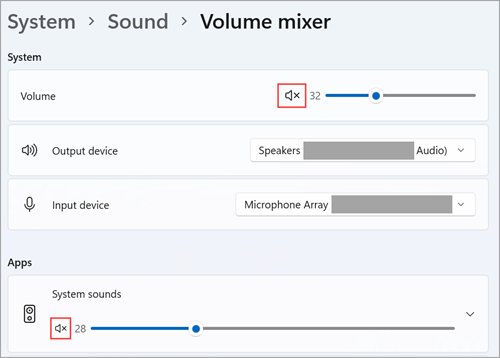
App volume in Volume mixer can override the system volume, and each app can send sound to a different device than the default.
- Open Settings > System > Sound > Volume mixer.
- Set the System volume slider.
- Under Apps, find the app, unmute it if needed and drag its slider to the level you want.
- Use the app's Output device list to send its audio to specific speakers or headphones.
- From the taskbar, select the Speakers icon, then the settings icon next to the volume slider (More mixer settings) to reach the same page.
Muted controls show an "x" next to the volume icon. Some apps and speakers also have their own volume controls, so check those as well.
Using Spatial Sound, Enhancements, and Advanced Options
- Open Settings > System > Sound and select your output device under Output.
- Under Spatial sound, choose Windows Sonic for Headphones, and select Apply if shown. Dolby Access and DTS Sound Unbound from the Microsoft Store add more formats.
- Under advanced settings, set Audio enhancements to Off if sound is distorted or quiet, or on if you want the device's processing.
- Under Default format, pick a different sample rate and bit depth if audio sounds wrong, then test.
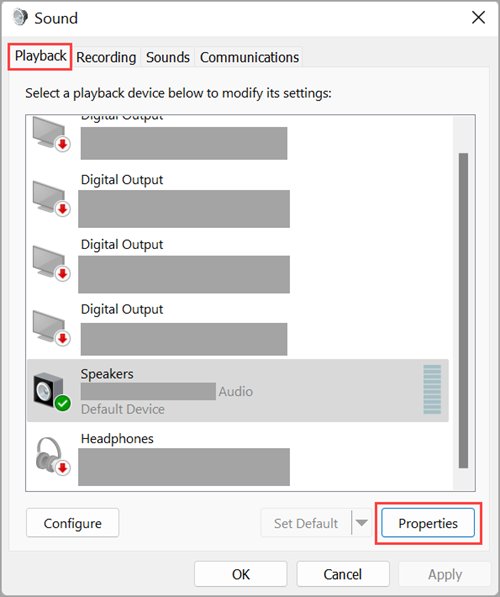
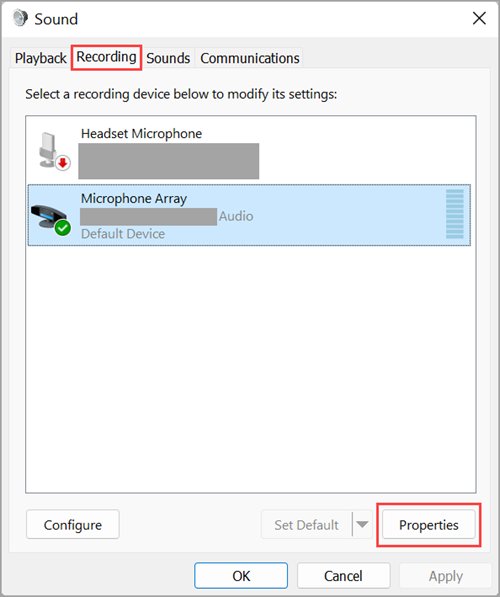
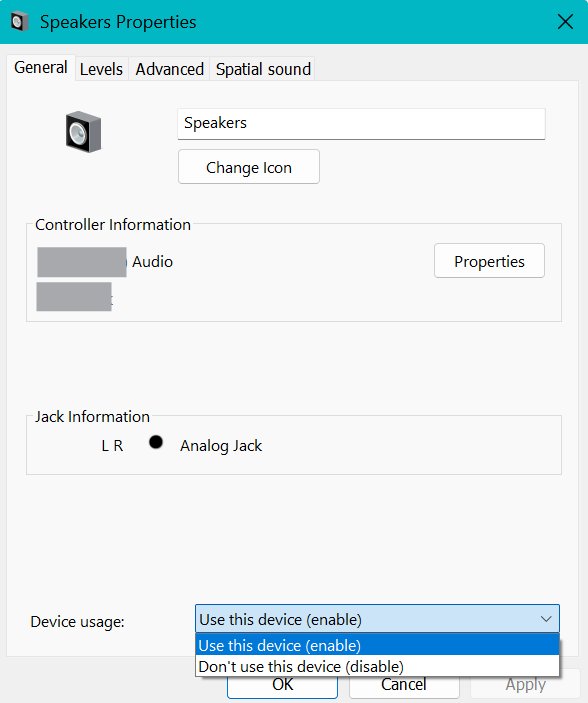
- To disable or re-enable a device, select More sound settings, pick the device on Playback or Recording, select Properties, and set Device usage.
How to check your sound settings work
- Play a video or song and confirm sound comes from the device selected under Output.
- Open Volume mixer and watch the app's level bar move while it plays.
- Run Start test under Microphone test and confirm the input level reacts to your voice.
- Open an app that uses the microphone, such as a meeting app, and check that it picks the same microphone.
Troubleshooting Common Sound Problems
Start with the automated audio troubleshooter in the Get Help app, or open Settings > System > Troubleshoot > Other troubleshooters and select Run next to Audio.
No sound from speakers or headphones
The wrong output device is selected, a device is muted or disabled, or a cable is loose.
- Select the Speakers icon, open Select a sound output and pick the right device.
- Check cables, power and every volume control, including the speaker's own.
- In More sound settings, open the device's Properties and confirm Device usage is set to use the device.
- Restart the Windows Audio and Windows Audio Endpoint Builder services in
services.msc.
Sound is low or quiet
App volume, enhancements or the audio format reduce output.
- In Volume mixer, turn up System and the affected app.
- Turn off Audio enhancements on the output device.
- Try a different Default format under the device's advanced settings.
System sounds play but one app is silent
The app is muted or sends audio to a different device.
- In Volume mixer, unmute the app and raise its slider.
- Set the app's Output device to the speakers you are using.
Microphone does not work in apps
Privacy settings block access, or another input is selected.
- Turn on Microphone access and Let apps access your microphone in Privacy & security > Microphone.
- Select the right device under Choose a device for speaking or recording.
Audio stopped after a Windows update
The new audio driver does not suit the hardware.
- Open Device Manager and expand Sound, video and game controllers.
- Right-click the audio device, select Properties, open the Driver tab and select Roll Back Driver.
- If that is unavailable, select Update driver > Search automatically for drivers, or get the driver from the PC maker's website.
Frequently Asked Questions
How do I get to sound settings in Windows 11?
Select Start > Settings > System > Sound. You can also press Windows + R, type ms-settings:sound and press Enter, which opens the same page directly.
How do I open the old Windows sound settings?
Open Settings > System > Sound and select More sound settings. The classic Sound dialog opens with Playback, Recording and other tabs for device properties and formats.
How do I change sound settings in Windows 11?
Open Settings > System > Sound. Pick your device under Output or Input, select the arrow beside it for its properties, and use Volume mixer for per-app volume and output devices.
How do I change the volume for one app?
Open Settings > System > Sound > Volume mixer. Under Apps, move the slider for that app, unmute it if needed, and choose its output device if it should play elsewhere.
How do I stop Windows changing my sound device?
Select your preferred device under Output in Settings > System > Sound so it is the default, and set any app that should stay on it in Volume mixer. Disable devices you never use through More sound settings > Properties > Device usage.
How do I turn on spatial sound in Windows 11?
Open Settings > System > Sound, select your output device, and under Spatial sound choose Windows Sonic for Headphones. Dolby Access and DTS Sound Unbound from the Microsoft Store add other formats.
How do I manage sound on Windows if Settings will not open?
Press Windows + R and run ms-settings:sound or ms-settings:apps-volume to open the pages directly, or use the Speakers icon on the taskbar for volume and output device.
Bottom Line
Set your default speakers and microphone in Settings > System > Sound first, then use Volume mixer for any app that needs its own level or device. Most silent or wrong-device audio on Windows 11 comes from the default device or a per-app override, and those two pages control both.

How to enable Windows Sonic surround sound in Windows 11 - Techdows
[…] The setting sticks to that device only. If you switch to another headset, repeat the steps for it in the Windows 11 sound settings. […]