ChatGPT shows a blank screen when the page loads but its interface never draws, and the cause is almost always stale cookies and site data, a browser extension that blocks its scripts, a network filter, or an OpenAI outage.
This guide shows how to tell which one you have in under a minute, then walks through the fixes for Chrome, Microsoft Edge, Safari and the ChatGPT app on Windows.
How to fix ChatGPT blank screen fast
These four steps clear the large majority of blank ChatGPT pages. Stop as soon as the chat window appears.
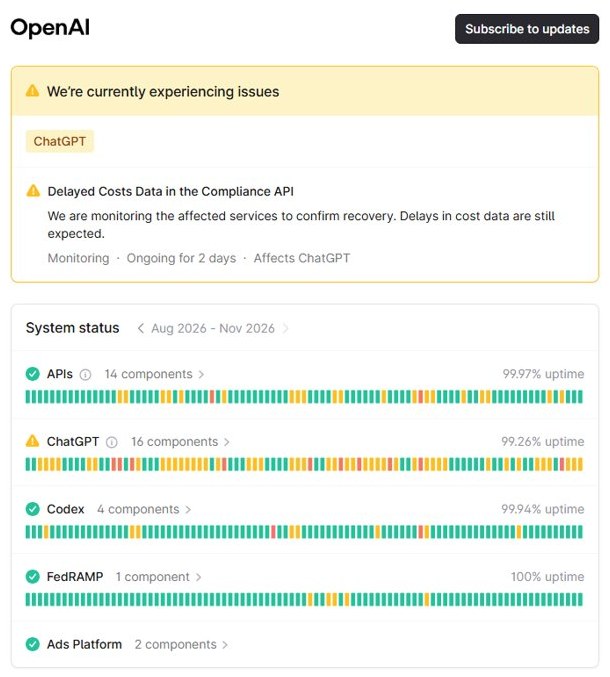
- Open status.openai.com and look at the ChatGPT row. If it reports an incident, wait for it to clear; nothing on your side will fix an outage.
- Return to the ChatGPT tab and select Reload in the address bar.
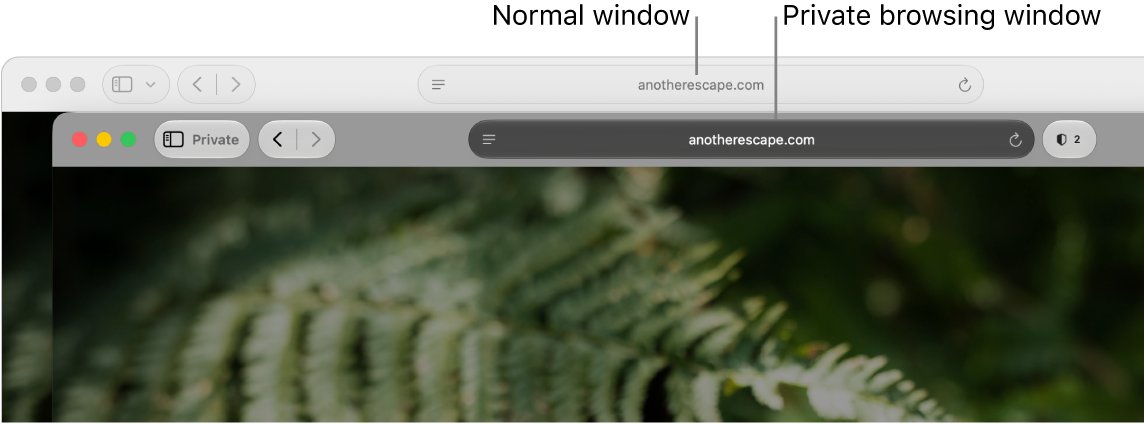
- Open a private window (in Chrome, press Ctrl + Shift + N on Windows or Command + Shift + N on a Mac) and sign in to chatgpt.com there.
- If ChatGPT works in the private window, delete the cookies and site data for chatgpt.com in your normal window, then turn your extensions off one at a time until you find the one that blanks the page.
- If ChatGPT is still blank in the private window, restart your router or switch networks, then update and restart the browser.
A private window starts without your saved cookies and, in Chrome, without most extensions. That makes it the quickest single test for a blank ChatGPT page.
Understanding the ChatGPT blank screen problem
ChatGPT runs as a web app. The browser first downloads a small page shell, then runs scripts that draw the sidebar, the chat history and the message box.
A blank screen means the shell arrived but the scripts failed, stalled or were blocked. Where the blank appears tells you a lot about why.
| What you see | What it usually means |
|---|---|
| Fully white or black page at chatgpt.com, no sidebar | Scripts did not run: an extension, corrupt site data or a network filter blocked them |
| Sidebar loads, but the conversation area stays empty | The chat history request failed, often during an incident or after a session expired |
| Blank page right after signing in | Old sign-in cookies clash with the new session |
| Blank in one browser, fine in another | A problem with that browser's data, extensions or settings |
| Blank on every browser and device on one network | The network, DNS, VPN, firewall or a workplace filter |
| Blank on every network and device | An OpenAI outage; check the status page |
Technical causes of a blank screen in ChatGPT
Google lists the same families of cause for any page that fails to load in Chrome: device settings, security software, the network, the browser itself and the website's servers. Each one maps onto ChatGPT like this.
| Cause | How it blanks ChatGPT | Fix |
|---|---|---|
| Corrupt or outdated cookies and site data | The page loads with an expired session and the interface never renders | Delete site data for chatgpt.com |
| Browser extensions | Ad blockers, script blockers and privacy tools can stop the scripts that draw the chat window | Turn extensions off, then back on one by one |
| Outdated browser | Older browser builds can fail on newer web app code | Update and restart the browser |
| Firewall, antivirus or VPN filtering | Security software or a VPN blocks or slows the connections the page needs | Test without the VPN; check the security software's blocked-site log |
| DNS or router problems | Some page resources resolve to the wrong place or time out | Restart the router, flush the DNS cache |
| Low device memory | The browser cannot finish drawing a heavy page | Close other tabs and apps |
| OpenAI server incident | The servers answer slowly or not at all | Wait; follow status.openai.com |
Diagnosing the ChatGPT blank screen issue
Run these tests in order. Each one rules out a whole group of causes, so you only apply the fix that matches.
| Test | Result | What to do next |
|---|---|---|
| Check status.openai.com | ChatGPT shows an active incident | Wait for OpenAI to resolve it |
| Open ChatGPT in a private window | It works | Clear chatgpt.com site data, then test extensions |
| Open ChatGPT in a different browser | It works | Update or reset the first browser |
| Open ChatGPT on mobile data or another Wi-Fi | It works | Restart the router, flush DNS, check the VPN or filter |
| Open the ChatGPT app instead of the website | It works | Keep using the app while you fix the browser |
| All of the above fail | Still blank everywhere | Contact OpenAI support |
Practical and step-by-step solutions for ChatGPT blank screen
Google's own order for fixing a page that will not load in Chrome works for ChatGPT in every browser. Work down the list and test chatgpt.com after each step.
- Check that the address is chatgpt.com and reload the page.
- Check your internet connection by opening another site.
- Update the browser and restart it.
- Open ChatGPT in a private window to rule out stored data.
- Turn off your extensions.
- Delete the browsing data, or at least the cookies and site data for chatgpt.com.
- Check whether your firewall, antivirus or VPN is blocking the site.
- Close other tabs and apps to free up memory.
- Reset the browser settings to their defaults.
The next sections give the exact menus for each step in Chrome, Edge and Safari.
How to clear ChatGPT cookies and cache in Chrome
Deleting only chatgpt.com's data keeps you signed in everywhere else. You will need to sign in to ChatGPT again afterwards.
- Open Chrome and select More (the three dots) at the top right, then Settings.
- Select Privacy and security, then Third-party cookies.
- Select See all site data and permissions.
- Search for chatgpt at the top right.
- Select Delete next to chatgpt.com, and next to openai.com if it is listed, then confirm with Delete.
- Reopen chatgpt.com and sign in again.
If the page is still blank, clear the whole Chrome cache: select More > Delete browsing data, choose All time, select Cookies and other site data and Cached images and files, then select Delete data. This signs you out of most sites.
How to clear ChatGPT cache in Microsoft Edge
When you clear the Edge cache, Edge removes the data on every synced device if sync is on. Turn sync off first under Settings > Profiles > Sync if you only want to clear this PC.
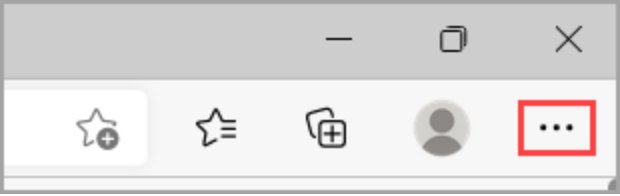
- Select Settings and more (the three dots) > Settings.
- Select Privacy, search, and services.
- Select Clear browsing data, then Choose what to clear next to Clear browsing data now.
- Under Time range, choose the longest range in the drop-down menu.
- Select Cookies and other site data and Cached images and files, and leave passwords unticked.
- Select Clear now, then reopen chatgpt.com and sign in.
How to clear ChatGPT website data in Safari on Mac
- Open Safari and choose Safari > Settings.
- Click Privacy, then Manage Website Data.
- Search for chatgpt and select chatgpt.com and openai.com in the list.
- Click Remove, then close the settings window.
- Reload chatgpt.com and sign in again.
Apple notes that removing website data can sign you out of sites and change how they behave, so expect a fresh sign-in.
How to disable extensions causing ChatGPT blank screen
Ad blockers, script blockers, privacy filters and page-modifying tools are the usual suspects. Turn them all off, confirm ChatGPT loads, then turn them back on one at a time.
| Browser | Where to turn extensions off | Notes |
|---|---|---|
| Google Chrome | More > Extensions > Manage extensions, then switch each toggle off | A damaged extension shows Repair; select it, then Repair extension |
| Microsoft Edge | Extensions (right of the address bar) > Manage extensions, then switch the toggle off | Remove one with Remove from Microsoft Edge > Remove |
| Safari on Mac | Safari > Settings > Extensions, then deselect the extension's checkbox | The change can need a page refresh to take effect |
Once you find the culprit, leave it off for chatgpt.com. In Chrome, open the extension's Details and set its site access to On specific sites so it skips ChatGPT.

Flush DNS to fix ChatGPT not loading on Windows
When ChatGPT is blank on every browser on one PC but works on your phone over the same Wi-Fi, a stale DNS entry on the PC is a likely cause. Open Command Prompt and run this command.
ipconfig /flushdnsFlushes and resets the contents of the Windows DNS client resolver cache, so the next visit to chatgpt.com looks the address up fresh.
You should see: The command returns a confirmation line with no error. Restart the browser and reload chatgpt.com.
How to fix ChatGPT app blank screen on Windows
The ChatGPT desktop app on Windows can go blank for the same reasons as the website. Windows has a built-in repair for installed apps, and its Reset option clears the app's cached data.
- Close the ChatGPT app.
- Select Start > Settings > Apps > Installed apps.
- Select More (the three dots) next to ChatGPT, then Advanced options.
- Select Repair and reopen the app.
- If it is still blank, return to the same page and select Reset. You will need to sign in again.
Microsoft notes that some apps do not show Advanced options. If ChatGPT does not, uninstall it and install it again from the Microsoft Store.
Advanced troubleshooting for ChatGPT blank screen
ChatGPT is blank in one browser even after clearing its data
A changed browser setting or a leftover extension is still interfering.
- In Chrome, select More > Settings > Reset settings.
- Select Restore settings to their original defaults, then Reset settings.
- Reopen chatgpt.com. Bookmarks and saved passwords are kept, but extensions are turned off and cookies are cleared.
ChatGPT goes blank only on a work, school or public network
A firewall, web filter or proxy is blocking part of the site.
- Load chatgpt.com on mobile data to confirm the network is the cause.
- Ask the network administrator whether chatgpt.com and openai.com are allowed.
- Do not try to get around a workplace block; use the site on a network where it is permitted.
ChatGPT is blank only while a VPN is on
The VPN route or its built-in blocklist interferes with the site.
- Disconnect the VPN and reload chatgpt.com.
- If it loads, switch to a different VPN server location and test again.
- Check the VPN app's ad or tracker blocking feature and allow chatgpt.com.
The sidebar loads but chats show a blank panel
Your session expired or the conversation service is having an incident.
- Check status.openai.com for an incident on ChatGPT.
- Sign out of ChatGPT, close the tab and sign in again.
- Start a new chat to see whether only older conversations fail to open.
ChatGPT freezes on a blank page with many tabs open
The device is short of memory, so the browser cannot finish the page.
- Close tabs and apps you are not using.
- Restart the browser.
- Restart the computer if the browser stays slow.
How to tell if ChatGPT is down
- Open status.openai.com in any browser.
- Find the ChatGPT group. A current problem shows as a banner at the top, with its status, such as Monitoring, and how long it has run.
- Select Subscribe to updates if you want an alert when the incident is resolved.
- If the status page shows no incident, the blank screen is on your side: go back to the private window test.
The status page reports availability across all plans, so an individual account can still have trouble while the page shows normal service.
Preventive measures for ChatGPT blank screen
A few best practices keep chatgpt.com loading cleanly once you have it working again.
| Habit | Why it stops the blank screen coming back |
|---|---|
| Let the browser update itself and relaunch it when prompted | New ChatGPT code expects a current browser |
| Keep few extensions, and only ones you trust | Fewer extensions means fewer scripts that can block ChatGPT |
| Allow chatgpt.com in your ad or script blocker | The interface needs its scripts to run |
| Sign out properly on shared computers | Avoids broken half-expired sessions |
| Keep the ChatGPT app installed as a fallback | You can keep working while you fix the browser |
| Check status.openai.com before deep troubleshooting | Saves time during an outage |
When to contact OpenAI support
Contact OpenAI support through help.openai.com when ChatGPT stays blank on every browser, device and network, and the status page shows no incident. At that point the cause is likely tied to your account, which only OpenAI can see. Say which browsers, devices and networks you tested, and whether the ChatGPT app is also blank, so support can skip the basic steps.
ChatGPT blank screen FAQ
Why is ChatGPT showing a white screen?
A white ChatGPT screen means the page shell loaded but its scripts did not draw the interface. Corrupt site data and blocking extensions are the usual causes, so test in a private window, then clear chatgpt.com data.
Why is ChatGPT a black screen?
A black screen is the same failure as a white one, shown in dark mode. The interface did not render, so check status.openai.com, try a private window and clear the site's cookies and cached files.
Is ChatGPT down right now?
Check status.openai.com, OpenAI's official status page. It lists current incidents for ChatGPT, the API and other services. If it shows no incident, the blank screen is coming from your browser, device or network.
Does clearing cookies fix ChatGPT not loading?
Often, yes. Expired or damaged cookies are one of the most common reasons ChatGPT loads blank. Delete the site data for chatgpt.com and openai.com, then sign in again; your chat history is stored in your account, not the browser.
Will I lose my ChatGPT chats if I clear browser data?
No. Your conversations are saved to your ChatGPT account on OpenAI's servers. Clearing cookies and cache only signs you out of the browser, and your history comes back when you sign in again.
Why does ChatGPT work in Incognito but not in a normal window?
A private window starts without your stored cookies and usually without extensions. If ChatGPT works there, one of those two is the cause, so clear chatgpt.com data and turn extensions off one at a time.
Can an ad blocker make ChatGPT blank?
Yes. Ad blockers and script blockers can stop the scripts that draw ChatGPT's chat window. Turn the blocker off for chatgpt.com or add the site to its allow list, then reload the page.
Why is the ChatGPT desktop app blank on Windows?
The app can hold a damaged session or files just like a browser. Open Settings > Apps > Installed apps, select ChatGPT's Advanced options and choose Repair, then Reset if Repair does not help.