ERR_INTERNET_DISCONNECTED means Chrome could not reach the internet, so fix it by getting the PC back online: turn off Airplane mode, reconnect to Wi-Fi and restart the router.
If the error stays, the steps below work through VPN and proxy settings, Chrome's own data, a TCP/IP and DNS reset, and the network adapter driver on Windows 11 and Windows 10.
How to fix ERR_INTERNET_DISCONNECTED in Chrome on Windows
Most cases end here, because the error usually means the PC itself has no connection.
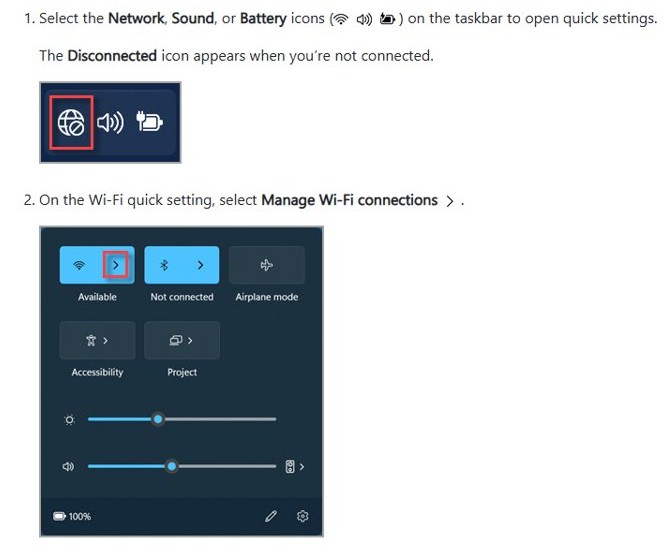
- Select the Network, Sound or Battery icons on the right side of the taskbar.
- Make sure Wi-Fi is turned on and that your network shows Connected below its name.
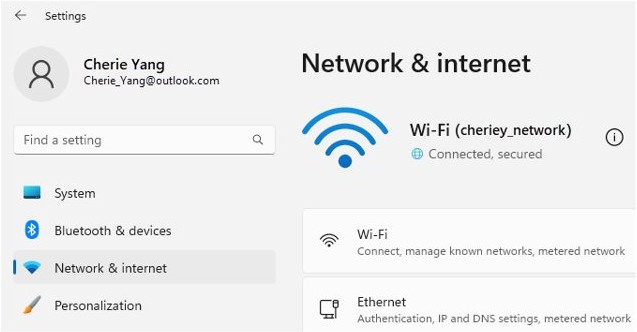
- Open Settings > Network & internet > Airplane mode and turn Airplane mode off.
- If the network is not connected, select a Wi-Fi network you recognise and connect to it.
- Go back to Chrome and press F5 to reload the page.
If the taskbar shows No Internet under a connected network, the PC reaches the router but not your provider. Restart the router and modem next.
What does ERR_INTERNET_DISCONNECTED mean in Chrome?
Chrome shows this code when the device has no working internet connection at the moment it tries to load a page.
Google lists five groups of causes behind Chrome connection and loading errors, and each points to a different fix.
| Cause | Example | Where to fix it |
|---|---|---|
| Device settings | Airplane mode is on, or Wi-Fi is switched off | Windows Network & internet settings |
| Device software | A firewall, antivirus web filter or VPN client blocks traffic | VPN app, Windows Proxy settings, Windows Security |
| Network issues | The modem or router lost its link to your internet provider | Restart the router and modem, or call the provider |
| Browser issues | Damaged cookies, an extension or a changed Chrome setting | Chrome Delete browsing data and Reset settings |
| Website issues | The site is down for maintenance | Wait, or try the site from another network |
A different code points somewhere else. If the error turns into ERR_NAME_NOT_RESOLVED, the PC is online but name lookups fail, so fix the ERR_NAME_NOT_RESOLVED error instead. If pages fail when you switch networks, the ERR_NETWORK_CHANGED fixes apply.
Check your internet connection and Wi-Fi settings
A saved Wi-Fi profile with an old password or a weak band can leave Windows connected in name only.
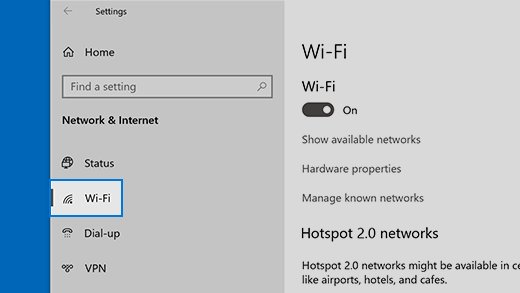
- Open Settings > Network & internet > Wi-Fi, then select Manage known networks.
- Select your Wi-Fi network and select Forget.
- Select the network again from the Wi-Fi list and enter its password to reconnect.
- If the list shows both a 2.4 GHz and a 5 GHz network from your router, connect to the other one.
- Connect another laptop or phone to the same network to see whether it gets online.
- If the other device works, carry on with the PC fixes below; if it fails too, the router or provider is at fault.
On a wired PC, check that the Ethernet cable is firmly seated at both ends and that the port lights on the router are lit.
Restart your router, modem, and device
A power cycle forces a new connection to your internet service provider. Everyone on your Wi-Fi drops off for a few minutes while it runs.
- Unplug the router's power cable, then the modem's power cable.
- If the modem lights stay on, remove its backup battery.
- Wait at least 30 seconds.
- Refit the battery if you removed it, plug the modem back in and wait for its lights to stop blinking.
- Plug the router back in and wait a few minutes until its status lights settle.
- Restart the PC from Start > Power > Restart, then open Chrome and reload the page.
A combined modem and router needs only one unplug. If the internet light on the router stays off or red after the restart, the line itself is down and only your provider can fix it.
Disable VPN, proxy, or firewall conflicts
A VPN that has lost its server, or a leftover manual proxy, sends Chrome's traffic nowhere. Remove those conflicts without turning off Windows Firewall, which Microsoft warns leaves the PC more open to attack.
- Disconnect your VPN app, reload the page in Chrome, and reconnect the VPN once you know whether it was the cause.
- Open Settings > Network & internet > Proxy.
- Turn off any manual proxy setting you did not set up on purpose.
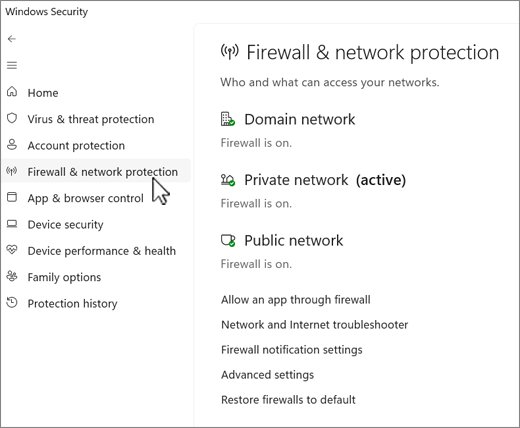
- Open the Windows Security app and select Firewall & network protection.
- Select Restore firewalls to default if someone or something changed the firewall rules, and confirm.
- If you use third-party security software, open its settings and check that Chrome is not listed as a blocked app.
On a work or school PC, proxy and firewall settings often come from the organisation. Ask the IT team before changing them, because policy may put them back.
Clear Chrome cache and reset browser settings
Use this when other browsers and apps load fine and only Chrome shows the error.
Resetting Chrome does not delete your saved bookmarks or passwords, but it turns off extensions and clears cookies.
- Press Ctrl + Shift + N to open an Incognito window and load the page there; if it works, an extension or stored data is the likely cause.
- Type
chrome://extensionsin the address bar and switch off extensions one by one, reloading the page after each. - Select More (three dots) > Delete browsing data, choose All time, tick Cookies and other site data and any other items you want removed, then select Delete data.
- Select More > Help > About Google Chrome and select Relaunch if an update is waiting.
- If the error remains, select More > Settings > Reset settings > Restore settings to their original defaults > Reset settings.
A reset changes the search engine, homepage, startup tabs, pinned tabs, site permissions, cookies, extensions and themes back to their defaults. Fonts and accessibility settings stay as they are.
Reset network settings, DNS, and TCP/IP
These commands rebuild the TCP/IP stack, request a fresh IP address and empty the DNS resolver cache. Run them in the order shown.
- Select Search on the taskbar and type
command prompt, then select Run as administrator > Yes. - Type
netsh winsock resetand press Enter. - Type
netsh int ip resetand press Enter. - Type
ipconfig /releaseand press Enter. - Type
ipconfig /renewand press Enter. - Type
ipconfig /flushdnsand press Enter, then restart the PC and test Chrome. - If Chrome still fails, open Settings > Network & internet > Advanced network settings > Network reset on Windows 11 (Status > Network reset on Windows 10) and select Reset now > Yes.
Network reset is the last resort. It removes and reinstalls every network adapter, so you may need to set up VPN client software again, and known networks may switch to the public profile.
To try a different DNS server, open your network under Network & internet, select Edit next to IP assignment, choose Manual, turn on IPv4 and type addresses into Preferred DNS and Alternate DNS. Select Automatic (DHCP) to undo it.
Update or reinstall network drivers
A driver problem is likely when the connection stopped working right after an update, or when the Wi-Fi adapter vanishes from Device Manager.
Download the latest network driver from your PC maker's website first, on another device if needed, and keep it on a USB drive as a backup.
- Select Search on the taskbar, type
device managerand open Device Manager. - Expand Network adapters, right-click your adapter, select Properties and open the Driver tab.
- Compare Driver Date and Driver Version with the newest driver on the manufacturer's site, and install the newer one if yours is older.
- To reinstall instead, right-click the adapter and select Uninstall device.
- Tick Attempt to remove the driver for this device and select Uninstall.
- Select Start > Power > Restart; Windows reinstalls the adapter driver when it starts.
- If Windows does not reinstall it, run the backup driver you saved.
Also run Settings > Windows Update > Check for updates, because Windows Update delivers many network adapter drivers.
How to tell if the problem is your Wi-Fi or Chrome
A ping to your router splits the problem in two: the PC-to-router link, and everything beyond it.
- Open another browser, such as Microsoft Edge, and load the same page.
- If Edge loads it, the fault is inside Chrome; use the Chrome cache and reset steps above.
- If Edge fails too, open Command Prompt as administrator, type
ipconfigand note the Default Gateway address of your Wi-Fi adapter. - Type
pingfollowed by that address, for exampleping 192.168.1.1, and press Enter. - Replies with 0% loss mean the router link works, so the modem or your provider is the problem.
- No replies mean the Wi-Fi link is at fault; connect the PC to the modem with an Ethernet cable to confirm.
ERR_INTERNET_DISCONNECTED keeps coming back in Chrome
Wi-Fi shows connected, but the IP address starts with 169.254
Windows could not get an IP address from the router.
- Run
ipconfigin Command Prompt and check the IPv4 Address line. - If it reads 169.254.x.x, open your router's admin page and check that DHCP is enabled.
- Run
ipconfig /releaseand thenipconfig /renewto request a new address.
The connection drops every few minutes
Power saving switches the Wi-Fi adapter off, or the router channel is crowded.
- Open Device Manager, expand Network adapters, right-click the Wi-Fi adapter and select Properties.
- On the Power Management tab, clear Allow the computer to turn off this device to save power.
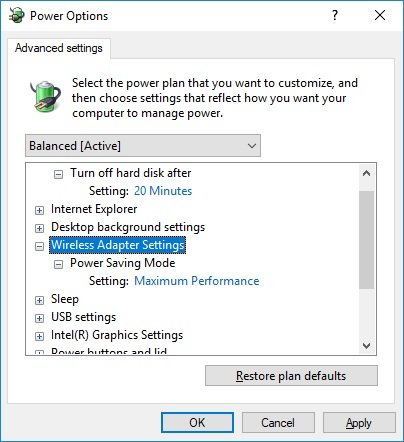
- In Control Panel > Hardware and Sound > Power Options, select Change plan settings > Change advanced power settings.
- Expand Wireless Adapter Settings and set Power Saving Mode to Maximum Performance.
- Change the wireless channel from the router's admin page if drops continue.
The Wi-Fi option is missing from Windows
The adapter is disabled, switched off by a hardware switch, or its service stopped.
- Check for a physical Wi-Fi switch on the laptop and turn it on.
- In Device Manager, right-click the Wi-Fi adapter under Network adapters and select Enable device.
- Press Win + R, type
services.mscand press Enter. - Right-click WLAN AutoConfig and select Restart.
Restarting the router does not fix the error
The provider's line is down, or the router needs a firmware update.
- Connect another device to the same network; if it fails too, check your provider's outage page from mobile data.
- Install the latest firmware for your router using its documentation.
- Contact your internet provider if the router's internet light stays off.
ERR_INTERNET_DISCONNECTED in Chrome FAQ
Does ERR_INTERNET_DISCONNECTED mean Chrome is broken?
Usually not. The code means the device had no working internet connection when Chrome tried to load the page. If other browsers and apps also fail, the problem is the PC's connection, the router or the provider, not Chrome.
Will resetting network settings delete my files or passwords?
No. Network reset removes and reinstalls network adapters and returns their settings to defaults. Your files stay, but you may need to re-enter Wi-Fi passwords, set up VPN client software again and switch networks back to the private profile.
Can a VPN or proxy cause ERR_INTERNET_DISCONNECTED?
Yes. A VPN that has lost its server, or a manual proxy that no longer exists, can stop Chrome from reaching any site. Disconnect the VPN and turn off unused manual proxy settings under Settings > Network & internet > Proxy to test it.
What should I do if restarting the router does not fix the error?
Test another device on the same network. If it fails too, contact your internet provider or update the router firmware. If only the PC fails, reset TCP/IP and DNS, then reinstall the network adapter driver.
Will resetting Chrome delete my bookmarks and passwords?
No. Google states that resetting Chrome settings does not delete or change saved bookmarks and passwords. It does reset the search engine, homepage, pinned tabs, site permissions, cookies, extensions and themes.
Can antivirus software cause ERR_INTERNET_DISCONNECTED?
Yes. Google lists firewall and antivirus software among the causes of Chrome connection errors. Check the security app's settings to make sure Chrome is allowed, rather than turning the protection off.