To enable NVIDIA Low Latency Mode, open NVIDIA Control Panel, select Manage 3D settings, set Low Latency Mode to On or Ultra, and click Apply.
This guide covers the global and per-game setting on Windows 11 and Windows 10, the NVIDIA app route, NVIDIA Reflex, G-SYNC, frame rate limits, turning the mode off, and a missing NVIDIA tray icon.
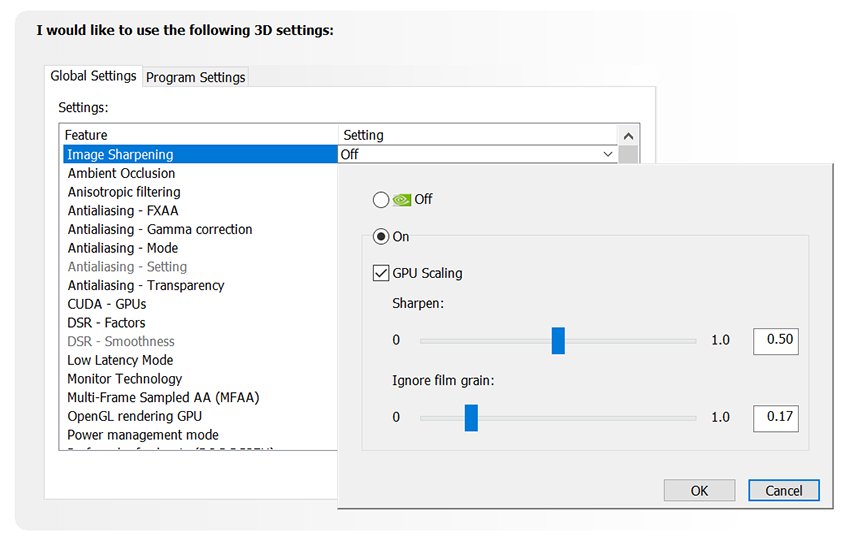
Enable NVIDIA low latency mode
Low Latency Mode needs an NVIDIA GeForce driver from the R435 branch or later, so update the graphics driver first if yours is older. The steps are the same on Windows 11 and Windows 10.
- Right-click an empty part of the desktop and select NVIDIA Control Panel. On Windows 11, select Show more options first if the entry isn't in the short menu.
- Under 3D Settings in the left pane, select Manage 3D settings.
- Open the Global Settings tab.
- Scroll down the list to Low Latency Mode.
- Select On to limit queued frames to one, or Ultra to submit each frame just in time for the GPU.
- Click Apply at the bottom right of the window.
The global value applies to every game that doesn't have its own Low Latency Mode value on the Program Settings tab.
What does NVIDIA low latency mode do?
Low Latency Mode reduces latency by limiting how many frames the CPU can prepare before the GPU processes them. Fewer frames waiting in the render queue means your mouse and keyboard input reach the screen sooner.
| Setting | What the driver does | Best for |
|---|---|---|
| Off (default) | The game engine queues 1-3 frames for maximum render throughput | Single-player games where frame rate matters more than input feel |
| On | Limits the number of queued frames to 1, the same as the old Maximum Pre-Rendered Frames = 1 | A middle ground in most DirectX 11 games |
| Ultra | Submits each frame just in time for the GPU to pick it up and start rendering | Competitive games without NVIDIA Reflex |
NVIDIA says Low Latency modes have the most effect when a game is GPU bound and running between 60 and 100 FPS. The driver setting works in DirectX 9 and DirectX 11 games; in DirectX 12 and Vulkan titles, the game decides when to queue frames.
Low latency mode for one game in NVIDIA Control Panel
Set the mode per game when you want Ultra in a shooter but the default elsewhere. A per-game value overrides the global one.
- Open NVIDIA Control Panel and select Manage 3D settings.
- Open the Program Settings tab.
- Under Select a program to customize, pick the game. Select Add if it isn't listed and choose its executable.
- Find Low Latency Mode in the settings list.
- Select On or Ultra.
- Click Apply.
NVIDIA app low latency mode
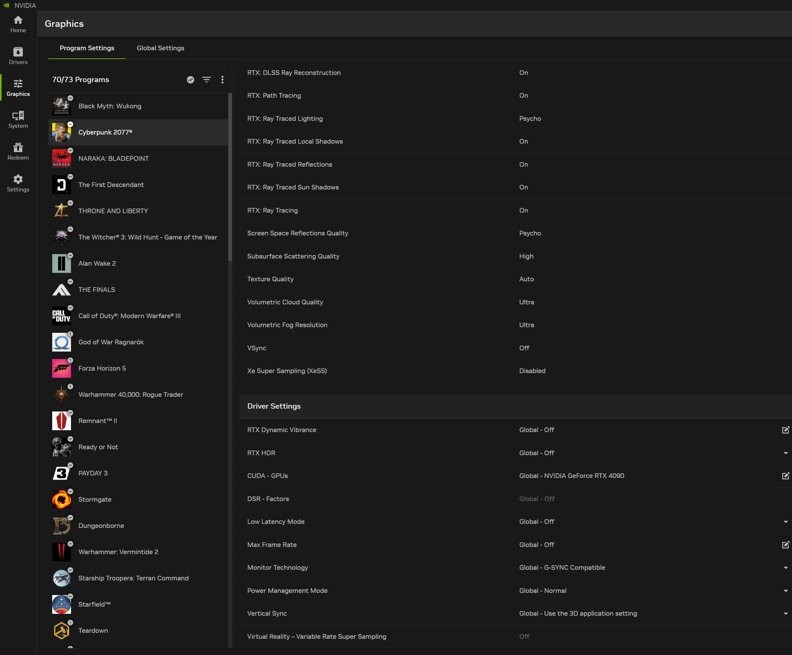
The NVIDIA app brings the NVIDIA Control Panel's 3D settings into its Graphics tab, and Low Latency Mode is one of the driver settings it exposes.
- Open the NVIDIA app from the Start menu.
- Select Graphics in the left pane.
- Select the Global Settings tab at the top for every game, or stay on Program Settings and pick one game.
- Scroll down to the Driver Settings panel.
- Select Low Latency Mode and choose On or Ultra.
- Select the i icon next to a highlighted setting if you want NVIDIA's description of it.
How to enable NVIDIA Reflex low latency
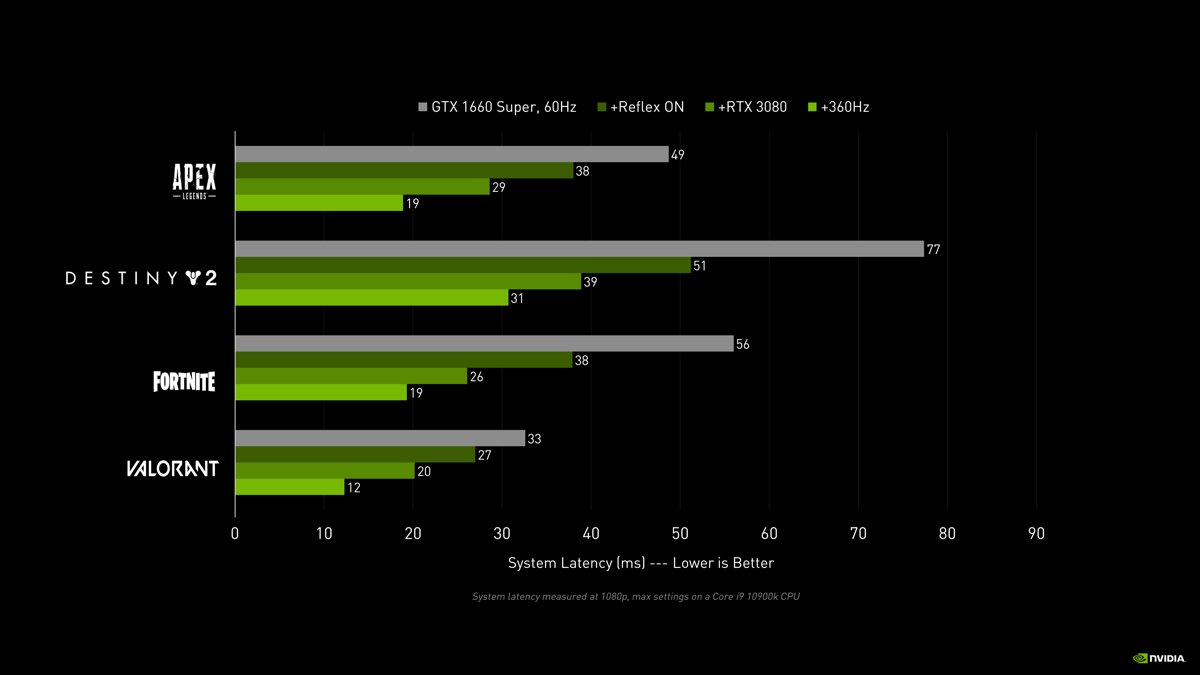
NVIDIA Reflex is built into the game itself through the Reflex SDK, so it is switched on from the game's own settings, not from the driver. It removes the render queue and also reduces back pressure on the CPU, which the driver mode can't do.
- Launch a game that supports NVIDIA Reflex.
- Open the game's graphics or video settings menu.
- Find the NVIDIA Reflex Low Latency option.
- Select On, or the Boost option if you want GPU clocks kept high when the game is CPU bound.
- Apply the setting and return to the game.
Boost overrides the GPU's power saving features, so it draws more power for a modest latency gain. Reflex works on GeForce GTX 900 Series cards and newer. On the Windows side, the Ultimate Performance power plan makes a similar power-for-latency trade for the CPU.
Should I enable NVIDIA Reflex low latency or Ultra low latency mode?
| Your situation | Use this | Why |
|---|---|---|
| The game has an NVIDIA Reflex option | NVIDIA Reflex Low Latency in the game | NVIDIA recommends Reflex over the driver's Ultra mode; it controls the whole pipeline |
| Reflex and Ultra are both on | Leave them | Reflex takes priority automatically |
| DirectX 9 or DirectX 11 game without Reflex | Low Latency Mode Ultra | Gives a partial latency cut without game support |
| DirectX 12 or Vulkan game without Reflex | In-game settings and a frame rate cap | The game, not the driver, decides frame queuing |
| Story game where smooth frame rate matters most | Low Latency Mode Off | Off prioritizes render throughput |
How to use NVIDIA Ultra low latency mode with G-SYNC
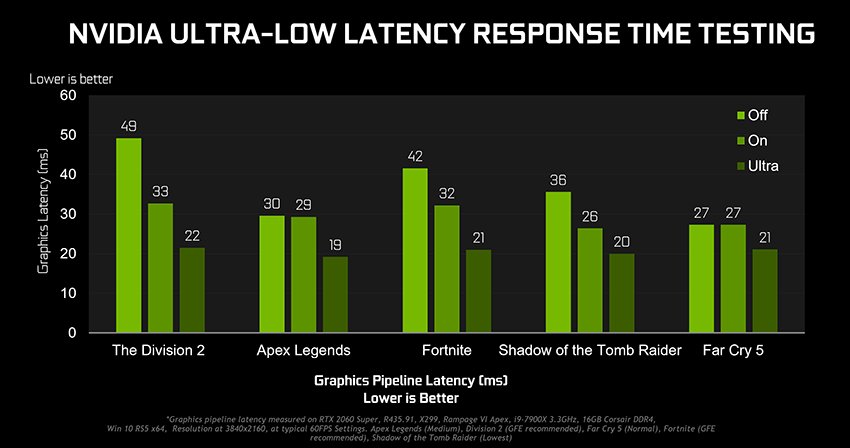
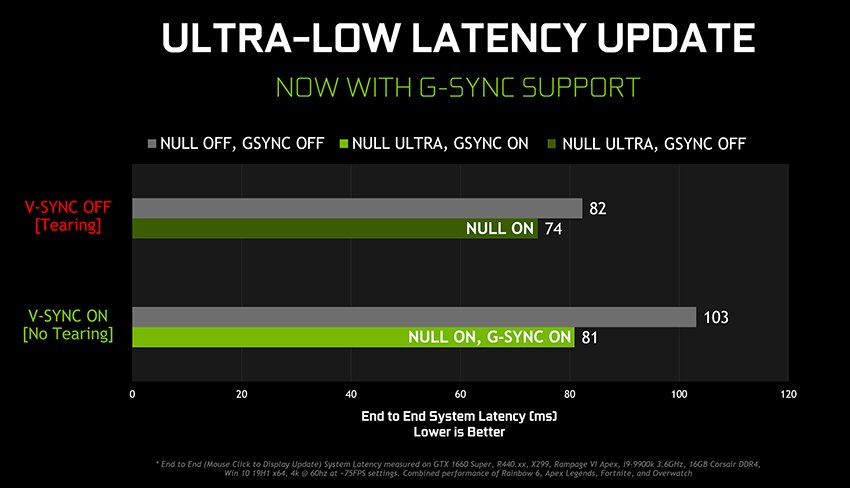
NVIDIA updated Ultra Low Latency Mode to work with G-SYNC and G-SYNC Compatible monitors. With V-SYNC on in the driver, Ultra and G-SYNC together cut end-to-end system latency by up to 20% in NVIDIA's chart.
- In NVIDIA Control Panel > Manage 3D settings, set Low Latency Mode to Ultra.
- Scroll down to Vertical sync and select On, globally or for the game, then click Apply.
- Select Set up G-SYNC in the left pane.
- Enable G-SYNC and click Apply. If the monitor supports G-SYNC and ULMB, make sure G-SYNC is selected under Monitor Technology in Manage 3D settings.
- Turn V-SYNC off inside the game, so the NVIDIA Control Panel setting is the one that applies.
How to set FPS limit on NVIDIA and AMD GPU
A frame rate cap can reduce system latency in some games and also extends battery life on laptops. NVIDIA's Max Frame Rate setting arrived with R440 drivers and accepts 20 to 1000 FPS.
- Open NVIDIA Control Panel and select Manage 3D settings.
- Use Global Settings for all games, or Program Settings for one game.
- Select Max Frame Rate in the list.
- Select On and move the slider to the frame rate you want.
- Click OK, then click Apply.
- To cap games that run in the background, set Background Application Max Frame Rate the same way; its range is 20 to 200 FPS.
The NVIDIA Control Panel only controls NVIDIA GPUs. On an AMD Radeon card, the frame rate cap is set in AMD's own driver software instead.
How to disable NVIDIA low latency mode
- Open NVIDIA Control Panel and select Manage 3D settings.
- On the Global Settings tab, set Low Latency Mode to Off.
- Click Apply.
- Open the Program Settings tab and check each game you customised; set Low Latency Mode back to the global setting or to Off.
- Click Apply again.
Off is the driver default, so the game's own engine goes back to queuing 1-3 frames.
NVIDIA system tray icon missing in Windows 11
The tray icon is a shortcut to key NVIDIA Control Panel settings, so a missing icon usually means the option is switched off, not that the driver is broken.
The NVIDIA icon is gone from the notification area
Show Notification Tray Icon is turned off in NVIDIA Control Panel.
- Open NVIDIA Control Panel from the desktop right-click menu or the Start menu.
- Select the Desktop menu, the third item on the menu bar.
- Select Show Notification Tray Icon so it has a check mark.
- Select the Show hidden icons arrow on the taskbar to look for the icon in the overflow area.
NVIDIA Control Panel is missing from the desktop right-click menu
Add Desktop Context Menu has been turned off.
- Open the Start menu, type NVIDIA Control Panel and open it from the results.
- Select the Desktop menu.
- Select Add Desktop Context Menu so it has a check mark.
- On Windows 11, right-click the desktop and select Show more options to see the entry.
The GPU activity icon is missing on a laptop
Display GPU Activity Icon in Notification Area is off. The option only appears on systems with NVIDIA's power-saving GPU technology.
- Open NVIDIA Control Panel.
- Select the Desktop menu.
- Select Display GPU Activity Icon in Notification Area.
- Click the icon in the notification area to see which programs are using the NVIDIA GPU.
NVIDIA low latency mode FAQ
Should I enable low latency mode on NVIDIA?
Enable it for competitive DirectX 9 and DirectX 11 games that lack NVIDIA Reflex, especially when the game is GPU bound at 60 to 100 FPS. Leave it Off for games where the highest frame rate matters more than input response.
Is NVIDIA Low Latency Mode good?
Yes, for responsiveness. NVIDIA measured up to 33% lower latency from Ultra-Low Latency mode at launch. The trade-off is render throughput, because Off is the setting that lets games queue frames for maximum frame output.
Low latency mode on or off for NVIDIA?
Use On or Ultra when input lag bothers you, and Off when it doesn't. If the game offers NVIDIA Reflex, turn Reflex on instead; when both are enabled, Reflex takes priority automatically.
Should I enable NVIDIA Reflex low latency?
Yes, if the game supports it. NVIDIA recommends Reflex over the driver's Ultra Low Latency Mode because it works inside the game engine, removes the render queue and reduces CPU back pressure. Reflex supports GeForce GTX 900 Series GPUs and newer.
What is low latency mode in NVIDIA Control Panel?
It is a driver setting under Manage 3D settings that limits how many frames the CPU prepares before the GPU renders them. On limits the queue to one frame, and Ultra submits frames just in time.
Does NVIDIA Low Latency Mode work in DirectX 12 and Vulkan games?
No. NVIDIA states that in DirectX 12 and Vulkan titles the game decides when to queue frames, so the driver setting has no control there. Use NVIDIA Reflex in those games if they support it, or a frame rate cap.
How do I turn off NVIDIA low latency?
Open NVIDIA Control Panel > Manage 3D settings, set Low Latency Mode to Off on the Global Settings tab and click Apply. Check the Program Settings tab too, because a per-game value overrides the global one.
Is NVIDIA Low Latency Mode the same as the Windows 11 Low Latency Profile?
No. NVIDIA Low Latency Mode changes how the graphics driver queues frames. The Windows 11 CPU boost Low Latency Profile is a Windows power feature that briefly raises CPU clocks.
Where is Low Latency Mode in the NVIDIA app?
Open the NVIDIA app, select Graphics, choose Global Settings or a single program, and scroll to the Driver Settings panel. Low Latency Mode is listed there with the other NVIDIA Control Panel 3D settings.