Neither Google nor Microsoft offers a supported way to install Windows 11 directly on a Chromebook, so the route that works is to run Windows 11 from the cloud with Windows 365 or to remote into a Windows 11 PC.
This guide covers the Windows 365 web client, the Windows App from Google Play, Remote Desktop and Chrome Remote Desktop, why the Developer Mode and bootable USB method fails, and how to return to ChromeOS.
How to install Windows 11 on Chromebook
A Windows 365 Cloud PC is a full Windows 11 desktop that runs in Microsoft's cloud and streams to the Chromebook's Chrome browser. Microsoft lists ChromeOS as a supported system for the web client, and nothing is installed on the Chromebook itself.
You need a Windows 365 license assigned to your work or school account, or a Windows 365 Business subscription your organisation buys.
- Open Chrome on the Chromebook.
- Go to
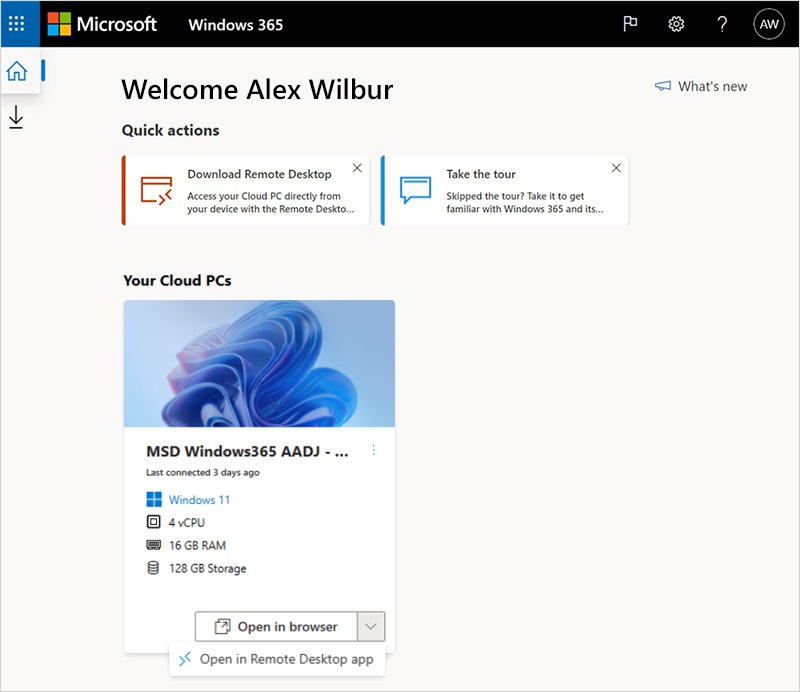
windows.cloud.microsoftand sign in with the work or school account that has the Windows 365 license. - Under Your Cloud PCs, find the Cloud PC you want.
- Select Open in browser.
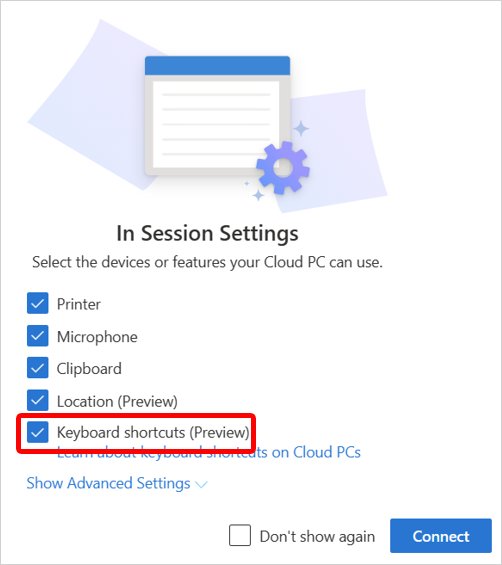
- In the In Session Settings window, choose the devices to share, such as the clipboard or microphone, and select Connect.
- Sign in to Windows when the desktop appears. The Windows 11 Cloud PC now runs in the Chrome tab.
To use Windows shortcuts such as the Windows key, turn on Keyboard shortcuts in the web client's settings. Shortcuts work only in full-screen mode from the toolbar, not with F11.
Ways to run Windows 11 on a Chromebook
| Your situation | Use this | Why |
|---|---|---|
| Your employer or school gives you a Cloud PC | Windows 365 in Chrome | Full Windows 11 with nothing to install on the Chromebook |
| You use a Cloud PC every day | Windows App from Google Play | An app window instead of a browser tab, on Chromebooks with the Play Store |
| You own a Windows 11 Pro PC | Remote Desktop through the Windows App | Microsoft's own remote route; the host must run Pro |
| You own a Windows 11 Home PC | Chrome Remote Desktop | Google's free remote tool works with any Windows PC you can install it on |
| You want Windows 11 installed on the Chromebook's own drive | Not supported | Needs firmware changes Google does not support; see the Developer Mode section below |
How to use Windows 365 on a Chromebook with the Windows App
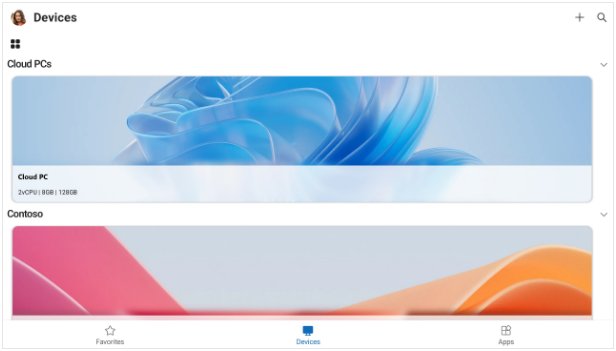
Microsoft lists Android and ChromeOS as Windows App platforms that connect to Windows 365, Azure Virtual Desktop and remote PCs. Signing in to a Cloud PC requires a work or school account; a personal Microsoft account does not work.
- Open the Google Play Store app on the Chromebook.
- Search for Windows App from Microsoft and select Install.
- Open Windows App and sign in with your work or school account.
- Select your Cloud PC from the list of devices.
- Wait for the connection to finish, then sign in to the Windows 11 desktop.
The Play Store is available on only some Chromebooks, and work or school Chromebooks may block it. Use the browser route in the first section if the store is missing.
How to remote desktop into a Windows 11 PC from a Chromebook
If you already own a Windows 11 PC, the Chromebook can control it over the network. Microsoft's Remote Desktop needs the PC to run Windows 11 Pro; the device you connect from can run any operating system.
- On the Windows PC, open Start > Settings > System > About and confirm Edition shows Windows 11 Pro.
- Go to Settings > System > Remote Desktop, turn on Remote Desktop and select Confirm.
- Write down the name shown under PC name.
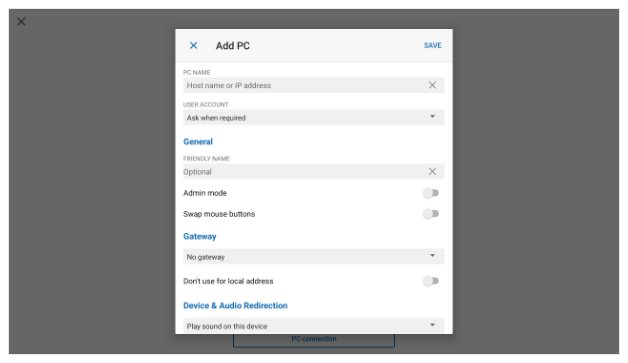
- On the Chromebook, open the Remote Desktop app or Windows App from Google Play.
- Add the PC by the name you noted, select it and sign in with your Windows account.
If the connection fails, enable Remote Desktop on Windows 11 again and check that the PC is switched on and not asleep.
How to use Chrome Remote Desktop to run Windows 11 on a Chromebook
Chrome Remote Desktop is Google's own tool and runs in the Chromebook's browser. It works with a Windows 11 Home PC, where Microsoft's Remote Desktop host does not.
- On the Windows 11 PC, open Chrome and go to
remotedesktop.google.com/access. - Under Set up Remote Access, select Download and follow the on-screen directions to install Chrome Remote Desktop and choose a PIN.
- On the Chromebook, open Chrome and go to
remotedesktop.google.com/accesswith the same Google account. - Select Access and pick the Windows PC.
- Enter the PIN and select the arrow to connect.
Close the tab, or select Options > Disconnect, to end the session. You can also set up Chrome Remote Desktop for unattended access and sharing.
How to tell if your Cloud PC is running Windows 11
- Inside the Cloud PC or remote session, select Start > Settings > System > About.
- Under Windows specifications, check that Edition names Windows 11.
- Check the Version line to see which Windows 11 release the session runs.
- Open an app you need, such as File Explorer or an Office app, to confirm the session responds normally.
Can a Chromebook run Windows 11? System requirements explained
Microsoft's Windows 11 minimum requirements apply to any device that runs it locally. On a Chromebook, the firmware is the blocker even when the processor, memory and storage pass.
| Windows 11 requirement | Microsoft's minimum | What it means on a Chromebook |
|---|---|---|
| Processor | 1 GHz or faster, 2 or more cores, compatible 64-bit CPU or SoC | Check the chip against Microsoft's list of compatible processors before you count on it |
| RAM | 4 GB | Check the Chromebook's spec sheet; 4 GB is the floor, not a comfortable amount |
| Storage | 64 GB or larger | A Chromebook with less than 64 GB of storage falls short |
| System firmware | UEFI, Secure Boot capable | Chromebook firmware is built for ChromeOS verified boot, not a Windows boot loader |
| TPM | TPM version 2.0 | Windows setup checks for it before it installs |
| Internet and account | Microsoft account and internet for Windows 11 Home setup | Needed for any local install, and for a Cloud PC sign-in |
Microsoft says installing Windows 11 on hardware that does not meet these requirements is not recommended, is not supported, and may not receive security updates.
Why the Developer Mode and bootable USB method fails on Chromebooks
Many guides list six steps: back up data, enable Developer Mode, download the Windows 11 ISO, make a bootable USB drive, boot from USB and install. Google's own Developer Mode documentation shows where that chain breaks.
| Step in the usual method | What actually happens |
|---|---|
| Back up your data | Required: switching into or out of Developer Mode wipes the Chromebook's local data |
| Enable Developer Mode | Loosens ChromeOS verified boot; Google says changes in this mode are not supported and may void the warranty |
| Download the Windows 11 ISO | Works on any computer, but the ISO alone cannot start on a Chromebook |
| Create a bootable USB drive | Booting external storage must first be enabled with crossystem dev_boot_usb=1 in a ChromeOS shell |
| Boot from USB | Starting another operating system needs an alternative bootloader, which Google says is not officially supported and usually not tested |
| Install Windows 11 | Setup still checks UEFI Secure Boot and TPM 2.0, and Microsoft gives no support on hardware that fails them |
Because the remaining route depends on replacing firmware with unsupported tools and getting past Windows 11's requirement checks, this guide does not give steps for it. The cloud and remote routes above deliver Windows 11 without that risk.
Tips for installing Windows 11 on Chromebook
| Tip | Why it helps |
|---|---|
| Use a wired or strong Wi-Fi connection | A Cloud PC or remote session streams every frame, so the network sets the speed |
| Turn on keyboard shortcuts in the Windows 365 web client | Lets Windows key combinations reach Windows instead of ChromeOS |
| Share only the devices you need in In Session Settings | Clipboard, microphone and printer redirection are chosen before you connect |
| Install the Windows App if your Chromebook has the Play Store | A dedicated app window is easier to manage than a browser tab |
| Keep ChromeOS updated | Google lists updating ChromeOS as a first fix when Play Store apps fail to load |
| Save work files in OneDrive or Google Drive | A factory reset or recovery erases local Chromebook files but not cloud storage |
How to go back to ChromeOS on a Chromebook
If you already turned on Developer Mode or changed the firmware boot settings, recovery puts a clean copy of ChromeOS back. Recovery permanently erases everything on the Chromebook's drive, so back up files first.
- Unplug anything connected to the Chromebook, such as a mouse or external drive.
- Press and hold Esc + Refresh, then press Power and let go of Power. On some models, hold Esc + Maximize instead.
- Let go of the other keys when a message appears on the screen.
- Select Recover using internet connection and follow the on-screen instructions.
- Let the Chromebook restart to finish recovery, then sign in with your Google Account.
If the internet option does not appear, Google's recovery page covers a USB recovery drive instead. For a Chromebook that still runs ChromeOS normally, a Powerwash factory reset is the lighter fix.
Why can't I install Windows 11 on my Chromebook
Windows 11 setup will not start or install on the Chromebook
Chromebook firmware does not boot Windows installers, and Windows 11 checks for UEFI Secure Boot and TPM 2.0.
- Stop the local install and leave the firmware as it is.
- Use a Windows 365 Cloud PC in Chrome, or remote into a Windows 11 PC, as shown above.
- If the Chromebook no longer starts ChromeOS, run recovery from the section above.
No Cloud PCs appear on windows.cloud.microsoft
The account you signed in with has no Windows 365 license assigned.
- Sign out and sign in with your work or school account, not a personal Microsoft account.
- Ask your IT administrator to assign a Windows 365 license and provision a Cloud PC.
- Reload the page once the administrator confirms the Cloud PC is ready.
Windows App will not sign in on the Chromebook
Windows App sign-in accepts only Microsoft work or school accounts provided by an administrator.
- Sign in with the account your organisation gave you.
- To reach a PC you own instead, add it as a remote PC by name, which needs no sign-in.
Google Play Store is missing or Windows App will not open
The Chromebook does not support Android apps, the school or work admin blocks them, or ChromeOS is out of date.
- Restart the Chromebook.
- Update ChromeOS and check the internet connection.
- Ask your administrator if the Chromebook is managed by work or school.
- Use the browser route at
windows.cloud.microsoftor Chrome Remote Desktop, which need no Android app.
Remote Desktop cannot connect to the Windows 11 PC
The PC runs Windows 11 Home, or Remote Desktop is turned off on it.
- On the PC, check Settings > System > About for Windows 11 Pro.
- If it is Home, use Chrome Remote Desktop instead.
- If it is Pro, turn on Settings > System > Remote Desktop and connect with the exact PC name.
Windows 11 on Chromebook FAQ
Can I go back to Chrome OS after installing Windows 11?
Yes. Recovery reinstalls ChromeOS: hold Esc + Refresh, press Power, then select Recover using internet connection. It erases everything on the Chromebook's drive. A Windows 365 Cloud PC or remote session never changes ChromeOS, so there is nothing to undo.
Will Windows 11 slow down my Chromebook?
Not with a Cloud PC or remote session, because Windows 11 runs on Microsoft's servers or your own PC and only the picture streams to the Chromebook. Responsiveness depends on your internet connection rather than the Chromebook's processor.
Do I need a license to install Windows 11 on a Chromebook?
Yes. Windows 365 is a paid service with monthly per-user pricing, usually assigned by an employer or school. Remote Desktop and Chrome Remote Desktop use the licensed copy of Windows 11 already on your PC.
Can I dual-boot Windows 11 and Chrome OS?
Not in any way Google supports. Dual-booting needs an alternative bootloader, which Google says is not officially supported, and Windows 11 still needs UEFI Secure Boot and TPM 2.0. Run Windows 11 in a Chrome tab with Windows 365 instead.
What if I encounter errors during installation?
Stop a local install and return the Chromebook to ChromeOS with recovery if it no longer starts. For a Cloud PC, sign in with a licensed work or school account; for Remote Desktop, confirm the host runs Windows 11 Pro.
Can I install Windows 11 on this computer if it is a Chromebook?
Not locally with supported tools. Windows 11 needs a compatible 64-bit processor, 4 GB of RAM, 64 GB of storage, UEFI Secure Boot and TPM 2.0, and Chromebook firmware is built for ChromeOS verified boot instead.
Can I install Windows 11 on unsupported PC hardware like a Chromebook?
Microsoft does not recommend it. A device that does not meet the requirements gets no support from Microsoft and is not guaranteed updates, including security updates, and Microsoft advises rolling back if you already did it.
Can a Chromebook run Windows apps with Linux?
No. The Linux development environment in ChromeOS settings runs a Debian system for Linux command-line tools, code editors and IDEs, not Windows programs. Use a Cloud PC or remote session for Windows apps.
Is Windows 365 free on a Chromebook?
No. Windows 365 is sold to organisations with predictable monthly per-user pricing. Chrome Remote Desktop is the free option when you already own a Windows 11 PC.