Windows includes a TFTP client you turn on in Windows Features, but Windows 11 and Windows 10 have no TFTP server, so you run a third-party server such as Tftpd64 or use the TFTP service in Windows Deployment Services on Windows Server.
This guide covers enabling the client, both server routes, the firewall rule for UDP port 69, the tftp command and fixes for TFTP timeouts.
Enable TFTP client on Windows
The TFTP client is an optional Windows feature that is off by default. Turning it on adds the tftp command to Command Prompt and PowerShell.
- Select Start, type
Windows features, and select Turn Windows features on or off. - In the Windows Features window, scroll to the TFTP client entry.
- Select the check box next to it.
- Select OK and wait while Windows applies the change.
- Restart the PC if Windows asks you to.
- Open Command Prompt and type
tftpto see the command's syntax.
The same window manages every legacy component, and you can turn Windows features on or off the same way for Telnet or Hyper-V.
Enable TFTP client in Windows 11 using PowerShell
This finds the TFTP feature by name and enables it in one line. Run it in PowerShell as administrator.
Get-WindowsOptionalFeature -Online | Where-Object FeatureName -like '*TFTP*' | Enable-WindowsOptionalFeature -OnlineGet-WindowsOptionalFeature -Online lists the optional features of the running Windows installation, Where-Object keeps the TFTP entry, and Enable-WindowsOptionalFeature -Online turns it on. The feature name passes down the pipeline, so you don't have to type it.
You should see: PowerShell finishes without an error, and running tftp in a new Command Prompt window prints the command's usage instead of an error.
Does Windows 11 have a built-in TFTP server?
| Windows version | TFTP client | TFTP server |
|---|---|---|
| Windows 11 | Built in, off by default | None included, use a third-party server |
| Windows 10 | Built in, off by default | None included, use a third-party server |
| Windows Server 2016 to 2025 | Built in, off by default | Included in the Windows Deployment Services role |
| Windows Server after 2025 | Not stated | WDS is deprecated in the release after Windows Server 2025 |
Microsoft says it no longer provides a standalone TFTP server service for security reasons. The TFTP service in Windows Deployment Services exists to serve network boot (PXE) files.
How to run TFTPD64 server on Windows
Tftpd64 is a third-party TFTP server for Windows desktops. It isn't a Microsoft product, so get it only from its developer's own project page.
TFTP has no login, so any device that reaches the server can read the files you share. Use a folder that holds only the files you need to transfer.
- Create a folder for TFTP files, such as
C:\TFTP-Root, and copy the firmware or configuration files into it. - Install Tftpd64 from its project page and open it.
- Set the server's root (base) directory to the folder you created, in the program's settings.
- Pick the network interface that faces the device you're working with, so the server listens on the right IP address.
- Allow the program through Windows Firewall with the rule in the next section.
- Point the device or the
tftpclient at the PC's IP address and start the transfer.
Run ipconfig in Command Prompt to read the PC's IPv4 address for the device's TFTP server field.
Open UDP port 69 for TFTP in Windows Firewall
A TFTP server listens on UDP port 69 but answers from a random high port. A program rule lets the server's traffic through on every port it uses, which avoids blocked data transfers.
New-NetFirewallRule -DisplayName "Allow TFTP server" -Direction Inbound -Program "C:\path\to\tftpd64.exe" -RemoteAddress LocalSubnet -Action Allow-Program limits the rule to the TFTP server executable, so replace the example path with the real location of tftpd64.exe. -RemoteAddress LocalSubnet accepts requests only from devices on your local network, and -Action Allow permits them.
You should see: PowerShell prints the new rule with Enabled : True and Action : Allow.
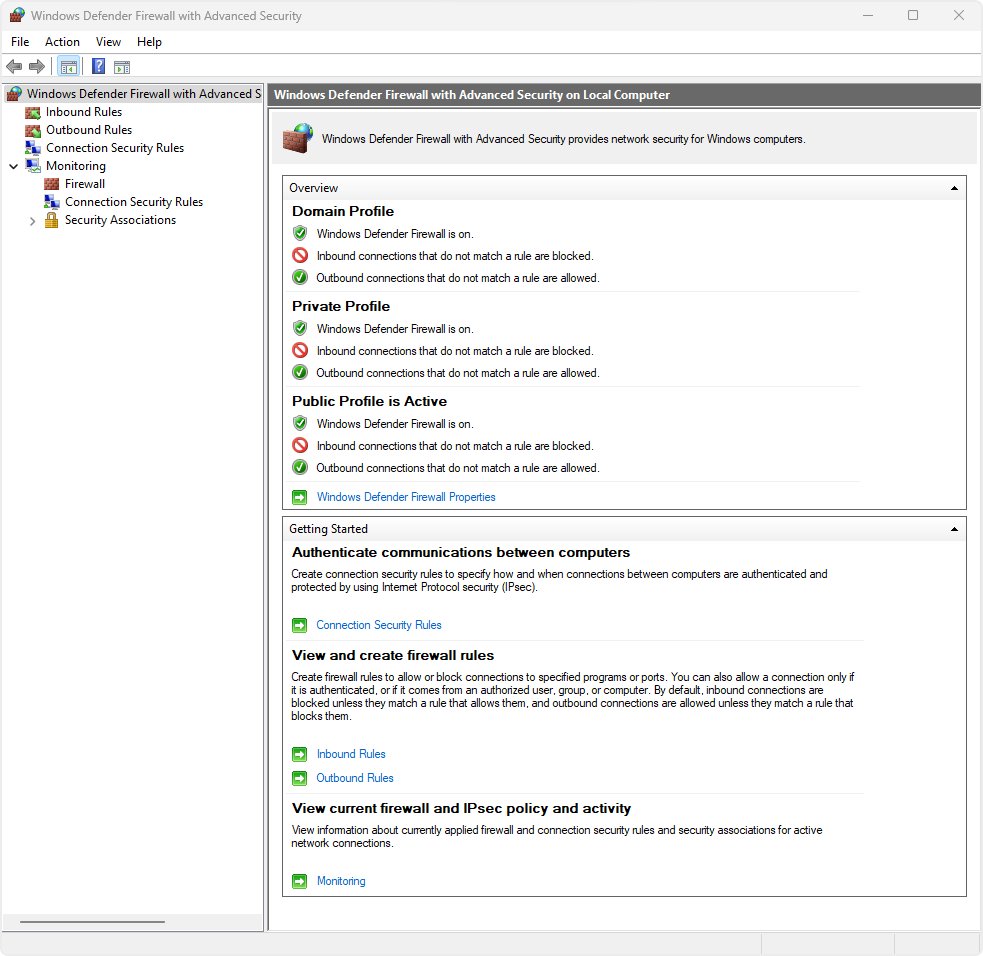
For a port-based rule instead, use New-NetFirewallRule -DisplayName "TFTP UDP 69" -Direction Inbound -Protocol UDP -LocalPort 69 -Action Allow. You can also build advanced firewall rules in the Windows Defender Firewall console.
Installing built-in TFTP server on Windows Server
The built-in TFTP service on Windows Server comes with the Windows Deployment Services (WDS) role. A WDS server needs an NTFS volume, DNS and either an Active Directory domain or standalone mode, and PXE clients need a working DHCP server.
- Sign in to the server with an account in the local Administrators group.
- Open PowerShell as administrator and run
Get-WindowsFeature -Name WDS*to list the role and its role services. - Install the role with
Get-WindowsFeature -Name WDS* | Install-WindowsFeature -IncludeManagementTools. - Initialize the server and create its file store with
wdsutil /Initialize-Server /remInst:D:\RemoteInstall, using a path on an NTFS volume. - Start all WDS services, including the Transport Server, with
wdsutil /Start-Server. - Copy the boot files that clients request into the RemoteInstall folder, which WDS shares as REMINST.
WDS also installs a Transport Server role service that can be installed on its own, but the WDS console isn't available with only that role service. PXE clients also need the server's DHCP options in place, and you can set up a DHCP server on the same machine.
Microsoft has deprecated WDS starting with the Windows Server release after Windows Server 2025, and recommends planning a move to Configuration Manager.
How to use tftp command in Windows
The syntax is tftp [-i] [<host>] [{get | put}] <source> [<destination>]. Add -i for binary files such as firmware or boot images, because the default ASCII mode converts line endings.
tftp -i 192.168.1.10 get boot.img-i sets binary (octet) mode, 192.168.1.10 is the TFTP server, and get copies boot.img from the server into the current folder. Swap get for put to upload a local file to the server.
You should see: The command prints the transfer rate when the file arrives, and the file appears in the folder you ran the command from.
A put only works when the target file on the server is writable, because TFTP has no user login to grant write access.
How to check if TFTP server is running on port 69
- Open PowerShell on the server PC.
- Run
Get-NetUDPEndpoint -LocalPort 69. - Look for a row with local port 69, which shows a service is listening for TFTP requests.
- Note the OwningProcess number and run
Get-Process -Id <number>to see which program owns the port. - From another PC, run
tftp -i <server IP> get <file name>to confirm a real transfer works.
If no row comes back, the TFTP server isn't running or is bound to a different network adapter.
Is TFTP secure on Windows?
Use TFTP only on a trusted local network for firmware, configuration and boot files, and turn the client and server off when you finish. TFTP has no authentication or encryption, so anyone who can reach the server can read its files and the traffic can be read on the wire. Microsoft doesn't recommend installing the TFTP client on systems connected to the internet.
How to disable TFTP client in Windows
- Select Start, type
Windows features, and select Turn Windows features on or off. - Clear the check box next to the TFTP client entry.
- Select OK and restart the PC if Windows asks.
- Or run
Get-WindowsOptionalFeature -Online | Where-Object FeatureName -like '*TFTP*' | Disable-WindowsOptionalFeature -Onlinein PowerShell as administrator.
Remove the firewall rule as well with Remove-NetFirewallRule -DisplayName "Allow TFTP server" once the TFTP server is gone.
TFTP timeout and PXE TFTP errors on Windows
'tftp' is not recognized as an internal or external command
The TFTP client feature is still turned off.
- Turn on the TFTP client in Windows Features, or run the PowerShell command above.
- Close and reopen Command Prompt so it picks up the new command.
PXE-E32: TFTP open timeout
The client's read request never gets an answer, usually because UDP port 69 is blocked between the client and the server.
- Check that the TFTP server is listening with
Get-NetUDPEndpoint -LocalPort 69. - Open UDP port 69 on the server and on any firewall between the two devices.
- Test from a device on the same subnet to rule out router settings.
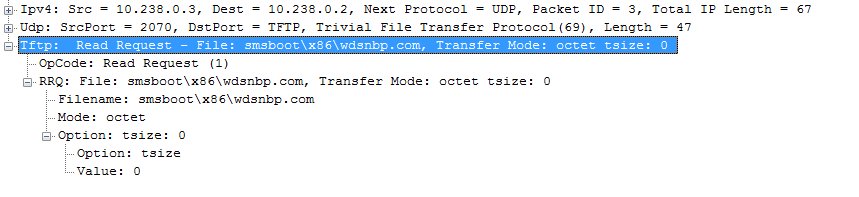
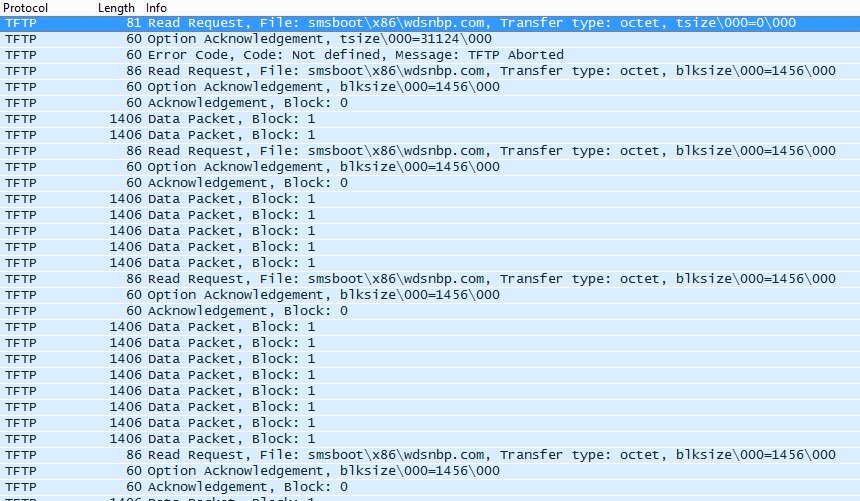
- Capture the traffic with Wireshark to see whether the request reaches the server.
PXE-E35: TFTP read timeout
The transfer started, but replies from the server's random high port were blocked or lost.
- Use a program-based firewall rule for the TFTP server so all its ports are allowed.
- Check that no other firewall drops UDP traffic from high ports.
- Retry the transfer on a wired connection.
PXE-E3B: TFTP Error – File not Found
The requested path doesn't exist under the TFTP server's root folder.
- Compare the file name and folder the client requests with the files in the root folder.
- For PXE boot, keep the BCD store in the
\Bootfolder under the TFTP root and name itBCD. - Check the DHCP boot file name option points at the right path.
PXE-T04: Access Violation
The server refused to read or write the file, often because of folder permissions.
- Check the permissions on the TFTP root folder, or on the REMINST share and folder for WDS.
- Make sure the file isn't open in another program.
- Check the WDS logs for other TFTP errors on Windows Server.
PXE-E36: Error received from TFTP server
The server returned an error for the request.
- Read the TFTP server's own log for the error it sent.
- Confirm the requested file exists and the client asked for the right name.
- Restart the TFTP service and try again.
TFTP server and client on Windows FAQ
Does Windows 10 have a TFTP server?
No. Windows 10 and Windows 11 include only a TFTP client, and Microsoft says it no longer provides a standalone TFTP server service for security reasons. Install a third-party server such as Tftpd64, or use Windows Deployment Services on Windows Server.
What port does TFTP use?
TFTP listens on UDP port 69. The server answers from a randomly chosen high port, and the client then keeps using that port for the rest of the transfer. Open UDP 69 inbound on the server and allow its replies through the firewall.
What is the difference between TFTP and FTP?
TFTP has no user names, passwords or folder browsing, and it runs over UDP. FTP requires a login and lists folders. Use TFTP for devices that fetch firmware or boot files, and set up an FTP server for normal file sharing.
How do I transfer a binary file with the tftp command?
Add the -i switch, as in tftp -i 192.168.1.10 get boot.img. Without it, the client uses ASCII mode, which converts line endings and damages binary files such as firmware images, boot images and archives.
Is the TFTP client safe to enable?
It is safe on a trusted local network, but TFTP has no authentication or encryption. Microsoft doesn't recommend installing the client on systems connected to the internet, so turn it off again when you finish the transfer.
Can I use TFTP for PXE boot on Windows?
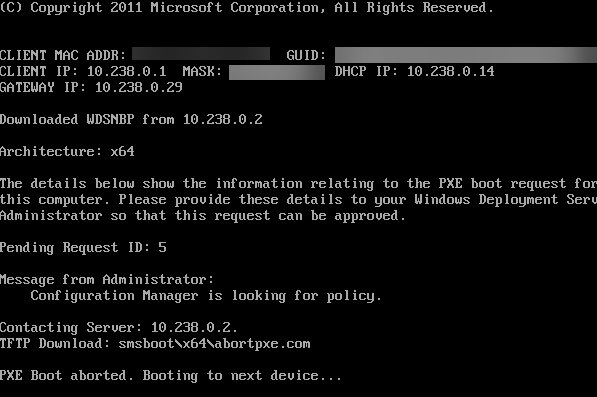
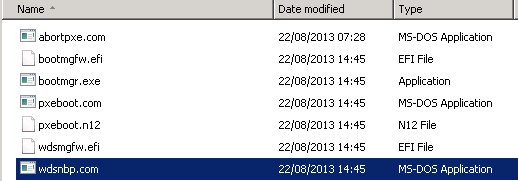
Yes. PXE clients download their boot files, such as PXEboot.n12, bootmgr.exe and the BCD store, from a TFTP server. You also need a DHCP server that answers PXE requests and points clients at the right boot file.
Is Windows Deployment Services still supported?
WDS still ships with Windows Server 2025, but Microsoft has deprecated it starting with the following Windows Server release. Booting Windows 11 setup from boot.wim on WDS is already blocked, and Microsoft recommends planning a move to Configuration Manager.
Why does tftp put fail on Windows?
TFTP has no login, so the server only accepts an upload when the target file or folder is writable. Check the server's write settings and folder permissions, and confirm the firewall allows the transfer on UDP port 69.