To run a PowerShell script on a schedule, create a Task Scheduler task that starts powershell.exe with -File and the full path of your .ps1 file.
This guide covers the Task Scheduler window, Register-ScheduledTask and schtasks, running as SYSTEM, logging, four report scripts worth scheduling, and fixes for tasks that do not run.
Run a PowerShell script on a schedule with Register-ScheduledTask
Three lines in a PowerShell window create the whole task. Replace the script path, task name and time with your own.
$action = New-ScheduledTaskAction -Execute "powershell.exe" -Argument '-NoProfile -NonInteractive -ExecutionPolicy Bypass -File "C:\Scripts\Report.ps1"'
$trigger = New-ScheduledTaskTrigger -Daily -At 3am
Register-ScheduledTask -TaskName "Daily report script" -Action $action -Trigger $trigger
New-ScheduledTaskAction sets the program Task Scheduler starts and its arguments. New-ScheduledTaskTrigger -Daily -At 3am runs it every day at 3:00 AM. Register-ScheduledTask saves the task under your account with the default Limited run level.
You should see: Daily report script appears in Task Scheduler Library with the status Ready, and Start-ScheduledTask -TaskName "Daily report script" runs it once on demand.
Test the script in a normal PowerShell window first. Task Scheduler only starts it, so a script that fails by hand fails on schedule too.
How to schedule a PowerShell script in Task Scheduler
The Create Task dialog shows every option, including the account and the arguments field. You can also open Task Scheduler from the Run box or Control Panel.
- Select Start, type Task Scheduler and select it under Best match.
- Select Action > Create Task.
- On the General tab, type a name and a description for the task.
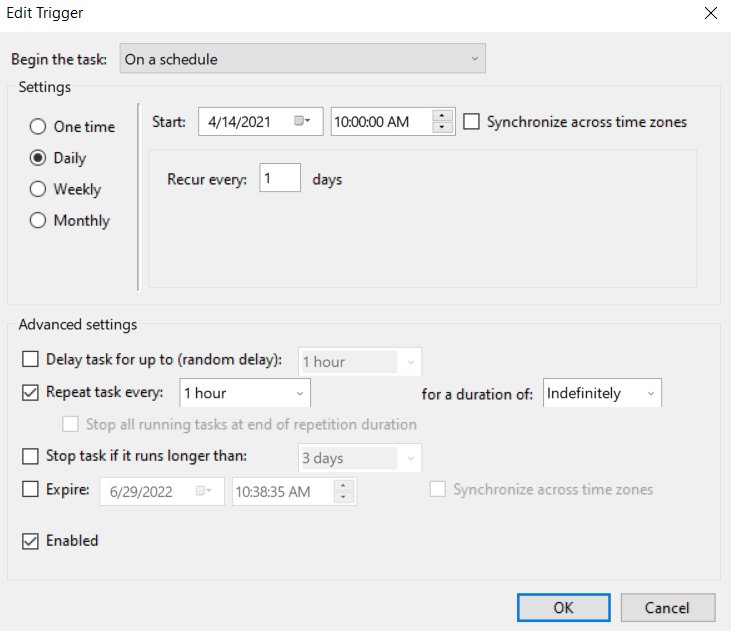
- On the Triggers tab, select New, choose On a schedule in Begin the task, set the start time and recurrence, then select OK.
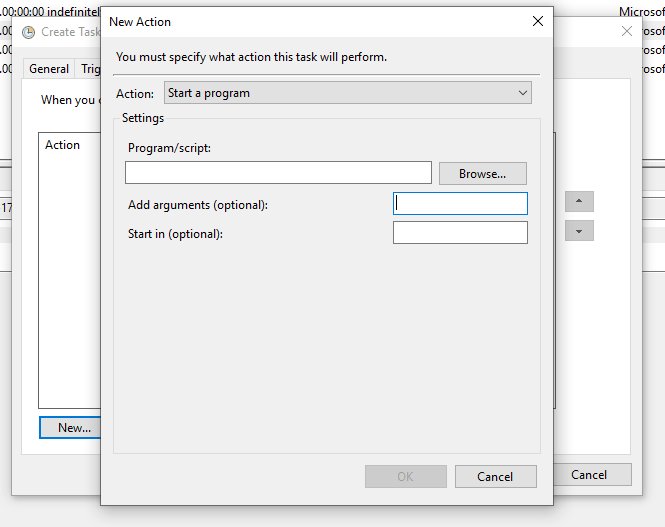
- On the Actions tab, select New and keep Start a program in the Action field.
- Type
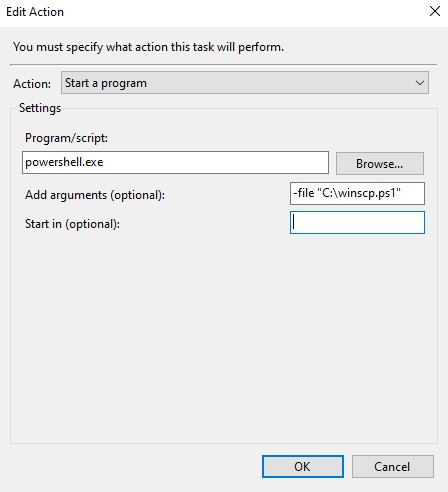
powershell.exein Program/script. - In Add arguments (optional), type
-NoProfile -NonInteractive -ExecutionPolicy Bypass -File "C:\Scripts\Report.ps1". - In Start in (optional), type the script folder, such as
C:\Scripts, then select OK twice.
Select Run with highest privileges on the General tab when the script changes system settings or writes to protected folders.
Task Scheduler arguments for PowerShell scripts
Everything in Add arguments (optional) goes to powershell.exe, not to your script. These switches decide whether an unattended run finishes or hangs.
| Switch | What it does | When to use it |
|---|---|---|
| -File "path" | Runs the script. Every value after it is passed to the script as a parameter. | Always, and keep it last on the line |
| -ExecutionPolicy Bypass | Sets the execution policy for this session only. The registry setting stays unchanged. | Windows clients default to Restricted, which blocks scripts |
| -NoProfile | Skips loading the PowerShell profile. | Always, so profile code cannot change the result |
| -NonInteractive | Turns Read-Host and confirmation prompts into errors instead of a hang. | Every unattended task |
| -WindowStyle Hidden | Sets the window style. Valid values are Normal, Minimized, Maximized and Hidden. | Tasks that run in your signed-in session |
| -Command "…" | Runs a string as PowerShell code. It must be the last switch. | One-line jobs without a .ps1 file |
Script parameters go after the path, for example -File "C:\Scripts\Report.ps1" -Days 7. They arrive as literal strings, so $Env:windir is not expanded there.
If you installed PowerShell 7, put pwsh.exe in Program/script. Run (Get-Command pwsh).Source to get its full path.
Schedule a PowerShell script with schtasks
schtasks works from Command Prompt and from batch files, which suits deployment scripts and older tooling.
schtasks /create /tn "Daily report script" /sc daily /st 03:00 /tr "powershell.exe -NoProfile -NonInteractive -ExecutionPolicy Bypass -File C:\Scripts\Report.ps1"/tn names the task, /sc daily sets the schedule, /st 03:00 sets the start time in 24-hour format, and /tr holds the command, up to 262 characters. Add /ru system to run as the local System account, or /rl highest for the highest run level instead of the default LIMITED.
You should see: The task appears in Task Scheduler Library under the name you gave in /tn.
Keep the script in a folder without spaces when you use schtasks, because the whole /tr value already sits inside quotation marks.
Run a PowerShell script every 15 minutes, hourly, daily or at startup
Pick the row that matches your schedule and use either column. Both create the same kind of trigger.
| Schedule you want | PowerShell trigger | schtasks switches |
|---|---|---|
| Once at a set time | New-ScheduledTaskTrigger -Once -At 3am | /sc once /st 03:00 |
| Every day | New-ScheduledTaskTrigger -Daily -At 3am | /sc daily /st 03:00 |
| Every 3 days | New-ScheduledTaskTrigger -Daily -DaysInterval 3 -At 3am | /sc daily /mo 3 /st 03:00 |
| Every other Friday | New-ScheduledTaskTrigger -Weekly -WeeksInterval 2 -DaysOfWeek Friday -At 3am | /sc weekly /mo 2 /d FRI /st 03:00 |
| Every 15 minutes | New-ScheduledTaskTrigger -Once -At 9am -RepetitionInterval (New-TimeSpan -Minutes 15) -RepetitionDuration (New-TimeSpan -Hours 8) | /sc minute /mo 15 |
| Every hour, with no end date | Use the schtasks switches | /sc hourly |
| Every time Windows starts | New-ScheduledTaskTrigger -AtStartup | /sc onstart |
| When a user signs in | New-ScheduledTaskTrigger -AtLogOn | /sc onlogon |
-RepetitionInterval and -RepetitionDuration work only with -Once, so that row repeats for eight hours from 9:00 AM. schtasks minute and hourly schedules have no end time unless you add /et or /du.
A logon-triggered task can also wait a set time after sign-in before the script starts.
Run a scheduled PowerShell script as SYSTEM with highest privileges
With UAC on, a task runs with low privileges by default. Register it from an elevated PowerShell window, because a standard window cannot register a Highest or Local System task.
- Open PowerShell as administrator.
- Build the action:
$action = New-ScheduledTaskAction -Execute "powershell.exe" -Argument '-NoProfile -NonInteractive -ExecutionPolicy Bypass -File "C:\Scripts\Cleanup.ps1"'. - Build the trigger:
$trigger = New-ScheduledTaskTrigger -Weekly -DaysOfWeek Sunday -At 2am. - Register it:
Register-ScheduledTask -TaskName "Weekly cleanup script" -Action $action -Trigger $trigger -User "NT AUTHORITY\SYSTEM" -RunLevel Highest. - Run it once to test:
Start-ScheduledTask -TaskName "Weekly cleanup script".
No password is needed for NT AUTHORITY\SYSTEM, LOCALSERVICE or NETWORKSERVICE. SYSTEM is highly privileged, so give it only scripts you wrote, stored where standard users cannot edit them.
To run as a normal account while signed out, register with that account and its password. Such tasks need the Log on as a batch job right, which Administrators and Backup Operators have by default.
Scheduled task settings for PowerShell scripts on laptops
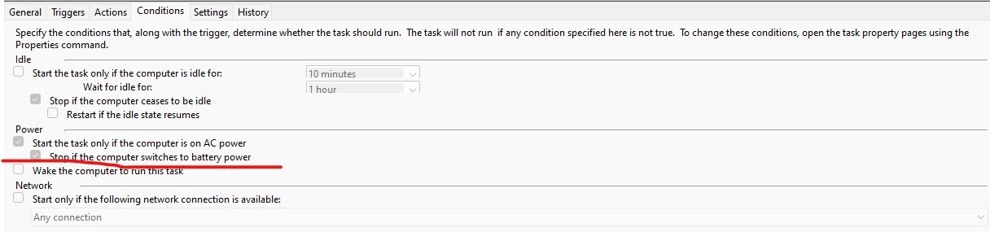
By default a task does not start on battery power, which explains many missed runs on laptops. New-ScheduledTaskSettingsSet changes that and more.
| New-ScheduledTaskSettingsSet switch | What it changes |
|---|---|
| -AllowStartIfOnBatteries | Lets the task start while the PC runs on battery |
| -DontStopIfGoingOnBatteries | Keeps the script running when the charger is unplugged |
| -StartWhenAvailable | Runs a missed start any time after its scheduled time has passed |
| -WakeToRun | Wakes the computer before the task runs |
| -ExecutionTimeLimit (New-TimeSpan -Hours 2) | Sets how long Task Scheduler allows the task to complete |
| -MultipleInstances IgnoreNew | Ignores a new run while one is still going; Queue and Parallel are the other values |
| -RestartCount 3 -RestartInterval (New-TimeSpan -Minutes 60) | Retries a failed task up to three times, an hour apart |
Apply the settings when you register: $settings = New-ScheduledTaskSettingsSet -AllowStartIfOnBatteries -DontStopIfGoingOnBatteries -StartWhenAvailable, then add -Settings $settings to Register-ScheduledTask.
Log scheduled PowerShell script output with Start-Transcript
A scheduled script has no console you can read. A transcript file records every command and its output instead.
- Create a log folder, such as
C:\Scripts\Logs. - Add
Start-Transcript -Path "C:\Scripts\Logs\Report.txt" -Appendas the first line of the script. - Add
Stop-Transcriptas the last line. - End the script with
exit 0on success, orexit 1after a caught error, so Last Run Result reports the outcome. - Run the task once, then open
Report.txtand read the newest entry.
Without -Path, Start-Transcript writes to $HOME\Documents of whichever account runs the task, which is easy to miss for SYSTEM tasks.
PowerShell: Configure certificate-based authentication for Exchange Online (Azure)
Scheduled Exchange Online scripts cannot answer a sign-in prompt, and a stored password is poor security. App-only authentication uses a Microsoft Entra app and a certificate instead.
- Register a new application in Microsoft Entra ID with Accounts in this organizational directory only selected.
- Under API permissions, add Exchange.ManageAsApp from Office 365 Exchange Online, then select Grant admin consent for <Organization>.
- On the PC that will run the task, open PowerShell as administrator and run
$mycert = New-SelfSignedCertificate -DnsName "contoso.org" -CertStoreLocation "cert:\CurrentUser\My" -NotAfter (Get-Date).AddYears(1) -KeySpec KeyExchange. - Export the public key with
$mycert | Export-Certificate -FilePath mycert.cer, and note$mycert.Thumbprint. - On the app's Certificates & secrets page, select Upload certificate, choose
mycert.cerand select Add. - Assign the app a Microsoft Entra role such as Exchange Administrator or Global Reader.
- Start the script with
Connect-ExchangeOnline -CertificateThumbPrint "<thumbprint>" -AppID "<application ID>" -Organization "contoso.onmicrosoft.com". - Register the task under the same user account, because the certificate lives in that account's
cert:\CurrentUser\Mystore.
Use your primary .onmicrosoft.com domain for -Organization. The CertificateThumbprint parameter works only on Windows. End the script with Disconnect-ExchangeOnline -Confirm:$false.
Tracking printer usage with Windows Event Viewer logs
Windows writes print activity to its PrintService event logs. A nightly script can copy the last day of events to a CSV file you open in Excel.
- Open PowerShell as administrator and list the print logs with
Get-WinEvent -ListLog *PrintService*. - If the Operational log shows a RecordCount of 0, enable it with
wevtutil sl "<log name>" /e:true, using the exact name from the list. - Save this line as
C:\Scripts\PrintLog.ps1:Get-WinEvent -FilterHashtable @{ LogName = '*PrintService*'; StartTime = (Get-Date).AddDays(-1) } -ErrorAction SilentlyContinue | Select-Object TimeCreated, Id, Message | Export-Csv -Path C:\Scripts\Logs\PrintLog.csv -NoTypeInformation -Append. - Register it with the daily trigger from the first section, pointing -File at
C:\Scripts\PrintLog.ps1. - Open
PrintLog.csvafter the first run to read each event's time, ID and message.
Wildcards work in the LogName and ProviderName keys of -FilterHashtable, so one query reads every PrintService log.
Check the software installation/removal history in Windows
Windows Installer records every MSI install and removal in the Application log. A weekly script turns those events into a running history file.
Get-WinEvent -FilterHashtable @{ LogName = 'Application'; Id = 1033, 1034; StartTime = (Get-Date).AddDays(-7) } | Select-Object TimeCreated, Id, Message | Export-Csv -Path C:\Scripts\Logs\InstallHistory.csv -NoTypeInformation -AppendEvent 1033 means an installation completed and 1034 means a removal completed. Each message carries the product name, version, language, status and manufacturer. The query reads the last seven days.
You should see: InstallHistory.csv gains one row per install or removal, with the product name in the Message column.
Save the line as a .ps1 file and schedule it with New-ScheduledTaskTrigger -Weekly -DaysOfWeek Monday -At 8am. Add event 11707 (installation completed successfully) and 11708 (installation failed) for success and failure detail.
These events come from Windows Installer, so apps that use other installers may not appear.
Check Windows 11 hardware readiness with PowerShell script
Windows 11 needs TPM 2.0, UEFI firmware that supports Secure Boot, 4 GB of memory and 64 GB of storage. This script logs those checks on every run, so a scheduled copy tracks a fleet over time.
$tpm = Get-Tpm
$cs = Get-CimInstance -ClassName Win32_ComputerSystem
$disk = Get-CimInstance -ClassName Win32_LogicalDisk -Filter "DeviceID='C:'"
[pscustomobject]@{
  Date       = Get-Date
  TpmPresent = $tpm.TpmPresent
  TpmReady   = $tpm.TpmReady
  SecureBoot = Confirm-SecureBootUEFI
  MemoryGB   = [math]::Round($cs.TotalPhysicalMemory / 1GB, 1)
  DiskGB     = [math]::Round($disk.Size / 1GB)
} | Export-Csv -Path C:\Scripts\Logs\Win11Readiness.csv -NoTypeInformation -Append
Get-Tpm reports whether a TPM is present and ready. Confirm-SecureBootUEFI returns True when Secure Boot is on and False when it is supported but off. Win32_ComputerSystem gives memory in bytes and Win32_LogicalDisk gives the C: drive size.
You should see: Win11Readiness.csv gains a row per run. TpmReady and SecureBoot both True, at least 4 GB of memory and at least 64 GB of disk meet those four requirements.
Confirm-SecureBootUEFI needs an elevated session and reports Cmdlet not supported on this platform on BIOS PCs, so register this task with -RunLevel Highest.
The script does not read the TPM version or check the processor list, so confirm TPM 2.0 and a compatible 64-bit processor separately.
How to see if a scheduled PowerShell script ran
- In Task Scheduler, select Task Scheduler Library and find your task.
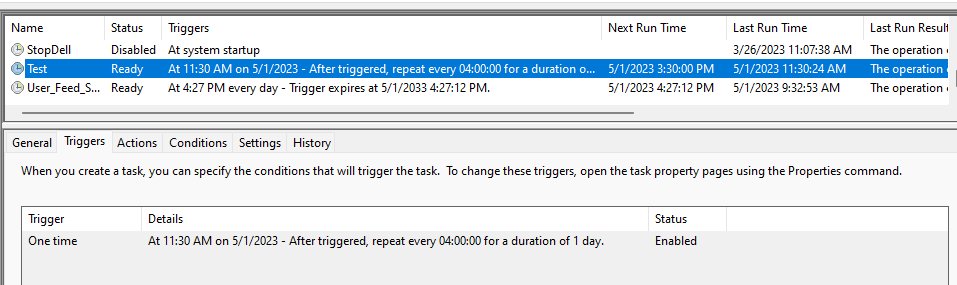
- Read the Last Run Result column. It shows the exit code the script returned, and 0x0 means exit code 0.
- Select the task and open the History tab to see whether it triggered and completed.
- In PowerShell, run
Get-ScheduledTaskInfo -TaskName "Daily report script"for the last run-time information. - Open the transcript or CSV file the script writes and check that the newest entry matches the last run time.
A task should sit in Ready status between runs. One that stays in Running for a long time is waiting on the script.
Task Scheduler Last Run Result codes for PowerShell scripts
| Last Run Result | Meaning | What to do |
|---|---|---|
| 0x0 | The script exited with code 0 | Nothing; the run succeeded |
| 0x1 | PowerShell exited with 1, usually a script-terminating error | Run the same command line by hand and read the error |
| Another small number | The script ended with exit and that number | Look up the exit code in your script |
| 0x41300 | The task is ready to run at its next scheduled time | Wait for the trigger or start it by hand |
| 0x41301 | The task is currently running | Check whether the script waits for input |
| 0x41303 | The task has not yet run | Confirm the trigger time is in the future |
| 0x41306 | The last run was terminated by the user | Run it again |
| 0x8004131F | An instance of this task is already running | Set -MultipleInstances or lengthen the interval |
Disable or delete a scheduled PowerShell task
- To keep a copy, right-click the task in Task Scheduler Library and export it to an .xml file.
- To pause it without deleting, run
Disable-ScheduledTask -TaskName "Daily report script". - To remove it, run
Unregister-ScheduledTask -TaskName "Daily report script" -Confirm:$false.
Deleting the task leaves the .ps1 file and its logs in place.
PowerShell script not running in Task Scheduler
Last Run Result shows 0x1
PowerShell hit a script-terminating error, or the script returned 1 itself.
- Copy the Program/script and Add arguments values into Command Prompt and run them together.
- Read the error PowerShell prints and fix the line it names.
- Add Start-Transcript to the script so the next scheduled run leaves a log.
The task completes, but the script does nothing
The script uses relative paths or runs under an account that lacks access.
- Replace relative paths in the script with full paths, or fill in Start in (optional).
- Change Security options to Run only when user is logged on and run the task to test the security context.
- Test with a simplified script to tell a script problem from an account problem.
Task stays in Running status
The script waits for input or never exits.
- Find powershell.exe in Task Manager to confirm the process is still alive.
- Add -NonInteractive so prompts fail instead of waiting.
- Set an execution time limit with
New-ScheduledTaskSettingsSet -ExecutionTimeLimit (New-TimeSpan -Hours 2).
Running scripts is disabled on this system
Windows clients default to the Restricted execution policy, or Group Policy sets one.
- Add -ExecutionPolicy Bypass before -File in the task arguments.
- Run
Get-ExecutionPolicy -List. A MachinePolicy or UserPolicy value comes from Group Policy and overrides the switch. - Unblock a script you downloaded with
Unblock-File -Path C:\Scripts\Report.ps1.
Access denied when creating or running the task
The account lacks admin rights or the batch logon right.
- Right-click Task Scheduler and select Run as administrator.
- Open the task's Properties, go to the General tab and select Run with highest privileges.
- In gpedit.msc, open Computer Configuration > Windows Settings > Security Settings > Local Policies > User Rights Assignment and confirm the account has Log on as a batch job.
Task does not start at the scheduled time
The trigger time passed, or a condition such as battery power blocked it.
- Set the trigger start time a few minutes in the future and save the task again.
- Register the task with
-AllowStartIfOnBatteriesand-StartWhenAvailableon laptops. - Read Event Viewer > Applications and Services Logs > Microsoft > Windows > TaskScheduler > Operational for the reason.
The interactive running scripts is disabled error has the same execution policy cause.
Scheduled PowerShell script FAQ
What do I put in Program/script to run a PowerShell script?
Put powershell.exe in Program/script, or pwsh.exe for PowerShell 7. Put -NoProfile -ExecutionPolicy Bypass -File followed by the full script path in Add arguments (optional). The script path goes after -File, and any script parameters follow it.
Do I need -ExecutionPolicy Bypass in a scheduled task?
Usually yes on Windows 10 and 11, because Windows clients default to the Restricted policy. Bypass applies only to that PowerShell session and leaves the registry setting alone. It cannot override an execution policy that Group Policy sets.
Can a scheduled PowerShell script run when no one is signed in?
Yes. Register the task as NT AUTHORITY\SYSTEM, which needs no password, or under a user account with its password stored. Password-based tasks need the Log on as a batch job right, which Administrators and Backup Operators have by default.
How do I run a PowerShell script every 5 minutes?
Run schtasks /create /sc minute /mo 5 /tn "My script" /tr followed by the powershell.exe command line. The minute schedule accepts 1 to 1439 minutes and repeats with no end time unless you add /et or /du.
How do I hide the PowerShell window in a scheduled task?
Add -WindowStyle Hidden to the arguments, before -File. The switch sets the window style of the session, and its valid values are Normal, Minimized, Maximized and Hidden. Add -NonInteractive too, so a prompt the hidden window cannot show fails instead of waiting.
How do I pass parameters to a scheduled PowerShell script?
Type them after the script path in Add arguments, for example -File "C:\Scripts\Report.ps1" -Days 7. PowerShell passes them to the script as literal strings. Array parameters do not work through -File.
Does Task Scheduler work with PowerShell 7?
Yes. Use pwsh.exe instead of powershell.exe in Program/script or in New-ScheduledTaskAction -Execute. Run (Get-Command pwsh).Source to get the full path of pwsh.exe on your PC.
Where does Task Scheduler log why a task failed?
Task Scheduler writes to Event Viewer under Applications and Services Logs > Microsoft > Windows > TaskScheduler > Operational. The task's History tab shows the same events for one task, and Last Run Result shows the script's exit code.