To restore Windows 10 to an earlier date, press Windows + R, type rstrui.exe, and pick a restore point in System Restore; your personal files stay in place.
This guide also covers Go back after a version upgrade, removing a single update, system image recovery, Reset this PC and reinstalling from media. Windows 10 reached end of support on October 14, 2025, so each option below notes what that means for you.
The fastest way to restore Windows 10 to an earlier date
System Restore rolls back system files, registry settings and installed programs to the moment a restore point was made. Documents, photos and other personal files are not touched.
- Press Windows + R, type
rstrui.exeand press Enter. - In the Restore system files and settings box, select Next.
- Pick a restore point dated before the problem started. Tick Show more restore points if the one you want is not listed.
- Optionally select Scan for affected programs to see which apps will be removed or restored.
- Select Next, then Finish.
- Let Windows restart on its own when the restore point has been applied.
If the list is empty, System Restore was never turned on for the drive and there is nothing to roll back to. Use one of the other options below.
Before You Start: Know What “Previous Version” Means
"Previous version" can mean four different things, and each one has its own tool. Match your goal to a row before you change anything.
Microsoft ended support for Windows 10 on October 14, 2025. The PC keeps working, but it no longer gets free security fixes, so rolling back to an older Windows 10 build leaves it further behind.
| What you want back | Tool that does it | What it changes | What it keeps |
|---|---|---|---|
| The PC as it was on an earlier date | System Restore (rstrui.exe) |
System files, registry settings and installed programs | Personal files |
| The Windows version you had before an upgrade | Go back in Recovery settings | Removes apps, drivers and settings changes made after the upgrade | Personal files |
| Windows as it was before one update | Uninstall updates | Removes that one update | Files and apps |
| An exact copy of the whole drive | System Image Recovery in Windows RE | Replaces every program, setting and file with the image | Nothing that is not in the image |
| A clean copy of the current version | Reset this PC or installation media | Reinstalls Windows and removes apps | Personal files, if you choose to keep them |
Which Restore Method Should You Choose?
Start with the least disruptive option that fits. Microsoft's recovery guidance orders them the same way: remove an update first, reset last.
| Your situation | Use this | Why |
|---|---|---|
| Problems began within 10 days of a version upgrade | Option 1: Go back | Returns the previous version and keeps your files |
| Problems began right after a monthly update | Option 2: Uninstall updates | Smallest change; files and apps stay |
| A driver, app install or settings change broke something | Option 3: System Restore | Rolls back only system files, settings and programs |
| You made a full system image before the problem | Option 4: System Image Recovery | Restores the whole drive in one pass |
| Windows is unstable and no restore point exists | Option 5: Reset this PC with Keep my files | Fresh Windows install without losing documents |
| Windows is badly damaged or will not reset | Option 6: installation media | Works even when the built-in recovery fails |
Do These Things First
Some recovery options remove data, so Microsoft advises backing up before you start any of them. Five minutes of preparation prevents the most common dead ends.
| Do this | Why it matters |
|---|---|
| Back up your personal files to an external drive or OneDrive | Reset and reinstall options can remove files if you pick the wrong setting |
| Find your BitLocker recovery key if the drive is encrypted | Most tools in Windows RE ask for it before they run |
| Plug the laptop into power | Resets can leave the screen black for 15 minutes or more, and an interrupted reset can fail |
| Note the date the problem started | You need it to pick the right restore point or update |
| Link your Microsoft account to your Windows licence | Windows must activate again after a reinstall |
| Note your Windows edition under Settings > System > About | A reinstall must use the same edition as your licence, for example Home |
For the licence step, link your Microsoft account to your Windows digital license.
Option 1: Use “Go Back” to Return to the Previous Windows 10 Version
Go back undoes a version upgrade, such as a feature update or the move to Windows 11. In most cases it is available for 10 days after the upgrade.
It keeps your personal files but removes apps and drivers installed after the upgrade, plus any settings you changed since then.
- On Windows 10, select Start > Settings > Update & Security > Recovery. On Windows 11, select Settings > System > Recovery.
- Find the go-back option. If it is listed, select Go back.
- Have the USB drive ready if you used one to upgrade, because Windows may ask for it.
- Confirm, and let the PC restart. The rollback can take a while, so leave it running.
- Sign in with an account that existed before the upgrade.
Administrators can also start the rollback from an elevated Command Prompt with DISM /Online /Initiate-OSUninstall. Windows prompts for a restart unless you add /Quiet or /NoRestart, which exist from Windows 10 version 2004.
If “Go Back” Is Missing or Grayed Out
The Go back option is gone from Recovery
More than 10 days have passed since the upgrade, or an administrator set a shorter window.
- Open Command Prompt as administrator.
- Run
DISM /Online /Get-OSUninstallWindowto see how many days the rollback window allows. - If the window has closed, use Option 3 (System Restore) or Option 5 (Reset this PC) instead.
Go back is listed but will not start
Windows needs the old installation files and the same user accounts it had before the upgrade.
- Check that the
windows.oldand$windows.~btfolders are still on the C: drive. Deleting them, for example with Disk Cleanup, removes the rollback. - Remove any user accounts you added after the upgrade.
- Connect the USB drive you used for the upgrade, if you used one.
- Select Go back again.
Once the old files are deleted, the option cannot be restored. Running DISM /Online /Remove-OSUninstall deletes it on purpose, so do not run that command while you still might want to go back.
Option 2: Uninstall a Recent Windows Update
If trouble began right after a monthly update, remove that update alone. Microsoft states your files and apps are not affected.
- Select Start > Settings > Update & Security > Windows Update on Windows 10, or Settings > Windows Update on Windows 11.
- Open the update history and match an install date to the day the problem started.
- Select Uninstall updates.
- Select the update that arrived just before the problem, then select Uninstall.
- Restart the PC when Windows asks.
- If Windows will not start, open Windows RE and select Troubleshoot > Advanced options > Uninstall Updates, then Uninstall latest quality update.
Some updates, such as servicing stack updates, cannot be removed at all. The full walkthrough, including the wusa command, is in uninstalling problematic Windows updates.
Option 3: Use System Restore to Return System Files and Settings
The fastest route at the top of this page works when Windows starts. When it does not, run System Restore from Windows RE (the Windows Recovery Environment) instead.
Windows RE opens by itself after startup fails twice. You can force it by interrupting startup with the power button.
- Turn the PC on. When the Windows or manufacturer logo appears, hold the power button until it shuts down.
- Repeat that once, then turn the PC on a third time to reach the Automatic Repair screen.
- Select Advanced options, then Troubleshoot > Advanced options > System Restore.
- Enter your BitLocker recovery key if asked.
- Pick a restore point, ticking Show more restore points if needed, and optionally select Scan for affected programs.
- Select Next, then Finish.
- Select Restart when the restore point has been applied.
When Windows does start, you can also open System Restore from Control Panel > Recovery > Open System Restore. Programs installed after the restore point are removed, so reinstall any you still need.
Option 4: Restore from a System Image Backup
A system image is an exact copy of the drive, made earlier with the Backup and Restore (Windows 7) tool. Restoring it is all or nothing: every current program, setting and file is replaced with what is in the image.
Microsoft has deprecated this tool, and it only helps if you created an image before the problem. Copy newer files somewhere safe first.
- Connect the external drive that holds the system image.
- Open Windows RE: select Settings > Update & Security > Recovery, then Restart now under Advanced startup. Or hold Shift while you select Power > Restart.
- Select Troubleshoot > Advanced options > System Image Recovery.
- Enter your BitLocker recovery key if asked.
- Choose the image you want to restore and follow the prompts.
- Let the PC restart when the restore finishes.
Option 5: Reset Windows 10 While Keeping Files
Reset this PC reinstalls Windows. With Keep my files it keeps documents and photos but removes apps and settings, so it is the right choice when no restore point or image exists.
The screen can stay black for more than 15 minutes during a reset. Do not restart the PC yourself, or the reset can fail.
- Select Start > Settings > Update & Security > Recovery on Windows 10. On Windows 11, select Settings > System > Recovery > Reset PC.
- Start Reset this PC.
- Select Keep my files.
- Choose Cloud download for a fresh copy of Windows, or Local reinstall to use the files already on the PC.
- Review the list of apps that will be removed, then confirm.
- If Windows will not start, open Windows RE and select Troubleshoot > Reset this PC instead.
Every reset option, including Remove everything and Clean data, is covered in resetting your PC for a fresh start.
Option 6: Reinstall Windows 10 from Installation Media
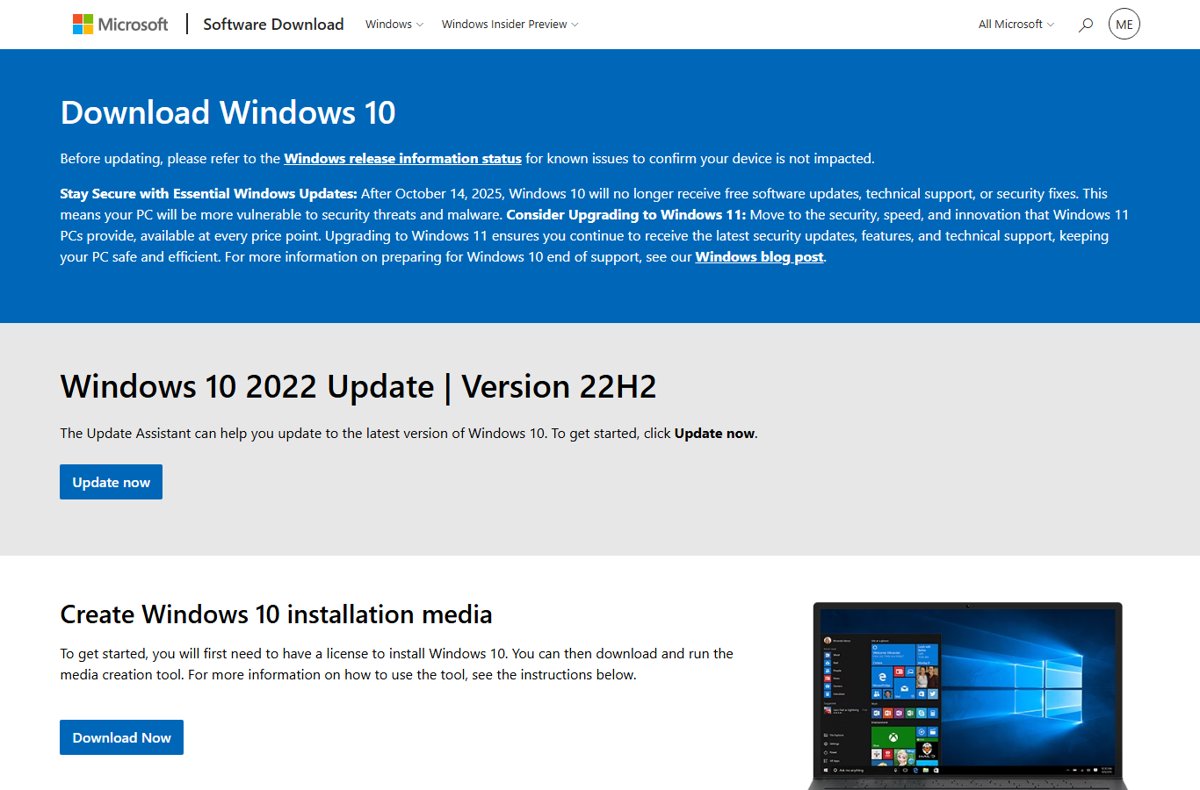
Microsoft's Windows 10 download page offers only the final release, Windows 10 2022 Update (version 22H2). It does not offer older builds, so installation media returns you to 22H2, not to an earlier version.
You need a Windows 10 licence to use the media, and Windows must activate again afterwards.
- On a working PC, open Microsoft's Windows 10 download page and create installation media on a USB drive.
- Connect the USB drive to the PC you are repairing and open it in File Explorer.
- Open
setup.exefrom the root of the drive and select Yes at the prompt. - Select Change what to keep.
- Choose Keep personal files and apps, Keep personal files only or Keep nothing, then select Next.
- Follow the prompts until setup finishes and the PC restarts.
If the PC will not start, boot from the USB drive instead. A boot from media is a clean install and removes everything. The official files are covered in downloading Windows 10 ISO files legally.
How to Pause Updates After Restoring
A removed update, or a newer version you rolled back from, is offered again at the next Windows Update scan. Pause updates right after restoring so the same change does not return overnight.
Updates cannot be paused forever. When the pause limit is reached, Windows must install the latest updates before you can pause again.
- Finish the restore and sign in.
- On Windows 10, select Start > Settings > Update & Security > Windows Update.
- On Windows 11, select Settings > Windows Update and choose a length next to Pause updates.
- On Windows 10, select the pause option on the same page.
- Before the pause ends, check the update history for a newer update that replaces the problem one.
- When the pause expires, select Check for updates so the fixed update installs.
Windows 10 no longer receives free security updates after October 14, 2025. Keep any pause short, and plan the move to Windows 11 if the PC qualifies.
How to check the restore worked
- Repeat the action that failed before, such as printing, playing sound or opening the app, and confirm it now works.
- Select Start > Settings > System > About and confirm the Windows version and edition are the ones you expected.
- For an update removal, open the update history and confirm the KB number is no longer listed as installed.
- For System Restore, reinstall any program the Scan for affected programs list said would be removed.
- For Go back, confirm your old apps and drivers work, and reinstall anything added after the upgrade.
Other ways to read your version number are covered in checking what version of Windows you have.
Fix Common Rollback Problems
System Restore shows no restore points
System protection was off for the drive, so Windows never saved a restore point. If protection was already on, missing restore points usually mean the disk space set for System Protection ran out.
- Tick Show more restore points in case older points are hidden.
- If the list is still empty, use Option 2 or Option 5 instead.
- Turn on system protection now so future restore points exist. The steps are in the next section.
Go back fails or gets stuck
The rollback files are missing, or user accounts were added after the upgrade.
- Confirm the
windows.oldand$windows.~btfolders still exist. - Remove any accounts created after the upgrade, and connect the upgrade USB drive if you used one.
- Run
DISM /Online /Get-OSUninstallWindowin an elevated Command Prompt to check the window is still open. - If the rollback cannot complete, use System Restore or Reset this PC instead.
Windows starts in a loop after restoring
The restore or update change broke startup, and Windows keeps failing before sign-in.
- Let Windows fail twice so it opens Automatic Repair, then select Advanced options.
- Select Troubleshoot > Advanced options > Startup Repair.
- If the loop continues, return to Advanced options and run System Restore with an earlier restore point.
- As a last step, select Troubleshoot > Reset this PC > Keep my files.
Windows RE asks for a BitLocker recovery key
The drive is encrypted, and most recovery tools need the key to unlock it.
- On another device, open Microsoft's Find your BitLocker recovery key help page and follow it to locate the key.
- Type the key at the prompt in Windows RE.
- If this is a work or school PC, ask your IT department for the key.
How to Avoid This Problem Next Time
Every rollback above depends on something you set up before the problem. Microsoft notes that system protection is not turned on by default, so check it first.
| Set this up now | How | What it gives you later |
|---|---|---|
| Turn on system protection | Search Create a restore point, select the drive, select Configure…, then Turn on system protection and Apply | Automatic restore points for System Restore |
| Make a restore point before big changes | On the System Protection tab, select Create…, name it and select Create | A known-good point dated just before a driver or app install |
| Keep a longer go-back window | Run DISM /Online /Set-OSUninstallWindow /Value:30 after an upgrade (2 to 60 days) |
More than 10 days to undo a version upgrade |
| Turn on Windows Backup | Settings > Accounts > Windows Backup | Apps and settings restored after a reset |
| Create a recovery drive | Make a USB recovery drive while the PC works | A way into Windows RE when the PC will not start |
| Save your BitLocker recovery key | Find the key now and keep a copy off the PC | Access to recovery tools on an encrypted drive |
A /Value below 2 or above 60 falls back to the default of 10 days. Set it soon after upgrading, because the window cannot be reopened once it has passed.
Frequently Asked Questions
Bing autocomplete returned only a few distinct questions for this topic, so some of these come from its related phrases, such as restoring to an earlier time today.
How do I restore my computer to previous settings?
Use System Restore. Press Windows + R, type rstrui.exe, press Enter and choose a restore point from before the settings changed. Windows rolls back system files, registry settings and installed programs, then restarts. Your personal files are not changed.
How do I restore my PC to a previous date?
Open System Restore with rstrui.exe and pick the restore point closest to, but before, the date you want. Tick Show more restore points to see older ones. You can only go back to a date that has a restore point.
How do I restore my computer to an earlier time today?
Only if Windows made a restore point earlier today. Windows creates them automatically during events such as software installs and updates, when system protection is on. Open rstrui.exe and look for a point with today's date and time.
What happens when you restore your PC?
With System Restore, Windows reverts system files, registry settings and installed programs to the restore point, then restarts. Programs installed after that point are removed. Your documents, photos and other personal files stay as they are.
Does System Restore delete my personal files?
No. System Restore undoes changes to system files, settings and programs without affecting personal files. It is not a backup, so it also cannot bring back a document you deleted. Use Windows Backup or OneDrive for that.
How long do I have to go back to the previous version of Windows 10?
In most cases, 10 days after the upgrade. After that, Windows removes the files it needs and Go back disappears from Recovery settings. Administrators can extend the window to as many as 60 days with DISM /Online /Set-OSUninstallWindow.
How do I restore my computer to a previous date on Windows 11?
The steps are the same as on Windows 10: run rstrui.exe and choose a restore point. Windows 11 version 24H2 and later also offers Point-in-time restore in Windows RE, which rolls back apps, settings and personal files to a recent automatic restore point.
Is it safe to roll back to an older Windows 10 version?
It is safe for your files, but Windows 10 reached end of support on October 14, 2025. It no longer gets free security fixes, so an older build is more exposed. Roll back only to fix a real problem, then update or move to Windows 11.