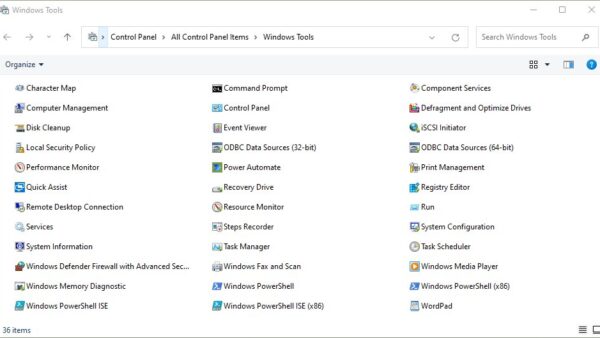
Backup and Restore in Windows 11 is the old Backup and Restore (Windows 7) tool in Control Panel: open it from Control Panel > System and Security, then use it to schedule file backups, create a system image, restore files, or restore the whole PC from Windows Recovery Environment.
This guide covers every one of those jobs, the Recovery Drive and repair disc, the newer Windows Backup app and File History, how to check a backup worked, and fixes for the problems people hit most.
How to open Backup and Restore in Windows 11
Windows 11 has no Backup and Restore page in Settings. The tool still ships, but only inside Control Panel under its Windows 7 name.
- Select Start, type Control Panel and press Enter.
- Type backup in the Search Control Panel box in the top-right corner.
- Select Backup and Restore (Windows 7) in the results. You can also reach it from System and Security in the category view.
- Use the links in the Back up or restore your files window: set up or run a file backup, Create a system image, Create a system repair disc, or Select another backup to restore files from.
Nothing here starts on its own until you configure it. The sections below walk through each link in the order most people need them.
Which Windows 11 backup method should you use?
Windows 11 ships four built-in ways to protect a PC, and they do different jobs. Microsoft’s own advice is to prefer the modern options and treat Backup and Restore (Windows 7) as a legacy tool.
| Your situation | Use this | Why |
|---|---|---|
| You want your folders, settings and app list safe in the cloud and restored on a new PC | Windows Backup (Settings > Accounts > Windows backup) | Saves Desktop, Documents, Pictures, Videos and Music to OneDrive, plus settings, Wi-Fi passwords and installed apps |
| You want hourly copies of personal files on an external drive, with older versions | File History | Keeps previous versions of libraries and Desktop, and restores from File Explorer’s Restore previous versions |
| You need a full copy of the drive, Windows, apps and files, to put back after a disk failure | Backup and Restore (Windows 7) system image | The only built-in tool that restores the whole PC to the exact state of the backup |
| Windows will not start and you have no backup | Recovery Drive (USB) | Boots into Windows RE and reinstalls Windows, but holds no personal files |
| A driver or update just broke Windows but your files are fine | System Restore | Rolls back system files, registry and programs without touching personal files |
| You still have backups made on Windows 7, 8 or 10 | Backup and Restore (Windows 7) | Opens old file backups and system images on Windows 11 |
Backup and Restore vs File History vs OneDrive comes down to scope: OneDrive and Windows Backup protect files and settings, File History protects file versions, and only a system image protects the whole installed system. For the cloud route, see how to back up OneDrive.
What Backup and Restore does in Windows 11
Microsoft lists this tool on its deprecated features page as the System Image Backup (SIB) solution, also known as the Backup and Restore (Windows 7) legacy control panel. It is no longer being developed, but it still works in Windows 11.
| Feature | What it does | Where it saves |
|---|---|---|
| File backup | Copies chosen user folders and libraries, and can repeat on a schedule | An external drive, a second internal drive or a network share |
| System image | Captures every drive Windows needs to start, including Windows, apps, settings and files | A hard disk, one or more DVDs, or a network location |
| System repair disc | A CD or DVD that boots into Windows Recovery Environment | Optical disc |
| File restore | Restores files from this PC’s backup or from another backup, including one made on Windows 7 | Back to the original folder or another location |
| System image restore | Replaces everything on the target drives with the image, from Windows RE | Uses the image on the backup drive |
Microsoft deprecated the tool in Windows 10, version 1709, and points people who want full-disk backups to third-party products. That means it can still disappear in a future release, so do not rely on it as your only backup.
How to create a scheduled file backup
A scheduled file backup copies your personal folders to another drive at a set time. Connect the external drive first so the wizard can list it.
- Connect the external drive, or make sure the network share is reachable.
- Open Control Panel > System and Security > Backup and Restore (Windows 7).
- Select the link to set up a backup, then approve the administrator prompt.
- Pick the drive or network location that will hold the backup, then continue.
- Choose what to back up: let Windows choose the default folders, or pick the folders and drives yourself.
- Check the schedule the wizard shows, change the day and time if needed, then save the settings and run the first backup.
- Keep the backup drive connected at the scheduled time so each run has somewhere to write.
To change the backup schedule later, reopen the tool and use the settings link on the main window, which reopens the same wizard. File History will not turn on while a Backup and Restore schedule is active, so use one or the other.
How to create a Windows 11 system image
A system image is a copy of every drive Windows needs to start. Make one before replacing a drive, and store it on a separate disk that you unplug afterwards.
- Connect an external drive with enough free space to hold everything on your C: drive.
- Open Control Panel > System and Security > Backup and Restore (Windows 7).
- Select Create a system image.
- Choose where to save it: a hard disk, one or more DVDs, or a network location.
- For a network location, use Browse to pick the share, then enter a username and password that can write to it and select OK.
- Confirm the drives to include, start the backup and wait for the wizard to report that it finished.
- Make a system repair disc from the same window if you have a writable CD or DVD and no USB recovery drive.
The image is saved in a WindowsImageBackup folder on the target drive. Leave that folder where Windows put it so the restore wizard can find it later.
Create a system image from Command Prompt with wbadmin
The same engine runs from the command line through wbadmin. Open Command Prompt as administrator first, because wbadmin refuses to run otherwise. Replace E: with your backup drive letter.
wbadmin start backup -backupTarget:E: -include:C: -allCritical -quiet-backupTarget sets the drive or network share that receives the backup. -include:C: adds the Windows drive. -allCritical adds every volume Windows needs to start, which is what makes the backup usable for full system recovery. -quiet runs without prompts. The target cannot be one of the drives being backed up.
You should see: wbadmin reports that the backup completed successfully, and a WindowsImageBackup folder named for your PC appears on the target drive.
Run wbadmin get versions afterwards to list the backups Windows can restore from. To cancel a backup that is running, use wbadmin stop job.
How to restore individual files
These steps restore files from a Backup and Restore file backup, including one made on another PC or on Windows 7 before an upgrade. They follow Microsoft’s own procedure for recovering files after upgrading to Windows 11.
- Connect the external drive that holds the backup.
- Open Control Panel, type backup in the Search Control Panel box and select Backup and Restore (Windows 7).
- Select Select another backup to restore files from. If the backup belongs to this PC and is listed on the main window, you can use the restore option shown there instead.
- In the Restore Files (Advanced) window, select the drive that contains the backup.
- Browse or search for the files and folders you want, and add them to the list.
- Choose to restore them to the original location or to a different folder, then start the restore.
- Open the restored files to confirm they are intact.
Restoring to a different folder is the safer choice when the original still holds newer copies. For single files covered by File History, right-click the folder in File Explorer and select Restore previous versions instead.
How to restore the whole computer from a system image
This is also how to recover Windows 11 using a system image after a drive failure. A system image restore replaces everything on the target drives, so copy any newer files off the PC first if Windows still starts.
If your drive is encrypted with BitLocker, have the BitLocker recovery key ready before you begin.
- Connect the drive that holds the WindowsImageBackup folder.
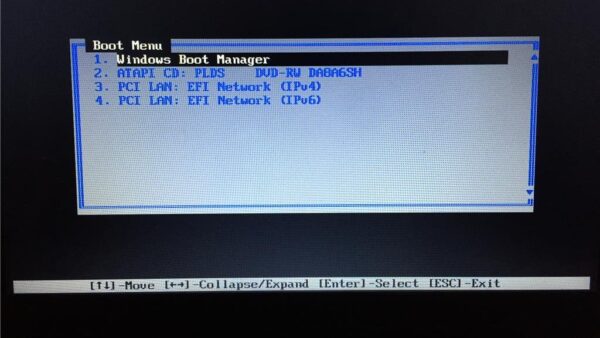
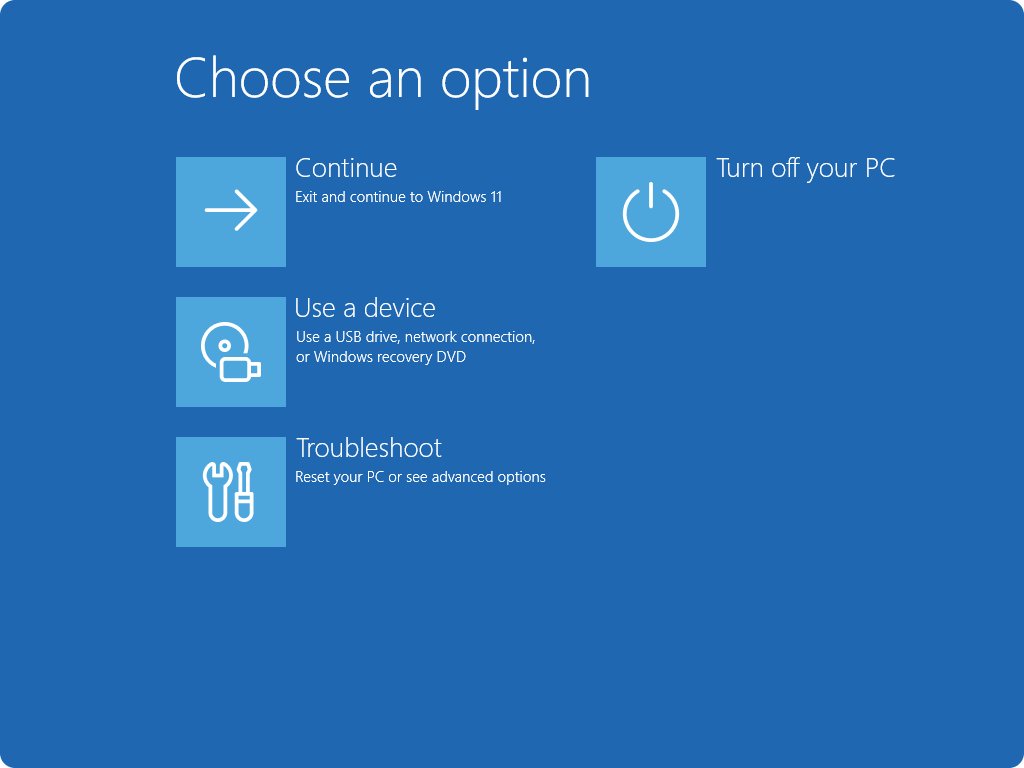
- If Windows starts, open Settings > System > Recovery and select Restart now next to Advanced startup. If it does not, boot from a Recovery Drive, a system repair disc or Windows installation media and select Repair my PC.
- On the Choose an option screen, select Troubleshoot, then Advanced options.
- Select System Image Recovery. If it is not on the first page, open the page with more recovery options.
- Let Windows pick the latest system image, or choose an older one from the list.
- Review the options, then confirm that the drives will be replaced with the image.
- Wait for the restore to finish and let the PC restart into the restored Windows.
Anything saved after the image date is not on the restored drive. Restore newer files from File History, OneDrive or a file backup afterwards.
Create recovery media
Recovery media lets you reach Windows RE when the PC will not start. Windows 11 offers two kinds: a USB Recovery Drive and a CD or DVD system repair disc.
- Connect an empty USB drive; the Recovery Drive tool erases everything on it.
- Select Start, search for Recovery Drive and open it, or run
recoverydrive.exe. - Keep Back up system files to the recovery drive selected and select Next.
- Select the USB drive, then select Next.
- Select Create and wait while the files are copied.
- For a disc instead, open Backup and Restore (Windows 7), select Create a system repair disc, insert a writable CD or DVD and follow the prompts.
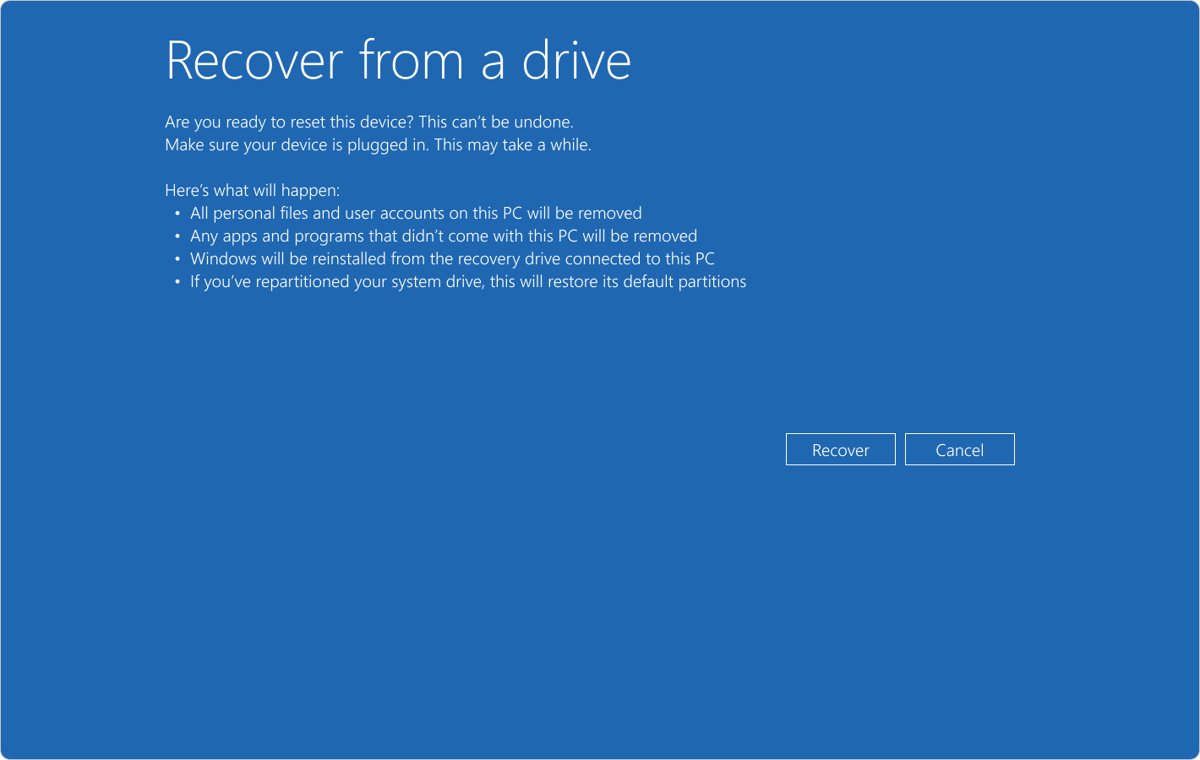
A Recovery Drive holds Windows files, updates installed at the time and the PC maker’s customisations, but none of your personal files. Microsoft recommends recreating it once a year so it carries recent updates.
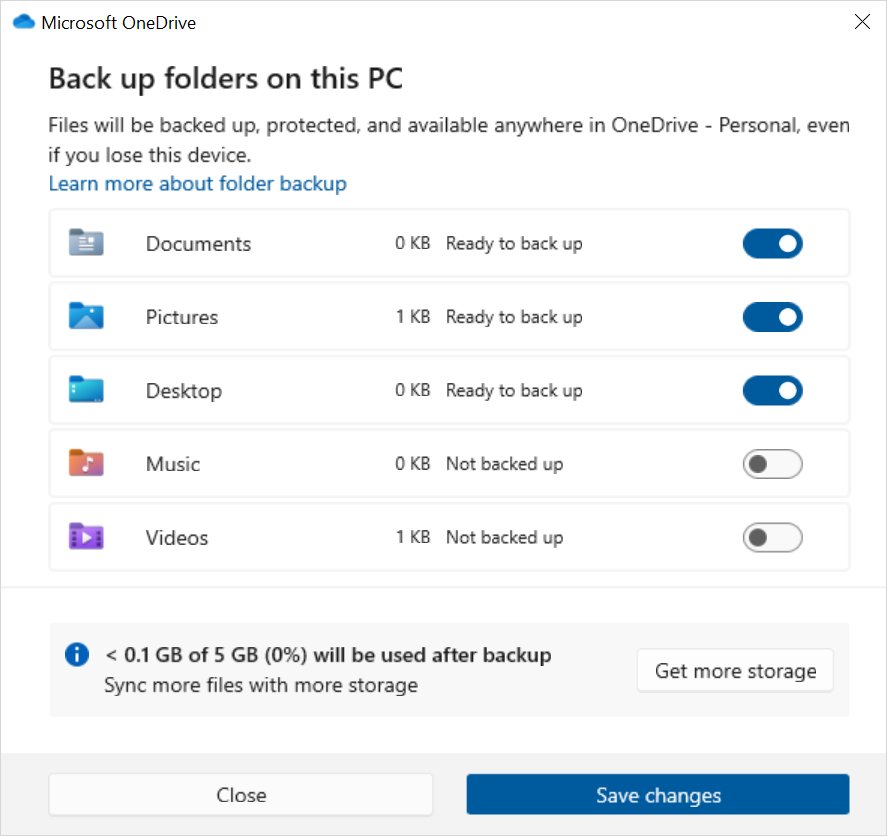
Back up files and settings with the Windows Backup app
Windows Backup is the modern, cloud-based route. It does not make a system image, but it is the easiest way to move to a new PC.
- Select Start, type backup and select Windows Backup in the results.
- Expand Folders and switch on each user folder you want in OneDrive: Desktop, Documents, Pictures, Videos and Music.
- Expand the settings categories and switch on the ones to keep, such as installed apps, accessibility, accounts and Wi-Fi passwords, and personalization.
- Select Back up.
- On a new PC, sign in during setup with the same Microsoft account and accept the offer to restore that backup.
A free Microsoft account includes 5 GB of OneDrive storage. Personalization settings are skipped if OneDrive is out of space.
How to check your backup worked
- Open Backup and Restore (Windows 7) and check the backup details on the main window for the location and the most recent run.
- Open the backup drive in File Explorer and confirm a WindowsImageBackup folder exists if you made a system image.
- In an administrator Command Prompt, run
wbadmin get versionsand confirm the backup time and target are listed. - Restore one small file to a different folder with Select another backup to restore files from, and open it.
- Boot once from your Recovery Drive or repair disc to confirm it reaches the Choose an option screen, then restart normally.
How to stop Backup and Restore or Windows Backup
Stopping a running backup and stopping future backups are separate actions. Pick the one that matches what you need.
- To cancel a backup or restore that is running now, open Command Prompt as administrator and run
wbadmin stop job. - To stop scheduled file backups, open Backup and Restore (Windows 7) and turn the schedule off from the main window; this is also required before File History will turn on.
- To stop Windows Backup, open Settings > Accounts > Windows backup and switch off each setting on every PC signed in with your Microsoft account.
- To remove settings already stored in the cloud, go to account.microsoft.com/devices in a browser and select Clear stored settings.
Common problems and limitations
The Backup and Restore option is missing from Settings
Windows 11 only exposes the legacy tool through Control Panel, not the Settings app.
- Open Control Panel from the Start menu search.
- Type backup in the Search Control Panel box.
- Select Backup and Restore (Windows 7).
- For the modern backup in Settings, open Settings > Accounts > Windows backup instead.
Windows RE cannot find the system image
The backup drive was connected late, the WindowsImageBackup folder was moved or renamed, or an encrypted drive is still locked.
- Connect the backup drive before you restart into Windows RE.
- Check on a working PC that WindowsImageBackup sits at the top level of the drive with its original name.
- Enter the BitLocker recovery key when asked, since some recovery tools need it on an encrypted device.
- Restart and select Troubleshoot > Advanced options > System Image Recovery again.
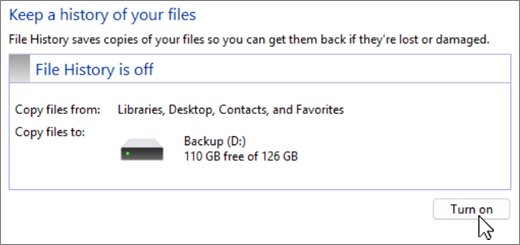
File History will not turn on
File History refuses to start while a Backup and Restore (Windows 7) schedule is active.
- Open Backup and Restore (Windows 7) and turn off the backup schedule.
- Open Control Panel > System and Security > Save backup copies of your files with File History.
- Select Turn on, and use Select drive if the wrong drive is chosen.
A system repair disc will not start
Discs made with Backup and Restore (Windows 7) after the January 11, 2022 updates could fail to boot until a later update fixed it.
- Run Windows Update and install all updates; on Windows 11, version 21H2 the fix is KB5014019.
- Create a new disc from Create a system repair disc.
- Or make a USB Recovery Drive instead, which also boots into Windows RE.
System Restore is being used as a backup
System Restore rolls back system files, registry settings and programs, but it does not back up personal files.
- Keep System Restore for undoing a bad driver or update.
- Protect personal files with Windows Backup, File History or a Backup and Restore file backup.
- Make a system image as well if you need to rebuild the whole PC after a drive failure.
Windows starts but system files are damaged
Corrupted system files do not need a full image restore, which would also roll back your newer files.
- Try System Restore or Startup Repair from Troubleshoot > Advanced options first.
- Repair the Windows image with DISM; see how to use DISM to restore the Windows image.
- Restore the system image only if these repairs fail.
Frequently Asked Questions
How do I back up and restore Windows 11?
Open Control Panel > System and Security > Backup and Restore (Windows 7) and select Create a system image to back up the whole PC. To restore it, restart into Windows RE and choose Troubleshoot > Advanced options > System Image Recovery. For files and settings only, use the Windows Backup app.
Where is Backup and Restore in Windows 11?
It is in Control Panel, not Settings. Open Control Panel, type backup in the search box and select Backup and Restore (Windows 7). It also appears under System and Security in the category view. The Settings app only holds the newer Windows backup page under Accounts.
Does Backup and Restore work in Windows 11?
Yes. Backup and Restore (Windows 7) still creates file backups and system images and restores them in Windows 11. Microsoft deprecated it in Windows 10, version 1709, so it gets no new features and could be removed in a future release. Keep a second backup method as well.
How do I stop Backup and Restore in Windows 11?
To cancel a backup that is running, open an administrator Command Prompt and run wbadmin stop job. To stop future runs, turn off the schedule in Backup and Restore (Windows 7). For Windows Backup, switch off its settings under Settings > Accounts > Windows backup.
Does Windows 11 Backup create a complete system image?
No. The Windows Backup app saves your user folders to OneDrive plus settings, Wi-Fi passwords and your list of installed apps. It does not copy Windows itself or program files. For a complete image of the drive, use Create a system image in Backup and Restore (Windows 7).
Can I restore a Windows 7 backup in Windows 11?
Yes. Connect the drive, open Backup and Restore (Windows 7) and select Select another backup to restore files from. Pick the drive in Restore Files (Advanced) and follow the wizard. Microsoft documents this exact route for recovering files after upgrading to Windows 11.
Does a Recovery Drive contain my personal files?
No. A Recovery Drive holds Windows system files, updates installed when it was made and the PC maker’s customisations. Microsoft says it does not include personal files, so back those up separately with Windows Backup, File History or a Backup and Restore file backup.
Can I back up Windows 11 to an external hard drive?
Yes. Backup and Restore (Windows 7) saves file backups and system images to an external drive, and File History also uses one. Connect the drive before you start, and unplug it after the backup so malware or a power fault on the PC cannot reach it.
Can I restore a system image to a new SSD?
Yes. Fit the SSD, boot from a Recovery Drive or installation media, choose Troubleshoot > Advanced options > System Image Recovery, and select the image on your backup drive.
Is System Restore the same as Backup and Restore?
No. System Restore rolls back system files, registry settings and installed programs to a restore point and leaves personal files alone. Backup and Restore copies your files or the whole drive to another disk, so it can recover data after a drive failure.
The Bottom Line
Use Windows Backup or File History for everyday file protection, and make a Backup and Restore (Windows 7) system image plus a Recovery Drive before any risky change such as a drive swap or major upgrade. Only the system image restores Windows, apps and files together, but the tool is deprecated and captures a single moment, so it works best as the safety net behind a backup that runs every day.