You can download the Windows 10 22H2 ISO from Microsoft’s official Windows 10 Disc Image page. Select the edition, choose your language, and Microsoft will generate separate 64-bit and 32-bit download links. On a Windows PC, Microsoft may instead direct you to the Media Creation Tool, which can save the installation files as an ISO or write them directly to a USB drive.
Windows 10 version 22H2 is the final Windows 10 release. Free support ended on October 14, 2025, but Microsoft still makes the installation media available. A Windows 10 PC continues to work after the support date, although it needs an applicable Extended Security Updates enrolment to keep receiving covered security updates. Microsoft extended consumer ESU coverage through October 12, 2027.
Microsoft is the safest download source. Microsoft-generated ISO links expire after 24 hours. The Archive.org links in the table below are included as alternative mirrors, but Microsoft does not host or verify those copies. Check the file name, language, architecture, edition, and SHA-256 hash before using a mirrored ISO.
Before You Download the Windows 10 ISO
Check the edition, architecture, activation status, language, and backup before downloading. These details determine whether Windows activates and whether an in-place reinstall can keep your apps.
- Confirm the Windows edition: Open Settings > System > About and check Edition under Windows specifications. Reinstall Home as Home and Pro as Pro.
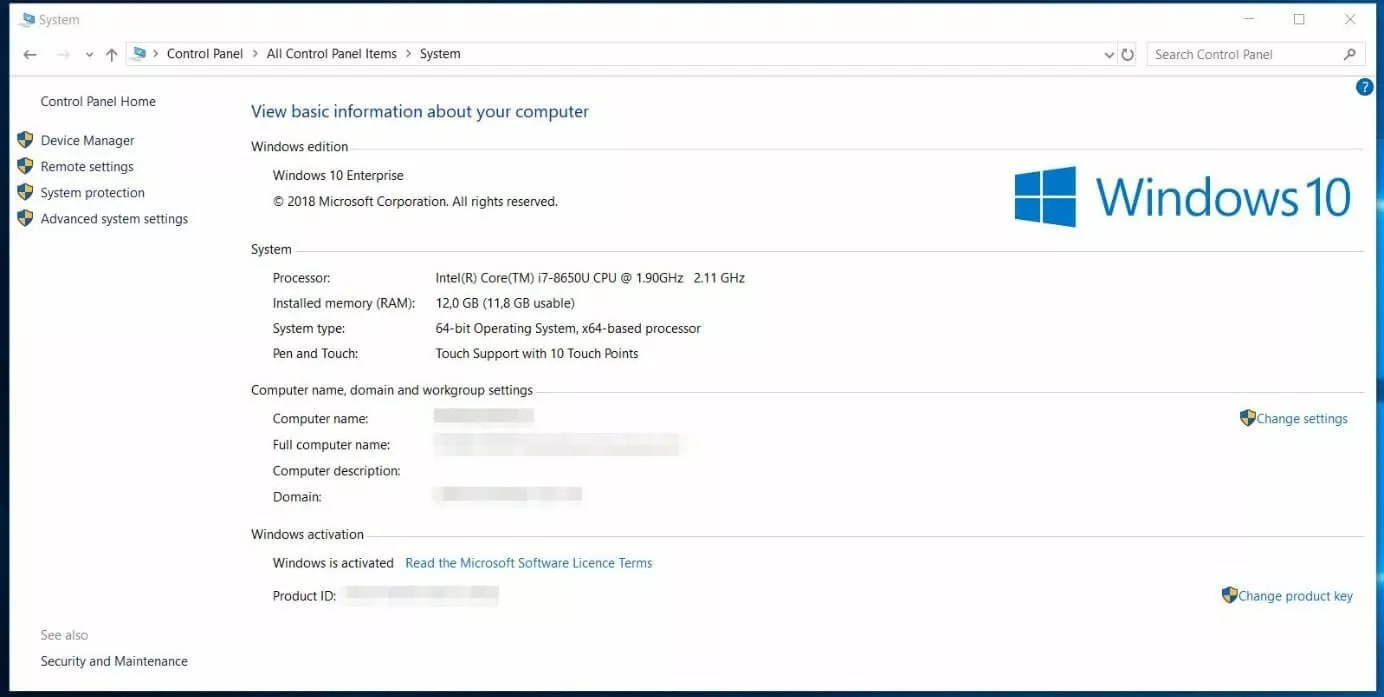
- Check the architecture: In the same About page, look at System type. A 64-bit processor can run 64-bit Windows, while a 32-bit processor requires the 32-bit ISO.
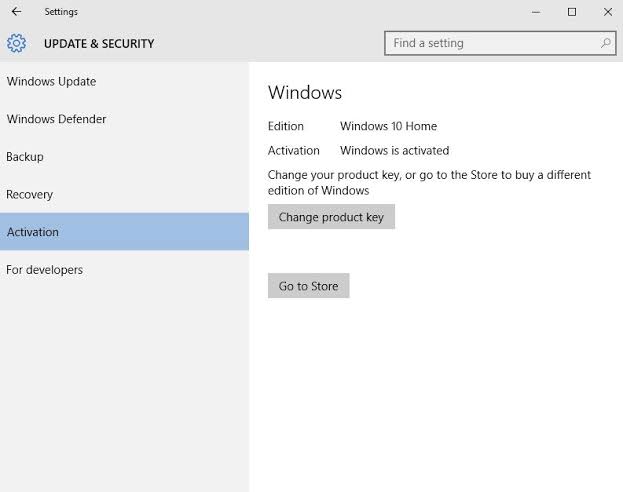
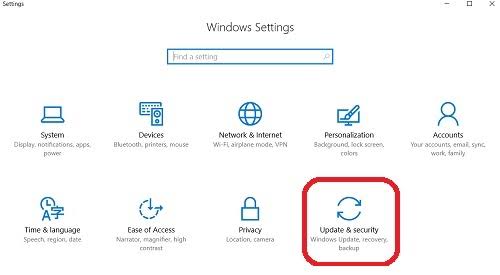
- Check activation: Open Settings > Update & Security > Activation. A PC with a digital licence can usually reactivate automatically after you reinstall the same edition.
- Choose the correct language: Use the same Windows display language when performing an in-place reinstall. A language mismatch can remove the option to keep installed apps and sett
 ings.
ings. - Back up your data: A clean installation can erase personal files, installed programs, recovery partitions, and manufacturer customisations.
- Save your BitLocker recovery key: Keep it somewhere separate from the PC before changing partitions, firmware settings, or boot options.
Microsoft lists a 1 GHz processor, 1 GB of RAM for 32-bit Windows or 2 GB for 64-bit Windows, 32 GB of storage, DirectX 9 graphics with a WDDM 1.0 driver, and an 800 x 600 display as the basic requirements. These figures are enough to install Windows 10, but they do not guarantee smooth performance with current browsers and applications.
Download Windows 10 ISO (Home and Pro Edition)
Microsoft’s public Windows 10 22H2 multi-edition ISO can install Windows 10 Home or Windows 10 Pro. Setup normally selects the correct edition using a product key stored in the PC firmware or a digital licence already associated with the hardware. When Setup asks you to select an edition manually, choose the one covered by your licence.
| Windows 10 download | Architecture and language | Download link | Source |
|---|---|---|---|
| Windows 10 22H2 ISO download | 64-bit or 32-bit, multiple languages | Download Windows 10 ISO from Microsoft | Official page that generates links valid for 24 hours |
| Windows 10 22H2 ISO 64-bit download | English, x64, multi-edition consumer ISO | Download Windows 10 22H2 64-bit ISO mirror | Archive.org mirror; not hosted or verified by Microsoft |
| Windows 10 22H2 ISO 32-bit download | English, x86, multi-edition consumer ISO | Download Windows 10 22H2 32-bit ISO mirror | Archive.org mirror; not hosted or verified by Microsoft |
| Windows 10 Media Creation Tool download | Creates 64-bit or 32-bit installation media | Download Windows 10 Media Creation Tool | Official Microsoft tool for an ISO or bootable USB |
| Rufus bootable USB tool | Writes an existing Windows 10 ISO to USB | Download Rufus from the official website | Official Rufus website |
Mirror notice: Replace an Archive.org link when the mirror becomes unavailable or when you have a newer verified copy. Do not describe a mirror as a direct Microsoft-server download.
Windows 10 ISO Download Direct Link
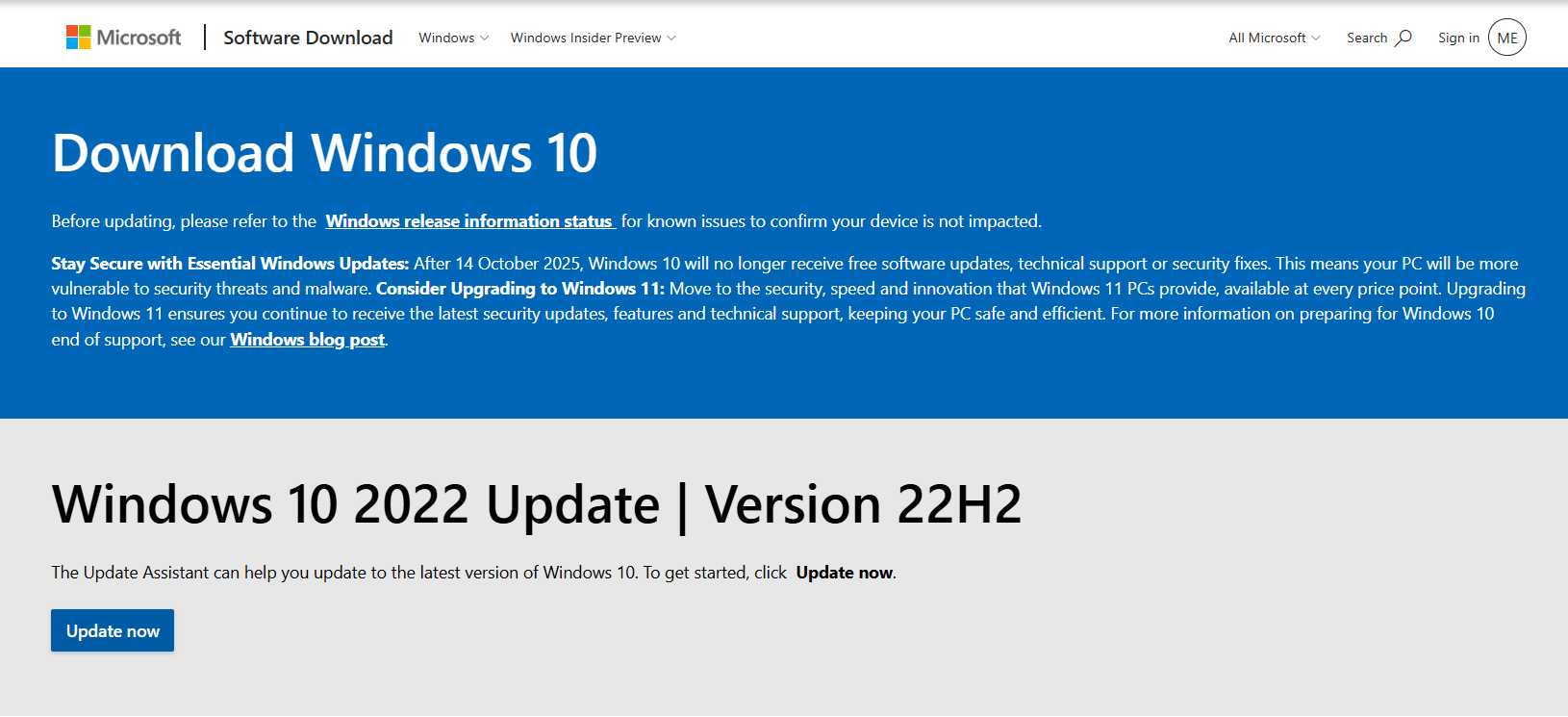
Microsoft creates the 64-bit and 32-bit ISO URLs only after you select an edition and language. The generated links point to Microsoft’s download servers and remain valid for 24 hours from the time they are created.
- Open Microsoft’s Windows 10 ISO download page.
- Under Select edition, choose the Windows 10 multi-edition option displayed by Microsoft.
- Select Confirm.
- Choose the product language. The language selected here becomes the default language of the installation media.
- Select Confirm again.
- Choose 64-bit Download or 32-bit Download.
- Save the file instead of opening it directly in the browser.
- Keep the browser page open if you also need the other architecture because both links disappear after their validity period ends.
If the page shows the Media Creation Tool rather than the edition selector, use the tool and select ISO file. Microsoft commonly presents the direct selector to macOS, Linux, Android, and other systems that cannot run the Windows tool.
Should You Download the 64-bit or 32-bit ISO?
Use 64-bit Windows on almost every modern PC. It can address more memory and is the normal architecture for current processors, drivers, and applications. Use the 32-bit ISO only for a PC with a 32-bit processor or a specific legacy requirement.
| ISO | Use it when | Important limitation |
|---|---|---|
| Windows 10 64-bit | The PC has an x64-based processor | Cannot be installed as an in-place architecture upgrade over 32-bit Windows |
| Windows 10 32-bit | The PC has an x86 processor or depends on old 32-bit-only hardware | Cannot use more than roughly 4 GB of addressable memory |
Press Windows + R, enter msinfo32, and press Enter. Check System Type: x64-based PC supports 64-bit Windows, while x86-based PC requires 32-bit Windows. Moving from 32-bit to 64-bit Windows requires a clean installation.
Verify the Windows 10 ISO Before Installing It
Microsoft’s ISO page provides SHA-256 values for its current language and architecture combinations. After downloading the file, open PowerShell and run:
Get-FileHash "C:\Users\YourName\Downloads\Win10.iso" -Algorithm SHA256Replace the sample path with the actual ISO location. Compare the returned value with the hash Microsoft lists for the same language and architecture. A matching hash confirms that the file has not changed since Microsoft produced it.
Hash verification is particularly important for an Archive.org mirror. A matching hash is stronger evidence than a familiar file name, file size, uploader description, or high download count.
Download Windows 10 Using the Windows Media Creation Tool
The Media Creation Tool is the easiest option when you are already using Windows. It can create a bootable USB immediately or save a reusable ISO for another PC, a virtual machine, or a DVD.
- Open Microsoft’s Download Windows 10 page.
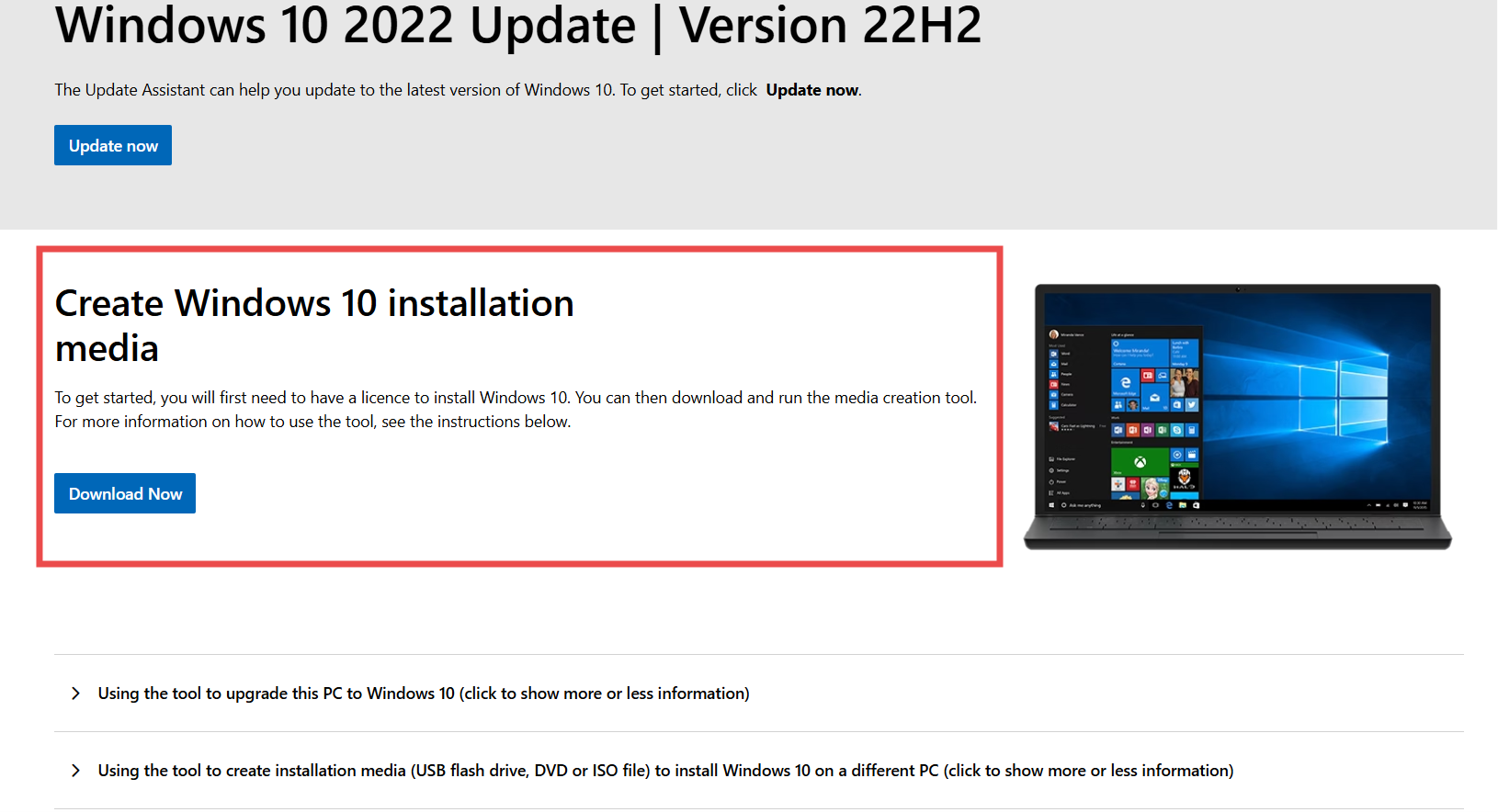
- Under Create Windows 10 installation media, select Download now.
- Run
MediaCreationTool_22H2.exeas an administrator. - Accept Microsoft’s licence terms.
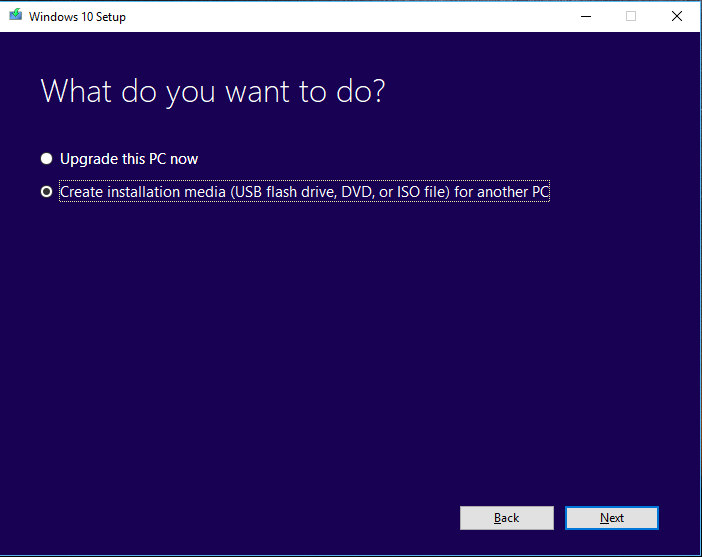
- Select Create installation media (USB flash drive, DVD, or ISO file) for another PC.
- Review the language, edition, and architecture. Clear Use the recommended options for this PC when creating media for a different computer.
- Select ISO file to keep the image, or select USB flash drive to create bootable media immediately.
- Choose the destination and allow the download to complete.
- Use Finish only after the tool confirms that the ISO or USB is ready.
Keep the computer connected to power and do not remove the USB drive while the tool is downloading or writing files.
Download Tiny10 ISO
Tiny10 is an unofficial modified build created by a third party. It removes Windows components to reduce memory and storage use, but those changes can affect servicing, security features, drivers, Microsoft Store apps, language support, and future repairs.
Use Microsoft’s standard Windows 10 ISO for a dependable installation. You can uninstall unwanted apps and disable optional features after setup without trusting a pre-modified operating-system image.
Create Windows 10 Bootable USB/DVD
A bootable USB is the most practical installation method. It is faster than a DVD, works on systems without an optical drive, and can also open Windows recovery tools when the installed copy no longer starts.
Create the USB with the Media Creation Tool
- Connect a blank USB drive with at least 8 GB of space.
- Run the Media Creation Tool.
- Select Create installation media for another PC.
- Choose the correct language, edition, and architecture.
- Select USB flash drive.
- Carefully select the correct removable drive. Every file on it will be deleted.
- Wait while the tool downloads Windows 10, verifies the files, and prepares the USB.
- Select Finish, then safely eject the drive.
This is the simplest option because Microsoft chooses the media layout automatically.
Create the USB with Rufus
Rufus is useful when you already have the ISO or need to target a specific firmware mode.
- Connect a blank USB drive.
- Open Rufus and select the correct drive under Device.
- Set Boot selection to Disk or ISO image.
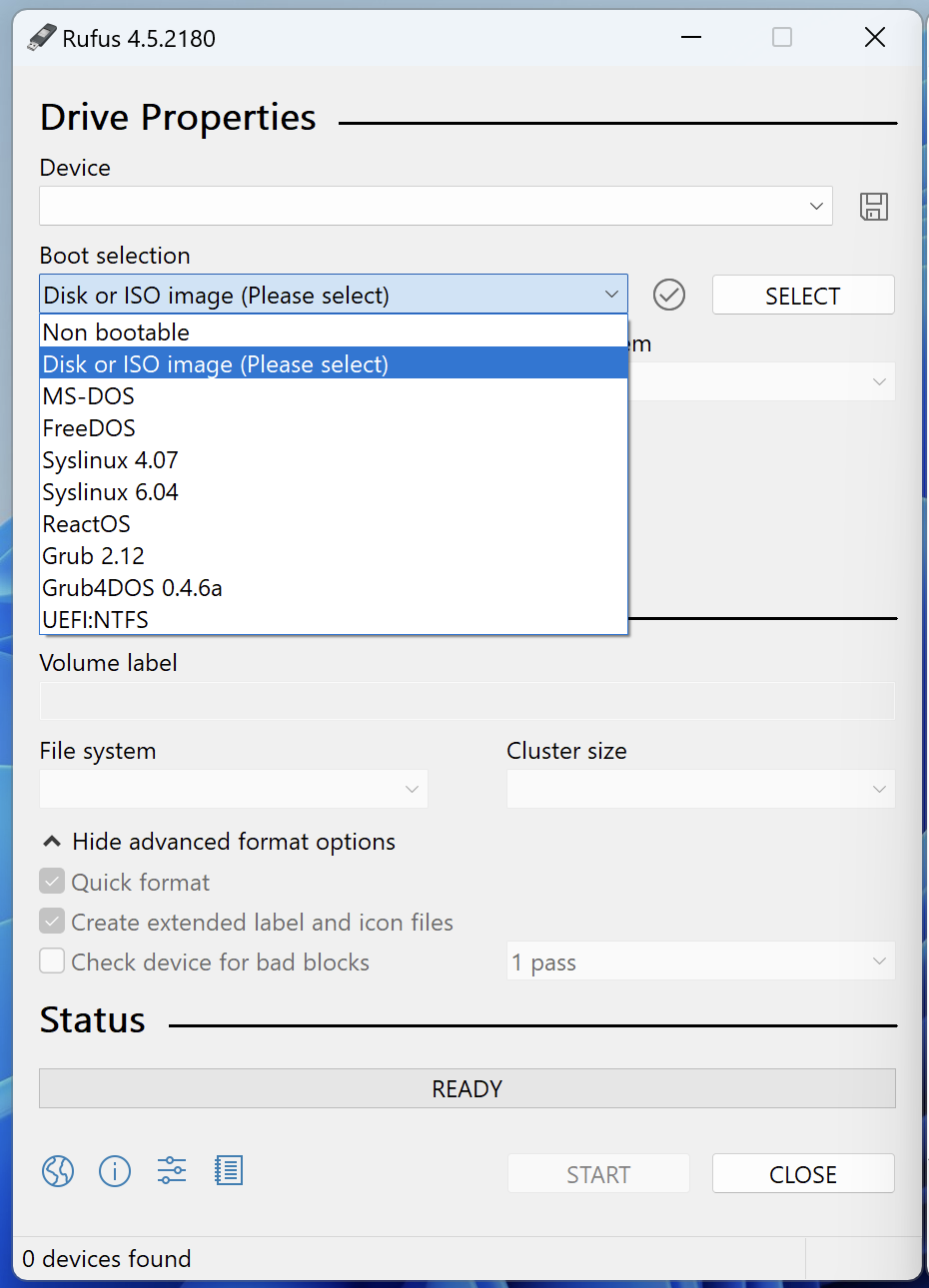
- Select SELECT and open the Windows 10 ISO.
- Choose GPT for a modern UEFI installation or MBR for a legacy BIOS installation.
- Confirm that Target system matches the computer you plan to install Windows on.
- Leave the file system, cluster size, and volume label at their defaults unless the target PC has a documented requirement.
- Select START.
- Confirm the warning that the selected drive will be erased.
- Wait until Rufus displays READY, then safely eject the USB.
Rufus may use NTFS when the ISO contains files larger than FAT32 supports. Its UEFI:NTFS feature can still boot the drive in UEFI mode.
Choose GPT or MBR Correctly
Press Windows + R, enter msinfo32, and check BIOS Mode on the target PC:
- UEFI: Select GPT and UEFI in Rufus.
- Legacy: Select MBR and BIOS or UEFI-CSM.
A mismatched boot mode is a common reason the USB does not appear or Windows installs in legacy mode.
Clean Install Windows 10 ISO
A clean installation removes the existing Windows installation, apps, settings, and files from the selected partition. Disconnect unnecessary external drives so that you do not erase the wrong disk, and keep the PC connected to power.
Boot the PC from the Windows 10 USB
- Insert the bootable USB into the target PC.
- Restart the computer and open its one-time boot menu. Common keys include F12, F9, F11, Esc, or Delete, but the correct key varies by manufacturer and model.
- Select the USB entry that matches the intended mode, preferably the entry beginning with UEFI on a UEFI PC.
- If the USB is missing, open the firmware settings and confirm that USB boot is enabled and that the boot mode matches the media.
Install Windows 10 Step by Step
- Select the installation language, time format, and keyboard layout.
- Select Install now.
- Enter a valid product key, or select I don’t have a product key when the PC already has a matching digital licence or firmware key.
- Select the edition covered by the licence. Do not select Pro on a PC licensed only for Home.
- Accept the Microsoft licence terms.
- Select Custom: Install Windows only (advanced).
- Select the target partition.
- Use Format when you want to erase only that partition, or delete the old Windows partitions when performing a complete disk rebuild and you have already backed up everything.
- Select the unallocated space or formatted partition and choose Next.
- Allow Setup to copy files and restart the PC.
- After the first restart, do not press a key to boot from the USB again. Let the internal drive continue setup.
- Complete the region, keyboard, network, account, privacy, and device-name screens.
When you install to unallocated space, Setup creates the required system and recovery partitions automatically.
What If Windows Setup Cannot Find the SSD?
A missing SSD usually means Setup needs a storage-controller driver or the PC uses Intel VMD, RAID, or another manufacturer-specific storage mode.
- Download the storage driver from the laptop or motherboard manufacturer and copy it to a second USB drive.
- On the drive-selection page, select Load driver and browse to the extracted driver folder.
- Check the firmware for a storage-controller setting, but do not switch RAID, VMD, or AHCI modes blindly because changing it can prevent an existing Windows installation from starting.
- Confirm that the SSD appears in the firmware. If it is absent there as well, the problem is not the Windows ISO.
Reinstall Windows 10 Without Deleting Apps
When Windows still starts, an in-place reinstall can repair system files while preserving programs and personal data:
- Mount the ISO or connect the installation USB while signed in to Windows.
- Open the media and run
setup.exe. - Select whether Setup should download updates during installation.
- Accept the licence terms.
- Select Change what to keep.
- Choose Keep personal files and apps.
- Review the summary and select Install.
If Keep personal files and apps is unavailable, check that the ISO matches the installed language, edition, and architecture. You also cannot use this option when booting directly from the USB.
What to Do After Installing Windows 10
- Open Settings > Update & Security > Activation and confirm that Windows is activated.
- Open Windows Update and install the available updates. Complete ESU enrolment when the device is eligible and you plan to keep using Windows 10.
- Install missing chipset, graphics, audio, Wi-Fi, Bluetooth, touchpad, and storage drivers from the PC manufacturer.
- Open Device Manager and check for devices with a yellow warning icon.
- Restore personal files only after Windows Security is running and updated.
- Create a recovery drive or keep the bootable USB in a safe place.
Troubleshooting Windows 10 ISO and Installation Problems
The Media Creation Tool Will Not Open or Fails
Restart Windows, free storage space, run the tool as administrator, and disconnect unnecessary USB devices. A VPN, proxy, or security product may interrupt the download. If it continues to fail, download the ISO from Microsoft and use Rufus.
The Windows 10 USB Does Not Boot
Confirm that the USB appears in the boot menu and that GPT/MBR matches the selected UEFI or legacy mode. Try another direct USB port and recreate the drive if writing was interrupted. Do not disable Secure Boot without a specific reason.
Windows Cannot Be Installed to This Disk
An error mentioning GPT or MBR usually means Setup was started in a boot mode that does not match the disk layout. Reboot and select the correct UEFI or legacy USB entry. Converting the disk can erase its partitions, so back up the data before using DiskPart or deleting partitions.
Windows Does Not Activate After Installation
Verify that you installed the same edition as the licence. Connect to the internet, sign in with the Microsoft account linked to the digital licence, and open the Activation troubleshooter. A major hardware change, particularly a motherboard replacement, can require reactivation or a new licence.
FAQ – Frequently Asked Questions
Will Windows 10 run on 4 GB of RAM?
Yes, but it is suitable only for light use. An 8 GB or larger configuration is more practical for current browsers and applications.
Is it legal to download a Windows 10 ISO?
Yes. Microsoft provides the installation media. Downloading it does not provide an activation licence, so the PC still needs a valid product key or digital licence.
How can I confirm that a Windows 10 ISO is genuine?
Download it from Microsoft and compare its SHA-256 hash with the value Microsoft publishes for the same language and architecture. Perform the same check before trusting a mirror.
Will a new Windows 10 installation receive updates?
Free support ended on October 14, 2025. Eligible devices enrolled in Extended Security Updates can receive covered critical and important security updates. Consumer ESU coverage is available through October 12, 2027.
Can I move from 32-bit Windows 10 to 64-bit Windows 10?
Yes, but not as an in-place upgrade. Confirm that the processor is x64-compatible, back up the files, and perform a clean 64-bit installation.
Should I download Windows 10 through a torrent?
No. A torrent may contain an altered or incorrectly labelled image. Use Microsoft or a mirror whose hash you have independently verified.
How large is the Windows 10 ISO?
The exact size depends on the language and architecture. The 64-bit image is normally larger. Keep at least 8 GB free for the ISO and temporary files.
Can I install Windows 10 after its end of support?
Yes. Microsoft still provides the media and Windows 10 continues to operate. Use Windows 11 on compatible hardware or enrol an eligible Windows 10 PC in ESU.
Does the public ISO include Windows 10 Enterprise?
No. The public multi-edition consumer ISO is primarily for Home and Pro. Enterprise media is distributed through Microsoft business, evaluation, subscription, and administration portals.
Can I reuse the same ISO on multiple PCs?
Yes. The media is reusable, but every PC needs its own valid licence or digital entitlement.
Do I need a product key during installation?
Not always. A device previously activated with the same edition can normally reactivate through its digital licence, and many PCs store a key in firmware. Otherwise, enter a valid key during or after setup.