An iPhone that got wet usually refuses to charge by cable because it has detected liquid in the Lightning or USB-C port, and it blocks wired charging until the port and cable are dry.
This guide covers how long to dry the phone, the safe ways to charge in the meantime, how to tell a wet port from real water damage, and what to do when the iPhone still won't charge once it is dry.
iPhone not charging after water: what to do first
These steps follow Apple's own guidance for a wet iPhone and work on every model from iPhone XS and iPhone XR onward.
- Unplug the cable from your iPhone, then unplug the other end from the power adapter or accessory.
- Wipe the outside of the iPhone with a soft, lint-free cloth.
- Hold the iPhone with the charging port facing down and tap it gently against your hand to shake out excess liquid.
- Leave the iPhone in a dry place with some airflow. A fan blowing cool air into the port helps.
- Wait at least 5 hours before you plug in a cable or any accessory again.
- Plug the cable in. If the liquid alert appears again, unplug it and leave the iPhone to dry for up to 24 hours, trying again now and then.
If you need power before then, a Qi-certified wireless charger still works once the back of the iPhone is dry.
What the liquid detected alert on iPhone means
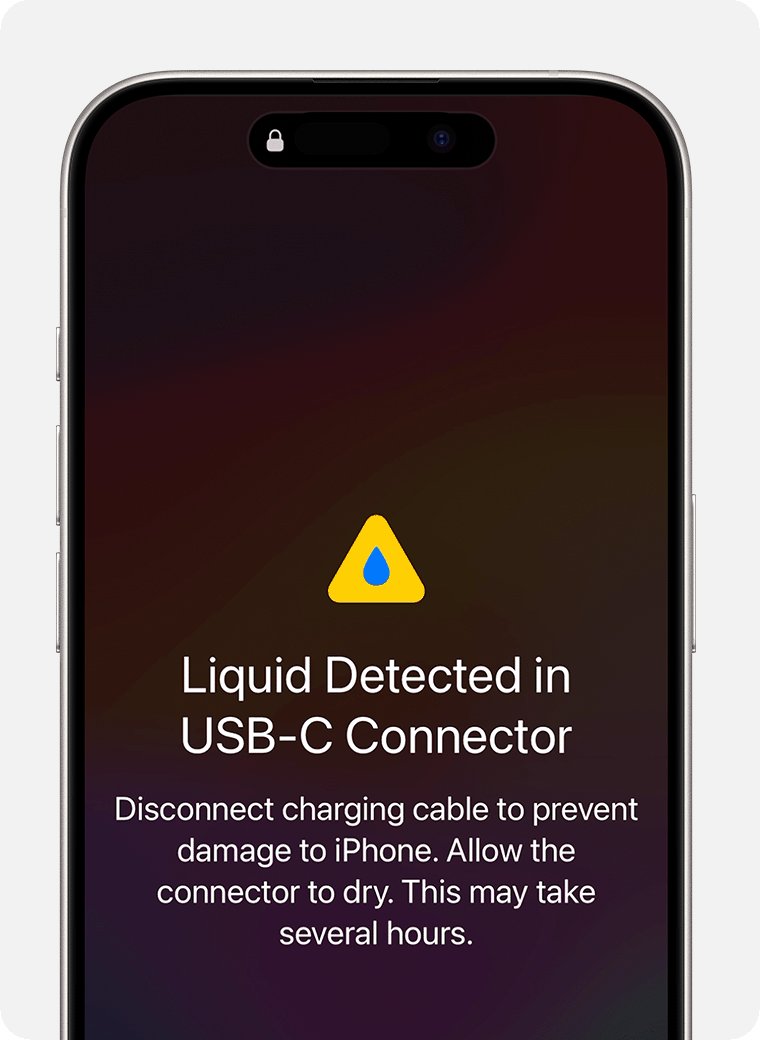
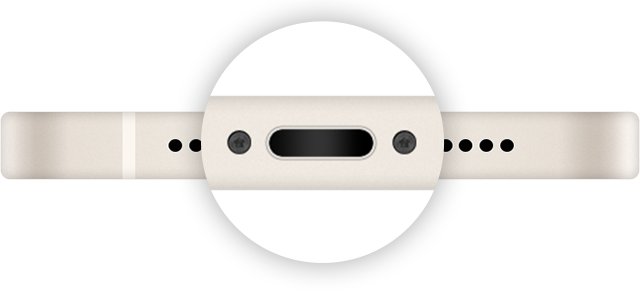
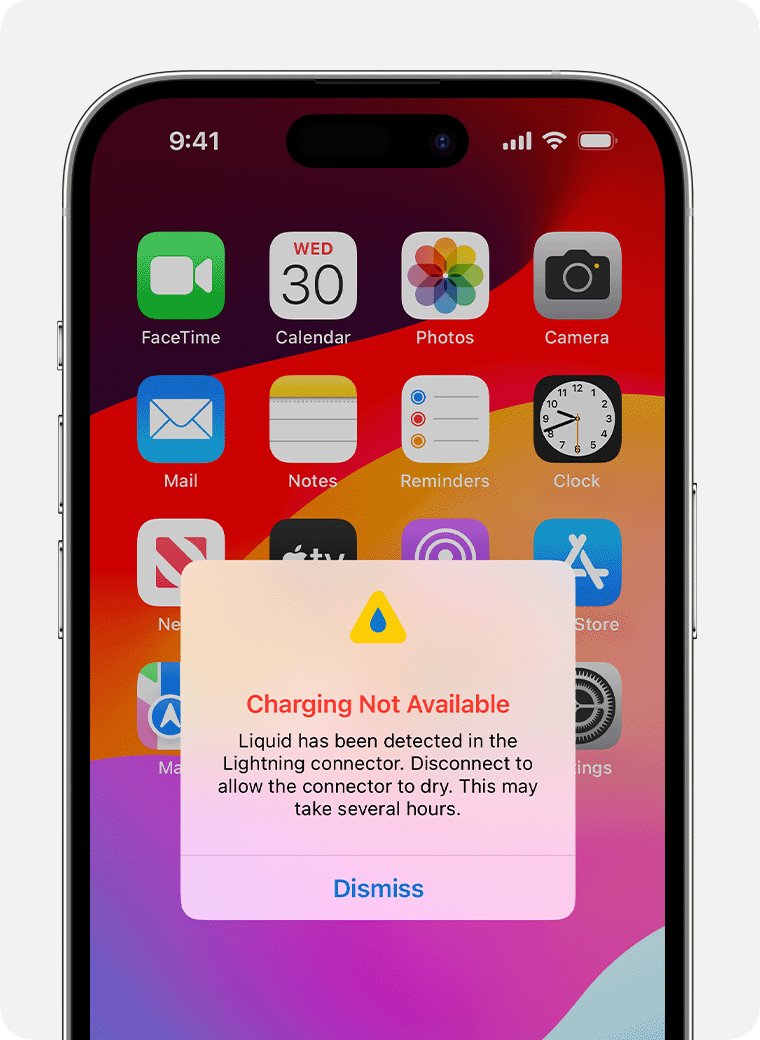
iPhone XS, iPhone XS Max, iPhone XR and later check the port for liquid every time you connect a cable or accessory. The wording of the alert depends on the connector and on what you plugged in.
| Alert you see | When it appears | What iPhone does |
|---|---|---|
| Charging Not Available | A Lightning iPhone is connected to a charger and liquid is detected | Blocks wired charging until the port and cable are dry |
| Liquid Detected in USB-C Connector | A USB-C iPhone is connected to a charger or accessory with a USB-C to USB-A cable | Blocks charging; Apple says to disconnect the cable immediately |
| Liquid Detected in Lightning Connector | A Lightning accessory that does not charge the iPhone is connected | Blocks the accessory connection |
| Liquid Detected | A USB-C accessory is connected and liquid is detected | Blocks the accessory connection |
The block protects the phone. Charging through a wet port can corrode the pins on the connector or the cable, which can cause permanent damage and connection problems later.
Wired, wireless or emergency charging for a wet iPhone
| Your situation | What to do | Why |
|---|---|---|
| Battery has charge and you can wait | Dry the phone and wait at least 5 hours before using a cable | The safest route; a dry port cannot corrode while charging |
| Battery is low and you own a Qi-certified wireless charger | Dry the back of the iPhone, then place it on the charger | Wireless charging does not use the wet port, so liquid detection does not block it |
| Battery is nearly dead and you need the phone now | Reconnect the cable and choose the emergency override in the alert | Apple allows it in an emergency, but charging a wet port risks corroded pins |
| The alert appears with only one cable or accessory | Try a different cable | That cable or accessory might be damaged; contact its maker |
Charge a wet iPhone with a wireless charger
Every iPhone that has liquid detection also supports Qi wireless charging, so this is the practical way to keep a wet phone alive while the port dries.
- Remove the iPhone from its case if the case is wet.
- Dry the back of the iPhone completely with a lint-free cloth.
- Place the iPhone face up in the center of a Qi-certified charger.
- Look for the charging symbol in the status bar to confirm power is flowing.
- Keep the bottom port out in the open air while it charges so it continues to dry.
If the iPhone gets warm on the pad, software might hold charging at 80 percent until it cools down. Move it to a cooler spot rather than forcing a cable in.
Should you put a wet iPhone in rice?
No. Apple says not to put an iPhone in a bag of rice, because small particles of rice can get into the phone and damage it.
| Common drying trick | Apple's advice | Reason |
|---|---|---|
| Bag of rice | Do not use | Rice particles can damage the iPhone |
| Hair dryer or other heat source | Do not use | External heat can damage the phone |
| Compressed air | Do not use | Apple lists it with heat sources as a method to avoid |
| Cotton swab or paper towel in the port | Do not insert | Foreign objects can damage the connector |
| Tap port-down, then leave in moving air | Recommended | Removes liquid without forcing anything into the port |
| Fan blowing cool air into the port | Recommended | Speeds up drying without heat |
Wait until the phone is dry before you open the SIM tray as well, so no liquid gets inside through the tray slot.
iPhone battery health after water damage
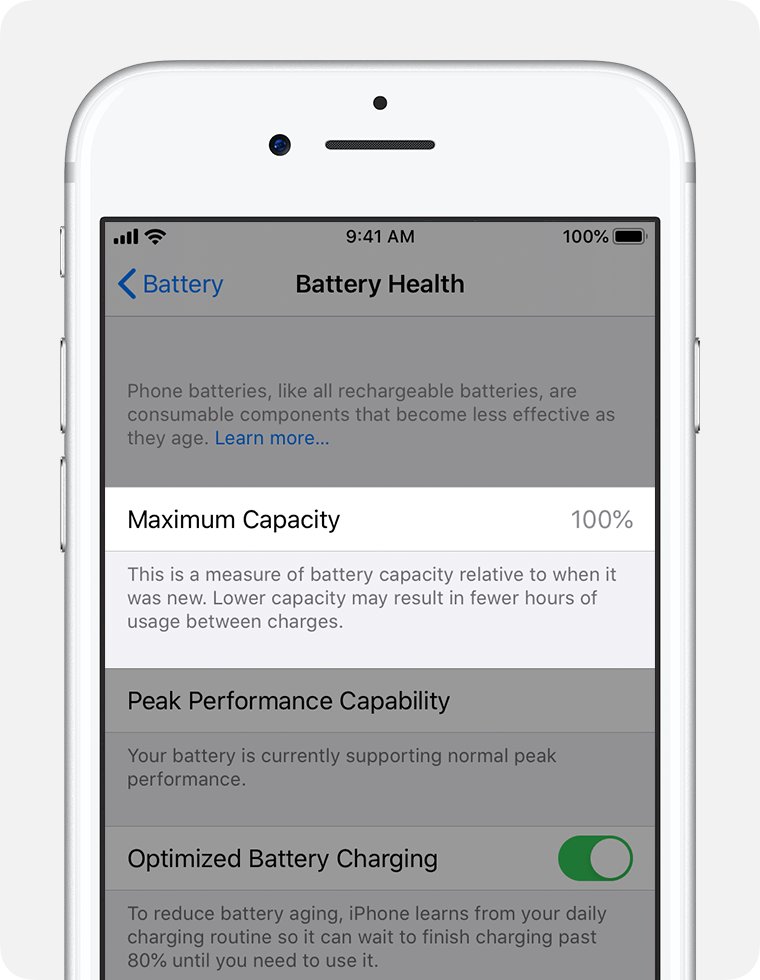
Once the iPhone charges again, the Battery Health screen shows whether the battery itself is in good shape or needs service.
- Open the Settings app.
- Tap Battery.
- Tap Battery Health (on iPhone 14 models and earlier, the entry is Battery Health & Charging).
- Check Maximum Capacity, which compares the battery's capacity with when it was new.
- Read the Peak Performance Capability message. "Your battery is currently supporting normal peak performance" means the battery is fine.
- If the screen says the battery's health is significantly degraded, or that it is unable to verify a genuine Apple battery, book service.
A lower Maximum Capacity on its own is normal ageing, not a sign of liquid damage. iPhone 14 models and earlier are designed to keep 80 percent capacity at 500 full charge cycles, and iPhone 15 models at 1,000.
iPhone still not charging after drying
The liquid alert keeps coming back
Liquid is still in the port or under the pins of the cable.
- Unplug the cable and leave the iPhone in a dry place with airflow.
- Try the cable again every few hours; drying can take up to 24 hours.
- Try a different, dry cable to rule out a wet cable end.
- Use a Qi-certified wireless charger in the meantime.
The alert appears with every Apple cable even though the phone is dry
The port itself might be damaged.
- Leave the iPhone to dry for a full day to rule out trapped liquid.
- Try two different Apple cables or accessories.
- If the alert appears with all of them, book service with Apple or an Apple Authorized Service Provider.
The iPhone is dry and shows no alert, but it will not charge
A loose connection, a damaged accessory or a frozen phone.
- Unplug the cable from the adapter and unplug the adapter from the wall, then connect them again.
- Check the cable and adapter for breaks or bent prongs and stop using damaged ones.
- Plug into a different wall outlet rather than a computer.
- Remove any debris from the charging port, then plug the cable in firmly.
- Restart the iPhone and let it charge for half an hour.
iPhone battery died and won't charge or turn on
The phone is unresponsive on a black iPhone screen, or the battery was too low to show a screen straight away.
- Leave the iPhone on a wall charger for half an hour.
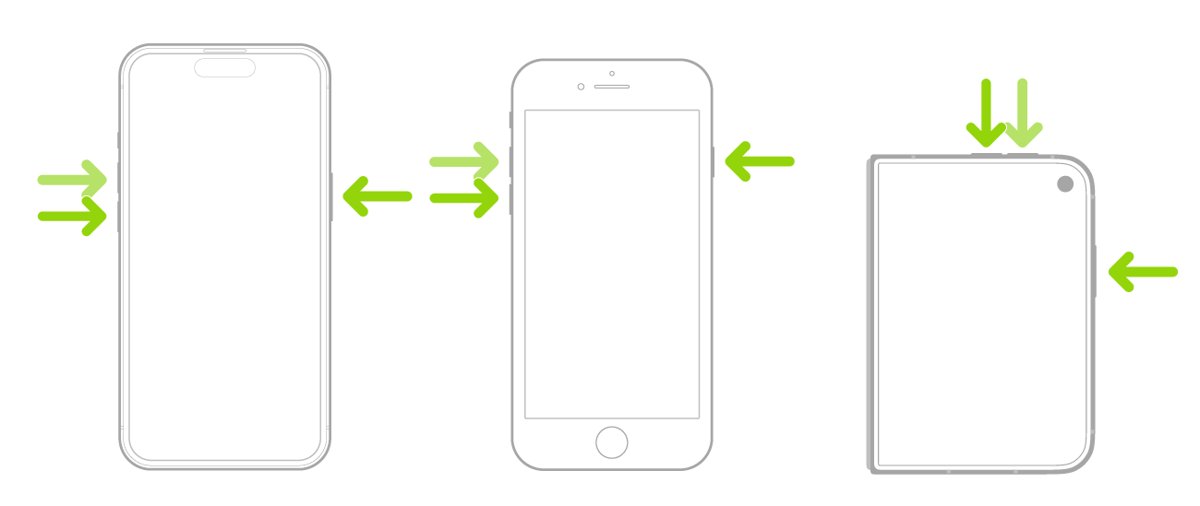
- On iPhone 8 or later, press and quickly release volume up, press and quickly release volume down, then press and hold the side button until the Apple logo appears.
- Let it charge for another half hour.
- If it still will not power on or charge, it needs service.
"Accessory Not Supported" alert after the iPhone got wet
A dirty or damaged charging port, or a cable that is not certified.
- Connect the iPhone directly to the charger with no adapters in between.
- Remove any debris from the charging port.
- Restart the iPhone.
- Try a different USB cable or charger.
- Update to the latest version of iOS.
iPhone stops charging at 80 percent
Optimized Battery Charging, a charge limit, or a battery that is too warm.
- Touch and hold the Lock Screen charging notification and tap Charge Now if Optimized Battery Charging is holding the charge.
- On iPhone 15 models and later, open Settings > Battery > Charging and raise the charge limit.
- Move the iPhone and charger somewhere cooler; charging resumes when the temperature drops.
When no water was involved, the usual checks to fix an iPhone that won't charge cover cables, adapters and ports in more depth.
Is iPhone water damage covered by warranty or AppleCare+?
Liquid damage is not covered by Apple's standard one-year warranty, though local consumer law can still give you rights.
| Coverage | Liquid damage | Battery fault |
|---|---|---|
| Apple one-year limited warranty | Not covered | A defective battery is covered |
| AppleCare+ for iPhone | Covered as accidental damage, with a service fee per incident | Covered |
| Out of warranty | Paid repair | Apple offers battery service for a charge |
Water resistance is not permanent either. Apple's IP67 and IP68 ratings come from lab tests and can decline with normal wear, so an older iPhone can take on water that a new one would have kept out.
iPhone not charging after water FAQ
Why is my iPhone battery not charging after it got wet?
Your iPhone has detected liquid in the Lightning or USB-C port and blocks wired charging to protect the pins from corrosion. It charges again once the port and the cable are dry. A Qi-certified wireless charger still works in the meantime if the back of the phone is dry.
How long should I wait to charge my iPhone after water?
Wait at least 5 hours before you connect a cable or accessory. If the liquid alert still appears, leave the iPhone in a dry place with airflow for up to 24 hours and try again from time to time.
How do I fix my iPhone battery not charging after drying it?
Unplug the adapter from the wall and reconnect everything, try a different cable and wall outlet, remove debris from the port, then restart the iPhone and leave it charging for half an hour. If it still will not charge, force restart it and charge for another half hour before booking service.
Why won't my iPhone battery charge even with a new cable?
If the liquid alert appears with every Apple cable, the port may still hold water or may be damaged. Let it dry for a full day; if the alert persists with several cables, the iPhone needs service rather than another cable.
Why won't my iPhone charge anymore after a spill?
A spill can leave liquid or residue in the port, and charging while it was wet can corrode the connector pins permanently. Dry the phone fully, clean residue from sugary drinks promptly, and get service if the port stays dead once it is dry.
Why doesn't my iPhone charge anymore past 80 percent?
Optimized Battery Charging or a charge limit is holding the battery at 80 percent, or the phone is too warm. Tap Charge Now on the Lock Screen notification, raise the charge limit in Settings on iPhone 15 and later, or move the phone somewhere cooler.
Can I override the liquid detected alert on iPhone?
Yes. When you reconnect the cable, the alert offers an emergency override that lets the iPhone charge. Apple advises using it only in an emergency, because charging a wet port can corrode the pins and cause lasting damage.
Does rice help a wet iPhone charge again?
No. Apple advises against putting an iPhone in rice because small rice particles can damage it. Tap the phone port-down against your hand and leave it in a dry place with moving air instead.