To turn off an alarm on iPhone, open the Clock app, tap Alarms, and tap the switch next to the alarm time so it is off.
This guide covers stopping an alarm that is ringing, turning off or deleting Clock alarms, skipping or disabling Sleep Schedule wake-up alarms, and fixing alarms that keep sounding or never go off.
How do you stop an alarm that is ringing right now?
A ringing alarm gives you two choices on screen: stop it for good or pause it for a few minutes. Snooze only appears when the alarm has Snooze turned on.
- Tap Stop on the alarm alert to dismiss the alarm for today.
- Tap Snooze instead if you want it to ring again after the Snooze Duration set for that alarm.
- If you wear an Apple Watch with Push Alerts from iPhone turned on, you can snooze or dismiss the same alarm from your wrist.
- If the alarm repeats on other days and you do not want it tomorrow, open Clock, tap Alarms, and turn off its switch.
Stopping a repeating alarm does not cancel its next occurrence. Only the switch in Clock or the Sleep Schedule controls below do that.
How do you turn off a future regular iPhone alarm without deleting it?
A regular alarm is any alarm you created in the Clock app. Turning it off keeps its time, label, sound and repeat days, so you can switch it back on later with one tap.
- Open the Clock app on your iPhone.
- Tap Alarms at the bottom of the screen.
- Find the alarm by its time and label.
- Tap the switch next to the alarm time so it turns off.
- Tap the same switch again whenever you want the alarm back.
How do you permanently delete a regular iPhone alarm?
Delete an alarm when you will never need that time again. Apple offers three routes in the Clock app, and they all end the same way.
- Open the Clock app and tap Alarms.
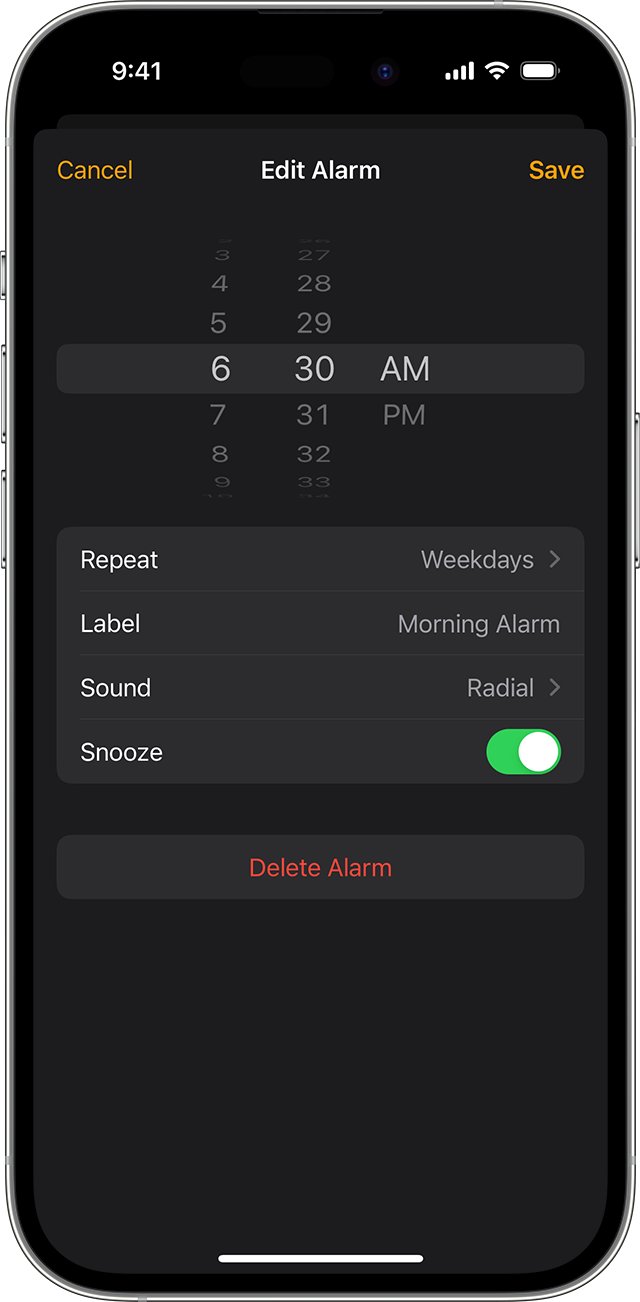
- Swipe left over the alarm and tap Delete.
- Or tap Edit in the upper-left corner, tap the red delete button next to the alarm, then tap Delete.
- Or tap Edit, tap the alarm itself, then tap Delete Alarm at the bottom of the edit screen.
A deleted alarm cannot be restored. To use the same time again, tap the add button in Alarms and set it up from scratch.
Why can’t you find the alarm in the Clock app?
An alarm that rings but does not appear in your regular alarm list usually belongs to a different system.
The alarm is not in the regular list under Alarms
It is the wake-up alarm from a Sleep Schedule in the Health app, which Clock lists apart from regular alarms.
- Open Clock and tap Alarms.
- Tap Change next to the sleep and wake-up entry to edit or turn off the next wake-up alarm.
- Use the Sleep Schedule sections below to turn the recurring alarm off.
The alarm rings on your Apple Watch only
It was created in the Alarms app on the watch, and watch alarms do not alert on your iPhone.
- Open the Alarms app on your Apple Watch.
- Tap the alarm's switch to turn it off, or swipe left on it and tap the delete button.
How do you skip only the next Sleep Schedule wake-up alarm?
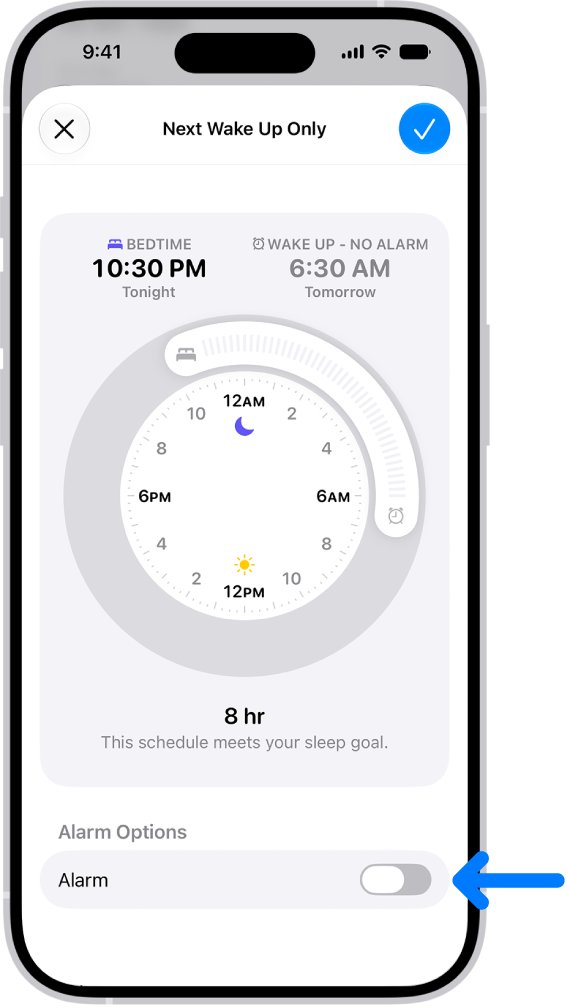
This is the right choice for a day off or an early start. The change covers one wake-up only, and your normal alarm returns after your next wake-up time.
- Open the Clock app and tap Alarms.
- Tap Change next to the sleep and wake-up entry.
- Scroll down to Alarm Options and turn off Alarm.
- Tap Done, then tap Change Next Alarm Only.
- Do not tap Change This Schedule, because that edits the recurring wake-up alarm for every day in the schedule.
You can do the same in the Health app: tap Browse, tap Sleep, tap Sleep again, scroll to Your Schedule, tap Edit below Next, turn off Alarm, then tap Done.
How do you disable a recurring Sleep Schedule alarm but keep the schedule?
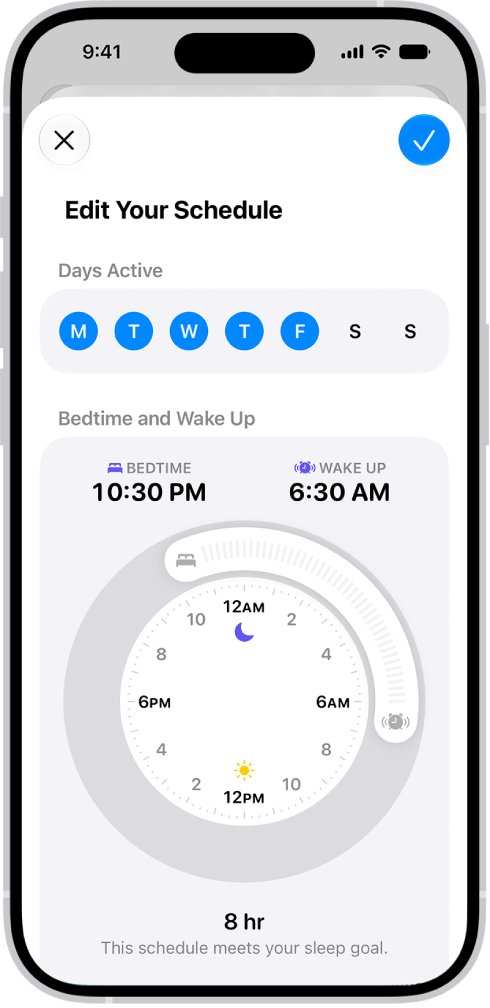
Each sleep schedule has its own alarm setting. Turning it off stops the alarm on every day that schedule covers, while bedtime, wake-up time and Sleep Focus stay in place.
- Open the Health app on your iPhone.
- Tap Browse, tap Sleep, then tap Sleep again.
- Scroll down to Your Schedule and tap Full Schedule & Options.
- Tap Edit on the schedule you want to change, such as a weekend schedule.
- Turn off Alarm.
- Tap Done to save the schedule.
The rest of that sleep schedule remains in effect, and any other schedule keeps its own alarm. To remove a schedule and its alarm entirely, tap Edit on it and tap Delete Schedule at the bottom.
How do you turn off every Sleep Schedule alarm?
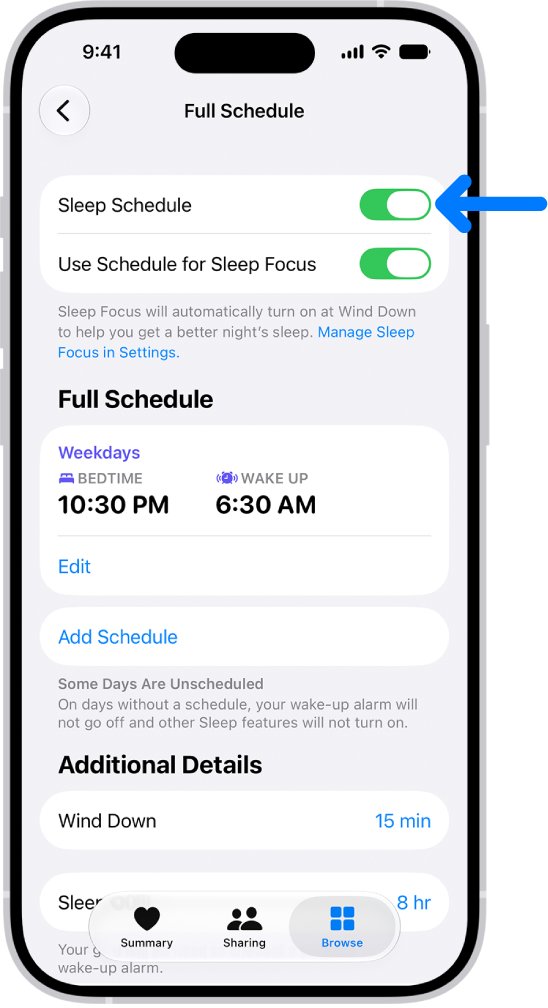
Turning off Sleep Schedule switches off all your sleep schedules at once, and every scheduled wake-up alarm goes with them. Regular Clock alarms are not affected.
- Open the Health app.
- Tap Browse, tap Sleep, then tap Sleep again.
- Scroll down to Your Schedule and tap Full Schedule & Options.
- Turn off Sleep Schedule at the top of the screen.
A shortcut exists in Clock: tap Alarms, tap Change, tap Edit Sleep Schedule in Health, then turn off Sleep Schedule. Turn the same switch back on later to restore every schedule.
What is the difference between changing the next alarm and changing the full Sleep Schedule?
The two buttons that appear after you edit a wake-up alarm decide how far your change reaches.
| Option | What it changes | When it ends | Use it for |
|---|---|---|---|
| Change Next Alarm Only | Your next wake-up time or alarm only | After your next wake-up time, the normal schedule resumes | A single late start, holiday or early flight |
| Change This Schedule | The recurring wake-up alarm for every day in that schedule | Stays until you edit the schedule again | A permanent new wake-up time |
| Edit in Full Schedule & Options | Days, bedtime, wake-up time and alarm settings for one schedule | Stays until you edit it again | Separate weekday and weekend alarms |
| Sleep Schedule switch off | All sleep schedules and all their alarms | Until you turn Sleep Schedule back on | Stopping wake-up alarms completely |
Does Silent mode or Do Not Disturb turn off an iPhone alarm?
No. Apple designs Clock alarms to sound through the built-in speaker even when Silent mode, Do Not Disturb or another Focus is on. To stop an alarm, turn it off in Clock or Health.
| Setting | Does the alarm still sound? | What actually silences it |
|---|---|---|
| Ring/Silent switch set to silent | Yes | Turn off the alarm's switch in Clock |
| Action button set to Silent mode | Yes | Turn off the alarm's switch in Clock |
| Do Not Disturb or another Focus | Yes | Turn off the alarm in Clock or Health |
| Sleep Focus turned off | Yes, the Sleep Schedule alarm still rings | Turn off Alarm for that schedule in Health |
| Alarm sound set to None | It vibrates only, unless StandBy is active | Turn off the alarm's switch |
Turning off Use Schedule for Sleep Focus in Health only stops Sleep Focus from switching on automatically. Your sleep schedules, and their alarms, stay in effect. When only your watch stays in Sleep Focus, turn off Apple Watch sleep mode from its Control Center.
Will an iPhone alarm sound when headphones are connected?
Yes. With headphones connected, an iPhone alarm plays at a set volume through both the built-in speaker and the headphones.
| Connection | Where the alarm plays | Volume |
|---|---|---|
| Wired headphones | iPhone speaker and the headphones | A set volume |
| Wireless headphones, such as AirPods | iPhone speaker and the headphones | A set volume |
| No headphones | iPhone speaker | Your Alarms and Timers or Ringtone and Alerts level |
Unplugging or disconnecting headphones does not silence an alarm. The speaker plays it either way, so a shared bedroom still hears it.
How do you change an iPhone alarm’s volume or sound?
Alarm volume lives in Settings, while each alarm's sound lives on the alarm itself. Sleep Schedule alarms carry their own sound and volume slider.
- Open Settings and tap Sounds & Haptics.
- Below Alarms and Timers, turn off Match Ringtone Volume and drag the slider, or turn it on to follow your ringtone level.
- Turn on Change with Buttons if you want the volume buttons to adjust the alarm volume.
- To change a regular alarm's sound, open Clock, tap Alarms, tap Edit, tap the alarm, then tap Sound and pick a vibration, song or ringtone.
- To change a wake-up alarm, tap Change in Clock > Alarms, scroll to Alarm Options, then set Sounds & Haptics and the alarm volume slider.
- Tap Save or Done to keep the change.
A Sleep Schedule alarm cannot use a song. Only Clock alarms can play one.
How to check an iPhone alarm is really off
- Open Clock and tap Alarms; every alarm you turned off shows its switch in the off position.
- Check that no second alarm with the same time is still on, including one with a different label.
- Find the sleep and wake-up entry in Alarms; tap Change and confirm Alarm is off under Alarm Options if you skipped it.
- In Health, tap Browse > Sleep > Sleep > Full Schedule & Options and confirm Alarm is off for each schedule you changed.
- On an Apple Watch, open Alarms and confirm any watch-only alarm is off too.
What should you check if the alarm keeps sounding?
An alarm that keeps ringing after you dealt with it is nearly always a second alarm, a snooze, or a Sleep Schedule alarm.
The alarm rings again a few minutes after you silence it
Snooze was tapped instead of Stop, so the alarm returns after its Snooze Duration.
- Tap Stop the next time it rings.
- To remove the option, open Clock > Alarms > Edit, tap the alarm, and turn off Snooze.
- Tap Save.
Your iPhone alarm keeps sounding after you deleted it
A duplicate Clock alarm or a Sleep Schedule wake-up alarm is set for the same time.
- Open Clock > Alarms and turn off or delete every alarm at that time.
- Tap Change on the wake-up entry and turn off Alarm for the next wake-up.
- To stop it on every day, turn off Alarm for that schedule in Health > Full Schedule & Options.
The alarm still goes off with Silent mode or Do Not Disturb on
Alarms are designed to ignore Silent mode and every Focus.
- Open Clock > Alarms.
- Turn off the alarm's switch, or follow the Sleep Schedule steps above for a wake-up alarm.
Your wrist buzzes for an alarm you turned off on iPhone
The alarm was set on the Apple Watch itself, so the iPhone switch does not control it.
- Open the Alarms app on your Apple Watch.
- Tap the alarm's switch to turn it off.
Why didn't my iPhone alarm go off?
The opposite problem has its own causes. Check these before you rely on the alarm again.
The alarm only vibrated or made no sound
The alarm's sound is set to None, or the volume is very low.
- Open Clock > Alarms > Edit, tap the alarm, tap Sound and choose a sound.
- Open Settings > Sounds & Haptics and raise the alarm volume slider.
- Drag the Ringtone and Alerts slider a few times; if you hear nothing at all, the speaker may need service.
The alarm stayed silent while the iPhone was in StandBy
StandBy disables haptics for alarms, so an alarm with no sound does nothing noticeable. In this case, iPhone haptics are the alarm’s vibrations, played by a small motor inside the phone.
- Open Clock > Alarms > Edit and tap the alarm.
- Tap Sound and pick a sound other than None.
The wake-up alarm did not ring on a particular day
The day is not part of any sleep schedule, or the schedule's alarm is off.
- Open Health > Browse > Sleep > Sleep > Full Schedule & Options.
- Tap Edit on the schedule and check that the day shows a solid-color circle.
- Confirm Alarm is on, then tap Done.
Alarms fire at the wrong time
The iPhone time was changed manually in Settings, which Apple says can affect alarms.
- Set the iPhone date and time back to the correct values.
- Open Clock > Alarms and recheck each alarm time.
Quick reference: which iPhone alarm control should you use?
| Your situation | Use this | Where |
|---|---|---|
| The alarm is ringing now | Stop (or Snooze for a short pause) | Alarm alert on screen |
| Skip a Clock alarm but keep it | Turn off its switch | Clock > Alarms |
| Never need the Clock alarm again | Swipe left > Delete | Clock > Alarms |
| Sleep in tomorrow only | Alarm off > Change Next Alarm Only | Clock > Alarms > Change |
| No wake-up alarm on one schedule's days | Alarm off for that schedule | Health > Sleep > Full Schedule & Options |
| No wake-up alarms at all | Sleep Schedule off | Health > Sleep > Full Schedule & Options |
| Alarm too loud or wrong sound | Alarm volume slider and Sound | Settings > Sounds & Haptics; Clock > Edit |
| Alarm set on the watch | Turn off its switch | Alarms app on Apple Watch |
Frequently asked questions about iPhone alarms
How do I turn off an iPhone alarm without deleting it?
Open the Clock app, tap Alarms, and tap the switch next to the alarm time. The alarm keeps its time, label, sound and repeat days, so you can turn it back on later with the same switch.
Why does my iPhone alarm keep sounding after I deleted it?
Another alarm is still set for that time. It is usually a duplicate Clock alarm or the wake-up alarm from a Sleep Schedule in the Health app. Turn off the wake-up alarm with Change in Clock, or turn off Alarm for that schedule in Health.
How do I skip only tomorrow's iPhone wake-up alarm?
In Clock, tap Alarms, tap Change next to the wake-up entry, turn off Alarm under Alarm Options, tap Done, and choose Change Next Alarm Only. Your normal wake-up alarm returns after that wake-up time.
Does turning off Sleep Focus stop a Sleep Schedule alarm?
No. Sleep Focus only filters notifications and calls around bedtime. Your sleep schedule and its wake-up alarm stay in effect, so turn off Alarm for the schedule in the Health app instead.
How do I stop an alarm on iPhone?
Tap Stop on the alarm alert to dismiss it, or tap Snooze to pause it for the alarm's Snooze Duration. Stopping a repeating alarm does not cancel tomorrow's; turn off its switch in Clock for that.
How do I turn off an alarm on Apple Watch?
Open the Alarms app on your Apple Watch and tap the alarm's switch to turn it off. To delete it, swipe left on the alarm and tap the delete button. To skip a sleep schedule wake-up alarm, tap it and choose Skip for Tonight.
Can I turn off alarms on my Apple Watch but keep them on iPhone?
Yes. iPhone alarms reach the watch only when Push Alerts from iPhone is on. Open the Apple Watch app on your iPhone, tap My Watch, tap Clock, and turn off Push Alerts from iPhone.
Why didn't my iPhone alarm go off?
Check that the alarm's switch is on, that its sound is not set to None, and that the alarm volume is up in Settings > Sounds & Haptics. For wake-up alarms, check that the day belongs to a sleep schedule with Alarm turned on.
Where is the alarm setting on iPhone?
Regular alarms are in the Clock app under Alarms. Wake-up alarms belong to sleep schedules in the Health app under Browse > Sleep. Alarm volume is in Settings > Sounds & Haptics, below Alarms and Timers.
The bottom line on turning off iPhone alarms
Use the switch in Clock > Alarms for regular alarms, and Change Next Alarm Only for a one-off skip of a wake-up alarm. Both keep your settings intact, so nothing has to be rebuilt later. Delete an alarm or turn off Sleep Schedule only when you are sure you will not need it again, and remember that Silent mode and Do Not Disturb never silence an alarm.